
Our development team is always shipping new features, improvements and fixes. Here's what's been released, most recent first. Where a change has a written guide, a View documentation link takes you straight to it.
-
2026
-
22 September 2026Import a whole inventory catalogue in one CSV file Inventory
Very large CSV imports now run properly. A file covering a whole catalogue — tens of thousands of rows, which a Branch Stock Settings export reaches quickly because it produces one row per item per branch — could previously land on an empty report page having imported nothing at all, with nothing on screen to say why.
The importer no longer sends the spreadsheet back and forth through your browser. It reads the file straight from the server, so the size of a file no longer limits what can be committed.
What you will notice:
- The column matching screen shows the first 500 rows as a preview, with the real number of rows in the file beside it. Your column mapping still applies to every row, and the whole file is still imported.
- Only the rows on screen can be unticked individually, so the select-all box is hidden on a large file rather than appearing to exclude rows it has no way of reaching. To import part of a file, filter it in your spreadsheet and upload just those rows.
- A long import reports its progress as it goes. Leave the page open until the report appears.
- Imports are considerably faster — a 3,000 row branch stock file now finishes in a couple of seconds.
- If something is wrong — the file was replaced after you mapped its columns, or the request did not reach the server intact — the importer says so plainly and writes nothing, instead of returning a blank page.
-
22 September 2026Refreshed Inventory Tools, CSV Exporter and CSV Importer screens Inventory
The Inventory Tools menu, the CSV Data Exporter and both CSV Importer screens have been rebuilt to match the newer Evolution dashboards.
Inventory Tools is now a searchable set of cards, each with a short description of what the tool actually does, filterable by group. Inventory Bin Locations can be reached from this page again.
The CSV Exporter walks through three clear steps, shows how many items were found and how many are selected, and lets you select or clear them all at once. The Export button stays disabled until something is selected.
The CSV Importer now asks up front whether you are uploading a new file, re-running a previous upload, or restoring a backup, and shows only what that choice needs. On the column matching screen, mapped columns are highlighted, ignored ones are greyed out, and a progress bar shows how much of your file will be used. The restore option now states plainly that it overwrites live data and, unless you tick Retain new items, deletes anything created after the snapshot was taken.
Several long-standing faults were fixed at the same time: the importer would not open at all for a company that had never run an import; searching the exporter for several item codes separated by commas returned an error instead of results; choosing a previous upload and then switching to a file upload silently re-ran the old upload; and the stock figures shown on the exporter did not always agree with the file it produced.
-
22 September 2026Category filters on the inventory CSV exporters now include sub-categories Inventory
The category filter on the Inventory CSV Exporter and the Inventory Attribute Exporter now lists your categories as a tree, with sub-categories indented beneath their parent.
Choosing a parent category now includes every category nested underneath it, at any depth. Previously a parent selection returned only the items filed directly against the parent itself, which for most category structures is a small fraction of what you would expect — in one of our test structures a parent returned 67 items where 261 sit beneath it.
Choose All categories to skip category filtering altogether.
-
22 September 2026Export and import min / max bins and bin locations per branch Inventory
Min and max bin levels, and bin locations, are held per branch — each branch can carry its own re-order levels for the same item. The inventory CSV tools now work with them.
The Inventory CSV Exporter has a new Branch Stock Settings export type, producing one row per item per branch with that branch’s min bin, max bin and bin location. Export every branch at once, or filter to one. A branch with no stock record for an item still comes out as a blank row — filling one in and importing it is how you set that branch up for the first time.
The CSV Importer has a matching Branch stock settings option. Each row identifies the item and the branch, and you can update any of min bin, max bin or bin location. A blank cell leaves the existing value alone, and bin locations are matched on the bin code within that branch.
Please note two changes to what can be imported. Stock On Hand, Allocated and On Order are still exported for reference, but can no longer be selected on the import screen. These are calculated from your stock movements and open orders, so a figure typed into a spreadsheet was silently discarded by the next stock movement and left no audit trail behind. Use a stocktake to change stock levels. The Item Master export has also dropped the old item-level minimum and maximum order columns, which were superseded when bins moved to branch level.
-
17 September 2026Pull a missed Xero payment onto an invoice, on demand Accounting
Evolution reads payments back from Xero overnight, so an invoice paid in Xero normally shows as paid here the next morning without anyone doing anything. Every so often one slips through — the invoice is older than the window the nightly job looks at, or Evolution already considered it settled, or the night it was paid the sync could not reach your Xero organisation. Until now there was no way to go and get it; you either waited, or keyed the payment in by hand.
There is now a Sync payments from Xero button on the Payments panel of Invoice Entry.

Press it and Evolution asks Xero for every payment it holds against that one invoice, with no date limit at all, and brings across anything it does not already have. Payments arrive exactly as the overnight sync records them — posted to the bank account matching the Xero account the money went into, and committed to the ledger — then the invoice reloads so the payment list, the balance and the paid status are all correct in front of you.
The check runs both ways. If a payment came across earlier and has since been deleted in Xero, pressing the button reverses it here too and the invoice goes back to owing the money. After you press it, the invoice reads the same in both systems.
It is safe to press twice. Each payment is matched on its Xero reference, so one that is already here is recognised and skipped — you cannot double up a payment by syncing again. Nothing is ever written to Xero; the button only reads.
The button appears on committed invoices that have already been sent to Xero, for anyone with Accounts Receivable access. If a payment arrives from a Xero bank account that has no match in Evolution it is still brought across, posted to your default bank account, and the invoice is flagged for review rather than quietly filed in the wrong place.
Full details are in the new Syncing Payments from Xero guide.
-
10 September 2026Attachment categories no longer clipped inside pop-ups General
When the Attachments area opened inside a pop-up window — on a maintenance record, for example — the left-hand edge of the panel sat underneath the edge of the pop-up, cutting off the category headings and the first column of folder icons.
The panel now starts at the edge of the pop-up, so every category and every icon is fully visible and clickable.
-
10 September 2026Delete a maintenance record, and see what has been deleted Assets
The maintenance history on an asset has been given the two things it was missing: a reliable way to save a record, and a way to get rid of one that should not be there.
First the fix. On some assets the Add Maintenance Record pop-up opened with no Save button at all, so a service you had just typed up could not be recorded. The pop-up now always carries its Save and Cancel buttons, whether you are adding a record or opening an existing one.
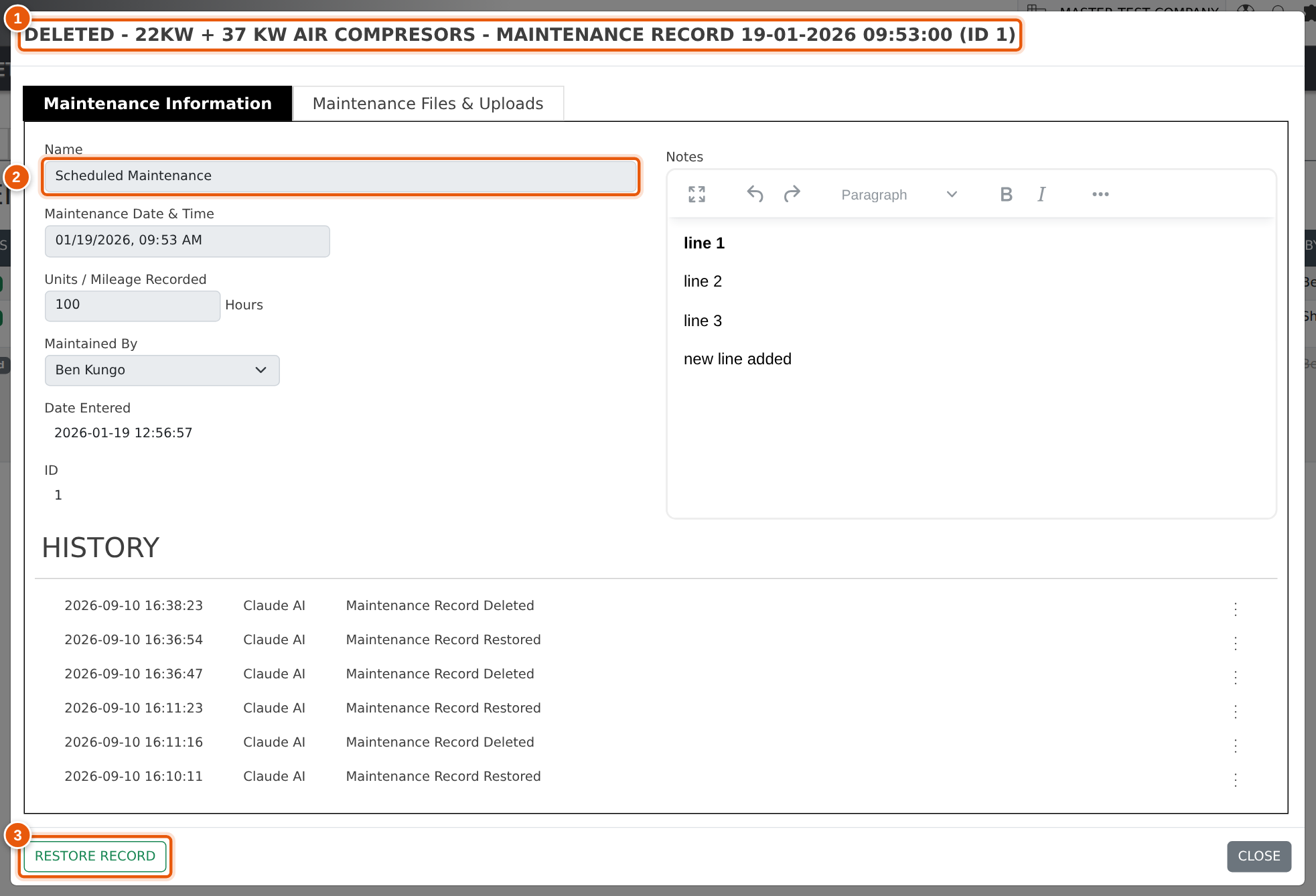
Now the new part. Every maintenance record carries a Delete button, and the register has gained a STATUS column so you can see the state of the whole history at a glance. Deleting asks you to confirm, then marks the record deleted rather than throwing it away: the row stays on the list, struck through and flagged Deleted, and the record itself opens read-only with DELETED across the top of the pop-up.
Nothing is lost. Evolution records who deleted the record and when, and shows it on the record itself, so a removal always has an owner. Any files attached to the record stay attached. If it turns out the record was wanted after all, open it and press Restore — the strike-through comes off and the record goes back to being an ordinary, editable entry.
Deleted records are left out of everything that counts. They no longer feed the asset’s last-service and next-service dates, they are excluded from the Asset Maintenance Schedule Report, and they cannot be edited or saved over while they are deleted. They remain on the register purely so the history stays honest about what was entered and what was withdrawn.
Anyone who can add a maintenance record can delete one, which is why every deletion is stamped with a name and a time.
-
10 September 2026Customer segments that keep themselves up to date Sales
Segments can now maintain themselves. Instead of picking the accounts by hand, you describe who belongs in the segment — “invoiced more than $10,000 in the last 12 months and has an email address” — and Evolution works out the membership and rebuilds it overnight.
Open a segment and press Build a rule on the Details tab. A rule is a list of conditions joined by ALL or ANY, built from 34 fields covering where the account is, what it has been invoiced, its credit position, its quoting and job activity, its Shopify orders, and whether it already sits in another segment. Figures such as Invoiced ex-GST, Quote count and Job count are measured over a window you choose, so “spent over $10,000 in the last 12 months” is a single condition rather than a report you have to run first.
Nothing is applied until you have seen what it would do. Preview shows how many accounts match, how many would be added, how many removed and how many stay put, and writes the rule back to you as a plain English sentence worth reading before you commit to it. Save and apply stays greyed out until you have previewed, and greys out again the moment you change a condition — so the change you approved is always the change that gets made.
From then on the segment rebuilds every night, or only when you press Refresh now, whichever you choose. The new Refresh history tab is the audit trail: every rebuild, what triggered it, and how many accounts it added and removed. If a rebuild ever fails it records the reason and leaves the membership exactly as it was, so a broken rule can never quietly empty a segment.
Changed your mind? Stop the rule turns the segment back into an ordinary hand-picked list, keeping everybody who is in it at that moment.
The segment screen has been reorganised into tabs — Details, Rule, Membership and Refresh history — and the register now carries a Type column, so you can see at a glance which of your segments look after themselves.
-
9 September 2026Map each branch to its Xero organisation Accounting
If you run more than one Xero organisation, every invoice, bill and credit note has to be told which set of books it belongs in — and until now somebody had to choose that on each document.
You can now set it once against the branch. Open Settings → Branches, pick a branch, and set the new Xero Organisation field. From then on, anything raised against that branch opens with the right organisation already selected in the Xero panel.
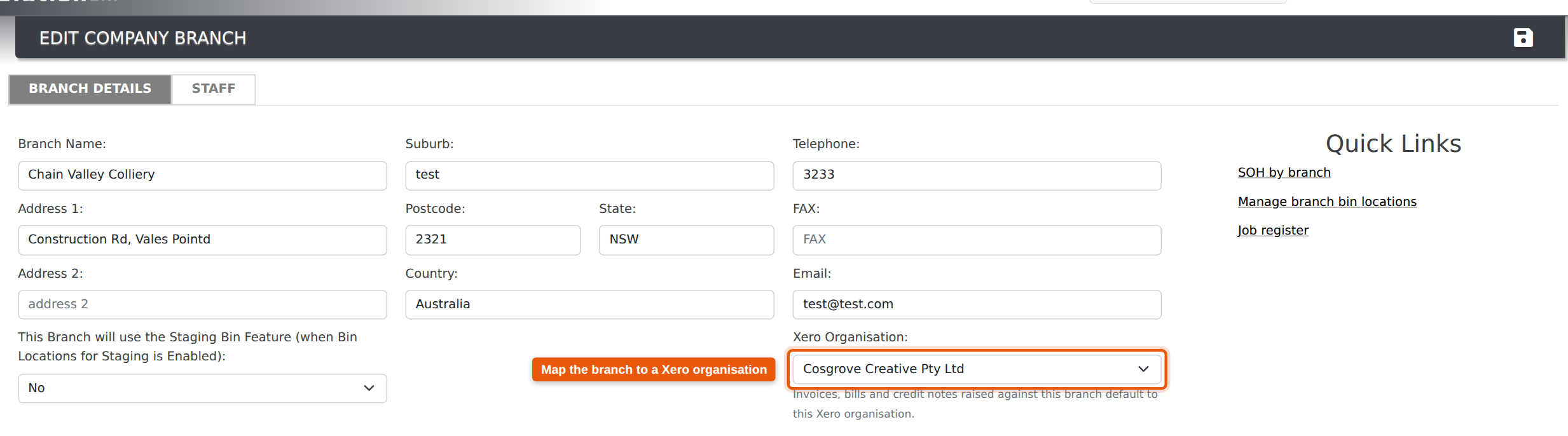
Change the branch on an invoice or a bill and the organisation follows it, so the two never drift apart. A document that has already been sent to Xero is left exactly where it is — it lives in one specific Xero company, and Evolution will not re-point it.
Mapping is optional. Leave a branch on “Not mapped — choose on each document” and it behaves precisely as it does today: the picker opens on Please Select and waits for you. Nothing is assumed, no existing documents are changed, and if a branch genuinely raises work for both companies you can simply leave it unmapped.
The field only appears where it is useful — when Xero is connected and you have two or more organisations in the list. If you run a single Xero organisation, nothing changes for you: your documents already default to it.
Full details, including how Evolution decides which organisation to preselect, are in the new Xero Integration guide.
-
9 September 2026Jobs created from a quotation open on the quotation's branch Projects
Creating a job from a quotation (Functions → Create Job on the quotation) carries the customer, site, sales rep and delivery address across to the new job. The Branch field did not follow: it always opened on the branch you were logged in against, whichever branch the quotation itself belonged to.
For anyone who works across branches that meant the job could be saved to the wrong branch without anything looking out of place — and the job’s branch is what its stock, purchasing and reporting follow from there.
The Branch field now defaults to the branch on the quotation. It is still a normal dropdown, so it can be changed before the job is saved if the work genuinely belongs somewhere else. Quotations saved without a branch, and jobs started from a customer or straight off the menu, still default to your own branch as before. Existing jobs are unchanged.
-
7 September 2026Four new Customer Segment reports Sales
Four new reports sit under Reports → Reports Dashboard → Sales and read the customer segments you have set up. Each of them can also be run for all accounts or for accounts in no segment, so they are worth a look even before you have built your first segment.
Customer Segment Directory. One row per account — code, company, contact, email, phone, state, sales rep, the segments it belongs to, its last invoice date, what it has been invoiced over the last 12 months, its balance and whether it has agreed to mailings. Filter by segment, rep, state, account status, whether there is an email address, whether consent has been given, and whether the account has bought in the last 3, 6, 12 or 24 months. Download CSV gives you the list ready for a mail merge or a price letter.
Revenue by Segment. Each segment month by month across a financial year, with a year total and its share of the business. Switch the measure between revenue, number of invoices and number of accounts that bought. There is a row for accounts in no segment and an All accounts row underneath, worked out separately — because an account can belong to several segments, the segment rows deliberately add up to more than the company total.
Segment Customer Value. The customers inside a segment ranked by value using the standard RFM approach — how recently they bought, how often, and how much they spent, each scored 1 to 5. Every account lands in a behaviour group (Champions, Loyal, At risk, Can't lose, Lapsed and so on) and an ABC band showing which handful of accounts make up the first 80% of your revenue.
Segment Mailability & Consent. Whether you can actually email the list you are about to mail. Every account is checked for a usable email address, a valid one, mailing consent and an active account, and any address shared with another account is flagged so one person does not get the same mailout twice. Each row spells out why an account cannot be mailed, which makes it a work list for tidying the data up rather than just a count.
All four report on committed, non-voided invoices, and all money figures are ex-GST.
-
7 September 2026Customer Segments Sales
Customer Segments let you group your accounts into named lists — Supply Only, Supply & Install, Trade, whatever suits the way you sell — and then filter, report and mail on them.
Set them up under Sales → Customer Segments. A segment has a name, a short code, a colour and a description. Opening one gives you its members on the left and a search for accounts to add on the right: tick as many as you like on either side and press Add ticked or Remove ticked. Membership saves as you go — there is no second Save for it.
You can also work the other way round. Open any account under Manage Accounts and the Segments block shows every segment it belongs to as a coloured badge, with a dropdown to add another and an x on each badge to take it out. Every change is written to the account's history, so you can see who moved an account and when.
The Accounts register gains a Segment filter, including a No Segment option that lists the accounts nobody has classified yet — the quickest way to work through the tail of your customer base.
An account can sit in as many segments as you like, and retiring a segment hides it from the pickers without touching its membership or its history, so nothing is lost if you change your mind.
-
7 September 2026Renaming a unit of measure now updates everything that uses it Inventory
A unit of measure is recorded against an inventory item as its symbol, not as a link back to Settings → Units of Measure. Renaming a unit on that screen therefore used to leave every item behind: change EA to EACH and the items already set to EA kept the old symbol, matched nothing on the list, and quietly dropped out of the places that read the unit — the labour lines offered when billable time is entered, the Items To Follow list, reorder and BOM reporting. Worse, the unit box on those items then showed nothing, and the next save wrote the blank back over the item’s unit.
Renaming now carries the change through. When you change a unit’s name or symbol you are shown exactly what it will move before anything is saved — for example "7,190 inventory items, 4 manufacturing processes" — and you can go ahead or cancel. Choosing to go ahead updates inventory items, manufacturing processes, expense items and any alternate units set up on an item, all together, so nothing is left pointing at a unit that no longer exists.
Documents you have already issued are not rewritten. An invoice or credit note keeps the unit it was printed with, so reprinting an older invoice still reads the way the customer received it. Only the item file and the other live records follow the new name.
Three related changes on the same screen:
- Two units can no longer share a symbol or a name. Saving a duplicate is refused, and you are told which unit already has it — two units sharing a symbol cannot be told apart on an item.
- A unit set to Disabled is no longer offered when you choose the unit on an item, so a retired unit cannot be picked again by mistake. Items already using it keep it, and still show it when opened.
- Units are now matched regardless of upper or lower case. Items stored as ea against a unit whose symbol is EA were previously treated as having no unit at all; they are now recognised correctly.
Nothing needs setting up, and existing units are unaffected until you rename one.
-
7 September 2026Your own time-based units are now recognised as labour Inventory
Settings → Units of Measure lets you give each unit a Type, one of which is Time. Until now only a fixed list of unit names was actually treated as labour behind the scenes, so a unit you had added yourself — DAY, SHIFT, WEEK — could be typed Time on that screen and still be handled as though it were stock.
Anything you type as Time is now treated as labour throughout. Items using it are offered when billable time is entered, and are kept off the Items To Follow list on a customer’s invoice, where hours would otherwise print as outstanding goods.
Two related tidy-ups on the same screen:
- A unit Symbol may now be up to 16 characters. It was previously cut off after five, so a longer symbol was silently shortened when it was saved.
- Saving an item or a manufacturing process without choosing a unit no longer stores the word Select as the unit. Existing items that had picked this up have had it cleared, and now simply show no unit until one is chosen.
Nothing needs setting up. If you already have your own time-based units, check they are typed Time on Settings → Units of Measure and they will be picked up from there.
-
7 September 2026All of a job’s labour lines are offered when entering billable time Timesheets
When you record an Itemized Time Entry against a job, the CODE dropdown offers the job’s labour lines so the hours can be booked to the right billable line.
That list had stopped short. Only the first labour line of each quote on the job was being offered — every line after it was left out, even though it was set up correctly and measured in hours. The way around it was to tick Show all labour items every single time, which drops the filter and lists everything on the job, then hunt for the right line in the full list.
The dropdown now lists every labour line on the job, grouped under the quote each one came from. A job built from several quotes shows all of their labour lines together, straight away.
Show all labour items is still there and still does the same thing. It is now what it was meant to be — an occasional escape hatch for booking time to a line that was never set up as labour — rather than something you have to reach for on every entry.
Nothing needs to be changed on your jobs or your items. Time already entered is unaffected.
-
7 September 2026Stock on hand column on the invoice line list Sales
Invoice Entry now carries an SOH column in the list of lines you have already added, so the stock position stays in front of you after the item has been chosen — not only while you are searching for it.
The figure is the stock on hand for the invoice’s branch as at the time the screen was drawn, and a quantity of zero or less is shown in red so short lines stand out as you work down the invoice.
This column appears on Invoice Entry for everyone; it is not controlled by the detailed item picker setting.
-
7 September 2026See stock on hand while you search for an item Inventory
When you add a line to a quotation, an invoice, a purchase order or a job, the item search box can now show you a proper grid of results instead of a single line of text — with the stock position of every item you are looking at.
The detailed picker lists four columns:
- Code — the item code.
- Description — with your search text highlighted so you can see why a row matched.
- SOH — stock on hand for the branch you are working in.
- Avail — stock on hand less the quantity already allocated to other jobs, dispatches and orders. This is the figure that tells you whether you can actually supply the line.
Both figures are branch aware: they are reported against the branch the document itself belongs to, so two people in different branches see their own stock, and everybody looking at the same quotation sees the same numbers. Items with no stock record for that branch fall back to the company-wide figure rather than showing a misleading zero, and service items are left blank because they are not stocked. A negative Avail is shown rather than hidden, so you can decide there and then whether to order, transfer or substitute.
Turn it on under Settings → Sales with the new option “Use verbose item select on Quotes, Invoices, purchases and jobs when adding new items”. It is supplied set to No, so nothing changes until you switch it on. Purchase orders are not affected by the setting — they have always used the detailed picker and simply gain the two new stock columns.
-
3 September 2026Purchase History report Purchasing
A new Purchase History report answers a question Evolution held the data for but never showed in one place: what did we buy, from whom, when, and at what price?
Find it under Reports → Reports Dashboard → Purchasing. Filter by item and by supplier — together or separately — and narrow further by inventory category, branch and period (up to 36 months at a time).
Three bases. Switch what the figures are read from:
- Ordered – every purchase-order line, dated by the order and counted at the quantity ordered. The fullest history.
- Received – only what actually arrived, dated by the day it was booked in.
- Billed – the item lines on committed supplier bills, so you see what you were really charged when an invoice differs from the order.
Four views. Detail lists every line with its document, supplier part code, quantity, unit cost, net and GST, linking back to the purchase order or bill, the item, the supplier and the job. The three summary views roll the same lines up per item, per supplier or per item × supplier, each showing the price you paid first and last, the movement between them (green where it fell, red where it rose), the lowest and highest price, and the weighted average actually paid.
That makes it straightforward to compare what two suppliers charge you for the same item, to spot where a supplier's prices have crept up ahead of a review, and to find your biggest spend lines before you negotiate. Totals across the top always cover everything matching your filters, and Download CSV exports whatever view you are looking at.
-
3 September 2026Purchase Order Confirmation temporarily unavailable Purchasing
The Purchase Order Confirmation feature — which emails a supplier a link to confirm they have received a purchase order, and chases them with reminders until they do — has been switched off while we rebuild it.
We identified that the confirmation link could interfere with an active Evolution login. A staff member who opened a supplier confirmation link while signed in could have their session affected by it. Rather than leave that in place, we have turned the feature off until the replacement is ready.
What this means for you
- No confirmation emails or reminders are sent for purchase orders.
- The email confirmation option no longer appears on the Purchase Order screen, and the confirmation column is hidden on the Purchase Order register.
- Purchase orders are otherwise unaffected — raising, printing, emailing, receipting and reporting all continue to work normally.
- Confirmations already recorded against existing purchase orders are retained.
The replacement moves the supplier confirmation page onto its own secure address, independent of the Evolution login, and reduces the setup to a single on/off setting. We will publish a further note when it is available.
-
3 September 2026Quote notes are no longer cleared when you save a quote Sales
The Notes window on a quotation (the notes icon on the quote toolbar) was rebuilt on 2 September 2026 so that it loads only when you open it, rather than with every quote you view.
For a short period after that change, saving the quote itself cleared the notes held against it. Both Notes Shown on Quotation and Internal Notes were written back empty by the quote’s own Save button — and by the automatic background save, so notes could be lost without anyone pressing Save. This affected quotes saved between 2 and 3 September 2026. Quotes not saved during that window were not touched.
This is now fixed. Saving a quote no longer alters its notes at all. Notes are saved by the Save button inside the Notes window itself, which records every change against the quote’s history.
If a quote lost its notes in that window, the earlier text is generally still recorded in the quote’s change history and can be restored — contact support with the quote number.
-
2 September 2026Fixed Price is always available on contract pricing Sales
The Quote Modes setting (Settings → Sales) used to list eight options, most of them combinations naming Fixed Price. It now offers three: All, Cost Plus and Discount.
A quotation is only ever priced one of two ways — a markup on cost, or a discount off the list price — so those are the two the setting now controls. A fixed price is not a way of pricing a quote; it is a price agreed with one customer for one item, and it is set up in contract pricing, where it overrides whichever method the quote is using.
Fixed Price is therefore now offered as a contract type at all times, whatever Quote Modes is set to. Previously it could be hidden on the Item to Customer Pricing screen while remaining available when editing a contract — the same price, reachable from one screen but not the other.
Existing contract prices of every type are untouched, and no quotation changes price. If your Quote Modes setting named a combination, it now reads as the quote methods it allowed: Cost Plus + Fixed Price becomes Cost Plus, and so on.
-
2 September 2026Contract Type list no longer comes up empty when adding customer pricing Inventory
On an inventory item, Item to Customer Pricing → Add offers a Type list — Markup, Discount or Fixed Price — narrowed to the pricing methods your system actually uses.
Where Quote Modes (Settings → Sales) was set to one of the combined options — Cost Plus + Discount, Cost Plus + Fixed Price, Discount + Fixed Price or Cost Plus + Discount + Fixed Price — that list came up completely empty, and customer contract pricing could not be added against an item at all.
The list now always offers the methods available to you, and Fixed Price is always among them — see the related note on the Quote Modes setting.
-
2 September 2026New quotations now open in your default quote mode Sales
Where more than one pricing method is available to you — Settings → Sales → Quote Modes set to All — the companion Default Quote Mode setting was being ignored when a quotation was created. Every new quote opened with Cost Plus switched off, whatever the default said, and it had to be turned on by hand on each quote.
New quotations now honour Default Quote Mode. With it set to Cost Plus, the Cost Plus toggle is already on when the quote opens, and lines price on markup from the start.
The same correction applies to quotations raised from a Lead or an Opportunity. Those two were affected more widely: they also ignored the default when Quote Modes was set to any of the combined options, such as Cost Plus + Fixed Price.
Existing quotations are untouched — the pricing method already saved on a quote stays as it is.
-
1 September 2026Update the Shopify attribute mapping for several categories at once Shopify
The Attributes table in the Category Configurator could be edited, but the only thing that saved it was Publish to Shopify — which applies to categories that are not in Shopify yet. For a category already published, changing an attribute's Shopify name or its Yes/No sync setting there had no effect; you had to open the category and use its Shopify tab one at a time.
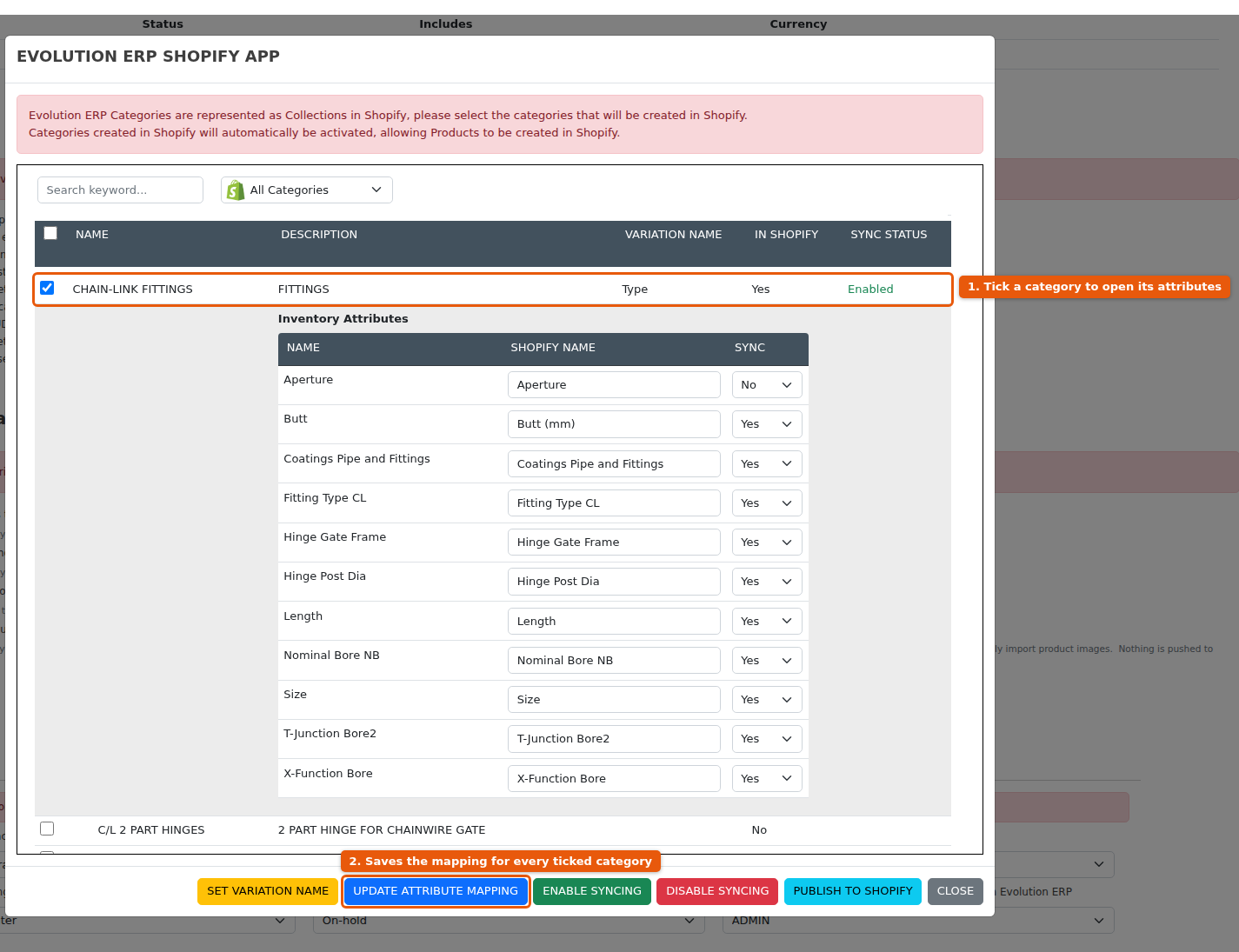
The configurator now has an Update Attribute Mapping button. Tick the categories you want, edit their attributes, and it saves the Shopify Name and Sync setting for all of them in one go — useful when the same attribute runs across a group of categories and you want it named or published consistently.
It applies to categories that are already published; for one that is not, the mapping is still saved by Publish to Shopify, and the button says so rather than doing nothing. Saving the mapping also creates any missing Shopify field definitions. It does not re-send values for products already in the store — that happens the next time each item is saved.
-
1 September 2026Attributes on a master product now reach the right Shopify variant Shopify
Where several Evolution items are published as variations of a single Shopify product, the first item becomes the master and is published as the product itself, with the rest attached to it as variants.
The master item's attribute values were being written to the shared product record. Shopify applies a value held there to every variant, so the master item's material, coating or dimensions were shown against all of its siblings.
Evolution now works out where each item's values belong before it sends them:
- an ordinary item with no variations is published as a product on its own, so its values go on the product;
- a variation item's values go on its own variant;
- a master item published as the first variant of a multi-variant product — the item whose SKU appears in the Variations list on its Shopify tab — has its values written to that variant, matched on SKU.
Nothing needs to be re-entered. The next time an affected product is saved, its values are written to the correct variant and the stale values on the shared product are cleared.
-
1 September 2026Update the attributes on a single variation Shopify
A variation is its own inventory item with its own attribute values, but nothing ever sent them to Shopify.
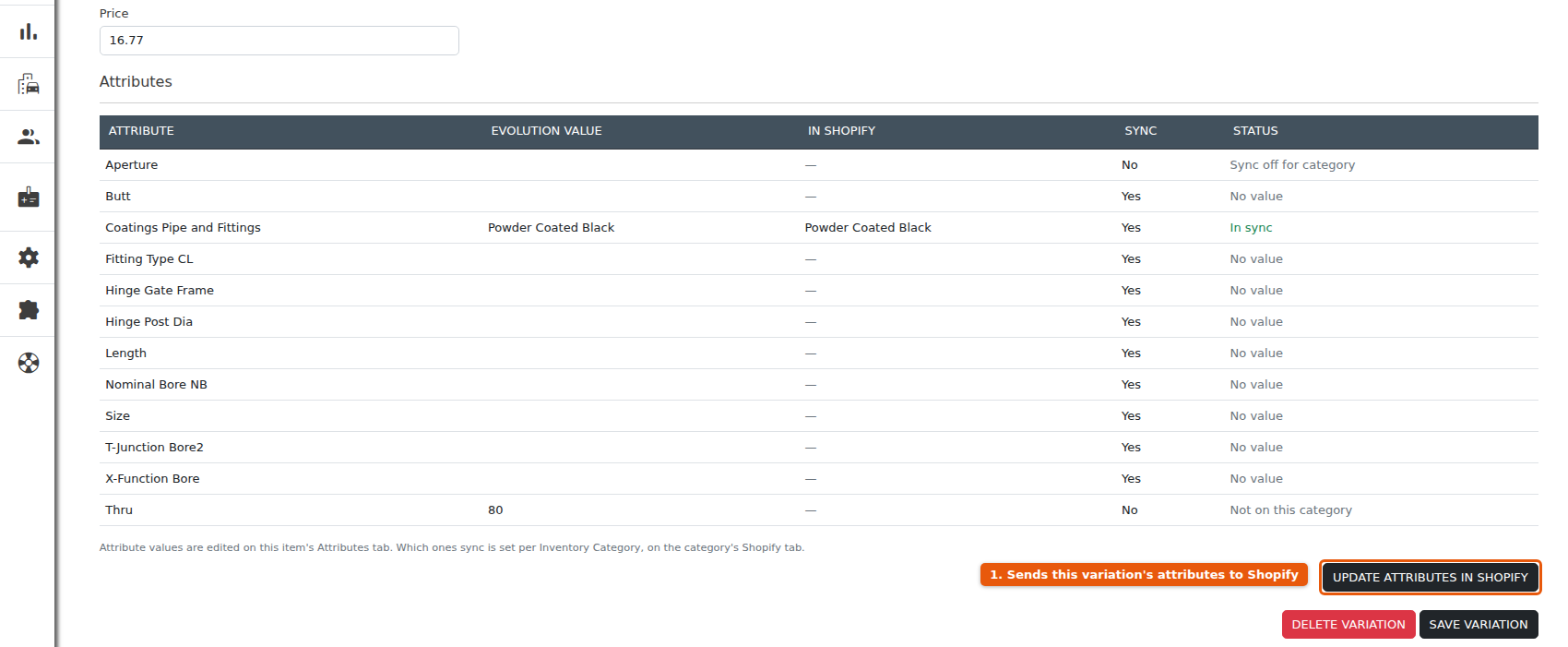
The Variation editor now shows the same Attributes table as a product does — the variation's own values, what Shopify holds against that variant, and whether the category publishes each one — together with an Update Attributes in Shopify button.
The button sends that one variation's attributes only. The parent product and every other variation are left untouched.
-
1 September 2026See what a product attribute holds in Shopify, and push it from the item Shopify
Which attributes are published to Shopify is decided on the inventory category, so from an item there was no way to tell what the store actually held — the only way to check was to open the product in Shopify.
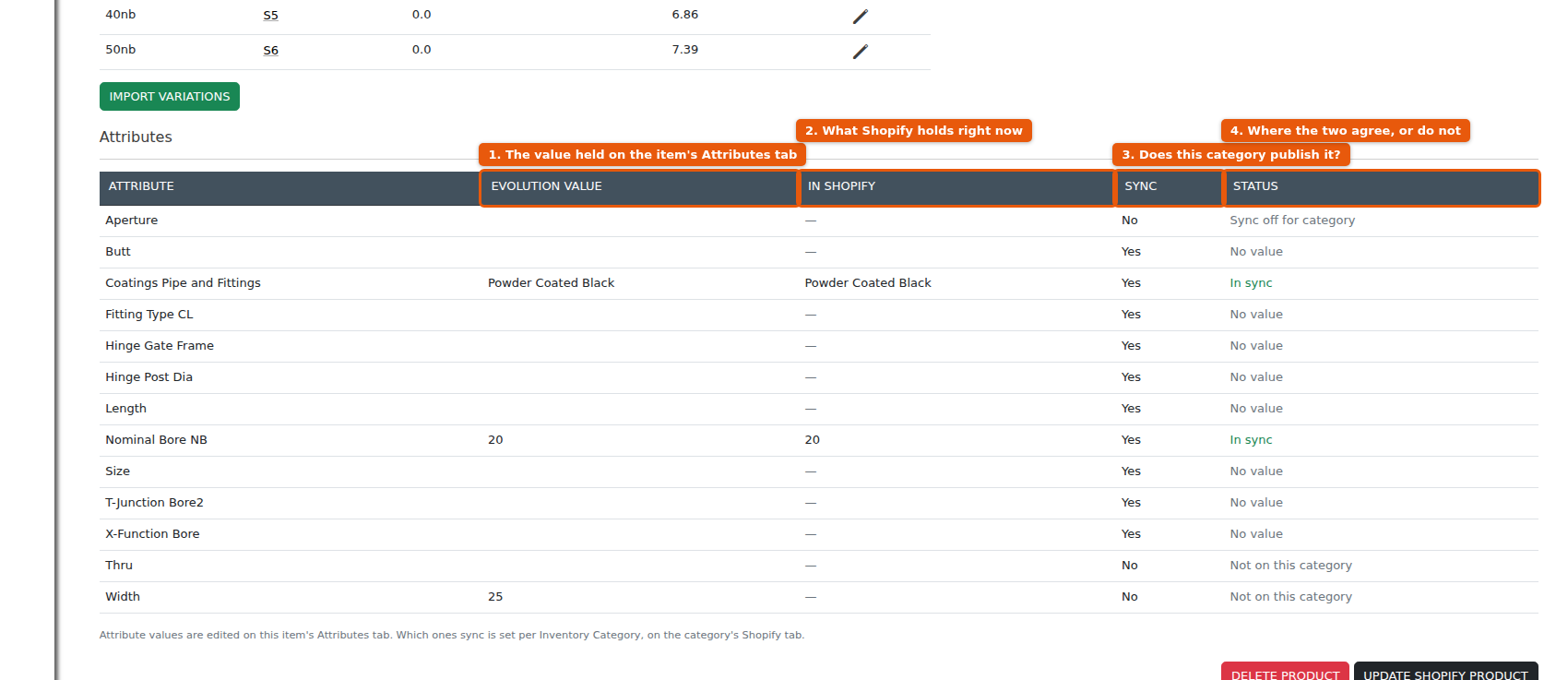
An item's Shopify tab now carries an Attributes table listing every attribute on the item's category alongside the store:
- Evolution Value — the value held on the item's own Attributes tab;
- In Shopify — what the store holds for that field right now, or a dash if it holds nothing;
- Sync — whether the item's Inventory Category publishes this attribute;
- Status — the two read together: In sync, Not yet in Shopify, Differs from Shopify, To be removed, or a note explaining why nothing will be sent (No value, Sync off for category, Not on this category).
Where the two disagree, a banner names the attributes that are out of step and the editor treats the item as changed, so Update Shopify Product is live even though you have not typed anything.
This also removes a dead end. Turning an attribute on for a category and then opening one of its items reported “No changes were made, nothing to push to Shopify” and stopped, because none of the product fields had been edited — there was no way to send the new attribute values from the item at all. Saving now sends them, and clears any values the category has stopped publishing.
-
1 September 2026Open a category's Shopify collection straight from Evolution Shopify
The Shopify tab of an inventory category now carries two links to the collection it is published as:
- View in Storefront — the collection page as a customer sees it;
- View in Shopify Admin — the collection record in your Shopify admin, where products, sort order and publishing channels are set.
Both open in a new tab. They appear only where the category actually exists in Shopify — a category you have not published yet shows no link, which is a quick way to confirm at a glance whether a category has made it across.
-
1 September 2026See where a product attribute is published to Shopify Shopify
Product attributes are mapped to Shopify on the category, not on the attribute, so until now there was no way to tell from an attribute itself whether it was being published to your store, or under what name.
Inventory → Attributes now shows it both ways round. In the register, a Shopify icon in the last column marks every attribute that is mapped to your store. Opening one of those attributes shows the detail in a Published to Shopify panel:
- the store the attribute is published to, with one line per store where more than one is connected;
- Syncing or Not syncing — whether any category is currently set to send this attribute’s values;
- Field defined or No field definition — whether Shopify holds a metafield definition for the field. Values are sent either way, but without a definition the field is not pinned or filterable in Shopify. Saving the Shopify tab on any category that uses the attribute creates it;
- the Shopify field name and the full metafield key, for anyone working in Shopify directly;
- a link that opens that field in your Shopify admin.
The list of categories underneath gains a Shopify sync column, so you can see in one place which categories send this attribute and which do not.
The panel is a read-only notice — what is published is still set on the category’s Shopify tab, and the panel updates to match. Nothing appears for attributes that are not mapped, or if you do not use Shopify.
The keyword search on the Attributes register has also been tightened: % and _ typed into the search box are now matched as the characters they are, rather than being treated as wildcards.
-
31 August 2026Import a job line bill of materials from a CSV file Projects
A job line’s bill of materials can now be loaded from a CSV file, instead of being keyed in one component at a time. Open the line on the job’s Inventory tab, go to its Bill of Materials tab and click Import BOM, beside the BOM Builder button.
This is aimed at items that are designed or costed outside Evolution — a design tool, an estimating system or a spreadsheet — where the component list comes back as a file. Column order does not matter and common headings such as code, part_number, quantity and unit_cost are recognised automatically, so an export from another system can usually be used as it stands. A template is linked in the import window.
- Nothing is written until you have reviewed it. The preview lists every row in the file matched against your inventory, with a running BOM cost, and the description, quantity and unit cost of each row can be corrected before importing.
- Rows that cannot be matched are blocked, not guessed. A code that does not exist — or one used by more than one item — is highlighted and given an item search, and the import will not proceed until every row has an inventory item behind it.
- Leave the cost column empty to take each item’s current cost at the moment you import.
- The line description and special notes can be updated at the same time, from wording carried in the file. Each has its own tick box, and unticked leaves the field exactly as it is.
Importing replaces the bill of materials on that job line; it does not change the inventory item’s standard BOM or any other job. The import, and any change to the line description or notes, is recorded in the job’s history.
The button is available to administrators and to staff with Job Costing permission set to Admin.
-
31 August 2026Requisition reminders record the time they were created Manufacturing
Reminders raised against a manufacturing requisition were storing the wrong creation time. The Created column showed the month in place of the minutes, so a reminder added at 9:47 during August read back as 9:08.
The correct time is now recorded. Reminders created from this release are right; those created earlier keep the time they were originally stored with.
-
31 August 2026Sandbox companies no longer send email to your staff General
A sandbox is a point in time copy of your live company, taken so you can try things out safely. Because it is a full copy, it also held a copy of your staff list, complete with their real email addresses.
The overnight and hourly jobs were treating those copies as live companies. Staff were receiving overdue task reminders, timesheet reminders and qualification expiry notices raised against tasks inside a sandbox — work that had usually been dealt with in the live company already, and that they had no way of clearing from anywhere they would think to look.
Sandbox companies are now skipped by every scheduled job that sends email or talks to an outside service. That includes the Xero synchronisation, so a sandbox can no longer send copied documents to your live Xero organisation. Sandboxes continue to receive system updates, so they stay usable for testing.
-
31 August 2026Your daily task email only arrives when it has something to tell you Tasks
The daily task reminder has had a tidy up.
- It is no longer sent purely to tell you that you are all caught up. With no overdue tasks and no meetings coming, no email goes out.
- The subject line matches what is inside. An email carrying only your five day meeting forecast no longer arrives titled “Overdue Tasks”.
- A task due today is included today. Tasks with a time against them were previously held back until the following morning.
- Cancelled tasks are left out.
- Links in the email point at the right record. A task raised without a linked record used to carry the link belonging to the task above it in the list.
-
31 August 2026Completed and cancelled tasks stay closed Tasks
Saving a task — to change its title, its due date, or who it is assigned to — no longer reopens it when it had already been marked Completed or Cancelled.
Previously the Completed and Cancelled tick boxes only told Evolution what to do while they were ticked. If you opened a closed task, changed something unrelated and saved, the task quietly went back to Open, and whoever it was assigned to started receiving it in their overdue task email again every morning. The task history recorded this as an ordinary “Saving Changes”, so there was nothing on screen to show what had happened.
A closed task now stays closed unless you untick the box yourself. When you do, the history records it as “Re-opened”, so it is clear who reopened it and when.
Please note: any task that was reopened this way is still open today. Mark it Completed or Cancelled once more and it will stay that way.
-
31 August 2026Task window no longer shows a broken link for its source record Tasks
When you opened a task, the line showing the record it belongs to could render a dead link that went nowhere. This affected General tasks raised on the calendar, and tasks attached to a purchase order raised from certain screens.
The task window now links only where there is a real record to open. A task with nothing behind it simply reads Not linked to a record, and purchase orders link correctly however the task was raised.
-
31 August 2026Link a Calendar task to a Project or Opportunity Tasks
A task raised from the Calendar was always a stand–alone General task — there was no way to say what it was for. To attach a task to a project or an opportunity you had to leave the calendar, find the record, and raise the task from there.
The add–task window now has a Link To option. Choose Project or Opportunity, search for the record in the box that appears, and the task is attached as you save it — no need to leave the calendar.
A linked task behaves exactly like one raised from the record itself: the task window shows the record with a link straight to it, and the Calendar’s Module filter picks it up under Projects or Opportunities. Leave Link To on General for a stand–alone task, as before.
Tasks you raised on the calendar before this change can be linked after the fact. Open the task and, in place of the record it would normally show, you will see the same Link To option — pick the project or opportunity and save. Tasks that are already attached to a record are unaffected and cannot be moved from here.
-
28 August 2026Timesheets stuck on "Loading" when job item text contains an apostrophe Timesheets
Timesheet entry could fail to open on certain jobs. The entry window would sit on “Loading timesheet, please wait…” forever and could not be dismissed without refreshing the page. Where it happened it affected every timesheet on that job, for every user, so the time could not be edited at all.
The cause was an apostrophe or quotation mark in the job’s item data — for example a section reference of 2 - ITP’S. Those characters were not being handled correctly while the list of labour items was assembled for the entry window, and that stopped the window from finishing loading.
Job item text is now handled safely throughout. Apostrophes, quotation marks, ampersands and angle brackets in item references, codes and descriptions no longer prevent a timesheet from opening, in both the Timesheet Entry window and the Timesheet Timer.
Two related display problems are fixed at the same time: apostrophes in item descriptions now appear correctly in the labour item picker instead of being shown as a backtick (`), and section headings in that picker are no longer cut short when the reference contains an apostrophe.
No data was affected, and no changes to your job or timesheet records are needed — affected timesheets open normally again as soon as the update is applied.
-
28 August 2026Copied purchase orders are dated the day they are raised Purchasing
Copying a purchase order, or creating a revision of one, carried the original order’s Date across to the new one. The order was created today but displayed and printed the older date, so a copied order could look as though it had been raised weeks earlier than it was.
A copied or revised purchase order is now dated the day it is raised, matching the way copied quotations have always behaved. Orders already on file are unchanged.
-
28 August 2026Copied quotations are assigned to the person copying them Sales
When a quotation was copied or revised, the Sales Rep on the new quotation was carried across from the original. If that rep had since left and their account was disabled, the field quietly fell back to whoever happened to be first alphabetically in your staff list.
The new quotation was then credited to the wrong person — and because Evolution builds a quotation email’s sender details from the sales rep, it went out under that person’s name as well.
Copying or revising a quotation now sets the Sales Rep to the person doing the copying. It can still be changed on the new quotation before it is sent, so a quote prepared on someone else’s behalf is a single change away.
Related to this, a disabled staff member is no longer dropped from the Sales Rep list on an existing quotation. Opening an older quotation whose rep had left showed the first name on the list instead, and simply saving that quotation stored the wrong person as its rep — reassigning historical quotations without anyone noticing. The original rep is now kept in the list and marked (inactive), so an old quotation keeps its true owner. Quotations already on file are unchanged and correct; nothing needs to be put right by hand.
-
28 August 2026Reset a Shopify store's links and start it over Shopify
When Evolution matches something to your Shopify store it quietly writes a link record: this inventory item is that Shopify product, this account is that Shopify customer, this job came from that Shopify order. Those links are what stop the next import creating a second copy of everything — but when a store has been set up against the wrong company, or you are rebuilding a test store from scratch, they are exactly what you need gone.
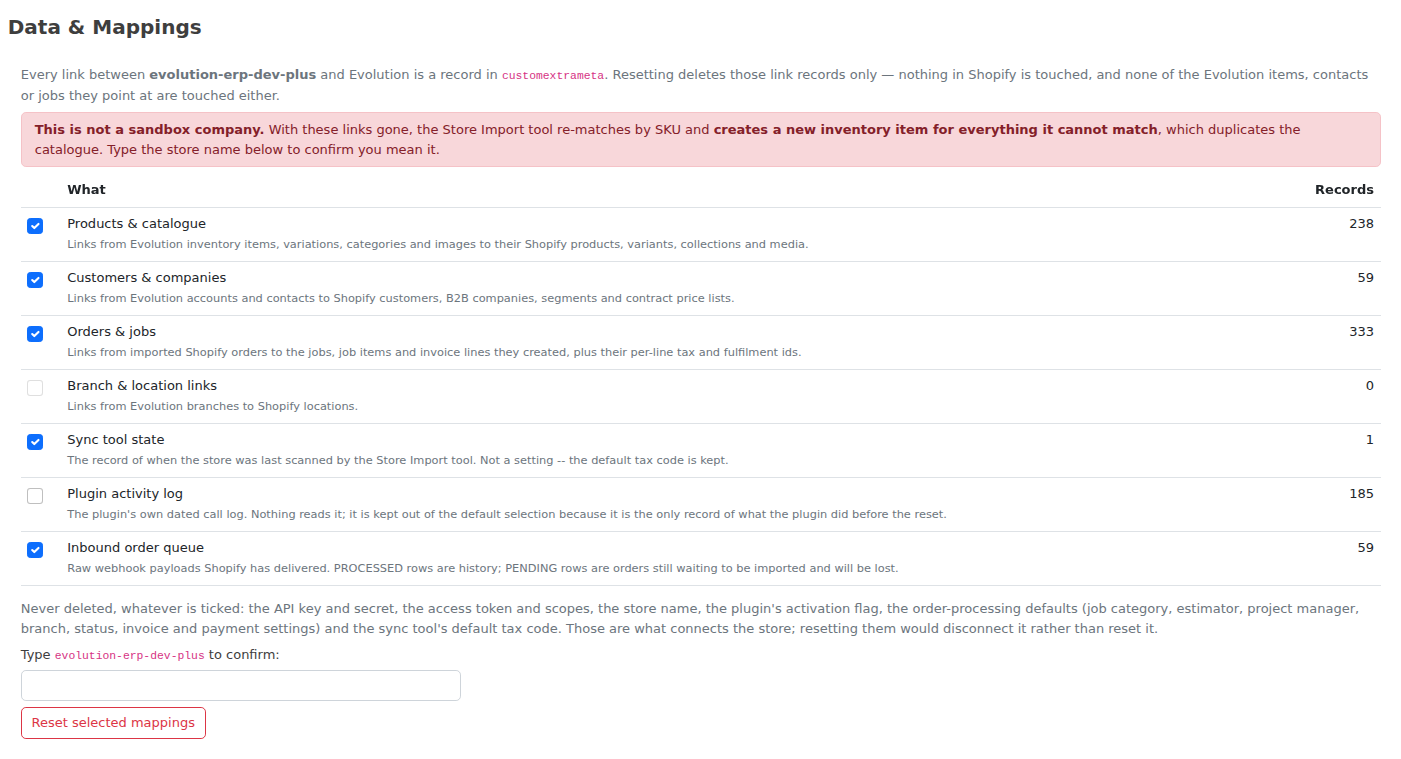
Shopify Store Settings now has a Data & Mappings panel that clears them.
- See what you have before you touch anything. Seven groups — products & catalogue, customers & companies, orders & jobs, branch & location links, sync tool state, the plugin activity log and the inbound order queue — each with a live count of how many link records it currently holds. Tick only the ones you want cleared.
- Your connection is never touched. The API key and secret, the access token and its scopes, the store name, the plugin's activation flag, the order-processing defaults (job category, estimator, project manager, branch, status, invoice and payment settings) and the Store Import tool's default tax code all stay exactly as they are. Resetting those would disconnect the store rather than reset it.
- Nothing is deleted on either side. No product, customer or order is removed in Shopify, and no Evolution inventory item, contact, job, invoice or payment is removed here. Only the links between the two go.
- Hard to do by accident. Reset is available to administrators only. On any company that is not a support sandbox you have to type the store name to confirm, because with the product links gone the next Store Import re-matches by SKU and creates a new inventory item for anything it cannot match.
- Recorded. Who ran the reset, when, which groups they chose and how many records went is written to the activity log.
Support can now also carry a company's plugin mappings across when refreshing a sandbox from live data, instead of leaving the sandbox pointing at links that no longer exist — API keys and tokens deliberately stay behind.
-
25 August 2026Match your Shopify customers to their Evolution accounts Shopify
Shopify and Evolution have never shared a customer key. A Shopify customer is joined to an Evolution account only when that link has been recorded — and until now there was no way to see, in one place, which of your online customers were linked and which were not.
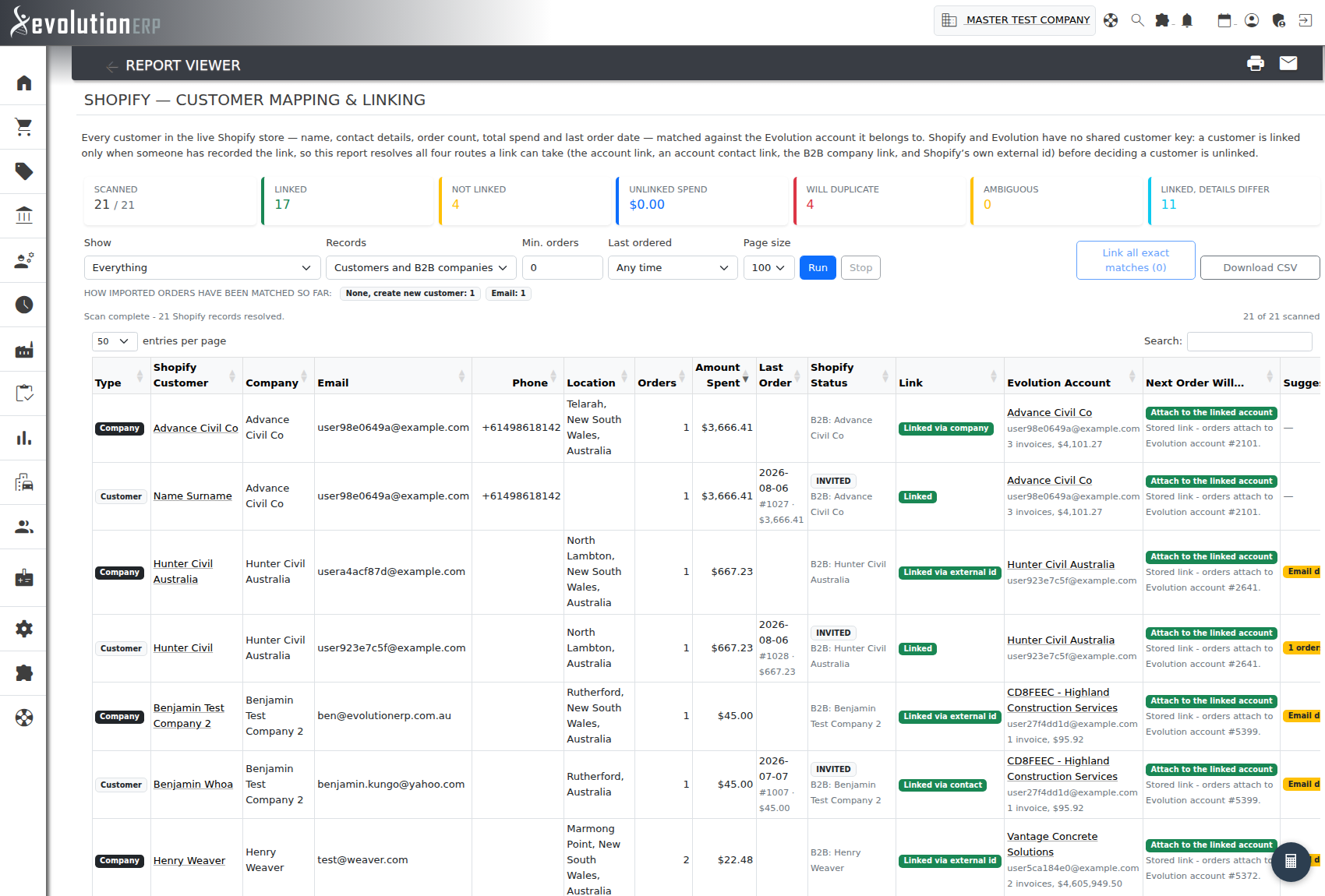
The new Customer Mapping & Linking report (Reports → Shopify) lists every customer and B2B company in your live store — name, company, email, phone, location, order count, amount spent and last order — alongside the Evolution account they belong to.
Finding the accounts you already have. For every unlinked customer the report goes looking for the Evolution account they almost certainly already are, comparing email address, ABN, phone number, company name and personal name. Phone numbers are compared on their last nine digits, so +61 400 123 456 and 0400 123 456 are recognised as the same number. Each suggestion shows which details matched, so one loose coincidence is easy to tell apart from three separate identities agreeing.
Seeing a duplicate before it happens. When a Shopify order arrives, Evolution matches it to a customer on an exact email address, then an exact phone number, and if neither matches it creates a brand new customer record. The Next order will… column shows exactly what that is going to do for each of your customers today. Anything reading Create a new contact beside a customer who already has orders is a duplicate account waiting to happen; anything reading Attach to an arbitrary contact means two of your contacts share that email or phone number, so which one receives the order is down to chance.
Recording the link. Where the evidence is unambiguous, press Link on the row and the match is recorded against the account and written to its history. Link all exact matches does the same in bulk for every row with a single exact email or ABN match; anything with more than one candidate is deliberately left for you to decide. The report will not link a Shopify customer that is already linked to a different account.
Checking the ones already linked. Linked customers show both sides together and flag where they have drifted apart — the email or phone no longer matches, the account is inactive or is no longer flagged as a customer, the email actually belongs to a different account, or Shopify shows more orders than were ever imported. A panel above the table lists any account linked to more than one Shopify customer, since orders follow whichever link was recorded last.
Filter to unlinked customers, to the ones about to create a duplicate, to ambiguous matches, or to linked customers whose details have drifted; narrow by order count or by how long ago they last ordered; and export whatever is on screen, both sides included, with Download CSV.
Linking edits an account's integration mapping, so it needs Accounts Receivable set to Administrator. Without it the report is fully visible, just read-only.
-
20 August 2026Check your items are fit to push before you push them to Shopify Shopify
A new report — Reports → Shopify → Inventory Export Validation — is the outbound mirror of Inventory Import Validation. It audits the Evolution items you are about to push to Shopify and tells you what will go wrong before you run the push tool, rather than after.
It judges every item against what the push actually sends: the item code becomes the Shopify SKU, the description becomes both the product title and its description, the collection comes from the item's category rather than the item itself, and the price is the Evolution sell price — converted up by the item's own sell tax code if your store holds prices including tax.
Findings are graded so you can work top down. Blocker means the push will fail or the product will land unusable — no description, no item code, a zero price, a category with no Shopify collection mapped to it, a collection that no longer exists on the store, a duplicate item code, or characters in the code or description that break the push outright. Warning means it will publish but the listing is incomplete — no cost, a price below cost, no image, a title over Shopify's 255 characters, a category not flagged to sync, or spec-set variations the bulk push cannot carry. Info is worth knowing — nothing on hand, a very short description, or an item already flagged for review.
The report runs instantly against Evolution alone. Tick Check the live store and it will also scan your Shopify catalogue first and flag any item whose code or description already exists there, so you do not create a second copy of a product you pushed months ago.
By default it shows only items that have never been pushed. Switch Push status to include the linked ones and you can run the same checks over your existing listings before a bulk update.
Results filter by category, severity or a specific issue, and everything on screen exports to CSV. The report is read only — it never pushes, links or changes anything.
-
20 August 2026Imported Shopify images land on the variation they belong to Shopify
When the Store Import tool brought a Shopify product’s images into Evolution, every image was filed against the master item — even the ones Shopify had assigned to a specific variant. A product whose Red and Blue variants each had their own photo ended up with both photos on the master and none on the variations, so the variations carried no image and no hero.
Images are now routed to the item they actually belong to. An image Shopify has assigned to a variant is imported into that variation’s own Evolution item, images that belong to the product as a whole stay on the master, and anything on a variant you have not linked to an Evolution item stays on the master too — so nothing is ever dropped. Each item’s hero image is then filled from its own images, and each records the import in its own history.
Shopify lets one image serve several variants at once, and Evolution keeps it that way: the image is downloaded once and each item gets its own entry pointing at the same file, so removing it from one item leaves the others untouched. Images already imported are not fetched again.
The Import Images button covers the whole product — press it on any row to bring the master and every linked variation up to date together, including products you linked before this change.
-
20 August 2026See each variation's options as columns in the variations list Shopify
The variations list on an item’s Shopify tab used to open with a single Name column holding each variation’s combined title. On a product split by two or three options that title is the values joined together — “Red / Large” — so there was no way to read, scan or sort on one option by itself.
The list now shows one column per option, each headed with the option’s real name as you defined it on the product, so Colour and Size sit in their own columns beside the SKU, cost and price. Columns appear as you name the options, and a product that uses a single option shows the one column it always did — now headed with that option’s name instead of the generic “Name”.
-
20 August 2026Prices pushed to Shopify now match your store's tax setting Shopify
Evolution always holds selling prices excluding GST. Shopify is different: each store is configured to quote prices either with tax included or without, and Shopify takes whatever figure it is sent at face value — it does not convert.
Until now Evolution sent the ex-GST price regardless. On a store configured to quote tax-inclusive prices that meant the shelf price was short by the GST amount, and an order coming back was then reduced again, so the resulting invoice sat below the Evolution price.
Evolution now reads the tax setting from your store and sends the correct figure either way — the ex-GST price to a store that quotes ex-GST, and the price with GST added, at the item’s own tax rate, to a store that quotes tax-inclusive prices. This applies everywhere a price is published: publishing and updating products from the Product Configurator, saving a price on an inventory item, the product’s Shopify tab, variations, and B2B catalogue price lists — which on a tax-inclusive store previously differed from the retail price by the GST amount.
The item’s history now records which basis a price was sent in, so you can confirm at a glance that a change reached Shopify in the form your store expects.
Nothing needs to be configured, and stores that quote ex-GST prices are unaffected. Prices already published are corrected the next time each product is pushed or its price is saved.
-
20 August 2026Edit variations on products split by more than one option Shopify
Shopify lets a product be split by up to three options at once — Colour and Size, for example — with every variation carrying its own value for each one. Evolution’s Product Manager already supported that, but the Variation editor on the variation’s own item did not: it offered a single Variation Name box, which is all a one-option product needs.
On a product with two or three options that box held the whole combined name (“Red / Large”), and there was nowhere to enter the rest. Because Shopify requires a value for every option and rejects a variation that is missing one, saving from that screen could not succeed.
The editor now shows one box per option, each labelled with the option’s real name as you defined it on the product — Colour and Size, not Option 1 and Option 2 — filled with that variation’s current values from Shopify. If an option is left empty Evolution names it and stops before sending, instead of letting Shopify reject the whole variation. Changes to any option are recorded in the item’s history.
A product that uses a single option looks and behaves exactly as it did before.
-
20 August 2026Price changes on a variation now reach Shopify Shopify
Changing the price of an item published as a variation of another product did not update Shopify. The change saved in Evolution, no error was shown, and the price in the store stayed as it was.
Two things were behind it. Evolution was looking up the wrong record when working out which Shopify variation an item stands for, so for a variation item it stopped before sending anything at all — whether the price was changed on the item itself or through the Variation editor. And when the change was sent, whatever Shopify replied was discarded, so a price Shopify had actually rejected looked exactly like one it had accepted.
Price changes on a variation now reach Shopify from both places. If Shopify refuses a change, its reason is shown to you rather than a generic message, and the change stays pending so you can correct it and send it again. Every push is recorded in the item’s history, successful or not, so “did that price actually reach the store?” is now answerable from the item itself.
-
20 August 2026Sync tool no longer reports a linked product’s own variation as a conflict Shopify
The Store Import tool could refuse to link a variation, reporting “Product already linked to Evolution item #n but this variant is not linked” against a product that was in fact linked correctly.
Where a Shopify product has several variations, Evolution holds one item as the master and records which of the product’s variations that master item stands for. Simply opening the master item’s Shopify tab cleared that record. Nothing looked wrong at the time, but the next scan in the sync tool no longer recognised the master’s own variation and reported it as a conflict.
Opening a product’s tab no longer clears the link, and a link that is already missing is restored automatically — both when the item’s tab is opened and during a normal scan in the sync tool. Products affected before this release repair themselves the next time you scan, with the repair recorded in the item’s history. There is nothing to re-link by hand.
-
20 August 2026Variations now list on a Shopify product’s tab Shopify
Opening the Shopify tab on a product that has several variations could leave the Variations table empty, and anything below it on the tab blank as well — even though the variations existed and were correctly linked in Shopify. It happened most often to products brought in by the Store Import tool.
The cause was a variation that carries no cost price in Shopify. Cost is optional there, and an imported product very often has none, but Evolution read it as though it were always present and gave up part-way through drawing the tab. It now treats a missing cost as zero, the way the rest of the screen already did.
The variations list is populated correctly whether or not the products carry costs, and nothing needs to be re-imported or re-linked to get it back.
-
20 August 2026Release Notes: find what changed, faster Support
The Release Notes screen (Support → Release Notes) has a new look and a new search box.
- Search as you type. Type a keyword — a feature name, a module like “Shopify”, or any word from the description — and the list narrows instantly, with a count of how many notes currently match. Clear the box to see everything again.
- A cleaner timeline. Notes are now laid out on a vertical timeline grouped by week, matching the look of the Product Updates page on our documentation site. A week with nothing matching your search drops out of view entirely, so there is nothing empty to scroll past.
- Uses the space you have. The list now fills the screen rather than stopping at a fixed height, so more updates are visible without scrolling on larger monitors.
Everything else about the page is unchanged — the year selector still lets you look back at earlier years, and each note still links straight to its documentation where one exists.
-
20 August 2026New API endpoints: look up and search contacts API
Two new endpoints bring customer and supplier accounts into the Evolution API, alongside the existing inventory endpoints.
- getContact retrieves a single account by its code (or internal ID), including its full addressbook — every person recorded against that account, with their role, phone and email.
- searchContact searches the contact book by company name, contact name, code or trading name, and can be restricted to customers or suppliers only.
Both endpoints report whether an account is a customer, a supplier, or both, along with its status, pricing group, credit limit and assigned salesperson. Search results carry an address book count rather than the full list, so a lightweight search can be followed up with a single detailed lookup only where you need it.
Authentication, rate limiting and the optional XML response mode all work exactly as they do on the existing inventory endpoints.
-
20 August 2026Inventory API: stock levels, Bill of Materials and Kits API
The getItem and searchItems API endpoints now return a lot more than the item’s core details — useful if you build against the Evolution API for a website, a marketplace feed, or your own reporting.
- Stock on hand. Every response now carries
soh,allocated,onorderandavailable— totalled across every branch.getItemalso breaks it down branch by branch. - Status, in plain English. A new
status_labelfield reads"Active"or"Disabled"instead of a bare 1 or 0. - Bill of Materials.
getItemnow returns whether an item has a BOM (has_bom) and its direct component list — each component carrying its own quantity, cost and its ownhas_bomflag, so a manufactured sub-assembly can be walked into with a second call. - Kits. Sales-time suggested bundle items are now returned too (
has_kit/kits) — the things typically quoted alongside an item, separate from what it is built from.
Nothing about the existing response fields has changed — this is all additional data on the same endpoints, so existing integrations keep working exactly as before.
- Stock on hand. Every response now carries
-
19 August 2026Only incomplete items imported from Shopify are flagged for review Shopify
Every inventory item Evolution creates from Shopify — whether the Store Import tool creates it, or an incoming order arrives for a product Evolution has never seen — used to be flagged for review, without exception. On a large catalogue that made the review flag meaningless: everything was flagged, so nothing stood out.
Each new item is now checked as it is created, and only flagged when something is actually missing. The check asks for the things an item needs before it can be sold, purchased and posted correctly: an item code, SKU and description; a category; income, purchase and inventory asset accounts; tax codes on sales and purchases (only where the company is registered for GST); and a cost price and a sell price, with the cost no higher than the sell price.
An item that has all of that is created clean, with no review flag, and can be used immediately. An item that is missing something is still created — an order from your store is never refused because a product record was incomplete — but it is flagged for review, and its Item Notes now spell out exactly what could not be filled in from Shopify or from the item's category. Whoever picks the item up is told what to fix instead of having to work it out.
The result appears in the item's history either way, so you can see at a glance whether an imported item passed or what it failed on. The Shopify → Inventory Import Validation report grades linked items against the same rules, so an item created clean will not appear there as a problem later.
-
19 August 2026Items created from Shopify now arrive complete Shopify
When Evolution created an inventory item from Shopify it created it bare. No GL accounts, no tax codes, no stocked flag, no costing settings and no cost price — none of the defaults the standard Add Item screen gives an item from its category. The consequences turned up later and looked unrelated: an invoice raised from a Shopify order would refuse to commit with there are invoice items with account not set, no stock movement was recorded, and cost of sales posted against no account at all.
A created item now inherits its category, exactly as one added by hand does — the Income/Sales, Purchase/Expense and Inventory Asset accounts, the sell and buy tax codes, the stocked flag, sub-category, costing method, on-cost and on-cost type, minimum markup and maximum discount. That is what lets an invoice raised from a Shopify order post and commit on its own.
Shopify's cost price comes across too. Where your store holds a unit cost for a variant, Evolution now brings it in as the item's cost, on every path that creates an item — the Store Import tool, and an order arriving for a product Evolution has never seen. Where Shopify holds no cost the item is created without one rather than failing; the Shopify → Inventory Import Validation report is where you find those afterwards.
This applies to orders as well as the import tool. Both paths create items through the same place, so the two cannot drift apart again.
Items created before this release are unaffected. To bring them up to date, open the category in Inventory → Categories and use its option to update the items in it — it fills in the same fields from the category.
-
19 August 2026The Shopify import stops when a category is not ready for it Shopify
An item imported from Shopify inherits its GL accounts and tax codes from the Evolution category its collection is mapped to. Import into a category that was never set up and you get items that cannot be sold, purchased or posted — and you usually only find out much later, one failed invoice at a time.
The Store Import tool now refuses to import into an unconfigured category rather than doing it and leaving you the mess. A mapped category must have a Purchase/Expense Account, an Income/Sales Account and an Inventory Asset Account, plus Default Tax on Sales and Default Tax on Purchases where your company is registered for GST.
You are told the moment the problem exists, not at the end. Mapping a collection to a category that is not ready shows you the missing fields straight away. The Collections tab marks those rows Not configured for import. On the Products tab, a blocking notice lists every mapped category that is not ready and exactly what each one is missing, and the Create in Evolution button on affected products is replaced by Category not configured. Every one of those carries a link that opens Inventory → Categories in a new tab, so you can fix the category without losing the scan you are part way through.
This also covers the New Category button on the Collections tab. Evolution cannot guess which GL accounts a brand new category should post to, so a category created there starts with none — and now says so immediately, instead of silently becoming the source of a batch of unpostable items.
Linking an existing Evolution item is deliberately never blocked. Linking creates nothing and changes no accounts; the gate applies only to creating new items.
-
19 August 2026Shopify products and orders now get the right GST treatment Shopify
Items created from Shopify used to be created with no tax code at all, and prices were stored exactly as Shopify quoted them. On a store that quotes GST-inclusive prices that meant every imported item was priced 10% high and then sold without GST. Both are fixed, and the whole question of where an item's tax comes from is now something you can see and control.
An item's tax code is resolved properly. Evolution works down a list and stops at the first answer: the mapped category's Default Tax on Sales and Purchases, then the import tool's own new Tax on created items setting, then your company's usual sell tax code. The category always wins where it has one — per category is far more likely to be right than one global answer — and the setting is there for the categories that have none. Which step supplied the code is written into the item's history, so a wrong default can be traced instead of guessed at.
You are told before anything is created. The Products tab lists any mapped category with no sell tax and names the fallback it will use instead, and the Collections tab has a new Sell Tax column showing what each mapped category will pass on — or a red Not set, so it can be fixed at the source rather than unpicked afterwards.
Prices are stored excluding tax. Where your Shopify store quotes GST-inclusive prices, the tool now divides the GST back out as it creates each item. The tool states plainly which mode your store is in, so there is no doubt about what it is doing. Tax-exclusive stores are stored exactly as they are.
Orders are handled the same careful way. The tax code on an invoice line raised from a Shopify order now follows a defined order: a tax-free order stays tax free; a company not registered for GST is never charged tax, and if Shopify charged some anyway the discrepancy is recorded against the invoice; otherwise the item's own sell tax code is used, then a code matching the rate Shopify actually charged, then your company default. Whichever was used is recorded against the invoice, so a missing tax code becomes visible instead of quietly costing you the GST.
Throughout, whether your company charges GST at all is taken from Company Setup. A company that is not registered never has a tax code forced onto an item or an order line.
-
19 August 2026Know what is wrong with your Shopify catalogue before you import it Shopify
A new report — Reports → Shopify → Inventory Import Validation — audits your live Shopify catalogue against Evolution one variant at a time, and tells you everything standing between it and a clean import.
It looks at both sides of the sync in a single pass. For products already linked to an Evolution item it checks the things that make an item safe to trade on: an income, expense and inventory asset account, sell and buy tax codes, a cost price, and at least one image. For products that exist only in Shopify it checks whether they could be imported at all: is the product in a collection, is that collection mapped to an Evolution category, is that category configured, and is the item code it would claim already taken?
Every finding is graded, so you can work top down — Blocker means the import will refuse or the resulting invoice will not post (no income account, no sell tax code, an unmapped collection, an item code clash, the same SKU on two Shopify variants); Warning means it will work but the record is incomplete (no cost price, a cost that differs between the two systems, a cost above the sell price, no image); Info is worth knowing (the Shopify product is still a draft, or the item has not been reviewed yet).
A summary banner above the table explains the settings every row is judged against, so when a scan comes back as a wall of blockers you usually find the fix is one category setting rather than four hundred individual items.
Scanning is paged and can be stopped and resumed, narrowed to a single collection or product type before it runs, and the results filtered by category, link status, severity or a specific issue. Everything on screen exports to CSV. The report is read only — it never links, creates or changes anything.
-
19 August 2026Units of Measure: the whole row now opens for editing Inventory
On Settings → Units of Measure, clicking a unit’s Status jumped to an unrelated screen instead of opening it for editing. Clicking any other part of the row worked, which made the screen look as though editing failed at random. Clicking anywhere on the row now opens the unit.
While we were there:
- Status reads Active or Disabled rather than a bare 0 or 1, and the columns line up with their headings.
- A unit can no longer be saved without a type. Leaving the type on Please Select previously stored those words as the unit’s type.
- Changes are recorded in the audit log, with the field that changed and what it used to say, and adding or editing a unit now requires Administrator access or Inventory set to Admin.
The Type on a unit is worth a look if you have not set one. A unit typed Time — Hour, Day, Shift — is how Evolution tells labour apart from stock, which is what keeps hourly lines off the new Items To Follow page on customer invoices.
-
19 August 2026Stop credit and credit limits are now enforced on Invoice Entry and New Job Sales
Putting an account on Stop Credit, or setting a Credit Limit, has always stopped work being raised from a quote. Two screens let it through anyway: Invoice Entry and New Job raised a pop-up warning that could simply be dismissed. Both now hold the account properly.
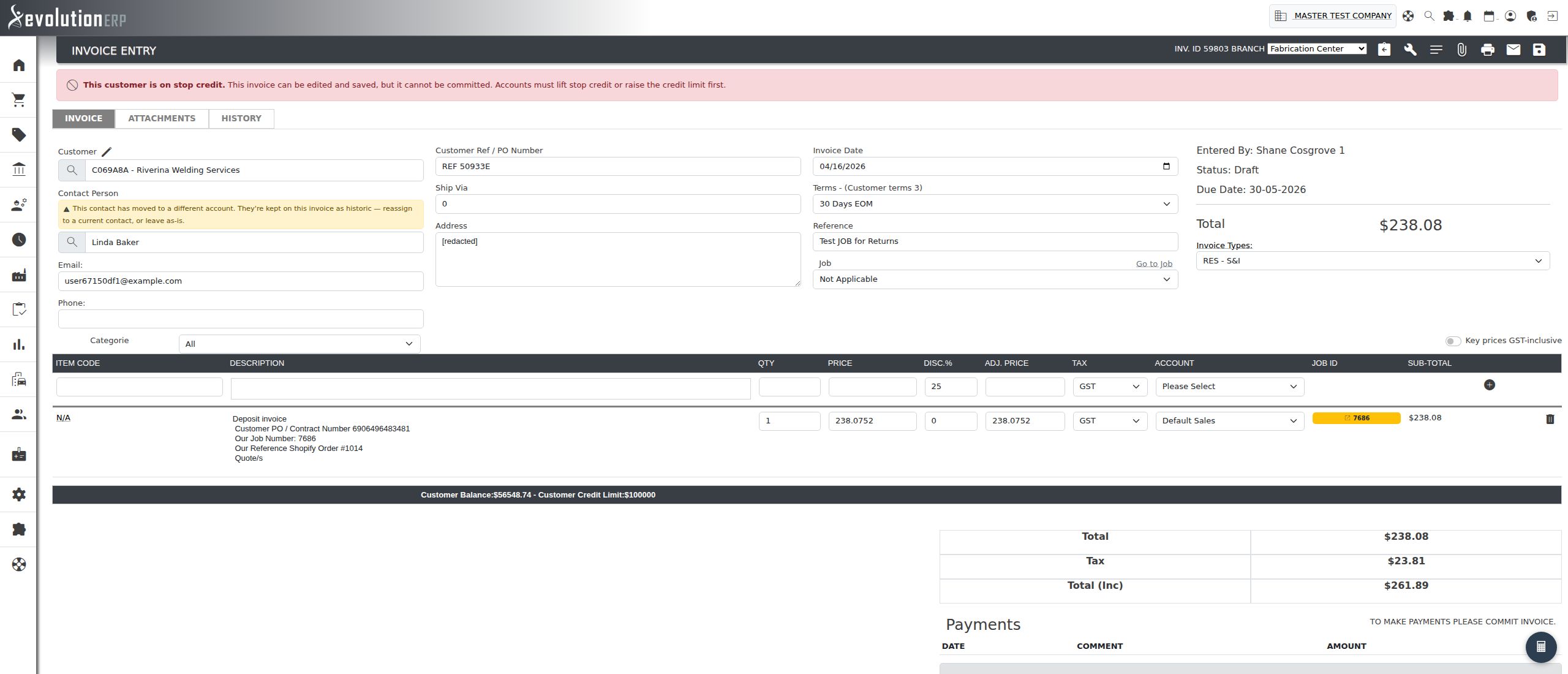
- Invoice Entry stops at Commit, not before. Open an invoice for an account on stop credit, or one whose balance plus this invoice would reach its credit limit, and a red banner across the top gives the reason. The invoice can still be entered, priced and saved as a draft — nothing has to be re-keyed — but Commit is greyed out and refused, so the debt never reaches the customer’s account or the ledger while the account is held. Once accounts lift the hold or raise the limit, open the draft and commit it as normal.
- New Job refuses to create the job. The warning is now a block, and it applies however the customer is chosen — picking the customer from inside the New Job form used to skip the check entirely. Accounts that have been disabled are stopped the same way. If you try anyway, you are returned to the form with everything you had typed still in place.
- Someone can always get the work out. Users with Accounts Receivable set to Admin, and full system administrators, are not stopped on either screen. They see the same message in amber instead of red, so a decision to invoice a held account is a deliberate one rather than a silent exception.
Also fixed: the Customer Balance shown on Invoice Entry was adding the customer’s outstanding invoices on a second time, so it read roughly double what was actually owed — and the credit limit on that screen was being measured against the inflated figure. Both are now correct. The Account Bal on the Add a Payment window counts only the invoices that still have money owing, so on an account carrying credit notes or overpayments it will read higher than the account balance. Both figures are right; they answer different questions.
Nothing about how you set the two controls has changed — they remain on the account’s Billing/Pricing tab, visible only to administrators and full Accounts Receivable users, and a credit limit of 0 still means unlimited.
-
18 August 2026Fixed: printed documents that would not open General
Printing or downloading a document could occasionally produce a file the browser refused to open, reporting “We can’t open this file” or a damaged PDF. The document itself was fine on the server — only the copy being sent to the browser was damaged in transit, which is why re-sending the same document by email often worked when the download would not.
This is now corrected for every printed document: invoices, quotes, purchase orders, statements and reports. Nothing needs to be changed at your end, and any document that would not open before can simply be printed again.
-
18 August 2026Show the customer what is still to come, without adding it to the invoice Sales
When a job is invoiced before everything on it has gone out, the invoice says nothing about what is still owed. You can now attach an Items To Follow page to a printed or emailed job invoice, listing every item the customer has ordered that has not yet been dispatched — with the quantity still to come, its value, and an estimated date.
Nothing on that page is added to the invoice. It is worked out fresh each time the invoice is printed and is never written to the invoice’s lines, so it cannot change the invoice total, the GST, the customer’s balance or the ledger — including on invoices that have already been committed. It is a statement of what is still owed, printed alongside the bill rather than as part of it.
- Turn it on where you print. A Backorder Report tickbox now appears alongside the usual options on the invoice Print and Email forms. Tick it and the page is attached to that document. If you always want it, an administrator can set Settings → Sales → Attach Backorder Page to Invoices to Yes and the box arrives already ticked — you can still untick it for a single invoice where the page is not wanted.
- Invoiced is not supplied. Billing an item does not take it off the page. Special orders are routinely invoiced up front — a COD customer is billed so the item can be ordered at all — and those are exactly the customers who most need to know what is still coming. Only a dispatch reduces the To Follow figure. Lines that were billed in advance are marked already invoiced so the value is not read as a further charge.
- The dates come from your purchase orders. Each line is traced back through the requisition and purchase order raised to fill it. The supplier’s own back order date is used where they have given one, otherwise your buyer’s expected by date. Goods already made, picked or received show as Ready to despatch, and anything not yet ordered shows TBA rather than a guess. There is no second date to maintain.
- Labour and service are left off by default. Delivery, site work and hourly rates are never dispatched, so left alone they would each print as entirely outstanding. An administrator can include them with Settings → Sales → Include Labour and Service on Backorder Reports.
The page is only produced when there is something to say: invoices not linked to a job, and jobs with nothing outstanding, are unaffected and print exactly as they always have. Where an invoice covers several jobs, all of them are listed on the one page.
-
18 August 2026Shopify Reports Shopify
Four new reports are available under Reports → Shopify (visible once your Shopify store is connected) to help you keep Evolution and Shopify in sync:
- Category & Collection Mapping — see every Evolution category next to its Shopify Collection, live product counts, and flags for anything unmapped or broken.
- SKUs Missing from Evolution — scans your live Shopify catalogue for products that don’t exist in Evolution yet.
- Items Missing from Shopify — finds Evolution items that should be listed on your store but aren’t.
- Price Discrepancies — compares live Shopify prices against Evolution sell prices for every linked item, so you can catch price drift before a customer does.
Each report supports filtering, CSV export, and (where relevant) a configurable tolerance so small rounding differences don’t clutter the results.
-
12 August 2026Industry & Company Size on Client Accounts Contacts
You can now record a client’s Industry and Company Size directly on their Account, giving you better context at a glance and a foundation for smarter reporting and segmentation down the track.
Both fields are available on the Client Account edit screen, and when creating a new Opportunity for a brand-new customer. The Industry field is a searchable dropdown — just start typing to jump straight to the right industry from the full list, instead of scrolling.
-
11 August 2026Shopify Store Import — bring an existing store into Evolution Shopify
Connecting a Shopify store that already has products in it? The new Store Import tool (Shopify plugin settings → tool 4) reads your store and lines it up with Evolution — and it never writes to Shopify.
- Collections → Categories: map each Shopify collection to the Evolution category its products belong in — several collections can share one category, and a category can sync with no collection at all.
- Scan & match: one click scans the store's products and variants and matches them against your inventory by SKU / item code. Nothing is saved during the scan — you review the proposed matches first.
- Import gradually: a big store does not have to be taken in one bite. Scope a scan to a single Shopify collection and/or product type, set how many products to bring back at a time and pick up where you left off with Scan Next Batch, and tick Skip products already linked so later passes return only the work still outstanding. Results are paged, filtered by match status and searchable by title, SKU or item code.
- Link: commit all exact matches in one pass, resolve ambiguous ones with a per-row picker, or link items manually. When Shopify's SKU differs from the item code it is saved onto the Evolution item so future publishes stay consistent.
- Create: products with no Evolution counterpart can be created as inventory items (flagged for review) in the mapped category, one item per variant.
- Images: product images are imported into the item's Files, with the featured image becoming the hero — only when the item doesn't already have one. Re-running an import never duplicates images.
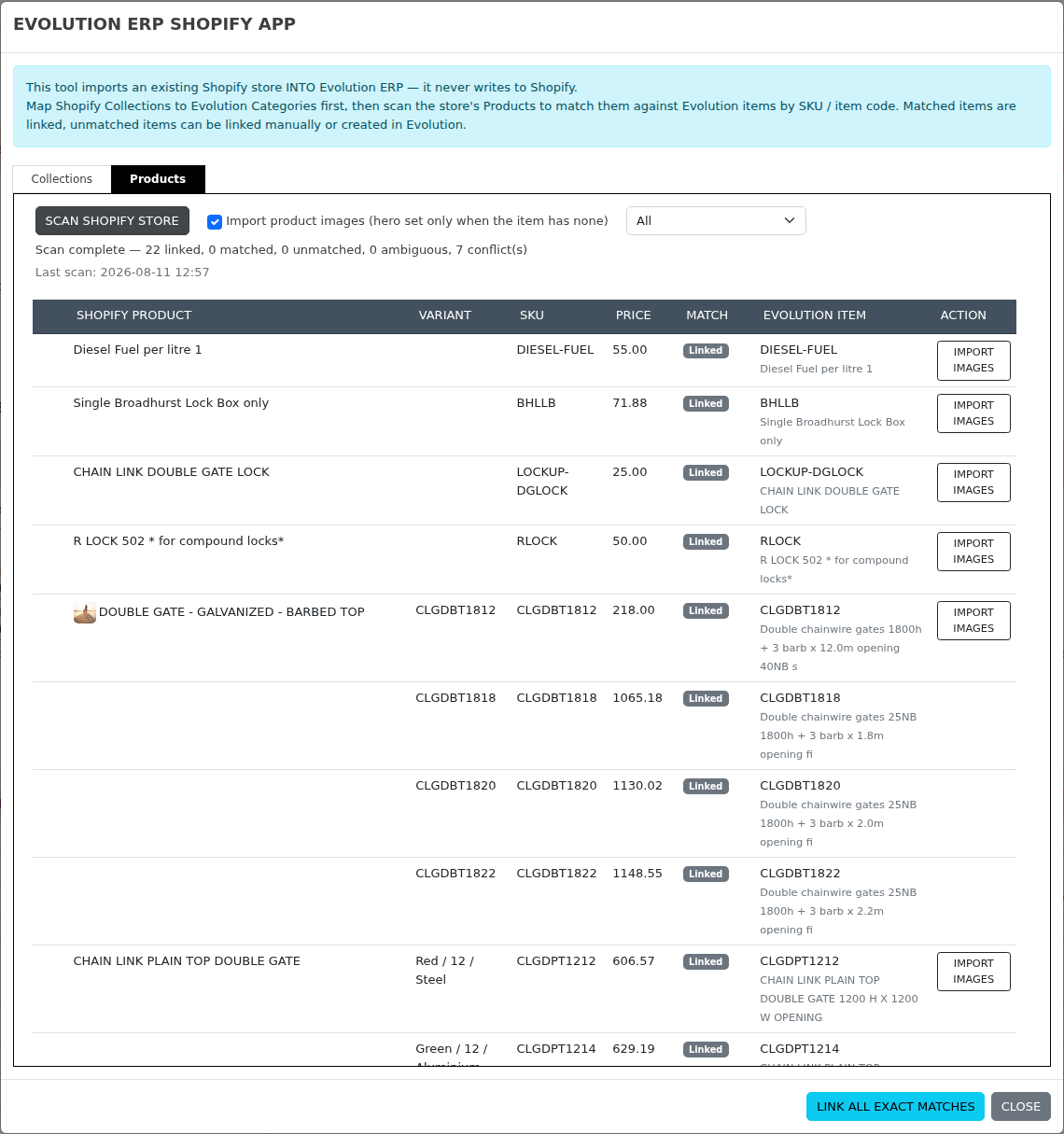
-
11 August 2026Shopify: connect each company to its own Shopify app Shopify
Connecting a company to Shopify is now a clear two-step process on the Shopify Configuration screen, and each company connects to its own Shopify app rather than sharing a single one.
Step 1 — enter this company’s app details. The Shopify Store URL, Client ID and Client Secret are now always available to edit, and are saved whether or not the app has been installed on the store yet. Previously the fields only appeared once a connection already existed, so a company that had never been connected had nothing to fill in.
Step 2 — install the app on the store. The new Connect to Shopify button builds the install link from the details you just saved, so it always points at that company’s app and that company’s store. The old shared install link could only ever install one app onto one store.
A badge at the top of the panel now shows exactly where a company is up to — Not configured, Not installed yet, or Connected — instead of showing the same “you have just activated the plugin” message to every company, including ones that had been trading for months. Only an administrator can change the connection.
Checking the connection also reports a real result now; it previously reported a failure regardless of the outcome. If a store is later uninstalled in the Shopify admin, Evolution clears the stale permission by itself and re-tests, rather than continuing to fail quietly.
Stores that are already connected are unaffected and keep working as they are — there is nothing to redo.
-
11 August 2026Print straight to the browser instead of downloading the PDF General
Printing a document no longer has to save a PDF to your computer first. A new company setting lets Evolution open the printed document straight in the browser tab that printing already opens, in the browser’s own PDF viewer, so you can send it to the printer and close the tab — nothing lands in your downloads folder unless you put it there yourself.
This was built for sites printing a lot of documents each day, where every invoice, delivery docket and purchase order printed meant another file to open from disk and another one to clean up later.
Turning it on: go to Settings, open the General tab, find PDF Print Delivery and choose Open in browser, then save. Leave it on Download to keep things exactly as they are — that is the default, so nothing changes for you unless you change it.
Either way the document is still kept on file in Evolution, and emailing a document is unaffected. One thing to note: a web browser that is set to always download PDFs will still download them, because that preference overrides the setting — the documentation covers how to change it.
-
10 August 2026Opportunities: capture a Trading Name, and no more salutation applied by default Sales
Two long-standing tidy-ups to the Opportunity screen, both aimed at getting a new customer recorded correctly the first time.
Trading Name. Creating a new customer from an opportunity now offers a Trading Name alongside the account name, so you can record the registered name and the name the business actually trades under. Previously the field only existed on the account itself, so it was routinely missed on the way in. The customer search on the opportunity already matches on trading name, so anything entered here makes that customer findable straight away by the name your staff actually use.
Salutation is no longer guessed. The salutation list used to open on Mr, so unless someone deliberately changed it every new contact was silently recorded as Mr — a real problem with the number of unisex and non-English names now in use. Every screen that creates or edits a contact — the opportunity, the account’s Contacts tab, the Edit Contact window and the full contact page — now opens on Please Select, so a title is only ever stored because someone chose it. N/A remains available for people you would rather not give a title to.
New setting: Force Salutation. If your business wants a salutation on every contact, an administrator can now switch it on under Settings → General → Force Salutation. Set to YES, a contact cannot be saved until a salutation is chosen, when adding and when editing. It ships switched off, so nothing changes for you unless you turn it on.
Also fixed. The salutation is now shown with the contact’s name on the account’s Contacts list — it was being captured but never displayed. And salutations entered through the opportunity were stored in a slightly different form to the rest of Evolution, which meant opening such a contact and saving them quietly cleared their salutation. Both are corrected, and existing records have been tidied.
-
10 August 2026Shopify: check your store connection and see that orders are arriving Shopify
Shopify sends each new order to Evolution the moment it is placed. Until now there was no way to see whether that was set up correctly — the first sign of a problem was an order that never arrived. Store Settings in the Shopify plugin now has an Order Delivery panel that shows exactly that.
- See the connection at a glance. One badge tells you whether your store is connected, needs attention, or is not connected yet, alongside the address your orders are delivered to.
- See when each order event last arrived. Every event Evolution listens for is listed with a tick or a cross and the time it was last received, so “nothing has come through since Tuesday” is visible rather than silent.
- Connect, and repair, from the same screen. An administrator can connect the store with one button. Re-check & repair compares what Shopify actually has registered against what it should have and fixes the difference — safe to run at any time, and the first thing to try if orders stop arriving.
- Disconnect without losing anything. Disconnecting stops new deliveries only. Orders, jobs, invoices, payments and customer records already in Evolution are untouched, and your credentials and settings are kept.
- You are told if your store delivers anywhere else. If the store is also sending copies of your orders to another site — usually a test site connected long ago and forgotten — the panel now says so.
Worth knowing: connecting a store is now a deliberate action rather than something that happened quietly in the background, and a Shopify store can be connected to one Evolution company at a time. If a store is already connected elsewhere, Evolution names the company holding it instead of quietly delivering the same orders into two databases.
Existing stores carry on working as they are. Next time you open Store Settings, press Connect store or Re-check & repair once so the panel reflects your live setup.
-
10 August 2026Product Coding Standard: item codes and descriptions built the same way every time Inventory
Evolution can now build an item’s product code and description from its category and its attributes — the same way, every time. You define the standard once, and every item created under it comes out predictable, instead of each person abbreviating Schedule 80 their own way.
The result is a catalogue you can actually search. When every 316 stainless fitting carries the same term in the same position, staff stop creating duplicate items because they could not find the one that already existed, purchasing can see at a glance what a code means, and reporting by material or size becomes reliable.
Setting it up
Under Inventory → Coding Standard you either start from the supplied industrial standard — ready-made recipes for pipe, fittings, valves, fasteners, flanges, gaskets, instruments, supports and structural steel — or import a standard from another company. Four tabs make it yours:
- Templates — the recipe for each category: Pipe – [Material] – [Class] – [Diameter].
- Dictionary — how each value is written out and how it is abbreviated in the code. Butterfly is coded BFV; 316SS is written S316.
- Rules — the exceptions a flat recipe cannot express: stainless fasteners are class A4-70, and washers carry no class block at all.
- Data gaps — which categories are missing the attributes their own template asks for, with the fix offered inline rather than as a list of homework.
Learn from my catalogue is the fastest way in. It reads the items you have already coded, works out the abbreviations your team has settled on, and fills the Dictionary in for you — so the standard starts out speaking your house style rather than a generic one.
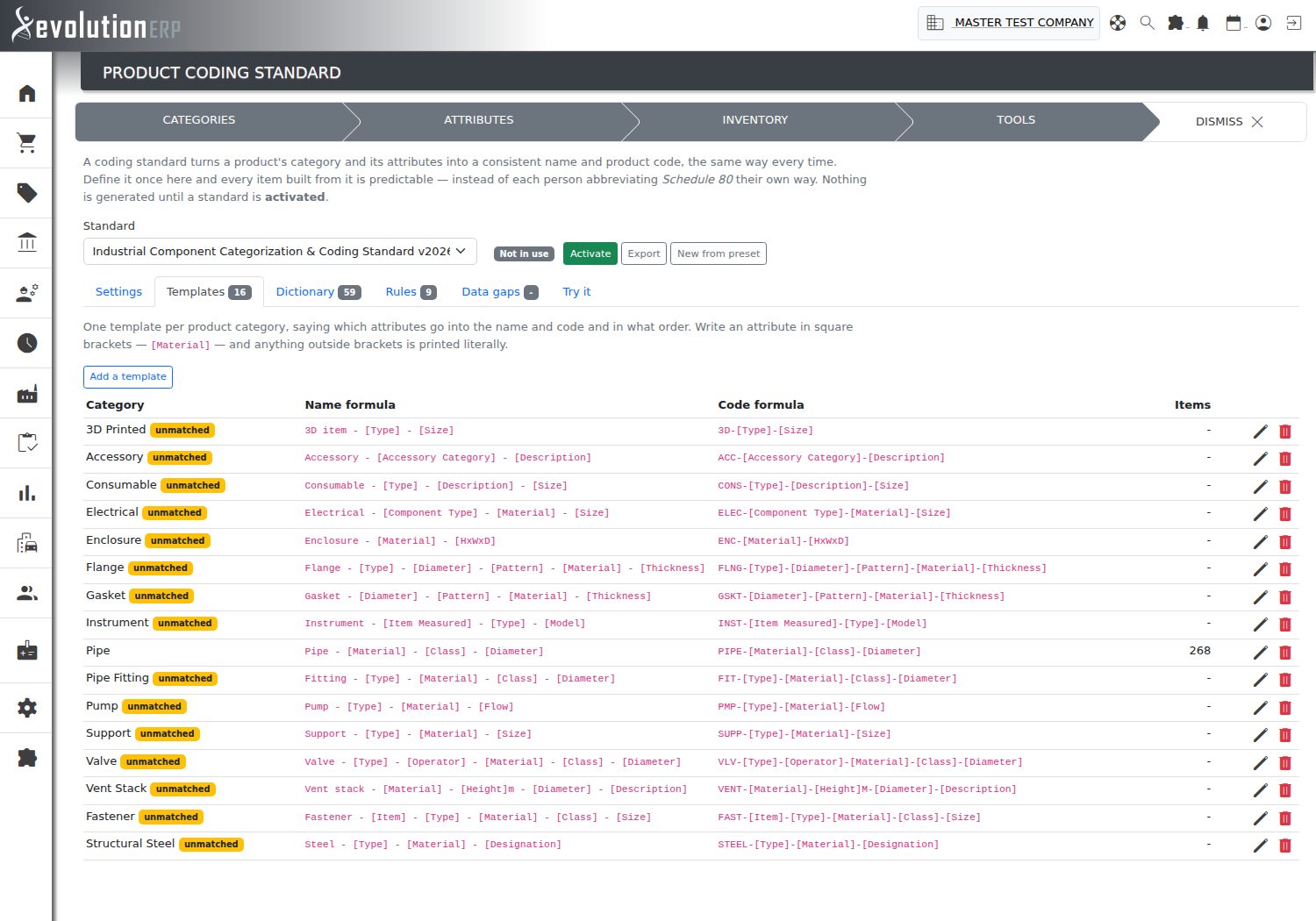
Coding an item
Once a standard is switched on it is offered where items are actually created. On Add Inventory Item the AUTO button beside the item code now builds from your standard. On an existing item, a Generate from the coding standard link appears under the code field and reads the attributes already stored against that item, so you do not re-enter anything.

Either way you are shown the proposed code and description before anything is written — with the existing code alongside the new one, the rules that fired, and a plain warning naming any attribute the template needs that this item has no value for. Use this fills the form in; it does not save the item. You can still edit both, and the item is only written when you press Save as normal.
Nothing changes until you switch it on
A coding standard is completely inert until it is activated. You can build one, test it against real items on the Try it tab, and leave it turned off indefinitely — existing items and existing codes are never touched. Descriptions print on quotes, purchase orders and invoices, so a generated description is offered for confirmation rather than forced. If no standard is active, AUTO behaves exactly as it always has.
Setting a standard up affects every item your business creates, so the screen needs inventory administrator permission. Generating a code on an item you can already edit does not.
-
10 August 2026BOM Configurator: untick components you are not supplying Sales
The BOM Configurator on a quote line item now opens for any item that has a Bill of Materials, not only items that have alternates set up against them. Where you previously saw “There are no alternate BOMs available” and could go no further, you can now open the configurator and work with the Bill of Materials as it stands.
- Untick a component to leave it out. A component with no alternate can now be excluded from that quote line — for parts the customer is supplying themselves, a supply-only quote with no labour line, or a fitting this particular job does not need. The excluded row is greyed out and struck through and its sub-total drops away.
- Cost and price rebuild from whatever is left ticked. Total Cost and Calculated Price update as you tick and untick, and the item’s original figures stay on screen in red with a line through them so you can see the difference at a glance.
- At least one component must stay ticked. An empty Bill of Materials cannot be quoted, so unticking the last remaining component is refused.
- Choosing an alternate works exactly as before — ticking an alternate unticks the original, and a component is either the original or one of its alternates, never both. Anything you have excluded now stays visible when you use Hide No Alternates, so a deliberate change is never hidden from you.
Nothing you do here changes the inventory item or its master Bill of Materials. The configuration applies only to the quote line you are adding, and follows that line through to the job when the quote is converted, so purchasing and manufacturing work from the components you actually quoted.
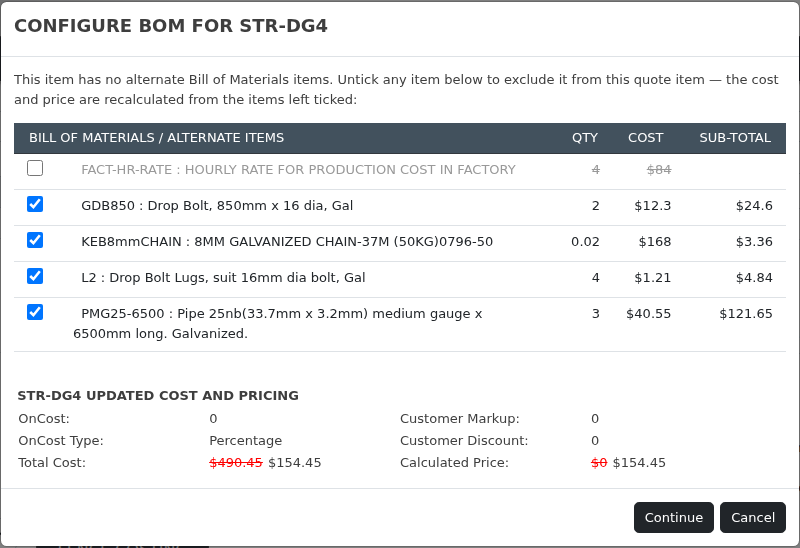
-
4 August 2026New report: Product Coding Consistency Inventory
A new report under Reports → Inventory → Data Quality works out your product-coding convention from the items you have already coded, then flags every term that has been coded more than one way.
It lines each item’s description up against its product code, segment by segment. Where the two agree often enough, it has learnt an abbreviation your team has settled on — Sched80 is coded S80, Butterfly is coded BFV — and these are listed on the Learned Dictionary tab. Terms that have been coded inconsistently are listed on the Inconsistencies tab, with every variant, how often each is used, and the items each appears on.
Not every inconsistency matters equally, so the report says which is which. Style drift is two abbreviations of the same thing — Socket coded both SOC and S — and is cosmetic. A likely error is where the odd code already means something else in your own catalogue, which usually means the item was mis-keyed rather than abbreviated; on the catalogue this was built against, it found four items described as one material but coded as another. Review covers everything the report cannot place either way.
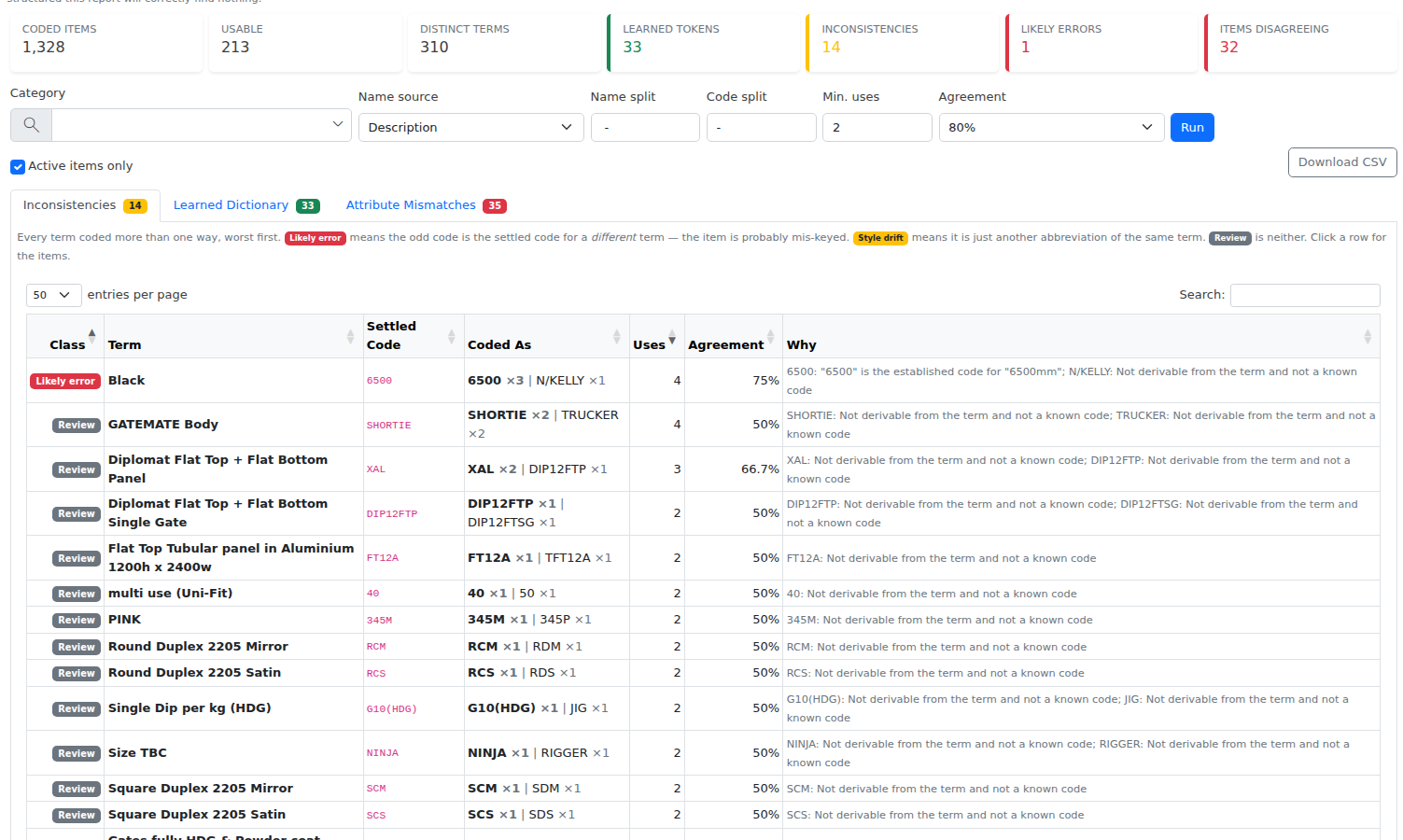
Attribute Mismatches
A third tab turns the same technique on your item attributes. Material, class, diameter and grade are meant to say the same thing as the description, and on a well-kept item they do. This tab finds the items where they do not — a flat bar whose Profile is saved as Angle, a black pipe whose coating is saved as Galvanized, a fitting described as PVC Sched80 but stored as HDPE.
Every value saved against an item is checked against that item’s own description, allowing for the abbreviations and unit suffixes learnt on the Dictionary tab — so Sch80 still matches Sched80, and 10.0 still matches 10mm. What is left over is a value the description contradicts.
Each row also shows how often that attribute does appear in the description elsewhere in the same category, which is the strength of the finding: at 90% the attribute is clearly meant to be there and its absence is a real disagreement, at 30% it is only a hint. Values belonging to attributes that no item in the category ever names are separated out below the table as harmless — they are simply not part of how you describe those products.
Where the two records disagree, the description is almost always the one to trust: somebody typed it while looking at the product, whereas attributes usually arrived in a bulk import. Fixing the attribute matters in its own right, because those values drive searching, filtering and reporting — a flat bar filed as an angle is invisible to anyone looking for flat bar.
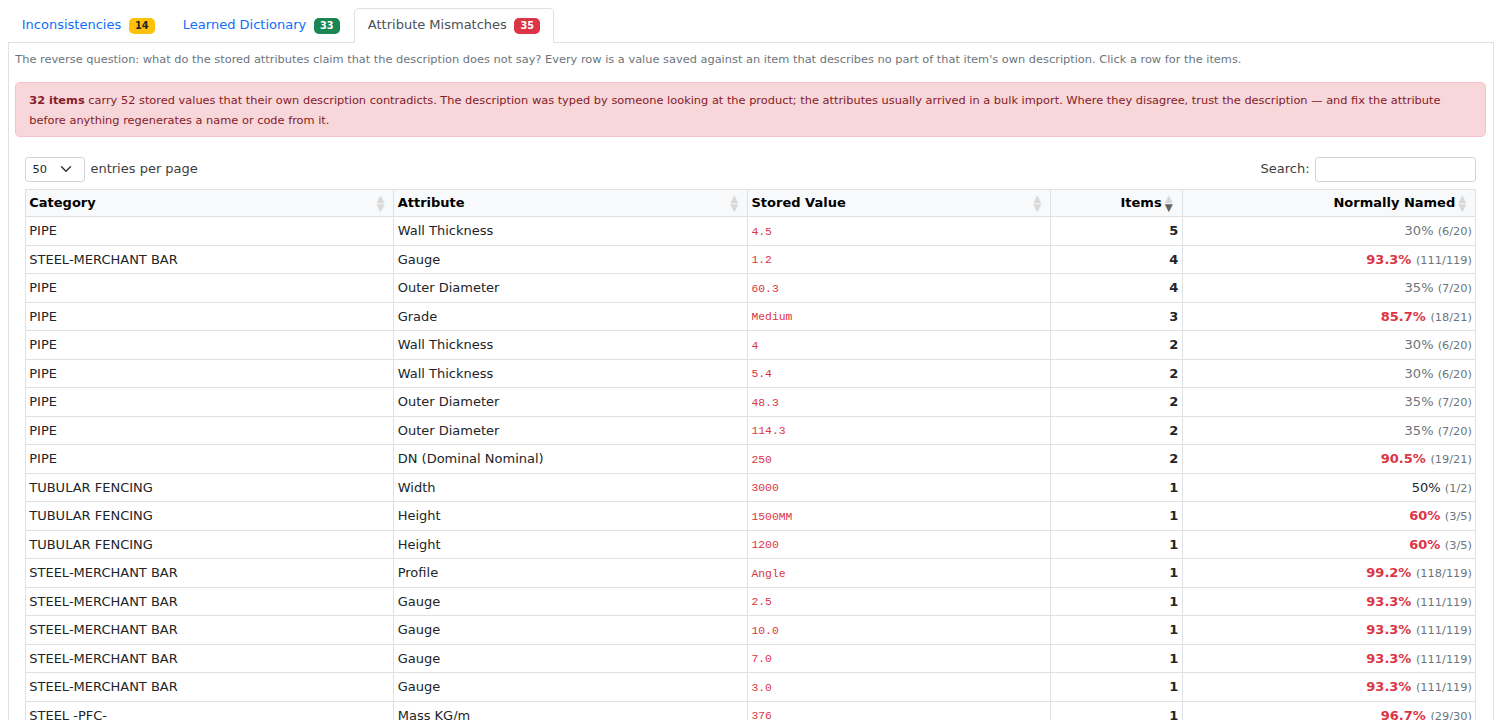
You can narrow the report to a category, tell it how your descriptions and codes are separated, and how many uses a term needs before it is treated as settled. Every tab drills through to the affected items and exports to CSV. The report is read-only — it never changes an item, and nothing is corrected for you.
-
4 August 2026Work in Progress Summary - Actual Cost and Cost in Progress columns Reporting
The Work in Progress Summary report now shows two new cost columns so the real money spent on a job is visible alongside the completion-based figures.
- Actual Cost — the real cost incurred against the job (supplier bills, timesheets, GL consumables, shop orders and picking), as accumulated on the job costing tab. It is a cached figure, as fresh as the last time that tab was opened, and shows $0.00 for a job that has never been costed.
- Cost in Progress — Actual Cost less Total Costs: the actual spend on work not yet marked complete. This is the true cost-basis work-in-progress the completion-driven columns did not previously surface. Where it is large, spend is running ahead of recorded completion (typical of a progress-claimed job) and the completion-based figures understate progress.
Both columns feed the summary tiles, the totals row and the CSV export.
-
4 August 2026On-Order Qty Bug PurchasingAn issue with deleted Fabrication order and in certain situations deleting Purchase Orders failed to download On-Order QTY recorded against Branches.
This issue has been resolved and On-Order QTY calculations have been corrected.
There is a new tool available until June 30 to Audit and correct any historical issues with current On-Order Reporting
Inventory > Tools > On Order Qty Audit -
30 July 2026Invoicing a dispatch: goods already invoiced from the job are no longer billed again Projects
The guard between dispatch invoicing and the job’s own invoicing methods now works in both directions. Previously it only worked one way — invoicing a delivery reduced the job’s un-invoiced quantities, but invoicing from the job first (through Itemized Invoice, for example) left the INVOICE button on the delivery willing to bill exactly the same goods over again.
Before it builds the invoice, the delivery now deducts everything already invoiced against each job item:
- where nothing is left to bill, the INVOICE button is greyed out and reads “Already invoiced against the job — nothing left to bill”, so no empty invoice can be raised;
- where part of it is left, the button stays live and a note under it says how much of the delivery will be billed (“only 22 of 60 will be billed”). The same is repeated after you press it, along with how many lines were shortened or left off;
- lines already billed in full are left off the invoice rather than repeated at nil.
The invoicing option set against the item on the job is honoured as well, so a delivery cannot bill something the job says is not billable. Disable All Invoicing leaves the line off; Do not invoice/Credit Extras bills the original quantity, so a quantity variation is neither charged nor credited; and no line is billed for more than the job item carries, however much was shipped. Lines added straight onto the delivery have no job item to check against and still come across in full, at 0.00 for you to price.
The option itself is now labelled the same way wherever it appears. Adding an item on the job’s Inventory tab previously offered Invoice client / Do not invoice client, which read as billing or excluding the item outright. Both now read Invoice/Credit Extras, Do not invoice/Credit Extras and Disable All Invoicing — the first two govern how a quantity variation is treated, and only the third excludes the item outright. The separate Reason this item being added to job field, including its Do and charge option, is unchanged.
-
30 July 2026Invoicing a dispatch: delivered goods can no longer be billed twice Projects
Four fixes to the INVOICE button on a committed dispatch.
- The job’s un-invoiced quantities now drop. Delivered items were left showing as outstanding on the job, so the Itemized Invoice method in the Invoice Job window offered the same goods again — a delivery could be billed twice with nothing on screen to show it. Each dispatch invoice line is now tied back to its job item, so the job, the Return Goods screen and the job’s invoiced-to-date figures all account for it.
- A dispatch can only be invoiced once. Pressing INVOICE a second time raised a second complete invoice for the same delivery and pointed the dispatch at the newer one, leaving the first easy to miss. The button now carries the invoice number and links to the invoice already raised; a repeat submission is refused with a message naming that invoice. Deleting a draft dispatch invoice still frees the dispatch to be invoiced again.
- The invoice carries the contact named on the delivery — the person who received the goods — rather than the customer’s first contact record. Where that person is also a contact against the customer, the invoice is linked to that record and any missing email or phone is filled in from it.
- Ad-hoc dispatch lines are no longer dropped. A line added straight onto the delivery, with no matching item on the job, was silently left off the invoice — goods were delivered and never billed. Those lines now come across at 0.00 with a message telling you how many need pricing.
Invoicing a dispatch is now also recorded in the history of both the dispatch and the job.
-
30 July 2026New guide: Invoicing a Dispatch Projects
A committed dispatch can be invoiced directly from the dispatch screen, billing the customer for exactly what was delivered rather than what was quoted. This has always been available but was not documented, so the new Invoicing a Dispatch guide now covers it.
The guide explains when the INVOICE button appears (the dispatch must be committed, the job must still be open, and you need administrator rights in Job Costing or Inventory), and exactly what is carried onto the draft invoice: one line per dispatch line, the quantity actually dispatched, the sell price held against the item on the job, and the stock item’s tax code and income account.
It also sets out what the button deliberately does not do, which is worth reading before you use it. A dispatch invoice always starts a new invoice, and it does not reduce the job’s un-invoiced quantities — the delivered items are still offered by the Itemized Invoice method in the Invoice Job window, so mixing the two methods on one job can bill the same goods twice. Pressing INVOICE a second time also raises a second complete invoice for the same delivery. The guide covers how to check before you press it, and what to check on the draft (the GST on each line, and the contact details in the header, which come from the customer’s first contact record rather than the person named on the delivery).
-
30 July 2026Summarised section invoices now charge GST Projects
Invoicing a job from a quote using Summarize Section Tabs as Line Items produced an invoice with no GST at all, and the section lines were not posted to an income account. The tax had to be corrected by hand on every such invoice before it could be sent or committed, and any invoice committed without that correction understated GST and posted its revenue to no account.
Each summary line now carries the tax rate and the income account of the quoted items inside that tab, so the invoice shows the same GST the customer was quoted. Where a single tab mixes tax rates — some items taxable, some GST free — that tab is now summarised as one line per rate with the rate name added to the description, for example “3.DIPLOMAT FENCING (GST)” and “3.DIPLOMAT FENCING (FREE)”. The section total is unchanged, it is simply shown across two lines so the invoice reconciles to the quote. Tabs using a single rate throughout are still summarised as one line.
Invoices already raised are not altered. Check the GST on any draft invoice created this way before you send it.
-
30 July 2026Invoice a quote onto an existing invoice, and see which quote each line came from Projects
Invoicing a job from its quotes has had three improvements, all in the Invoice Job window on the job’s Job Costing tab.
Select Target Invoice now works for quotes. The dropdown was previously shown but ignored when invoicing from a quote, so a new invoice was always created. You can now add quoted work straight onto an open draft invoice — including a draft that already carries other work for the same customer — and bill it all on one document.
Select Invoice Type is now applied. Previously the invoice always took the type of the quote it came from, whatever you chose. Leave it on Please Select to keep inheriting the quote’s type; pick a type to override it. Adding lines to an existing invoice never changes that invoice’s type.
Quote numbers on the invoice lines. Where an invoice ends up carrying more than one quote — several quotes billed together, or a quote added to an existing invoice — each imported line now shows its quote number in the description, for example “Delivery to site. (Quote 22429)”. Identical items priced the same on two different quotes also stay as separate lines instead of being combined, so your customer can match every line back to the quote it was quoted on. The number is part of the description, so you can still edit it on the draft.
-
30 July 2026Recent Service Interruptions System
You may have experienced a small number of brief service interruptions over recent days. Service was restored on each occasion, and our post-incident checks confirm no database corruption across any customer database.
We have increased server capacity and deployed detailed forensic diagnostics to our production environment to pinpoint the cause. We will provide a further update once the cause has been positively identified and the issue resolved.
We apologise for the inconvenience and thank you for your patience.
-
27 July 2026Add or remove a quote's optional extras on a job at any time Projects
When a quotation offers optional extras, you choose which ones the customer has taken up as the quote is imported onto a job. Until now that choice was final — if the customer later took up an extra (or dropped one), the only way to reflect it was to delete the quote from the job and import it again, which was not possible once any work had started.
The job’s Quotes tab now has an Optional Extras column showing what has been taken up and how many were quoted (for example 1 of 3). Click it to open the Optional Extras window and simply tick or untick each extra:
- Ticking an extra copies its quoted items — including sub-items — onto the job and adds its value to the job.
- Unticking an extra takes those items back off the job and removes its value.
- An extra taken up again later has its original items reinstated, so notes and edits made against them are preserved rather than duplicated.
Extras that have already been worked on are protected: if any of their items have progress, completed or dispatched quantities, have been invoiced, or sit on a shop order or requisition, the extra stays ticked and is locked, with the reason shown on screen.
The job’s estimated revenue now follows the extras actually taken up — the quote total less any extra not taken up — and updates the moment you tick or untick one. Every change is logged against both the job and the quote.
On the quote screen itself, the optional-extra tick boxes in the Create Invoice panel are now active for quotes that are not on a job, so only the extras the customer accepted are billed.
Adding or removing an extra requires Job Costing admin access.
-
27 July 2026AI Quote Notes now adapts your proposal templates instead of replacing them Sales
AI Quote Notes used to do one thing: read a quote’s line items and write a short scope-of-work summary. If you pointed it at one of your proposal templates, it borrowed the tone but threw the template’s actual wording away — so a polished introduction you had spent years refining came back as a list of dot points.
That is now fixed. AI Quote Notes can take a template you already trust and rewrite it for the client, site and scope in front of you, keeping the wording and structure that make it work.
Choose how closely to follow the template
A new Mode dropdown sits next to the template picker on every scope:
- Adapt template (the default) — keeps the template’s headings, tone and prose, and rewrites the specifics: client, site, dates, quantities and inclusions. Sections the quote does not cover are dropped.
- Follow template closely — reproduces the template almost word for word, changing only what has to change to be correct. For approved or contractual wording.
- Style guide only — reads the template for tone and formatting, then writes fresh content from the line items. This is the old behaviour.
- Line items only — ignores templates entirely and writes a concise scope summary.
Tell it what is different about this job
An Extra instructions box on each scope lets you steer a single draft — “two days, not three”, “drop the airbrush option”, “keep it to two paragraphs”. Nothing is saved; it just guides that generation.
Set the default once, on the template
Under Settings → Message Templates, quote templates now have an AI default mode and an AI instructions field. Set them once and every salesperson who picks that template gets the right behaviour automatically, along with any standing notes about how the document should be handled.
Knows who the client is
Drafts now include the quote’s client, contact, site or delivery address and key dates, which is what allows the template to be genuinely tailored rather than generically reworded. Prices and costs are still never sent.
Flags the blanks
Templates often contain placeholders such as
[Origin City/State]that only a human can fill in. If any survive into a draft, a Needs your input warning now lists them under the preview so nothing embarrassing reaches a client.Everything else works as before — preview first, then Deploy writes the draft straight into the quote or section notes.
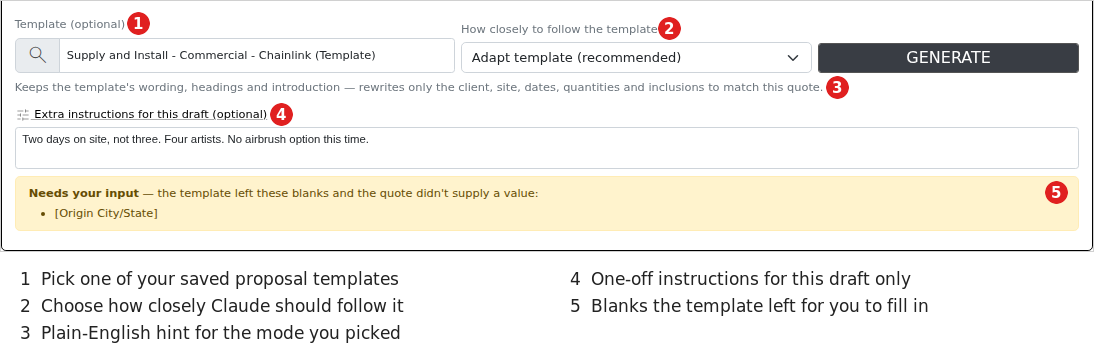
-
27 July 2026Invoices and bills now check your accounting setup before they commit Accounting
Committing an invoice writes a set of matching entries into your general ledger — income, GST, cost of sales, and the Accounts Receivable entry that puts the invoice on the customer’s statement and into Aged Receivables. That last entry uses a company-wide setting called a control account. Supplier bills work the same way, through Accounts Payable.
If that setting had never been filled in — most likely in a brand-new company, a copied company, or when loading historical invoices in from another system — the receivable entry could not be written, but the invoice was still marked as committed. It looked correct on screen while quietly missing from Aged Receivables, and the ledger did not balance.
Evolution now checks the accounts it needs before posting anything. If one is missing, nothing at all is posted and the invoice simply stays uncommitted, with a message naming the setting to fix:
“Invoice 1234 was not committed: the Accounts Receivable control account is not configured for this company. Set it in the accounting preferences, then commit again.”
The entry screens now check up front, too. If the company has no Accounts Receivable account you cannot start a new invoice, and if it has no Accounts Payable account you cannot start a new bill — you get a short message naming the setting instead of the entry form, with a link to Company Setup for administrators. Documents you have already keyed are not affected: they still open, edit, print and email as normal, and simply carry a reminder that they cannot be committed yet. Blocking entry is the kinder outcome, because an uncommitted invoice or bill is invisible to the ledger, to average cost tracking and to job costing.
Set the account under Settings → Company Setup → Accounting Information and everything proceeds normally. The same commit-time check applies to a tax code that charges GST but has no Account for Tax Collected set. Nothing is lost by a refused commit — it is far easier to correct one setting than to unpick an unbalanced ledger months later.
The new Control Accounts & Tax Accounts guide lists every one of these settings, explains exactly what an invoice commit posts, and includes a setup checklist for a new company.
-
23 July 2026Faster, more reliable loading for several reports Reporting
We’ve improved how several reports retrieve their data behind the scenes, so they load more efficiently and are less likely to slow down for other users during busy periods.
Reports improved: PO Outstanding Items, Min / Max Re-order Report, Misaligned / Adjusted Invoices, Expiring Qualifications, Expired / Lapsed Qualifications, Logged Hours / CPD, Missing Evidence / Documents, and Renewal Forecast.
No changes to how you use these reports — the figures they show are unchanged, they just run more smoothly.
-
23 July 2026AI Quote Notes Sales
The quote editor now has an AI Notes icon that drafts client-facing scope-of-work notes straight from a quote’s line items, using Claude AI.
- Generate a summary for the whole quote, or for a single section — useful whether you print one combined document or a section-by-section quote.
- Optionally pick an existing quote template to guide the tone and structure of the draft.
- Preview the draft before doing anything with it.
- Click Deploy to save it straight into the quote’s notes (or that section’s notes) — no retyping.
Only descriptions, quantities and units are used — prices and costs are never sent.

-
23 July 2026Planned Activities Calendar — faster loading & tighter security Projects
The Planned Activities Calendar now loads noticeably faster, especially for companies with a large number of scheduled activities — the week view now loads in one pass, and each activity’s full details are loaded only when you open it.
We’ve also tightened the security of the calendar’s search filters as part of our ongoing security improvements.
Also added a "Focus Alerts" checkbox that focuses any activity cards with alerts
-
21 July 2026Bill due dates fill in automatically from supplier terms Purchasing
When you create a new AP invoice (bill), the Due Date now fills in automatically from the supplier’s payment terms — the moment you select the supplier, and it recalculates if you change the Bill Date. No more working the due date out by hand.
Set a supplier’s terms once in the Supplier Terms field on their contact record (for example 30 Days Net, 14 Days Net, end-of-month or COD) and every future bill for that supplier is dated for you. The list of terms is drawn from the terms your business maintains centrally, so it stays consistent everywhere.
If a supplier has no terms set — common for contacts imported from another system — the due date simply defaults to today and a short reminder appears under the field. It never blocks you: you can always enter or override the due date by hand.
-
21 July 2026Bill lines now show where they came from Purchasing
Bill Entry now has a Source column on every line, so you can see at a glance where each charge came from — and jump straight to it.
Depending on how the line was created, the Source column shows:
- Req # — the line came from a requisition / purchase order. Click it to open the requisition, with the linked job shown alongside where one applies.
- Job Alloc — a project cost allocation, linking to the job it was allocated against (with a Takeup tag when it also updates the job’s completed quantity).
- Xero Adj — an automatic adjustment line used to reconcile the bill with Xero.
- Manual — a line typed in by hand on the bill.
This makes it much easier to trace a supplier charge back to its purchase order or project without leaving the bill.
-
21 July 2026Work in Progress Summary — new Billing Position (over/under-billing) view Reporting
The Work in Progress Summary report now separates two measures that were previously combined under a single “WIP” column, so a project’s billing position is clear at a glance.
- Backlog (previously labelled “WIP”) — contract value less the cost of completed work; the value of work still in hand.
- Earned Rev — the sell value of completed billable work, on a percentage‑of‑completion basis.
- Billing Position — earned revenue less what has been invoiced. A positive figure means the job is under‑billed (unbilled WIP still to be claimed — a contract asset); a negative figure means it is over‑billed (billings in excess of the work done — the normal position on a forward‑invoiced or progress‑claimed job).
New summary tiles and CSV columns are included for Billing Position and Earned Revenue, and the table can be sorted by Billing Position to surface the most over‑billed jobs first.
-
20 July 2026Stock Movement Ledger — quick date ranges & clearer movements Inventory
The Stock Movement Ledger has had a round of refinements to make it quicker to drive and easier to read.
- Quick period presets — a new Period dropdown fills the dates for you (This month, Last month, Last 3 months, Financial year to date, Last financial year, Calendar year to date, Last 12 months), following your financial‑year start.
- Smarter date range — the From and To pickers now keep each other inside the 12‑month limit, so you no longer have to guess a valid range before running the report.
- Dates in your standard format — each movement now shows the date as DD‑MM‑YYYY with the time of day, on a single line that no longer wraps, and the column still sorts in true date order.
- Colour‑coded source badges — Purchase, Invoice, Dispatch, Picking, Shop Floor, Credit Note, Return and Stock Adjustment are now easy to tell apart at a glance.
- Signed quantities (+ in / - out) and a summary line that now also reports the number of distinct items in view. The CSV export includes the movement time.
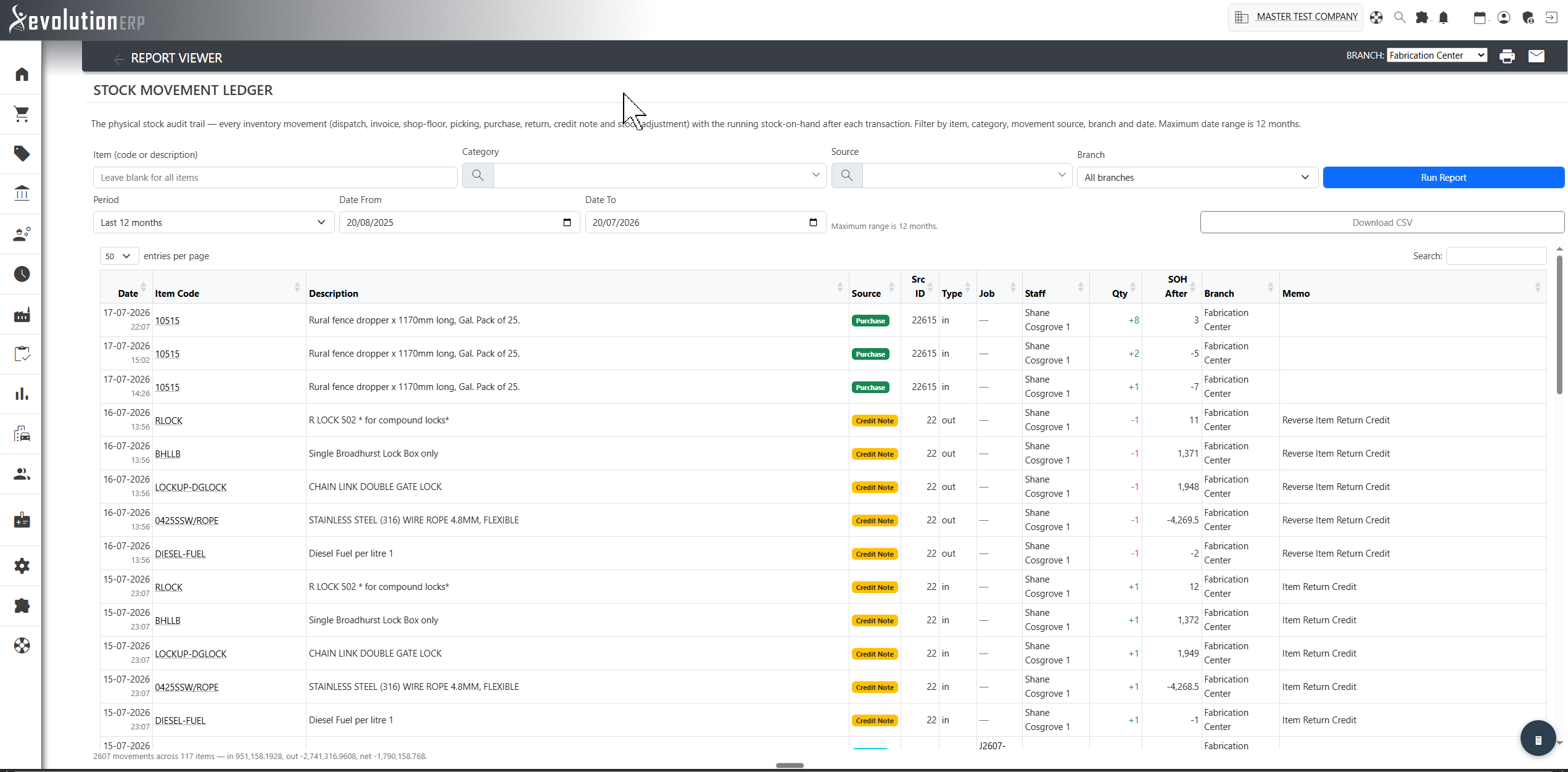
-
20 July 2026Timesheet Monthly Billing — richer month view & corrected hours Timesheets
The Timesheet Monthly Billing by Project / Employee report has had a major upgrade so a month’s labour picture reads at a glance — and an underlying accuracy fix that improves several timesheet reports at once.
Summary tiles now sit across the top of the report: actual hours, billable hours, billable %, uninvoiced (WIP) hours, labour cost, billable value, margin and WIP dollars for the whole month.
New columns on every project — and carried down to the employee and individual-timesheet rows — add Variance (actual vs billable), Billable % (labour recovery), Uninvoiced Hrs, Cost $, Value $ and Margin, so you can see recovery and profitability without leaving the report.
A data-quality banner flags any timesheet with an impossible clock time (for example an end time before its start) and keeps it out of the totals, so a single mistyped entry can no longer distort the month. Click the banner to list the affected entries.
The CSV export now carries every column plus the invoiced / uninvoiced split.
Accuracy fix: shifts of ten hours or more were previously being under-counted in the “actual hours” total. Actual hours are now calculated from the true elapsed time, so totals will read higher than before wherever long shifts were recorded. The same fix flows through to Employee Utilization, Billable Mix, Approvals Ageing, Project Run-Rate, Missing Timesheets and Unbilled WIP Ageing.
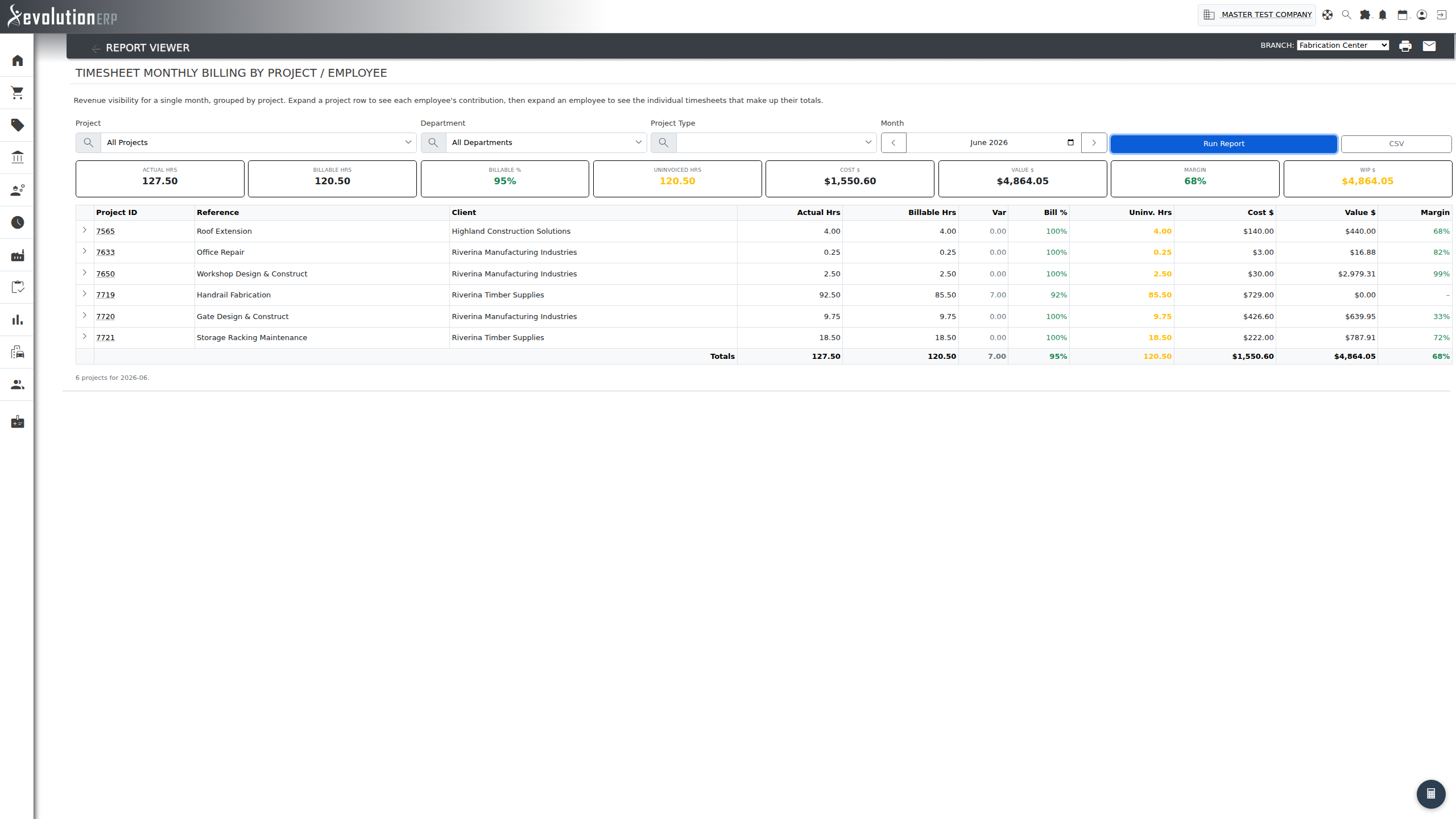
-
20 July 2026Effective Bill Rate — budgeted comparison & variation Timesheets
The Effective Bill Rate report now shows what your labour was quoted at alongside what you actually realised, so silent discounting is obvious at a glance.
A new Budgeted Rate ($/hr) column shows the hours-weighted rate the labour on each project was originally quoted at (taken from the job’s quoted line items), and a colour-coded Variation column compares realised against quoted:
- Green — billed at or above the quoted rate.
- Amber — a mild write-down (up to 10% below quote).
- Red — significant discounting (more than 10% below quote).
The blended footer row and the CSV export both include the new figures. Hours booked against labour with no quoted line are left out of the comparison and shown as a dash.
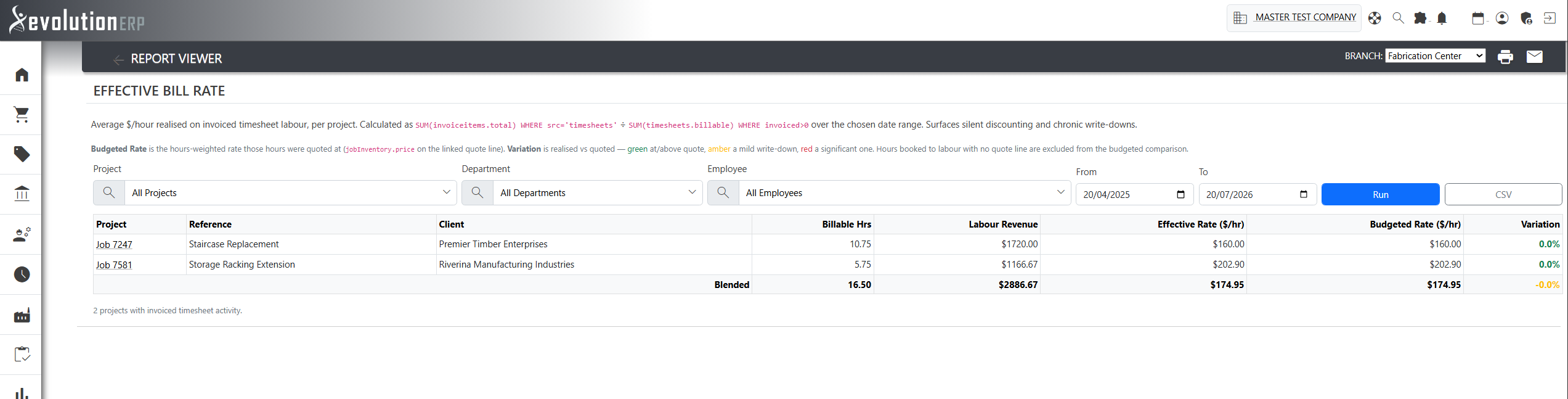
-
20 July 2026BOM Restocking — rebuilt with financials & suggested ordering Inventory
The BOM Restocking report has been rebuilt from the ground up. It still explodes the bill of materials for every manufactured item on a live job and nets the raw-material demand against branch stock — but it now costs that demand into a purchasing-spend forecast and adds proper MRP-style purchasing columns.
- Financials, at last — every line carries a unit cost, demand value and an estimated purchase spend, with headline KPI tiles totalling the items needing restock, the estimated spend, the demand value and the stock-on-hand value.
- Suggested Order Qty — covers the net shortfall and tops stock back up to the branch reorder minimum, rounded to the item’s minimum order quantity.
- Projected balance & status badges (OK / Order / Short / Critical) for at-a-glance triage, alongside available, on-order and allocated columns.
- Group by supplier with an estimated-spend subtotal, so you can raise one purchase order per preferred supplier.
- Smarter supplier filter — the supplier box is now a type-to-search picker. By default it lists every item the chosen supplier can provide — whether they are the item’s preferred supplier or simply carry it under their supplier codes — so nothing they can quote is missed. Tick Limit to preferred supplier only to narrow the list to items where they are the preferred supplier.
- Plus filters for only items needing restock and a minimum estimated spend, an in-report branch selector, and a one-click CSV export of every column.
- The per-item demand breakdown now shows the customer and the dollar value of each contributing job.
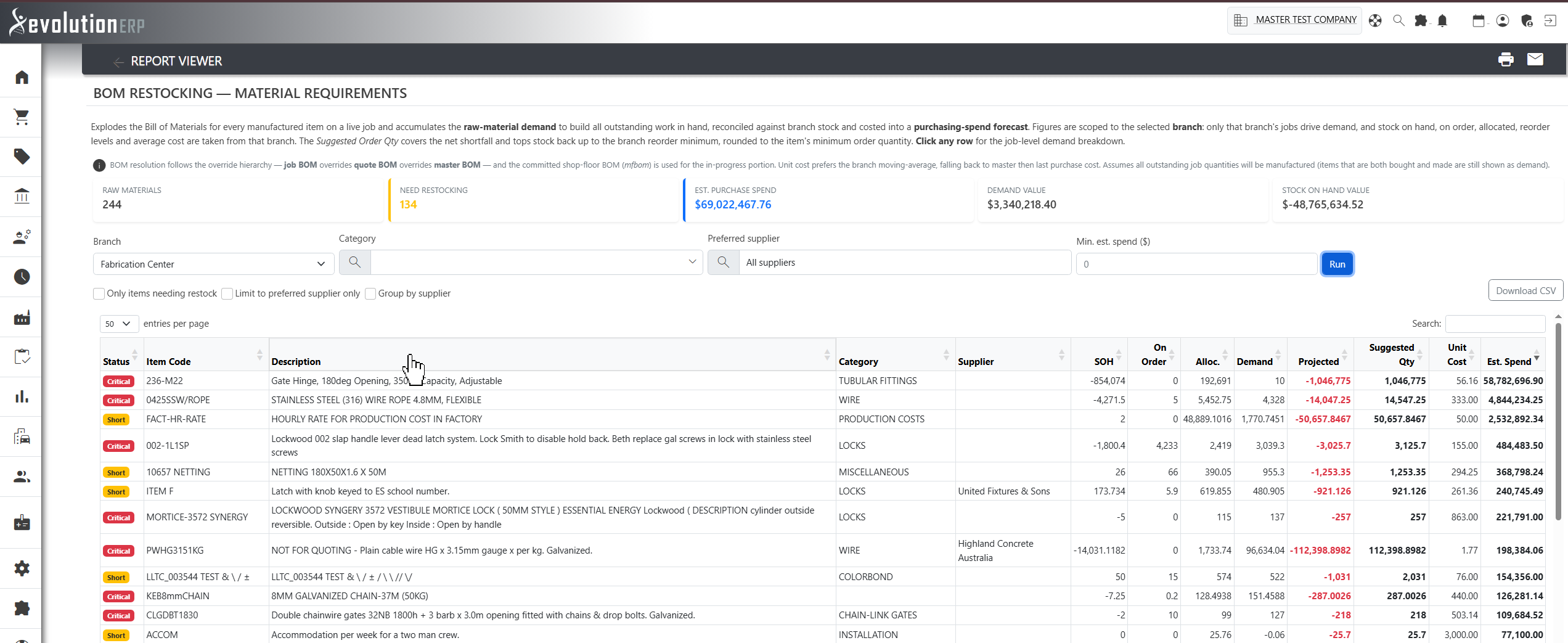
-
20 July 2026Bill of Material Detail — rebuilt as a BOM cost audit Inventory
The Bill of Material Detail report has been rebuilt as a fast, read-only BOM cost audit. For each assembly it now shows the item’s own cost and price alongside the rolled-up cost of its components (each component’s quantity × current master cost) and the variance between the two — so an assembly whose stored cost has drifted from what its components now cost is flagged at a glance (amber, then red).
- Modern inline filters — category, production method, item and component — with live search, sortable columns and one-click CSV export.
- Expand any row to see the full component breakdown: quantity, unit cost and line cost.
- A Margin % column highlights thin or negative margins on each assembly.
It shows the master (item-level) BOM only, one level deep, and is far faster and safer on large catalogues (results are capped at 2,000 assemblies per run). The previous “Synchronize Pricing to Xero” action has been retired from this report.
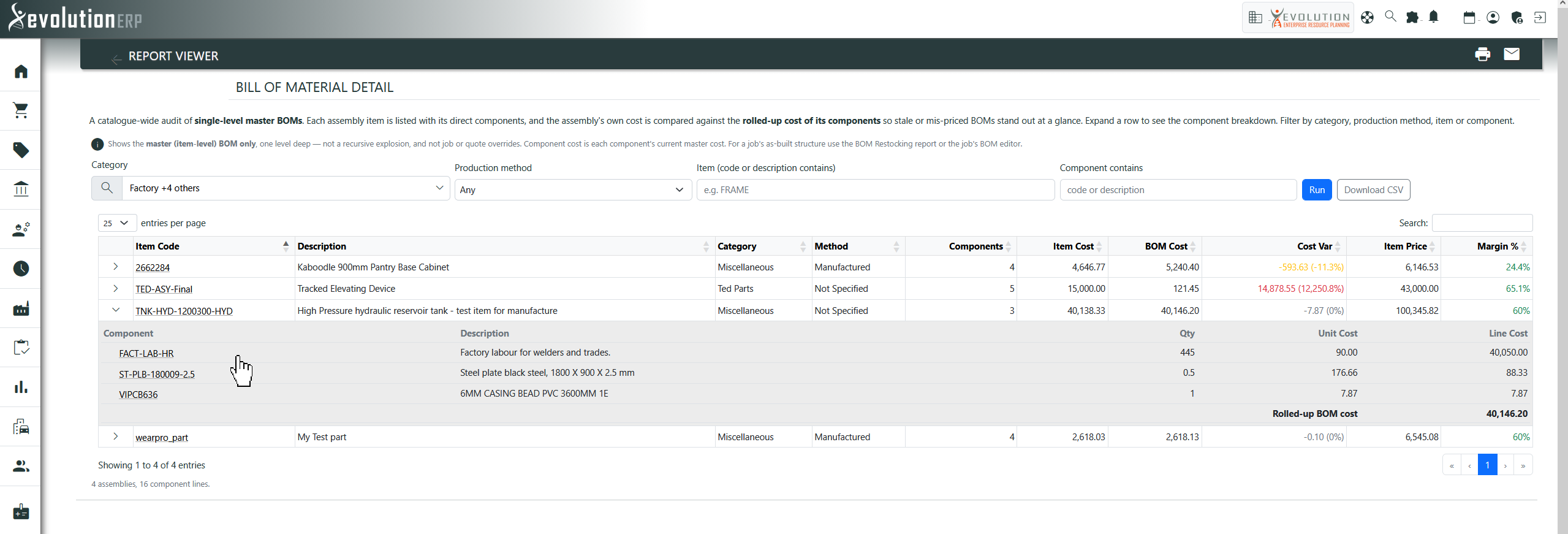
-
20 July 2026Project Billable Items — rebuilt with margins & category subtotals Reporting
The Project Billable Items report (Reports → Jobs / Projects, and the Uninvoiced WIP link on a job) has been rebuilt to make it much clearer where a job is making or losing money.
- The client and job details now show on screen — previously they only appeared on the printout.
- Items are grouped by category with sub-totals, and every row now shows Margin and Margin % alongside cost, price, invoiced and uninvoiced WIP — colour-coded so thin or negative margins stand out.
- Headline figures for Estimated Revenue, Total Cost, Gross Margin, Invoiced and Uninvoiced WIP sit across the top.
- A faster job search box, an optional date range for the per-item timesheet detail, and one-click CSV export.
- Opening the report no longer changes the job — it is now strictly read-only.
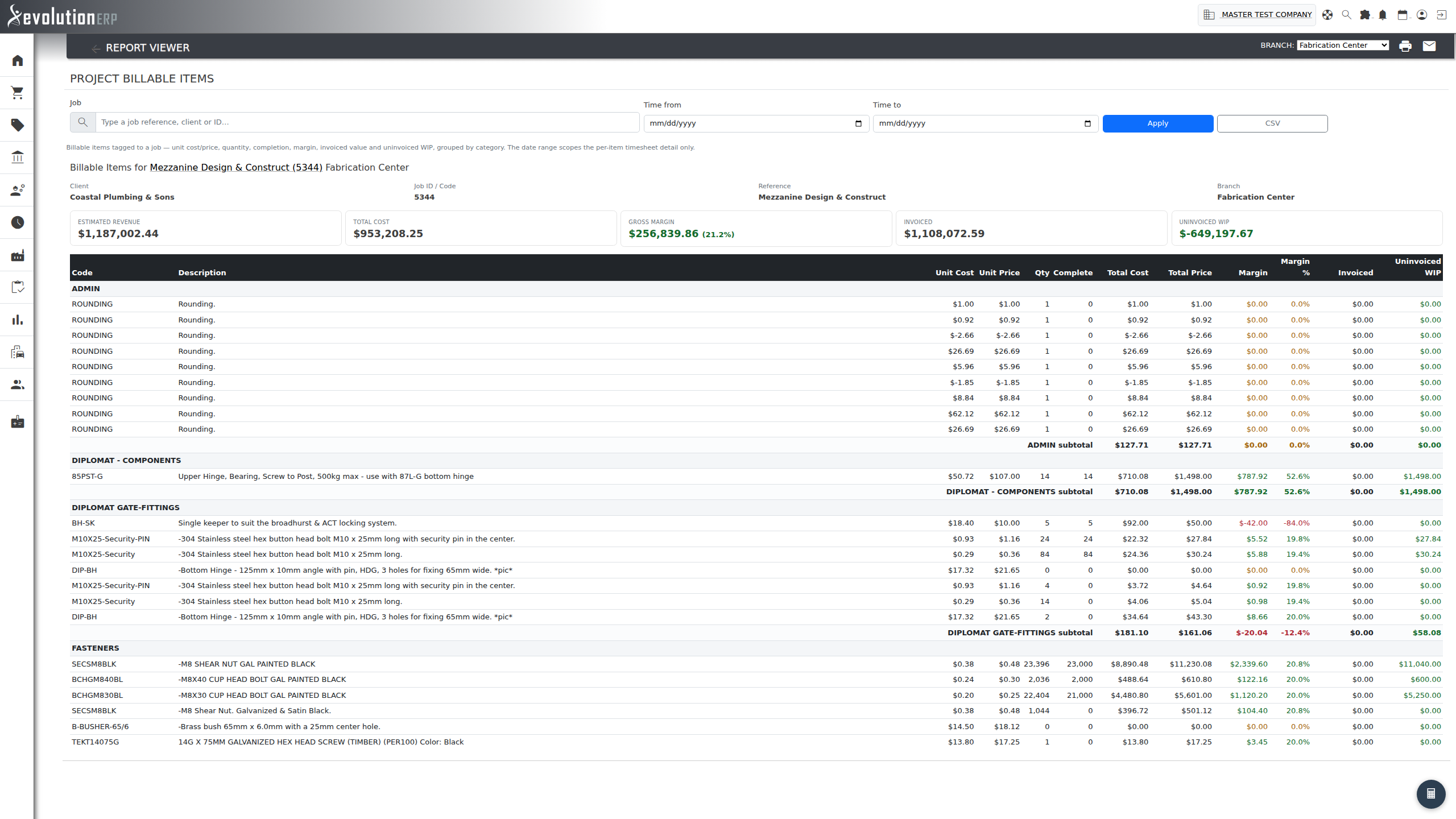
-
20 July 2026Invoicing Report – Advanced — rebuilt as an AR register Sales
The Invoicing Report – Advanced has been rebuilt as a full Accounts–Receivable register.
- Summary cards showing Invoiced (inc GST), GST, Paid and live Outstanding totals.
- A receivables aging strip — Current / 1–30 / 31–60 / 61–90 / 90+ days — across committed invoices.
- Filter by keyword (invoice number, customer, reference or customer PO), job, status (Committed, Unpaid, Partially paid, Overdue, Paid, Draft or Voided), project type, and a date range measured on either the invoice date or the due date.
- Sortable columns and one–click drill–through to the invoice, the customer or the job.
- An invoice can bill several jobs at once — the Jobs column now shows a count you can expand to see the ex–GST amount attributed to each job.
- Balances are calculated live as amount minus paid, and CSV export reflects your current filters.
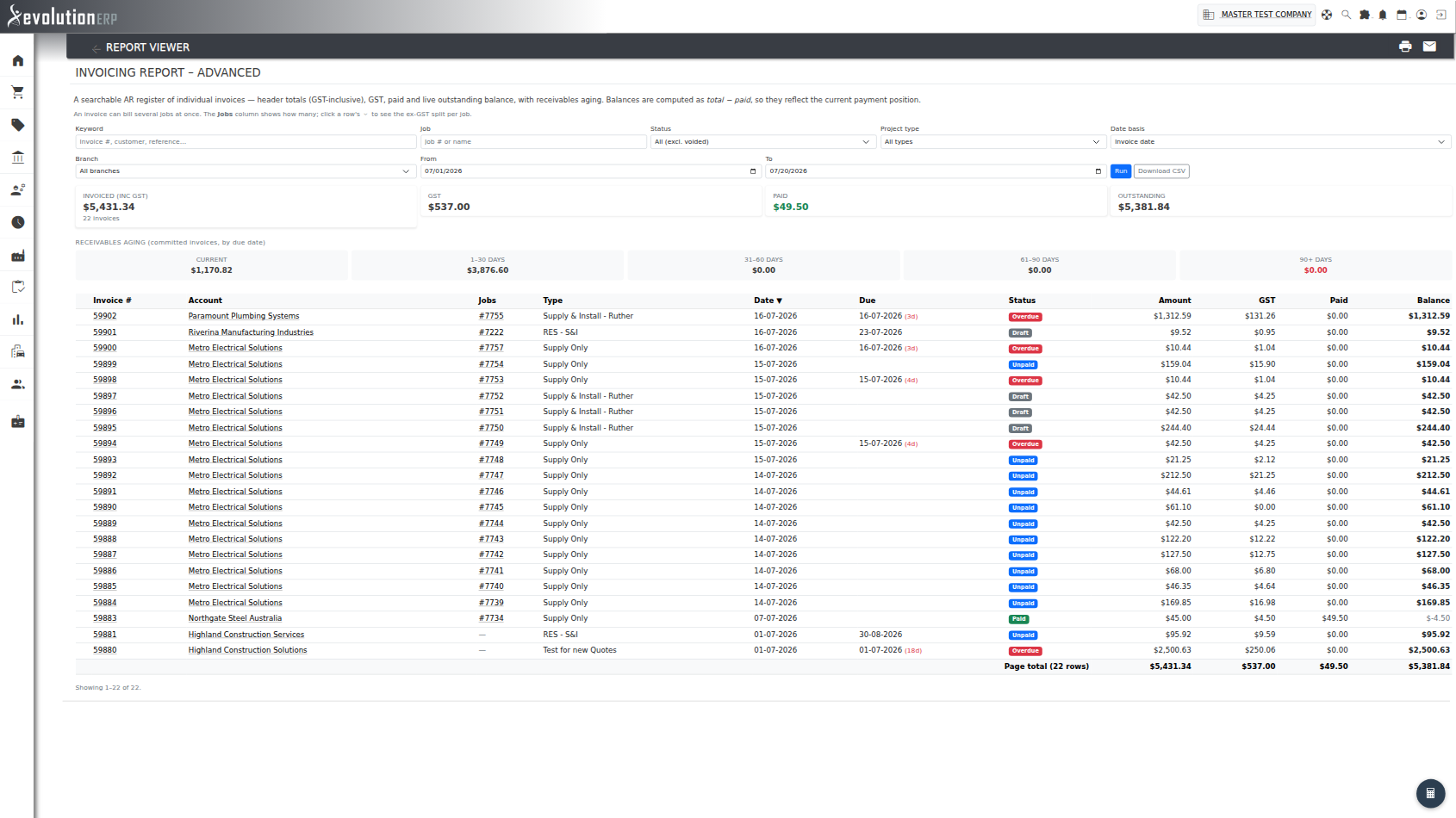
-
20 July 2026Item History / Stock Card — include job-dispatched stock Inventory
Item History / Stock Card gained the same Include job-dispatched items option, so a single item’s stock card reconciles with Product Sales Performance. When on, the KPI tiles show how much of Qty Sold / Net came off-invoice, the affected months are flagged, and each job dispatch appears in the transaction list with click-through to the job.
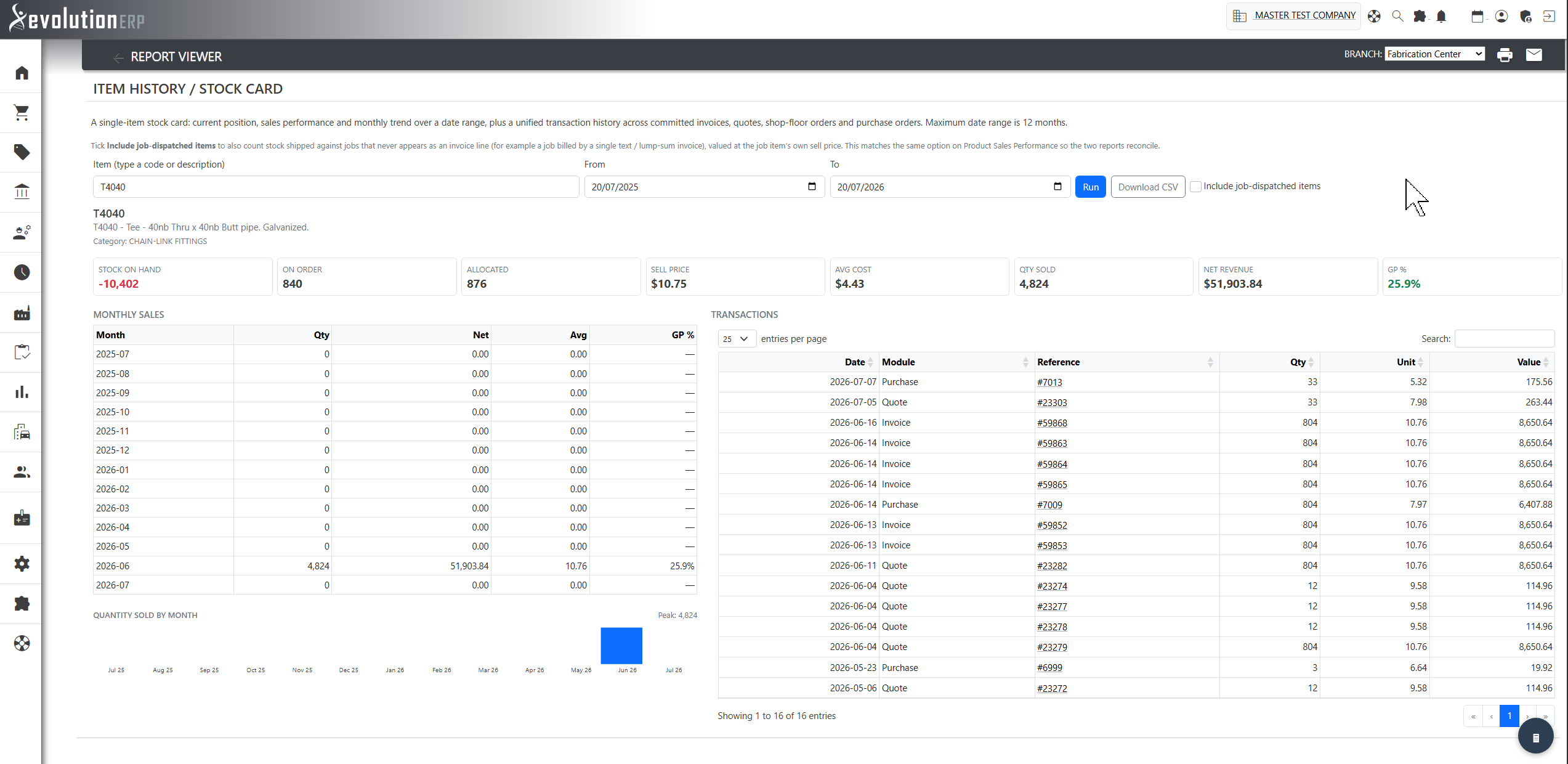
-
20 July 2026Product Sales Performance — include job-dispatched stock Inventory
Product Sales Performance can now optionally include job-dispatched stock. Tick “Include job-dispatched items” to also count goods dispatched against jobs that never appear as an invoice line (e.g. jobs billed by a single text / lump-sum invoice). Those units are valued at the job item’s sell price and shown in a separate Job Qty column, so off-invoice product movement is visible without double-counting anything already itemised on an invoice.
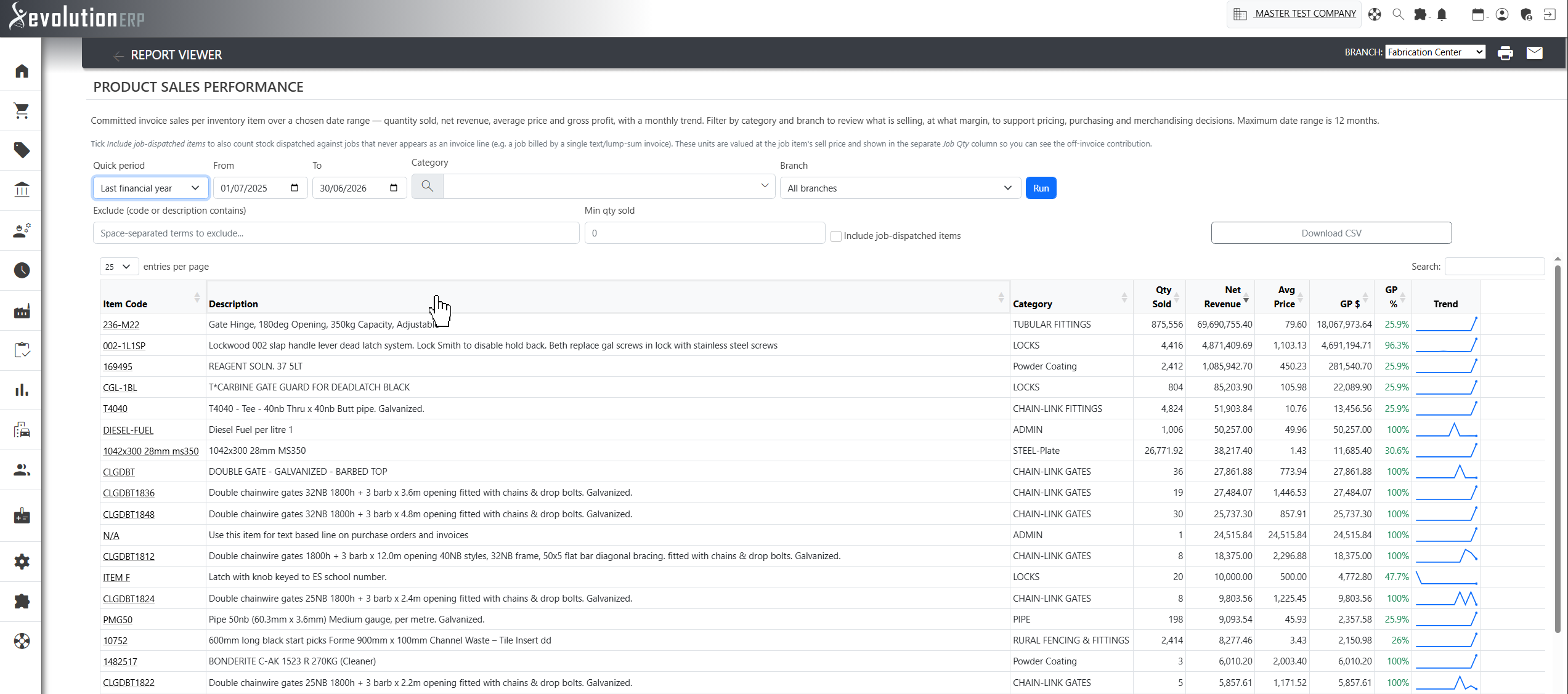
-
20 July 2026Stock Movement Ledger — rebuilt Inventory
The Stock Movement Report has been rebuilt as the Stock Movement Ledger — a clean audit trail of every physical stock movement.
- Every movement in the period with its source, quantity in / out, and the running stock‑on‑hand after each movement, plus a total in / out / net summary.
- Filter by item, category, movement source, branch and date range.
- Ideal for investigating a stock‑count discrepancy — the running balance shows exactly where a figure went wrong. Click an item to open its Stock Card, and download to CSV.
-
20 July 2026Item History / Stock Card — rebuilt Inventory
The Item History Detail report is now the Item History / Stock Card — everything about one product on a single screen.
- Current stock position — on hand, on order and allocated — alongside sales KPIs and a monthly trend.
- A unified transaction history spanning committed invoices, quotes, shop‑floor orders and purchase orders, each clickable through to the source document.
- Search by code or description, choose a date range, and download to CSV.
-
20 July 2026Product Sales Performance report — rebuilt Inventory
The Inventory Category Monthly Sales report has been rebuilt as Product Sales Performance — a modern, per‑product view of what you are selling.
- One row per product over any date range, with quantity sold, net revenue, average sell price and gross profit ($ and %).
- A monthly trend sparkline on every row, plus a totals summary line.
- Quick period presets (this financial year, last FY, this month, last 12 months) or your own From / To dates.
- Filter by category and branch, exclude products by text, or set a minimum quantity; sort any column to find your best sellers or your thinnest margins.
- Click a product code to open its Item History / Stock Card, and download to CSV (with per‑month columns) for further analysis.
-
20 July 2026Min / Max Inventory Re-order Report — rebuilt InventoryThe **Min / Max Re-order Report** had stopped returning results and only ever loaded a small slice of items. It has been rebuilt to match the newer reports: a fast, sortable, searchable table with **Branch**, **Category** and **Search** filters, a **Below min bin only / All items with a min bin** toggle, and CSV export. It's also more accurate: - The report lists every item whose available stock (SOH − allocated) has fallen to or below its configured **min bin** for the selected branch — not just the first page of results. - The suggested **Re-order Qty** tops each item back up to its **max bin** (or its min bin where no max is set), after netting off stock already **on order** and on **open purchase requisitions**, so a repeat run the same day won't re-suggest stock you've already covered. - Suggested quantities are **rounded up to the item's box quantity** where one is configured, so the figure is directly orderable. - Items with **no production method set** are flagged, and a running total of the units suggested to re-order is shown.

-
20 July 2026Demand Deficit (Finished Goods) report — expandable job breakdown InventoryThe **Demand Deficit – Finished Goods** report has been rebuilt to match the newer reports: a fast, sortable, searchable table with a **Category** filter, a **Shortfalls only / All items** toggle and CSV export. Each item shows stock on hand, on order and demand, and its **Balance** (SOH + on order − demand) with shortfalls highlighted. **Click any item to expand a per-job breakdown** showing which jobs are driving the demand — required, dispatched, in-progress, complete and outstanding quantities — with click-through to each job. Items with the deepest shortfall lead the list.

-
20 July 2026Quick period picker on Supplier Spend PurchasingThe **Supplier Spend** report now has a **Quick period** picker that sets the date range for you — This month, Last month, **Financial year to date** (the new default), Last financial year, Calendar year to date, or Last 12 months — the same way the Profit & Loss report works. The financial-year options follow your company's configured end-of-financial-year, so "financial year to date" and "last financial year" line up with your books. You can still type custom From / To dates by hand at any time.
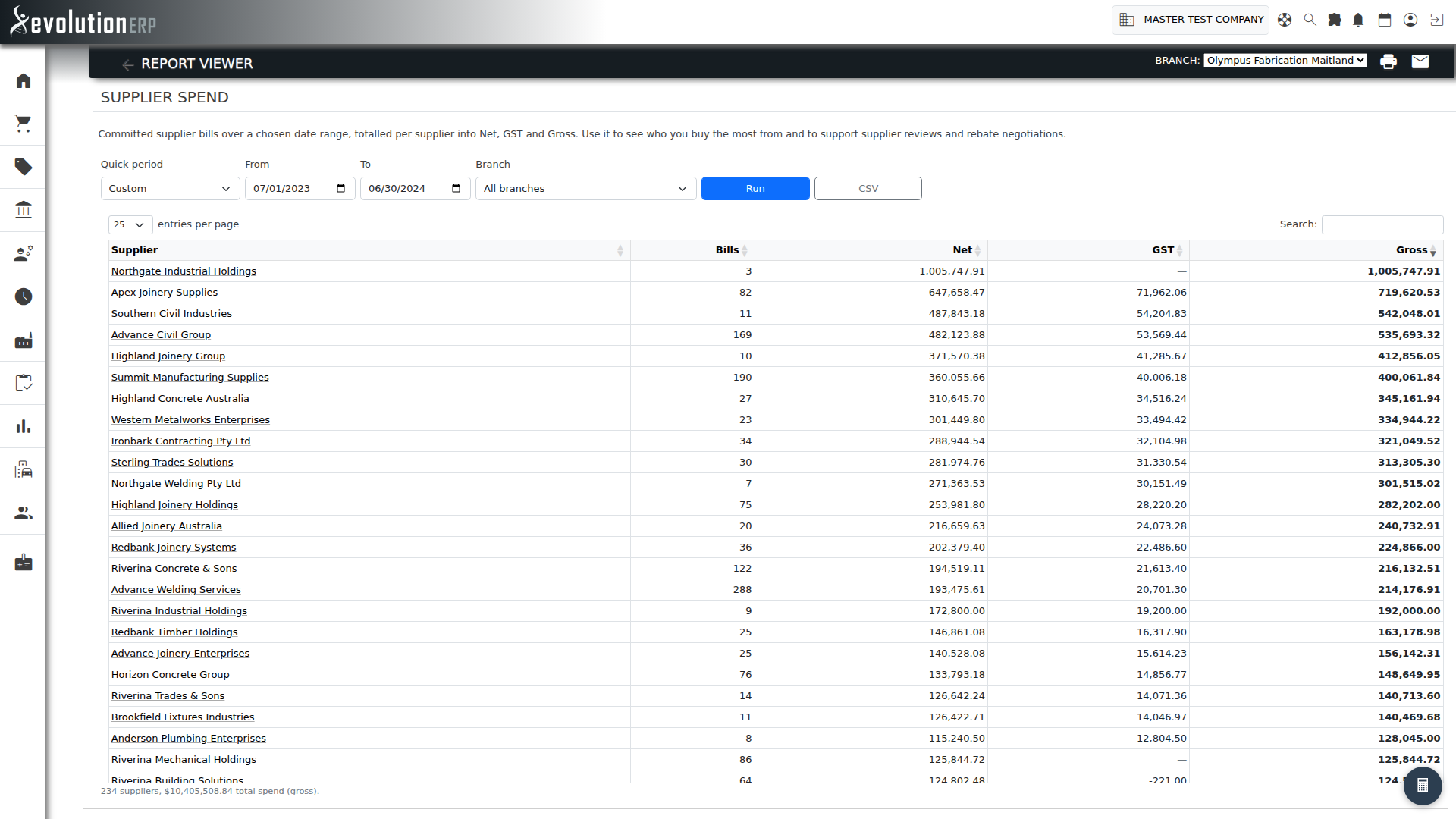
-
20 July 2026Automatic back orders when you receive part of a purchase order PurchasingReceiving part of a purchase order can now raise the back order for you. The **Receive Items** window has a **Back order shortfall** option (on by default) with an **ETA** date beside it. With it ticked, saving a part-receipt automatically creates a back order for whatever is still outstanding on each line you received — so part-shipped stock is never left untracked and shows up on the on-order ETA, the Back Orders register and the backorder report like any other. Set the **ETA** to the supplier's promised date (left blank, the received date is used and you can refine it later), or untick the option to skip automatic back orders for a receipt. Shortfalls are only ever covered once — lines that were fully received, and lines an existing back order already tracks, are skipped, so automatic and manual back orders never double-count. Auto-raised back orders are marked with the reason *"Auto-raised on partial receipt"* and can be edited or deleted from **Manage Backorders** like any other.
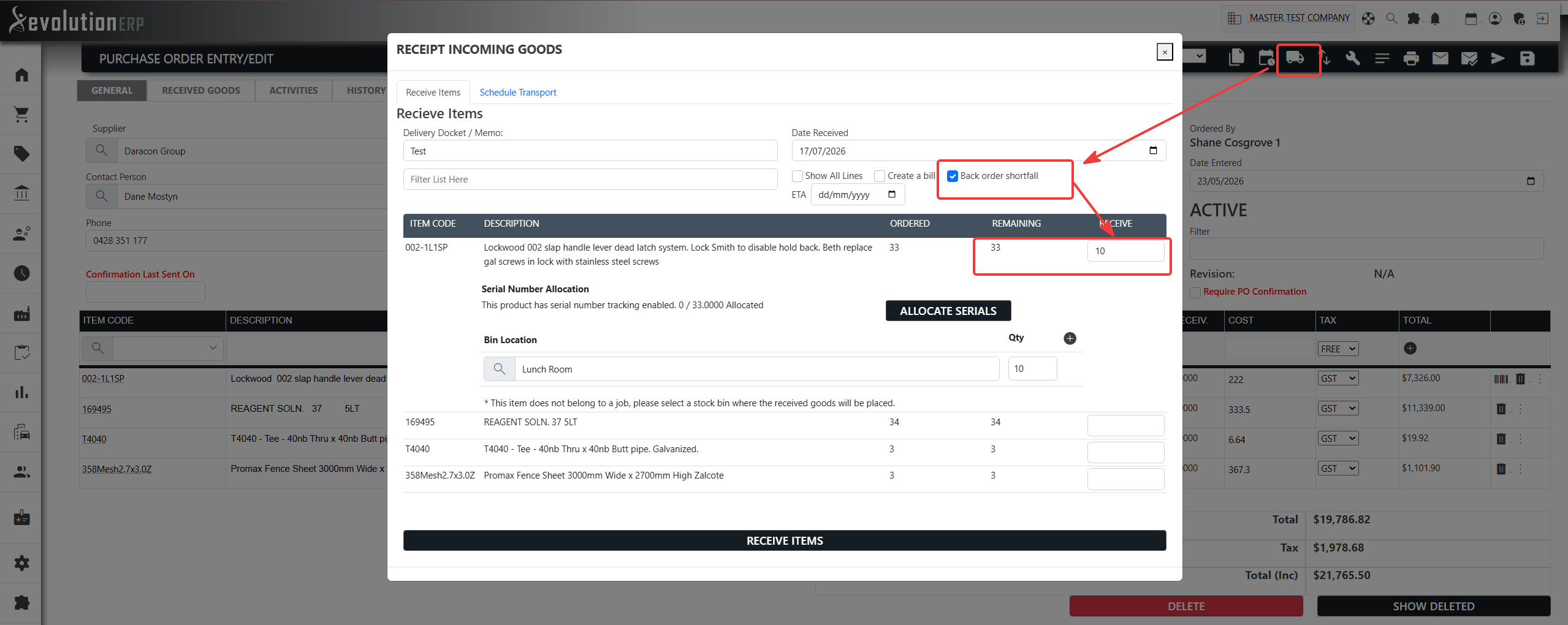
-
20 July 2026Purchasing by Job report PurchasingA new **Purchasing by Job** report under **Reports → Purchasing** breaks purchase cost down by job — **Ordered**, **Received** and still-**Outstanding** value from the purchase-order lines tagged to each job. Purchasing is grouped on the line's own job, so lines re-tagged to a different job are counted against the right one. Filter by **branch**, choose to show only jobs with outstanding purchasing or every job with purchasing, click through to a job, and export with **CSV**. It pairs with Job Costing for the full project cost picture.
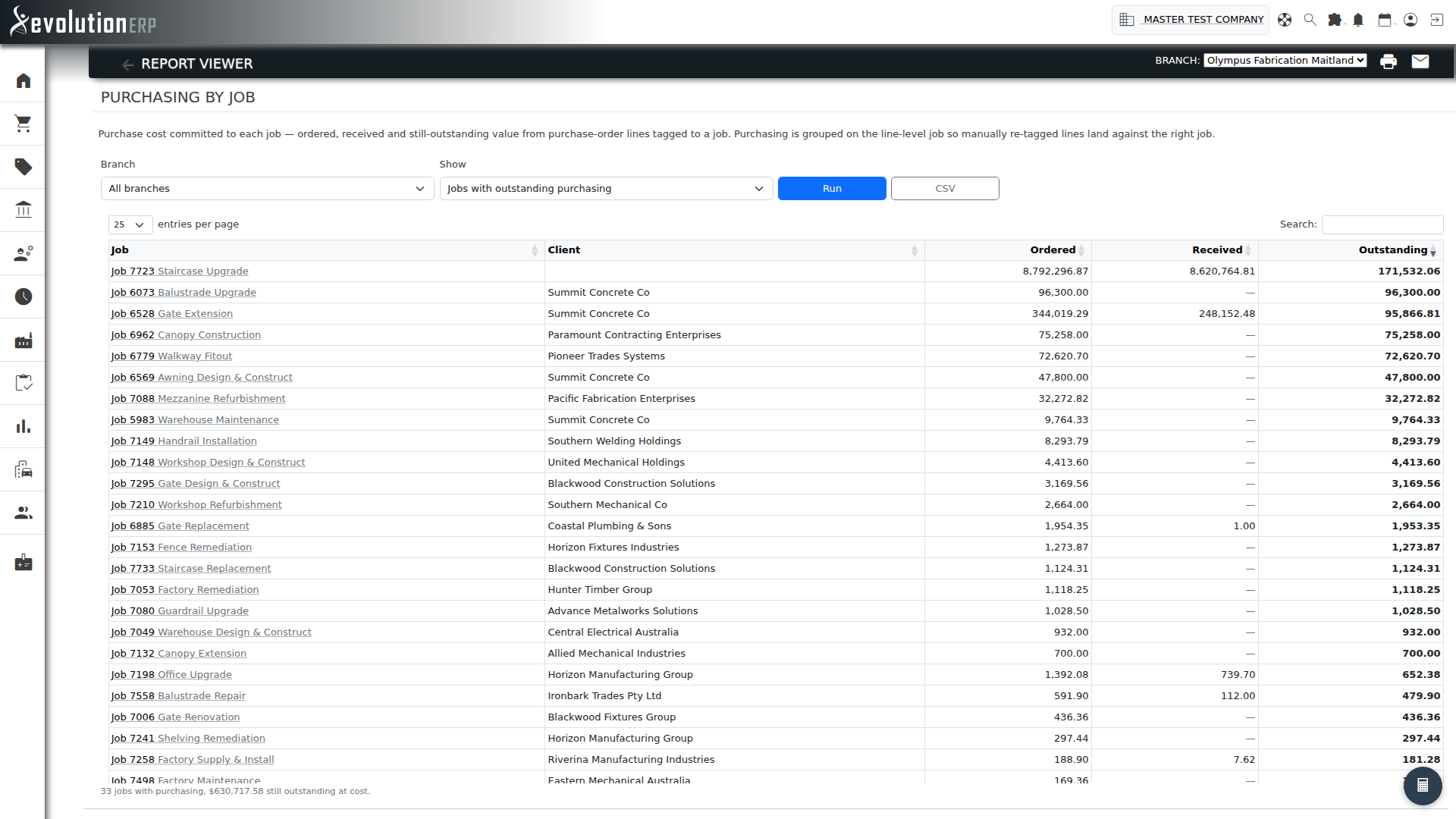
-
20 July 2026Open PO Commitments report PurchasingA new **Open PO Commitments** report under **Reports → Purchasing** shows the value of goods still on order — open purchase-order lines not yet received, valued at cost and rolled up per supplier, with the number of open POs and the outstanding quantity. This is your committed (but not yet billed) purchasing spend as at today — useful for cash-flow forecasting. Filter by **branch**, sort/search, and export with **CSV**.
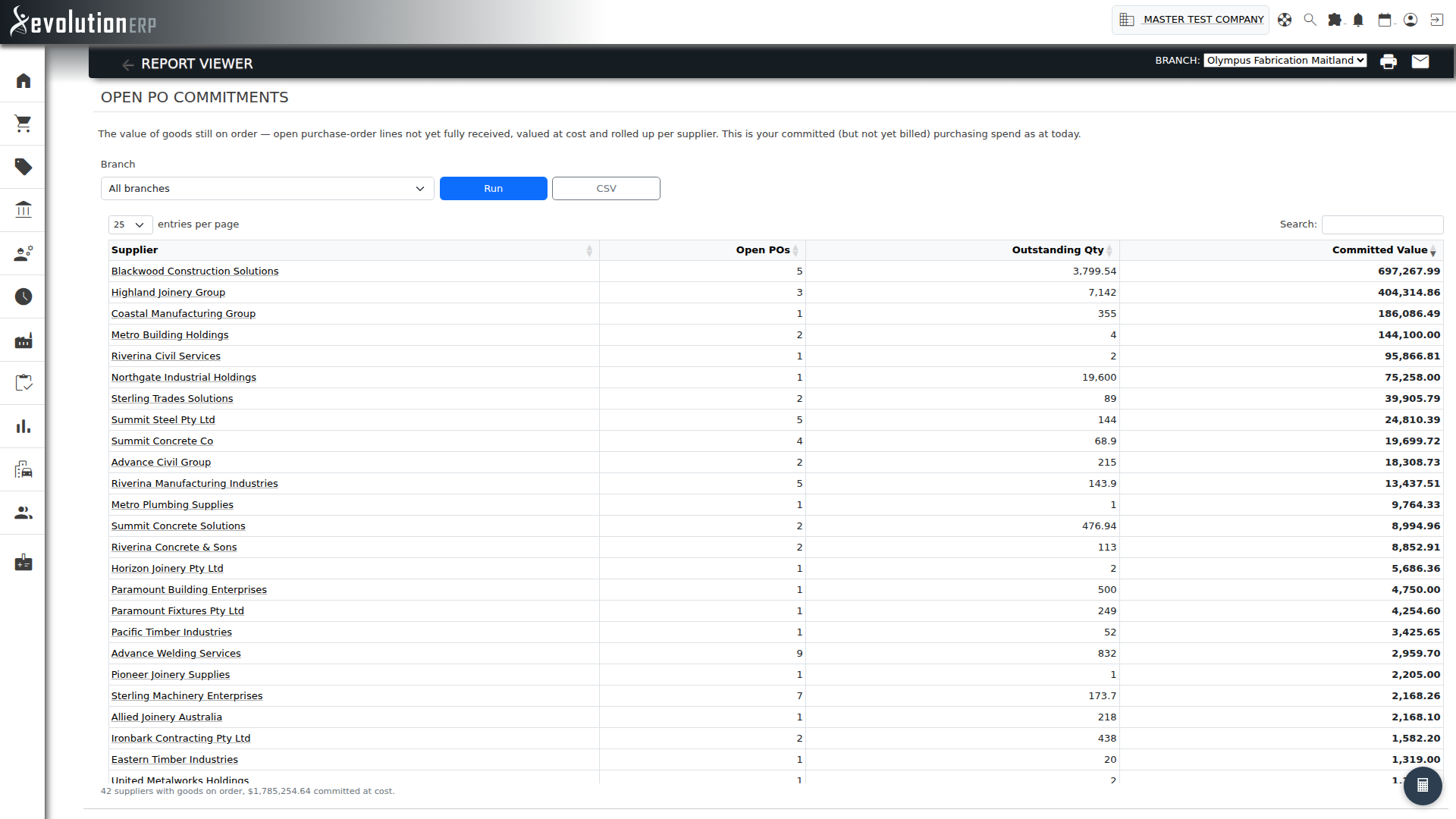
-
20 July 2026Supplier Spend report PurchasingA new **Supplier Spend** report under **Reports → Purchasing** totals your committed supplier bills over a date range, per supplier, into **Net**, **GST** and **Gross** with a bill count — highest spend first. Choose the **From** / **To** dates (defaults to the calendar year to date) and optionally a **branch**, then **Run**. Sort or search the table, click a supplier to open its account, and export the results with **CSV**. Use it to see who you buy the most from ahead of supplier reviews and rebate negotiations.
-
17 July 2026Back orders auto-fulfilled when you receive goods Purchasing
Receiving stock against a purchase order is now a single step. When you receive a line that has an open back order, Evolution applies the received quantity to that back order for you — oldest first — so you no longer key the quantity twice.
- A live note under the Receive box shows exactly what will happen, e.g. “30 applied to back orders · 10 still on back order”.
- If no back order exists yet and Back order shortfall is ticked, it previews “A back order for 40 will be created”.
- Back orders now track the exact outstanding quantity, including fractions (metres, litres, kilograms).
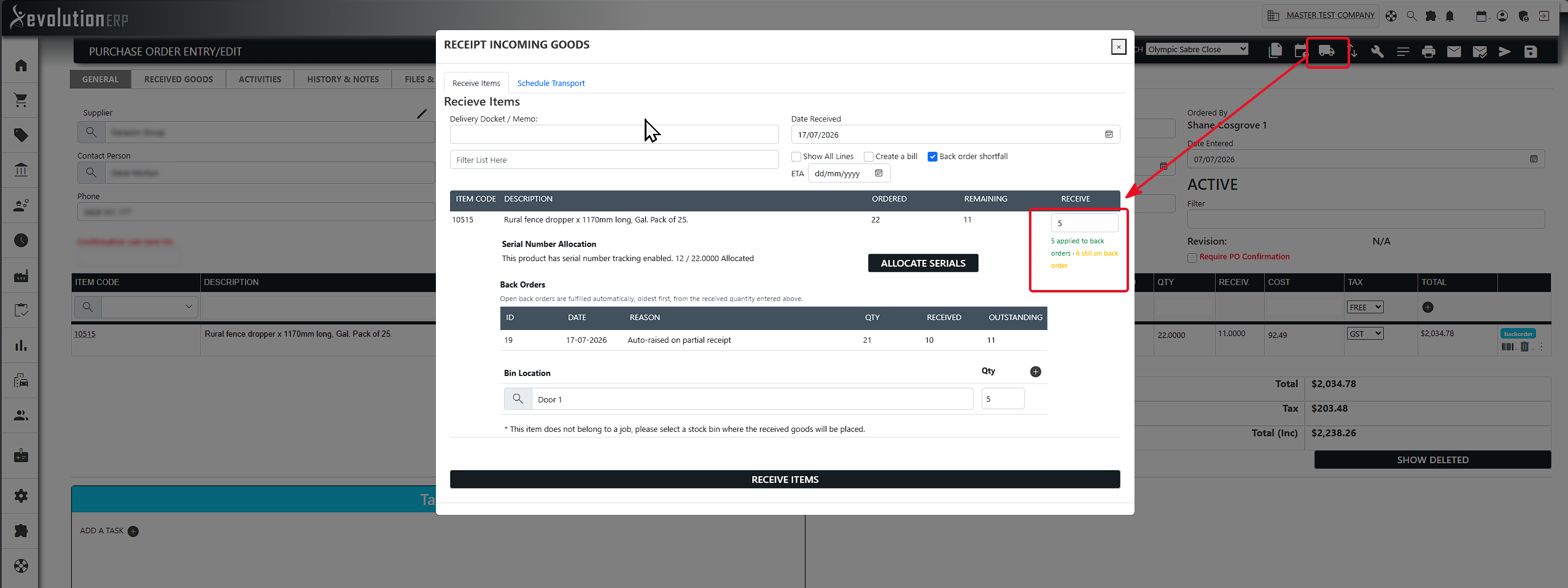
-
17 July 20261 Invoice Many Jobs SalesYou can append multiple jobs to a single invoice, good when doing monthly invoicing for clients where the client only wants to receive a single invoice for all jobs. Where an invoice has multiple jobs allocated on line items a jobid column now shows and you can click through to the relevant job from the invoice line item.
-
17 July 2026Re-bill invoices to a different customer (keep the project link) Sales / InvoiciYou can now change the customer an invoice bills to without losing its link to the project it was raised for — ideal when a customer asks for invoices to be billed to a joint venture or a project-specific entity after the work is done. An invoice now has two independent details: the customer it bills to and the project it belongs to. Changing the customer on a draft invoice keeps it attached to its job, so your job costing and project reports stay accurate. When an invoice bills to a different customer than the project's own customer, a clear notice appears on the invoice and a "Billed to…" badge is shown against it on the job's Invoices tab, so it's always obvious. Changing the customer on a job that already has invoices is now allowed with a confirmation, rather than being blocked — existing invoices keep billing to the previous customer and are not changed in Xero. Committed invoices remain locked to protect issued and Xero-synced documents; an administrator can un-commit to re-bill (which re-syncs to Xero under the new customer).
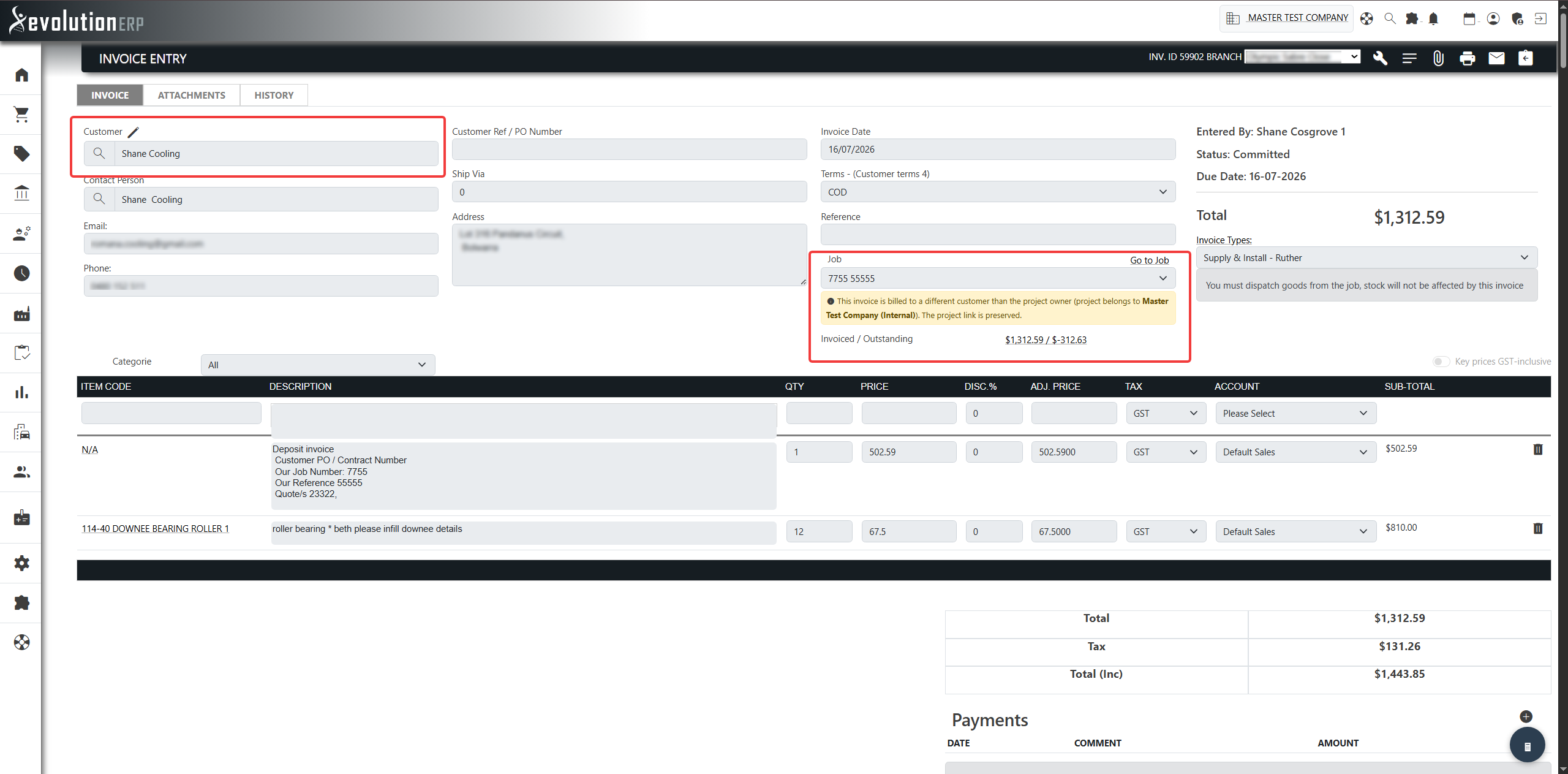
-
17 July 2026Credit Notes for Customers and Suppliers Sales / InvoiciYou can now issue credit notes for both customer invoices and supplier bills — no more deleting a document or juggling rounding adjustments just to bring a balance down. Raise a credit note two ways: straight from an existing invoice or bill (its lines, customer/supplier, project and tax are carried across for you), or standalone from the new Credit Note Register. Enter a reason, commit it, and Evolution posts the exact accounting reverse of the original — revenue/expense, GST and the control account all move back the other way automatically. Once committed, apply the credit against the open invoices or bills it relates to — all of it against one document, or spread across several, a bit at a time. Balances update instantly, and Evolution stops you over-applying or crossing a customer credit onto a supplier bill by mistake. Any credit you haven't used yet stays on the account as available credit, ready for the next invoice or bill, and reduces the account's overall balance in the meantime. Made a mistake? Un-commit a credit note to reverse the posting cleanly and edit it again (remove any allocations first). Credit notes carry a clear "CN" label throughout, show up read-only on the related job so credited amounts reduce your job figures, and — if you're connected to Xero — sync automatically as AR/AP credit notes, with allocations reflected against the matching document in Xero.
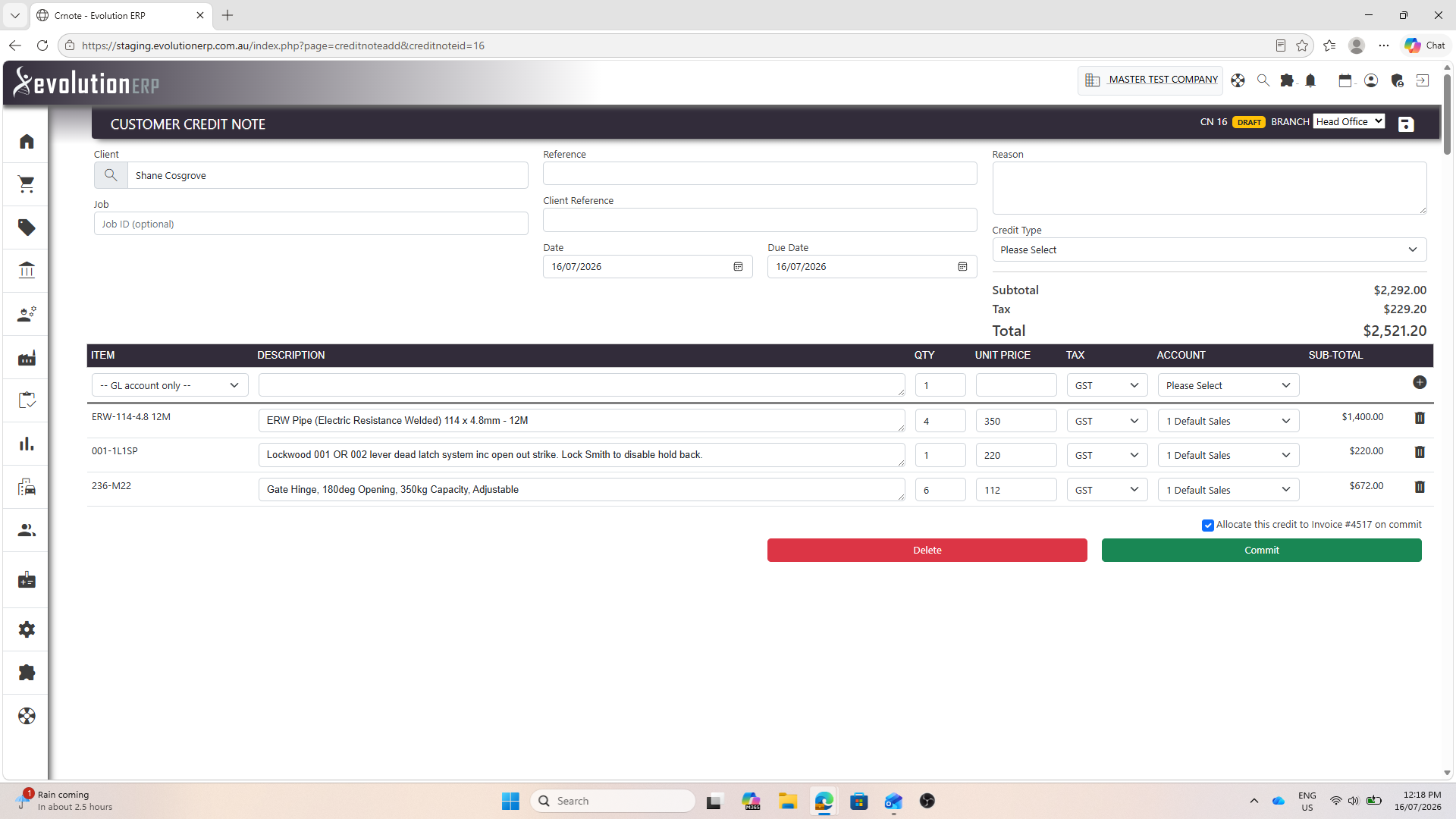
-
17 July 2026Production Activities Calendar – job cards with special characters now display correctly ProductionJob cards for customers whose company name, reference or notes contain special characters (for example quotation marks) now display and filter correctly on the Production Activities Calendar. Previously these characters could distort the card layout or stop the card from matching your search.
-
17 July 2026Production Activities Calendar – search filters now stay applied when changing dates ProductionOn the Production Activities Calendar, your search filters (customer / reference, keyword, type, category and rep) are now correctly applied to the job cards shown after you change the date — whether you use the date picker or the previous / next week arrows. Previously the filter boxes kept their values but the calendar displayed every job regardless of what was entered. Your most recent filter selection is also now remembered the next time you open the calendar.
-
8 July 2026Purchase Order "Sent" Status Purchasing✨ What's new #### A clear "Sent" status on every purchase order Each purchase order now shows whether it has been **sent to the supplier**. A **send** icon sits in the PO toolbar — it turns **green** once the PO is marked Sent, so you can tell at a glance which orders are already out the door and which are still being worked on. ### It looks after itself You rarely have to think about it: - **Email a PO** and Evolution marks it **Sent** for you automatically. - **Print a PO** and Evolution asks *"Mark this PO as Sent?"* — say yes if you're posting or handing it to the supplier, or no if it's just a working copy. ### Manual override — you're always in control Need to correct the status? Just **click the Sent icon** to toggle it either way — for example, to mark a PO you sent by phone or fax as Sent, or to re-open one that was flagged by mistake. ### Sent orders are protected Once a PO is marked **Sent**, it's treated as final: **requisitions can no longer be added to it.** When you raise a requisition and choose *Direct to Purchase*, only purchase orders that are still open **and not yet sent** appear in the list — so you never accidentally change an order your supplier has already received. If you need to add more, un-toggle Sent first or create a new PO.
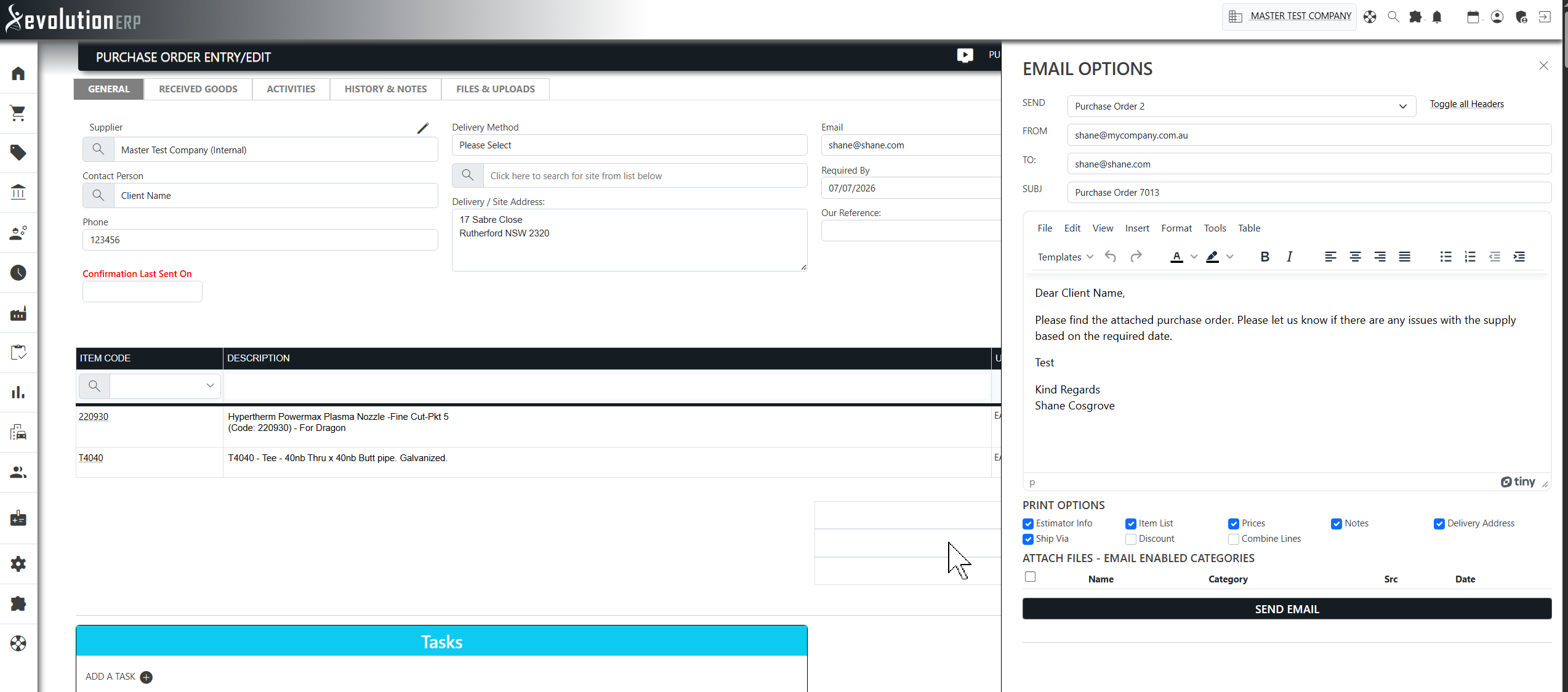
-
8 July 2026Requisition Direct to Purchase Purchasing / ReYou can now turn a job requisition straight into a purchase order without the extra step. When raising a requisition from a job, set the new Requisition Type to Direct to Purchase, choose the supplier, and either start a brand-new purchase order or add the items to one of that supplier's existing open POs. Pick your items, click Add Requisition, and you're taken straight to the purchase order ready to review and send — the requisition is still created and linked to the job as usual. Prefer the current way of working? Leave the type on Requisition Only and nothing changes.
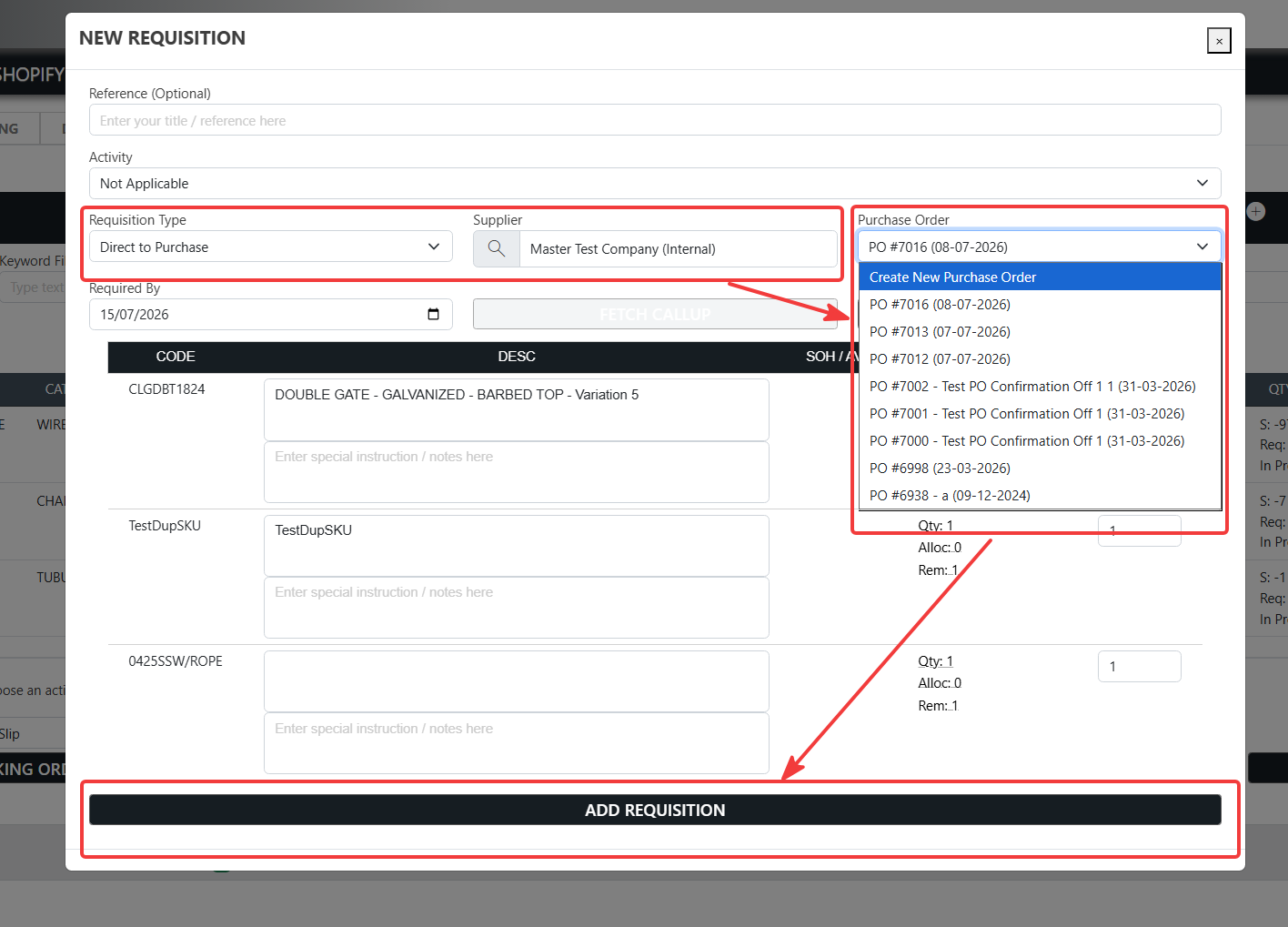
-
7 July 2026Minor Update on New Quotes SalesWhen creating a new quote if the customer has only a single contact or single site new quotes will default to the site and or contact listed on the client. This is just a minor adjustment to save the user having to manually select options that only have a single value.
-
7 July 2026Auto-save on supplier selection PurchasingOn the **Purchase Order** screen, choosing a supplier now saves the order automatically. As soon as you select a different supplier from the list, Evolution checks the order and saves it — so the purchase order is created straight away and the supplier's details, contacts, pricing and codes load against a real, saved order. No more losing your place because you forgot to save first, and no accidental blank orders left behind.
-
7 July 2026Smart defaults on new requisitions PurchasingWhen you raise a **New Requisition** from a job that has no activities, Evolution now fills in the sensible defaults for you. The **Activity** is set to **"Not Applicable"** (there is no activity to attach it to), and the **Required By** date is pre-filled to today plus your standard lead time — so you can go straight to picking items instead of setting these by hand every time. The lead time is controlled by a new purchasing setting, **"Default Lead time for new Requisitions"** (Settings → Purchasing), measured in days. Set it once to match how far ahead you normally order; leave it at 0 to default the date to today. Jobs that *do* have activities are unchanged — you still choose the activity as before.
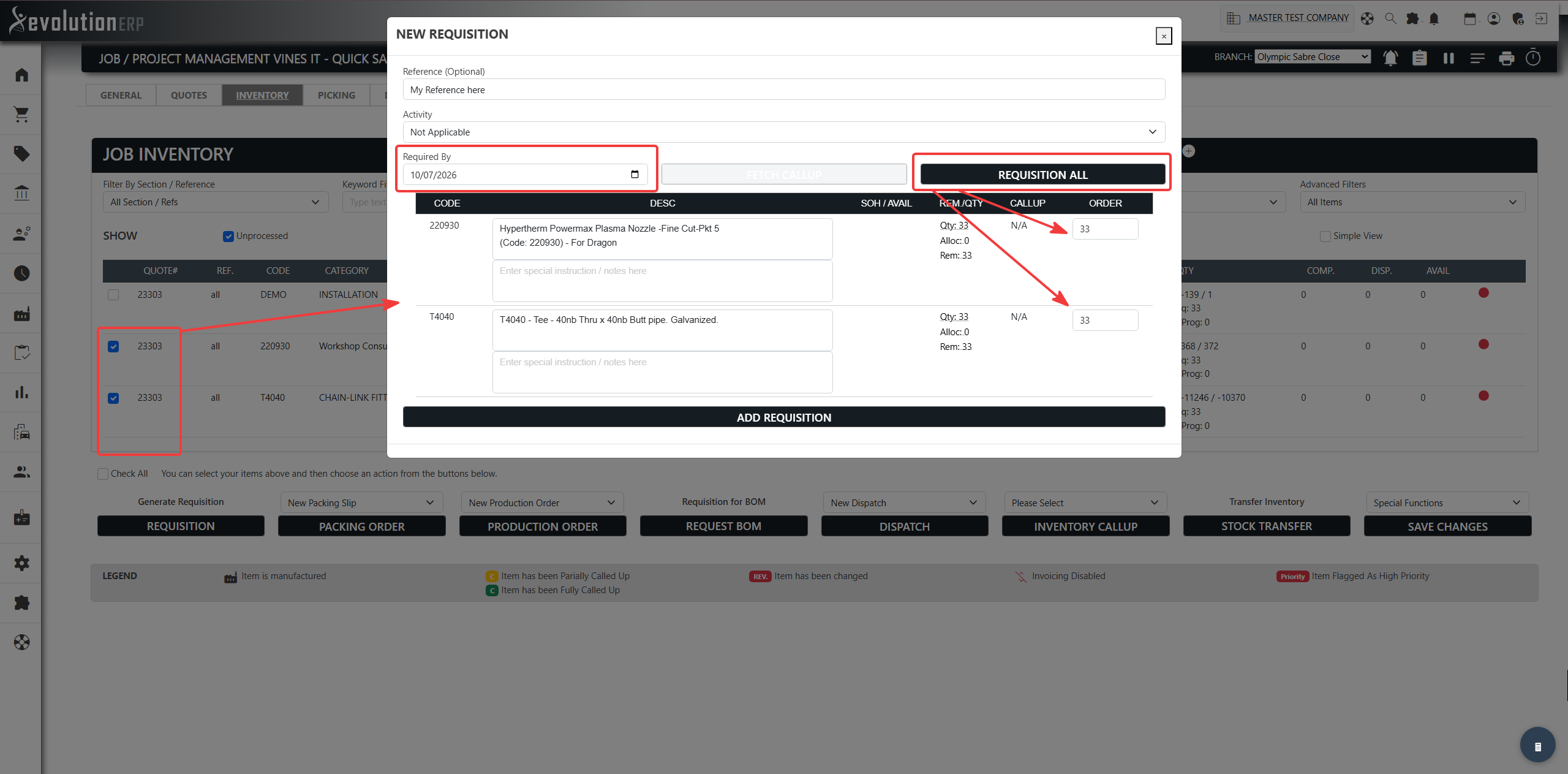
-
6 July 2026Bin Re-order improvements Purchasing / InThe Bin Re-order tool has had a round of improvements to make topping up stock faster and more accurate: • One "Generate Orders" button — raise both purchase requisitions (purchased items) and stock shop orders (manufactured items) in a single click, with tick-boxes to include or skip each type. The button shows the quantities queued as you go. • No more double-ordering — suggested quantities now also subtract stock already covered by open purchase requisitions, so it's safe to run the tool more than once a day. • Clickable "On Order" figures — click the On Order quantity to see exactly where it comes from (purchase orders, shop orders and requisitions), each with a link through to the source. • Nested categories — the category filter now shows child categories under their parent, and picking a parent category automatically includes everything filed beneath it. • Smarter quantities — order quantities round to whole units, except weight-based items which keep two decimals. • Min/Max safeguard — saving an item's branch bin levels now blocks a Max that is lower than its Min, preventing silent under-ordering.
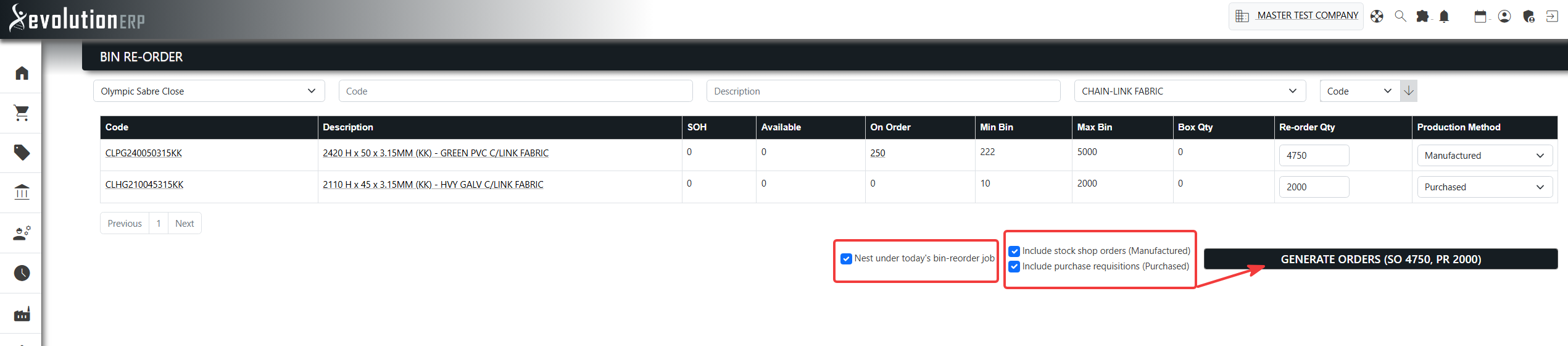
-
6 July 2026Quick Sale SalesQuick Sale turns a saved quote into a completed sale in a single click. A new checkout button on the quote screen opens the Quick Sale window with two actions: • Invoice and Dispatch All — raises an invoice straight from the quote, copying every line across, and takes you to it ready to finalise. • Pick and Dispatch — sends the sale to the warehouse by creating a picking slip against a job. If the customer already has open jobs you can add the items to one of those or create a new job; otherwise a job is created for you automatically. It's built for fast, over-the-counter selling — complete a sale from an existing quote without re-keying lines or manually building a job. Quick Sale is off by default; an administrator turns it on under Settings → Sales.
-
2 July 2026Bill of Materials demand for Job Inventory Inventory / StYour stock demand and allocation figures just got a lot more accurate. Until now, an item only showed demand when it appeared directly on a job. If it was actually a component inside a manufactured or kit item on a job — listed in that item's Bill of Materials — the demand for that part wasn't reflected against its stock until an order was raised. Evolution now looks through the parent item to its Bill of Materials, so every component a job needs to build an item generates demand and is allocated against stock automatically. You get a true picture of what you need on hand to fulfil your jobs, feeding straight into your restocking and purchasing. To keep this sensible for items you buy in finished form, each item now has a Production Method: • Manufactured or Not Specified — the item's standard Bill of Materials generates component demand. • Purchased — the item is assumed to be bought complete, so its standard BOM is treated as costing-only and its parts don't create demand. Bills of Materials set specifically on a quote line or job line are always honoured and always generate demand, regardless of the Production Method — because they're a deliberate build instruction for that piece of work. And if you change an item's Production Method, the allocations for its components are recalculated automatically on save. Existing items need no changes — they default to Not Specified and behave as expected straight away.
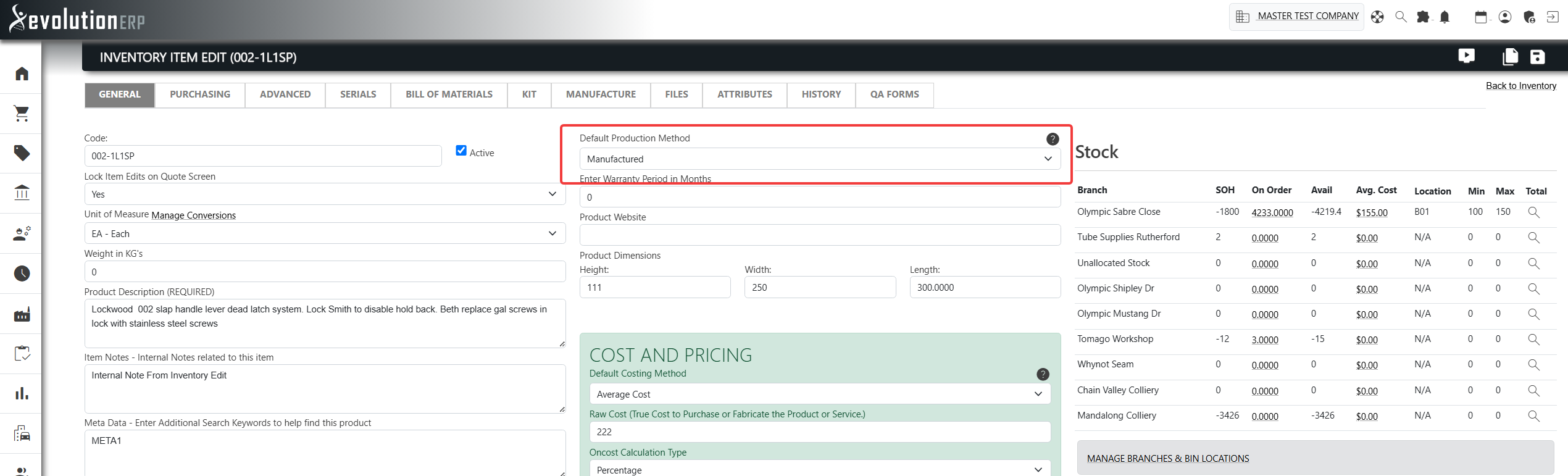
-
25 June 2026CRM Contact Enhancements SalesA friendlier, more complete contact record — with a memory.
This release significantly expands the Contacts area of Evolution. Contacts now hold richer details, have a full-page view of their own, and — most importantly — remember their history as they move between the businesses you work with.
✨ What's new
A full-page contact view
Every contact now has a dedicated page (open it from the new "expand" icon beside a contact's name). It brings together everything about a person in one place:
Profile photo you can upload and preview.
Account card showing the company they belong to, with address, phone, email, website and ABN at a glance.
Account & Sites tab listing the sites/projects they're linked to, with a quick "set base location" and a map of where they're based.
Overview, History, and Account & Sites tabs for a clean, organised layout.
See who's most active at an account
The Account & Sites tab now includes an Account Contacts overview — every person at the account listed together, with a count of the quotes, jobs, purchase orders and invoices linked to each, plus a running total. The busiest contacts rise to the top, so you can tell at a glance who really drives the relationship and who your most valuable contacts are. The person you're viewing is highlighted, and you can jump straight to any colleague's page.
By default the list shows only active people; tick "Show disabled" to reveal contacts who have left the company.
Clearer site linking
When you link a site to a contact and the account doesn't have any sites set up yet, Evolution now says so plainly and gives you a direct link to the account's Sites screen to add them — instead of an empty, puzzling picker.
Richer contact details
When you add or edit a contact you can now capture far more:
Department and a secondary email
Preferred contact method (phone, mobile, email or mail)
Marketing consent and a "Do not contact" flag — important for privacy compliance
Date of birth, spouse/partner name
Facebook and LinkedIn links (with a one-click people-search helper to find them)
Employment / account history — contacts that remember where they've worked
This is the headline feature. Contacts move between companies, and Evolution now keeps a chronological record of that journey.
A visual timeline on the contact's Overview tab — created → Company A → Company B — with the current employer clearly marked.
A detailed history on the History tab showing each span, how long it lasted, and notes.
Moving a contact to another account — done properly
When a contact changes employer, use Move / Link Account on their page. You can now:
Search for the destination account from a filtered list, or
Create a brand-new client on the fly if their new employer isn't in your database yet — just enter the company name (ABN, phone and email optional) and Evolution sets it up and moves them in one step.
Choose the date the change took effect (defaults to today, and you can back-date it) so the timeline reflects reality.
The move is non-destructive: the contact's previous links and history are kept, never silently erased.
"This contact has moved" awareness across the system
Because Evolution now tracks moves, it can warn you when a record points at someone who has since moved on:
Sites tab flags any site that belonged to the contact's previous account with a "Previous account" marker, so you know it may be historic.
Sites, jobs, opportunities and leads show a "Moved account" badge next to a linked contact who no longer belongs to that account.
Opportunities and quotes show a clear warning if their saved contact person has moved — and, crucially, keep that person on the record (marked "moved account") instead of silently dropping them. You can reassign to a current contact or leave the historic link in place.
Client (account) page gains a "Former Contacts" section listing people who have left that account. Recent departures (within the last 3 months) show inline; older ones appear when you tick "Show inactive" — and each shows where the person is now. -
17 June 2026One-Click Cash Sales Sales / InvoiciRaise cash sales in one click. You can now start an over-the-counter invoice straight from the Invoice Register without searching for a customer each time. Once your administrator nominates a cash sale account and default invoice type (Settings → Sales), a new point-of-sale button appears in the top-right of the Invoice Register. Click it and Evolution instantly creates an invoice against that account — dated today, referenced "Cash Sale", set to the right invoice type, and assigned to your branch — ready for you to add items and take payment. If your login covers all branches, the sale is automatically placed in the branch of your most recent invoice, so it lands where you're working. You can change the customer or branch at any time before completing the sale.
-
16 June 2026Unsheduled Jobs Dashboard DashboardThe unscheduled jobs dashboard no longer shows onhold Jobs. This is a default behavior that is not controlled by user preferences or a setting. If you require onhold jobs in your dashboard for tracking activity allocation contact support
-
15 June 2026Release Notes — Runsheet Delivery Mapping ProjectsWhat's New
See your full route, start to finish
The map now plots your entire run as a single journey: starting at your branch, through each delivery in order, and back to the branch again. Previously the map only showed the legs between deliveries — now the trip to your first stop and the return home are included, so the distance and drive-time totals reflect the real run.
Clear start and finish markers
Your branch — the start and end of every run — is now marked with a green pin at both ends of the route, so it's instantly obvious where the driver sets off from and returns to. Delivery stops are shown with their own markers along the way.
The map keeps up as you build the run
Drag in your first delivery and the map is ready straight away. The View Map button now appears the moment you add a delivery to a runsheet — no need to refresh the page first.
Reorder on the fly. Drag deliveries into a different sequence and the route, distance, and drive time recalculate and redraw instantly to match the new order.
Move or remove deliveries between runsheets and the maps update themselves automatically.
Faster, more dependable maps
Routes are now calculated in a single, efficient request rather than stop-by-stop, so maps draw more quickly — especially on busy runsheets with many deliveries.
The map is far more resilient: a single delivery with an incomplete address no longer prevents the rest of the route from displaying.
Branch locations are now remembered after the first lookup, reducing processing time on every subsequent runsheet.
Things to Know
Delivery and branch locations are plotted from the address details held against the job, site, or branch. For the most accurate maps, make sure those address fields are complete.
A delivery with no usable address will still be included in the route by address where possible, but may not show a pin. -
5 June 2026Bill of Materials Demand Restocking Report Manufacturing /The Build Materials Demand Restocking report has received a significant update that now supports the full hierarchy of Custom BOMS. This means that the report will automatically show all raw materials that need to be ordered based on current work in hand. It can pull the Build Materials data from either:
- the Inventory Items themselves
- the customization that is made at the Quote Stage
- customizations of the Bom that are made at the Job Stage
Use this report to assess whether you have enough raw material to meet the current manufacturing demand for all work currently in the pipeline. -
5 June 2026Mark Quotes as sent from Opportunity Screen. QuotingFor customers that manage tenders, the ability to manually mark quotes as sent has been added to the opportunity screen. You can now tick the check box against the quotes that you would like to mark as completed and use the Mark as Sent button below. An entry in the Quote History Log is added that the quotation was manually marked as sent, along with the user and the time and date.
-
26 May 2026New report — Inventory Re-order Insights ReportingA new purchasing report has been added under Reports → Inventory → Purchasing called Inventory Re-order Insights. It summarizes stock movement, current on-hand and on-order positions, and recent purchasing activity for each item over a chosen date range (up to 12 months).
Filters:
Category and Branch — both multi-select, leave empty for all.
Date From / Date To — capped at a 12-month window.
Exclude — free-text field; any space-separated terms that appear in an item's code or description will rule it out.
Exclude items with zero consumption — checkbox; hides items with no qualifying movements in the date range.
Columns (all sortable by clicking the header):
Item Code — links through to the item record.
Item Description.
Consumption — total stock used in the date range, drawn from dispatch, invoice, shop-floor draws, stocktake corrections and manual stock adjustments. Clicking the value opens a Consumption History drill-down showing a monthly breakdown, a per-source breakdown (dispatch / invoice / shoporder / Stocktake / Stock Adjustment), and the most recent 100 raw movements for that item.
Stock on Hand and Stock on Order — summed across the selected branches.
Total Purchased — total quantity ordered for the item across all POs raised within the date range. Clicking the value opens a Purchases drill-down listing every matching PO (date, reference, supplier, qty ordered, qty received, total), each PO# linking through to the order. -
4 May 2026Manually Set Quote Sent Flag SalesOn the quote screen you can now manually set the quote status to sent using the tools icon and function drop-down in the top right. You can also toggle the sent flag off using the same function.
This is a useful feature for marking tenders as sent and tracking submitted pricing when the delivery method of the quotation is not email. -
22 April 2026Update to Stock Orders on Tablets MobileWe have improved the way stock orders work on the tablets. When generating a stock order the screen redirect would go to a warning if the user was not in a current session. This has been resolved the screen now redirects back to the originating process queue.
-
20 April 2026General UI Updates VariousThere have been a number of general updates and fixes applied in the upcoming production update. These include
1. Quote Type and Reference saves automatically on quotes when adding first line item.
2. An issue with Run sheets and driver names has been resolved.
3. An issue with picking slips create line entries when quantity is blank.
4. An update to auto-calculation of Sell price when adding new items has been applied.
5. An issue has been resolved with Password Recovery Screen.
6. An issue related to restoring timed out sessions across multiple tabs has been resolved.
7. Formatting issues on the menu for Projects and Inventory Screens.
8. Update to allow general notes field on suppliers and Clients
These fixes and a number of others will be online with the production update scheduled for 20/04/2026 -
13 April 2026Notes for Purchase requisitions. PurchasingYou can now add notes to purchase requisitions that are hidden from vendors on purchase order but are displayed in both the requisitions register and when importing requisitions to purchase order.
-
13 April 2026Customize your filenames for quotes and invoices SalesOn the quote type screen you can now customize your filename by adding text in the field labelled 'Prepend Quote and File name' https://my.evolutionerp.com.au/index.php?page=quoteTypes
-
13 April 2026Timesheet Timer TimesheetsFor customers using timesheets you can now start a timer on a project that will run in the background and automatically do timesheet entries from start / stop events on the timer. Once a Timer/s is running it can be controlled via the timer controller available on the top-bar on any page in Evolution ERP.
-
13 April 2026Email Attachement Toggle All SalesWe have added a checkbox in the email system to toggle all attachments.
-
13 April 2026Backorders on Purchasing PurchasingThere is a new back order system on purchase orders. You can add back orders by clicking on the more icon on the purchase line items
-
13 April 2026Expired Pricing Tool and Update Average Cost For Items In A Category Tool Quote Edit, Cat1) Ability for user to indicate number of months in Category Edit when a price expires.
2) Alert the user if price has expired when item is being added to quote, which are shown:
- Warning / Alerts side bar
- By the red triangle warning
- Below "Available" Stock section as "expired price" badge
- Red QTY field
3) Additional Fields in Inventory Category to set default values for:
- Default Costing Method
- Default Oncost Method
- Default Oncost
- Minimum Markup
- Maximum Discount
- Purchase Account
- Income Account
- Asset Account
- Tax on Purchase
- Tax on Sale
4) Adding of new items for said categories will use default values mentioned above
5) Tool for updating the Average Cost of items under a category by clicking "Set Average Price For All XXX Items"
- Ability to override all fields mentioned in Item #3; or
- Ability to update only blank/missing fields in Item #3 for an item -
7 April 2026Inventory Expired Pricing Dashboard InventoryWe have added a new dashboard which tracks inventory items with expired pricing.
We have also updated the expired pricing tool / bulk updater to support the category pricing expiry settings
You can update multiple products and once or resolve each product individually. -
6 April 2026Inventory InventoryA number of improvements have been added to the Add Inventory Screen.
1. More fields are now supported as Default Selection on Inventory Categories
2. These fields are supported when adding items to inventory to save time.
3. If Category Default are not set the system will report this when adding items so users can correct this.
4. When adding inventory, full pricing automation from the inventory edit screen is now supported when adding new items including oncosts, minimum markups and maximum discounts for generating RRP Pricing. -
6 April 2026Contacts Invoicing, ContUsers reported frustration with having to manually enter the primary contact on new account when the details already appear on the Account Edit Page > General Tab
An automation has been added. If there are no contacts on an account and the primary contact is specified on the Account Edit Page then a contact will be added automatically when invoicing or creating purchase orders. -
3 April 2026Priority Item Tracking JobsThe ability to flag Priority Item Tracking on a Job has now been added. This will keep project managers up to date with where priority items are.
1. Ability to Toggle Priority on Job Inventory Page
2. Displays Priority Badge on Job, Requisitions, Importing Reqs ot Purchase Orders and on the Purchase Order Itself
3. A new Dashboard has been added that you can enable which tracks all priority Items on Project Managers jobs.
Dashboard title is Project Priority Item Tracking and displays all priority items until they are dispatched. Tracks
Job, Client, Quantity, In Progress, Complete and Dispatched.
Tracking only affect active jobs, tracking stops reporting when all tracked items are dispatched or job is put on hold. -
3 April 2026Jobs on hold, excluding review JobsIf a job is on hold and changes are made the job is not marked for review
-
2 April 2026Job Callups JobsWhen creating Picking Slips, Fabrication orders, Requisitions and Dispatches the text could appear for kit items added to callups, A fix has been applied and we are monitoring
-
2 April 2026Update to Opportunity Pipelines SalesWe have made some changes opportunities and pipelines
1. Fixed only uncompleted tasks move opportunities back to active
2. Fixed workflow errors that resulted in status not updating for sent quotes.
3. Added a legend to pipeline for clarity.
4. Reduced potential for items to appear in two columns.
5. Added pipeline summary to each opportunity showing workflow
6. Corrected auto-calculation of opportunity value when deleting and restoring quotes
7. When deleting and restoring quotes if the quote belongs to a opportunities, screen will redirect to opportunity. -
1 April 2026BOM Editor on Job Screen JobsThe Evolution BOM Editor from the quoting screen is now available on Jobs.
This enables staff to build out a custom BOM from the inventory Tab of the job Before a fabrication order is raised. This can assist with purchasing and can be worked into your internal job review and approval workflow. -
31 March 2026Uploads on Recieve Items on Mobile PurchasingWhen using mobile app you can now add photos when receiving purchase orders.
-
31 March 2026Asset Register Updates Asset ManagemenThe asset register now supports maintenance schedules and automated reminders for equipment and vehicles.
This feature is in beta and will be expanded over time. -
2025
-
27 November 2025Inventory, Invoicing and Shoporder Register Searching MultipleThe inventory register has been updating with new sorting functions and improved searching. The invoice register had a bug fix applied that affecting search for partial customer names. There has also been update to the shopfloor order searching for finding stock orders.
-
27 November 2025Do and Charge Automation Job Categories,1) In Job Categories (Manage Categories from Job Edit General Tab)
- A job category can be set to a Do and Charge by setting the Do and Charge option to "Yes"
2) Jobs
- Jobs created with a "Do and Charge" category will automatically set Inventory Items to "Do and charge" and "Invoice to Client"
- Existing jobs changed to a "Do and Charge" Job Category will change all Inventory Items to "Do and charge" and "Invoice to Client"
3) Quotes
- Quotes added to "Do and Charge" job will automatically be added as "Do and charge" and "Invoice to Client" -
20 November 2025Timesheets relating to Opportunities Timeseets and OStaff time can now be tracked for Opportunities by adding Time-sheets inside the following pages:
1. Opportunities
2. Opportunity Edit
- The Opportunity Edit page not only allows adding of Time-sheets but also viewing all time-sheets linked to an Opportunity
- This page also allows Editing of Time-sheets
3. Time-sheet History
- Time relating to opportunities can be added selecting the Opportunity worked on in the Opportunity Drop down instead of the Job drop down
- Time-sheet Details will now include Time charged to Opportunities -
20 November 2025Dispatch ID on invoices InvoicingYou can now configure invoices to display the dispatch ID where the invoice has been created from a dispatch. If you would like your print templates updated to show the dispatch id please contact support via the ticket system.
-
20 November 2025Dashboard: To Be Invoiced Jobs and Upcoming Customer Retentions Job Edit / InvoA new dashboard item "To Be Invoiced" under the "Projects" category is now available. This dashboard will show jobs that are ready for invoicing and/or has not been completely invoiced.
The "Job Edit" -> "General" tab now also provides information on the progress of invoicing including the amount invoiced and total amount to be invoiced.
Additional dashboard item "Upcoming Retention's" also available under the "Projects" category which shows retention's owed on AR Invoicing for the week.
These retention's are entered when closing a job and selecting "Retention Owing" on the "Close Job" popup allowing the user to enter several retention dates and amounts. The retention entries are also available in the "Job Costing" tab of the Job Edit page -
20 October 2025Error / Bug Fix Email Emailing From EApologies to customers affected by the recent emailing bug in sending documents directory via email. This was caused by an account issue on a remote server that has now been resolved.
-
7 August 2025Dispatches and Callups Improvements ProductionWe have made a number of UI tweaks to dispatching goods from a job. The system now remembers data entry when changing callups and color codes errors and warning regarding dispatched qty's.
-
7 August 2025Dispatches and Callups ProductionNew dispatches are now integrated with the activity callups. Selecting the activity date will automatically bring in the relevant items to be dispatched.
-
6 August 2025Cashflow Forecasts from Opportunities CRMThe opportunity edit screen now has the ability to add three new fields that will enable customer to generate cashflow forecasts from open opportunities in the CRM.
-
6 August 2025Printing Quotes - Tabs as Item List SALESWe have added a new printing format for quotations.
You can now print the quote based on the Quote Tab (Sections) , EG replacing the item list with the section name, description and price.
From the quote screen this feature should work automatically, customers with older print templates may need to contact support to have them updated.
We have added a video on this feature to the quote screen. -
29 July 2025Server Maintenance 28 July 2025 SupportServer Maintenance was completed successfully and new redundant servers have been deployed at the Sydney Datacenter
-
16 July 2025Default delivery tag in client and purchase orders PurchasingUsers can now set the default delivery method (delivery, pickup, freight) for a client. It will be used as the default method on purchase orders but can be manually changed for each order. The delivery method for the client can be found under the purchase tab.
-
16 July 2025Delete Quotes from Opportunities and Pipeline Screen SalesYou can now delete quotes from opportunities rather than just archive them. This makes for better house keeping and is also allows you to import quotes to different opportunities.
-
3 July 2025Closing Jobs ProjectsWe fixed a bug this morning on closing jobs that relates to a recent update.. Customers can now proceed, apologies for any inconvenience.
-
25 June 2025Speed Optimization of Production Orders ManufacturingWe have implemented a speed optimization on production orders when calculating ETA dates across the entire production queue. This will make saving production orders much quicker for companies that have large data sets.
-
29 May 2025BOM Easy Configuration Tool Inventory EditEach item in the Bill of Materials for Inventory Items can now be configured to have alternate / replacement items.
To do this:
1) Edit and Inventory Item
2) Switch to the "Bill of Materials" tab
3) Click on the 3 dots beside the trash item
4) Add/Remove alternate / replacement BOMs for the selected item
5) Click Apply Changes
When Quoting an Item
1. Click on the Red Configure Icon next to the Item Code Dropdown
2. Select alternate item/s which apply and hit continue
3.The cost and description will be amended automatically on the quote as per the Changes to the Bill of Materials.
4. All of the substitutions in the BOM are carried forward in the progression of the Quote into a Job, BOM Request, Requisition and Production Orders -
23 May 2025Date Fixes on Opportunity Pipeline CRMFixes to date formatting on Create Dates and Required By on tasks in pipeline summary
-
23 May 2025Kit Grouping on Inventory Items QuotingYou can now create groups in the kits, this works like options where you can only select one item in each kit group... EG A door might have a number of different hinges that can be used, putting all the Hinges in a group called Hinges means the user can only select one when quoting.
-
23 May 2025Editing Modied Item in Quote (BOM Editor) BOM EditorEditing Quote Bill of Materials created using the BOM Editor now restors entered values previously entered in the "Processes" step.
This applies for all modified items created going forward. -
14 April 2025Tasks Calendar TasksNew Overview and filtering system for advanced task management is now available on the task calendar. Go to the Calendar in the top right of the screen and you can now see tasks for All Users and filter on Task Source, eg Projects, Opportunities etc and search by client etc etc.
-
8 April 2025NEW FEATURE: Departments ContactsYou can now add departments within the business in the Main Menu > Contacts > Departments
You can then subscribe staff to departments and filter quotes and assignments and staff by department. This new feature will continue to roll out in coming weeks to support more robust report within the System. -
2 April 2025BUG FIX: Invoicing InvoicingA bug causing customer terms to not auto-select on some invoices has now been fixed.
-
2 April 2025Invoicing Improvements InvoicingFixed branch not selecting Automatically to Employee branch, fixed validation error when all items not complete. Auto populate Job Drop Down when create new invoices manually
-
2 April 2025BUG FIX: Invoicing Customer Searching InvoicingIn release when creating an invoice and searching by company names, sometimes First name and Last name would display instead of Company Name in the search results. This has now been resolved
-
2 April 2025BUG FIX: Job Costing Update Job costingA recent update to reduce screen loading times caused job costing issues. On projects where the time-sheet module was not enabled both fabrication and warehouse picking expenses where reporting Zero Cost. This has now been resolved.
-
2 April 2025Site Contacts on Projects ProjectsYou can now add new contacts from the project page and attach them to the site. You can also filter contacts when importing contacts to a project by contacts that are linked to the project site already.
-
18 March 2025Live On-order report from Inventory Edit Screen InventoryWe have added a on-order popup on the inventory edit general screen. You can now click on the On-Order qty listed in the stock report for branches and navigate to both open fabrication orders and un-receipted purchase orders for items
-
10 March 2025Speed Updates ALLA system wide speed optimization has been applied across multiple screens that significantly improves loading times.
-
10 March 2025Thumbnail Images Quotes, ProjectOn projects, quotes and opportunities we have improved loading times dramatically for image heavy screens by introducing and automatic Thumbnail Generation System
-
10 March 2025Staff last name Special Characters -We have resolved a bug reported by some clients involving last names containing special characters on the Staff Edit page
-
10 March 2025Job Costing - Summarized Timesheets By Job Inventory Item InvoicingCreating invoices grouped by Job Inventory Items using the Job Costing Invoicing feature of Job Edit is now available.
When selecting "Summary Only - Combine line items for same job inventory item" as an option when creating itemized invoice from timesheets, the Invoice Line Items will now be grouped by Job Inventory Items -
10 March 2025Viewing or Printing of Deleted Invoices InvoicingGoing forward, deleted Invoices can now be viewed or printed.
-
2024
-
19 December 2024Customer Pricing Tweak SalesWhen a customer discount is entered on the client edit screen for a category, display a warning if items exist in that category that do now allow the discount level.
-
12 December 2024Delivery Runsheet NADelivery run sheets on the Mobile App now have the ability to expand to show the job notes. Color coded buttons that to go to delivery dockets have also been added.
-
12 December 2024Opportunity Pipelne CRMImplemented an opportunity pipeline organized by status. Each status is clickable, triggering a modal popup that displays a summary of the opportunity details. Additionally, users can now filter the pipeline by category, staff, and date range for more tailored views and efficient tracking of opportunities. Look for the opportunity pipeline button on the Opportunities screen under sales.
-
10 December 2024Task Templating Sytem Jobs and OpportThe Task Templating Systems provides the ability to create a list of tasks as a group. These group of tasks aka "Predefined Tasks" can be added in a Job or in an Opportunity which allows the users to easily assign a repetitive set of tasks to indiviuals thereby streamlining the process of assigning tasks to an individual.
The list of tasks assigned individual, due date can also be refined when adding the predefined tasks. The user may also opt to exclude a particular task from being added if such task may not be needed for a certain Job or Opportunity. -
21 November 2024Production Time Recording Changed to Seconds ManufacturingProduction data from tablets has historically been recorded in minute. This update includes changes to the database structure so that all data is now recorded in seconds. This gives better reporting for high volume low time quantities across time.
Historical Data has been updated across the system. -
19 November 2024Upload Bug in development Version of Mobile App. Mobile AppA recent bug when uploading files in the new portal has been resolved.
-
19 November 2024Imported Requisition Costing PurchasingWhen importing requisitions into a purchase order, the cost to use can now be overridden to either the Quoted Cost (default) from the Job Inventory tab or the Inventory Cost stored against the item. A setting has been added to the setting menu so the company can setup the preferred default behavior.
-
18 November 2024Payweek Start Date TimesheetsThe default Payweek start date has now been defaulted for Thursdays. This can be changed to an alternate weekday in settings.
-
18 November 2024User/Contact badge UserThe staff badges have been updated and hovering on the badge will display the full name.
-
18 November 2024Projects in the Evolution Support System TicketsProjects are now supported within the ticketing system for Evolution ERP. For custom development project this allows customers to track multiple milestones, feature requests and bugs as well as get visibility on the ETA, live development time and development status of each sub Ticket in a major development project or customized feature.
-
18 November 2024Planned Activities Filter Fixes/Upgrades ProjectsAn improvement on the filters for a bug in planned activities where incorrect activities where displayed when selecting the representative assigned to that activity.
-
17 November 2024All Activities Dropdown Filter ProjectsThis is an improvement on the existing dropdown in the activities area on the Project General Tab. Where previously it only allowed the user to select Current and Past activities a new option as been added for "All Activities"
-
29 October 2024Notes badge in quote item edit screen QuotesAnd update to the Quote Edit screen.
A new "notes" badge will display on each quote item if there are any notes against the line item. -
16 October 2024New Fields for Inventory Items InventoryThere are now a number of new standards fields in the inventory system. Product Name, Product Short Description have been added for the purpose of external integration with Ecommerce sites and general external applications.
The Meta Data field has been added for more flexible searching. Add keywords for a product in the Meta Data field and use these to find production in inventory searches throughout the system -
16 October 2024Customer Pricing Contracts SalesEvolution ERP now supports pricing contracts. Set a start and end date to a contract for a specific pricing and define specific discounts, margins or fixed priced pricing models for clients. Go to the Selling Tab on the Manage Contact screen and click "Advanced"
-
14 October 2024Embedding Images in email Signatures USERWhen editing your signature in the profile edit page you can now insert the company logo into your signature OR upload a custom image to insert. Improve the professionalism and visual appeal of communication from Evolution ERP.