
Global Search looks through your accounts, contacts, sites, opportunities, quotes, projects, invoices, credit notes, purchase orders, bills, inventory, shop orders, dispatches and staff at the same time, and finds reports by name. It is open to you on every screen: press Ctrl K and start typing.
Opening Search
There are three ways to open it, and they all do the same thing:
- Ctrl K (⌘ K on a Mac) from anywhere in Evolution.
- / — the forward-slash key, as long as you are not typing in a field at the time.
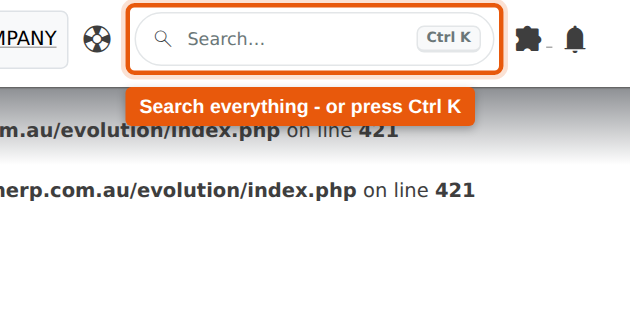
- The Search… button in the top bar, next to the support icon.
Press Esc to close it again. Nothing you do in the search box changes any record.
What You Can Find
One search covers all of the record types below. Results are grouped by type, with the number of matches beside each group heading.
| Type | What is matched |
|---|---|
| Accounts | Account name and trading names, phone, email, account code, suburb |
| Contacts | Name, position, phone, mobile, email, and the account they belong to |
| Sites | Site name, street address and suburb, and the account the site belongs to |
| Opportunities | Opportunity number, description, account and site |
| Quotes | Quote number, description, customer name, reference and sales rep |
| Projects | Project number, description, customer name, site and order number |
| Invoices | Invoice number, customer name, customer reference and description |
| Credit notes | Credit note number, account name and reference |
| Purchase orders | PO number, supplier name, reference and delivery details |
| Bills | Bill number, supplier name and the supplier’s own invoice number |
| Inventory | Item code, description and barcode |
| Shop orders | Shop order number, description and the item being made |
| Dispatches | Dispatch number, account, project and delivery reference |
| Staff | Staff name, position and email |
| Reports | Report name, category and group — see Finding a Report |
Before You Type
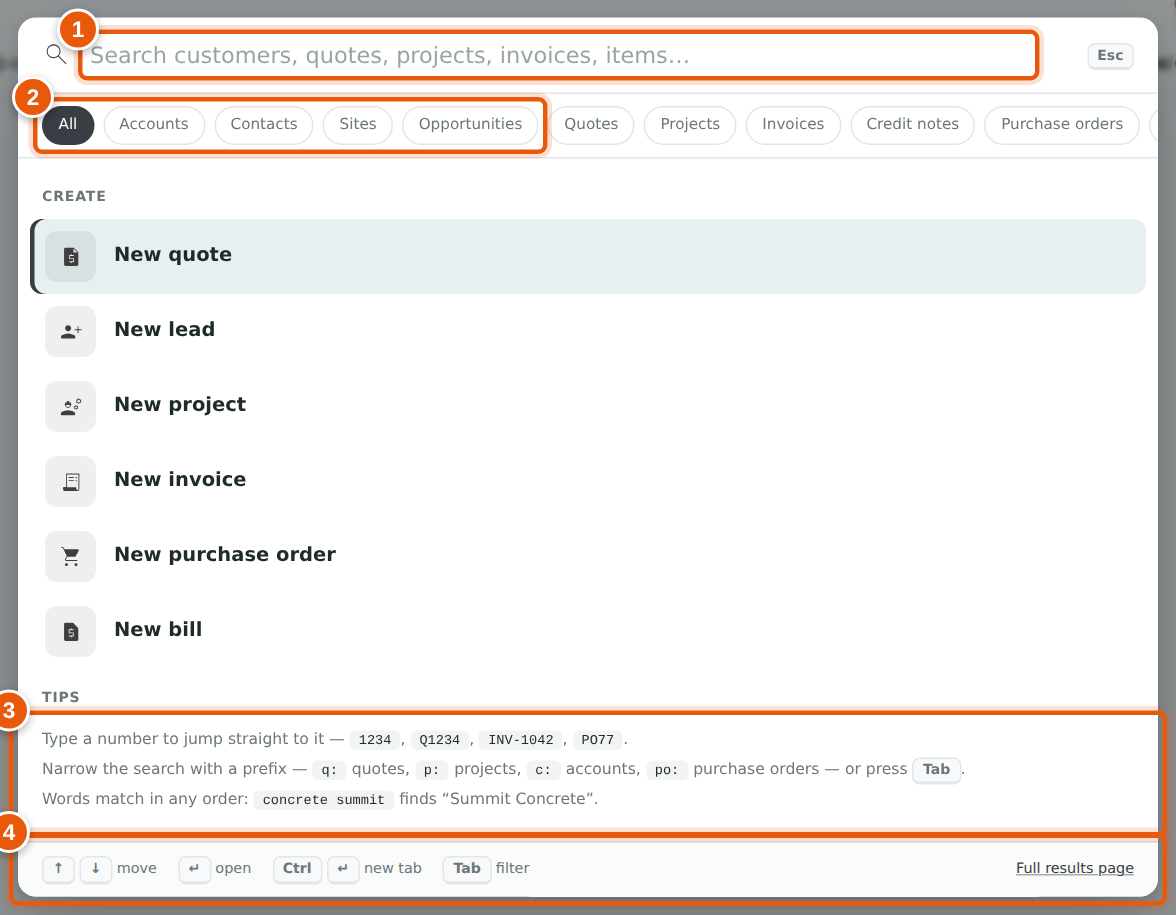
Opening the panel on its own already offers you a few things:
- The search box. Start typing and results appear as you go — there is no Search button to press.
- Type filters. Click a chip (Accounts, Quotes, Projects…) to search only that type. Tab moves through them from the keyboard.
- Tips for the shortcuts described further down this page.
- Keyboard hints along the bottom, and a link to the full results page.
Under Create you can start a new quote, lead, project, invoice, purchase order or bill without leaving the panel. Once you have searched a few times, your recent searches are listed here too, so a search you run every morning is two keystrokes away.
Searching by Name
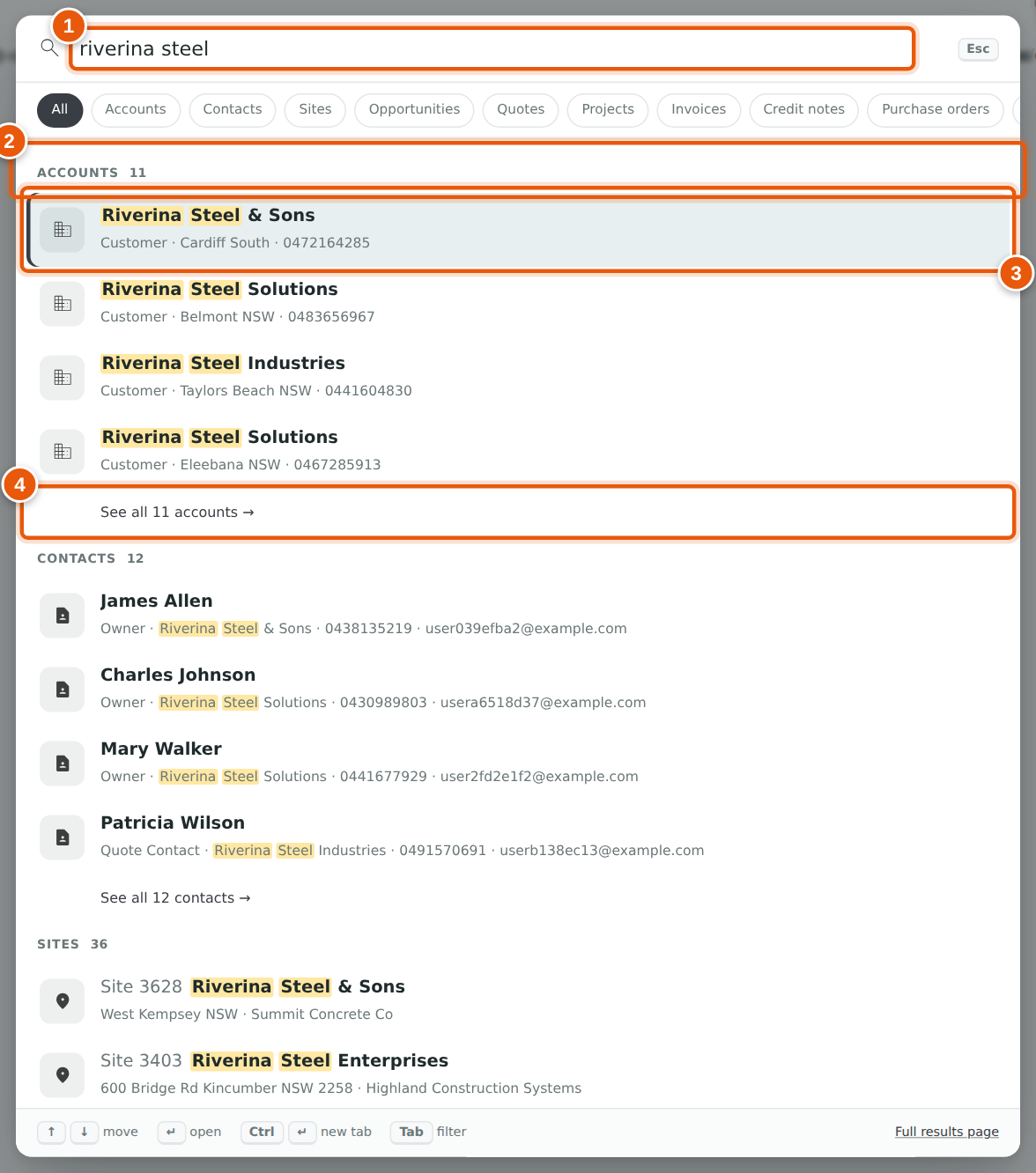
Type as much or as little as you like. Every word you type has to appear somewhere in the record, but the order does not matter — searching steel riverina finds “Riverina Steel Solutions” just as well as riverina steel does. Part of a word is enough: riv ste finds it too.
Reading the results:
- What you typed is highlighted in each result, so you can see why it matched.
- Results are grouped by type, with the total for that type beside the heading.
- Each row shows the detail you need to tell two similar records apart — the account type, contact, suburb, phone, value, status and date.
- See all opens the full results page for that one type, where every match is listed and paged.
Click a result to open it, or use the arrow keys and press Enter.
Finding a Report
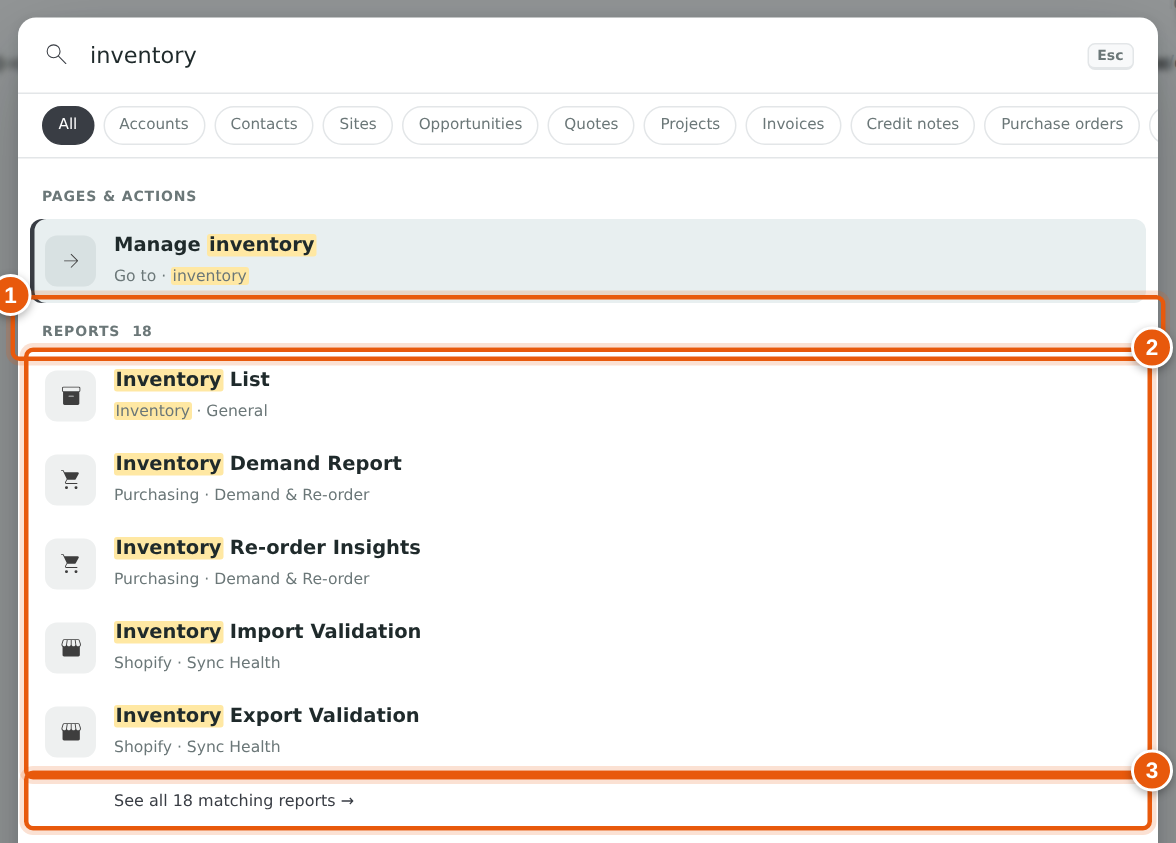
You do not have to go to the Reports page to find a report. Type part of its name — aged, gst, stock valuation — and matching reports are listed under Reports, just below Pages & actions.
- The Reports heading shows how many reports match.
- Up to five reports are listed. Under each name you can see its category and group, as they appear on the Reports page. Reports whose name matches come first.
- If more than five match, See all matching reports opens the Reports page already filtered to your search.
Reports are matched on their name, category and group, so inventory also finds purchasing and Shopify reports about inventory. As with everything else, the words can be in any order. A report you open from here is added to your recently opened list.
Reports only appear in the All view. If a type chip is on, clear it to see them. The list follows the same rules as the Reports page: you only see the reports your permissions let you open.
Jumping Straight to a Document
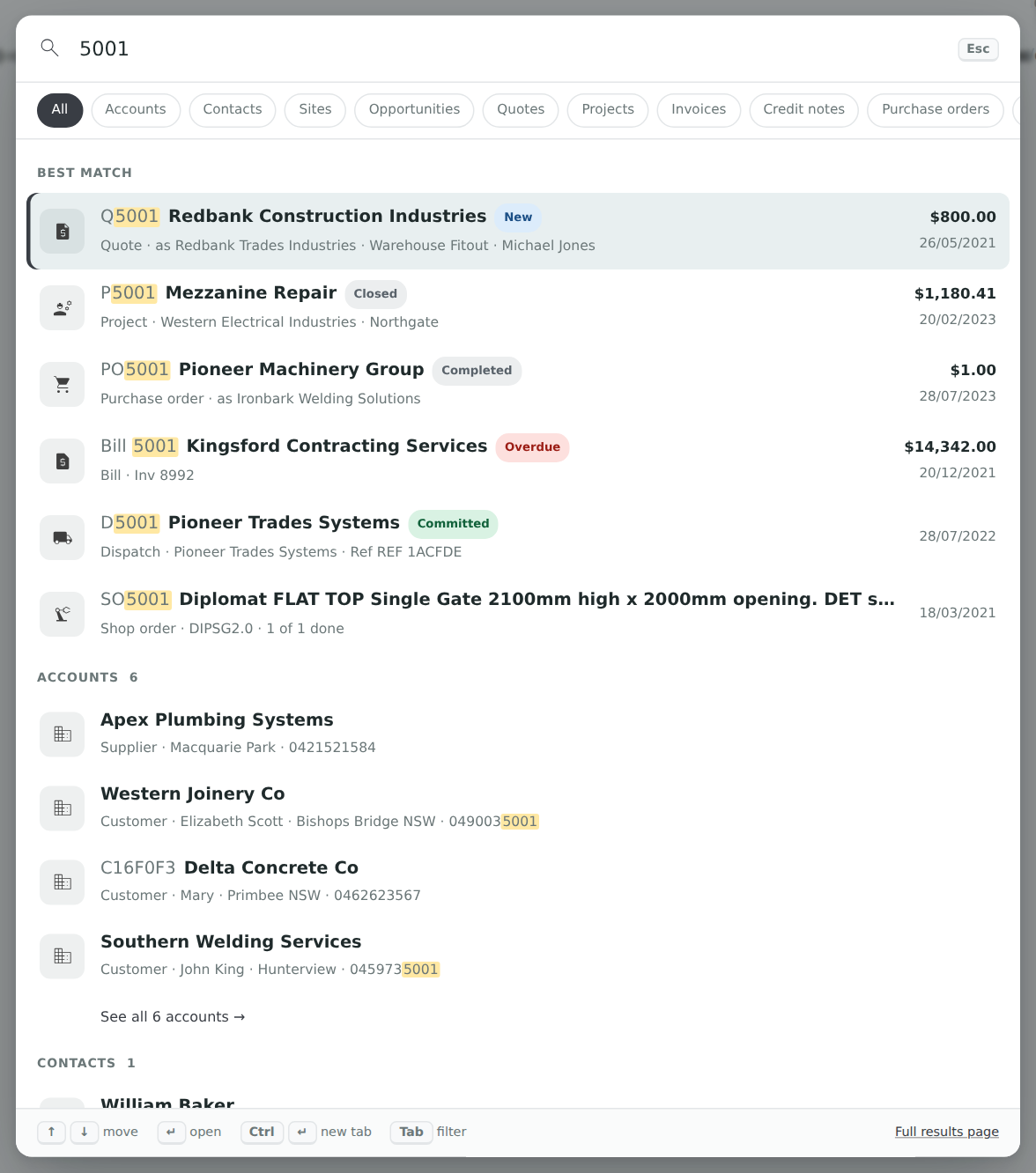
If you know the number, type it. A plain number such as 5001 is looked up as
a quote, project, purchase order, bill, dispatch, shop order and opportunity all at once,
and the matches are listed under Best match at the top.
Add the document prefix when you want one type only. Q5001, P5001,
INV-1042, PO77 and D1234 all jump straight to that
document. A space or a hyphen after the prefix is optional.
| Prefix | Goes to |
|---|---|
Q QT QU QUOTE | Quotes |
P PRJ JOB | Projects |
INV IN I | Invoices |
CN CR | Credit notes |
PO | Purchase orders |
BILL | Bills |
D DSP DISP | Dispatches |
SO WO MF | Shop orders |
OPP | Opportunities |
Narrowing to One Type
When you know what you are looking for, say so first and the rest is ignored. Type the
prefix, a colon, then your words — q: fence panels searches quotes only.
The same thing happens if you click a type chip or press Tab to reach it.
| Type this | Searches |
|---|---|
c: acc: cust: sup: | Accounts |
con: contact: person: | Contacts |
s: site: | Sites |
o: opp: | Opportunities |
q: quote: | Quotes |
p: proj: project: | Projects |
i: inv: invoice: | Invoices |
cn: credit: | Credit notes |
po: purchase: | Purchase orders |
b: bill: | Bills |
it: item: sku: stock: | Inventory |
so: mf: shop: | Shop orders |
d: dsp: dispatch: | Dispatches |
staff: emp: | Staff |
A document number always wins: even with the Quotes filter on, typing INV-1042
takes you to that invoice.
Keyboard Shortcuts
| Key | Does |
|---|---|
| Ctrl K / ⌘ K | Open search from any screen |
| / | Open search (when you are not typing in a field) |
| ↑ ↓ | Move through the results |
| Enter | Open the selected result |
| Ctrl Enter / ⌘ Enter | Open it in a new browser tab |
| Tab | Move through the type filters |
| Esc | Close search |
The Full Results Page
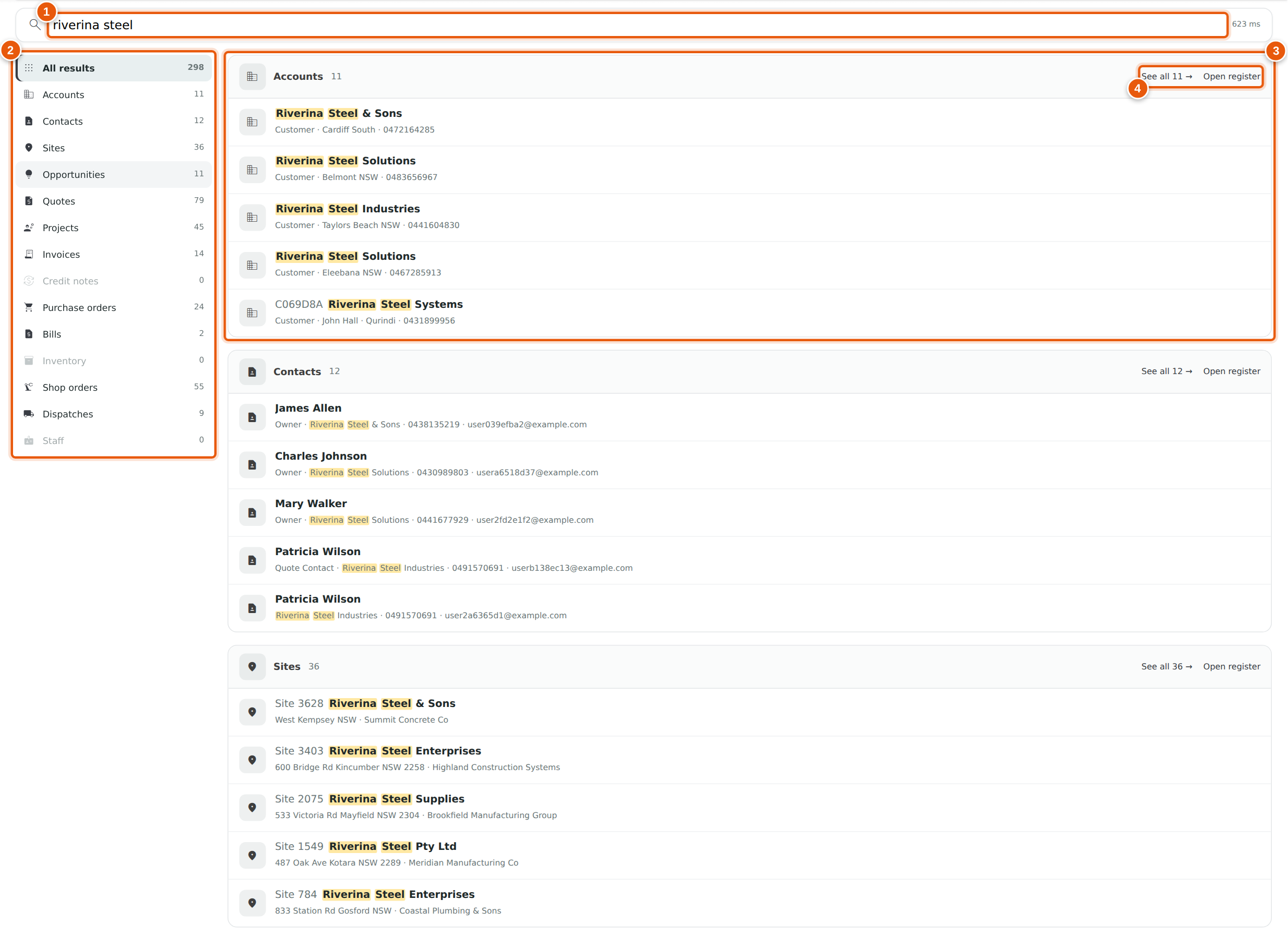
The panel shows you the first few matches of each type. For the whole list, click See all, Full results page at the bottom of the panel, or just press Enter on either of those rows.
- The search box at the top keeps working — edit the words and the page re-runs.
- The list of types down the left shows how many matches each one has. Click one to see only that type. Types with no matches are greyed out.
- Each card holds the top matches for a type.
- See all opens that type in full; Open register takes you to the normal register screen for it.
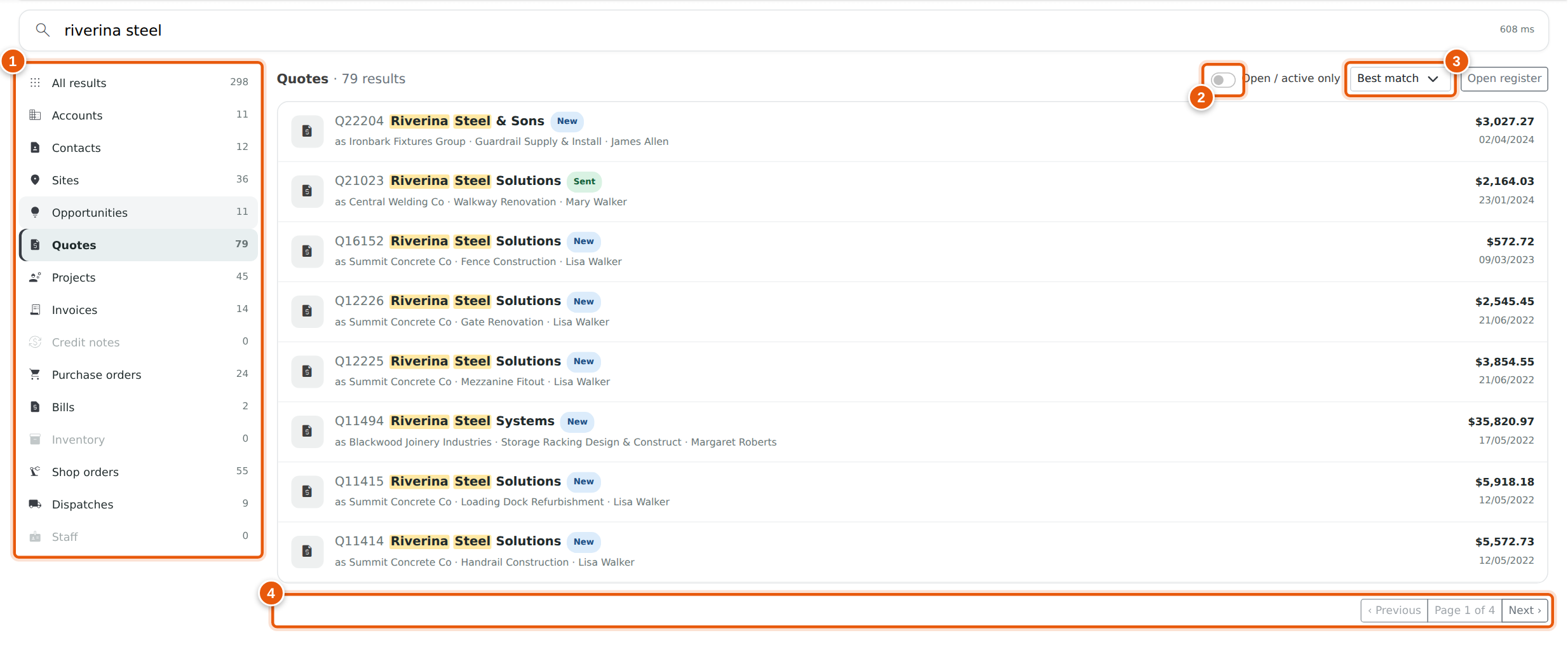
Once you are looking at a single type you also get:
- The type list, still showing the counts, so you can switch across.
- Open / active only — hides closed, cancelled and inactive records.
- Sort — Best match (the default), Newest first or Oldest first.
- Paging — 25 results a page.
The address in your browser holds the search, so a results page can be bookmarked or pasted to a colleague, and the Back button steps back through your searches.
Speed and Spelling
Evolution keeps a search index — a prepared list of the words in your records — so that a search does not have to read through every register each time you press a key. On a company with a hundred thousand records this is the difference between waiting about half a second for each keystroke and getting the answer immediately.
The index is kept up to date for you. A record you save is searchable within about a minute, and nothing needs to be rebuilt by hand.
When a word is misspelt
Because the index knows the words that are actually in your data, it can tell a typo from an unusual name. If the word you typed is not in your records but a very similar one is, search corrects it and tells you plainly what it did:
Click Search instead for to switch back to exactly what you typed. Where the correction is less certain, search leaves your words alone and offers the alternative instead:
Both notices appear in the panel and on the full results page. A correct word is never “corrected”: if what you typed exists in your data, that is what is searched.
If You Cannot Find It
- Use fewer words. Every word has to match, so one extra word from memory (a middle name, a suburb spelt differently) is enough to lose the record.
- Check you are not filtered. If a type chip is on, or the results page is on one type, you are only seeing that type. Clear it with the close on the chip, or click All results.
- Turn off Open / active only. On the results page that filter hides closed and cancelled records.
- It may be a permission. If a colleague can find it and you cannot, ask an administrator to check your access to that module — see Setting Permissions.
- Very new records. Something saved seconds ago can take up to a minute to appear.
- Searching by address? Sites are matched on their street address, so try the street name on its own.
Related Pages
- Item Search & Stock Visibility — the item pickers on quotes, invoices, projects and purchase orders.
- Address Quick Search — finding a site by name or street address while entering an address.
- Accounts (Suppliers and Customers) — how accounts, contacts and sites fit together.
- Reporting — the Reports page and what each report covers.
- Setting Permissions — what each staff member is allowed to see.