
Evolution ERP allows accounts to be created manually or automatically, depending on the workflow. Accounts can represent customers, suppliers, or both.
Manual account creation is commonly used for suppliers and vendors, while customers are often created automatically during the sales process.
What Is an Account?
In Evolution ERP, an account can be:
- A customer
- A supplier
- Both a customer and a supplier
The customer and supplier flags do not restrict system functionality. They are primarily used for search, reporting, and categorisation.
Where to Manage Accounts
Accounts can be created and managed from multiple locations:
- Sales → Manage Accounts
- Purchasing → Manage Accounts
- Contacts → Manage Accounts
Manually Creating a New Account
- Navigate to Manage Accounts
- Click the + (Add New Account) button
- Enter the account name
- Select whether the account is:
- A customer
- A supplier
- Both
- Complete the remaining account details
- Click Save
Even if an account is not flagged as a supplier, purchase orders can still be raised. Similarly, quotes and invoices can still be created even if the customer box is not selected.
Account Details
When creating an account, details are entered from the top of the form downwards.
- Account Name
- Use a first and last name for individuals
- Use the company name for businesses
- ABN (where applicable)
- Payment Terms
- Address and Contact Information
- Department or Notes (optional)
Account Codes
Account codes are optional and can be assigned to accounts for faster searching.
Example:
- Account Code: EVO002
Account codes allow quick searching in:
- Account registries
- Opportunities
- Quotes
- Invoices
Industry & Company Size
Every account can record an Industry and a Company Size (employee count). These sit alongside the other account details and give you better context at a glance when working with a customer or supplier, and lay the groundwork for smarter reporting and segmentation down the track.
- On an existing account, open the account record and edit the Industry and Company Size fields directly.
- When creating a brand-new customer account from an Opportunity, the same two fields appear as part of the new-account details.
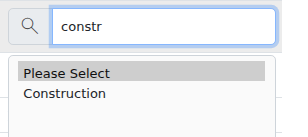
Industry is a searchable drop-down — rather than scrolling through the full list, click into the field and start typing to narrow it down instantly.

Good to know
- Industry options come from a standard list, so choices stay consistent across every account rather than being freely typed.
- Company Size is a plain employee count — enter the number of people at the organisation.
Adding Contacts to an Account
Each account can have one or more contacts associated with it.
- Open the account record
- Select the Contacts tab
- Click the + button to add a contact
- Enter the contact’s name, role, and email address
- Save the contact
Contacts are used across the system for communication and transaction records.
Using the Account
Once an account and contact have been created:
- The account can be selected in purchase orders
- Contacts appear automatically when transacting
- The account becomes available system-wide
Newly created supplier accounts are immediately usable in the Purchasing module.
Recommended Workflow
- Suppliers: Manually create accounts
- Customers: Create automatically via new sales opportunities
Creating customers through opportunities is recommended because it automatically:
- Creates the account
- Adds a contact
- Creates a site
- Reduces manual data entry
Training Video
The following video demonstrates how to manually add new customer and supplier accounts in Evolution ERP.