
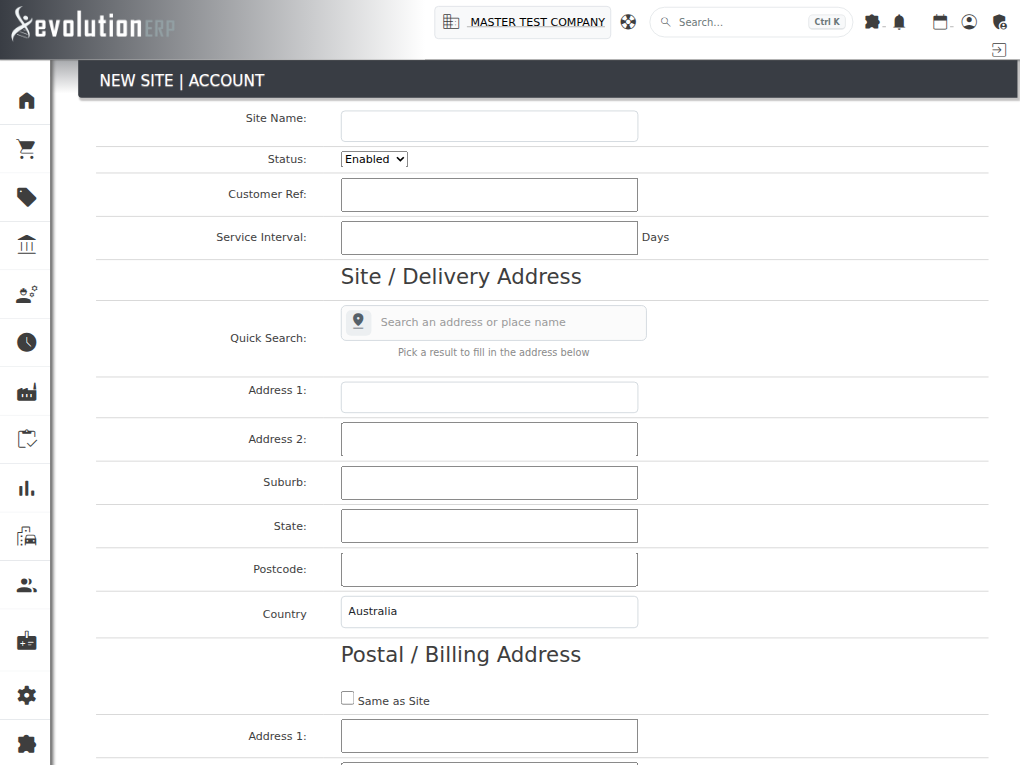
Anywhere Evolution asks you for an address, there is an Address Quick Search box above the address fields. Start typing, pick the match, and Evolution fills in the street address, suburb, state and postcode for you — so the same site is not typed three different ways by three different people.
What It Does
The quick search is a shortcut, not a separate record. Whatever it fills in is simply typed into the address fields for you, and you can edit any of it afterwards before saving. If you would rather type the address yourself, ignore the box and fill the fields in directly.
Results appear in a list under the box as you type. You have to pick one — typing an address and moving on does not fill anything in. Use the close at the right of the box to clear what you have typed and start again.
Searching by Name
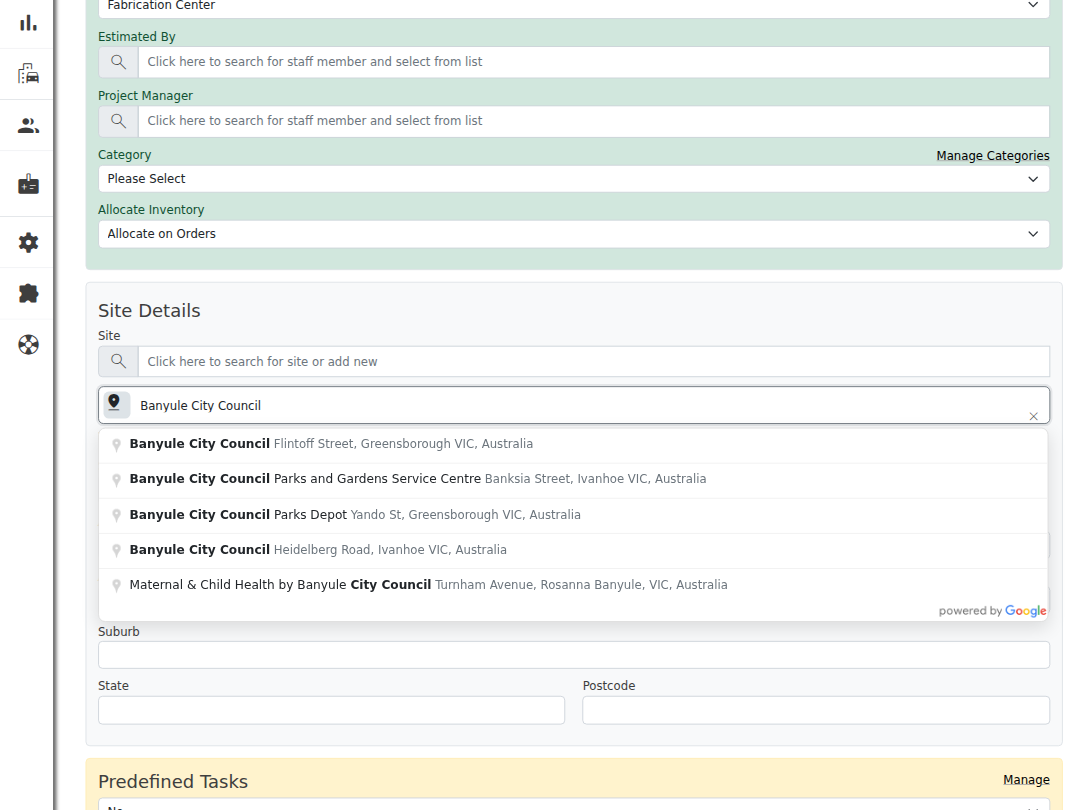
You can search by place name as well as by street address. Typing “Banyule City Council” or “Rosanna Golf Course” now returns the council offices, the depots and the other named places you would expect, the same way a normal Google search would.
Results are limited to Australian addresses. If a place does not appear, check the spelling or search the street address instead.
Site Names Fill In Automatically
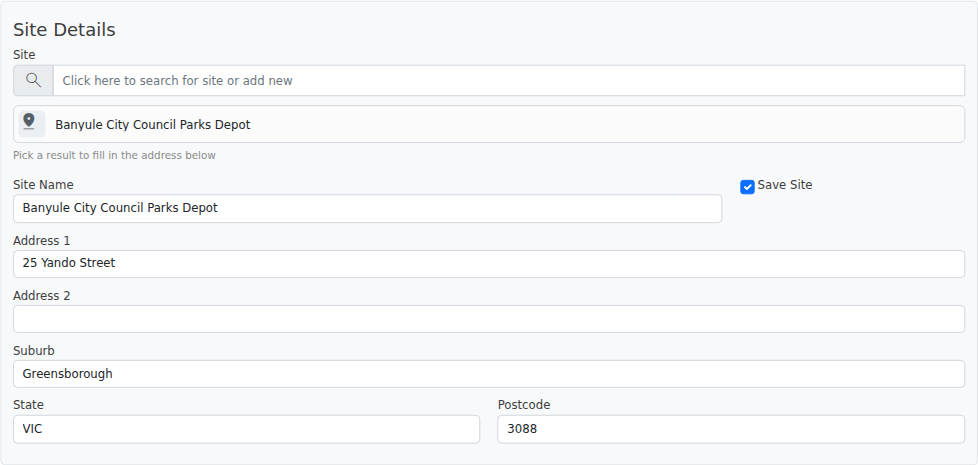
On screens that ask for a Site Name, choosing a named place also fills the site name in for you — so a depot is saved as the name it is actually known by, rather than whatever each person decided to call it.
- If you pick a named place (a council, a depot, a golf course), the site name is filled in from that name.
- If you pick a plain street address, the site name is left for you to fill in — the address on its own is not a useful name.
- If you have already typed a site name, it is never overwritten.
Where You Will Find It
The quick search behaves the same way everywhere it appears:
| Screen | What it fills in |
|---|---|
| New Opportunity | The business address, and separately the site address |
| Edit Opportunity | The business address, where the panel is shown |
| Add Lead | The lead’s address |
| Add Site | The site name and address |
| Add Customer | The account address |
| Add Job | The site name and address for a new site |
| Edit Site | The site address, on an existing site |
| Edit Project (General tab, Site & Delivery Address) | The project’s own delivery address, when it has no site or is a cash sale one-off |
Adding a Site on a Job
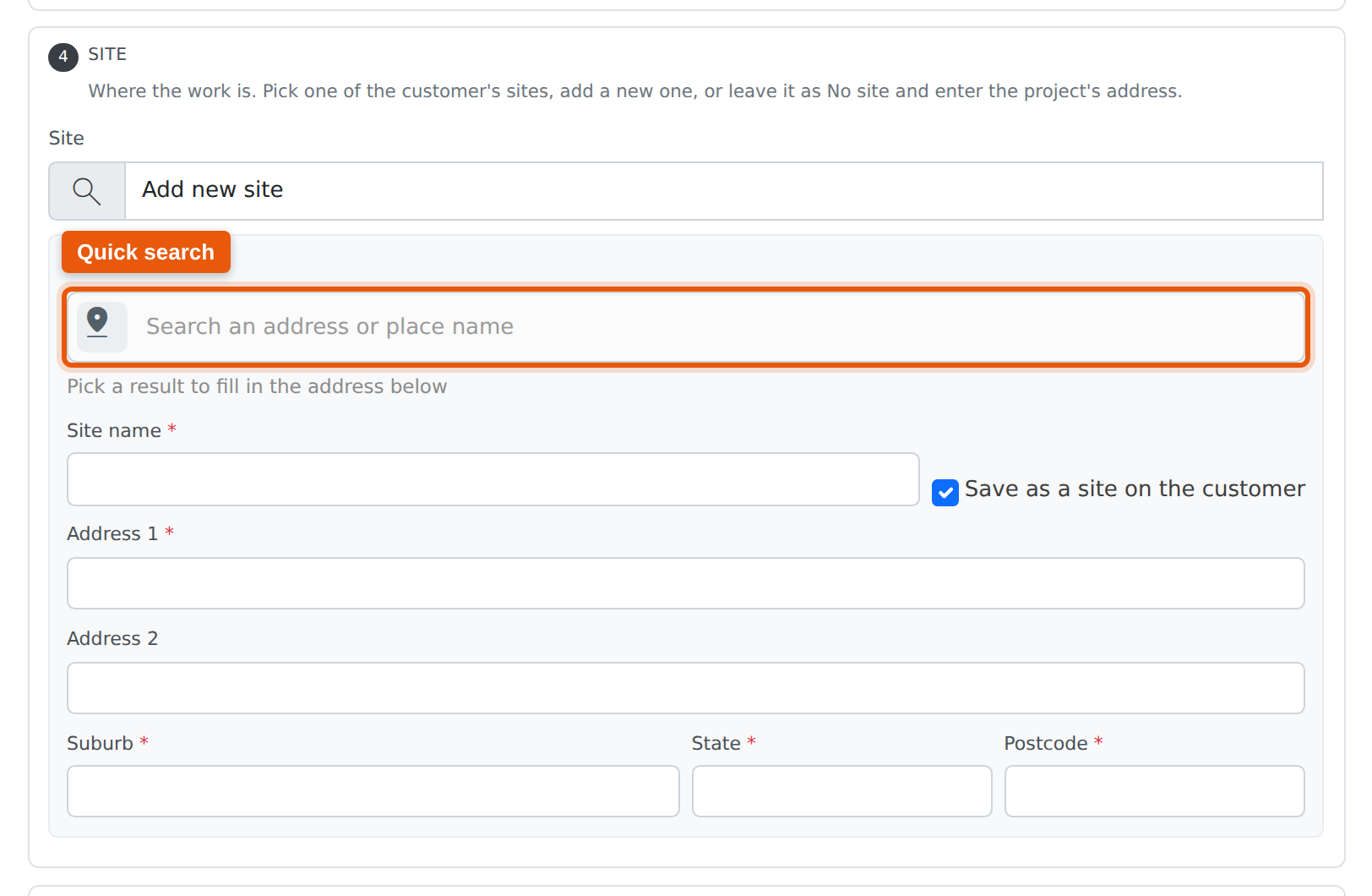
When you create a job you can either pick one of the customer’s existing sites or choose Add New Site. The quick search appears with the new-site fields, and picking a place switches the job to Add New Site for you and fills in the name and address.
Tips
- Check the suburb and postcode. The quick search fills in what the mapping service holds. For a large site or a rural address it is worth a quick look before saving.
- Unit and level numbers are not returned. Add them to Address 2 yourself.
- Nothing is saved until you save the screen. Picking a place only fills the fields in.
- Type the whole thing, then pick from the list. You must click a suggestion for the fields to fill — typing an address and moving on does not populate them.
Related Pages
- Accounts & Contacts from an Opportunity — creating the account, contact and site while raising an opportunity.
- Accounts (Suppliers and Customers) — creating and maintaining accounts directly.
- Jobs — creating and managing jobs.