
A new sales opportunity is usually the first time a prospect is entered into Evolution. Rather than making you stop and set the account up separately, the Opportunity screen lets you create the account, its first contact and its site in one pass — and everything you enter is a real record, immediately available everywhere else in the system.
This page covers the account and contact details captured on that screen, and the administration setting that controls whether a salutation must be chosen.
Starting a New Account
Go to Sales → Opportunities and add a new opportunity. In the Customer search, start typing the business name. The search matches both the registered account name and the trading name, so either will find an existing customer.
If they are not in the system yet, choose New Customer. A panel opens for the account details.

| Field | Required | What to enter |
|---|---|---|
| Account Name | Yes | The business's registered or legal name. This is the name that appears on quotes, invoices and statements. |
| Trading Name | No | The name the business actually trades under, when it differs from the registered name — for example Otter Fencing Pty Ltd trading as Otter Fencing. Leave it blank if they are the same. |
| ABN | Depends | Compulsory only if your administrator has switched on Force ABN in Settings. |
Adding the First Contact
Under Contact Person, pick an existing contact or choose New Contact to enter one. The contact you create here is a full contact record on the account — the same record you would see on the account's Contacts tab.
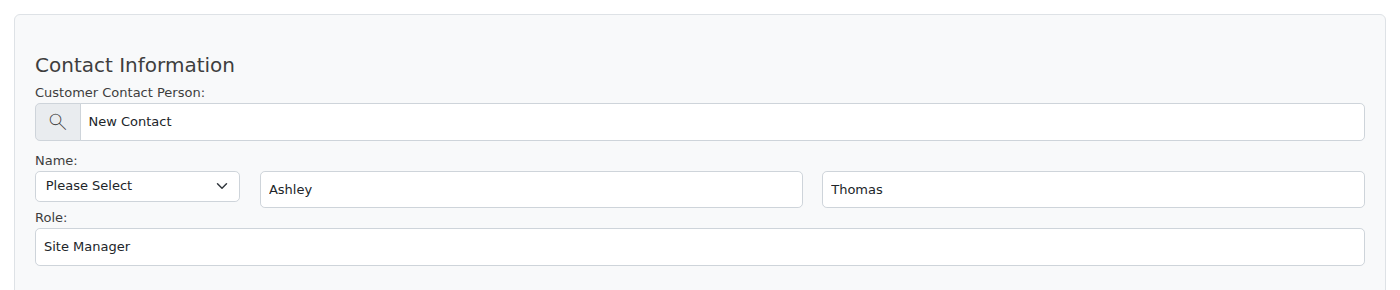
Salutation
The Salutation list offers Mr, Mrs, Ms and N/A, and opens on Please Select so that no salutation is ever applied to a person by default.
Choose N/A deliberately when a salutation does not apply or you would rather not use one — with unisex and non-English names it is often impossible to tell, and recording N/A is a much safer record than a guess. Where a salutation is set, Evolution uses it when it presents the person's name; contacts marked N/A are simply shown by name.
Good to know
- The same Salutation list and the same Please Select behaviour now appear on every screen that creates or edits a contact — the Opportunity screen, the account's Contacts tab, the Edit Contact window and the full contact page.
- Nothing is applied retrospectively. Contacts entered before this change keep whatever salutation was stored against them; correct any that are wrong the next time you open them.
Making Salutation Compulsory
By default a salutation is offered but not enforced. If your business wants every contact to carry one, an administrator can switch it on for the whole company:
- Go to Settings
- Open the General tab
- Find Force Salutation and set it to YES
- Save
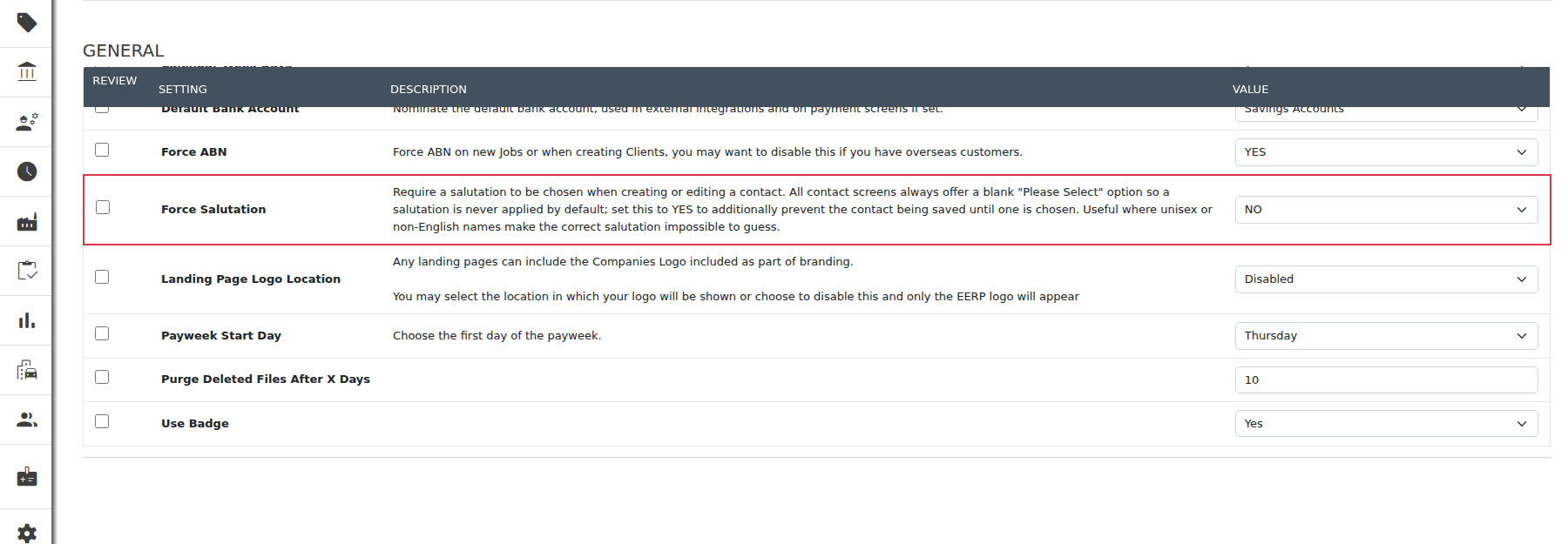
With the setting on YES, a contact cannot be saved until a salutation is chosen — on the Opportunity screen, when adding a contact to an account, and when editing an existing contact. Staff who genuinely do not know which to use should select N/A.
With the setting on NO the field stays optional, but it still opens on Please Select, so a salutation is only ever stored because someone chose it.
Where the Salutation Appears
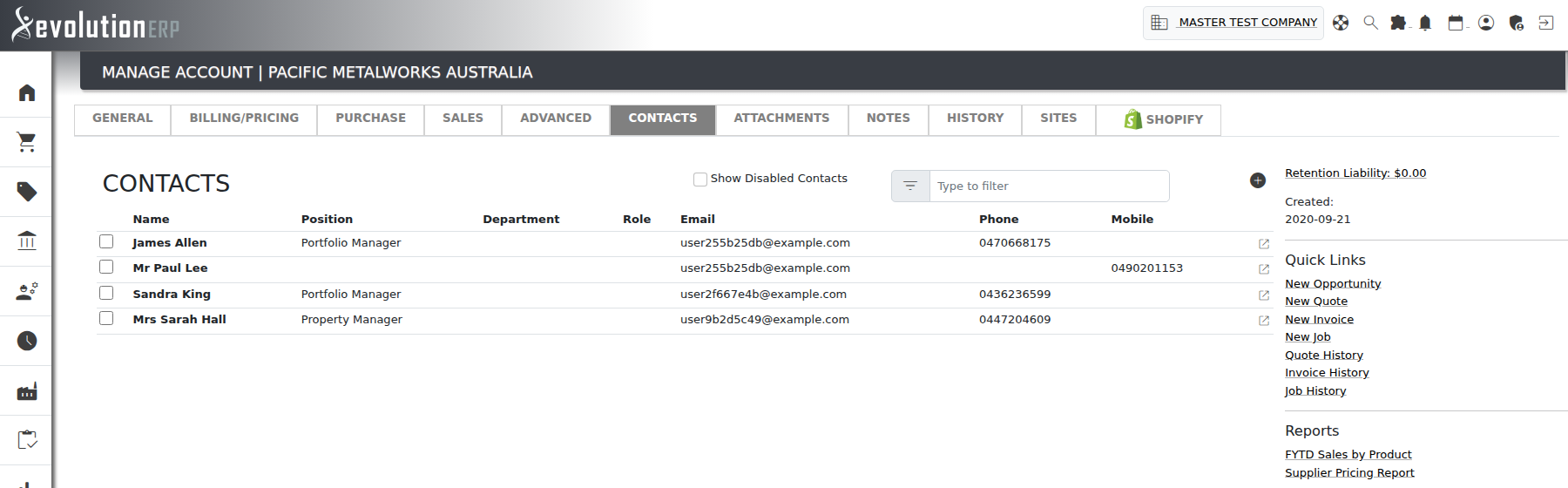
The salutation is shown with the contact's name on the account's Contacts list — so a contact stored as Ms and Jane Smith reads as Ms Jane Smith. Contacts recorded as N/A, or with no salutation at all, are shown by name only.
Related Pages
- Accounts (Suppliers and Customers) — creating and maintaining accounts directly.
- Contacts on Accounts — the full contact record, sites, history and activity.