
Purpose
The Project Register lists every project in your company. Use it to find a project, see where your projects are up to, and pick out the ones that need attention — projects to invoice, work not yet invoiced, and retention still owed.
Where to Find It
Menu → Projects → Project Register, or the Projects tab beside Leads, Opportunities and Quotes.
The Project List
Filters run across the top and the list updates as you type or pick. The register remembers your filters, so it opens the way you left it.
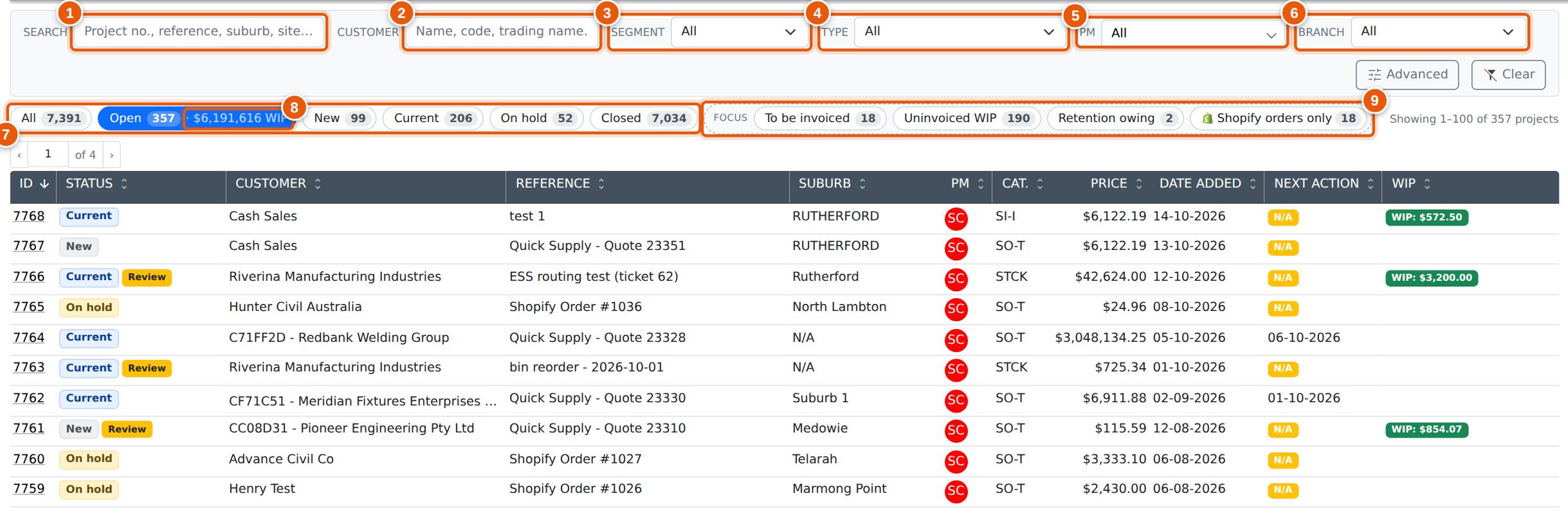
- Search — a project number, reference, suburb or site.
- Customer — the customer's name, code or trading name.
- Segment — only projects for customers in a segment. Shown when your company has customer segments — see below.
- Focus — on/off buttons that pick out projects needing attention — see below.
- Type — the project type.
- PM — one or more project managers.
- Branch — the branch the project belongs to.
- Status views — All, Open, New, Current, On hold and Closed, each with its count.
- The Open button also shows the uninvoiced work in progress (WIP) on your open projects.
| Column | What it shows |
|---|---|
| ID | The project number. Click anywhere on the row to open the project. |
| Status | New, Current, On hold or Closed, with a Review flag when the project has changed since it was last reviewed, and a Defect flag when it has an open defect. |
| Customer | The customer's code and name. |
| Reference | The project reference. |
| Suburb | The project's site suburb. |
| PM | The project manager's initials. Hover for the name. |
| Cat. | The project type. |
| Price | The project's value. |
| Date Added | When the project was created. |
| Next Action | The date of the project's next action. |
| Next Retention | The earliest retention date. Shown only while Retention owing is on. |
| WIP | A green badge with the uninvoiced WIP, and a red Invoice badge when the project is flagged to be invoiced. Hover over Invoice to compare what has been invoiced with the project's revenue. |
Every column heading sorts the list; click it again to reverse the order. Clear puts every filter back, including the status view (All), the Focus buttons (off) and the branch (your own).
Open, New, Current, On hold and Closed
The buttons above the list switch between views. The number on each is how many projects match your other filters.
- All — every project.
- Open — every project that is not closed: New, Current and On hold together. Its figure is the uninvoiced WIP on those projects.
- New — open projects still marked as new.
- Current — open projects under way.
- On hold — open projects that are paused.
- Closed — finished projects.
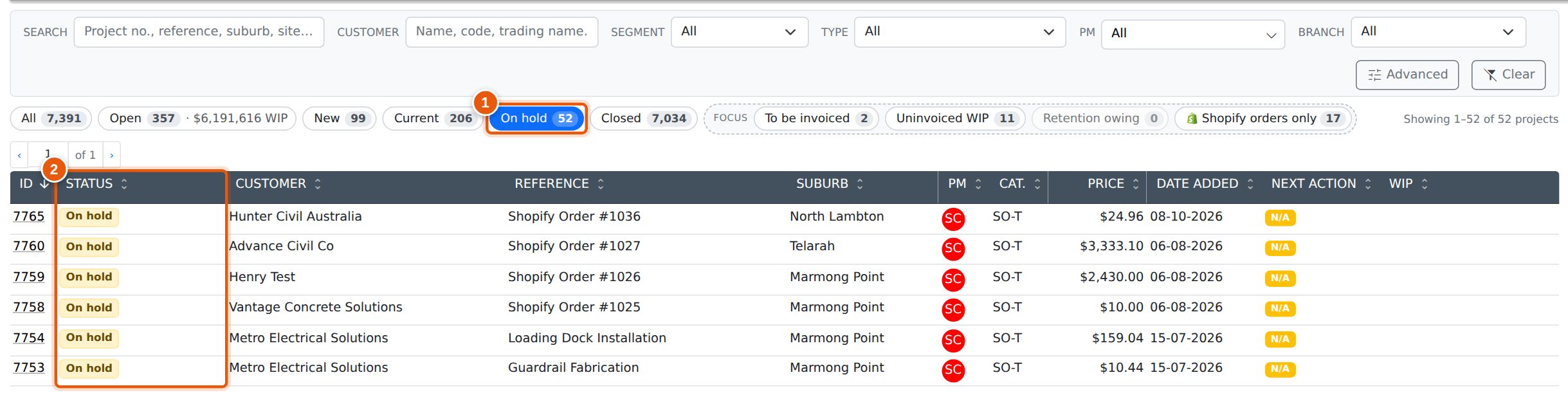
- The On hold view is selected.
- Every project listed is On hold.
Click the selected button again to go back to All.
Focus
The Focus buttons pick out projects that need attention. Each one turns on and off on its own, and you can have more than one on: the list then shows only projects that match all of them, within the status view you have selected.
- To be invoiced — projects flagged for invoicing.
- Uninvoiced WIP — projects with work in progress not yet invoiced.
- Retention owing — projects holding retention — see below.
- Shopify orders only — projects created from a Shopify order. Shown when your company is connected to Shopify.
The number on each button is how many projects you would see if you turned it on, so you know before you click. A button showing 0 is greyed out.
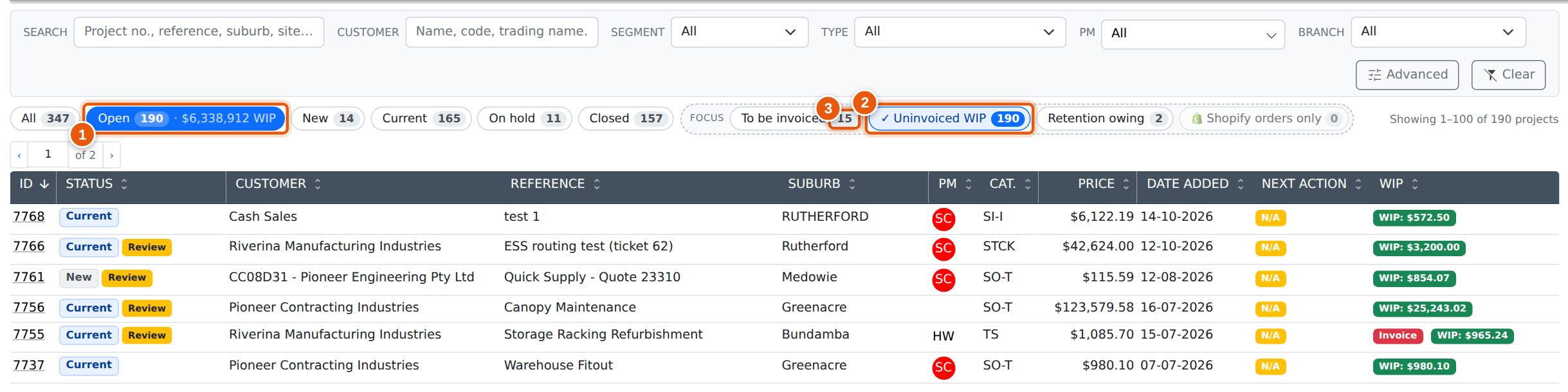
- The Open view is selected.
- Uninvoiced WIP is on: only open projects with WIP are listed.
- The other buttons now count within that list — turning on To be invoiced would show this many.
Customer Segment
Segment lists only projects for customers in the segment you pick. Pick No segment to find projects for customers who are not in any segment. Segments are set up under Accounts → Customer Segments; the filter appears once your company has at least one.
The Review Flag
A yellow Review flag beside the status means the project has changed since it was last reviewed — for example a quote was imported into it or a quote section was accepted. Open the project to see the change; the flag clears once it has been reviewed there.
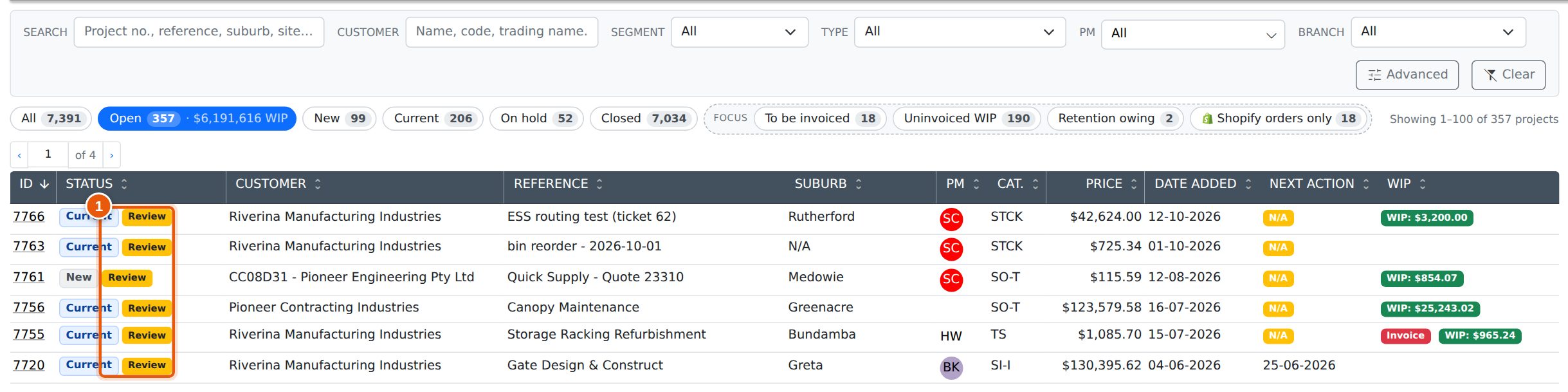
- The Review flag, beside the project's status.
Retention Owing
Turn on Retention owing to list projects holding retention. Two things appear with it: a Retention date range, and a Next Retention column with each project's earliest retention date.

- Retention owing is on.
- Enter a date range to list only projects with a retention falling due in it. Leave either end blank for an open-ended range.
- Next Retention — the earliest retention date on the project.
Advanced: Custom Project Fields
Advanced opens a second row of filters for your company's own custom project fields. A field appears here when it is marked searchable in its custom field set-up. Like the main filters, a pick here applies straight away and stays on while you change the other filters.
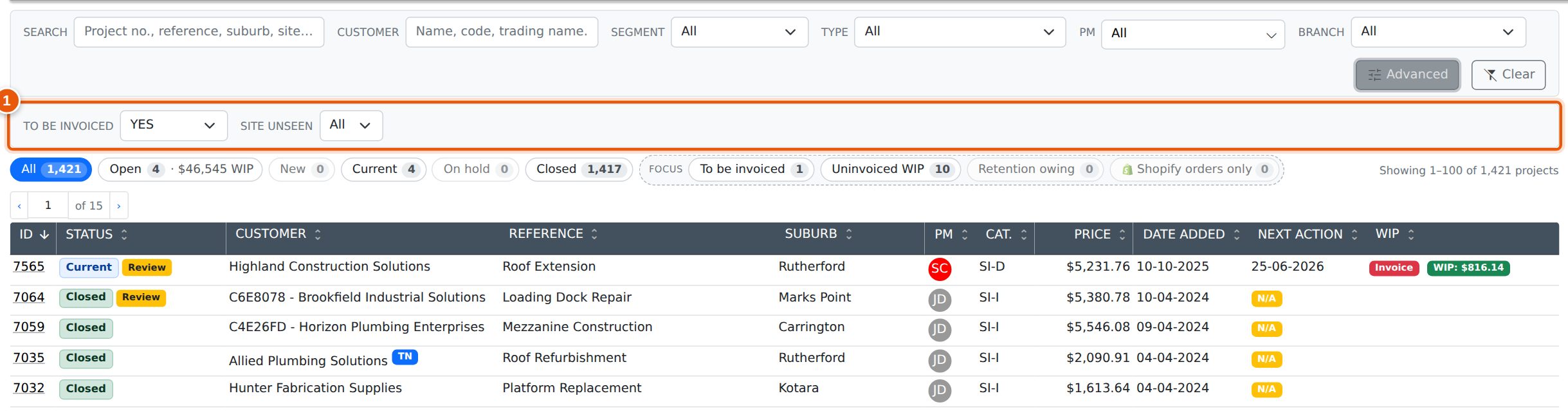
- The Advanced row: each searchable custom field, set to All until you pick a value.
Common Questions
Where has the Status filter gone?
It is now the row of buttons above the list (All, Open, New, Current, On hold, Closed).
Why don't the status counts add up to All?
Open is New, Current and On hold together, so it overlaps them. Open plus Closed equals All, and New plus Current plus On hold equals Open.
Where have the Focus tick boxes gone?
They are now the Focus buttons. They work the same way — click to turn one on, click again to turn it off — and now show a count.
Where has the Advanced search button gone?
It is no longer needed: custom field filters apply as soon as you pick a value.