
When a new product is a close relative of one you already sell — the same gate in a different width, the same fitting in a different finish — the Inventory Cloning Tool saves you rebuilding it from scratch. It creates a brand new item pre-filled from an existing one, and lets you choose which of the original’s supporting detail comes with it.
The clone is a genuinely separate item from the moment it is created. Editing it later never affects the item it came from, and vice versa.
Where to Find It
Open the item you want to copy (Inventory → Items, then click the item), and use the file_copy Copy Inventory icon in the top-right of the page header.

Cloning an Item
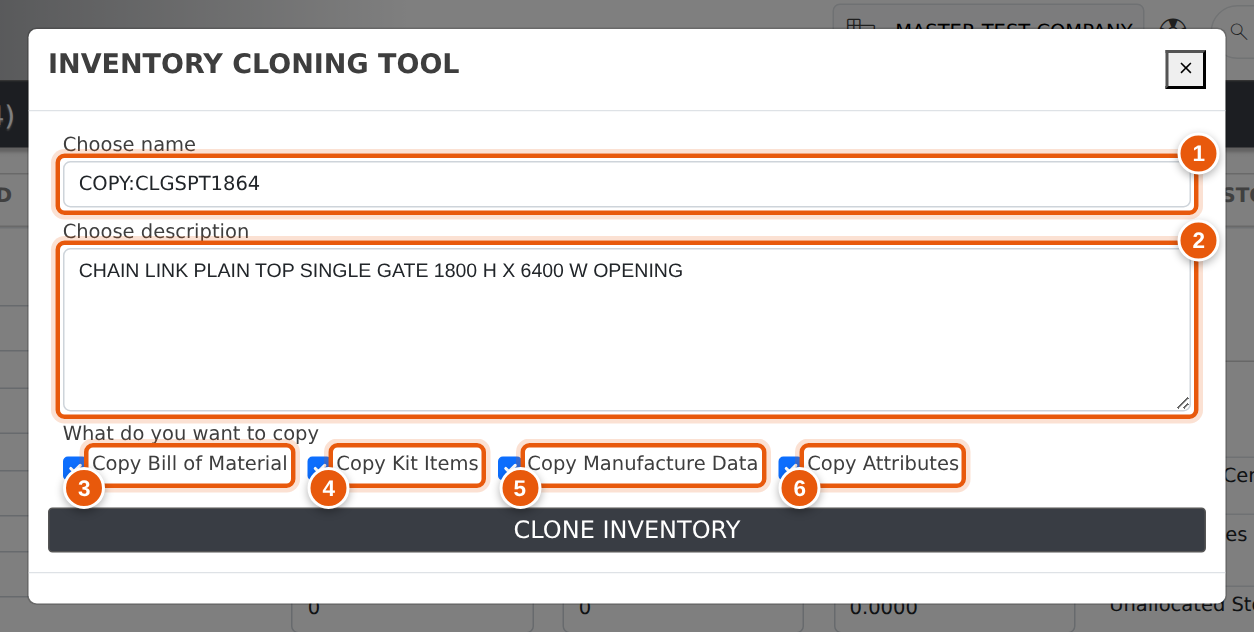
The icon opens the Inventory Cloning Tool window. Fill in the new item’s code and description, tick what you want carried across, and click Clone Inventory.
-
Choose name — the item code for the new item. Evolution
suggests
COPY:followed by the original code; replace this with the code you actually want, following your usual product coding standard. - Choose description — pre-filled with the original’s description. Edit it to describe the new item.
- Copy Bill of Material — the item’s bill of materials.
- Copy Kit Items — the component lines if the item is a kit.
- Copy Manufacture Data — the manufacturing detail held against the item.
- Copy Attributes — the product attributes recorded against the item, such as colour, height, width or finish.
All four tick boxes start ticked, so by default you get a complete copy. Untick anything you would rather build fresh on the new item.
What Gets Copied
The item record itself is always copied in full — only the code and description are replaced with what you typed. Everything else is optional.
| What | Copied? | Notes |
|---|---|---|
| The item record | Always | Product category, cost, price, unit of measure, supplier detail, settings and flags all come across exactly as they are on the original. |
| Item code & description | Replaced | Set to the values you type into the cloning window. |
| Bill of materials | Optional | Every BOM line on the original is recreated against the new item. |
| Kit items | Optional | The component lines that make up a kit. |
| Manufacture data | Optional | Manufacturing detail recorded against the item. |
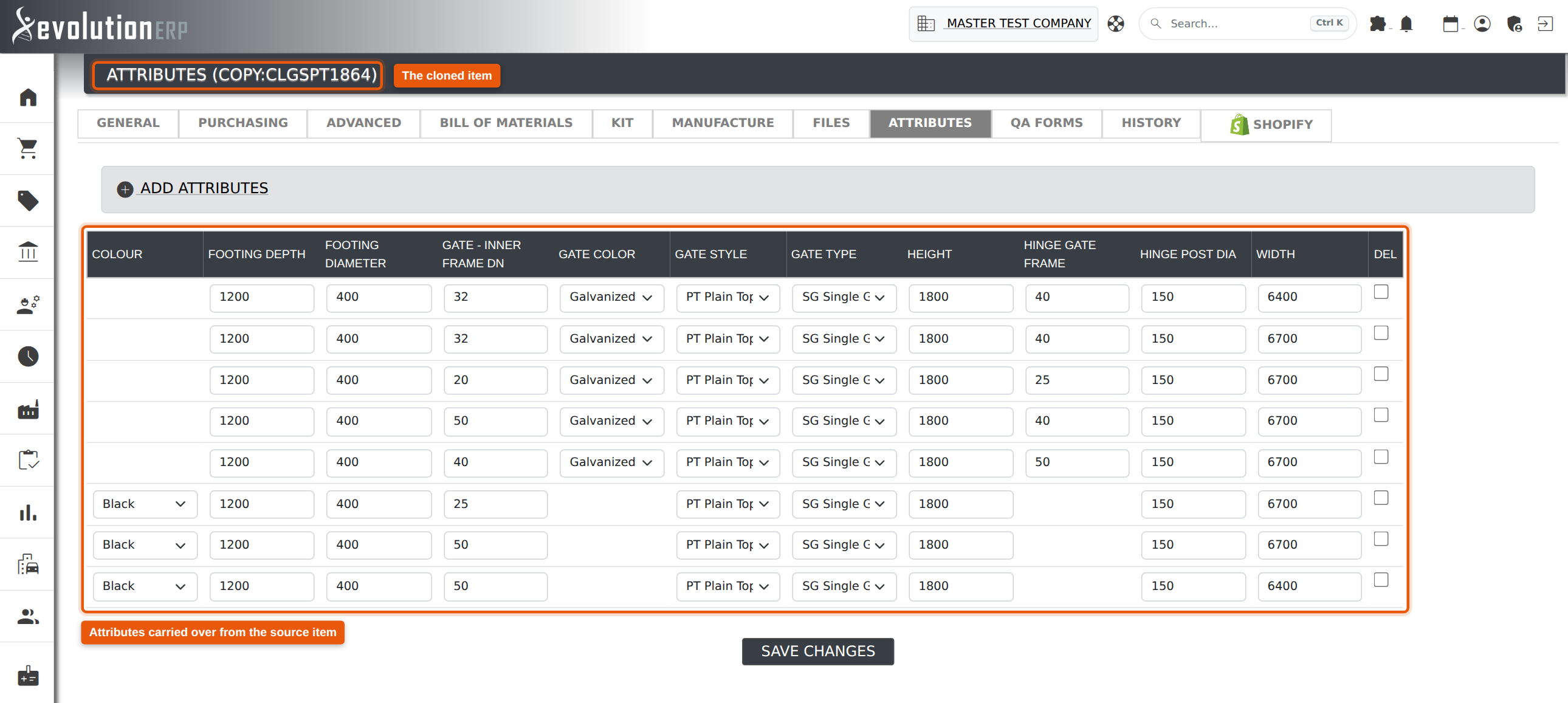
| Product attributes | Optional | Every attribute row on the original, including items that carry several rows of attributes — the rows stay grouped on the clone exactly as they were grouped on the original. |
What Does Not Get Copied
A clone is a new product, not a duplicate of the original’s trading history. The following deliberately stay with the original:
- Stock on hand. The new item starts at zero in every branch and bin. Bring stock in the normal way — a purchase order, a stock adjustment or a stocktake.
- Stock movement history, and any sales, purchase or job history. These belong to the original item.
- Attached files and images on the original item’s Files tab.
After Cloning
Evolution saves the new item straight away and opens it, so you land on the clone ready to edit — check the page header to confirm you are on the new code rather than the original.
Worth reviewing before you start using it:
- Cost and price, which were inherited from the original and are often the first thing that differs.
- Attributes, if you cloned them — change the values that make this item different.
- The bill of materials, if the new item is built from slightly different components.