
A coding standard turns a product's category and its attributes into a consistent description and product code — the same way, every time. You define it once, and every item built from it comes out predictable, instead of each person abbreviating Schedule 80 their own way.
The result is a catalogue you can actually search. When every 316 stainless fitting
carries SS316 in the same position, staff stop creating duplicate items
because they could not find the one that already existed, purchasing can see at a glance
what a code means, and reporting by material or size becomes reliable.
Where to Find It
Inventory → Coding Standard in the main menu, or Inventory → Tools → Product Coding Standard.
How It Works
The standard is built on the product attributes you already record against your items. Three pieces come together:
- The category tells Evolution which recipe to use — a flange is named and coded differently to a length of cable.
- The template for that category lists which attributes appear, and in what order, in the description and in the code.
-
The dictionary says how each attribute value is written out in full
and how it is shortened in the code — Schedule 80 is written
Sched80 and coded
S80.
So an item in the Pipe Fittings category, with a Type of Tee, a Material of PVC, a Class of Schedule 80 and a Size of 2", produces:
| Description | Fitting - Tee - PVC - Sched80 - 2" |
|---|---|
| Product code | FIT-TEE-PVC-S80-2 |
Every item in that category then follows the same shape, and the next person to add a PVC tee gets the same answer without having to remember the convention.
Getting Started
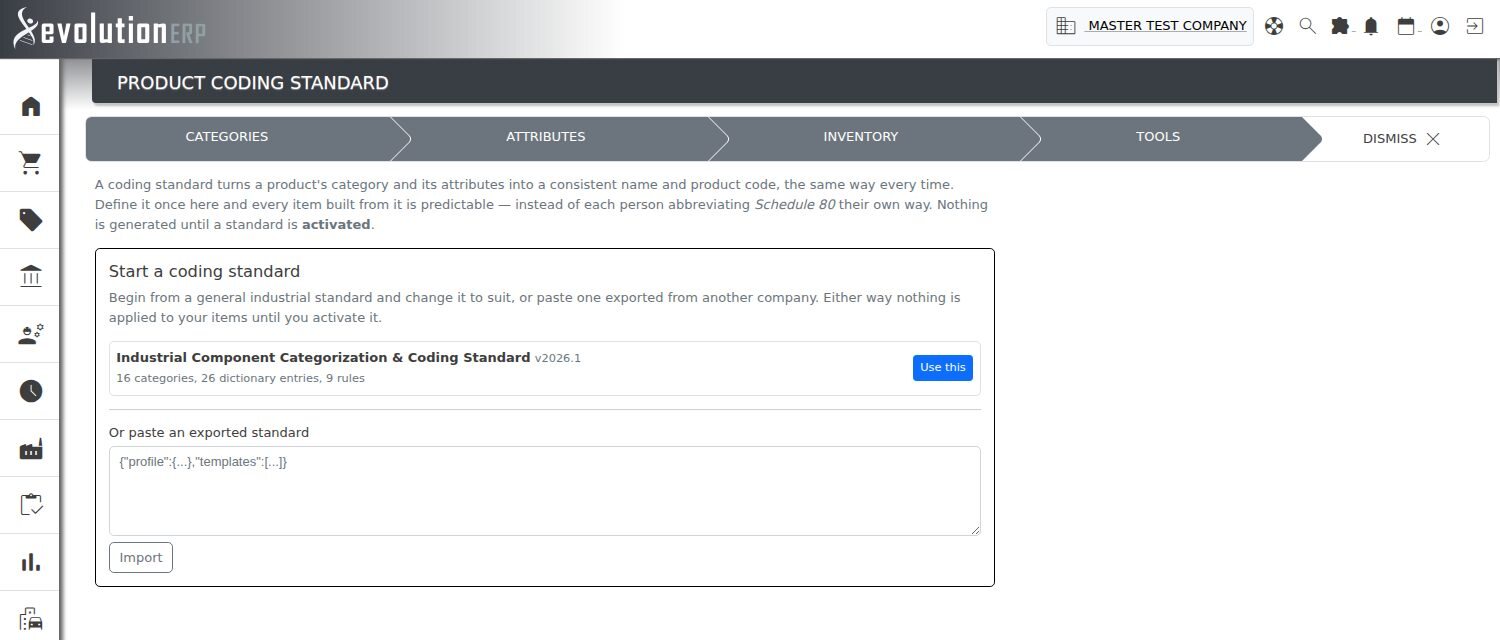
The first time you open the screen you are offered two ways to begin:
- Start from a supplied standard. Evolution ships with the Industrial Component Categorization & Coding Standard, a general-purpose standard covering common industrial categories — fittings, flanges, fasteners, cable, enclosures and so on — with templates, a starter dictionary and a set of rules already in place. It is a starting point, not a straitjacket: change anything you like once it is loaded.
- Paste an exported standard. If another company in your group has already built one, they can export it and you can paste it in here. See Sharing a Standard below.
Either way the standard is created switched off. Nothing is applied to your items until you press Activate.
Turning the Standard On and Off
Across the top of the screen you will find the standard selector and its controls:
| Control | What it does |
|---|---|
| Activate | Makes this standard the live one. From this point, adding or editing an item offers the generated description and code. Only one standard can be active at a time. |
| Turn off | Deactivates the standard. Item screens go back to the previous behaviour immediately. Nothing already coded is changed or reverted — codes that have been applied stay applied. |
| Export | Copies the whole standard out as text, for backup or to give to another company. |
| New from preset | Creates a second standard alongside this one — useful for drafting a revision without disturbing the one that is live. |
Settings
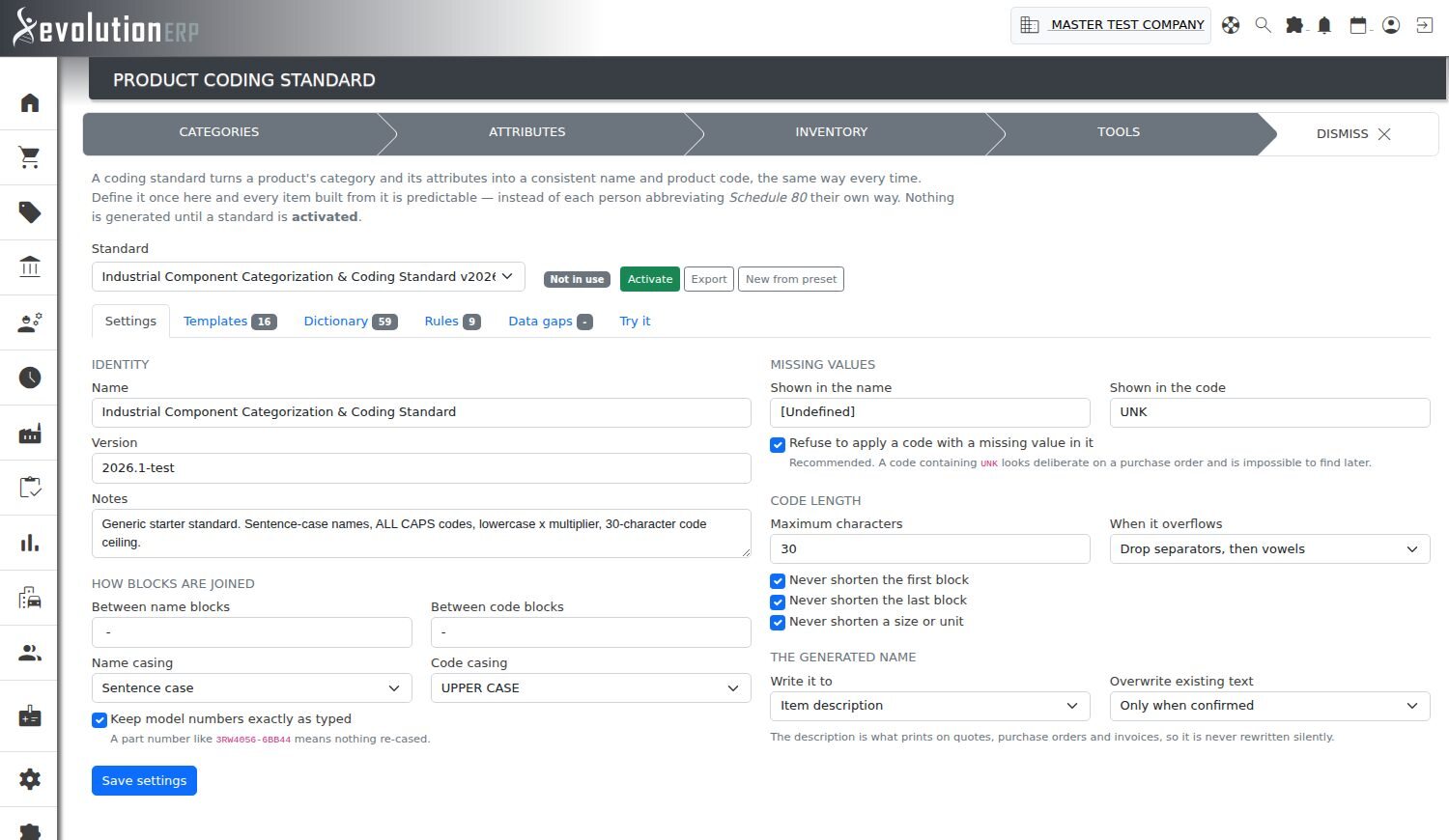
The Settings tab holds the house style — the decisions that apply to every category. Most businesses set these once and never revisit them.
Identity
| Field | Required | What it does |
|---|---|---|
| Name | Yes | What you call this standard, e.g. Our Coding Standard 2026. |
| Version | No | Free text. Handy when you revise the standard and want to know which version an item was coded under. |
| Notes | No | Anything the next person needs to know — why a convention was chosen, what is still to do. |
How Blocks Are Joined
A generated description or code is a series of blocks. These settings control what sits between them and how they are cased.
| Field | What it does |
|---|---|
| Between name blocks | The separator in the description. Commonly a space-hyphen-space, giving Fitting - Tee - PVC. |
| Between code blocks | The separator in the code. Commonly a plain hyphen, giving FIT-TEE-PVC. |
| Name casing | Sentence case, Title Case, UPPER CASE, or leave values exactly as they are entered. |
| Code casing | UPPER CASE, lower case, or leave as entered. Most catalogues use upper case. |
| Keep model numbers exactly as typed |
Leaves manufacturer part numbers alone when casing is applied. A part number like
3RW4056-6BB44 means nothing re-cased, so this is normally left ticked.
|
Missing Values
Sooner or later an item will be missing an attribute the template asks for. These settings decide what happens.
| Field | What it does |
|---|---|
| Shown in the name / Shown in the code | The placeholder used where a value is missing, so the gap is visible rather than silent. |
| Refuse to apply a code with a missing value in it |
Recommended. Stops a placeholder ever reaching a real product
code. A code containing UNK looks deliberate on a purchase order and
is impossible to find later.
|
Code Length
Product codes have to fit — on a label, in a supplier's system, in a column on a report. If a generated code comes out too long, this is how it is shortened.
| Field | What it does |
|---|---|
| Maximum characters | The longest code you will accept, between 6 and 30 characters. |
| When it overflows |
Fail rather than shorten — tell you instead of guessing. Drop the separators — remove the hyphens between blocks. Drop separators, then vowels — then remove vowels from the right until it fits. Trim the middle — shorten from the centre, keeping both ends recognisable. |
| Never shorten the first block | Protects the leading identifier, which is usually what people scan for. |
| Never shorten the last block | Protects the trailing detail, often the part that distinguishes two similar items. |
| Never shorten a size or unit | Keeps measurements intact. A shortened size is worse than a longer code. |
The Generated Name
| Field | What it does |
|---|---|
| Write it to | Which field on the item receives the generated description — the item description, the product name, the short description, or Nowhere if you want the standard to generate codes only and leave your wording alone. |
| Overwrite existing text |
Only when confirmed (recommended) — you are shown the generated text and
choose to accept it. Only if empty — fills the field when there is nothing there, never replaces. Never — the generated description is shown for reference but never written. |
Templates
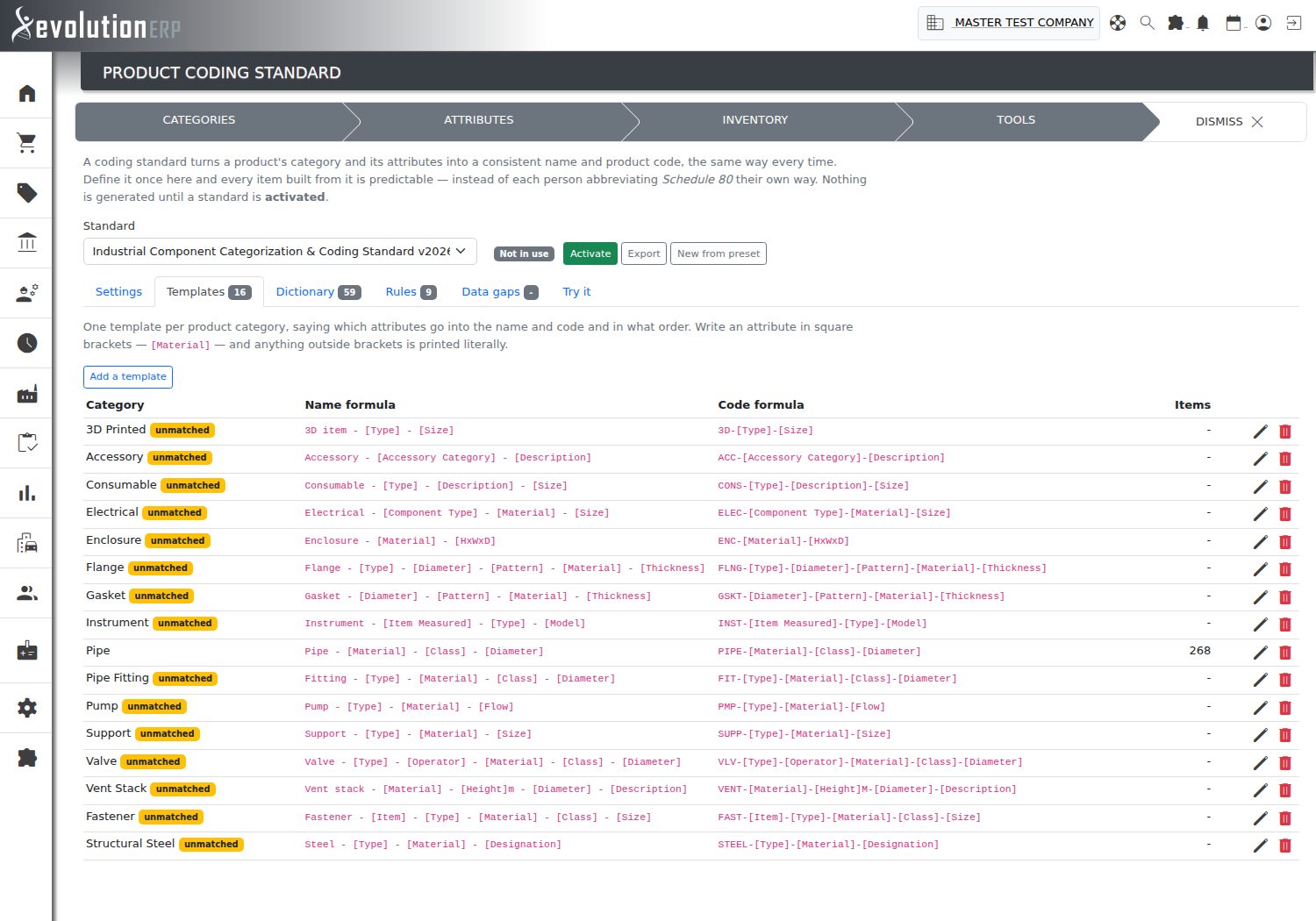
A template is the recipe for one product category: what goes into the description and code, and in what order. You write an attribute in square brackets, and anything outside brackets is printed exactly as you type it.
| Name formula | Fitting - [Type] - [Material] - [Class] - [Size] |
|---|---|
| Code formula | FIT-[Type]-[Material]-[Class]-[Size] |
| Produces | Fitting - Tee - PVC - Sched80 - 2" / FIT-TEE-PVC-S80-2 |
The Items column shows how many products currently sit in that category, so you can see which templates matter most and which are barely used.
If a category has no template, items in it are left alone — the standard simply does not apply to them. That makes it safe to roll out one category at a time.
A template tagged unmatched is asking for a category name that does not exist in your company. That is normal straight after importing a standard built elsewhere: the template is harmless but does nothing. Either rename it to a category you do have, or add the category — the Data gaps tab offers to do it for you.
FIT-TEE-PVC-S80-2 can map each piece
back to the description without a decoder ring.
Dictionary
The dictionary is where each attribute value gets its written form and its short form.
It is the difference between a standard that reads well and one that produces
SCHEDULE80 in the middle of a product code.
| Column | What it holds |
|---|---|
| Attribute | Which attribute this entry belongs to — for example Class. An entry can also be left general so it applies wherever the value appears. |
| Value | The value as it is stored against your items, e.g. Schedule 80. |
| Written as | How it appears in the description, e.g. Sched80. |
| Coded as | How it is shortened in the product code, e.g. S80. |
| Source | Whether the entry came from the supplied standard, was learned from your catalogue, or was typed in by hand. |

The point of the dictionary is that different spellings of the same thing land on one
code. SS316, 316SS and Stainless 316 can all be written
S316 and coded S316, so the variation in how people type it never
reaches the product code.
Learn From My Catalogue
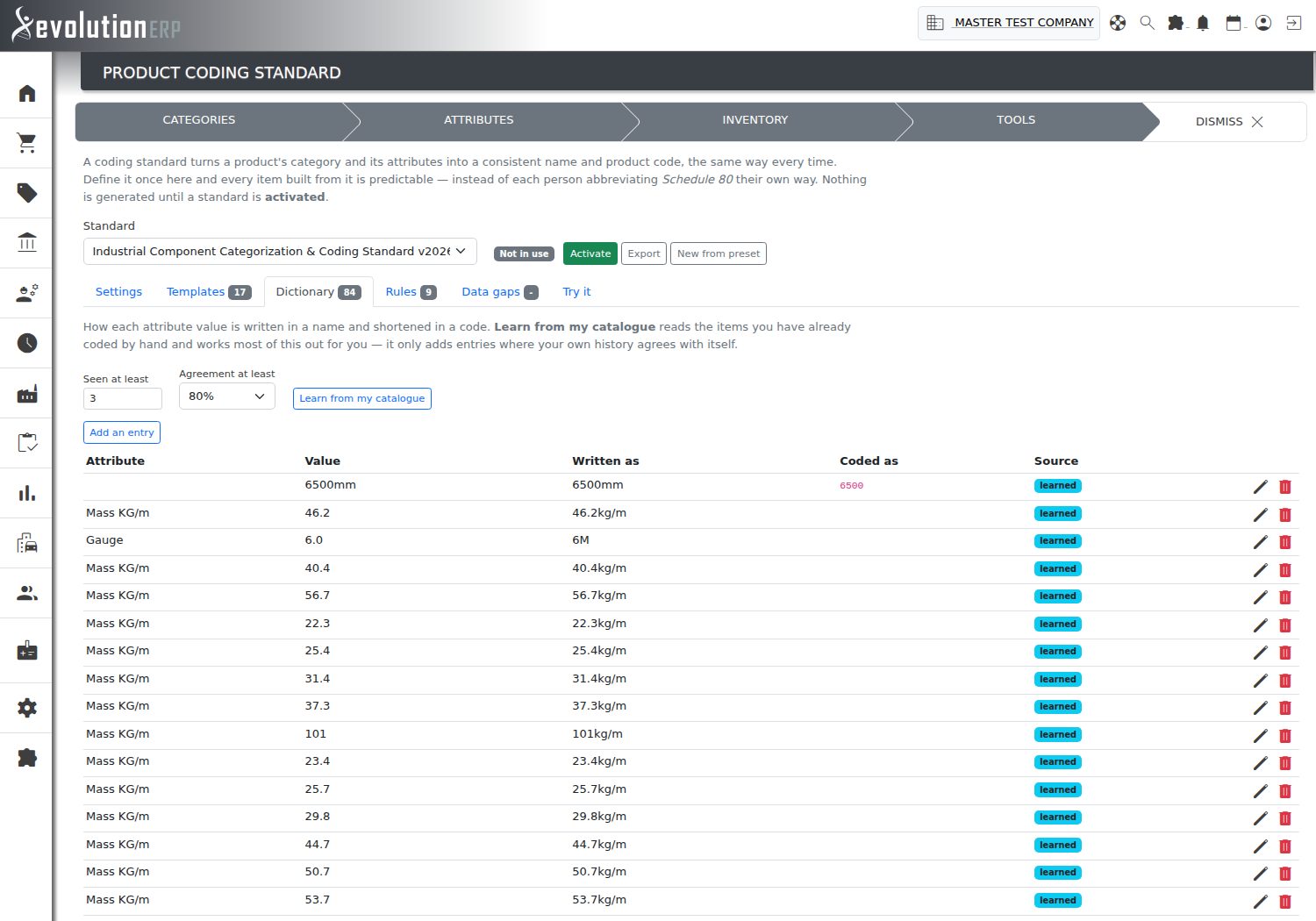
You have almost certainly been coding items by hand for years, and that history is a record of your own conventions. Learn from my catalogue reads your existing coded items, works out which short form you have consistently used for each value, and offers to fill the dictionary in for you.
It is deliberately cautious. It only adds an entry where your own history agrees with itself, which you control with two settings:
| Setting | What it does |
|---|---|
| Seen at least | How many times a value has to appear before it is trusted. A short form used once is a guess; used twenty times, it is a convention. |
| Agreement at least | How consistent your history has to be. At 80%, a value coded the same way in four cases out of five is accepted; a value coded three different ways is left for you to decide. |
Nothing is overwritten. Entries you have edited by hand are kept, and learning simply fills the gaps. Run it, look through what it found, and correct anything you disagree with.
Entries added this way are marked learned in the Source column, so you can always tell them apart from the ones supplied with the standard or typed in by hand.
Rules
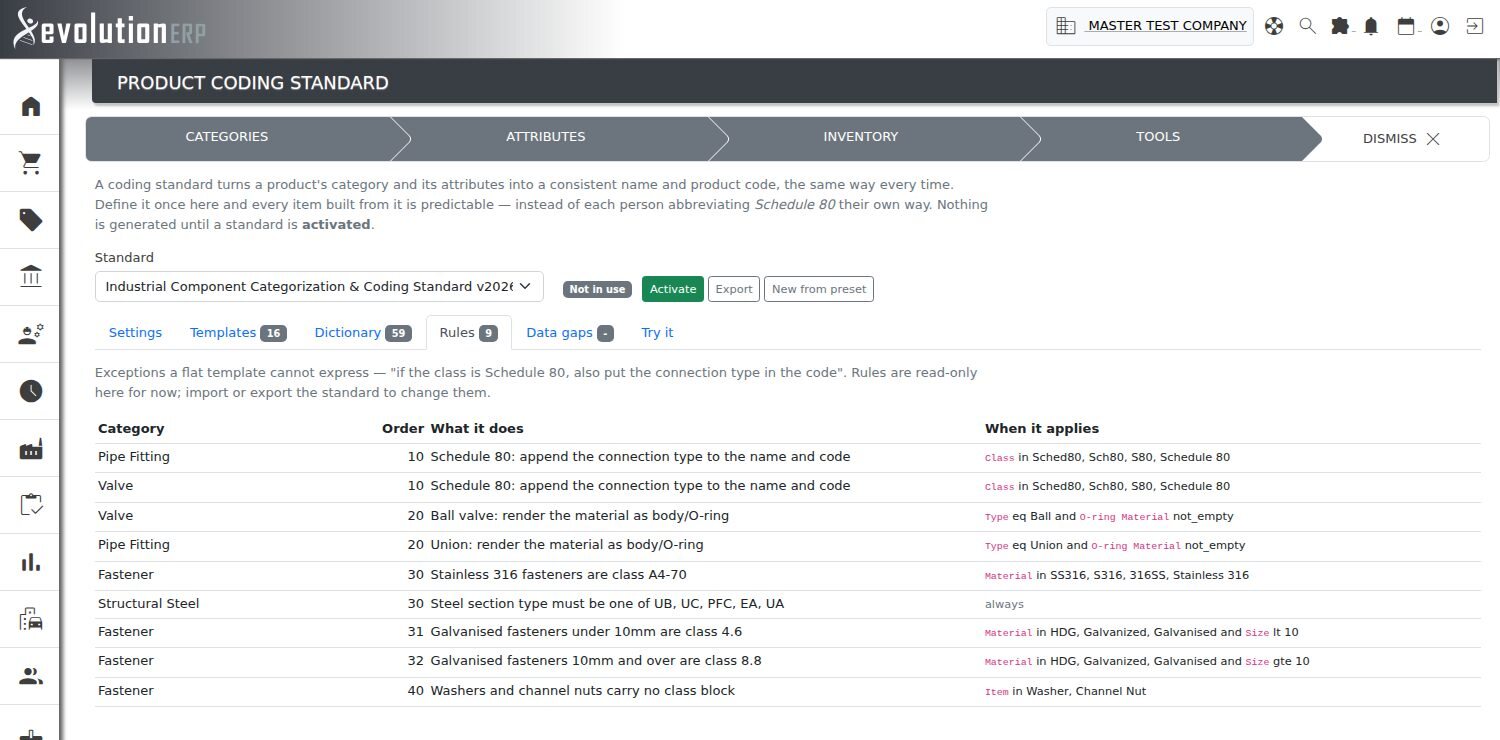
Some conventions cannot be expressed as a single flat template — "if the class is Schedule 80, also put the connection type in the code", or "for cable, drop the colour unless it is a control cable". Rules capture those exceptions.
The Rules tab lists what is in the active standard: which category each rule belongs to, the order it is applied in, what it does and the condition that triggers it. Rules are read-only on this screen — to change them, export the standard, edit it and import it back, or ask your Evolution consultant.
Data Gaps
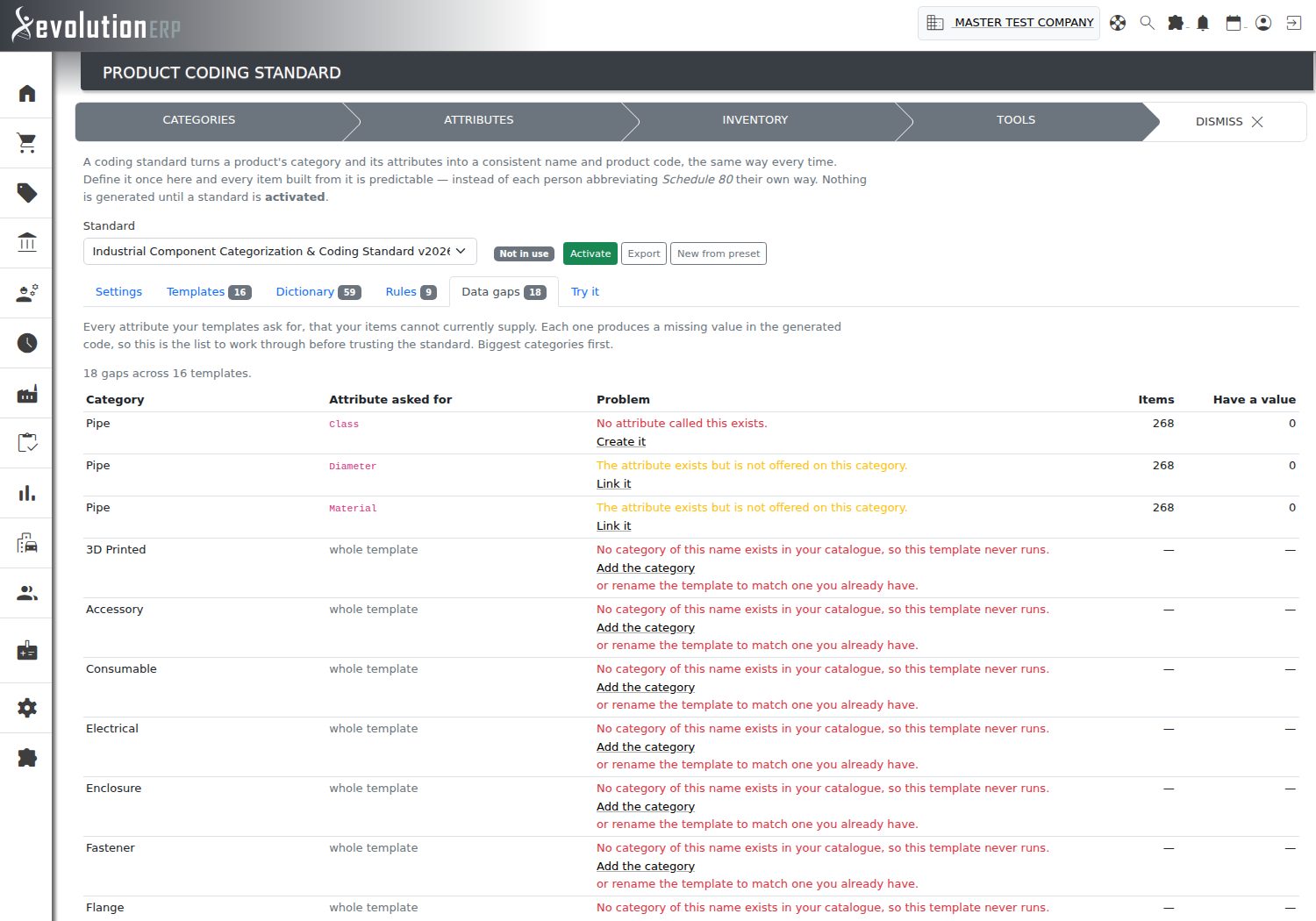
This is the most useful tab before you turn a standard on. It lists every attribute your templates ask for that your items cannot currently supply — the attribute is not attached to the category, or it is attached but the items have no value recorded.
Each gap produces a missing value in a generated code, so this is the work list. Biggest categories appear first, so you can fix the things that affect the most items.
| Column | What it tells you |
|---|---|
| Category | The product category with the gap. |
| Attribute asked for | The attribute named in that category's template. |
| Problem | Whether the attribute is missing from the category altogether, or present but unfilled. |
| Items | How many items are in the category. |
| Have a value | How many of them actually carry a value for that attribute. |
Each row also offers the fix, so you do not have to go hunting for the right screen:
- Create it — the attribute does not exist at all; make it now.
- Link it — the attribute exists but is not offered on this category; attach it.
- Add the category — the template names a category you do not have, so it never runs. Add it, or rename the template to match one you already use.
Try It
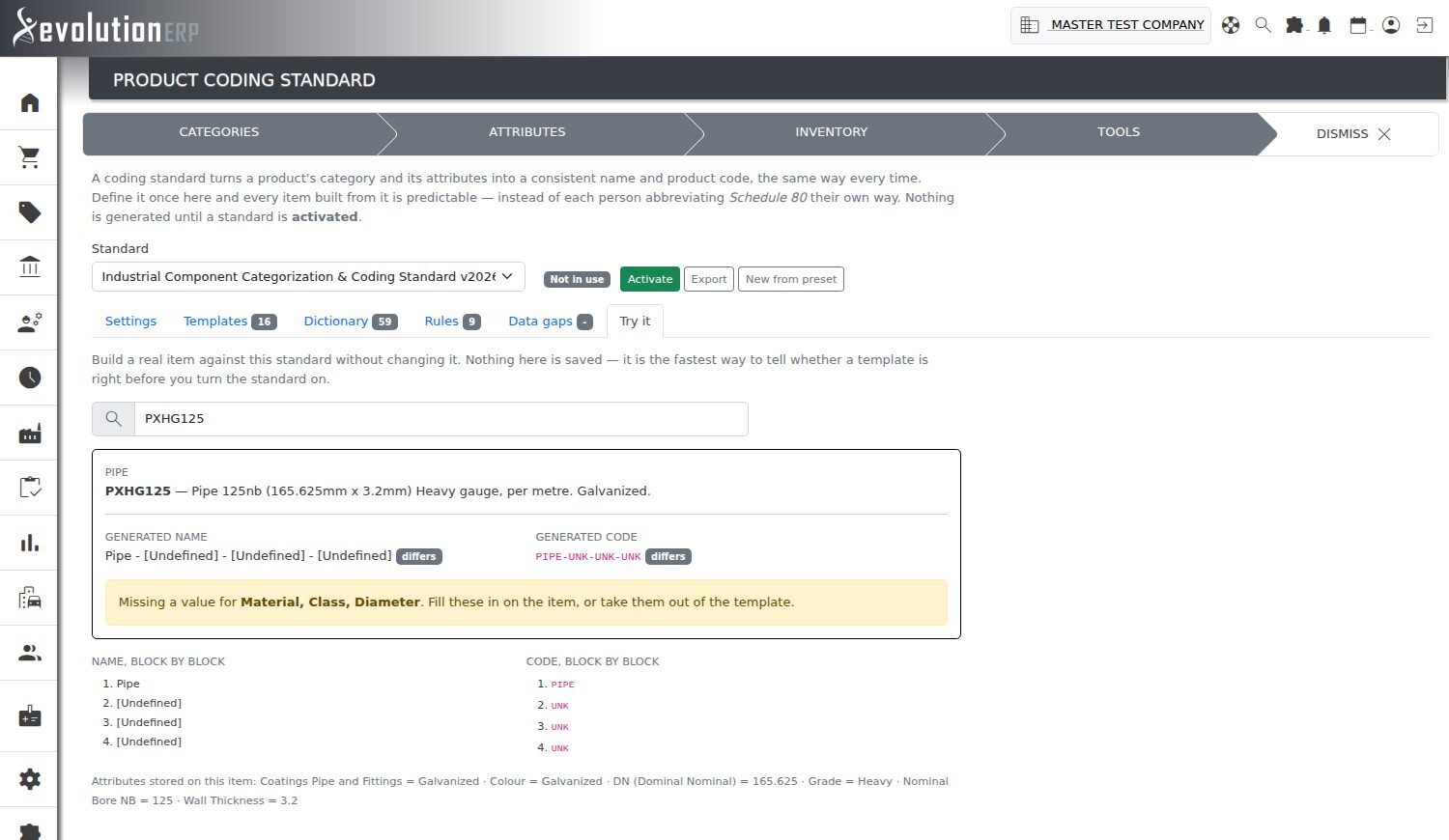
The Try it tab lets you build a real item against the standard without changing anything. Search for an item by code or description, and Evolution shows you:
- the description and code the standard would produce, and whether either differs from what the item carries today;
- a block by block breakdown of both, so you can see exactly which part of the template produced which part of the code;
- a warning naming any attribute that had no value, with the choice put plainly — fill it in on the item, or take it out of the template;
- the attributes actually stored on that item, so you can see what the standard had to work with.
Nothing here is saved. It is the fastest way to tell whether a template is right before you turn the standard on — and the quickest way to work out why a code came out the way it did.
Sharing a Standard
Export produces the whole standard — settings, templates, dictionary and rules — as a block of text you can save or send on. Import takes that text and recreates the standard in another company.
Because categories and attributes have different internal identifiers in each company, an imported standard is matched up by name. Anything that has no match on the receiving side is reported rather than silently dropped, so you can see what still needs attention. As always, an imported standard arrives switched off.
Suggested Order of Work
- Make sure the categories you care about carry the attributes you want to code on — see Product Attributes.
- Create a standard from the supplied one, or import an existing one.
- Run Learn from my catalogue to capture the conventions you already use.
- Review the Dictionary and correct anything you disagree with.
- Check the Product Coding Consistency report and settle any values your history disagrees on.
- Work through Data gaps, starting with the biggest categories.
- Use Try it on a handful of real items in each category.
- Activate — and start with the descriptions set to Only when confirmed.
Related Pages
- Adding Product Attributes — defining the attributes a coding standard reads.
- Product Coding Consistency — finding where your existing codes disagree with each other.
- Managing Items — where generated names and codes are offered.