
Purpose
The Items module allows users to create, update, and manage inventory records used throughout Evolution ERP.
Where to Find It
Menu → Inventory → Items
Key Actions
- Create new items
- Edit existing items
- Set pricing and categories
- Activate or deactivate items
The Items List
The Items screen opens on every item, active and disabled, so nothing is hidden until you choose to narrow the list. Type into the filters across the top and the list updates as you type.
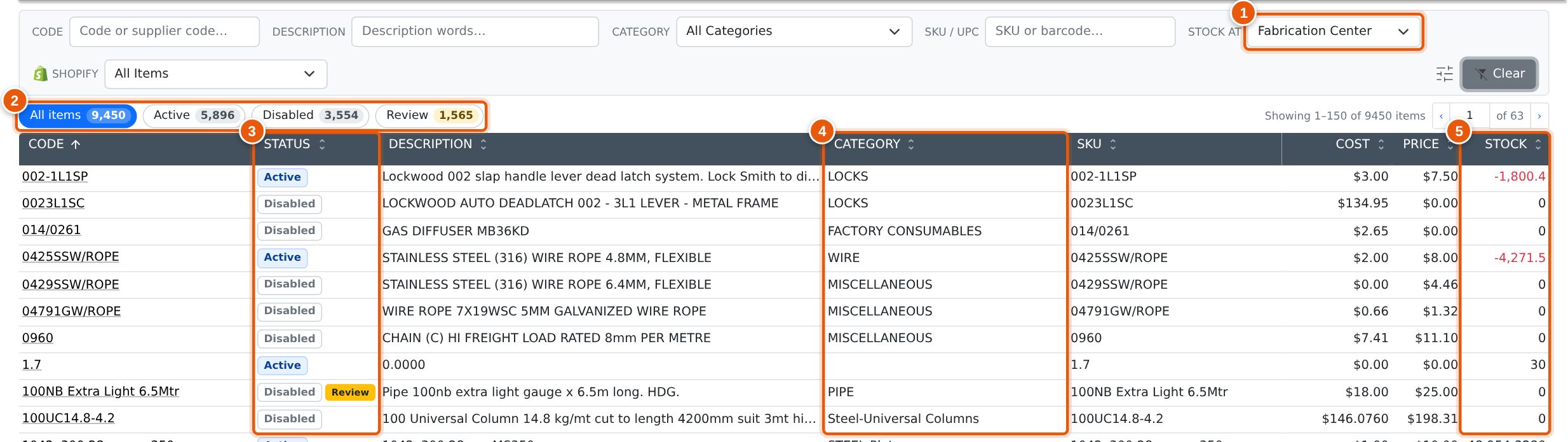
- Stock at — the branch the Stock column is counted for.
- Status views — All items, Active, Disabled and Review, each with its count.
- Status — whether the item is Active or Disabled, with a Review flag beside it when the item is waiting to be checked.
- Category — the item's category. Click the heading to sort by it.
- Stock — stock on hand at the branch picked in Stock at. Negative stock is shown in red.
| Column | What it shows |
|---|---|
| Code | Your item code. Click it to open the item. When the row was found by a supplier's part number, that number is shown underneath. |
| Status | Active or Disabled, plus a Review flag when the item is flagged for review. |
| Description | The item description. |
| Category | The category the item belongs to. |
| SKU | The SKU or barcode. |
| Cost | The item's set cost. Items costed at average cost carry an Avg badge — see below. |
| Price | The sell price. |
| Stock | Stock on hand at the branch picked in Stock at. |
Every column heading sorts the list; click it again to reverse the order. Clear puts every filter back, including the status view (All items) and the branch (your own).
Active, Disabled and Review
The buttons above the list switch between views. The number on each button is how many items match your other filters, so you can see at a glance how many of the items you are looking at are disabled or waiting for review.
- All items — everything (the default).
- Active — items in use: they can be quoted, ordered and sold.
- Disabled — items kept for history. They no longer appear in the item pickers on quotes, invoices and orders.
- Review — items flagged for review, whether active or disabled. Open the item to check and approve it.
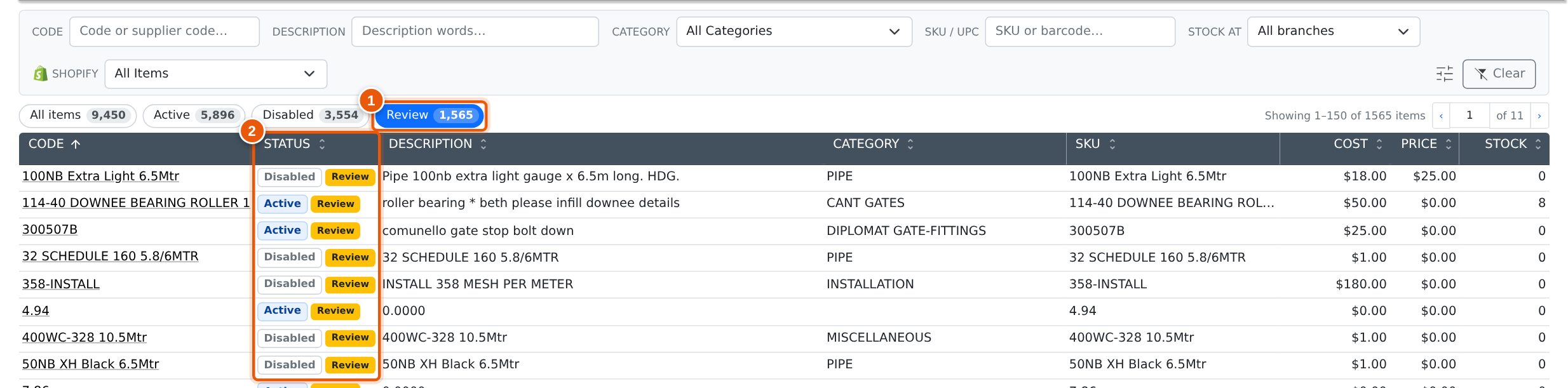
- The Review view is selected.
- Each item carries the Review flag beside its status — both active and disabled items are listed.
Click the selected button again to go back to All items.
Stock at a Branch
Stock is held per branch, so a single stock figure only means something once you know which branch it is for. Stock at chooses the branch:
- A branch — the Stock column shows the stock on hand at that branch. The list opens on your own branch.
- All branches — the Stock column shows the total across every branch.
Sorting by Stock sorts by the figure you can see, so with a branch picked you can sort to find what that branch is short of.
Finding Items by Supplier Code
The Code filter also searches your suppliers' part numbers. When an item is found that way, the supplier code is shown under your own code so you can see why it matched. If more than one supplier code matches, the first is shown and the rest are listed when you hover over it.

- A supplier's part number typed into Code.
- The supplier code that matched, under the item's own code.
Items found by supplier code are counted and paged like every other result.
The Avg Badge
An item whose Cost Method is Average Cost is costed on quotes and projects at its average cost, not its set cost. These items carry an Avg badge in the Cost column. The figure in the column is still the set cost; hover over the badge to see the average cost the item is actually costed at.

- The Avg badge. Hover over it for the average cost.
Common Questions
Where has the Status filter gone?
It is now the row of buttons above the list (All items, Active, Disabled, Review). The list opens on All items, so disabled items are no longer hidden by default.
The Stock figure is different from what I expected.
Check Stock at. It opens on your own branch; pick All branches for the company-wide total.
I can see a Shopify filter.
It appears when your company is connected to Shopify. It narrows the list to Shopify products, Shopify variations, both, or items that are not in Shopify.