
Credit Notes
A credit note reduces what someone owes you, or what you owe someone, without deleting the original document. Evolution supports credit notes on both sides of the ledger: customer (AR) credit notes reduce a customer’s balance, and supplier (AP) credit notes reduce what you owe a supplier. Both work the same way — you raise the credit, commit it to post the accounting, then apply it against the open invoices or bills it relates to.
Credit notes are shown with a “CN” prefix throughout the system so they are easy to tell apart from invoices and bills.
When to use a credit note
Use a credit note whenever a balance needs to come down for a reason other than a payment — for example:
- Returned or faulty goods.
- A price adjustment or goodwill discount after an invoice has been sent.
- A supplier crediting you for an over-charge or short delivery.
- Correcting an invoice or bill that was raised for too much, without deleting it.
Raising a credit note
There are two ways to start a credit note, depending on where you begin.
content_copy From an existing invoice or bill
Open the invoice (AR) or bill (AP) you want to credit and click Create Credit. Evolution opens a new credit note pre-filled from the source document — its lines, customer/supplier, project and tax are carried over, and the credit is automatically linked back to the invoice or bill it came from. Trim or adjust the lines so the credit covers only what you are actually crediting (a full or partial amount).
note_add Standalone
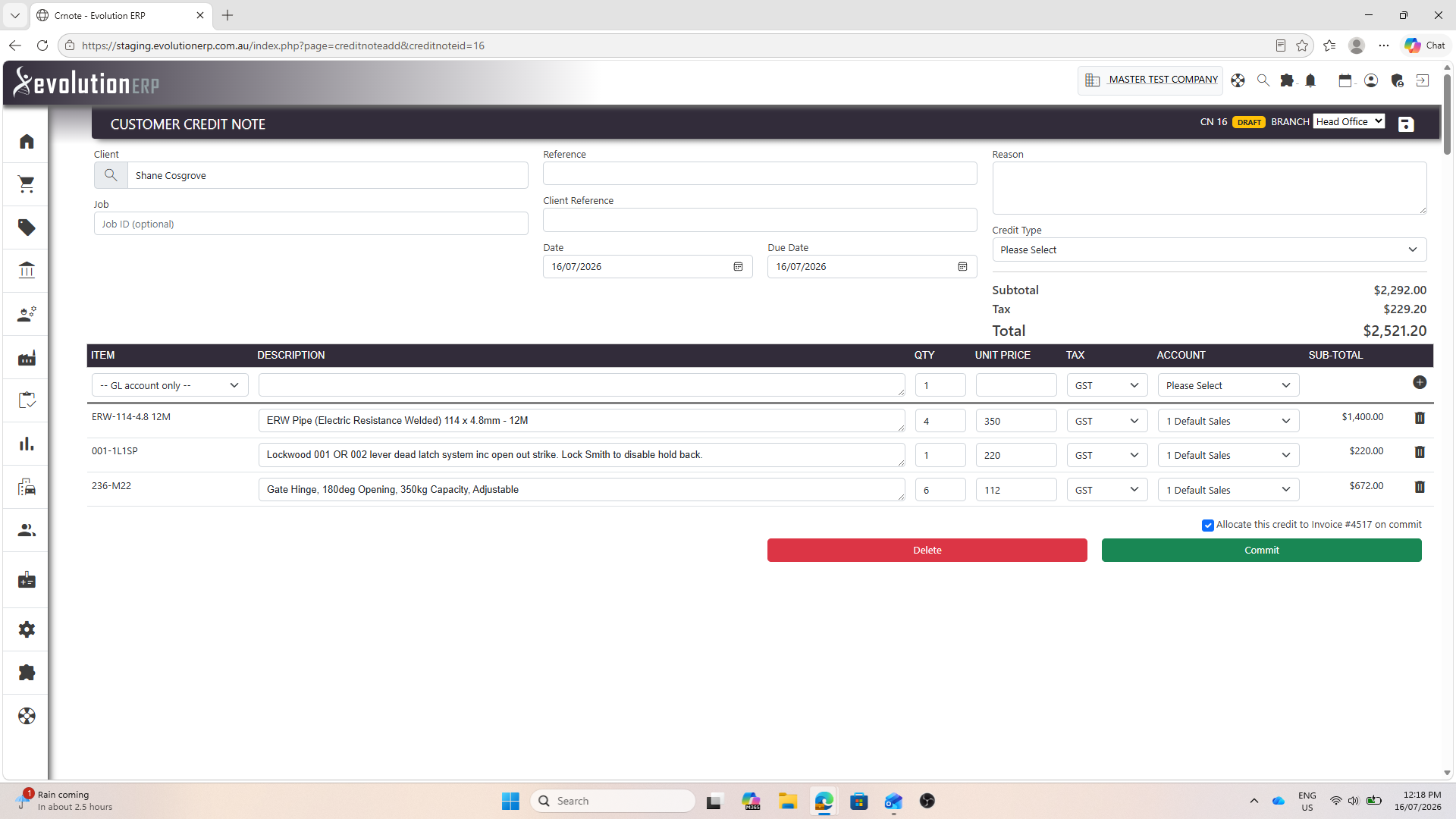
From the Credit Note Register, start a new credit and choose whether it is a customer (AR) or supplier (AP) credit. Pick the customer or supplier, then enter free-form lines just as you would on an invoice or bill. Use this when the credit doesn’t relate to one specific document.
The credit note header captures:
| Field | What it’s for |
|---|---|
| Customer / Supplier Required | Who the credit is for. Pre-filled when the credit was created from an invoice or bill. |
| Project | Optional project the credit relates to. Carried over from the source document, and shown on the project’s costing so credited amounts reduce the invoiced/cost figures. |
| Reference / Customer Ref | Your reference and (optionally) the customer’s or supplier’s reference. |
| Reason | Why the credit is being raised (e.g. returned goods, price adjustment). Recommended for a clear audit trail. |
| Date | The credit note date. Defaults to today. |
| Credit Type | Required. Records why the credit is raised and controls whether stock moves when the
credit is committed:
|
Committing a credit note
Like invoices and bills, a credit note starts as a Draft that you can edit freely. When it is correct, commit it to finalise it and post the accounting.
Draft
Entered but not yet posted. Fully editable. It has no effect on balances yet and cannot be applied to anything.
Committed
Finalised and posted to the general ledger (the reverse of an invoice/bill). It is now available to apply against open documents.
Deleted
Removed and no longer affecting AR or AP.
Applying (allocating) a credit
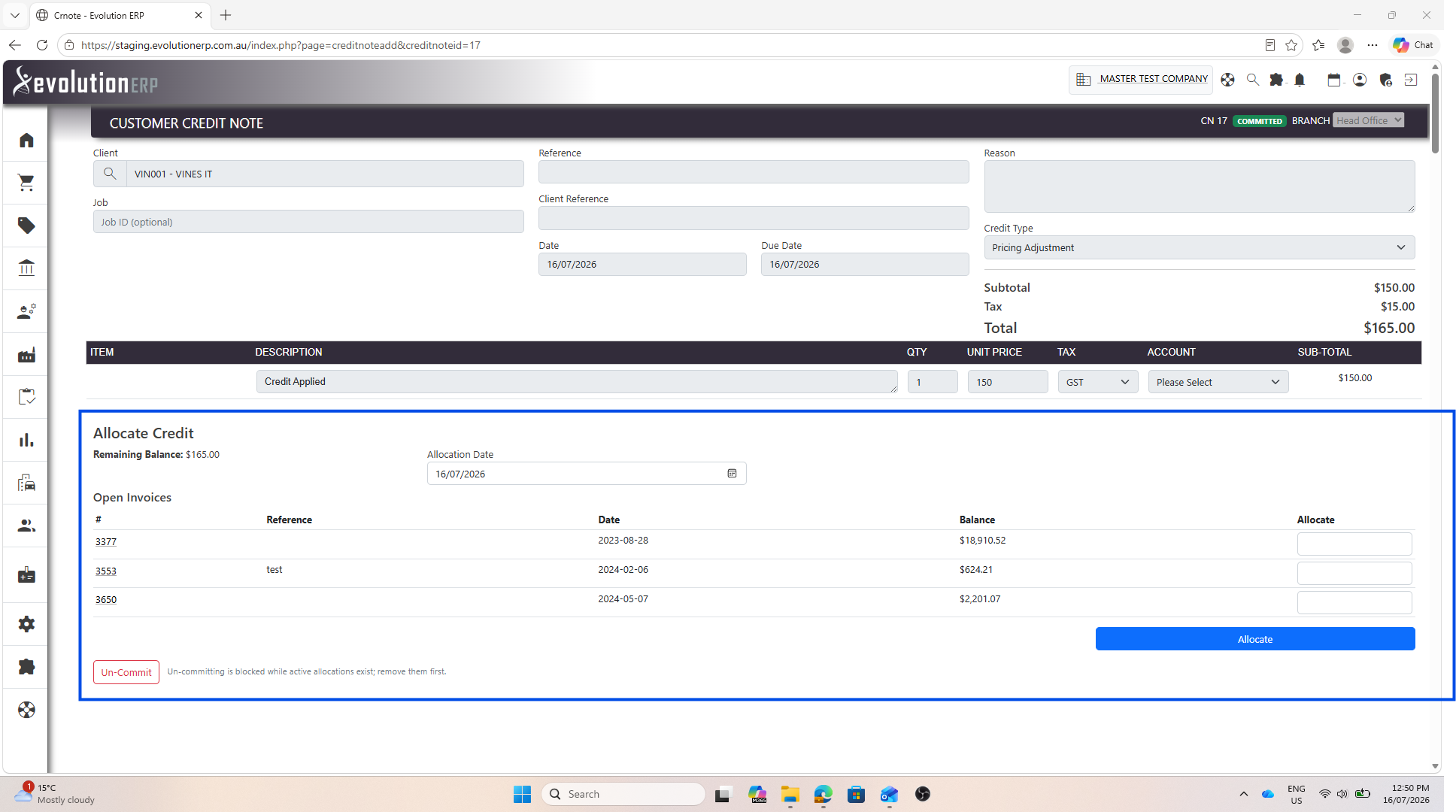
Committing a credit note creates available credit. To reduce an actual invoice or bill, you apply (allocate) the credit against it. Open the committed credit note and use the Apply / Allocate panel:
- The panel lists the customer’s open invoices (AR) or the supplier’s open bills (AP).
- Enter the amount of the credit to apply against each document.
- Save. The target invoice/bill balance drops by the amount applied, and the credit’s remaining balance drops by the same amount.
You can spread one credit across several documents, and apply it a bit at a time.
Applying credit from the invoice or bill
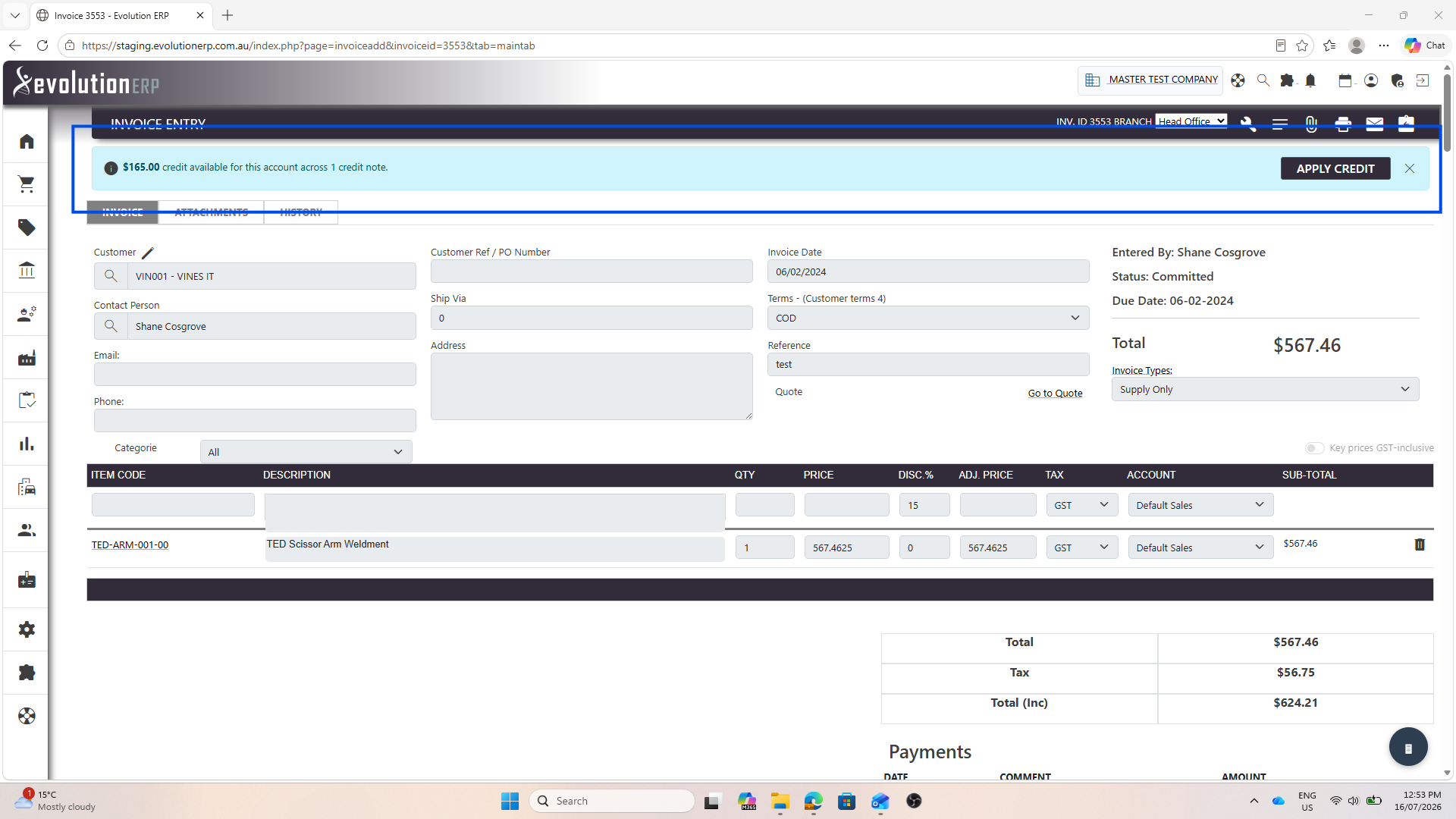
You don’t have to start from the credit note. When you open an invoice or bill for a customer or supplier who has available credit, Evolution alerts you right on the document so the credit isn’t forgotten:
- A banner appears below the header: “$X credit available for this account.”
- Click Apply Credit to open a panel listing every open credit note for that account. Enter how much of each to apply — it defaults to the most that can be applied — then save. The document’s open balance and each credit’s remaining balance update straight away.
This is the same allocation as the credit note’s own Apply / Allocate panel — just started from the other end — and it obeys exactly the same rules below.
- Only a committed credit can be applied, and only to a committed invoice or bill.
- A customer (AR) credit can only be applied to invoices; a supplier (AP) credit only to bills — the two never cross.
- You cannot apply more than the credit’s remaining amount, and you cannot apply more than the target document’s open balance.
Applying a credit does not post another journal — the accounting was already posted when both the credit note and the invoice/bill were committed. Applying simply records which credit offsets which document and updates the open balances.
Viewing remaining / available credit
A committed credit note shows its remaining balance — the amount not yet applied to any invoice or bill. Until it is fully applied, that amount sits as available credit on the customer’s or supplier’s account and correctly reduces their overall AR/AP balance.
Reversing (un-committing) a credit note
If a credit note was committed in error, you can un-commit it. Evolution reverses the general-ledger postings exactly (so the ledger nets back to where it was) and returns the credit note to Draft so it can be edited or deleted. Any stock movement made on commit (from a Goods Returned or Supplier Return type) is reversed at the same time.
Xero
If your business is connected to Xero, credit notes sync automatically. Committing a customer credit creates an Accounts Receivable credit note in Xero; a supplier credit creates an Accounts Payable credit note. When you apply a credit against an invoice or bill, that allocation is reflected against the same document in Xero, so both systems stay in step.
Permissions required
Credit notes are controlled by the same module permissions as invoices and bills. Customer (AR) credit notes use Accounts Receivable; supplier (AP) credit notes use Accounts Payable. Committing or un-committing a credit note additionally requires General Ledger access, because it posts to the ledger.
| To do this… | …you need |
|---|---|
| View the credit note register and open existing credit notes | Allowed on Accounts Receivable (customer) or Accounts Payable (supplier) |
| Create, edit, apply (allocate) and delete credit notes | Admin on Accounts Receivable or Accounts Payable |
| Commit or un-commit a credit note | Admin on the relevant AR/AP module and at least Allowed on General Ledger |
Support
For help with credit note setup, posting accounts or Xero sync, please contact Evolution ERP Support.