
A lead is an enquiry you have not qualified yet: a name, a way to reach them and a note about what they want. When it turns into real work you convert it. That makes the customer (or uses one you already have), adds the contact and site, and opens an opportunity in your pipeline. If it goes nowhere you disqualify it and record why.
Leads are under Sales › Leads. Open one from the list to work it. Many businesses skip leads and start straight at the opportunity. That is fine. Leads are for enquiries you want to track before they are worth an opportunity.
The Lead Page

- State. New until someone accepts it, then Active. A lead ends as Converted or Disqualified, and a deleted lead shows Deleted.
- Possible match. Customers, contacts and other open leads that share this lead’s details. See Possible Matches.
- Accept says you are working the lead and moves it from New to Active. If nobody is assigned, accepting it assigns it to you.
- Convert turns the lead into a customer, and an opportunity if you want one.
- Log call, Add task and Add note add to the lead’s Activity tab. They are the same windows you use on projects and opportunities.
- Disqualify closes the lead with a reason.
- Progress bar. Where the lead is: New, Accepted, Contacted, then Converted. Green steps are done, and the dark step is the one to do next. Contacted is done once a call is marked done, a meeting has happened or a note is added. It turns amber when a follow-up or planned call is overdue and nobody has been in touch yet. Click a step to do it: Accepted accepts the lead, Contacted opens Log call and Converted opens Convert. Hover over a step to see who did it and when. The bar never stops you doing things in another order.
- Figure tiles. The next call or task (in amber when it is overdue), when anyone last touched the lead, how old it is, how many files it has, and its value and expected close date when they are filled in. A tile you can act on opens the right tab.
Below the tiles are tabs for Details, Activity (calls, tasks, meetings and notes), Files, Map and History (every change, with who made it).
Working a Lead
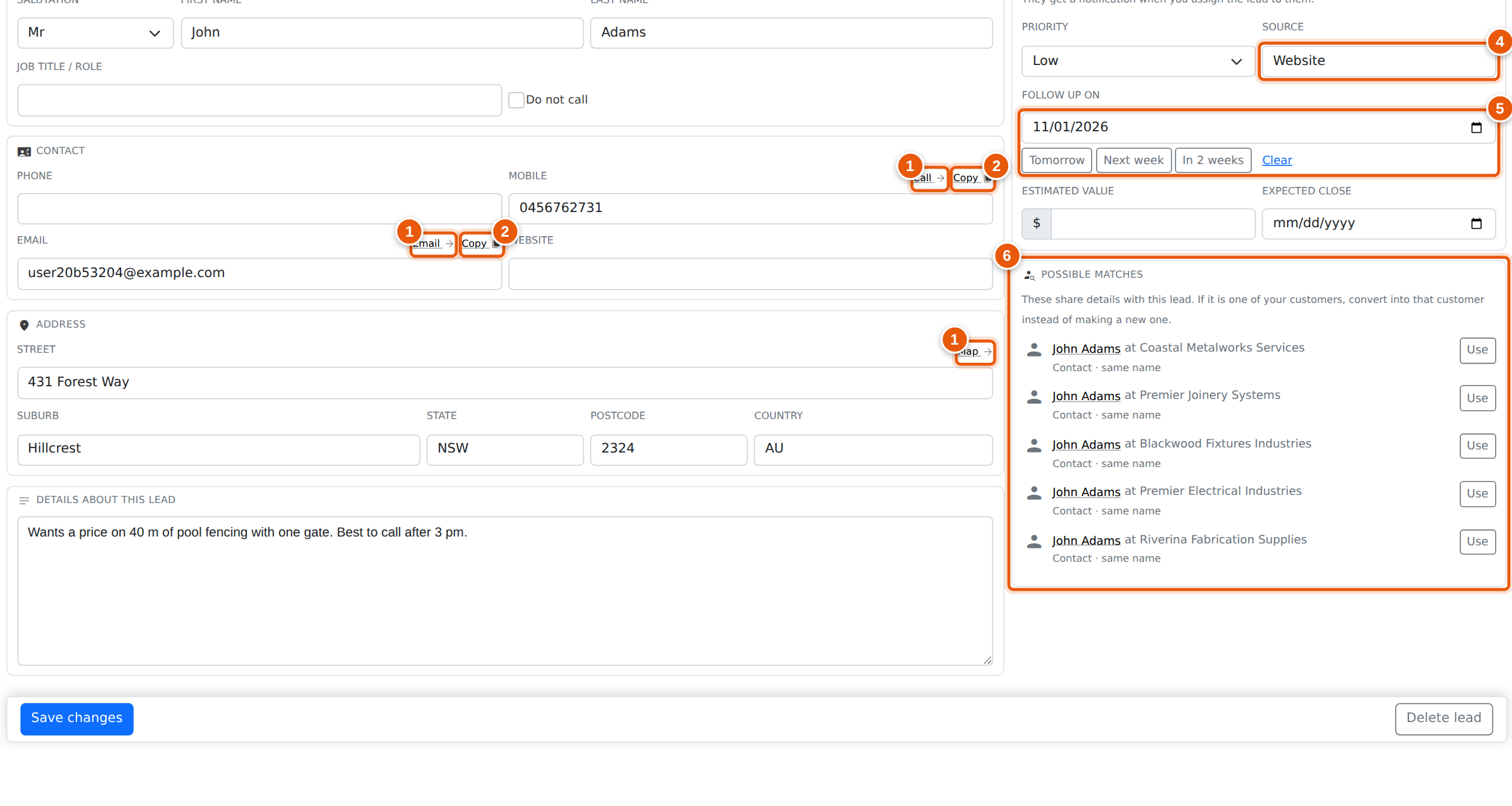
- Email, Call and Map sit above their fields. They open your email program, your phone (or calling app) and Google Maps.
- Copy puts the number or email on your clipboard.
- Assigned to. When you assign a lead to someone else, they get a notification (and the hourly email digest) that links straight to the lead.
- Source. Pick from the list, or type your own. The list grows from the sources your team has already used.
- Follow up on. Use Tomorrow, Next week or In 2 weeks to set the date in one click, or Clear to remove it.
- Possible matches lists every match in full, each with a Use button that starts converting into that customer.
Estimated value and Expected close are on the Details tab too. Fill them in and the lead shows a Value tile, and both carry over when you convert it. Press Save changes when you are done. If you leave with changes that are not saved, Evolution asks first.
Possible Matches
Before you make a new customer, Evolution checks whether you already have one. A lead is a possible match for:
- a customer with the same company name, email, or phone or mobile number;
- a contact on a customer with the same full name, email or number;
- another open lead with the same company, email or number (the same people asking twice).
Phone numbers match on their last nine digits, so 0412 345 678 and +61 412 345 678 are the same number. Each match says why it matched, for example (same email, same phone). A first name on its own never counts as a match.
A match is a hint, not a block. You can still convert into a new customer if they really are different people.
Converting a Lead
Press Convert. The window has three steps: the customer, the contact and the opportunity.
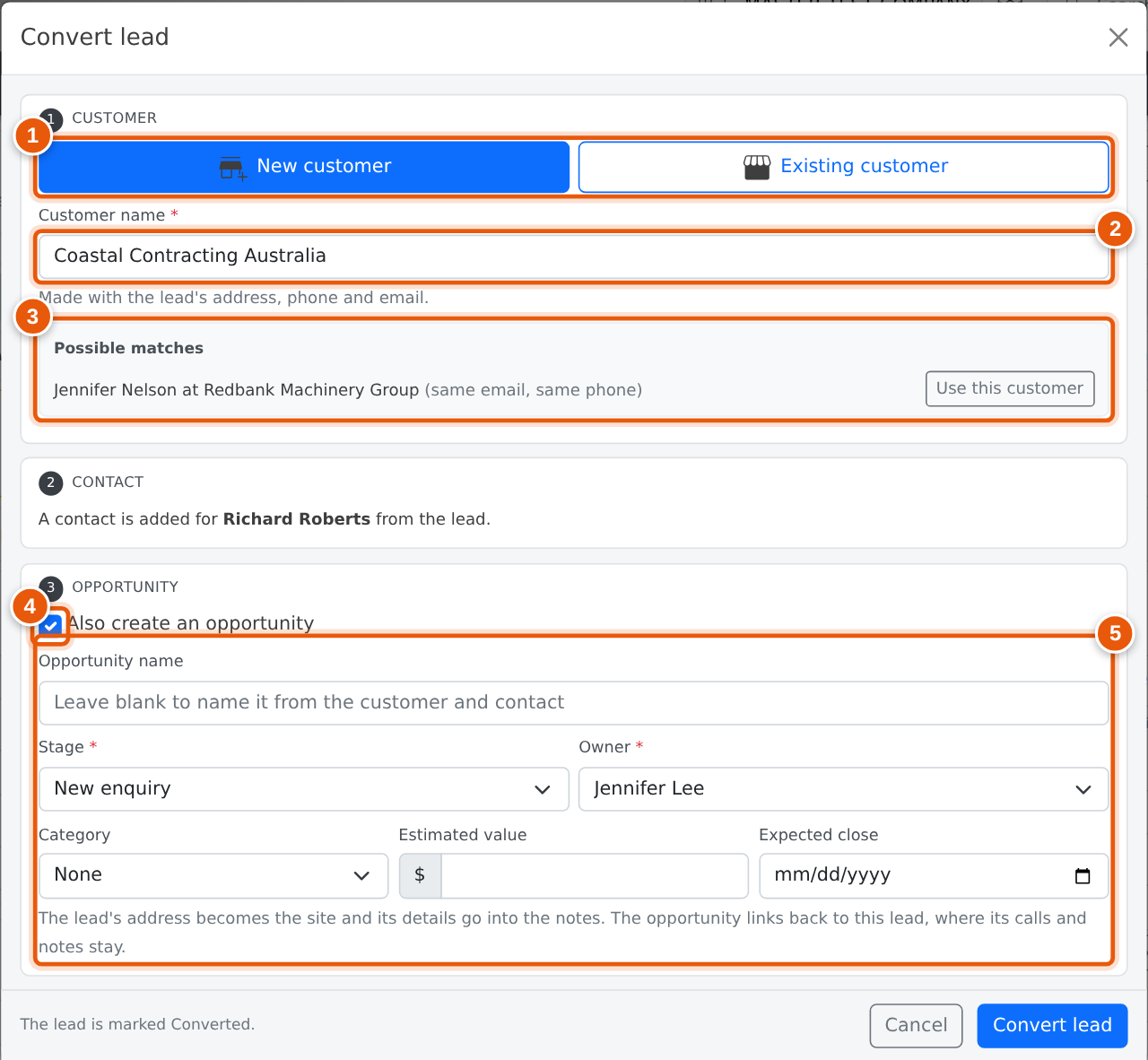
- Choose New customer or Existing customer.
- For a new customer, check the name. It starts as the lead’s company, or the person’s name if there is no company.
- If the lead matches customers you already have, they are listed here. Use this customer switches to Existing customer and picks it for you.
- Leave Also create an opportunity ticked to put the work in your pipeline straight away. Untick it to make only the customer, contact and site.
- Stage and owner are required. The owner starts as whoever the lead is assigned to. Leave the name blank to have it named from the customer and contact.
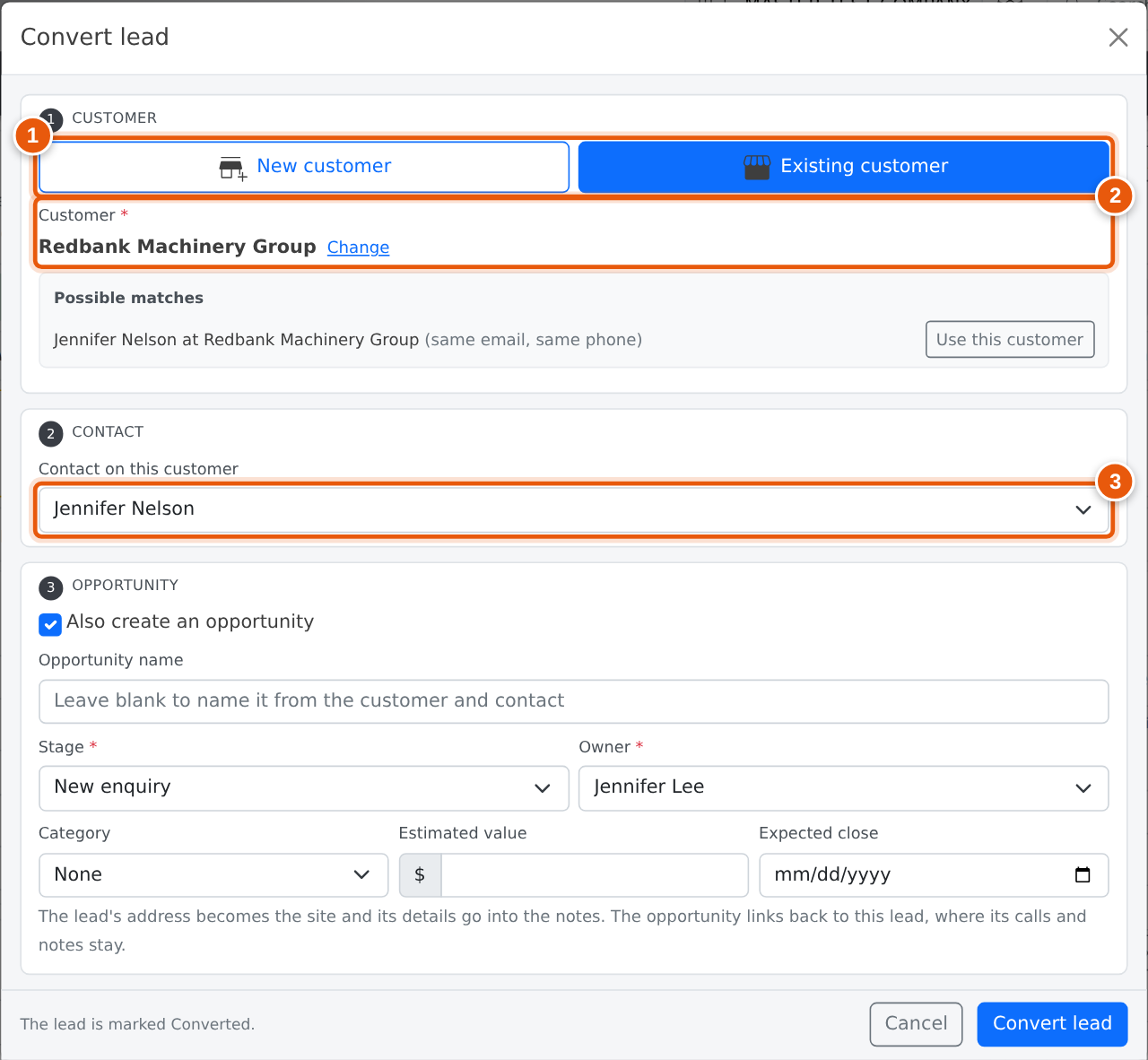
- Choose Existing customer, or press Use this customer on a match.
- Search for the customer, or press Change to pick a different one.
- Pick the contact. If one of the customer’s contacts has the lead’s name, email or number, it is chosen for you. Choose New contact to add the lead’s person as a new contact.
What carries over
| From the lead | Goes to |
|---|---|
| Company, phone, mobile, email | The new customer (not changed on an existing customer). |
| Name, title, phone, mobile, email | The contact on the customer. |
| Address | A site on the customer, which the opportunity uses. |
| Details and source | The opportunity’s notes, with “Converted from lead N”. |
| Calls, tasks and notes | They stay on the lead. The opportunity shows From lead with a link back to it. |
| Estimated value, expected close | The opportunity, unless you change them in the window. |

- A converted lead is Converted and read-only. It stays as a record of where the customer came from.
- The line under the name links to the customer and the opportunity.
- Customer and Opportunity open them.
- The progress bar ends at Converted, with the opportunity number. Click it to open the opportunity.
Once a lead is converted, it cannot be converted again, even from a second tab that was already open. A converted lead cannot be deleted.
Disqualifying a Lead
Press Disqualify when a lead is not going anywhere. Choose why. The reasons are your opportunity Lost reasons (set under Opportunity settings › Close reasons), so leads and opportunities are reported the same way. A reason that needs details asks for a few words.

- A disqualified lead shows Disqualified, with the reason and your details.
- Reopen puts it back to Active and clears the reason. The History tab keeps the old reason.
- The progress bar ends in red at Disqualified, with the reason. Steps the lead never reached are greyed out.
Disqualify replaces the old Archive button. On the Leads list, archived leads now show as Disqualified.
Deleting and Restoring
Delete lead is at the bottom of the Details tab. It asks first. A deleted lead leaves the Leads list, but you can still open it (choose Disqualified / Deleted on the list) and press Restore to bring it back. Use Delete for mistakes and duplicates. Use Disqualify for real enquiries that did not go ahead, so the reason is kept.
The Map Tab
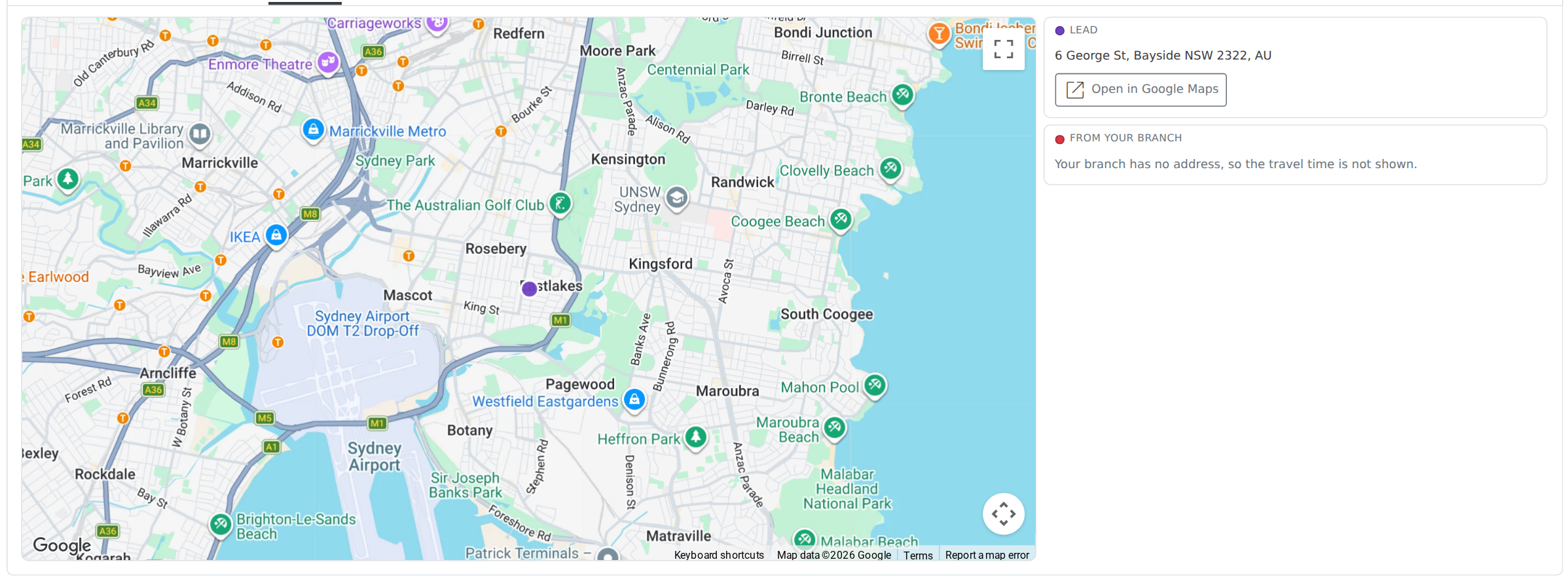
The Map tab shows where the lead is. When your branch has an address, it also shows how far away the lead is by road and how long the drive takes, with the route drawn on the map, a Directions list and Directions in Google Maps. If the road route cannot be worked out, the distance shown is in a straight line, and it says so.
The map needs at least a street or suburb. A state or country on its own is not enough, so the tab asks you to add an address on the Details tab. If it says your branch has no address, an administrator can add one under Branches.
Who Can Use Leads
| Permission | What they can do |
|---|---|
| Sales Allowed or Admin | Open, work, convert, disqualify and delete leads. |
| Accounts Receivable Allowed or Admin | The same. AR staff often take the first call. |
| A company administrator | The same. |
| Anyone else | Cannot open leads. |
Permissions are set on each staff member. See Setting Permissions.
Frequently Asked Questions
Should we use leads, or go straight to opportunities?
Either works. Use leads when you get enquiries you want to qualify before they take up a place in your pipeline, such as website forms or trade show contacts. If most enquiries are real work from the start, create the opportunity directly.
The lead matches a customer, but it is a different business.
Matches are only a warning. Convert as a New customer and check the name.
Can I convert a lead without making an opportunity?
Yes. Untick Also create an opportunity. You get the customer, contact and site, and the lead is marked Converted.
Why can’t I edit a converted lead?
Once it is converted, the customer and opportunity are where the work happens. The lead stays as it was so you can see where the customer came from. Make changes on the customer or opportunity.
I disqualified a lead by mistake.
Open it and press Reopen. It goes back to Active.