
The rest of the Shopify integration treats Evolution as the master and publishes out to your store. The Store Import tool works the other way: when you connect a Shopify store that already has products in it, it reads the store, matches those products against your Evolution inventory, and records the links in Evolution — so both systems agree on what is what before you start publishing.
Open it from the Shopify plugin settings page: 4. Shopify Store to Evolution ERP Import.
Step 1 — Map Collections to Categories
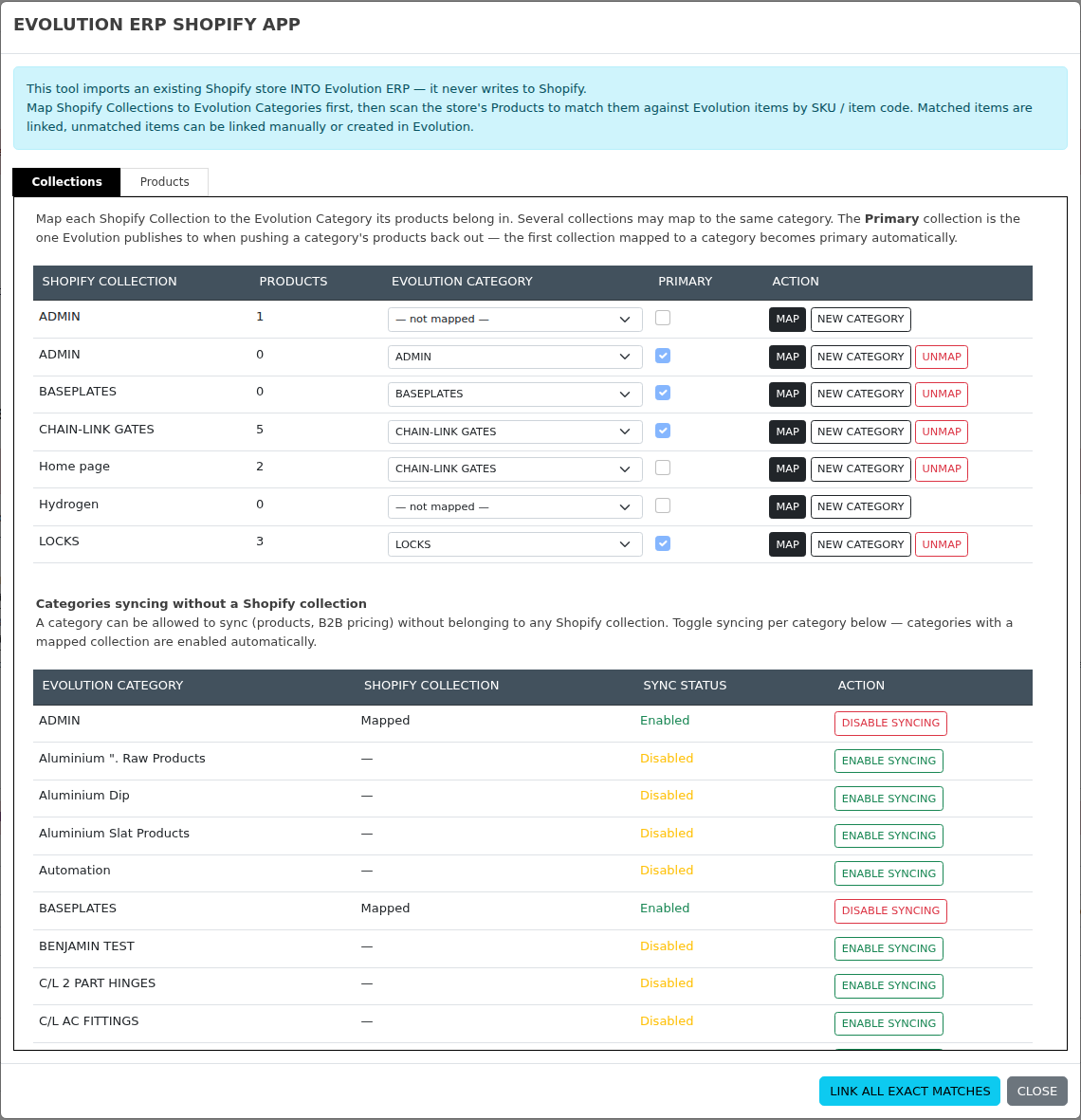
The Collections tab lists every collection in your Shopify store alongside your Evolution inventory categories. Map each collection to the Evolution category its products belong in:
- Map — choose an Evolution category from the dropdown and press Map. Several collections may map to the same category.
- New Category — creates an Evolution category (pre-filled with the collection's title) and maps the collection to it in one step.
- Primary — when more than one collection maps to a category, the primary collection is the one Evolution publishes to when pushing that category's products back out. The first collection mapped to a category becomes primary automatically; tick Primary when mapping to take it over.
- Unmap — removes the import mapping for that collection.
Mapping a collection also enables syncing on the target category, so imported products are immediately part of the ordinary Shopify workflow.
Categories syncing without a collection
A category does not need a Shopify collection at all. The lower table lets you enable or disable syncing per category — useful when you want a category's products and B2B pricing to sync without the products belonging to any collection in the store.
Before You Import — Category Setup
An imported item inherits its GL accounts, tax codes and costing settings from the Evolution category its collection is mapped to. A category that is not set up therefore produces items that cannot be sold, purchased or posted — so the tool will not import into one. Every mapped category needs all of:
- Purchase/Expense Account
- Income/Sales Account
- Inventory Asset Account
- Default Tax on Sales and Default Tax on Purchases — only where your company is registered for GST
The tool tells you the moment a problem exists rather than at the end: mapping a collection to an unconfigured category shows the missing fields straight away, the Collections tab marks those rows Not configured for import, and on the Products tab the Create in Evolution button is replaced by Category not configured with a link that opens Inventory → Categories in a new tab — so you never lose the scan you are part way through.
Linking an existing Evolution item is never blocked — linking creates nothing and changes no accounts. The gate applies only to creating new items.
Step 2 — Scan and Match Products
Switch to the Products tab and press Scan Shopify Store. The scan walks every product and variant in the store and proposes a match for each one against your Evolution inventory — nothing is saved during the scan; you review first, then commit.
You do not have to take the whole store at once. The controls beside the scan button set what gets scanned, and how much of it in one go:
- Scan only … collection — restrict the scan to one Shopify collection. The product count beside each collection name tells you how big that slice is before you start.
- … product type — restrict the scan to one Shopify product type. Choose a collection and a type to take the overlap of the two.
- Products at a time — the scan pauses after roughly this many products so you can review and link what has come back. Scan Next Batch picks up exactly where it stopped; Stop ends the run early and keeps everything found so far. Choose Whole store in one pass for small stores.
- Skip products already linked — leaves out products whose variants are all linked to Evolution items already. On a second or third pass through a large store this is usually most of the store, so what comes back is only the work still outstanding.
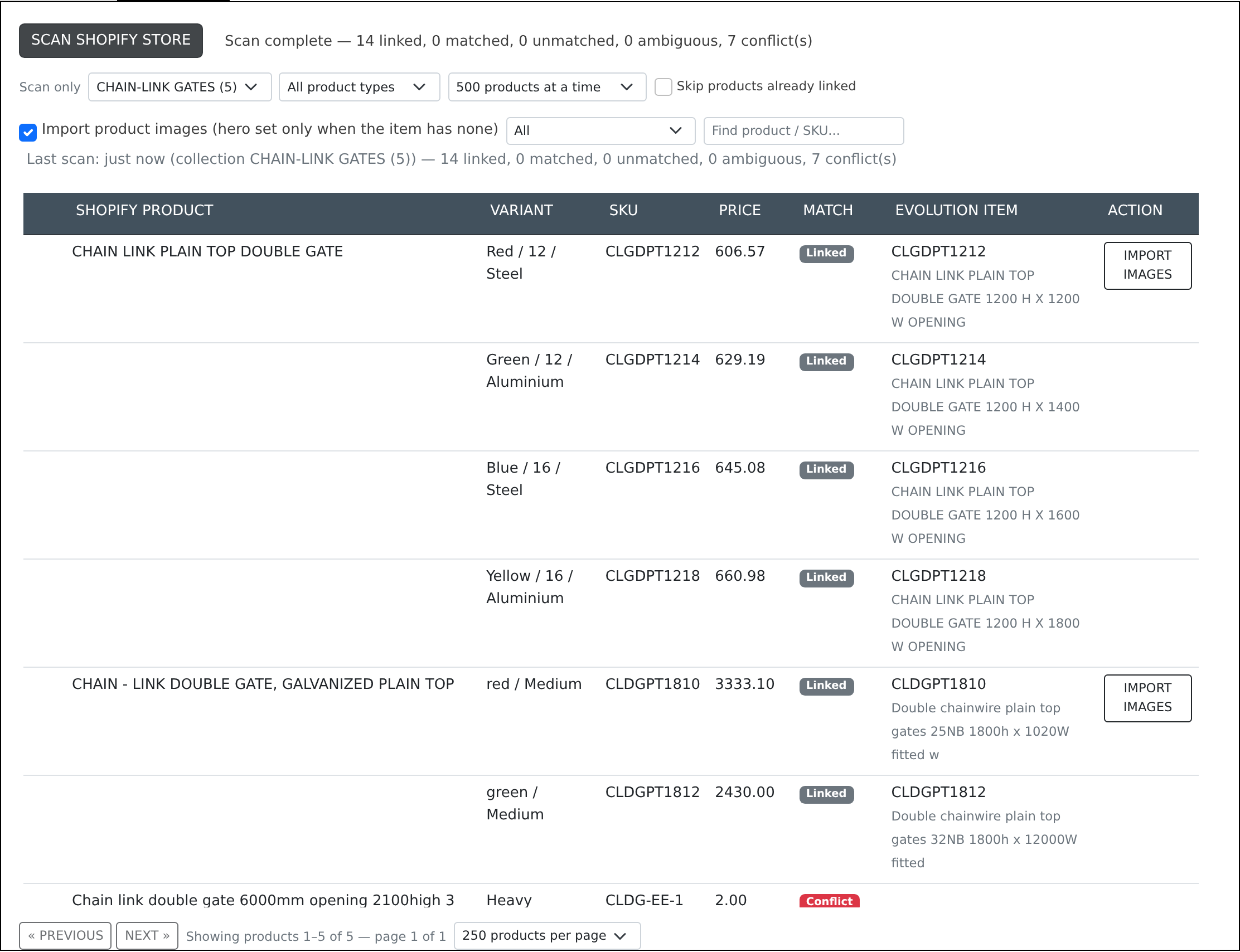
Each variant is matched in this order:
| Match | Meaning |
|---|---|
| Linked | Already linked to an Evolution item — shown for completeness, nothing to do. |
| Matched | The Shopify SKU equals an Evolution item code, or exactly one item's SKU. Ready to link. |
| Ambiguous | The SKU matches more than one Evolution item — pick the right one from the dropdown in the row. |
| Conflict | The matched Evolution item is already linked to a different Shopify product, or two variants claimed the same item. Resolve manually. |
| Unmatched | No SKU, or no Evolution item found. Link it manually with the item search, or create it in Evolution. |
Working through the results
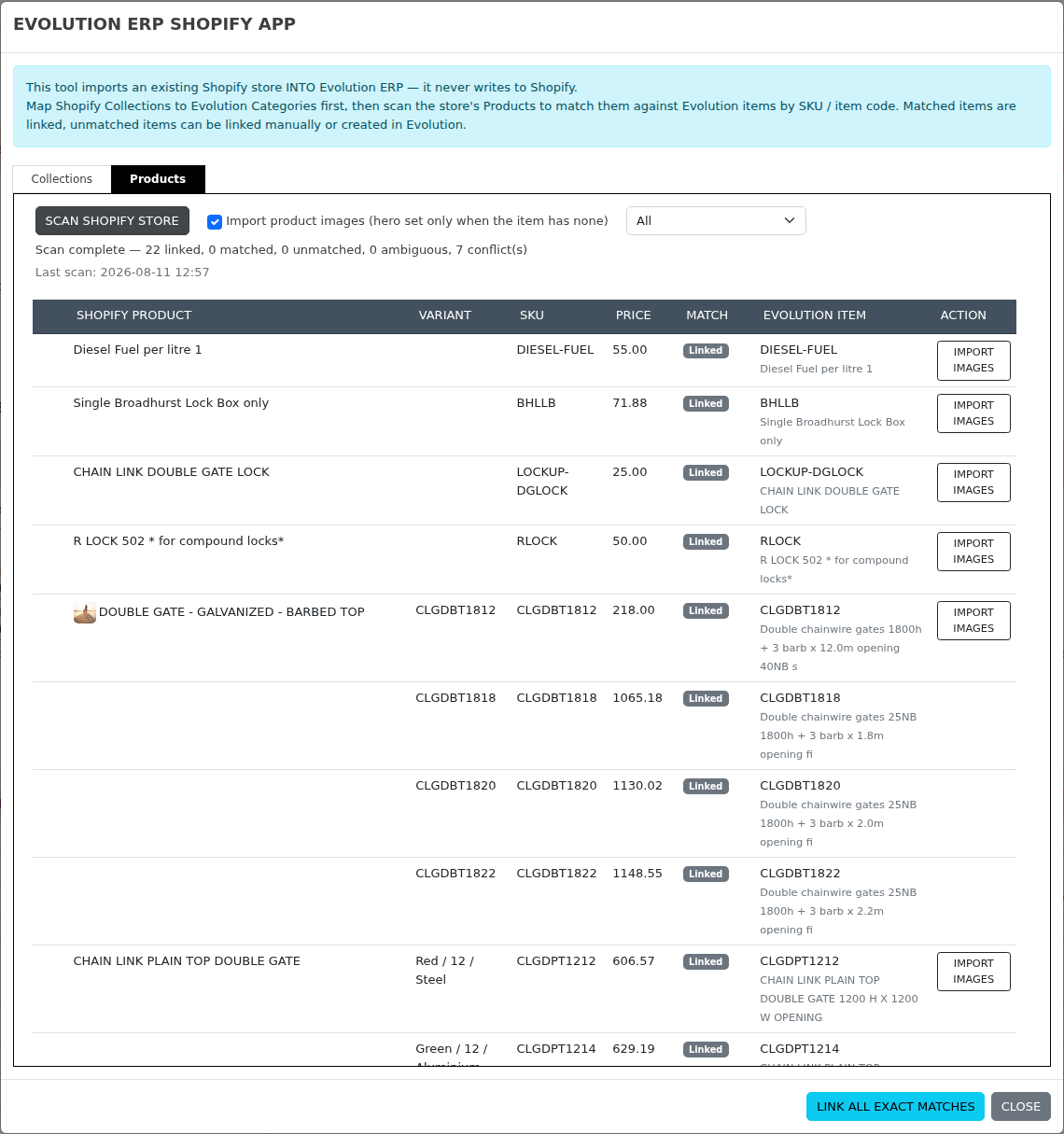
The results table shows one page of products at a time — set the page size in the footer and step through with Previous / Next. Above the table, the status dropdown narrows the list to one kind of row (for example only the unmatched ones), and the Find product / SKU box searches the whole scan by product title, Shopify SKU or matched Evolution item code. Both apply across everything scanned, not just the page you are looking at.
Committing the links
- Link All Exact Matches (footer button) — links every fully matched product in one pass. Untick a product's checkbox to leave it out of the bulk run.
- Link (per row) — links a single product once all its variants are resolved, including any you picked manually.
- Create in Evolution — for products with no Evolution counterpart: creates one item per variant, in the category the product's collection is mapped to, then links them. Item codes come from the Shopify SKU, or from the product title when there is no SKU.
What a created item inherits
A new item is not created bare. It takes from its Evolution category the same defaults the standard Add Item screen would give it — the Income/Sales, Purchase/Expense and Inventory Asset accounts, the sell and buy tax codes, the stocked flag, sub-category, costing method, on-cost and on-cost type, minimum markup and maximum discount. That is what lets an invoice raised from a Shopify order post and commit on its own.
It also brings across Shopify's cost price where your store holds one, on every path — this tool, and an order arriving for a product Evolution has never seen. Where Shopify holds no cost the item is simply created without one rather than failing; the Inventory Import Validation report is where you find those afterwards.
GST and Prices
Whether your company charges GST at all is taken from Company Setup. If it is not registered, nothing here forces a tax code onto an item or an order line.
Where an item's tax code comes from
When the tool creates an item it works down this list and stops at the first answer:
- the mapped category's Default Tax on Sales / Purchases;
- the tool's own Tax on created items setting, on the Products tab;
- your company's usual sell tax code.
The setting exists for the categories that have no tax of their own — the category always wins where it has one, because per-category is more likely to be right than one global answer. Which step supplied the code is recorded in the item's history, so a wrong default can be traced later rather than guessed at.
Before anything is created, the Products tab lists any mapped category with no sell tax and says which fallback will be used instead, and the Collections tab carries a Sell Tax column showing what each mapped category will pass on — or a red Not set, so you can fix it at the source.
Tax-inclusive stores
Shopify stores can quote prices with tax included or excluded. Evolution stores sell prices excluding tax, so when your store quotes GST-inclusive prices the tool divides the GST back out as it creates each item — otherwise every imported price would be 10% high. The tool states which mode your store is in, above the product list, so there is no doubt about what it is doing.
Orders
Invoice lines raised from a Shopify order resolve their tax code the same careful way, and record which step supplied it against the invoice. That order is set out on the Orders page.
Product Images
With Import product images ticked (the default), linking a product also downloads its Shopify images into the Evolution item's Files. Rows that are already linked get an Import Images button instead, so you can bring images across for products linked earlier.
- Each image lands on the item it belongs to. An image Shopify has assigned to a particular variant is imported into that variation's Evolution item, not the master — so a size or colour with its own photo carries that photo in Evolution too. Images that belong to the product as a whole, and any image on a variant you have not linked to an Evolution item, stay on the master item.
- Shopify lets one image serve several variants at once, and Evolution keeps it that way: the image is downloaded once and each item gets its own entry pointing at the same file. Removing it from one item leaves the others untouched.
- Each item's hero image is set from its own first imported image (the product's featured image on the master) — but only when that item has no hero yet. An existing hero is never replaced.
- Every item that receives an image records it in its own history, so you can see where a variation's picture came from.
- Imports are idempotent: each Shopify image is remembered against each item, so running the import again skips images that are already in Evolution rather than duplicating them.
- The Import Images button covers the whole product — clicking it on any row brings the master and every linked variation up to date together.
Permissions & Notes
- Scanning needs Inventory read access; mapping, linking, creating items and importing images need Inventory admin access.
- Re-scanning is safe at any time — previously linked products simply show as Linked.
- The scan summary line and the Last scan banner record when the store was last scanned, what it was scoped to, and what was found.
- Large stores are handled a page of products at a time rather than in one request, and Evolution adjusts how much it asks Shopify for as it goes — speeding up while Shopify's API budget is healthy and easing off when it is not, so a long scan finishes rather than being cut off.
- To see what is standing in the way before you start importing — unmapped collections, categories missing their accounts or tax codes, item code clashes, and products with no cost or no image on either side — run the Inventory Import Validation report. It reads the same catalogue this tool does, read-only, and grades what it finds.