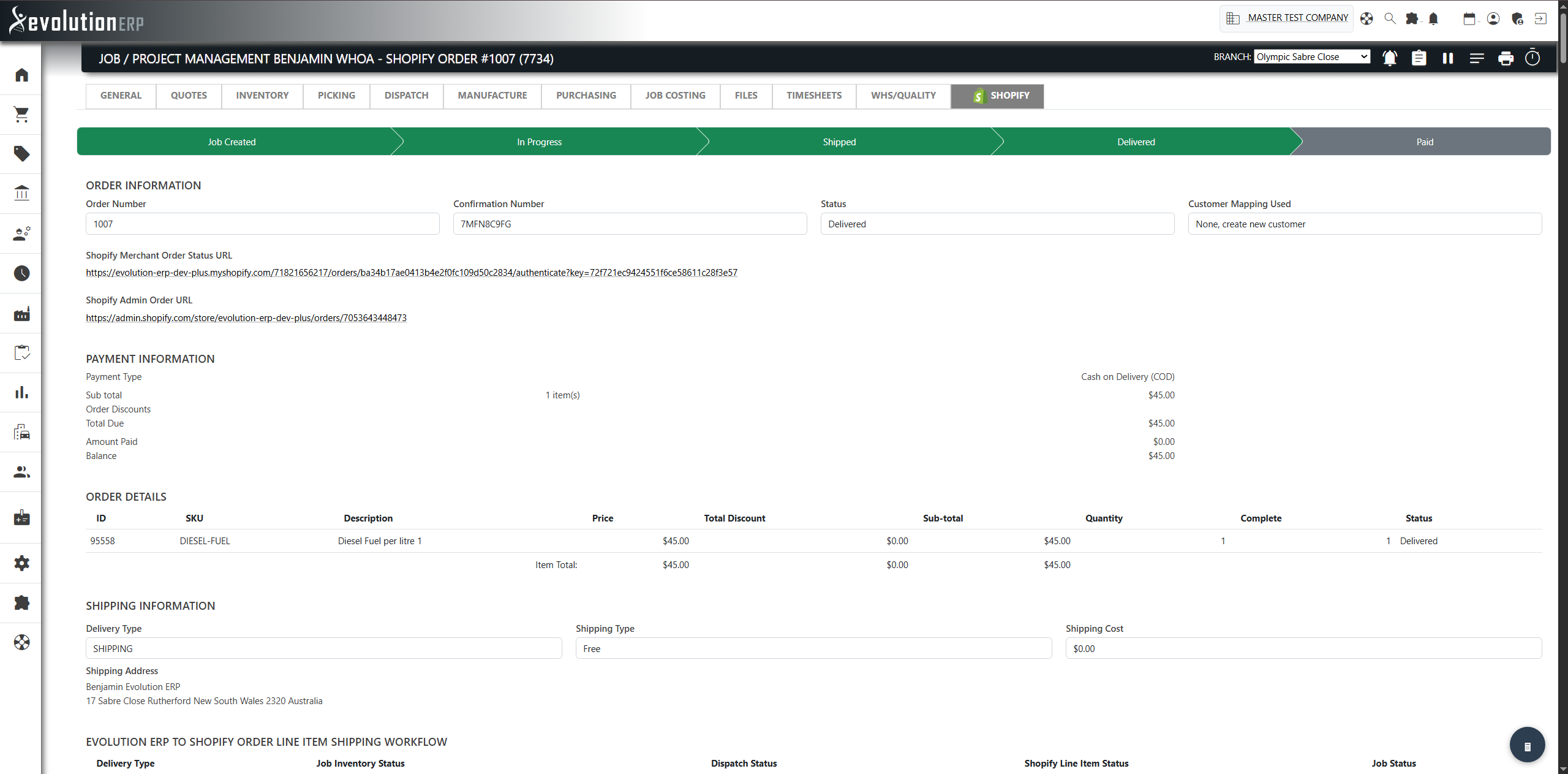
When a customer places an order in Shopify, it flows into Evolution as a project. Depending on your settings, Evolution can also raise the invoice and record the payment automatically. As you pick and dispatch the project, fulfilment status is pushed back to Shopify so the shopper sees their order progress.
The order lifecycle
- A customer places an order in Shopify.
- Shopify notifies Evolution and the order is stored as a pending order.
- Evolution immediately tries to process it: it matches the customer to an account, creates a project, and (if enabled) raises the invoice and payment.
- If everything resolves, the project is created and the order is marked processed.
- If the customer can't be matched (or something needs attention), the order stays in the Unprocessed Orders list on the plugin page for you to handle.
- You pick and dispatch the project in Evolution.
- Each picking and dispatch action pushes a fulfilment update back to Shopify.
Order Processing settings
These settings on the plugin page tell Evolution how to build the project for an incoming order. Set them before you go live.
| Setting | What it does |
|---|---|
| Project Category for Incoming Orders | Category used for the created project |
| Project Estimator for Incoming Orders | Staff member set as estimator |
| Project Manager for Incoming Orders | Staff member set as project manager |
| Branch for Incoming Orders | Branch the project is created against |
| Status for Incoming Orders | Active or On-hold |
| Inventory Category for Incoming Orders Items not in Evolution ERP | Category used to auto-create any ordered item not found in Evolution |
Each setting falls back to a sensible default if left unset, but configuring them keeps orders landing where you expect.

Invoicing, Payment & Shipping settings
Invoicing
- Create Invoice on Project Creation — raise an invoice automatically.
- Invoice Type — the quote/invoice type to use.
- Invoice Account Type — the account the invoice posts to (if left as none, each item's own income account is used).
- Create Payment Record — record a payment automatically when the order is fully paid.
Payment
- Default Payment Type — Cash, Cheque, Credit Card, Money Order, Direct Deposit or Direct Debit.
- Default Payment To — the account the payment is banked to.
Shipping
- Create Shipping Line Item on Project — add the Shopify shipping charge as a line on the project.
- Shipping Inventory Item — the inventory item used for that shipping line.
How the customer is matched
Evolution matches the Shopify customer to an account using the customer mapping strategy (Shopify Customer ID → email → name → phone numbers → create a new account). The strategy is described in full on the Customers page. The order records which method matched, shown as Customer Mapping Used on the order information screen.
Unprocessed Orders & manual override
Orders that couldn't be processed automatically appear in the Unprocessed Orders table on the plugin page, showing the order date, number, Shopify ID, confirmation number, customer, email and phone, with a link to view the order in Shopify.
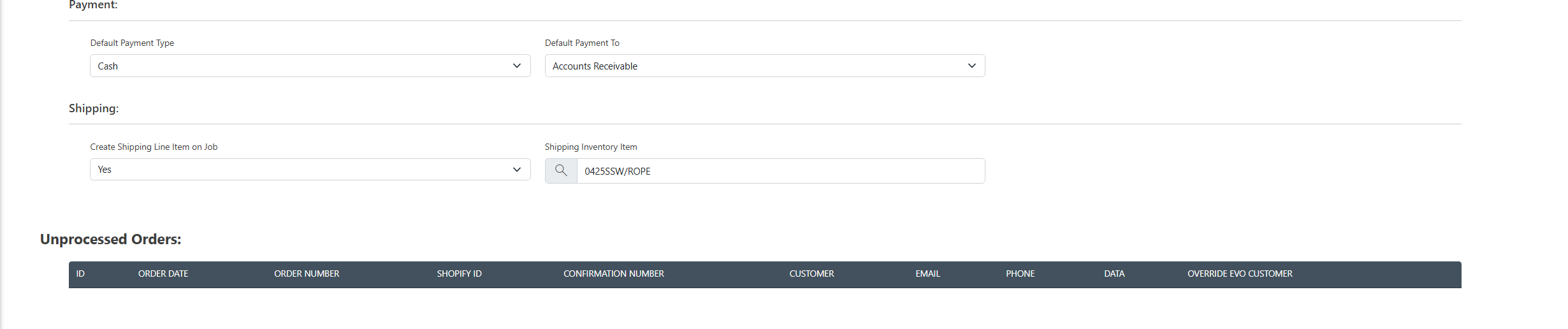
To process one manually:
- Use the Override Evo Customer search on the row to pick the correct Evolution account.
- Choose Create Project.
The project (and, if enabled, invoice and payment) is then created against the account you chose, and the mapping method is recorded as Override.
How order lines map to items
Each line on the Shopify order is matched to an Evolution inventory item by, in order:
- the Shopify variant / product it was published from,
- the item SKU, then
- the item code.
If a line still can't be matched, a new inventory item is created under the Inventory Category for Incoming Orders Items not in Evolution ERP so the order can still be fulfilled. Shopify's shipping charge is added as its own line when the shipping setting is enabled.
What an auto-created item looks like
An item created this way is not a bare placeholder. It inherits the same defaults from that category as an item added by hand — the Income/Sales, Purchase/Expense and Inventory Asset accounts, the sell and buy tax codes, the stocked flag, sub-category, costing method, on-cost and on-cost type, minimum markup and maximum discount — and it brings across Shopify's cost price for that variant where the store holds one. That is what lets the resulting invoice post and commit on its own.
The item is checked as it is created. If everything needed is there it is created clean and can be used immediately. If something is missing the item is still created — an order is never refused because a product record was incomplete — but it is flagged for review, and its Item Notes list exactly what could not be filled in. Fix those and clear the review flag. The Inventory Import Validation report lists everything still flagged, and the item's history records whether it passed or what it failed on.
GST on order lines
The tax code on each invoice line is resolved in a defined order, and whichever step supplied it is recorded against the invoice — so a missing tax code shows up instead of quietly costing you the GST:
- an order Shopify flagged as tax free stays tax free;
- a company not registered for GST is never charged tax — and if Shopify charged some anyway, that discrepancy is recorded against the invoice;
- otherwise the item's own sell tax code;
- then a tax code matching the rate Shopify actually charged;
- then your company's default sell tax code.
Whether your company charges GST at all comes from Company Setup. Where your store quotes GST-inclusive prices, the price stored on an auto-created item has the GST divided back out, because Evolution holds sell prices excluding tax.
Fulfilment back to Shopify
As the project progresses, picking and dispatch actions push fulfilment updates to Shopify. The behaviour depends on whether the order is pick-up or shipping:
| Delivery type | Evolution action | Shopify shows |
|---|---|---|
| Pick-up | Picked / dispatched | Ready for Collection |
| Collected | Collected | |
| Shipping | Dispatched | Out for Delivery |
| In transit | In Transit | |
| Delivered | Delivered |
Payment status is reflected too — an order paid at checkout shows as Prepaid/Paid. Each status is sent to Shopify once, as the project moves through its pipeline.
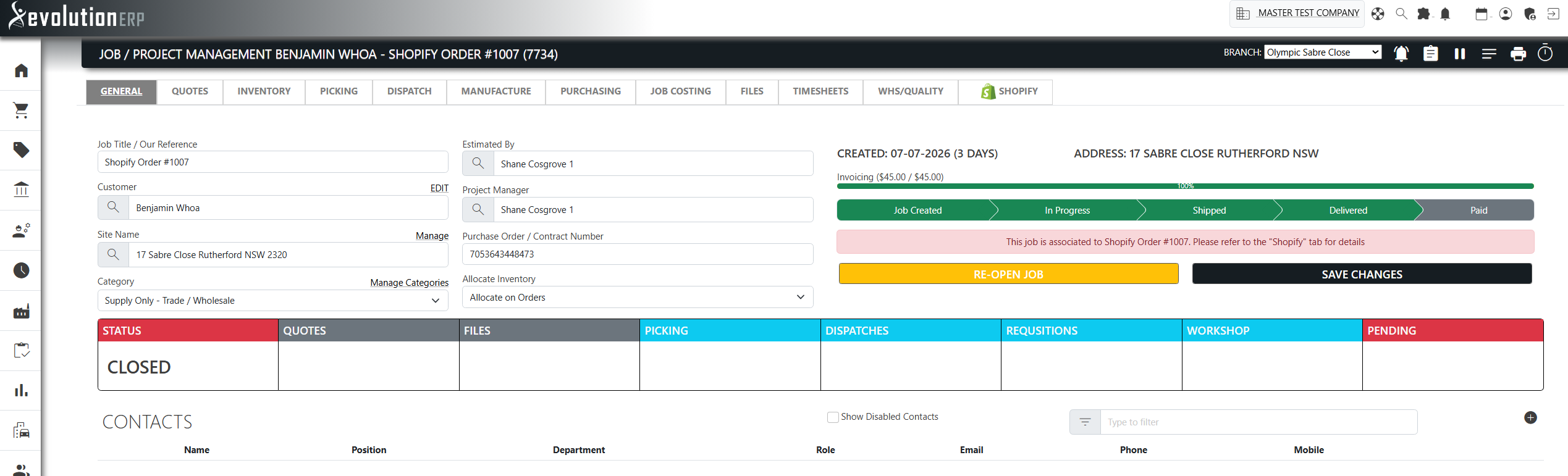
The Order Information screen
Each project created from a Shopify order has an Order Information view. It is read-only and shows the order number, confirmation number, status, the customer mapping used, links to the order in Shopify, payment information (subtotal, discounts, total due, amount paid, balance), the ordered items, and shipping details. It also includes reference tables for the shipping workflow and order pipeline. Administrators can open the raw order data for troubleshooting.