
An Evolution account (contact) is published to Shopify as a customer. On Shopify Plus stores with B2B enabled, accounts are published as B2B companies instead — see B2B Pricing Catalogs. Publishing customers means online orders can be matched back to the right account when they arrive.
Where to find it
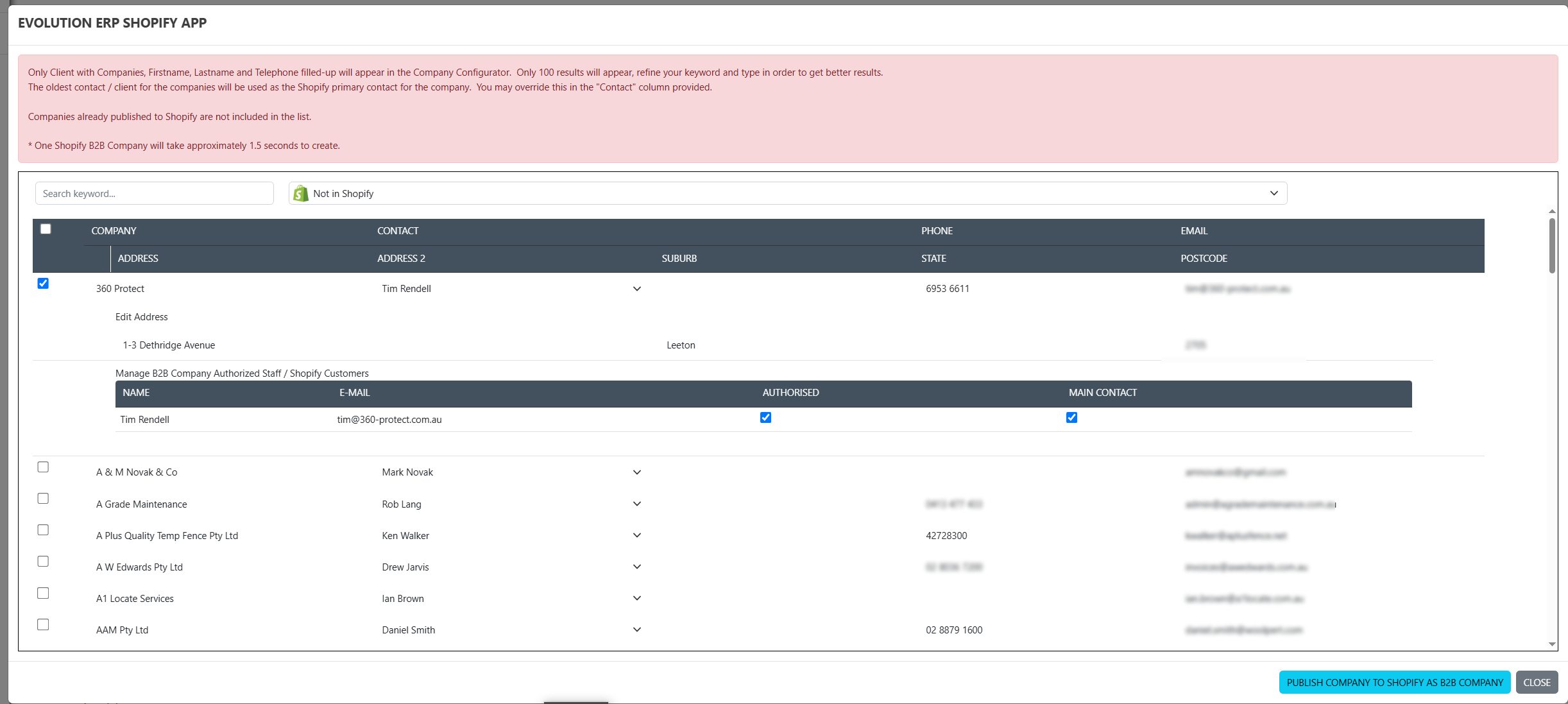
From the Shopify Plugin page, open step 3: Accounts to Shopify Customers (labelled Accounts Company to B2B Company on Shopify Plus). This opens the Company Configurator, the bulk screen for choosing which accounts to publish.
Publishing accounts
The configurator lists accounts that are complete enough to publish:
- Only accounts with a company, first name, last name and telephone appear in the list.
- Accounts already published to Shopify are excluded (use the In Shopify / Not in Shopify filter to switch views).
- Results are limited to 100 rows — refine the keyword and filter to narrow the list.
Tick the accounts to publish (there is a select-all checkbox), review the details in the grid — Company, Contact, Phone, Email, and the address columns — and publish. Each account becomes a Shopify customer.
The customer editor
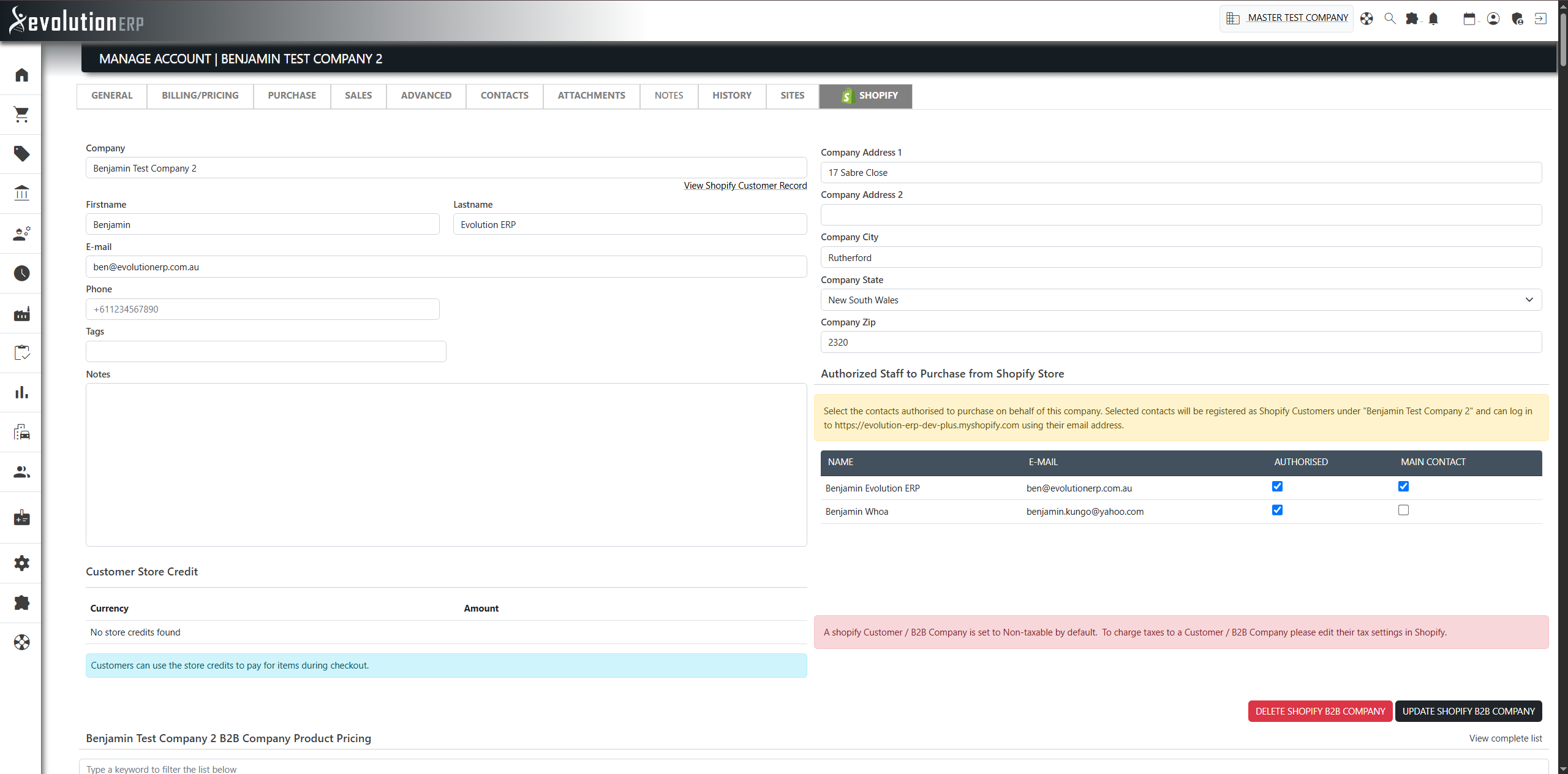
The Customer Manager screen edits one customer's details before or after publishing:
- Company, First name, Last name, E-mail, Phone, Tags, Notes.
- Address 1 & 2, City, State, Zip. New customers are created against country Australia (AU).
- A View Shopify Customer Record link to open the customer in Shopify.
- A Customer Store Credit panel showing the customer's store-credit balance. Customers can use store credit to pay for items at checkout.
A second tab, Customized Shopify Product Pricing for this Customer, shows the per-product prices that apply to that customer (cost, RRP, price type, discount/markup and the resulting Shopify price). This is where account-specific contract and category pricing is surfaced — covered under B2B Pricing Catalogs.
How orders are matched to an account
When a Shopify order arrives, the plugin has to decide which Evolution account it belongs to. It works down the following customer mapping strategy, stopping at the first match:
- The Shopify Customer ID is already recorded against an Evolution account → use that account.
- The Shopify customer's email matches an account email → use that account.
- The Shopify customer's first and last name match an account's name (in either order) → use that account.
- The Shopify customer's phone matches the account's Telephone → use that account.
- The phone matches the account's Telephone 2 → use that account.
- The phone matches the account's Mobile → use that account.
- No match → a new Evolution account is created from the Shopify customer's details.
Keeping customers in sync
When you edit an account in Evolution that has been published, the plugin keeps Shopify up to date — including rebuilding a customer's pricing if their discounts change. On Shopify Plus, renaming a company is reflected on the linked Shopify company.