Where to Find Them
Menu → Reports → Reports Dashboard, then the Shopify pill. This pill only appears when the Shopify plugin is connected for your company — if you don't see it, Shopify isn't active.
These reports require Inventory access at the admin (full) level plus Reporting access, or administrator access. Three of the six (Price Discrepancies, SKUs Missing from Evolution and Inventory Import Validation) make a live call to Shopify each time you run them, so they take a few seconds longer than a typical report. Inventory Export Validation makes one small live call for the store's collections and only scans the catalogue if you ask it to; the remaining two read only from Evolution's own database and are instant.
Sync Health Reports
Category & Collection Mapping
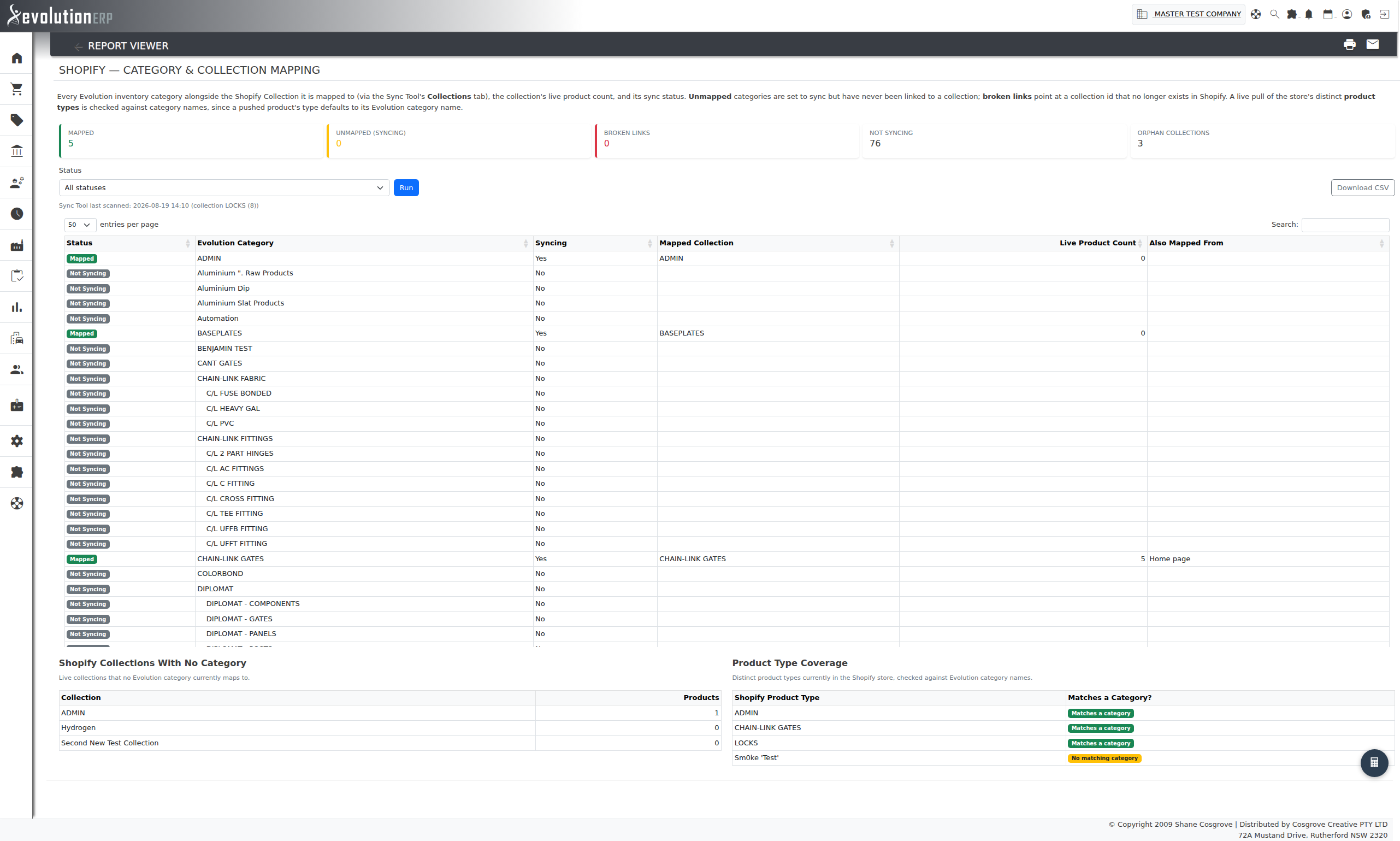
What it shows: Every Evolution inventory category — synced or not — alongside the Shopify Collection it is mapped to via the Sync Tool's Collections tab, that collection's live product count, and a status badge:
- Mapped — the category's primary collection link resolves to a real, current Shopify Collection.
- Unmapped — the category is marked to sync but has never been linked to a collection.
- Broken Link — the category points at a collection id that no longer exists in Shopify (it was deleted or renamed on the Shopify side).
- Not Syncing — informational only; the category isn't flagged to sync at all.
Two panels below the main table round out the picture: Shopify Collections With No Category lists live collections nothing currently maps to, and Product Type Coverage checks every distinct product type in the store against your category names — since a product pushed from Evolution has its Shopify "type" set to its category name by default, a type with no matching category usually means a manually-created product or a renamed category.
Filters & tools: filter the main table to a single status, search any column, and Download CSV exports the currently-filtered rows.
SKUs Missing from Evolution
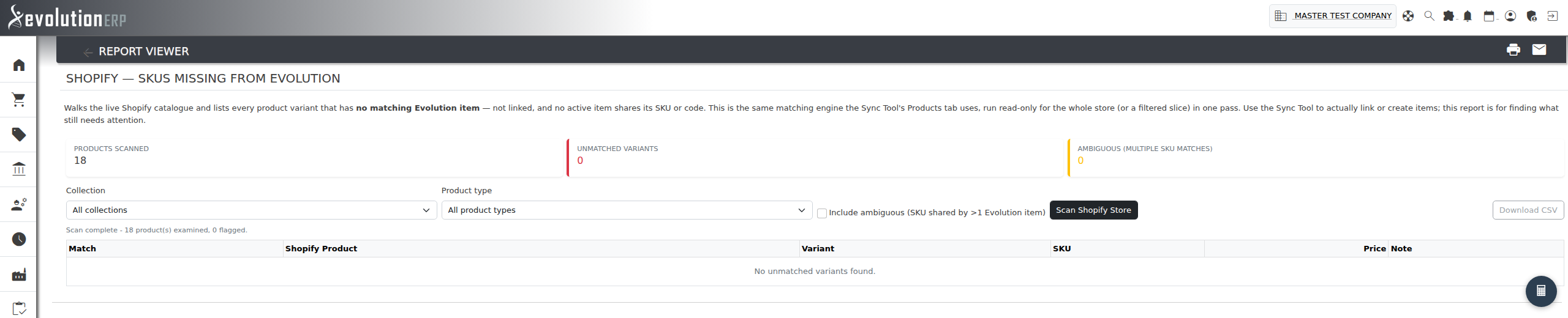
What it shows: Runs the same product/SKU matching engine as the Sync Tool's Products tab, read-only, across the whole store (or a collection/product-type slice), and keeps only the variants it could not resolve to an Evolution item — not linked, and no active item shares its SKU or code. Tick Include ambiguous to also see variants whose SKU matches more than one Evolution item (so no single match could be proposed).
This report doesn't link or create anything itself — use the Sync Tool for that. It exists to answer "what still needs attention" without having to step through the Sync Tool's paging UI.
Filters & tools: narrow the scan to a Collection or Product type before running; Scan Shopify Store pages through the store live (large stores take longer — Stop ends the scan early with whatever has been found so far); Download CSV exports the flagged rows.
Items Missing from Shopify
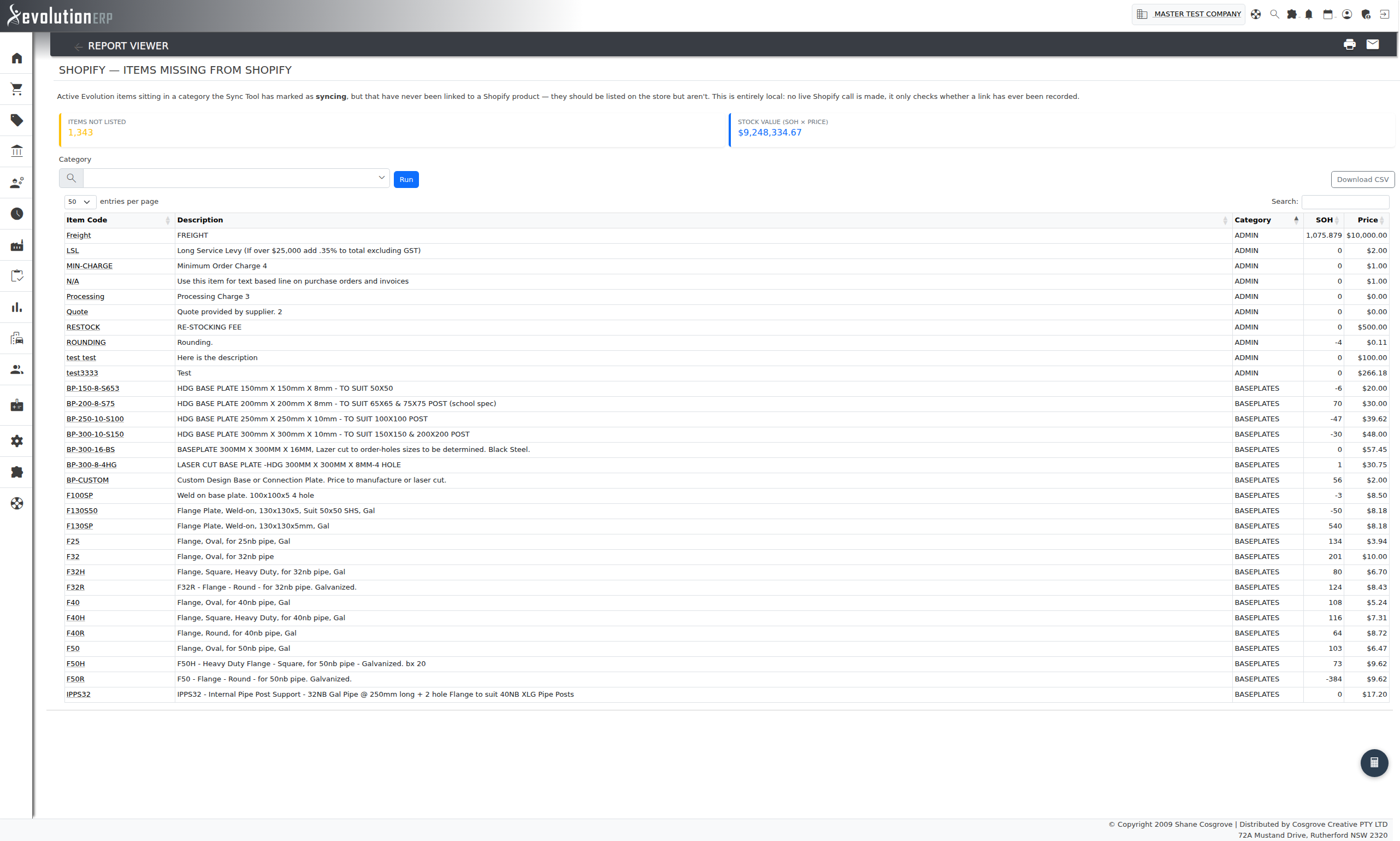
What it shows: The inverse of the report above — active Evolution items sitting in a category the Sync Tool has marked as syncing, but that have never been linked to a Shopify product. They should be listed on the store but aren't. A Stock Value tile (SOH × price) gives a rough sense of how much on-hand stock isn't currently sellable online.
This check is entirely local — it only looks at whether a link has ever been recorded, so it runs instantly and never calls Shopify.
Filters & tools: filter to one or more Categories; Download CSV exports the current result set.
Data Quality
Inventory Import Validation
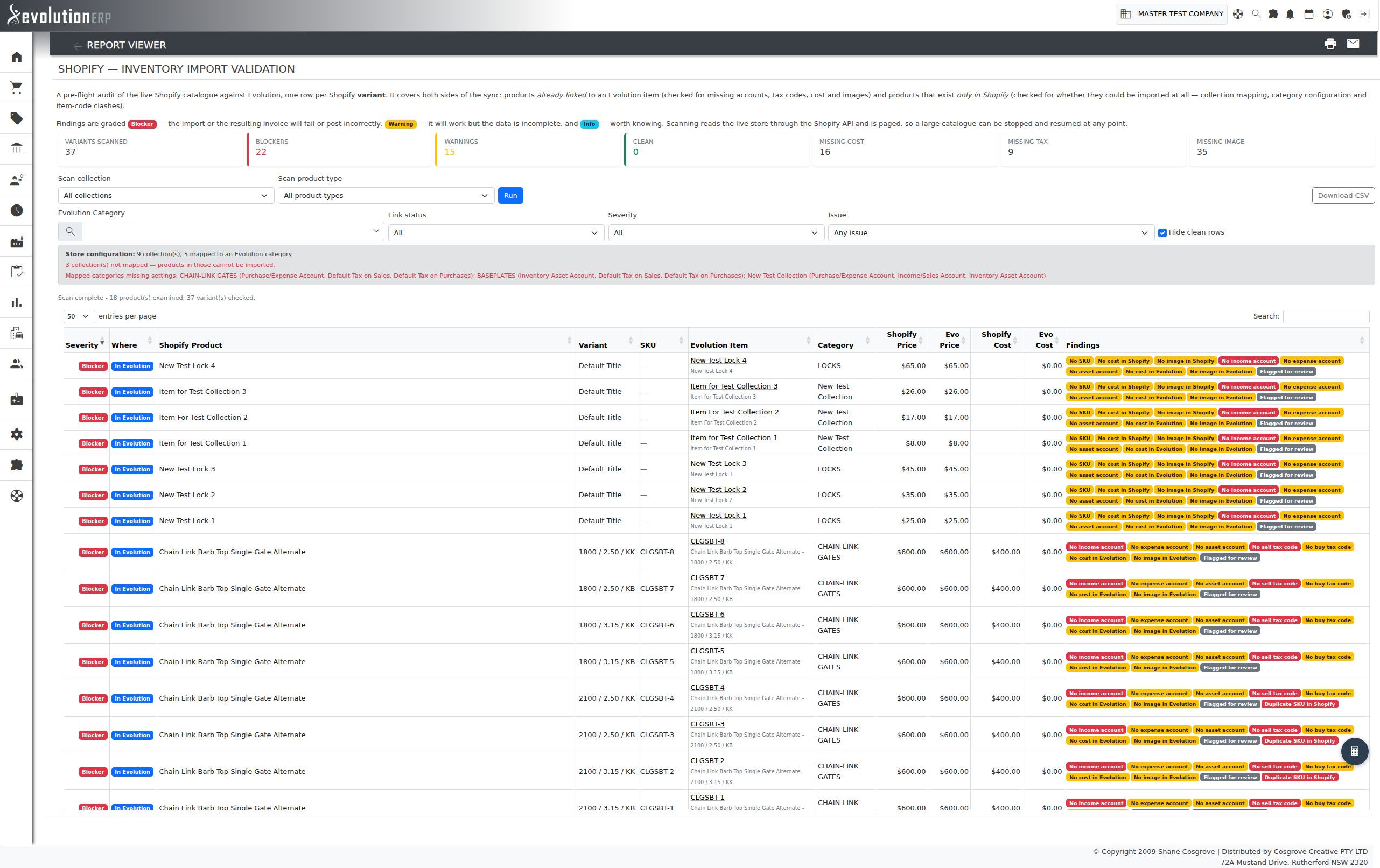
What it shows: A pre-flight audit of the live Shopify catalogue against Evolution, one row per Shopify variant. Unlike the two reports above, which each answer a single question, this one walks the whole catalogue and reports everything standing between it and a clean import — on both sides of the sync at once:
- Products already linked to an Evolution item are checked for the things that make an item safe to trade on: an income, expense and inventory asset account, sell and buy tax codes, a cost price, and at least one image.
- Products that exist only in Shopify are checked for whether they could be imported at all: does the product belong to a collection, is that collection mapped to an Evolution category, is that category configured, and is the item code it would claim already taken by something else?
Every finding is graded so you can work top-down:
- Blocker — the import will refuse, or the resulting invoice will not post. Examples: no income account (an invoice line for the item won't commit), no sell tax code, an unmapped collection, an item code clash, or the same SKU on more than one Shopify variant.
- Warning — it will work, but the record is incomplete. Examples: no cost price on either side, a cost that differs between Shopify and Evolution, a cost above the sell price, no expense or asset account, or no image.
- Info — worth knowing. Examples: the Shopify product is a draft, or the Evolution item is still flagged for review (every item the importer creates starts that way, and the flag clears once someone has checked it).
A grey banner above the table summarises the settings every row is judged against — how many collections are mapped, which mapped categories are missing settings, whether the company is GST registered and whether the store holds tax-inclusive prices. If a scan comes back as a wall of blockers, that banner usually explains why in one line, and the fix is a category setting rather than 400 individual items.
The report is read-only — it never links, creates or changes anything. Use the Sync Tool to act on what it finds, and the category screen's update existing items option to push a corrected category default down onto items that were created before it was set.
Filters & tools: narrow the scan to one Collection or Product type before pressing Run (Stop ends a long scan early and keeps what has been found so far); then filter the results by Evolution Category, Link status (already in Evolution / Shopify only), Severity, or a specific Issue — the issue list only ever offers findings the scan actually produced. Hide clean rows is on by default. Download CSV exports the currently-filtered rows with every finding spelled out.
Inventory Export Validation
What it shows: The same idea pointed the other way. Where Import Validation asks “can this Shopify product come in?”, this report asks “can this Evolution item go out?” — one row per inventory item, checked against everything the push tool actually does, before you run it.
Three things about the push are worth knowing, because they explain most of what the report finds:
- The item's code becomes the Shopify SKU, and the item's description becomes both the product title and its description. An item with no description cannot be published at all.
- The collection a product is published into comes from the item's category, not from the item. A category with no collection mapped publishes products into nothing, and they will not appear in any collection-driven storefront navigation.
- No media is sent when a product is created — an item's hero image goes up on the next save of that item, and only once it is linked and its category is flagged to sync. Shopify stock tracking is left off on everything the push creates. Both are noted once in the banner rather than on every row.
Findings are graded the same way:
- Blocker — the push fails, or what it creates is unsaleable. Examples: no description, no item code, no sell price (the item would list at $0.00), the category has no collection or points at one that has been deleted from the store, two active items share the same code, or the code or description contains a double quote, backslash or line break — those characters break the push outright and nothing is created. On a store that holds prices including tax there is one more: an item with no sell tax code, because the push converts the Evolution ex-GST price up using that code and has nothing to convert by — the item would list short by the GST component.
- Warning — it publishes, but the listing is incomplete or wrong. Examples: no cost price (Shopify's margin reporting will be wrong), a price below cost, no image, a category not flagged to sync, a description over Shopify's 255 character title limit, or an item with variations — the bulk push only ever creates the single default variant, so variations have to be pushed from the product editor.
- Info — worth knowing. Examples: a stocked item has nothing on hand, the description is only a few characters long, or the item is already flagged for review.
One warning is worth calling out because it is easy to miss: category not syncing. Such an item can still be pushed by hand, but later price, cost and hero-image changes will never reach the store — that background sync only runs for categories flagged to sync in the Sync Tool.
Ticking Check the live store for existing SKUs adds a pass over the Shopify catalogue first. Any item whose code or SKU already sits on a product there is flagged as a blocker: pushing it would create a second product with the same SKU, where what you actually want is to link the existing one in the Sync Tool.
The report is read-only — it never pushes, creates or changes anything. Fix what it finds on the inventory items and categories, then run the push from Settings → Shopify.
Filters & tools: choose an Evolution Category and a Push status (not pushed yet, already on the store, or all) before pressing Run — those two narrow what is scanned, so changing them means running again. Stop ends a long scan early and keeps what has been found. The results can then be filtered by Severity or a specific Issue without rescanning, and Hide items with nothing to fix is on by default. Download CSV exports the currently-filtered rows with every finding spelled out.
Pricing Reports
Price Discrepancies
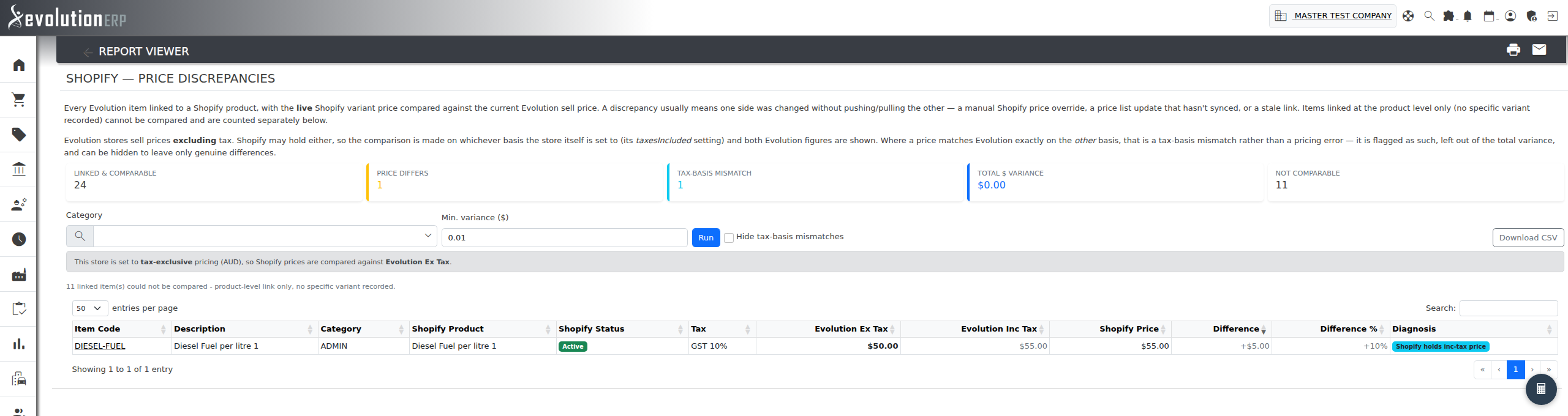
What it shows: For every Evolution item linked to a specific Shopify variant, the report fetches that variant's live price from Shopify and compares it to the item's current Evolution sell price. A discrepancy usually means one side changed without the other being pushed or pulled — a manual price edit made directly in Shopify, a price list update that hasn't synced yet, or a stale link.
Items linked only at the product level (no specific variant recorded against them) can't be compared to a single price and are counted separately in the Not Comparable tile rather than silently skipped.
Filters & tools: filter by Category; set a Min. variance ($) tolerance to hide immaterial rounding differences (defaults to 1 cent); sort by Difference to see the largest gaps first; Download CSV exports the current result set.
Customer Reports
Customer Mapping & Linking
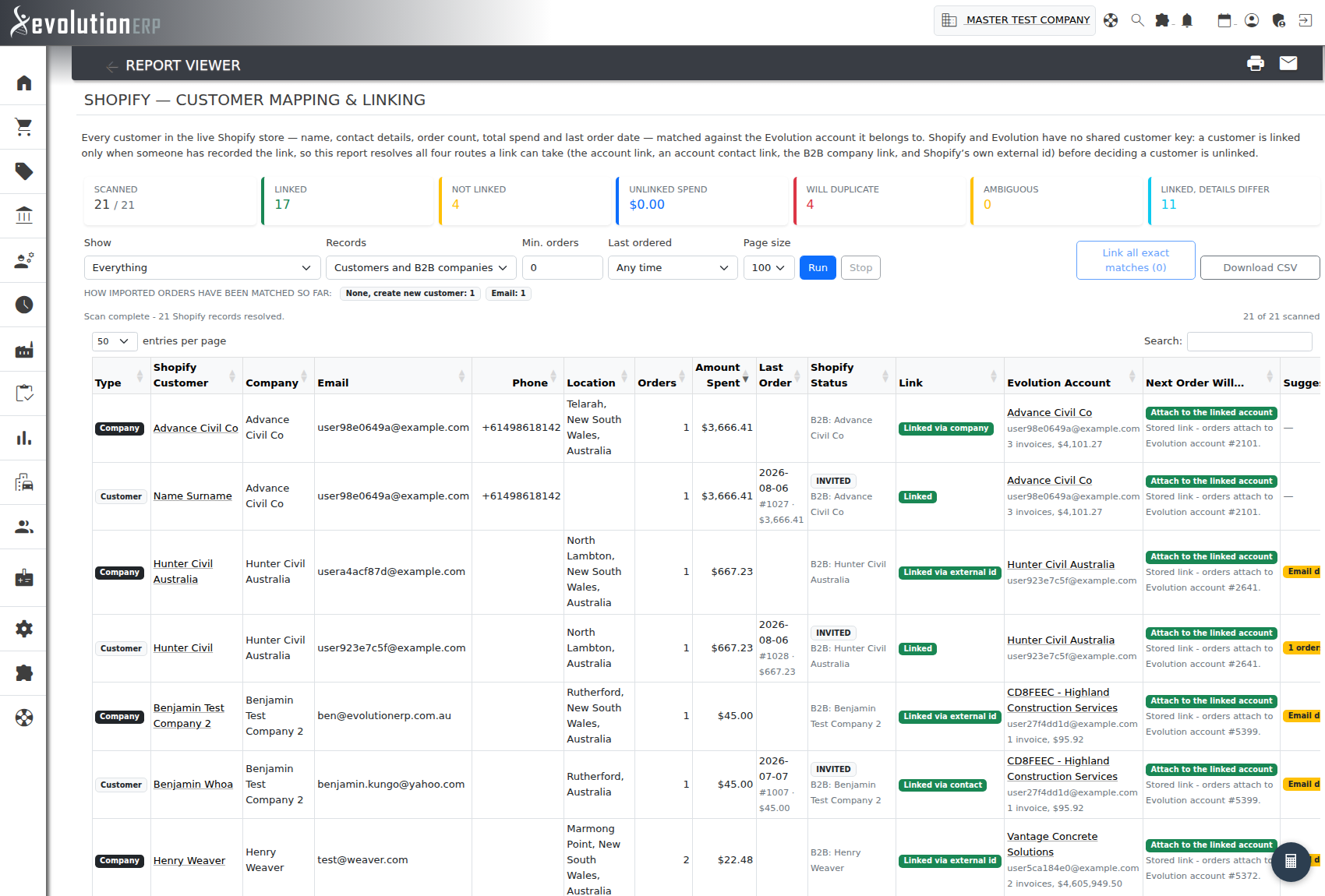
What it shows: Every customer in your Shopify store — name, company, email, phone, location, order count, amount spent and last order — next to the Evolution account they belong to. Shopify and Evolution share no customer key, so a customer counts as linked only when that link has been recorded somewhere. The report resolves all four places a link can live before deciding anyone is unlinked: the link stored against the Evolution account, a link stored against one of its contacts, the B2B company link, and Shopify's own external id field on a company.
For every unlinked customer it then goes looking for the Evolution account they
almost certainly already are, comparing email address, ABN, phone number, company name and
personal name. Phone numbers are compared on their last nine digits, so
+61 400 123 456 and 0400 123 456 are treated as
the same number. Each candidate is shown with the signals that found it — one weak
coincidence looks very different from three separate identities agreeing.
Why unlinked customers matter
When a Shopify order arrives, Evolution decides whose order it is by looking for an exact email match, then an exact phone match, and if neither hits it creates a brand new customer record. It also does not remember the match it made, so the same guess is repeated on every order the customer ever places.
The Next order will… column shows exactly what that logic is going to do for each customer as things stand today. Anything reading Create a new contact beside a customer who already has orders is a duplicate account waiting to happen — and anything reading Attach to an arbitrary contact means two or more Evolution contacts share that email or phone number, so which one gets the order is down to chance. Recording the link fixes both, permanently.
Linking a customer
Where the evidence is unambiguous, press Link on the row to record the match against the Evolution account. Every link is written to the account's history, and the report refuses to link a Shopify customer that is already linked to a different account rather than quietly creating the duplicate it exists to find. Link all exact matches does the same thing in bulk for every row with a single, exact email or ABN match — rows with more than one candidate are deliberately excluded and left for you to decide.
Linking edits an account's integration mapping, so it needs Accounts Receivable set to Administrator. Without it the report is still fully visible, just read-only.
Checking the customers you have already linked
Linked rows show both sides together and flag where they have drifted apart: the email or phone number no longer matches, the Evolution account has been made inactive or is no longer flagged as a customer, the customer's email address actually belongs to a different Evolution account, Shopify is holding an external id for an account that no longer exists, or Shopify shows more orders than were ever imported against the account. A panel above the table lists any Evolution account linked to more than one Shopify customer, since orders will follow whichever link was recorded last.
A second panel shows how imported orders have actually been matched to date. A large None, create new customer share is the duplicate-account problem having already happened.
Filters & tools: Show narrows to unlinked customers, those with a match found, those safe to link automatically, those with no match, ambiguous ones, the ones about to create a duplicate, linked customers, or linked customers whose details have drifted; Records switches between customers, B2B companies or both; Min. orders and Last ordered narrow to customers worth acting on; Download CSV exports whatever is on screen, both sides included.
Amount Spent and Orders are Shopify's own lifetime figures. Shopify counts an order towards Amount Spent only once it has been paid, so a customer with unpaid orders can show orders against a spend of $0.00. The Evolution side of each row shows what has actually been invoiced.