
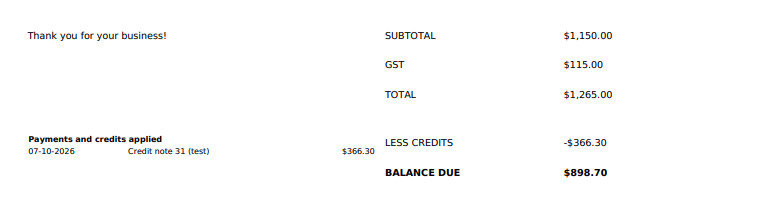
Every printed or emailed invoice ends with the amount the customer still owes. Payments received and credit notes applied are listed under the totals, each with its date, and are taken off the total to give the Balance Due. A customer who has paid part of an invoice, or had a credit note put against it, can see from the invoice itself what is left to pay.
What Prints
Under the usual Subtotal, GST and Total, the invoice adds:
| Line | What it shows |
|---|---|
| Payments and credits applied | One line for each payment and each credit note against this invoice: the date, what it was (for example Payment - EFT or Credit note 31 with its reference) and the amount. Shown only when there is something to list. |
| Less payments | The total of the payments received. Left off when nothing has been paid. |
| Less credits | The total of the credit notes applied. Left off when no credit has been applied. |
| Balance due | Total less payments and credits. On an invoice nobody has paid yet this equals the total, so the customer always sees one clear figure to pay. A fully paid invoice shows $0.00. |
| Credit balance | Printed in place of Balance due when more has been received than the invoice was for, with the amount over. |
The figures are read fresh each time the invoice is printed. Reprint an invoice after a payment comes in and the new copy shows it. Printing never changes the invoice, its balance or your accounts.
Turning It Off
Sometimes the customer needs a copy of the invoice exactly as it was first issued, for example for their accounts department, a finance company or a progress claim. The balance can be left off in three places.
1. For one print or email
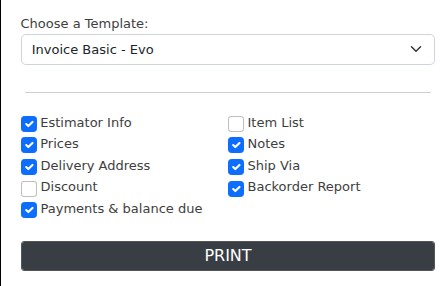
Press Print or Email on the invoice. The Payments & balance due tickbox in the print options is ticked. Untick it and that document prints with Subtotal, GST and Total only.
2. For an Invoice Type
Under Invoice Types, open the type and tick Hide payments & balance due in its Invoicing print options (see Quote Types). Invoices of that type open with the tickbox unticked.
3. For a template
Under Forms and Templates, edit the invoice template and tick Hide payments, credits and balance due. Choosing that template in the Print or Email form unticks the box.
Invoices Paid in Xero
When an invoice is paid in Xero, the payment is not always brought back into Evolution line by line. Once Xero marks the invoice paid, the printed balance is $0.00 regardless. Any amount Evolution has no payment line for is shown as a single undated Payments received line, so the figures on the page still add up.
Custom Invoice Templates
Nothing has to change on existing templates: the balance lines are added straight under the table that holds the invoice total. If your template is laid out differently and you would rather place the lines yourself, these fields are available in invoice templates. Once a template uses any of them, the automatic block is no longer added.
| Field | Prints |
|---|---|
@balanceBlock; | The block described above: the itemised list, Less payments, Less credits and Balance due. |
@totalsBlock; | Subtotal, GST and Total followed by the same lines, for a template that wants the whole totals area in one piece. |
@paymentList; | Just the itemised rows (date, description, amount), for a template that builds its own table around them. |
@amountpaid; | Total payments received. |
@creditsapplied; | Total credit notes applied. |
@balancedue; | The balance due. |
All of them print blank when the tickbox is unticked, and on every other kind of
document. Rows you build yourself can be given class="balance" so they hide
along with them.
Things Worth Knowing
- This invoice only. The balance is for the invoice being printed, not the customer's whole account. Other invoices they owe on are not mentioned.
- Only applied credit counts. A credit note shows on an invoice once it has been committed and allocated to that invoice. Unallocated credit sitting on the customer's account does not reduce this invoice's balance.
- The email text is unchanged. The covering email says the invoice is attached and quotes no amount, so it never disagrees with the balance on the PDF.
Related Pages
- Credit Notes (AR & AP) — raising a credit note and allocating it to an invoice.
- Syncing Payments from Xero — how payments made in Xero come back into Evolution.
- Items To Follow (Backorder Report) — the other page you can add to a printed invoice.
- The Invoice Register — finding invoices that are still owing.
- PDF Print Delivery — whether printed documents open in the browser or download.