
Every time you print a document in Evolution — an invoice, a quote, a purchase order, a delivery docket, a report — Evolution builds a PDF and opens it in a new browser tab. PDF Print Delivery controls what that new tab does with the PDF: save it to the computer, or display it ready to print.
This is a company-wide setting, so it applies to everyone who logs in. It only changes how the finished PDF is handed to the browser — the document itself, the template used and the print options you choose are all completely unaffected.
The Two Options
download Download
The standard behaviour, and the default for every company. The PDF is saved to the computer’s downloads folder, and you open it from there to read or print it.
Best for: anyone who wants a copy of every document kept on the computer as a matter of course.
print Open in browser
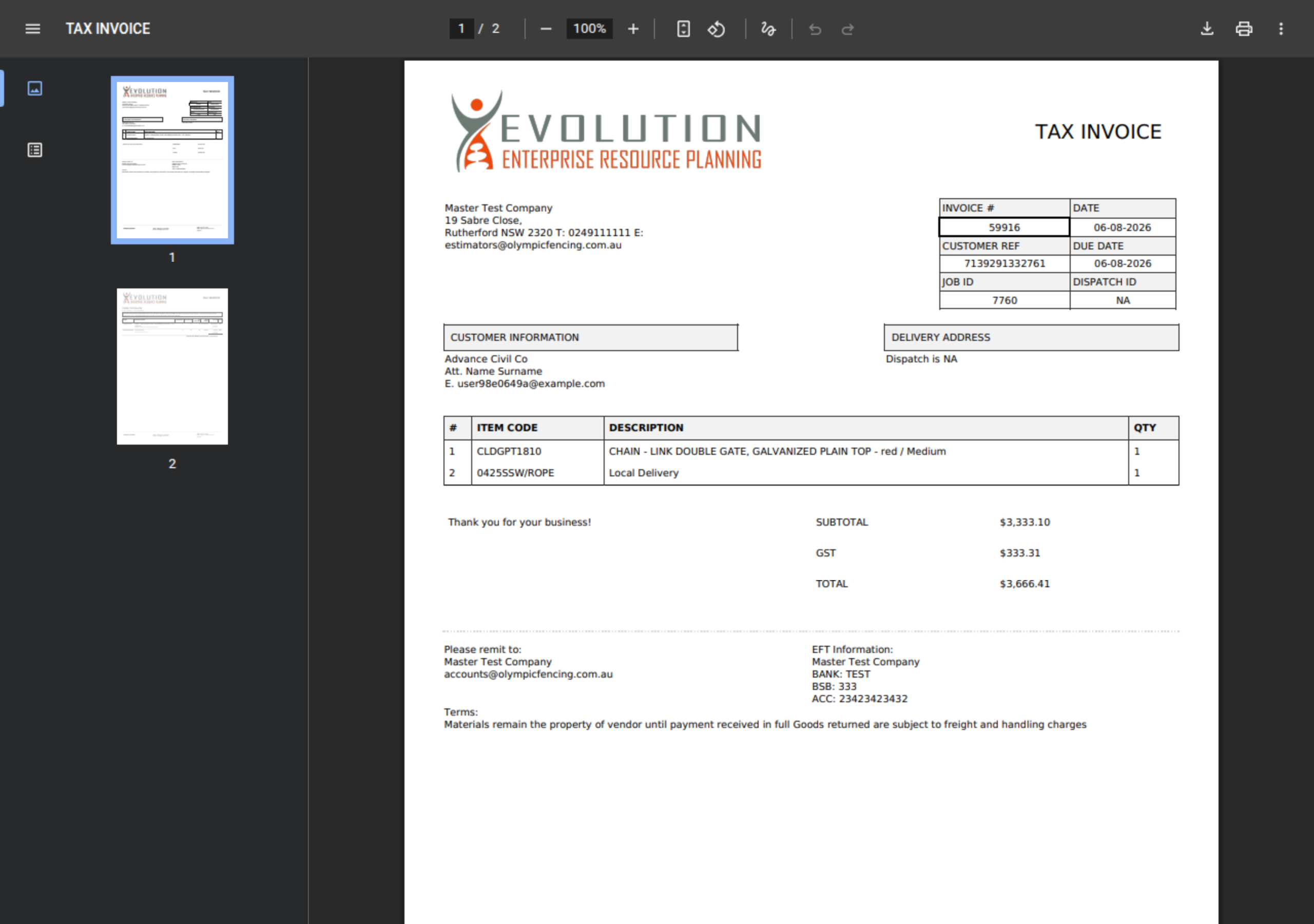
The PDF appears immediately in the new tab, in the browser’s built-in PDF viewer. Print it with the viewer’s print button (or Ctrl + P), then close the tab. Nothing is saved to the computer unless you choose to save it.
Best for: sites printing a lot of documents each day, where a downloads folder full of PDFs is a nuisance rather than a filing system.
Changing the Setting
You will need administrator access to change this.
- Go to Settings.
- Open the GENERAL tab (or type PDF Print into the settings search box at the top of the page).
- Find PDF Print Delivery and choose Download or Open in browser.
- Click the save icon at the top right of the Settings page.
The change applies to the next document printed. Users already logged in do not need to log out and back in.

If Documents Still Download
Web browsers have their own preference for handling PDFs, and it takes precedence over this setting. If you have chosen Open in browser but documents are still being saved to the downloads folder, the browser is configured to always download PDFs. Each user can change that on their own computer:
- Google Chrome / Microsoft Edge: go to Settings → Privacy and security → Site settings → Additional content settings → PDF documents, and choose Open PDFs in Chrome (Edge: turn off Always download PDF files).
- Mozilla Firefox: go to Settings → General → Files and Applications → Applications, find Portable Document Format (PDF) and set the action to Open in Firefox.
Emailing Is Not Affected
Emailing a document from Evolution attaches the PDF to the email exactly as before. This setting only applies to the Print action.
Frequently Asked Questions
Can different users have different settings?
No — it is a single company-wide setting. Individual users can still save a copy from the browser’s PDF viewer whenever they want one.
Do I lose the copy of the document?
No. Evolution keeps every printed document on the server. The setting only changes whether a second copy also lands on your computer.
The print tab stays open after printing — is that expected?
Yes. The browser’s PDF viewer does not close its own tab after printing, so close it yourself once the document has gone to the printer.
Can I still save a document to my computer?
Yes — the browser’s PDF viewer has a download button that saves the document exactly as the “Download” option would.