
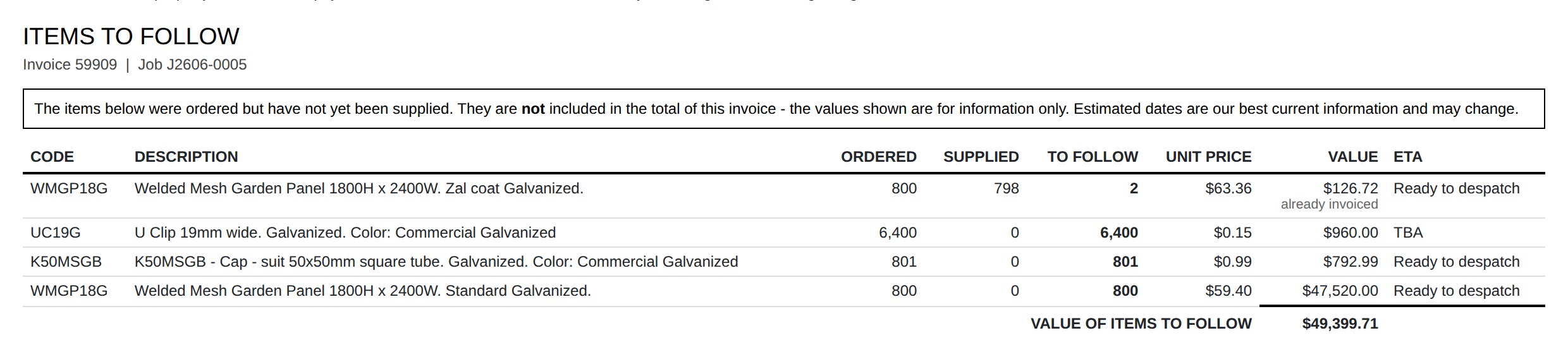
When you invoice a project before everything on it has gone out the door, the invoice itself says nothing about what is still coming. The customer sees what they are being charged for, but not what they are still owed. Items To Follow is an extra page you can attach to a printed or emailed project invoice that lists exactly that: every item ordered on the project that has not yet been dispatched, with a quantity, a value, and an estimated date where purchasing knows one.
Attaching the Page to an Invoice
The page is produced at print time, so it is switched on where you choose your other print options. There are two ways to get it:
1. Tick it when you print or email
Open the invoice and press Print or Email. Alongside the usual options (Discount, Notes, Project Details and so on) there is a Backorder Report tickbox. Tick it and the page is added to the document you are about to produce. The tickbox appears on invoices only — you will not see it on quotes, purchase orders or statements.
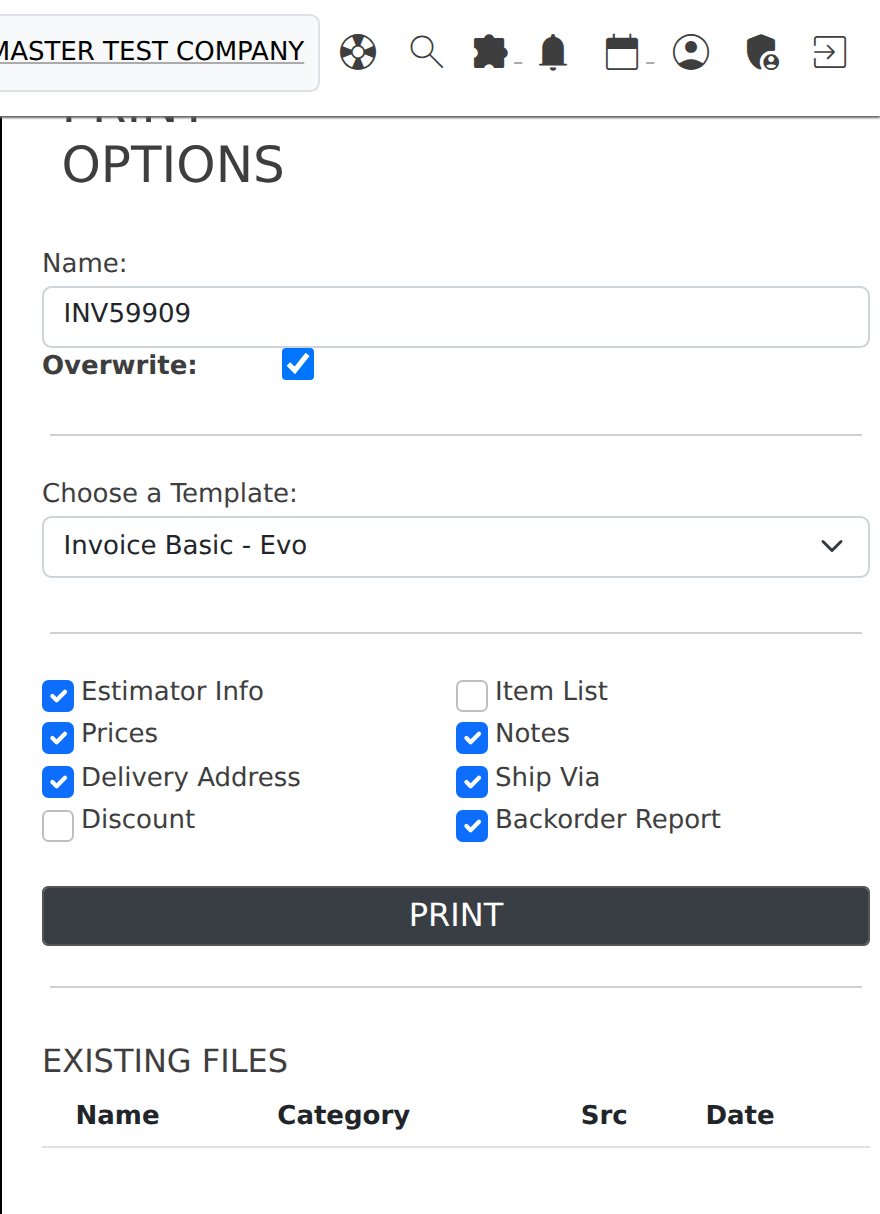
The emailed copy and the printed copy are the same document, so ticking the box on the email form attaches the page to the PDF the customer receives.
2. Have it attached automatically
If your business always wants it, an administrator can turn it on once under Settings → Sales → Attach Backorder Page to Invoices. Set it to Yes and the Backorder Report tickbox arrives already ticked on every invoice print and email.
When Nothing Prints
The page is only added when there is something to say. It is silently skipped — with no blank sheet and no change to the invoice — in each of these cases:
- The invoice is not linked to a project. Ad hoc and counter invoices never produce the page.
- Every item on the project has been dispatched, so there is nothing to follow.
- The only outstanding lines are labour or service, and your system is set to leave those off (the default — see below).
Reading the Page
The page is headed ITEMS TO FOLLOW and carries the invoice number and the project (or projects) it covers, followed by a note to the customer that these items are not included in the invoice total.
| Column | What it shows |
|---|---|
| Code | The item code, as it appears on the project. |
| Description | The line description from the project, with the line’s notes underneath it in smaller type where there are any. |
| Ordered | The quantity on the project’s Inventory tab — what the customer asked for. |
| Supplied | What has actually been dispatched against that line. A dispatch counts as soon as it exists, including one still being packed, because at that point the goods are spoken for and about to leave. |
| To Follow | Ordered less supplied — the quantity the customer is still owed. Shown in bold; this is the figure the page exists to give them. |
| Unit Price | The line’s sell price, as it stands on the project. |
| Value | Unit price multiplied by the quantity to follow. Where the line has already been billed up front, already invoiced is printed underneath so the customer does not read the figure as a further charge coming. |
| ETA | The best date Evolution can offer — see the next section. |
The page finishes with a Value of Items to Follow total. That total is deliberately separate from, and never added to, the invoice total on the previous page.
Where the ETA Comes From
Nobody has to type these dates in. Each line is traced back through the requisition and purchase order raised to fill it, and the best available date is used:
| Shown as | Where it comes from |
|---|---|
| Ready to despatch | The goods are already here — made, picked or received, but not yet loaded. This replaces any purchasing date, because quoting a supplier ETA for stock sitting on your own floor would be misleading in both directions. |
| A date | Taken first from the supplier’s own back order date on the purchase order — the date they have told you they will ship. Where the supplier has given none, the expected by date your buyer put on the requisition is used instead. Where a line is covered by more than one order, the latest of those dates is shown, since that is when the line can actually be completed. |
| TBA | Nothing has been ordered for the line yet, or the order carries no date at all. TBA is printed rather than a guess. |
Labour and Service Lines
Projects usually carry more than stock: delivery, site work, installation, administration, hourly rates. None of those are ever dispatched — only goods are — so left alone they would each print as entirely outstanding on a page going to the customer (“Delivery to site — 1 to follow”). They are therefore left off by default.
A line is treated as labour or service when either of these is true:
- The item has no inventory asset account, so it is not stock and has never sat on a location; or
- The item’s unit of measure is a measure of time — any unit set up under Units of Measure with a type of Time, such as Hour.
If your business does want outstanding service work listed to the customer alongside the goods — a manufacturer tracking installation, for example — an administrator can set Settings → Sales → Include Labour and Service on Backorder Reports to Yes.
Which Projects Are Covered
The page reports on the project the invoice is for. Where an invoice combines lines from several projects, every one of those projects is covered and the header names them all, so the customer gets a single list rather than one page per project.
The figures come from the project’s Inventory tab, not from the invoice, so an item that is on the project but was not billed on this particular invoice still appears if it has not been supplied.
Things Worth Knowing
- Invoiced is not supplied. Billing an item does not remove it from this page. Special orders are routinely invoiced up front — a COD customer is billed so the item can be ordered at all — and those are exactly the customers who most need to know what is still coming. Only a dispatch reduces the To Follow figure.
- It is worked out fresh every time. Reprint the same invoice a month later and the page reflects what is outstanding on that later day, not what was outstanding when the invoice was raised.
- It cannot affect your accounts. Because nothing is written to the invoice, there is no risk of the page changing a total, a tax figure or a ledger posting — including on invoices that have already been committed.
- Reissuing after a delivery. Once goods go out, reprinting or re-emailing the invoice gives the customer an up-to-date list. Nothing needs to be cancelled or credited to refresh it.
Related Pages
- Invoicing a Project — how project invoices are raised in the first place.
- Invoicing a Dispatch — billing goods as they go out rather than up front.
- Purchase Back Orders — the supplier-side back orders that feed the ETA column.
- Purchase Requisitions — where the expected by date is set.
- Units of Measure — marking a unit as a measure of time.
- PDF Print Delivery — whether printed documents open in the browser or download.