
Every invoice raised against a project comes out of the same Invoice Project window, but there are five different ways to build the invoice lines. Which one you pick decides how much detail the customer sees, and how the project’s remaining work-in-progress is reduced.
This guide covers all of them. Timesheet invoicing has its own detailed guide — see Invoicing Timesheets.
There is also a sixth route that does not start here at all: a committed dispatch can be invoiced directly, billing exactly what was delivered. See Invoicing a Dispatch — and note that the two do not keep each other in step, so pick one method per project.
Where to Start
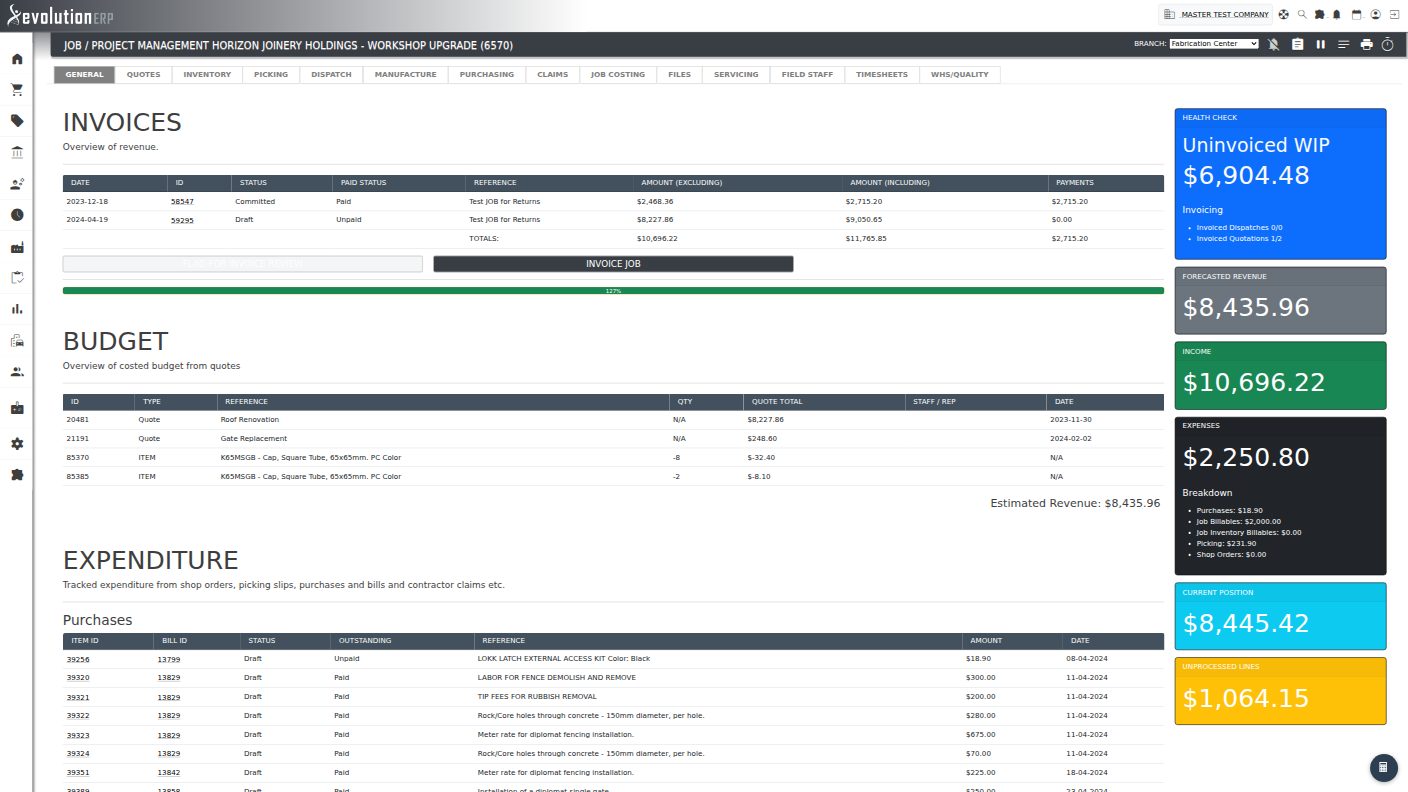
Open the project from Projects → Project Register, then go to the Job Costing tab. The INVOICE PROJECT button sits under the Invoices table at the top of that tab. The same button also appears on the project’s Quotes tab — both open the identical window.
Choosing a Method
How do you want to invoice is the first question in the window, and it changes everything below it.
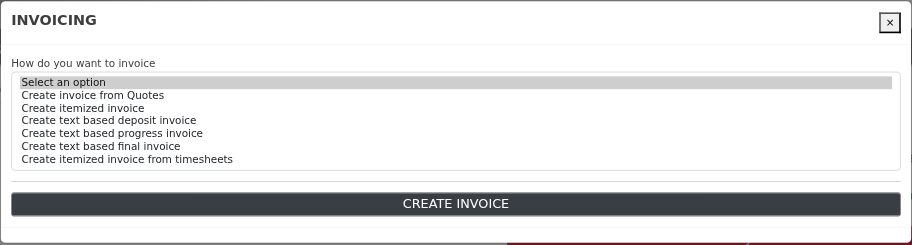
| Method | Builds lines from | Use it when |
|---|---|---|
| Create invoice from Quotes | The accepted quote(s) on the project | Billing quoted work — the whole quote, or each quote tab as a summary line. |
| Create itemized invoice | The project’s Inventory (project item) lines | Progressively billing what has actually been completed, item by item. |
| Create text based deposit invoice | A single free-text line you type | Taking a deposit up front, before any work is itemised. |
| Create text based progress invoice | A single free-text line you type | Claiming a stage payment or a percentage of the contract. |
| Create text based final invoice | A single free-text line, pre-filled with the balance | Billing whatever is left of the project in one line. |
| Create itemized invoice from timesheets | Uninvoiced, billable timesheet entries | Labour-based and do-and-charge work — see the Invoicing Timesheets guide. |
Two Settings Common to Most Methods
Select Target Invoice
Rather than always creating a new invoice, you can add the new lines to an existing draft invoice. The list shows every open (uncommitted) invoice that either belongs to this project or belongs to this customer, split into two groups:
- Draft invoices already linked to this project — listed first.
- Draft invoices for the same customer on other projects — listed under a separator. Choosing one of these adds this project’s lines to that invoice, so a single invoice can carry work from several projects.
Leave it on Create New Invoice to start a fresh draft.
When you add a quote to an existing invoice, each imported line gets the quote number appended to its description — see Which line came from which quote below.
Select Invoice Type
The invoice type comes from your company’s quote/invoice types (set up under Settings) and controls which document template and wording the printed invoice uses — for example Supply Only or Supply & Install.
Leave it on Please Select and the invoice inherits the type of the quote it came from (or no type at all, for the itemised, timesheet and text based methods). Choosing a type here overrides the quote’s own type.
The type is only applied to an invoice being created. Adding lines to an existing invoice never changes that invoice’s type.
Method 1 — Create Invoice from Quotes
This is the normal way to bill quoted work. Tick the quote(s) you want to bill and Evolution copies the quote across to a new invoice.
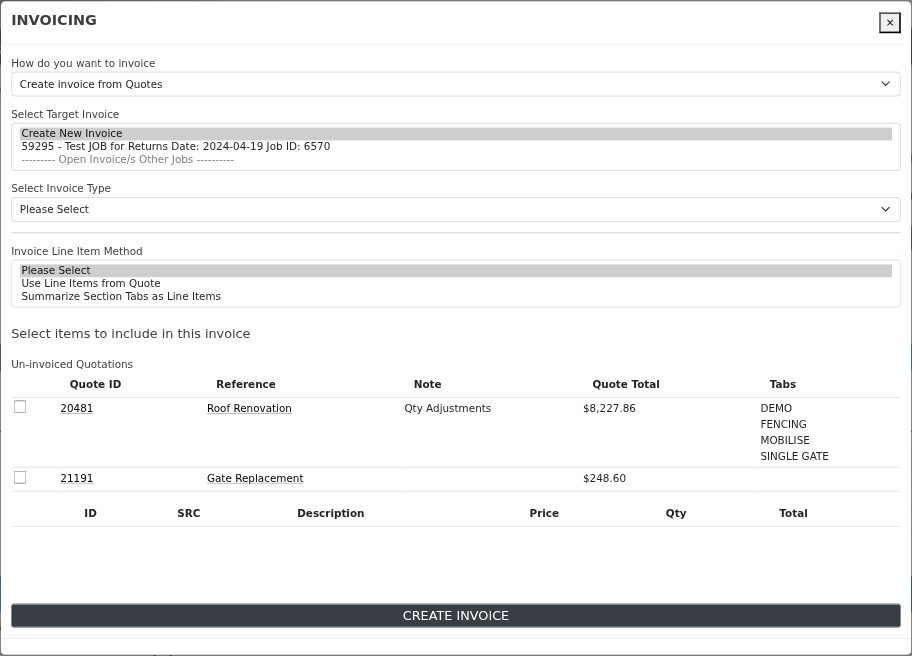
Invoice Line Item Method
Decide how much of the quote the customer sees:
| Option | What you get |
|---|---|
| Use Line Items from Quote | Every quote line becomes its own invoice line, at the quoted price, quantity and tax. Maximum detail. Identical lines are merged together so the invoice does not repeat itself, and any line that ends up at zero value is dropped. |
| Summarize Section Tabs as Line Items | One invoice line per quote section tab, priced at that section’s total, with the tab name and notes as the description. Much shorter invoice. If part of the quote value does not sit inside any tab, it is added as a single catch-all line so the invoice still adds up to the quote. Each summary line carries the tax rate of the items inside the tab — see Tax on summarised sections. |
What the Quote List Tells You
- Tabs — the section tabs on that quote, so you can see whether the Summarize Section Tabs option will produce a sensible invoice.
- Qty Adjustments in the Note column — quantities on this project were changed after the quote was accepted. The invoice picks up the project’s quantity and price, not the original quoted figures.
- “n Item/s belonging to this quote set to Do Not Invoice” — the quote total is shown struck through with the reduced, billable figure beneath it. Those items still appear on the invoice, but at zero value and with (Item Flagged Do not Invoice on Job) added to the description, so the customer can see the work was done at no charge. Delete the lines on the draft invoice if you would rather they were not shown at all.
- Declined optional extras are never billed. Sections marked as an optional extra that the customer has not accepted are left off the invoice entirely.
Tax on Summarised Sections
When you summarise section tabs, each summary line takes the tax rate of the items inside that tab, so the invoice shows the same GST the customer was quoted. The line is also posted to the income account the quoted items use.
If a single tab mixes tax rates — some items GST, some GST free — that tab is summarised as one line per rate rather than one line for the tab, with the rate name added to the description so the split is obvious:
3.DIPLOMAT FENCING (GST)     1,240.00
3.DIPLOMAT FENCING (FREE)      180.00
The section total is unchanged — it is just shown across two lines instead of one. Tabs that use a single rate throughout are summarised as one line with no rate name, as before.
Which Line Came from Which Quote
When an invoice ends up carrying more than one quote — because you ticked several quotes at once, or added a quote to an existing invoice — every imported line has its quote number appended to the description, for example:
Chain Link Single Gate 1800 H x 6700 W Opening (Quote 23272)
Delivery to site. (Quote 22429)
FENCING (Quote 22431)
So the customer can see which part of the invoice answers which quote, and identical items priced the same on two different quotes stay as separate lines instead of being merged into one. A single quote invoiced on its own to a new invoice is not tagged — there is nothing to tell apart. The text is part of the line description, so you can edit or remove it on the draft invoice like any other wording.
Extra Items Added to the Project
Below the quote list, a second table appears when the project carries items that are not part of a quote — variations, do-and-charge items, and quantity increases. Tick these to add them to the same invoice. The quantity shown is what is still un-invoiced, so an item part-billed earlier only offers the remainder.
Method 2 — Create Itemized Invoice
This method bills straight from the project’s Inventory tab — the project item list — rather than from a quote. It is the method to use for progressive billing, because it only offers what has actually been completed and not yet billed.
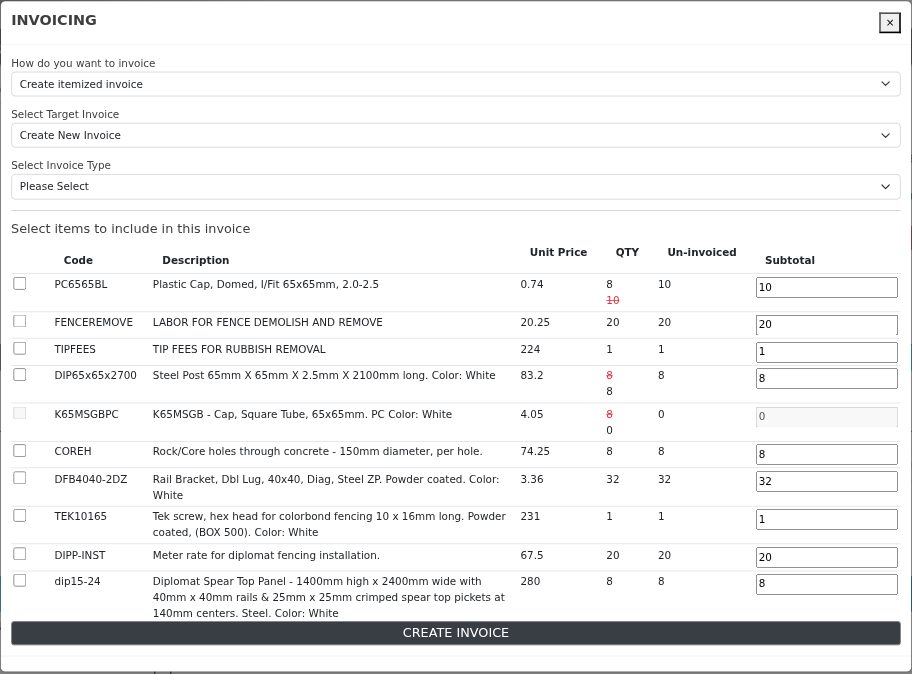
Reading the columns:
- QTY — the quantity on the project. Where the quantity was changed after the quote, the original is shown struck through in red above (or below) the current figure.
- Un-invoiced — project quantity less everything already invoiced for that item.
- Subtotal — the editable box, and the only figure that is actually billed. It defaults to the quantity marked complete but not yet invoiced, which is usually what you want. Type over it to bill more or less; decimals are allowed.
Tick a row to include it, adjust the quantity if needed, and press CREATE INVOICE. Each ticked item becomes one invoice line at the project item’s price, carrying its description, income account and GST treatment.
Because these lines are tied to the individual project items, this is the method that keeps Uninvoiced WIP and the project’s invoiced-versus-budget progress bar honest.
Methods 3, 4 & 5 — Text Based Deposit, Progress and Final Invoices
All three work the same way: they raise one invoice line with a description you write and a value you nominate. Nothing is itemised, so use them when the customer wants a lump sum rather than a breakdown.
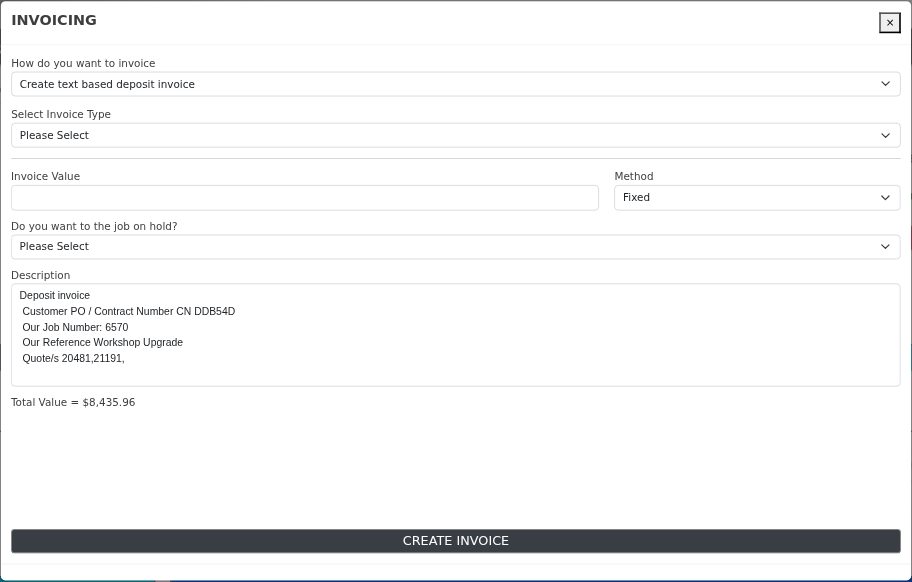
Invoice Value and Method
- Fixed — the value you type is the invoice amount (excluding GST).
- Percentage — the value you type is treated as a percentage of
the project’s total quoted value (quotes plus variations), not of
the amount still outstanding. Enter
20for a 20% claim.
Description
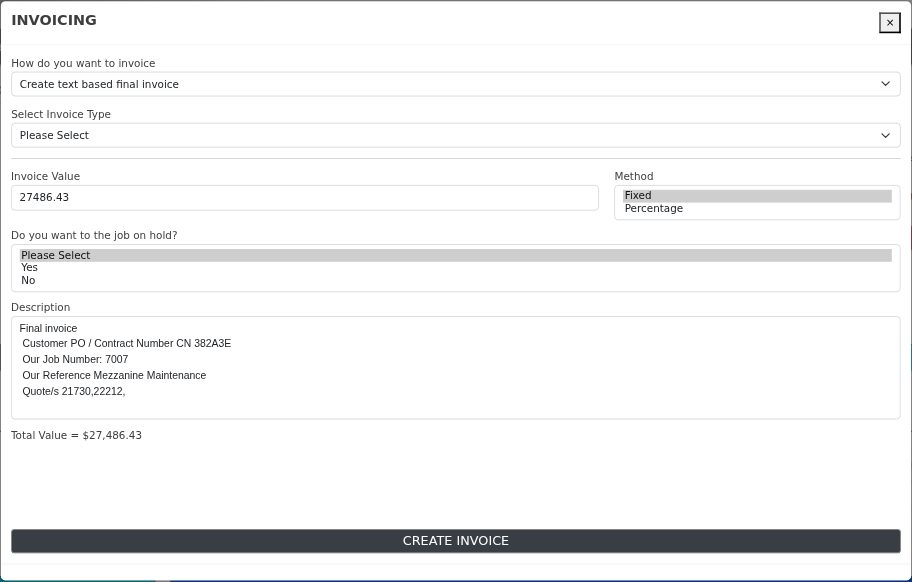
Pre-filled with the invoice type, the customer’s PO / contract number, the project number, the project reference and the quote numbers on the project. It is a free-text box — replace or extend it with whatever the customer needs to see, since this text is the only description on the invoice.
Do you want to put the project on hold?
Answering Yes puts the project On Hold with the reason Credit — Deposit Pending. This is the normal choice for a deposit invoice: work stays paused until the deposit is received, at which point you clear the hold on the project’s General tab. Choose No for progress and final invoices.
The Final Invoice Shortcut
Choosing Create text based final invoice pre-fills the value with the project’s remaining amount — estimated revenue less what has already been invoiced — so a single click bills out the balance of the project.
Method 6 — From Timesheets
Create itemized invoice from timesheets bills uninvoiced, billable labour recorded against the project, either as one line per timesheet entry or summarised per project item. It has its own guide:
The option only shows when the Timesheets module is enabled for your company and you have Timesheets admin rights (or you are a system administrator).
After Pressing Create Invoice
Whichever method you use, Evolution creates the invoice as a draft and takes you straight to it so you can check it before it goes anywhere.
- Review the lines, the customer, the dates and the totals.
- The invoice date is today; the due date is calculated from the customer’s payment terms.
- Add, edit or delete lines as needed — a draft is fully editable.
- Commit the invoice when you are happy with it. Committing is what posts it to the general ledger, makes it payable, and sends it to Xero if your company syncs to Xero.
The invoice then appears in the project’s Job Costing tab under Invoices, and the invoiced-versus-budget progress bar moves.
Flag for Invoice Review
If an invoice needs a second pair of eyes before it goes out, use Flag for Invoice Review next to the INVOICE PROJECT button and record the reason. The project stays flagged until someone presses Clear Invoice Review. Flagging and clearing require accounts-receivable admin rights (or a system administrator).
Credit Notes on the Project
If credit notes have been raised against the project, they are listed at the top of the Invoice Project window for reference, with a link to each one. This list is read-only — credit notes are created from the invoice, the bill or the credit note register, never from here. Committed credit notes reduce the invoiced revenue shown on the Job Costing tab.
Frequently Asked Questions
Can I use more than one method on the same project?
Yes, and it is common — a text based deposit up front, itemised or timesheet invoices as the work progresses, then a final invoice. Just keep an eye on the totals: only the itemised, quote and timesheet methods reduce the project’s un-invoiced quantities, so a deposit already taken will not be deducted automatically.
A quote is missing from the Un-invoiced Quotations list.
It has already been invoiced (a quote can only be billed once), or the quote is closed. Check the project’s Quotes tab, and the Invoices table on the Job Costing tab, to see which invoice it went onto.
Nothing is selectable on the itemised list.
Nothing has been marked complete against those items yet, or everything complete has already been invoiced. Update completion on the project’s Inventory tab, or bill by quote or by timesheet instead.
The invoice went to a draft — when does the customer see it?
Not until you commit and send it. Creating the invoice from the project never emails anything.
I picked the wrong method — can I undo it?
While the invoice is still a draft, delete the lines (or the whole invoice) and start again. Once an invoice is committed it is locked; an administrator must un-commit it first, and un-committing an invoice that has synced to Xero will re-sync it on commit.