
A dispatch records what physically left the yard for a project. Once that dispatch has been committed you can turn it straight into an invoice, so the customer is billed for the goods actually delivered — in the quantities delivered — without going back to the quote or picking through the project’s items.
This is a different starting point to every method in Invoicing a Project: those all begin in the project’s Invoice Project window and bill from what was quoted or recorded. Dispatch invoicing begins on the delivery and bills from what was shipped. Use it when you deliver in several drops and want an invoice per drop.
Before You Start
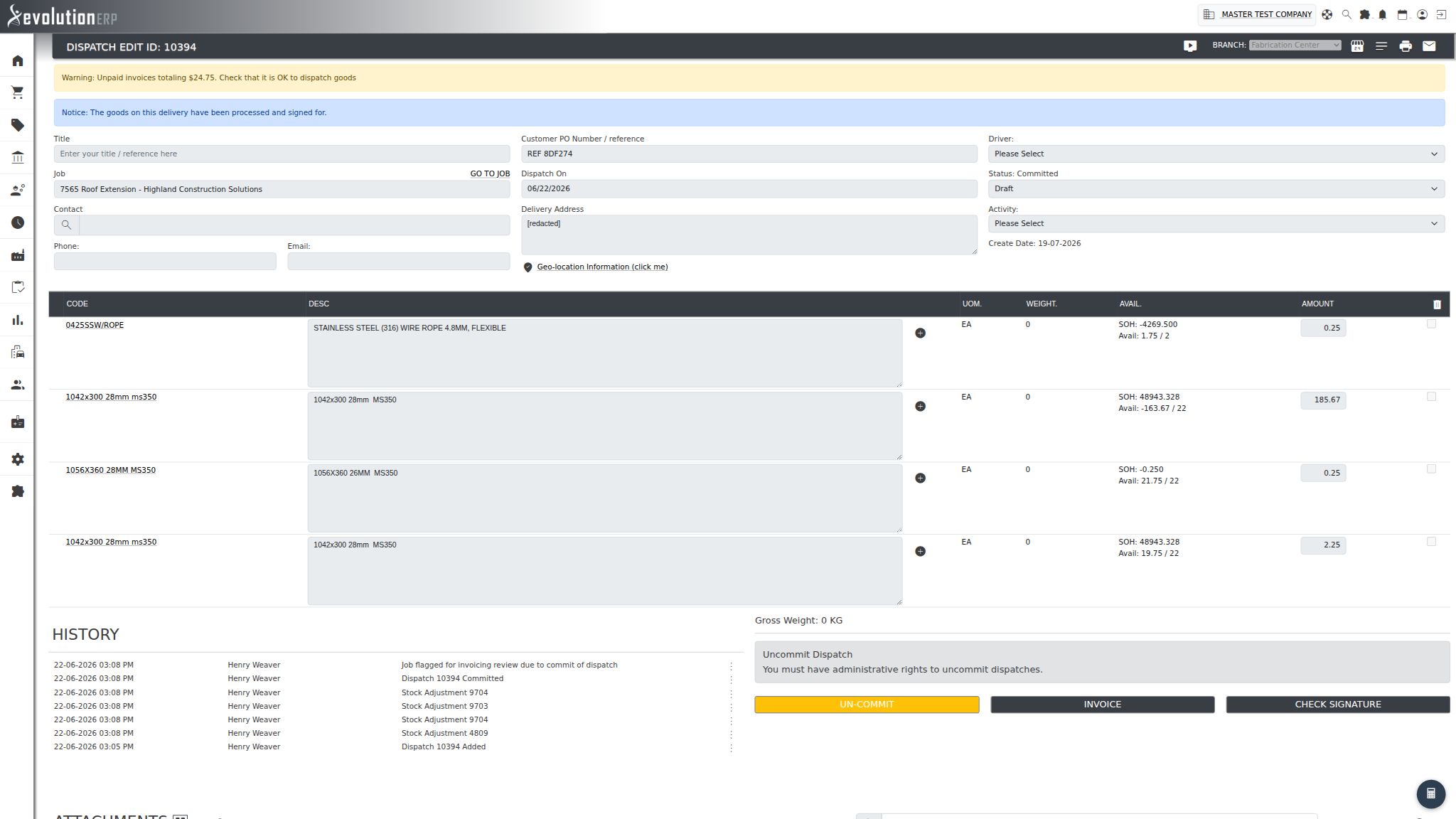
The INVOICE button only appears when all of the following are true:
- the dispatch status is Committed — a Draft or Delivery Pending dispatch cannot be invoiced, because the quantities are not final and stock has not yet moved;
- the project is still open — a closed or cancelled project offers no invoice button;
- you have administrator rights in either Job Costing or Inventory;
- the dispatch has not already been invoiced — once it has, the button is replaced by a link reading INVOICE 12345 that opens the invoice already raised for the delivery.
The button is also greyed out, with the message “Already invoiced against the project — nothing left to bill”, when everything on the delivery has already been billed from the project by one of the other methods. Where only some of it has, the button stays live and tells you how much of the delivery it will bill. See Goods already invoiced from the project.
If you expected the button and it is not there, check the status shown at the top right of the dispatch first, then the project status, then your permissions with your system administrator. Permission changes only take effect after you log out and back in.
Raising the Invoice
Open the dispatch — from Dispatches in the menu, or from the Dispatch tab on the project, which lists every dispatch raised against that project. Scroll to the bottom of the dispatch. The INVOICE button sits beside UN-COMMIT, under the heading Uncommit Dispatch.

Press it. Evolution builds a draft invoice and takes you straight to it in Invoice Entry, where you can edit it like any other draft before committing. Come back to the dispatch afterwards and the button now reads INVOICE followed by the invoice number — click it to reopen that invoice.
What Ends Up on the Invoice
| On the invoice | Where it comes from |
|---|---|
| One line per dispatch line | Each line on the dispatch becomes its own invoice line, in dispatch order. Lines are not merged or summarised, so if the same item appears twice on the delivery it appears twice on the invoice. |
| Quantity | The quantity dispatched — the AMOUNT column on the dispatch line. Deliver 3 of a quoted 10 and the invoice is for 3. Anything on that line already invoiced from the project is deducted first, and the project item’s own invoicing option can cap it lower still — see Goods already invoiced from the project. |
| Price | The sell price held against the item on the project, so any price negotiated or adjusted on the project carries through. Discounts are not applied. A line added straight onto the delivery, with no matching item on the project, has no price to read — it comes across at 0.00 and Evolution tells you how many lines need pricing. |
| Description | The description on the dispatch line, as printed on the delivery docket. |
| Tax and income account | Inherited from the stock item — its sell tax code and its income account. An item with no sell tax code set comes through with no GST, so check the tax column on the draft. |
| Customer PO, reference, invoice type | Taken from the project: its contract / customer PO number and its reference. The invoice type is set from the project’s category where a document type of the same name exists, otherwise it is left blank for you to choose. |
| Contact, email and phone | The contact named on the delivery — the person who received the goods — so the invoice goes to whoever signed for them. Where that person is also a contact record against the customer, the invoice is linked to that record and any email or phone missing from the delivery is filled in from it. Where the delivery names nobody, the customer’s first contact record is used instead. |
The invoice is a draft. Nothing is posted to the general ledger, no balance is owed and nothing syncs to Xero until you commit it. Delete it if it is not what you wanted — see If something goes wrong.
What It Does Not Do
Dispatch invoicing is deliberately narrow. Being clear about its limits will save you reconciling later:
- It always creates a new invoice. There is no option to add the delivery to an existing draft. If you want several deliveries on one invoice, invoice the first one and then copy or re-key the later lines onto that draft, or bill from the project instead using Invoicing a Project.
- It does not mark the dispatch as invoiced on the project’s Dispatch
tab. The
Invoiced column on that tab shows
N/Afor every line. To see whether a delivery has been billed, open the dispatch and look at the button — it carries the invoice number — or check the Invoices table on the project’s Job Costing tab. - It does not bill labour or charges. A dispatch carries goods only. Bill labour through Invoicing Timesheets, and deposits or progress claims through the text based methods on the project.
- It does not price ad-hoc lines. Every dispatch line is carried onto the invoice, including lines added straight onto the delivery, but those come across at 0.00 for you to price.
Goods Already Invoiced From the Project
Dispatch invoicing and the methods on the project bill the same goods from opposite ends, and the guard works in both directions. Invoice a delivery and those quantities disappear from the project’s un-invoiced total. Invoice from the project first — through Itemized Invoice, say — and the delivery knows about it too.
Before it builds the invoice, Evolution works out what is genuinely left to bill:
- Everything already billed is deducted. If a project item has been part invoiced from the project, only the balance is carried onto the invoice. A line billed in full is left off the invoice altogether.
- Nothing is left to bill — the INVOICE button is greyed out and says so. Nothing is created and no empty invoice is left behind.
- Some of it is left to bill — the button stays live and a note under it reads, for example, “Part of this delivery is already invoiced against the project — only 22 of 60 will be billed”, so you know before you press it. Press it and Evolution repeats how many lines were shortened or left off.


The invoicing option set against the item on the project’s Inventory tab is honoured as well, so the delivery cannot bill something the project says is not billable:
| Invoicing option on the project item | What the delivery bills |
|---|---|
| Invoice/Credit Extras | Up to the quantity on the project item, variations included. Deliver more than the project carries and only the project quantity is billed — the surplus has nothing to be charged against. |
| Do not invoice/Credit Extras | Up to the original quantity, so a variation is neither charged nor credited. Where the project item was ordered at 8 and later varied to 10, delivering 10 bills 8. |
| Disable All Invoicing | Nothing. The line is left off the invoice, exactly as the project’s own invoicing methods leave it off. |
Lines added straight onto the delivery, with no matching item on the project, have no project item to check against and are always carried across in full — at 0.00, for you to price.
Committing the Dispatch Also Flags the Project
Committing a dispatch writes “Project flagged for invoicing review due to commit of dispatch” into the dispatch history and flags the project for invoicing review, so it appears on the invoicing review list for someone to bill. That happens whether or not you use the INVOICE button — it is a prompt to bill the delivery, not a record that you have.
Raising the invoice is recorded separately, as “Dispatch 10395 invoiced on invoice 59909” in the dispatch’s own History panel and in the project’s history, so who billed a delivery and when is on the record.
If Something Goes Wrong
I raised the invoice by mistake
While it is still a draft, delete the invoice from Invoice Entry. The dispatch stays committed and the goods stay dispatched; you can invoice it again afterwards.
The quantities are wrong
Fix them on the dispatch, not the invoice, so the delivery docket and the invoice agree. An administrator must UN-COMMIT the dispatch first, which reverses the stock movements; correct the quantities, commit again, then invoice.
The button says a different invoice number to the one I expected
The dispatch has already been invoiced and the button links to that invoice. Open it and check it before raising anything else. To bill the delivery on a different invoice, delete the existing one while it is still a draft — the button then returns and the dispatch can be invoiced again. If it has been committed, raise a credit note against it — see Credit Notes.
The INVOICE button is greyed out
Everything on the delivery has already been invoiced against the project by one of the other methods, so there is nothing left to bill. Open the project’s Project Costing tab and look at the invoices listed there to find the one that covers the goods. If that invoice is wrong, correct or delete it — the button comes back as soon as the goods are un-invoiced again.
The invoice is short of what I delivered
Some of those goods had already been billed from the project, so only the balance was carried across; the note under the button and the message after you press it both say how much. The other cause is the invoicing option on the project item — an item set to Do not invoice/Credit Extras bills only its original quantity, and one set to Disable All Invoicing bills nothing. Check the item on the project’s Inventory tab, and see Goods already invoiced from the project.
Some lines came through at 0.00
Those lines were added straight onto the delivery and have no matching item on the project to take a price from. Type the price onto the invoice line before committing.
The GST is missing on some lines
The stock item has no sell tax code set. Set the tax on the invoice line to get the invoice out, then fix the item in Inventory so later invoices are right.