
A back order records the quantity of a purchase-order line that a supplier still owes you — the part they couldn't ship yet. It captures the outstanding quantity, a promised ETA date and a reason, so nothing that's part-shipped slips through the cracks and you always know when the balance is due.
info Back orders sit within the wider tracking picture — see Purchase Tracking for the dashboards, registers and reports around them.
Raising a Back Order on a Purchase Order
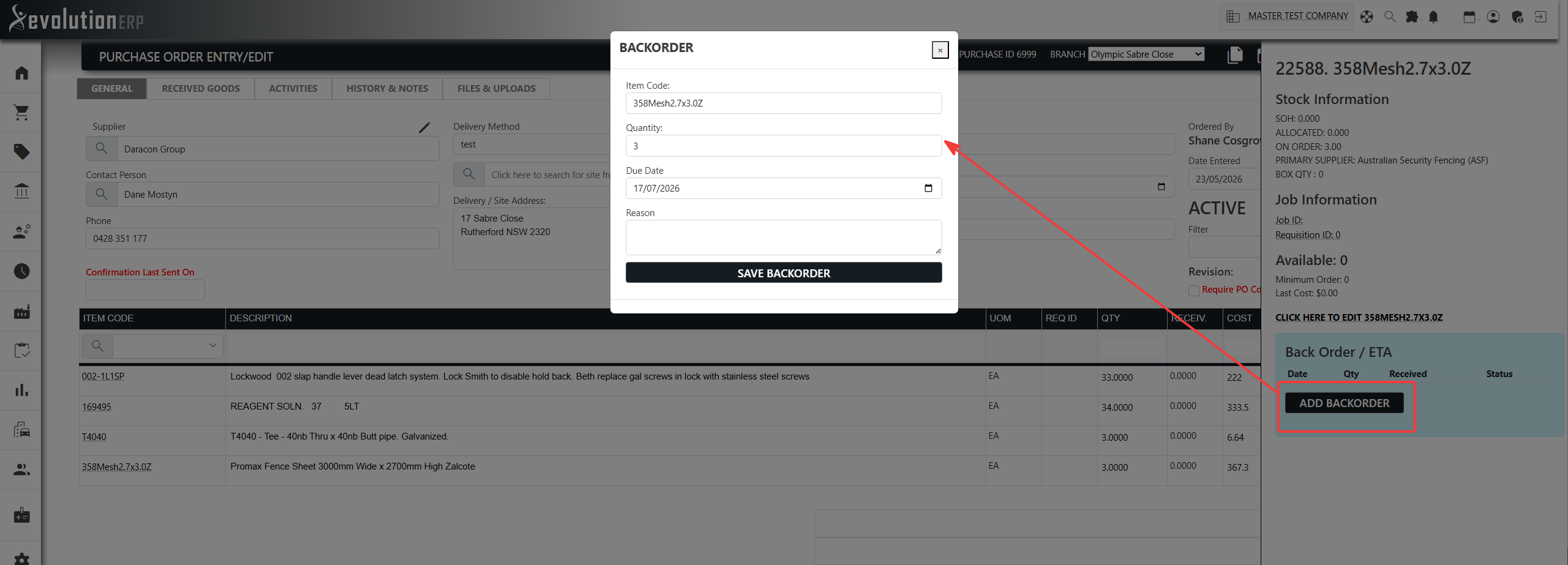
Open the purchase order (page=purchaseadd). On the line that was only
part-supplied, open its more menu — it has a Back Order / ETA
panel listing any existing back orders (Date, Qty, Received, Status) and an
Add Backorder button.
- Click Add Backorder. The Backorder window opens with the item code filled in and the quantity pre-set to what's still outstanding (ordered minus received).
- Check the Quantity (you can't back-order more than is still outstanding on the line).
- Set the Due Date — the supplier's promised ETA for the outstanding stock (defaults to today).
- Enter a Reason (free text — e.g. "supplier out of stock, ETA next shipment").
- Click Save Backorder.
A blue Backorder badge then appears on that PO line, and the line shows up wherever back orders are tracked.
Automatic Back Orders on Receipt
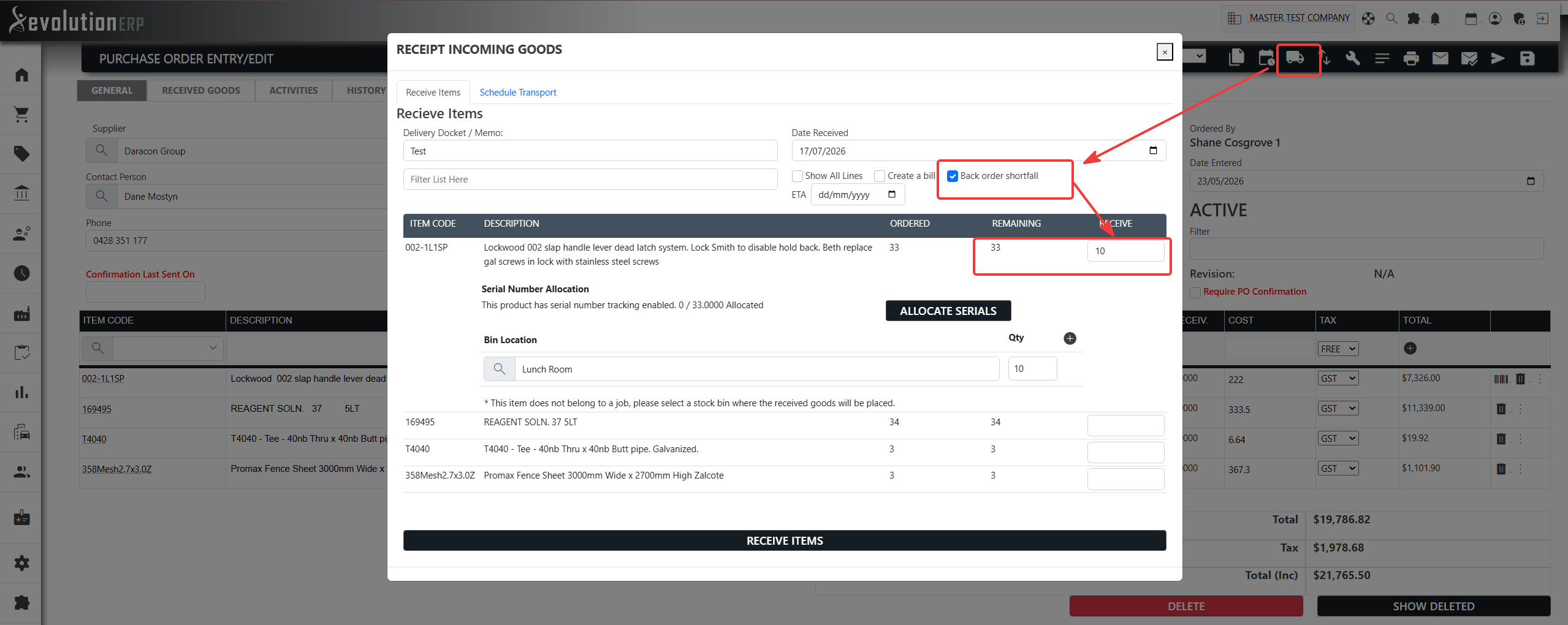
When you receive stock against a purchase order, the local_shipping Receive Items window has a Back order shortfall option (on by default) with an ETA date beside it. With it ticked, saving a part-receipt automatically raises a back order for whatever is still outstanding on each line you received — so nothing that's part-shipped is ever left untracked.
- Enter the quantities that arrived in the usual Receive boxes.
- Leave Back order shortfall ticked (untick it if you don't want automatic back orders for this receipt).
- Optionally set the ETA — the promised date for the outstanding stock. Left blank, the received date is used and you can refine it later.
- Click Receive Items. Each line you received that still has a balance gets a pending back order for the shortfall, reason "Auto-raised on partial receipt". The note under the Receive box previews this as you type ("A back order for 40 will be created").
edit_calendar Because the ETA defaults to the received date, it's worth setting a real promised date at receipt time (or editing it afterwards) so the on-order ETA and the register's due-date filters stay meaningful.
Managing Back Orders on a PO
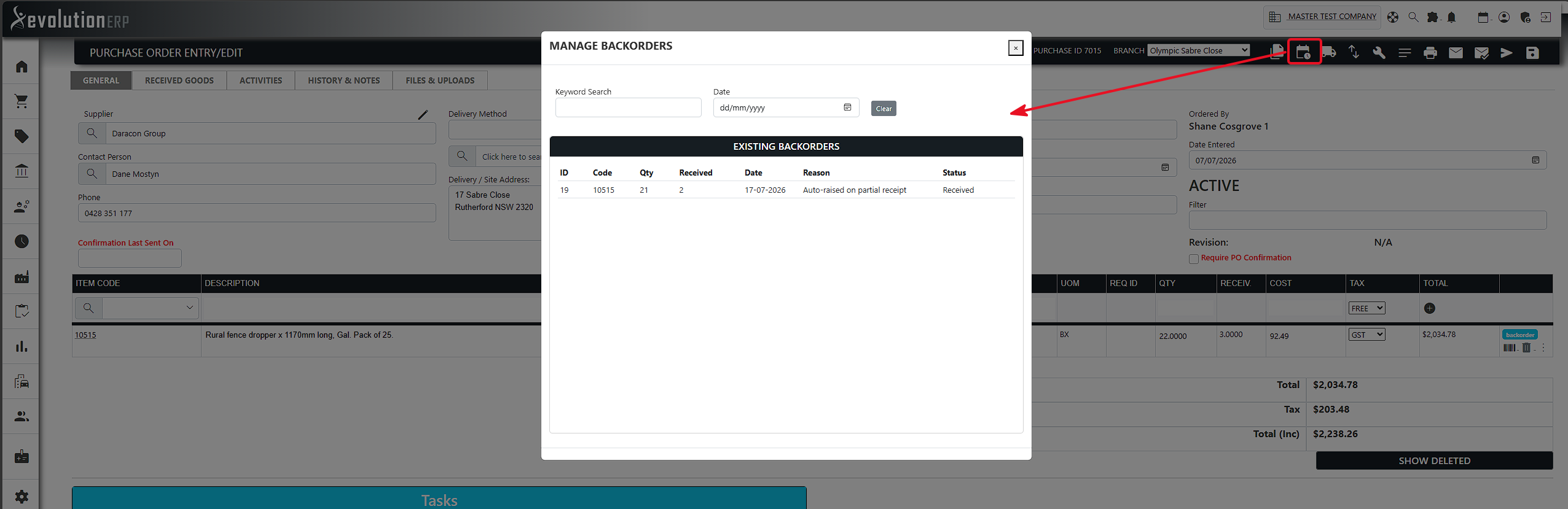
The PO header toolbar has a calendar_clock calendar icon that opens the Manage Backorders window — a single place to review every back order on that purchase order.
- The Existing backorders list shows each back order's ID, Code, Qty, Received, Date, Reason and Status.
- Click a row to load it into the Edit backorder form, where you can adjust the Quantity, Due Date and Reason, then Save Backorder.
- A back order can be deleted only while it's still pending — once anything has been received against it, the delete option disappears so history stays intact.
Receiving Against a Back Order
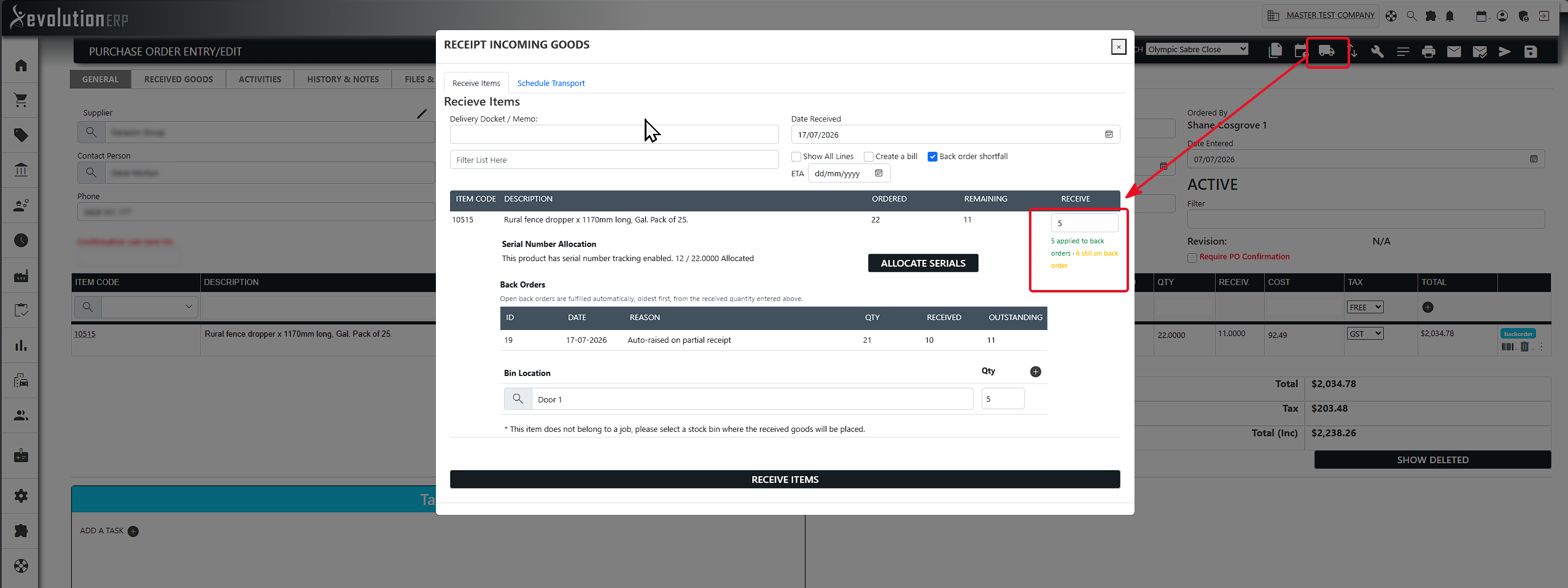
When the outstanding stock arrives, receive it through the PO's local_shipping Receive Items window exactly as you would any other receipt — you only key the quantity once, in the line's Receive box. Any open back order on that line is fulfilled automatically from what you receive; there is no longer a separate box to fill in per back order.
- Enter the quantity that arrived in the line's Receive box.
- Evolution applies it to the line's open back orders oldest first, capping each at what it still has outstanding, and marks a back order Completed once it is fully fulfilled.
- Click Receive Items to save. Stock on hand and each back order's received quantity are updated together, and the allocation is logged against the record.
straighten Back orders now hold the exact outstanding quantity, including fractions (metres, litres, kilograms), so a part-shipment of a decimal quantity is tracked to four decimal places rather than being rounded to a whole unit.
Back Order Status
Each back order moves through three states as it's fulfilled:
| Status | Meaning |
|---|---|
| Pending | Raised, with nothing received against it yet. Only pending back orders can be deleted. |
| Received | Some — but not all — of the quantity has been received. |
| Completed | Fully received. Completed back orders drop out of the receive screen. |
The Back Orders Register
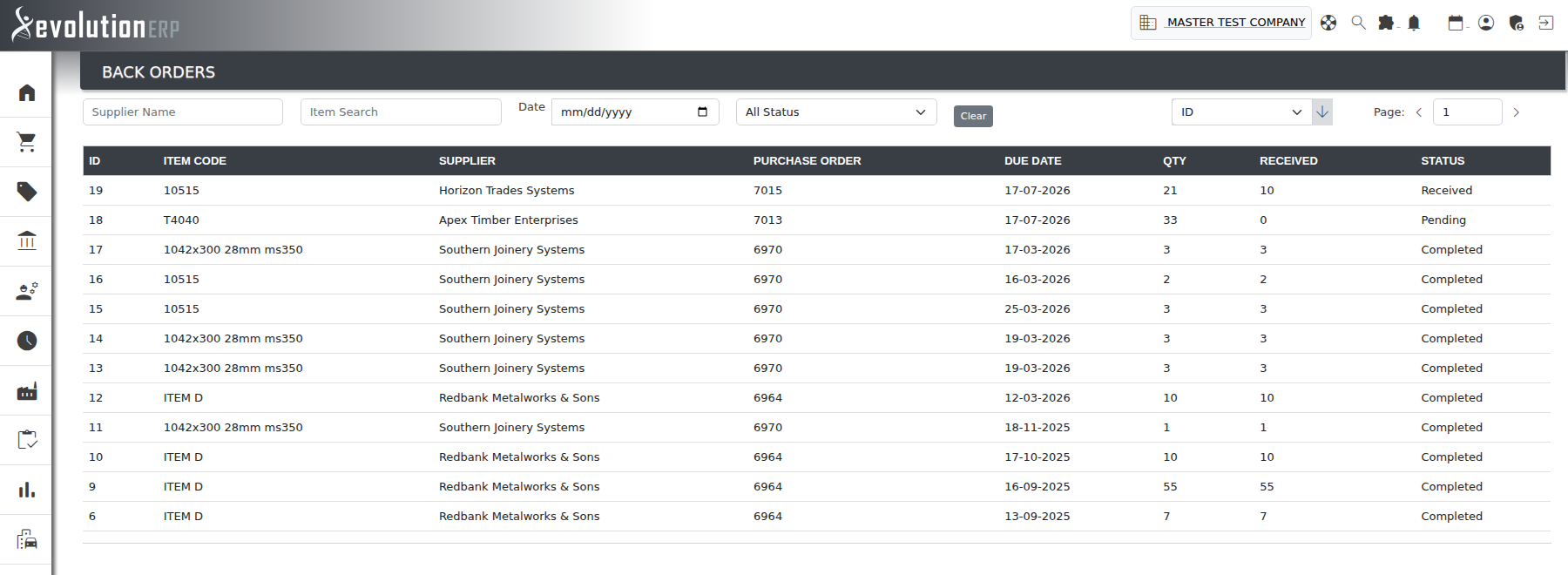
To see back orders across all purchase orders, go to
Purchasing → Back Orders (page=backorderreg). The
Back Orders register lists every active back order with columns for
ID, Item Code, Supplier,
Purchase Order, Due Date, Qty,
Received and Status.
Filter and search the list by:
- Supplier Name and Item Search (code, SKU or description);
- Date — show back orders due on or before a chosen date (handy for "what's due this week");
- Status — All, Pending, Received or Completed.
Click any row to jump straight to its purchase order, where you edit, receive or manage the back order. (Your last search is remembered for a few minutes as you navigate.)
Where Else Back Orders Appear
- On Order popup (per item) — the outstanding quantity shows with a Backorder badge, and the back order's Due Date drives the line's ETA. See Purchase Tracking.
- Purchase Backorders dashboard card — a home-page card listing outstanding back order lines.
- PO Outstanding Items Report — open PO lines not yet fully received, with each line's ETA driven by its back order due date where one exists (Reports → Purchasing).
route Related: Purchase Orders (raising and receiving POs) and Purchase Tracking (the full set of tracking tools).