
Once a purchase requisition has been raised and turned into a purchase order, the project isn't done — you still need to know what's on order, what's overdue, and when stock will actually arrive. Evolution surfaces that picture in several places, each suited to a different question. This page is a map of those tracking tools and when to reach for each.
route The purchasing pipeline is Project → Purchase Requisitions → Purchase Orders → Accounts Payable. For how orders are created in the first place, see the Purchasing Overview, Purchase Requisitions and Purchase Orders.
- A daily overview at login → the purchasing dashboard cards.
- Everything still needing action, across all projects → the Requisition Register.
- Purchasing for one project → the project's Purchasing tab.
- What's coming for one stock item → the On Order popup.
- What one supplier still owes you → the supplier's Purchase tab.
- Part-shipments and promised dates → the back order system.
- A printable / exportable list → the purchasing reports.
Purchasing Dashboards
Your home page (My Dashboard) is made up of drag-and-drop cards. Several of these are purchasing cards that give you an at-a-glance status the moment you log in. Turn them on with the Customize Dashboard button and drag them into the column you want — each user chooses their own set.
| Dashboard card | What it shows |
|---|---|
| Requisitions Pending Approval | Requisition lines still waiting to be approved — for approvers to action. Each line links to the requisition. |
| Approved Requisitions (not yet ordered) | Approved demand that still needs to be turned into a purchase order — the buyer's to-do list. |
| Purchase Orders Pending Confirmation | POs sent to suppliers that haven't confirmed yet, with how many days overdue the confirmation is. You can mute chasing on a per-PO basis. |
| Overdue Purchase Orders | Active POs past their required-by date that still aren't fully received — your supplier chase list. Links straight to each PO. |
| Purchase Backorders | Outstanding backorder lines (still owed by the supplier), with item, PO, quantity, date and reason. See Purchase Back Orders. |
| Min/Max Reorder Summary | Categories with items below their minimum bin after counting stock already on order — the replenishment trigger. Links to the re-order screen per category. |
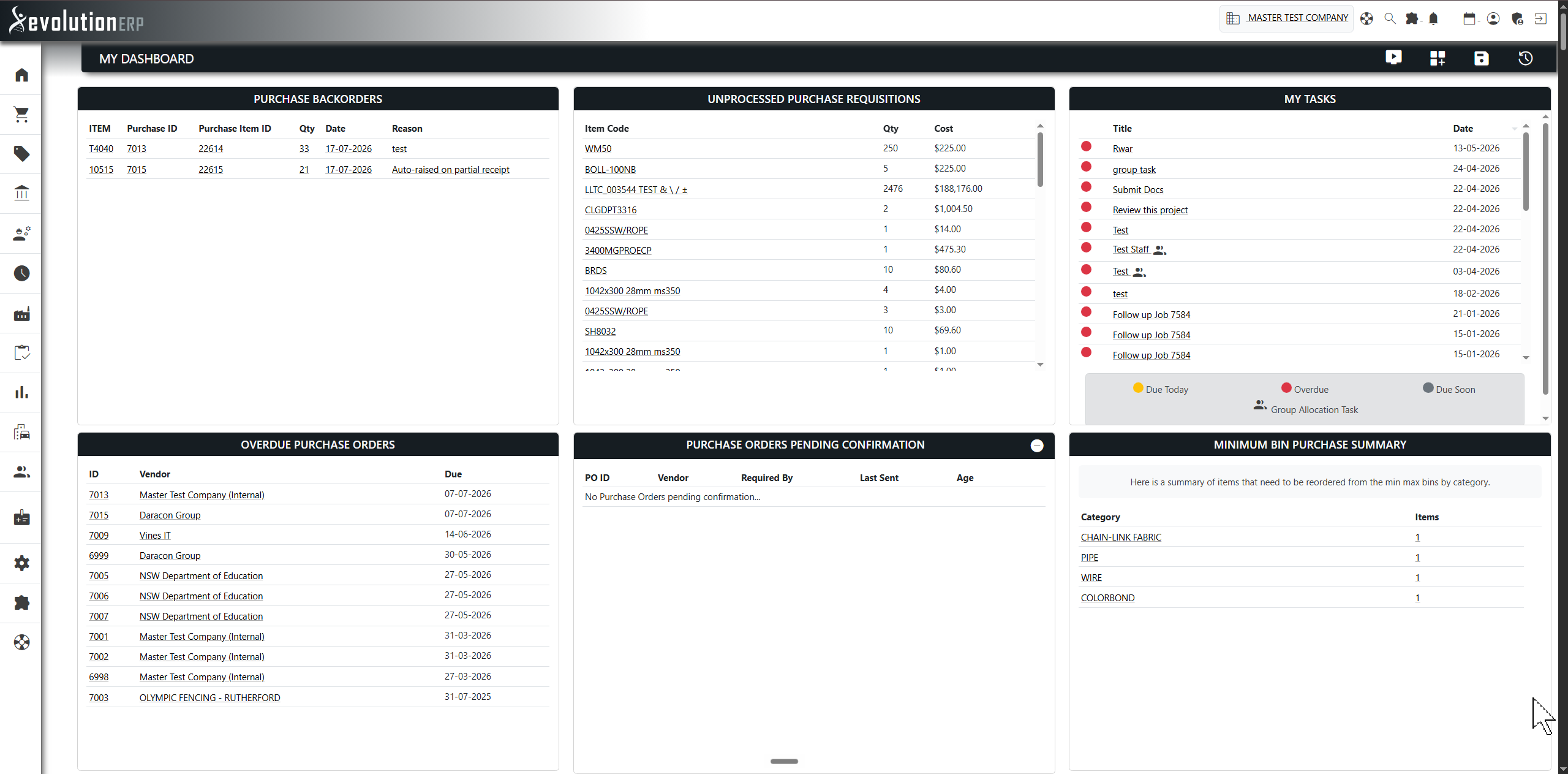
info The exact card titles are set per system, so yours may read slightly differently. If a card isn't in your list, open Customize Dashboard and tick it on.
The Requisition Register
Purchasing → Requisitions (page=reqreg) opens
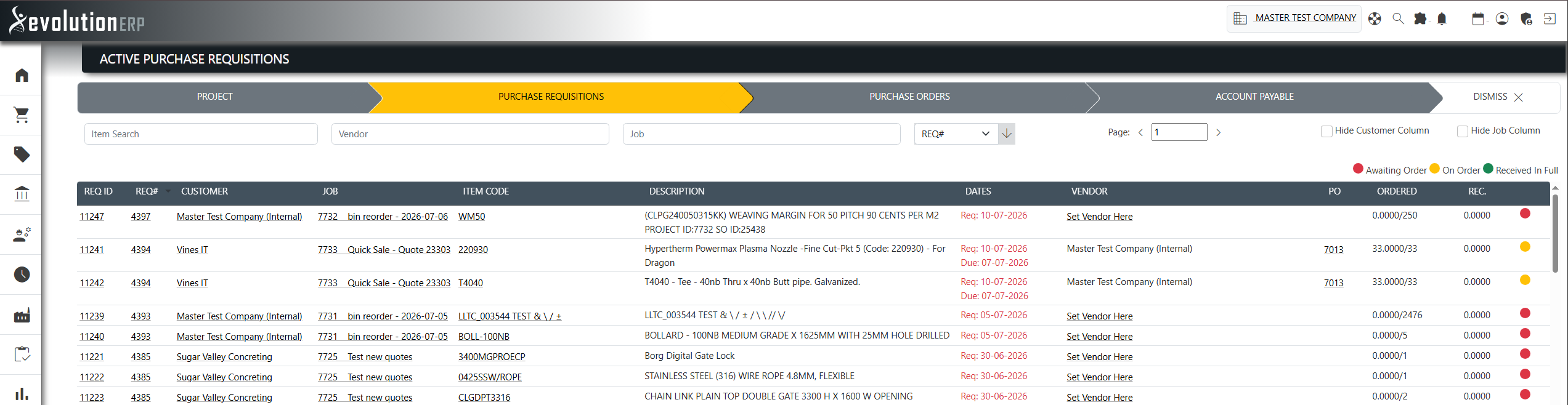
Active Purchase Requisitions — every requisition line across every project
that still needs action. Fully-received lines drop off automatically, so what's left is
your live workload.
Each line carries a status dot, and there's a legend on the page:
- Red — Awaiting Order: requisitioned but no PO raised yet.
- Amber — On Order: a PO exists but the goods aren't fully received.
- Green — Received In Full (these then drop off the active list).
From here you can:
- Raise a PO inline — a red line shows an add_circle_outline in the PO column; click it to create the purchase order and jump straight to it.
- Click through to the requisition (REQ ID / Item Code) or the purchase order (PO column) once it exists.
- Filter by item, vendor or project, sort the columns, and show/hide the Customer and Project columns.
- Track partial progress via the Ordered (ordered / required) and Rec. (received) columns and the combined Dates column (required-by and expected/ETA, overdue dates in red).
The Purchasing Tab on a Project
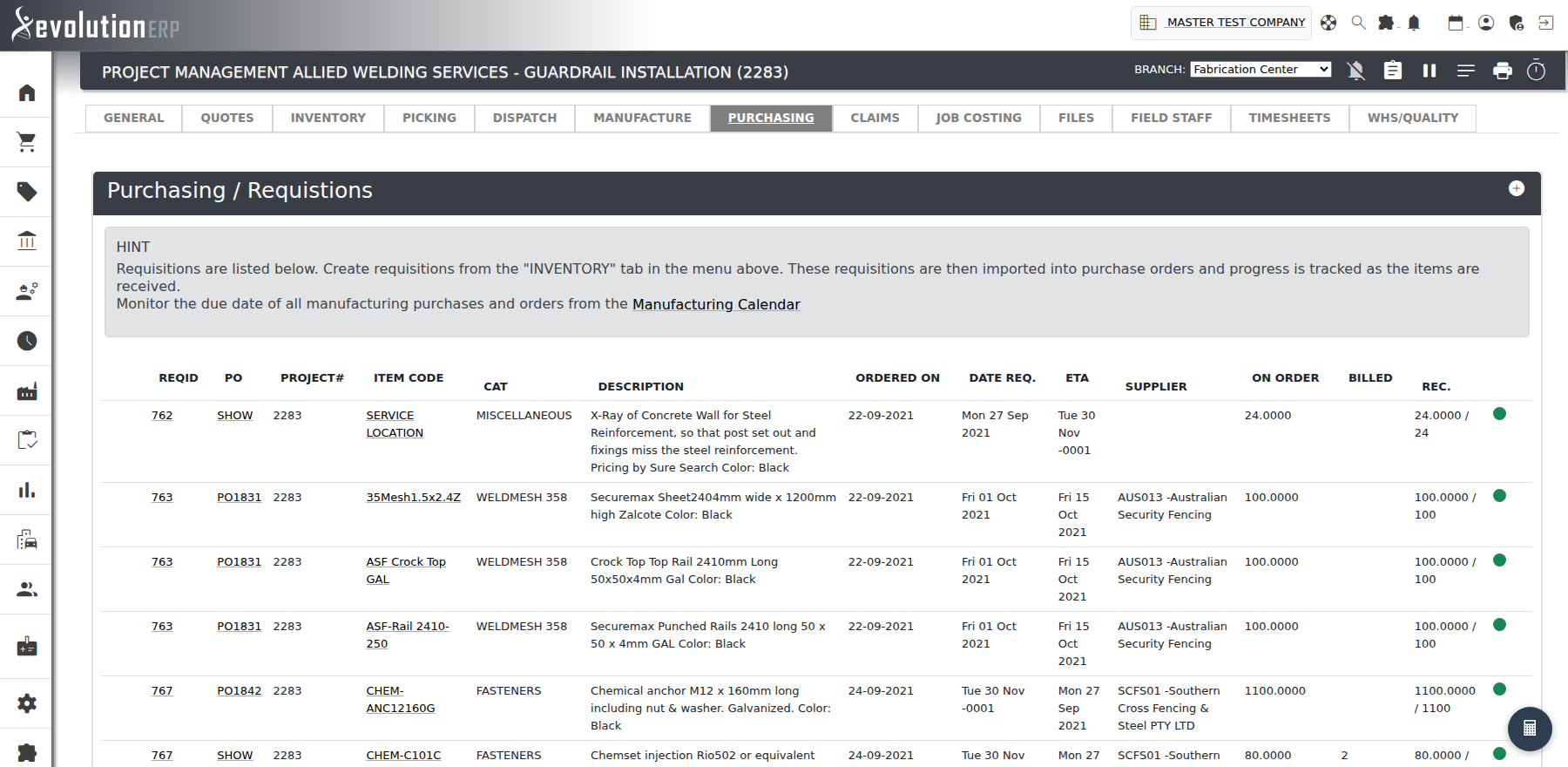
Where the register is cross-job, a single project's Purchasing tab is the
focused view for that project. Open a project (page=jobedit) and click the
Requisitions summary card to jump to the tab (headed
Purchasing / Requisitions). The count turns red when the project has overdue
requisitions.
It uses the same red / amber / green status dots as the register, and adds job-specific columns:
- PO & Ordered On — the purchase order and when it was raised (or a create-PO icon if none yet). Where several POs cover one line, a SHOW link lists them all.
- Date Req. and ETA — when the item is needed and when it's expected.
- Supplier, On Order and Rec. (received / qty) — who it's on order with and how much has landed.
- Billed — flags items received but not yet billed.
lightbulb The requisitions themselves are created from the project's Inventory tab, then imported onto purchase orders; this tab is where you watch them progress from requisitioned → on order → received. See Purchase Orders for the import step.
The On Order Popup (per stock item)
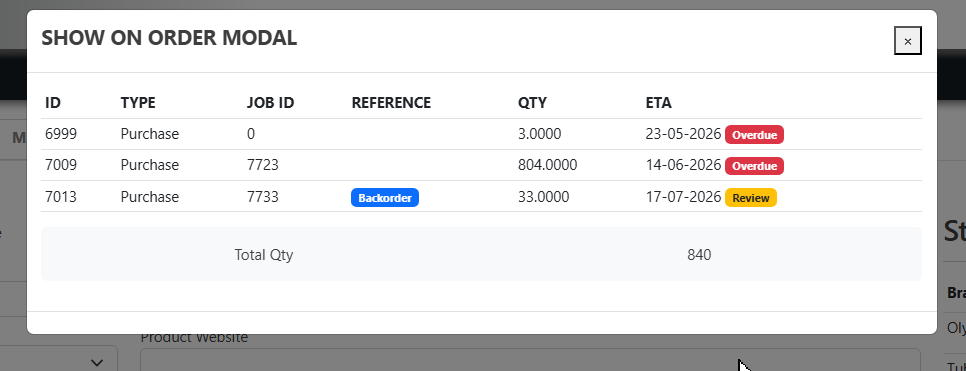
To see what's incoming for a single stock item, open the item in Inventory and, in the per-branch stock table, click the On Order quantity. The On Order popup lists every open supply line for that item at that branch — both purchase orders and workshop shop orders — with the project, reference and quantity.
The ETA is resolved down the supply chain, using the latest stage that exists:
Requisition date arrow_forward Purchase date arrow_forward Backorder date
So the date you see starts from when the stock was needed (the requisition), moves to the purchase order date once ordered, and finally to the supplier's promised backorder date if the delivery has been rescheduled — always reflecting the most up-to-date plan.
Two badges next to the ETA flag anything that needs attention:
- Review — the purchase or backorder date has slipped past the date the stock was originally needed. It'll still arrive, just later than planned.
- Overdue — the ETA has already passed and the stock still hasn't been received.
Lines sitting on a supplier backorder are also tagged with a Backorder badge next to their reference, so you can tell a straightforward order from one that's been split or rescheduled.
Back Orders
When a supplier ships only part of a purchase-order line, the outstanding remainder is tracked as a back order — a promised quantity with an ETA date. Back orders feed the ETA and badges in the On Order popup, appear on the Purchase Backorders dashboard card, and have their own register and report.
The Purchase Tab on a Supplier
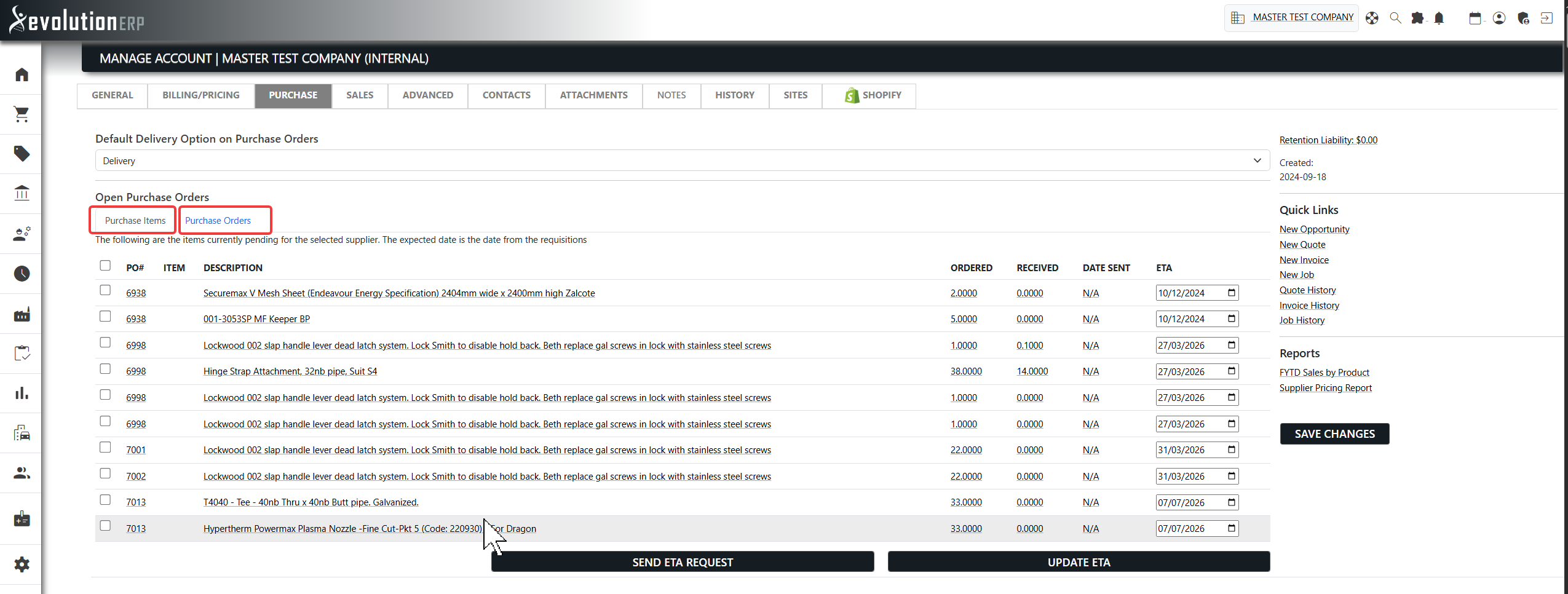
To track everything outstanding with one supplier, open their account record
(page=clientedit) and choose the Purchase tab. It shows the
supplier's open purchase activity across two sub-tabs:
- Purchase Items — every still-outstanding line on the supplier's open POs, with PO#, Item, Description, Ordered, Received, Date Sent and an editable ETA per line.
- Purchase Orders — the same activity grouped by PO (PO#, Reference, Ordered, Date Sent, ETA), each linking through to the order.
Two actions make this a live chase tool:
- Update ETA — edit the ETA dates inline and save them back against the lines.
- Send ETA Request — tick the open lines and email the supplier to request or confirm their delivery dates.
info The tab also sets the supplier's default delivery method on new POs, and the account's side panel surfaces any outstanding retention held against that supplier. An account is treated as a supplier via the Is Supplier flag on its General tab; the Purchase tab is only meaningful for accounts that actually have purchase orders.
Purchasing Reports
For a printable or exportable view, the report dashboard (Reports) groups the buying reports under a Purchasing card. The most useful for tracking:
| Report | What it shows |
|---|---|
| PO Outstanding Items Report | Every open PO line where received is less than ordered — PO, supplier, item, project, ordered/received/outstanding quantities and value at cost, with an ETA (back order due date or PO date) and Backorder / Overdue flags. Filter by branch and status. The go-to "what's still coming, and when" list. |
| Supplier Spend | Committed supplier bills over a date range, totalled per supplier into Net, GST and Gross — who you buy the most from, for supplier reviews and rebate talks. Branch filter and CSV export. |
| Open PO Commitments | The value of goods still on order (open PO lines not yet received) at cost, rolled up per supplier — your committed-but-not-yet-billed spend as at today. |
| Purchasing by Project | Purchase cost committed to each project — ordered, received and outstanding value from PO lines tagged to that project, grouped on the line-level project. |
| Demand Deficit — Finished Goods | Project demand versus stock on hand and on order, with the shortfall to cover by purchasing or making. Expand any item to see the projects driving its demand. |
| Inventory Re-order Insights | Per-item consumption, on-hand and on-order positions and total purchased over a date range (filter by category, branch and dates), with drill-downs and CSV export — for data-driven replenishment. |
| Min / Max Inventory Re-order Report | Items below their minimum bin with suggested re-order quantities up to the maximum. |
| Aged Payables (Creditors) | What you owe suppliers, aged into current / 1-30 / 31-60 / 61-90 / 90+ day buckets per supplier. (Filed under Financials.) |
| Outstanding AP Invoice Retention | Supplier bills still holding a retention balance, per project. |
| Supplier Pricing Report | The items and costs a given supplier prices — opened from that supplier's account record. |
info The demand, re-order and insights reports straddle inventory and purchasing — you'll also find them referenced from Inventory Reports.