
A purchase requisition is a request to buy the items a project needs. It's raised from the project itself, so the purchase stays linked to that project for costing and for tracking what the customer's order needs. Requisitions don't go to suppliers on their own — once approved, they're imported onto a purchase order.
info New to purchasing? Start with the Purchasing Overview to see when to use a requisition versus a standard purchase order.
Requisitioning Items from a Project
The most common way to raise a requisition is straight from the project's stock list — pick the items the project is short on and request them in one step.
- Go to Projects → Project Register and open the project you're buying for.
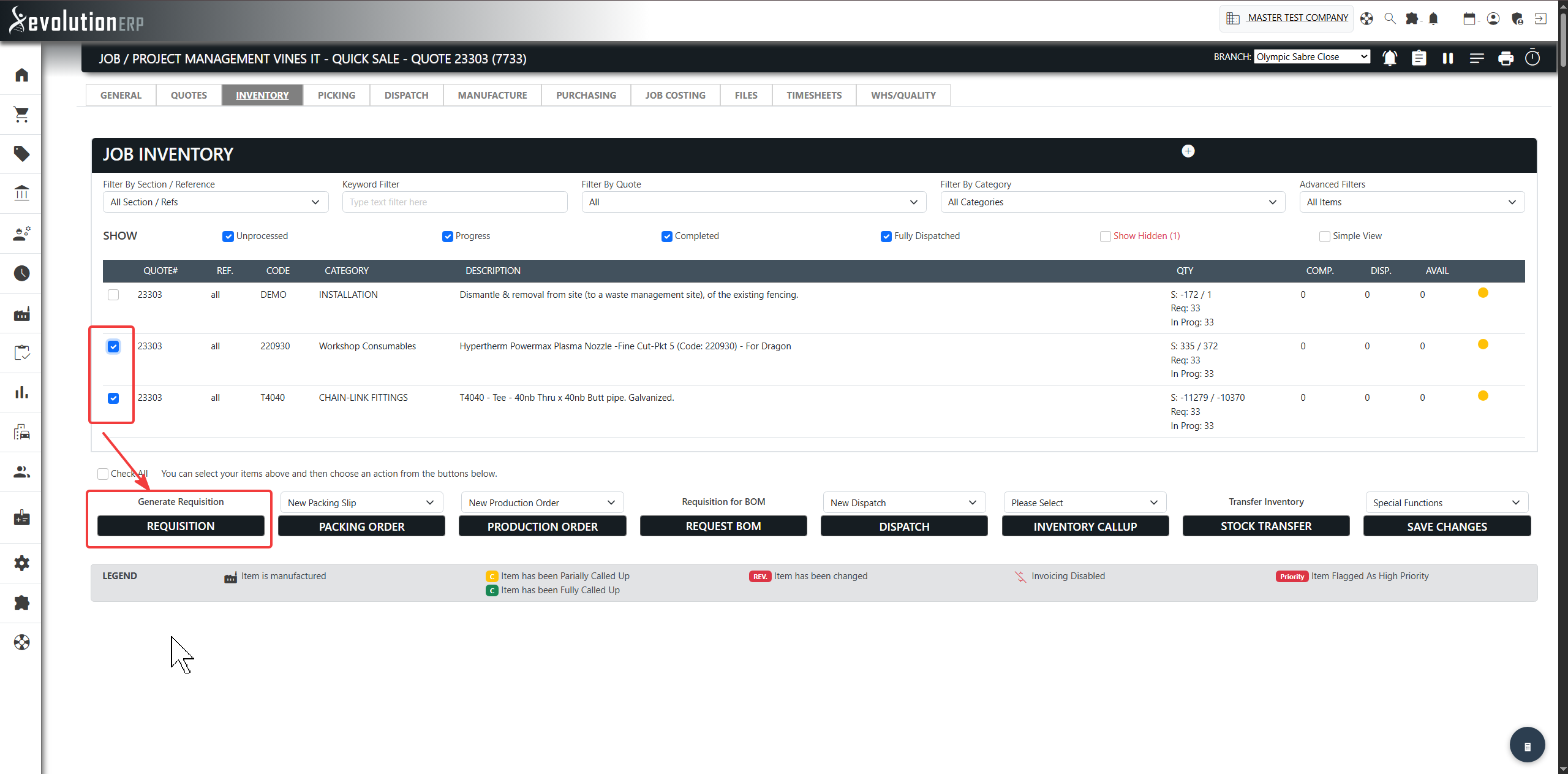
- On the project, open the Inventory tab.
- Tick the items you want to order. For a long list, use the search and filters across the top to narrow it down first.
- Click the Requisition button to open the requisition window.
Filling in the Requisition
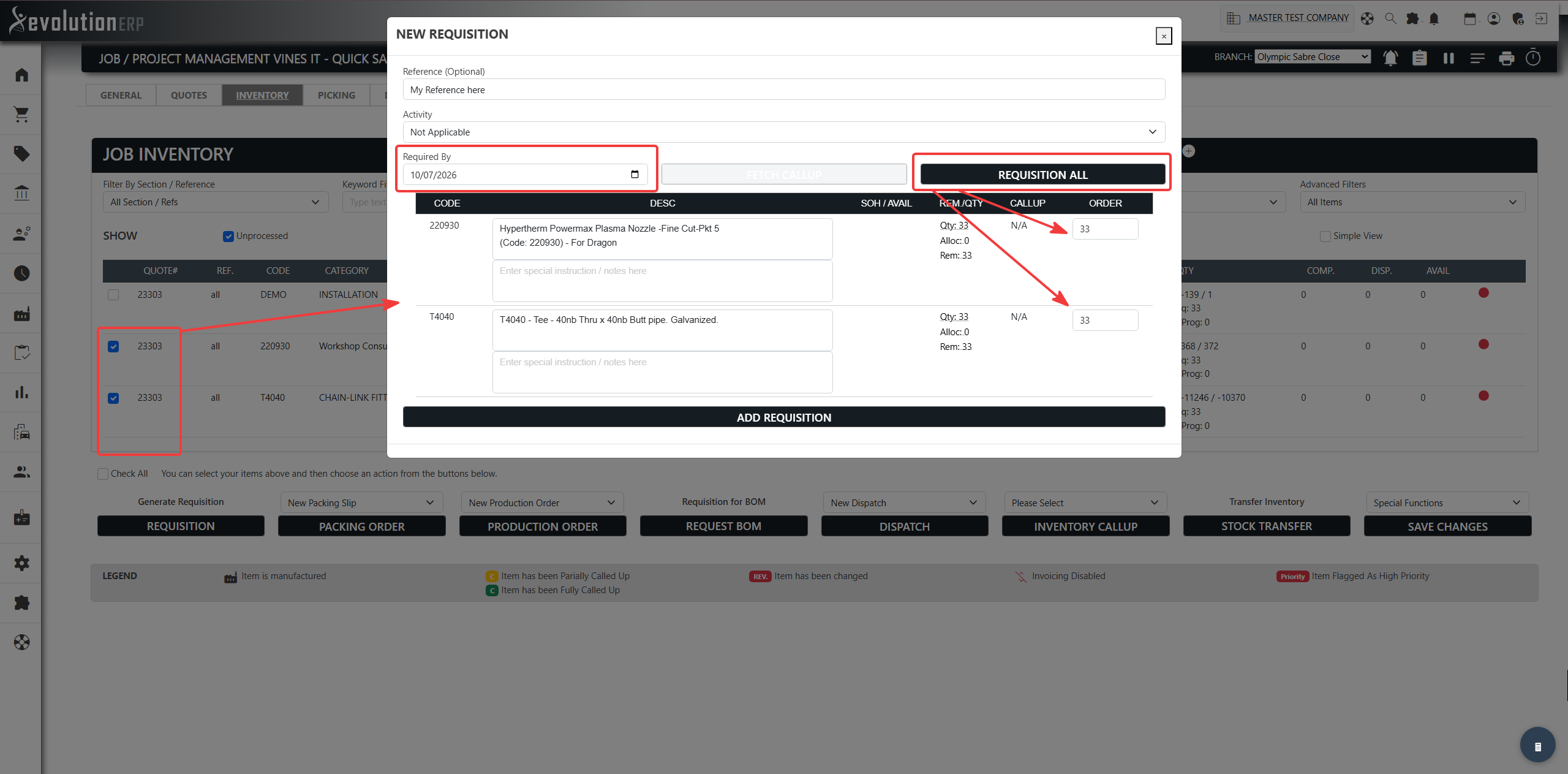
The requisition window opens with the items you ticked. Set the header details and the quantity for each line:
| Field | What it does |
|---|---|
| Reference (Optional) | A free-text title/reference to help you find the requisition later. |
| Requisition Type | Leave on Requisition Only for the standard flow (raise a requisition now, pull it onto a PO later). Choose Direct to Purchase to also create or add to a purchase order in the same step — see Direct to Purchase below. |
| Activity | The project activity the requisition is tied to. Choose Not Applicable if it isn't linked to a specific activity. |
| Required By | The date you need the items by (for example, next Monday). This is carried onto the requisition. |
| Order quantity (per line) | Click into a line's quantity field and it fills in with the amount the project needs. You can type any value instead. |
| Requisition All | A shortcut that fills in the needed quantity on every line at once — handy when you want to request everything the project is short on. |
When the quantities look right, click Add Requisition.
Direct to Purchase — Skipping Straight to a PO
Normally a requisition is raised first and pulled onto a purchase order later. When you already know who you're buying from and want to save that second step, switch Requisition Type to Direct to Purchase in the requisition window. The requisition is still created and stays linked to the project — it's just placed straight onto a purchase order at the same time.
Two extra fields appear when you choose Direct to Purchase:
| Field | What it does |
|---|---|
| Supplier | Search for and pick the supplier you're ordering from. Start typing to filter the list, then click the supplier. |
| Purchase Order | Once a supplier is chosen, this list becomes available and shows that supplier's open purchase orders. Leave it on Create New Purchase Order (the default) to start a fresh PO, or pick an existing open PO to add the requisitioned items to it. |
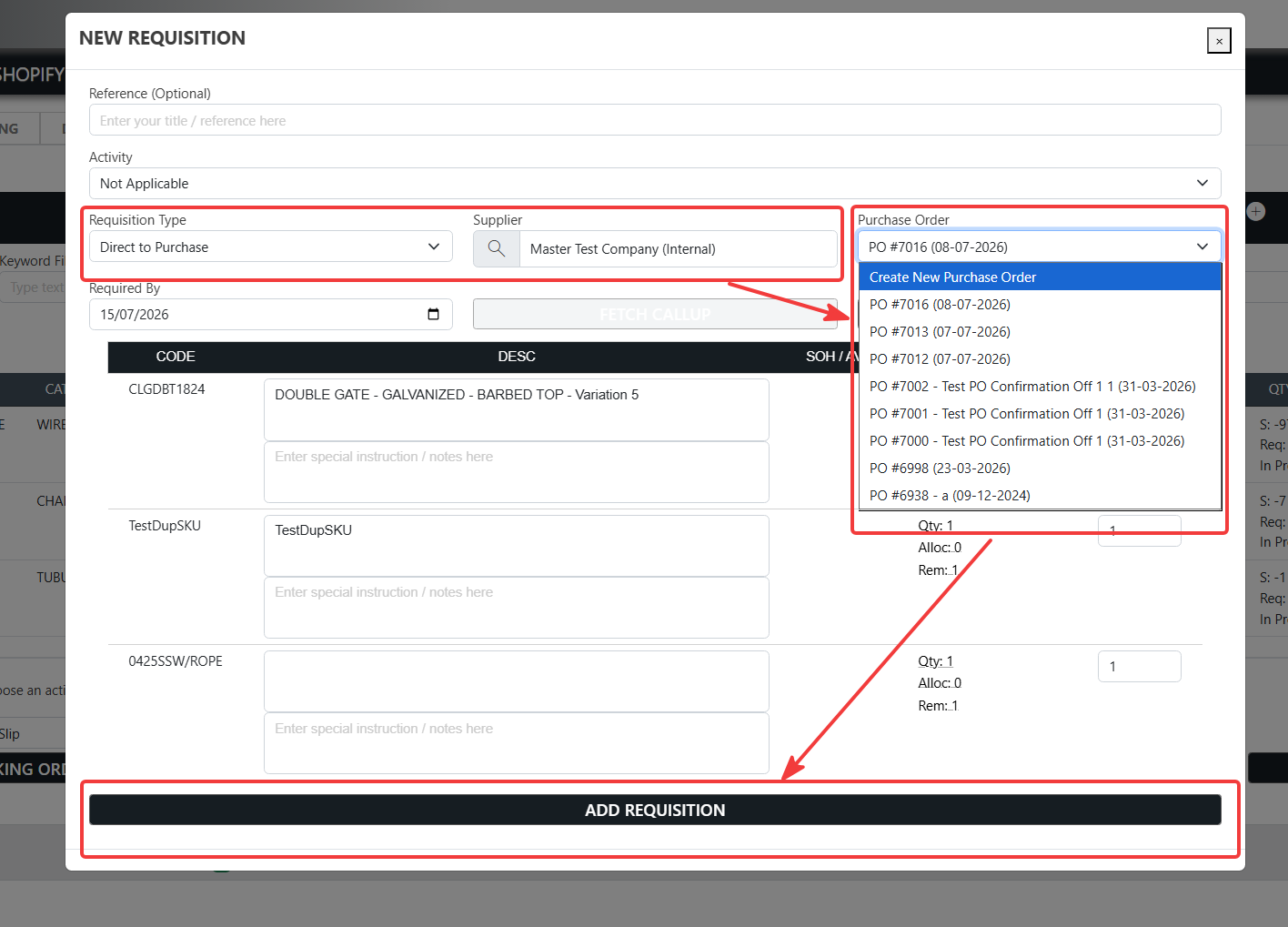
When you click Add Requisition, the items are requisitioned and placed on the purchase order in one go, and you're taken straight to that PO ready to review and send it.
The Requisition Edit Screen
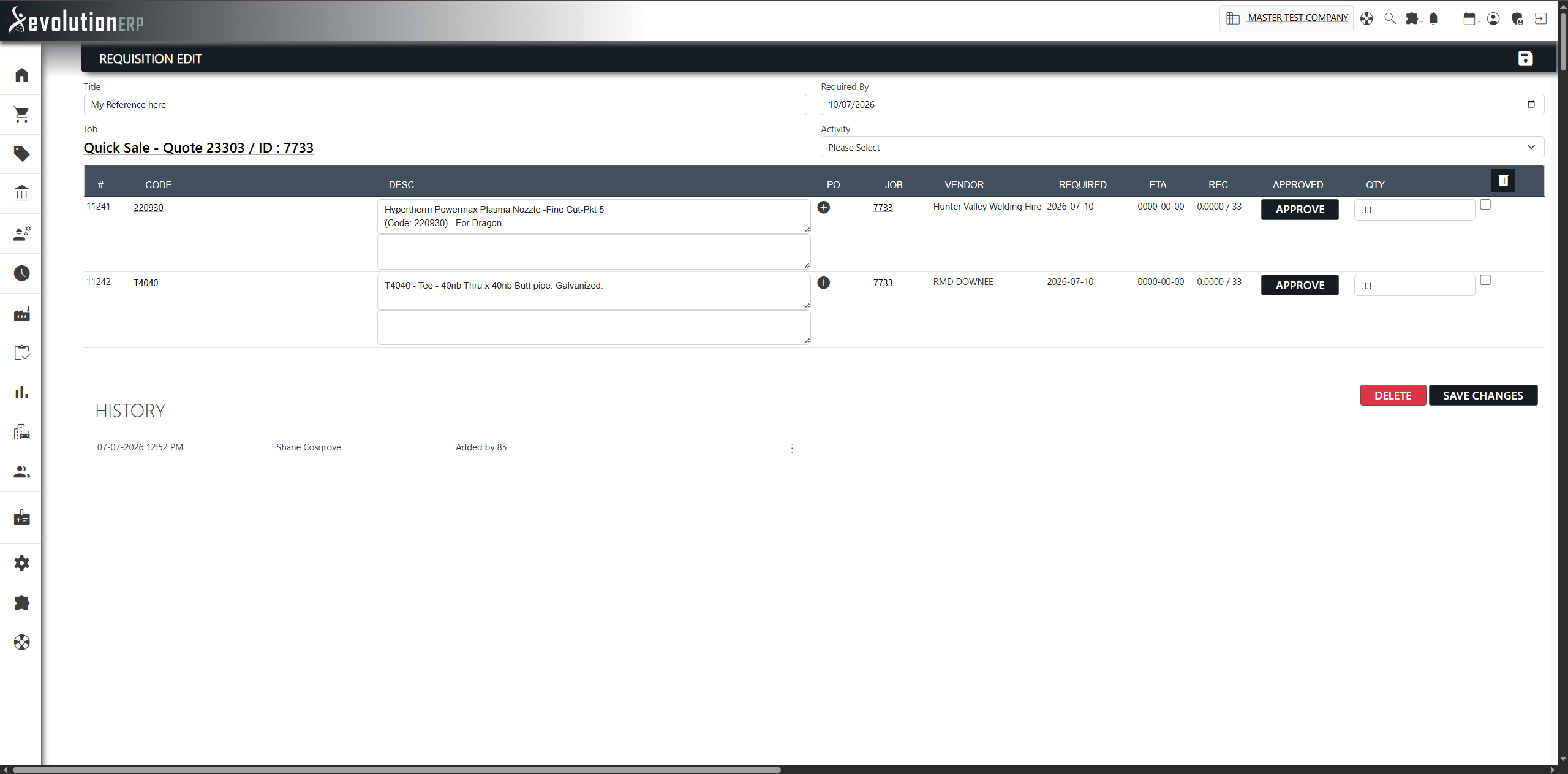
After you add it, the Requisition Edit screen lists every item on that requisition, and it's clearly linked to the project — the project code and reference at the top link straight back to the project. From here you can adjust quantities, edit descriptions, approve lines, or delete lines that haven't been received.
| Column | Meaning |
|---|---|
| PO | The purchase order the line has been imported onto, or a add_circle_outline to raise a PO if there isn't one yet. |
| Project | The project the requisition belongs to (a link back to it). |
| Supplier | The supplier the item is expected to come from (defaults to the item's primary supplier). |
| Required / ETA | The date the item is needed by, and the expected arrival date once it's on order. |
| Rec. | How much has been received so far, out of the quantity ordered (e.g. 0 / 5). |
| Approved | Shows who approved the line, or an Approve button if it's still pending (see below). |
Approval
Approve lines from the Approve button in the requisition's Approved column. The Requisitions register also shows a banner counting how many requisitions are still awaiting approval, so nothing gets forgotten.
Tracking on the Project's Purchasing Tab
Once raised, the requisition appears on the project's Purchasing tab (headed Purchasing / Requisitions), which gives you an at-a-glance view of where every requested item is up to. On the Inventory tab those items also change to a pending (yellow) status to show they're now underway — not yet fully satisfied.
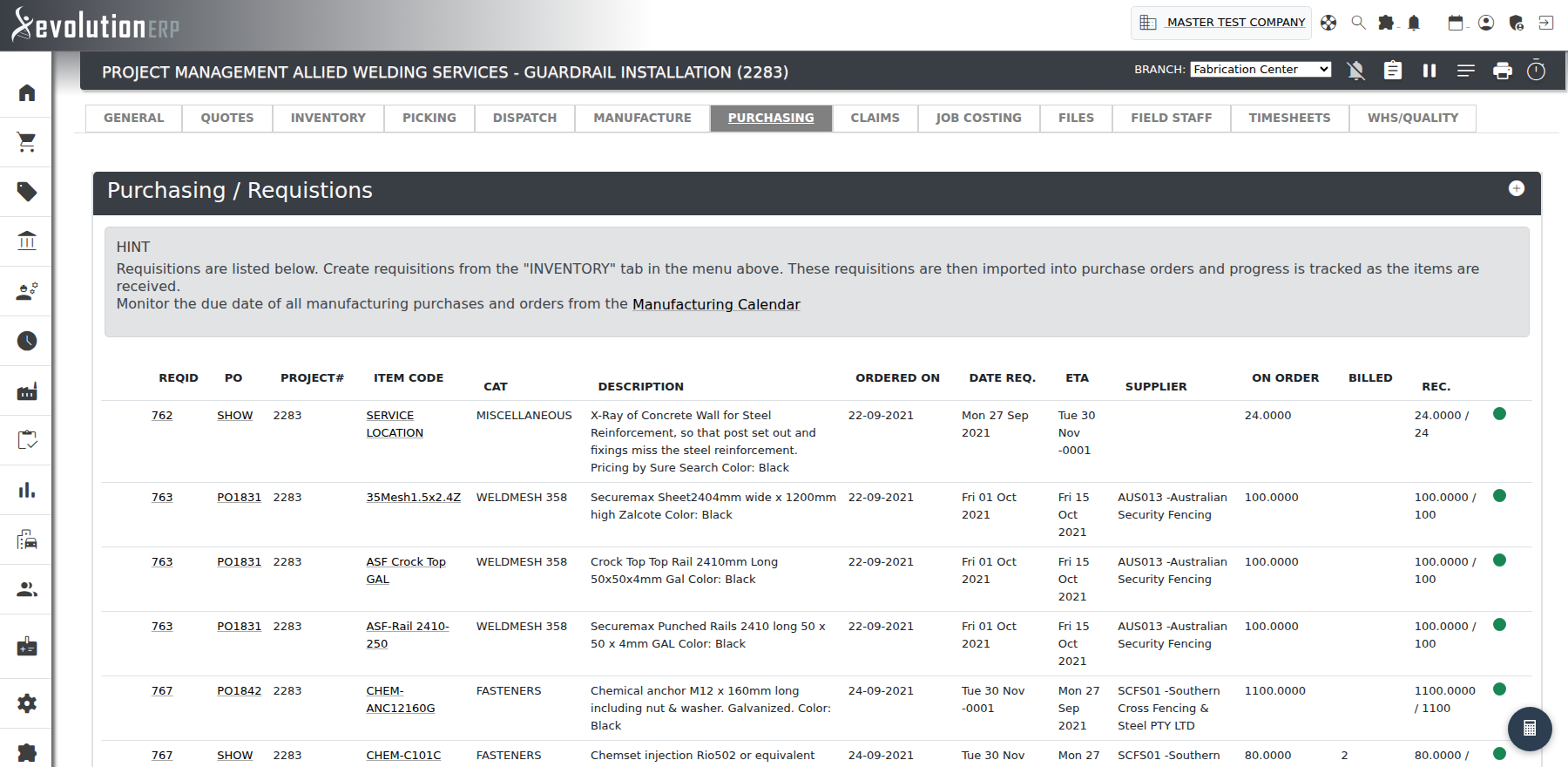
| Column | Meaning |
|---|---|
| REQID | The requisition ID — click it to open that requisition's edit screen. |
| PO | The purchase order the item is on. If there's no PO yet, a add_circle_outline lets you create one right from here. When a line has been split across more than one PO, a SHOW link lists them all. |
| Project# / Item Code / Cat / Description | The project code, the item, its category and description. Items built from a Bill of Materials are flagged with a BOM tag and their components are indented beneath them. |
| Ordered On | The date the purchase order was raised, or N/A until the line is ordered. |
| Date Req. / ETA | The date the item is required by, and the expected arrival date once it's on order. |
| Supplier | The supplier the item is being ordered from. |
| On Order | The quantity currently on order for this line. |
| Billed | The quantity that has been billed by the supplier. A report_problem warning shows when goods have been received but not yet billed. |
| Rec. | The received status — how much has arrived so far, out of the quantity ordered (including partial receipts). |
| Status dot | A colour-coded dot summarising each line at a glance (see below). |
The status dot on the far right tells you where each line is up to:
- Red — requisitioned but not yet ordered (no purchase order raised).
- Yellow — on order (imported onto a purchase order), awaiting delivery.
- Green — complete / fully received.
The Requisitions Register
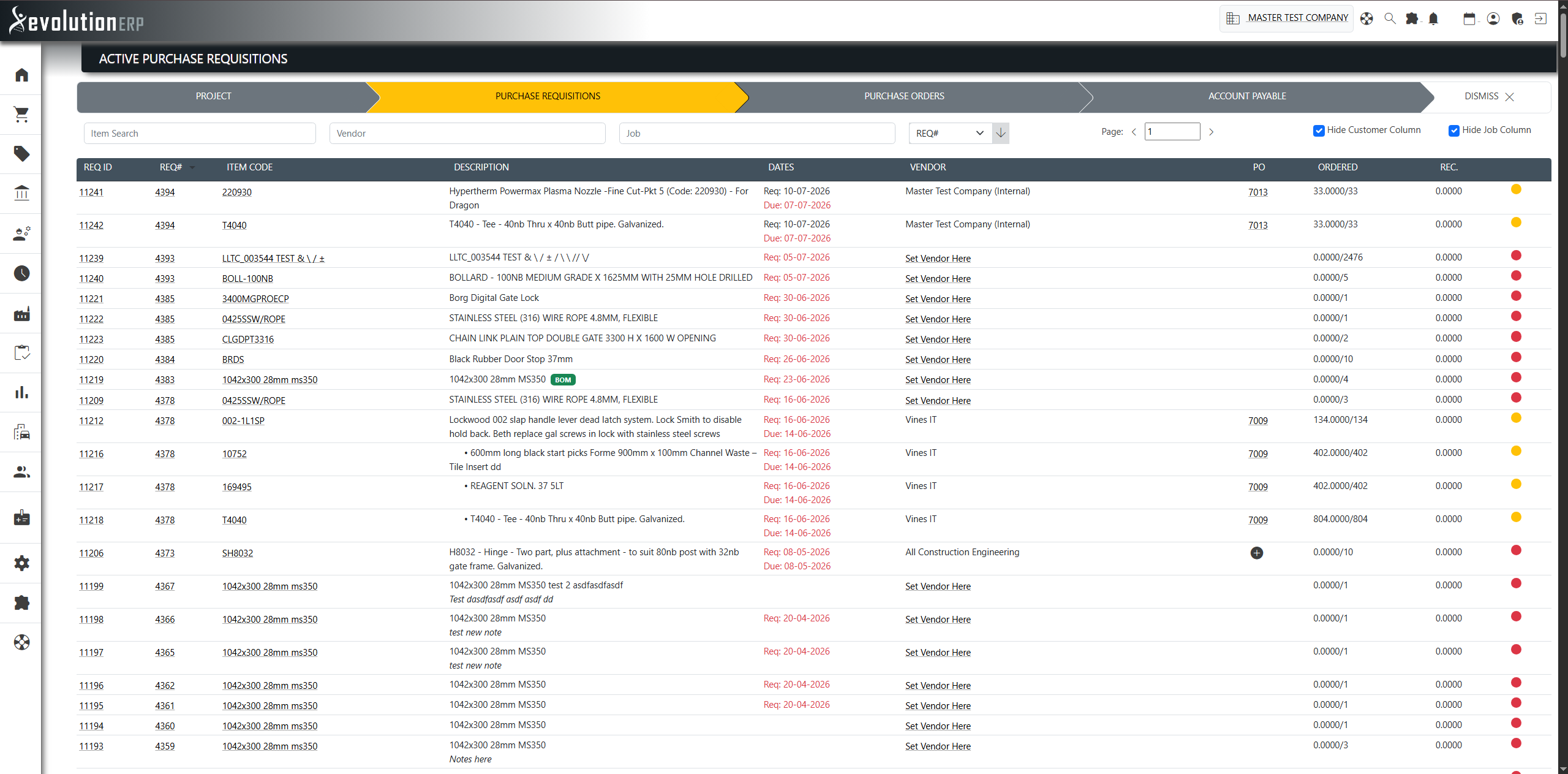
For a whole-of-business view — every open requisition across all projects — go to Purchasing → Requisitions. This Active Purchase Requisitions list shows each requisitioned item with its project, vendor, dates, the PO it's on (if any) and whether it's been ordered and received.
Filter the list by item, vendor or project, and show or hide the customer and project columns to suit how you work.
What Happens Next
Approved requisitions are gathered onto purchase orders that go to your suppliers — one PO per vendor, pulling in the open requisitions for that vendor. Continue to Purchase Orders to see how to create a PO and import these requisitions onto it.