
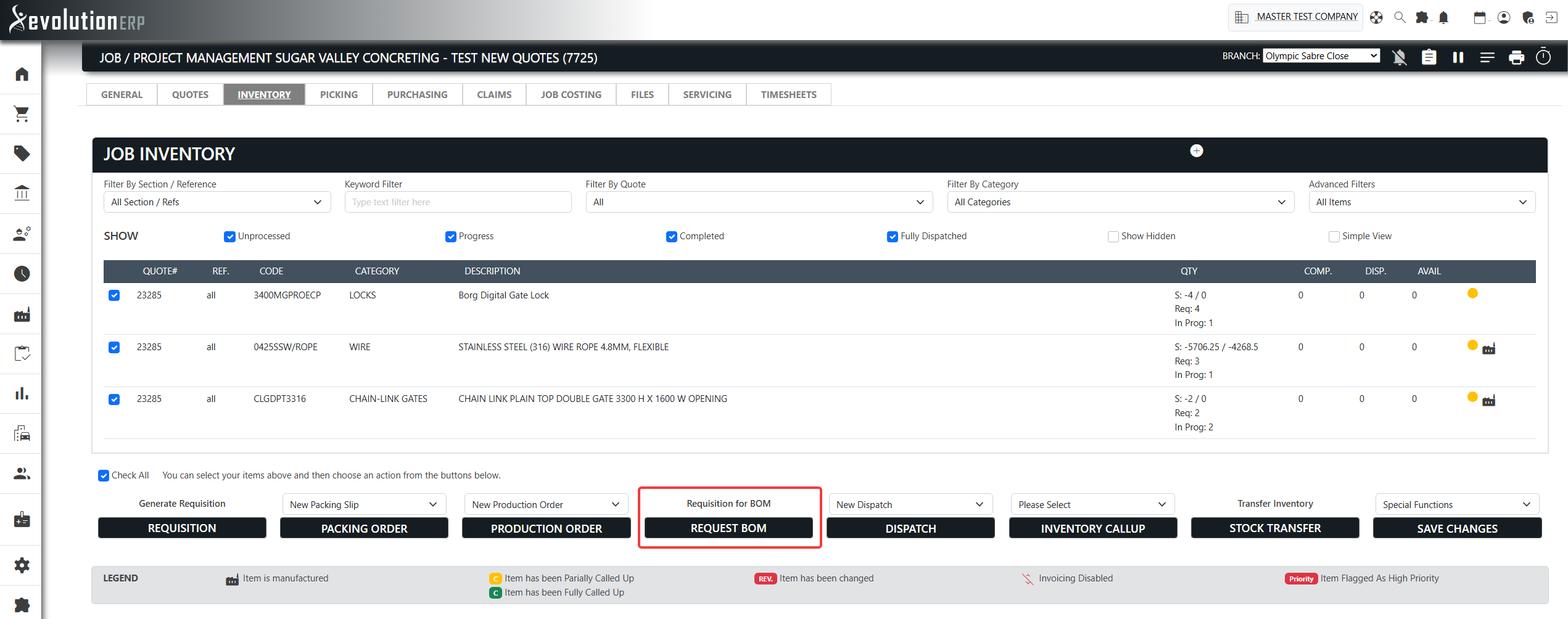
BOM Requisition is a tool on a project’s Inventory tab that explodes the Bill of Materials (BOM) of the items you’re manufacturing into the raw materials and components they’re built from — and then lets you raise a purchase requisition for exactly what’s still needed. You open it with the Request BOM button.
Instead of manually working out how much steel, timber, fixings or sub-components a batch of manufactured items requires, BOM Requisition does the maths for you: it multiplies each component’s per-unit quantity by the number of items still pending on the project, subtracts what has already been requested, and shows you the shortfall to order.
Where to Find It
Open the project and go to its Inventory tab. In the list of inventory lines, tick the checkbox next to each manufactured item you want to order materials for, then, under Requisition for BOM, click the Request BOM button.
info If the customer’s account is on stop credit, the requisition buttons on the Inventory tab are hidden until the account is cleared.
The BOM Requisition Window
The New BOM Requisition window opens with the selected items grouped as headings, and each item’s components listed beneath it. Manufactured sub-assemblies are shown as an indented hierarchy so you can see how the product is built up. Each item heading shows how many units are still pending on the project (e.g. “3 of 5 items pending”) — the component quantities are calculated against that pending amount.
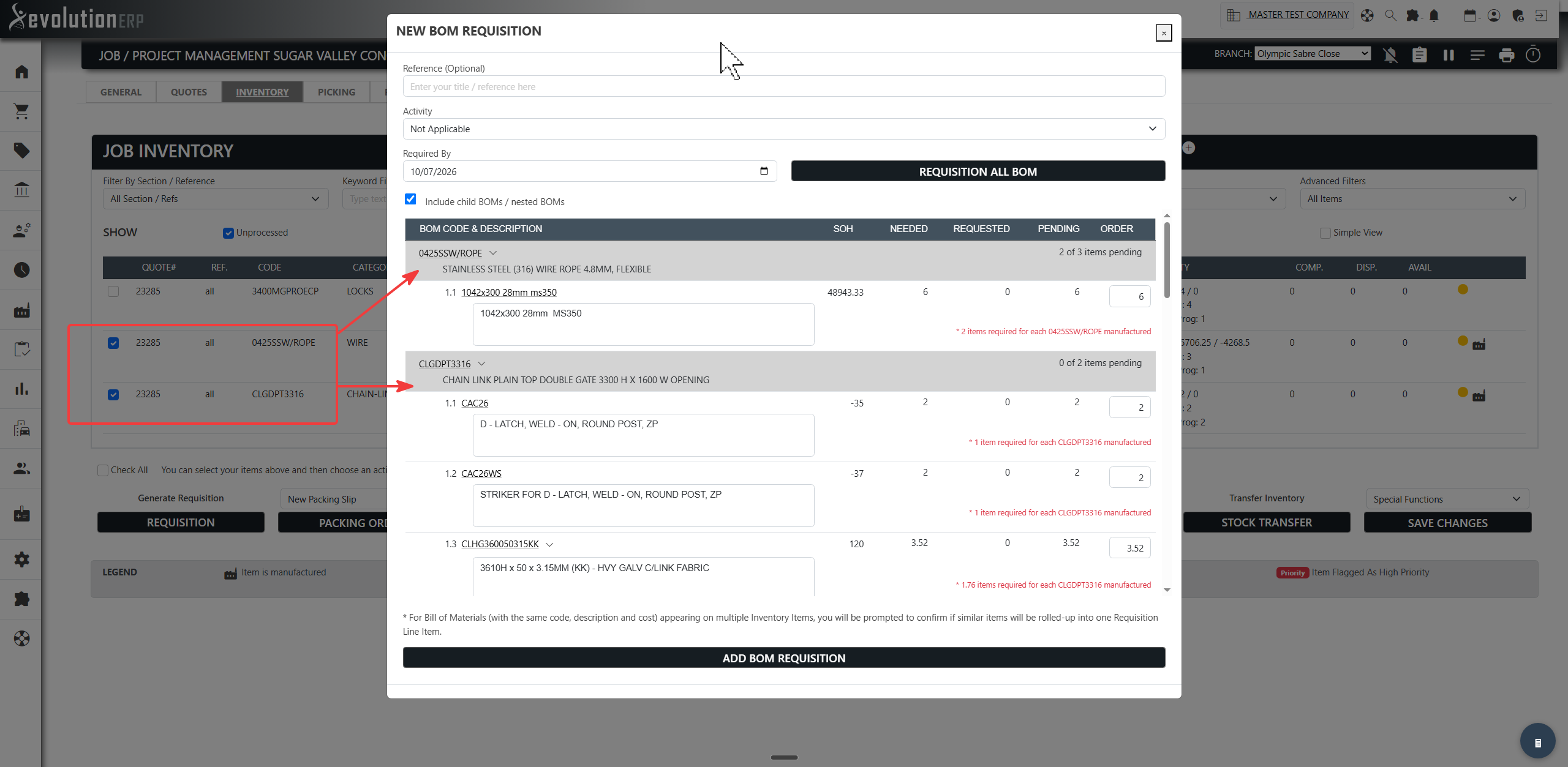
Header options
| Field | What it does |
|---|---|
| Reference (Optional) | A free-text title/reference for the requisition, to help you find it later. |
| Activity | The project activity the requisition is tied to. Choose Not Applicable if it isn’t linked to a specific activity. |
| Required By | The date the materials are needed by — carried onto the requisition. |
| Include child BOMs / nested BOMs | When ticked (the default), the tool expands sub-assemblies all the way down to their raw components. Untick it to list only the top-level components of each item. |
| Requisition All BOM | A shortcut that fills the Order column of every line with its outstanding quantity, so you can requisition everything that’s short in one go. |
Reading the columns
Each component row breaks down what’s needed versus what’s already covered:
| Column | Meaning |
|---|---|
| BOM Code & Description | The component’s item code (a link to the item) and description. Indentation shows the level in the assembly; an expand_more icon expands or collapses a sub-assembly’s children. |
| SOH | Stock on hand — how much of this component you currently hold. |
| Needed | The total quantity of this component required for the pending project items (per-unit BOM quantity × units still pending). |
| Requested | How much of this component has already been requisitioned for the project. |
| Pending | The outstanding shortfall — what still needs to be ordered (Needed − Requested). Lines that are fully covered show “All Requested” and can’t be ordered again. |
| Order | The quantity you actually want to requisition for this component. It defaults to the outstanding amount when you click into the field, but you can type any value. |
A note under each component (e.g. “2 items required for each WIDGET manufactured”) explains where the quantity came from.
Raising the Requisition
- Set the Activity and, if relevant, a Reference and Required By date.
- Enter the quantities you want to order in the Order column — or click Requisition All BOM to fill every outstanding line at once.
- Click Add BOM Requisition.
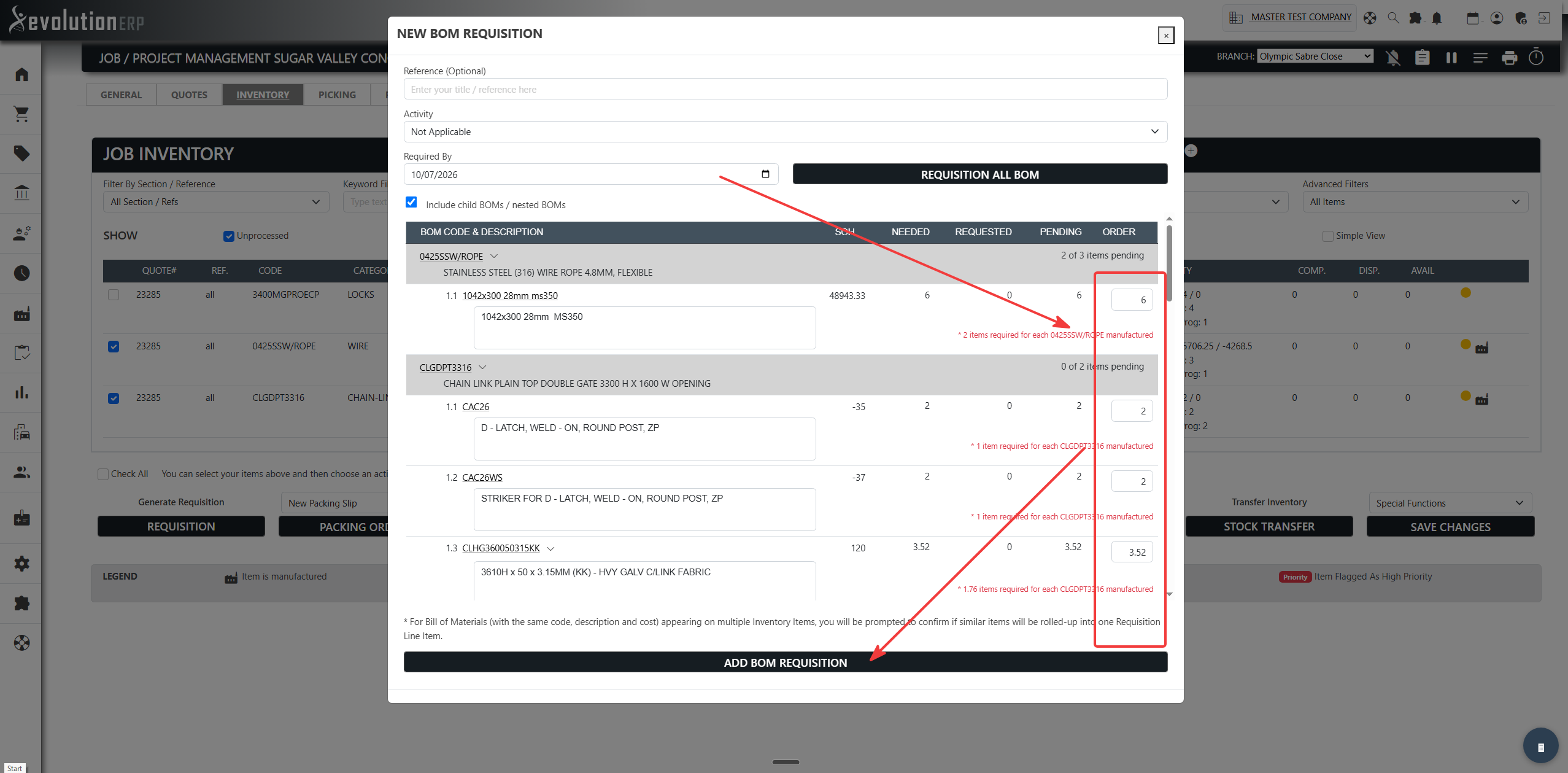
The requisition is created against the project and is then handled through the normal purchasing workflow — reviewing, approving and converting it into purchase orders to your suppliers.
Tips & Notes
- Quantities are calculated against the pending items on the project, so already-completed items aren’t re-ordered.
- Components that are fully requested show All Requested and are locked — you can’t over-order beyond what the project needs.
- A modified tag means that item’s BOM has been changed for this project/quote and differs from the standard Bill of Materials.
- Turn off Include child BOMs / nested BOMs if you only want to requisition top-level sub-assemblies rather than exploding them into raw materials.