
Batch Purchase Orders takes every approved requisition line you have ticked and works out who to buy each one from, how much it costs, and which orders those lines belong on — then raises all of those purchase orders in one go. Lines it can answer on its own are answered silently. Lines it cannot are collected into a single Needs a decision list at the top of the screen, so your attention goes only where it is actually needed.
info This continues from Purchase Requisitions. A requisition has to be approved before it can be batched.
What It Does
Raising purchase orders one at a time is fine for a handful of lines. When a project releases fifty, the work is not the typing — it is deciding, fifty times over, who supplies each item and which order it should join. The batch tool does that decision work for you and then asks you about the leftovers.
Groups automatically
Lines are gathered by supplier and branch. Each group becomes one purchase order.
Isolates the exceptions
Anything it cannot resolve is listed once, at the top, with the reason why.
Commits in steps
Orders are created one group at a time with a progress bar, so a large batch never stalls the system for everybody else.
A batch is one run. It is finished and locked the moment its purchase orders are created, and anything it never allocated goes back to the requisition register for the next one — see One Batch, One Shot.
Starting a Batch
- Go to Purchasing → Requisitions to open the requisition register.
- Filter the list down to the lines you want to order — by project, by date, by item.
- Tick the approved lines. Selections survive paging, so you can work through several pages first.
- Click Batch to Purchase Orders.
Or start from a project: on its Purchasing tab, Order outstanding batches every approved line on that project that is not yet fully on order (see Ordering from the Project).
Batching needs Purchasing access (read or higher), or administrator. Approval is what controls what gets ordered: only approved lines can go into a batch.
The batch workspace opens with your lines already resolved. The batch is saved, so you can leave it and come back to it — it is not lost if you navigate away or your session times out.
Picking a batch back up
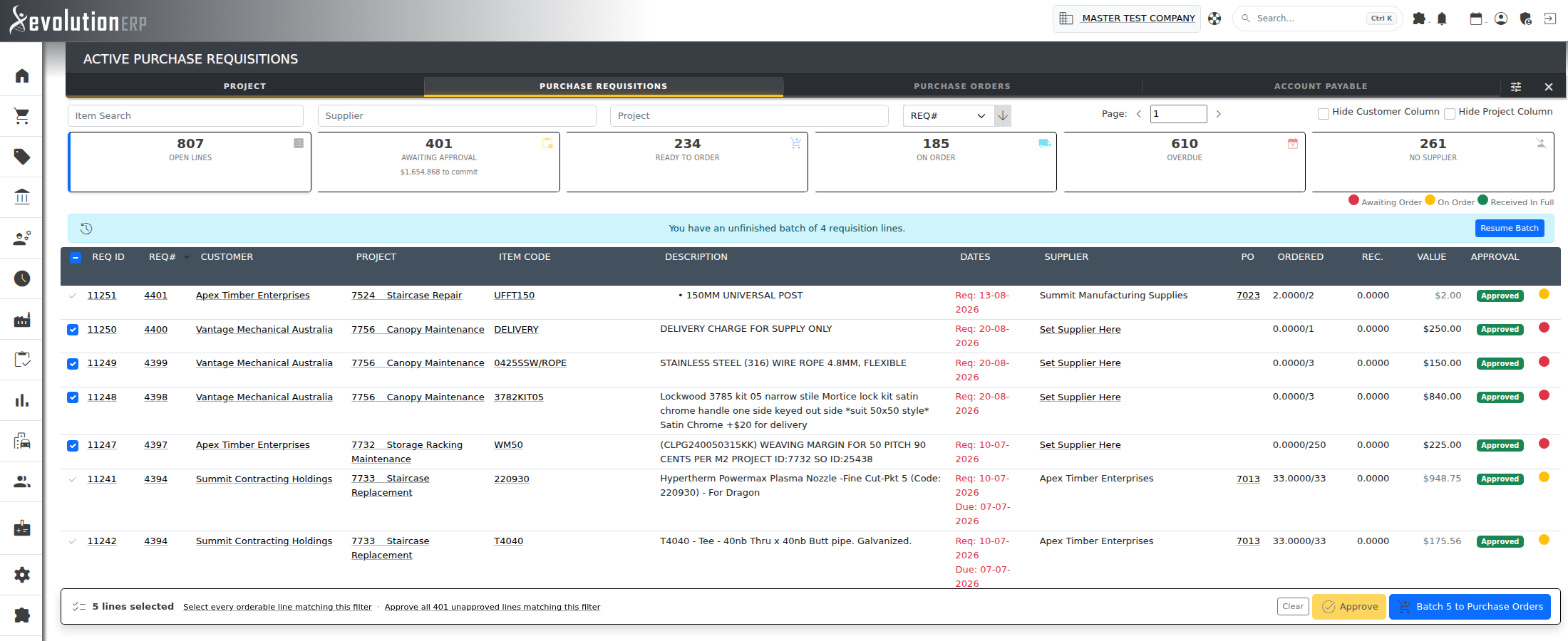
A batch you have not finished is offered back to you the next time you open the requisition register, with its line count and a Resume Batch button. You do not have to remember its number.

Administrators see every buyer’s unfinished batches, not just their own. A batch started by someone else is labelled with that person’s name and the date it was started, and has an Open Batch button. An administrator can open it and either finish it or cancel it. This matters because an unfinished batch keeps its requisition lines out of everyone else’s batches until it is dealt with.

You also cannot accidentally batch the same requisition twice: a line already sitting in somebody’s live batch is left out of a new one, and the register tells you when that has happened. On the requisition register and the project’s Purchasing tab, such a line shows Batch n in place of the add_circle_outline; click it to open the batch it is waiting in.
The Workspace
The screen reads from the top down, in the order you work:
| Area | What it is for |
|---|---|
| Summary strip | The batch number, its status, and a one-line count of what is resolved and what is not. |
| Re-check | Re-resolves every line against current master data. Use it after you have added a supplier code or set a primary supplier on an item — see Fixing It on the Item. |
| Suggestion map | Shortcut chips for the suppliers who could take the largest share of what is still undecided — see Suggestion Map. Shown only when there is something worth offering. |
| Needs a decision | The exception list, folded to one row per item. Hidden entirely once it is empty. |
| Supplier groups | One card per purchase order Evolution is about to raise, with its lines and total. |
| Create Purchase Orders | The commit button, with a progress bar and a running log. This is the step that completes and locks the batch — see One Batch, One Shot. |
| Cancel Batch | Abandons the batch. The requisitions are untouched and can be batched again. |
Needs a Decision
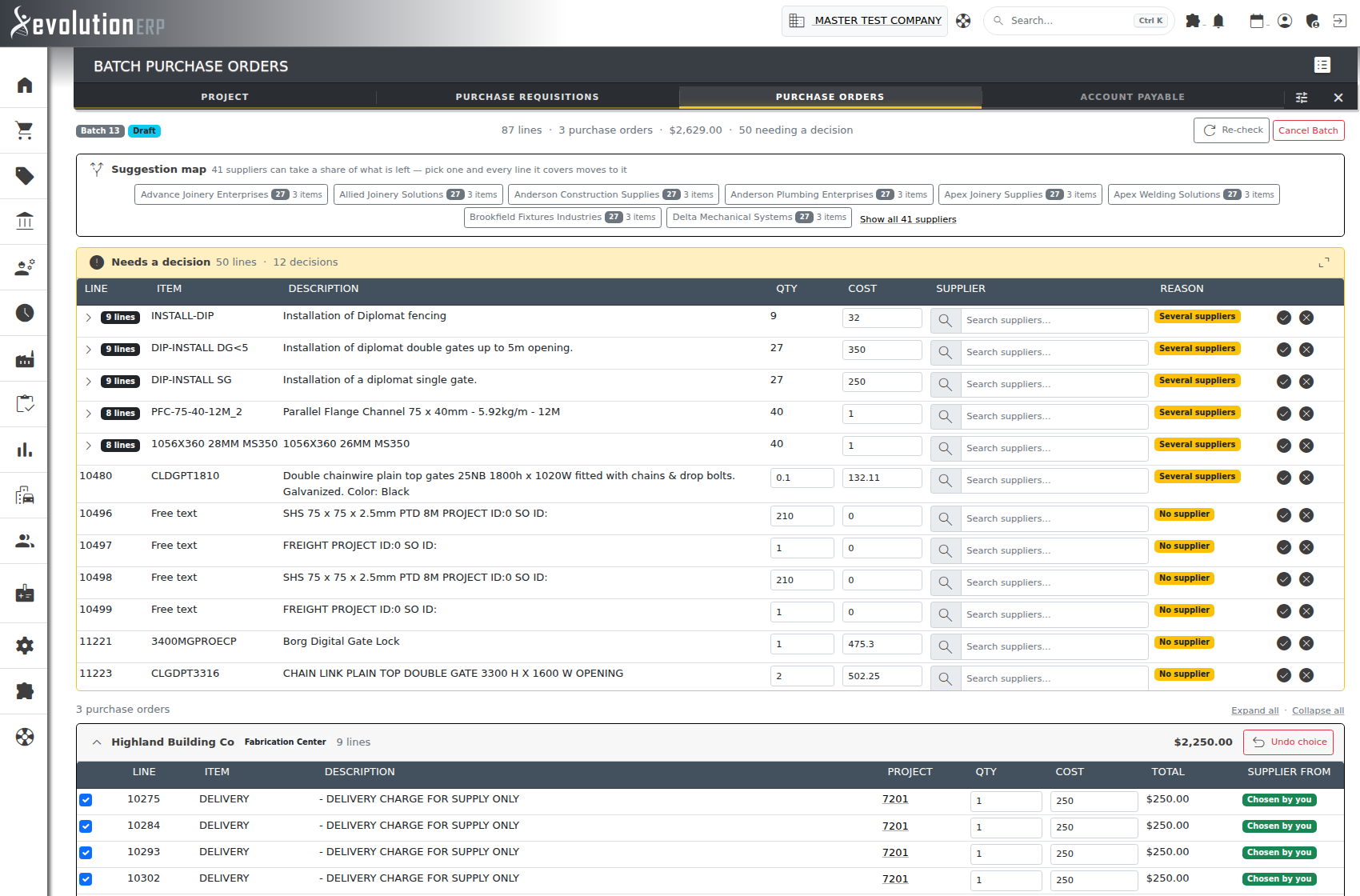
Every line Evolution could not answer on its own appears here once, with the reason:
| Reason | What it means |
|---|---|
| No supplier | Nothing on the item, and nothing in its purchase history, says who supplies it. Search for a supplier. |
| Several suppliers | More than one candidate. They are offered in the dropdown — pick one, or search for somebody else entirely. |
| No cost | The supplier is known but no price is. Type the cost on the line. |
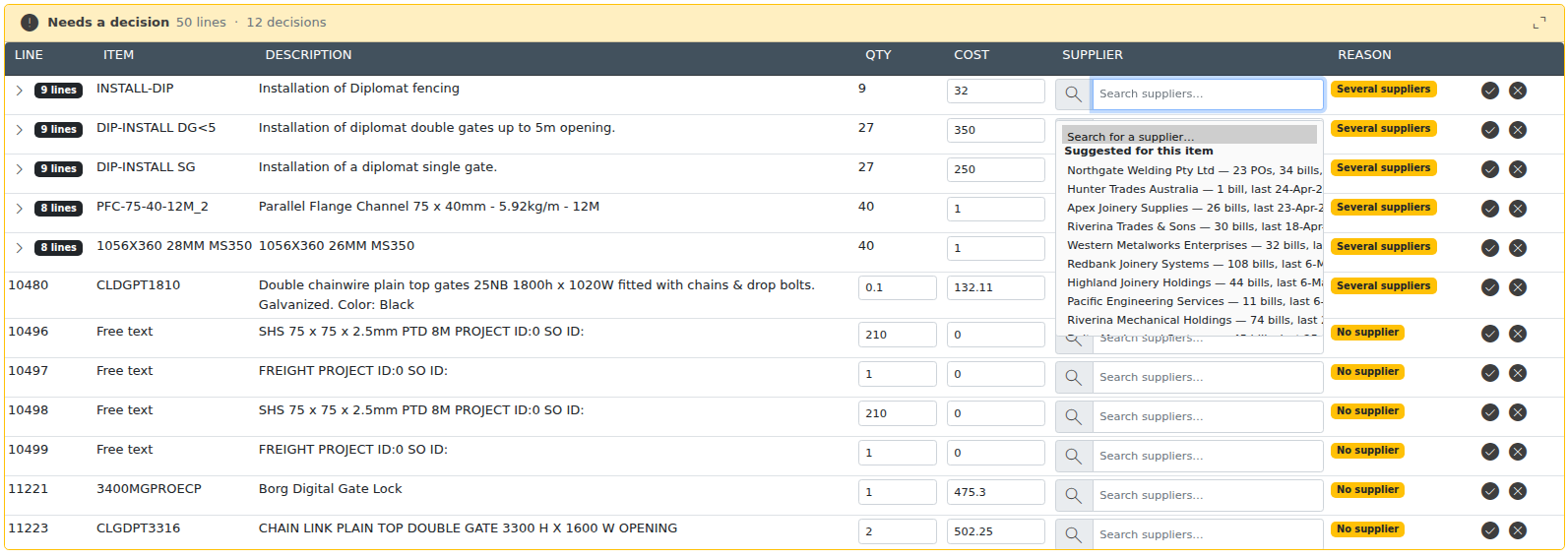
The supplier box on each line is both a list and a search. Click it to see the candidates Evolution found; start typing to search every supplier on file. Candidates are labelled with what is known about them, for example:
Allied Steel Supplies [AS-4410] — $476.07 — 3 POs, 2 bills, last 14-Aug-2026
- The code in brackets is that supplier's product code for the item, when one is recorded.
- The price is the cost that will be used on the order.
- The “3 POs, 2 bills, last …” part is purchase history — see Learned Supplier History. A candidate that comes only from history shows no price, because Evolution will not put a historical price on a new order.
- (inactive) marks a supplier whose contact record has been made inactive. You can still choose them deliberately; Evolution will never choose them for you.
As you answer lines they leave the exception list and join a supplier group below. When the list empties it disappears and Create Purchase Orders becomes available.
expand_content The list is capped at about half the screen height so the supplier groups and the commit bar stay in view underneath it. The expand icon in its header releases the cap when you would rather read the whole list at once.
One Row per Item
A release of eighty-seven requisition lines is rarely eighty-seven questions. The same item comes back line after line — one per project, one per delivery — and the supplier who can sell it does not change because the line belongs to a different project.
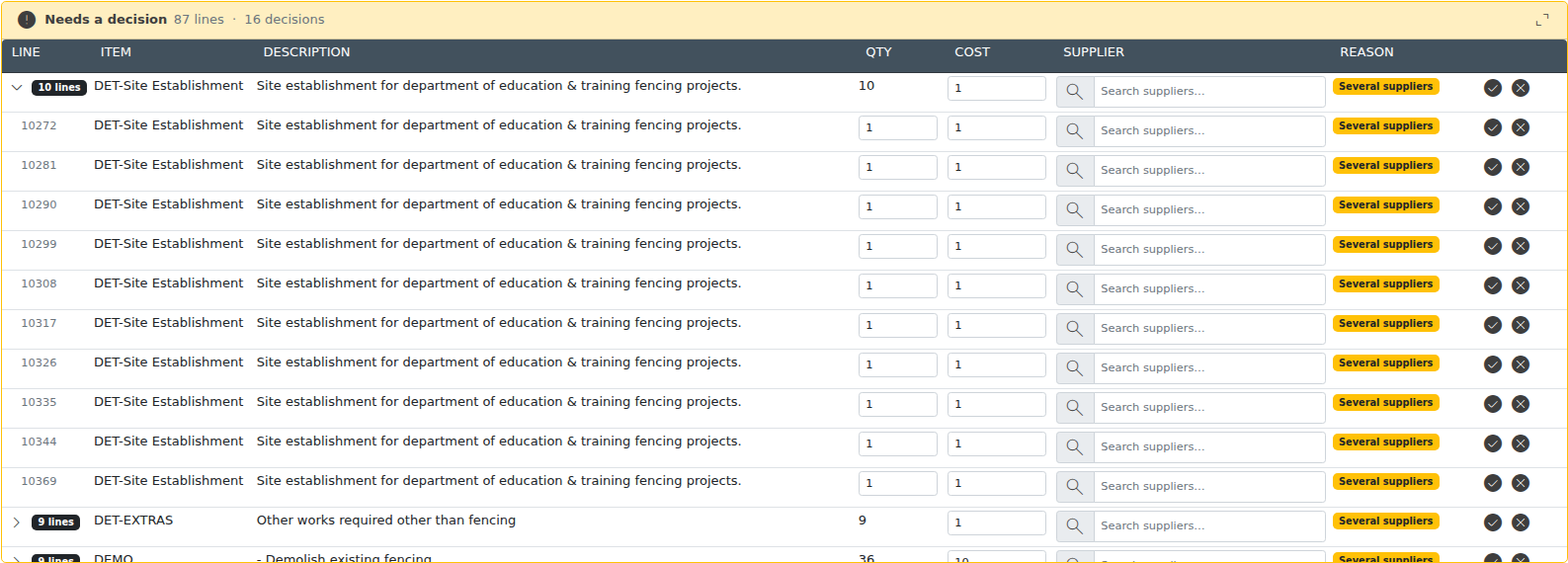
So the exception list folds to one row per item, with a 9 lines badge showing how many requisition lines sit behind it. The panel header counts both: “87 lines · 16 decisions”. Answer the folded row and all nine lines are answered.
Click the chevron to open an item when its lines really do differ — different quantities, different costs, or a deliberate split between two suppliers. Each line is then editable on its own. Free-text lines are never folded: they have no item to fold on, and two that happen to read alike are still two different requests.
Answer several, apply once
Picking a supplier does not commit it. An Apply N decisions button appears in the panel header as soon as you have picked anywhere in the list, and counts up as you work down the rows. Answer as many as you like, then press it once — the whole panel is re-grouped in a single pass instead of jumping about after every row.
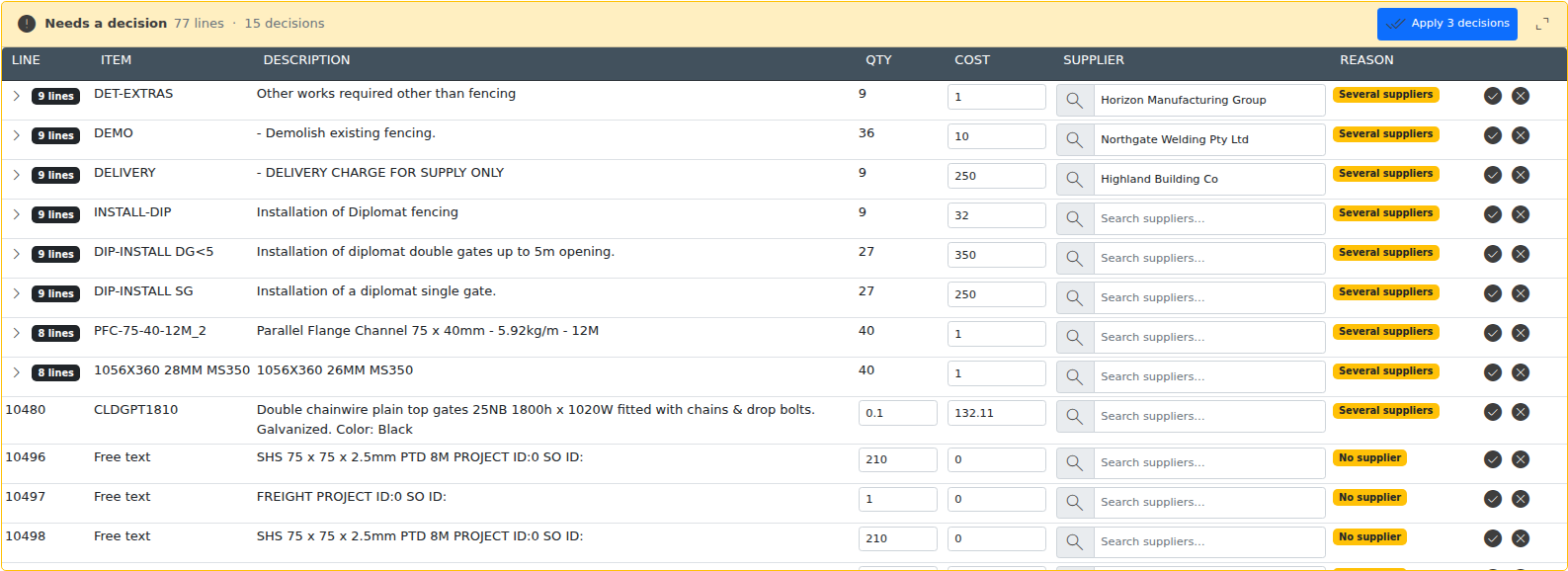
info The tick and cross at the end of each row still work one line at a time: the tick applies just that row, the cross takes the line out of the batch altogether.
Suggestion Map
Above the exception list Evolution shows the suppliers who could take the biggest share of whatever is still undecided. Each chip names the supplier, how many lines they cover and how many distinct items.

Click a chip and every line that supplier can cover moves to them in one go, after a confirmation naming the count. The cost already on each line is left exactly as it is — assigning a supplier is not a repricing.
The map is a shortcut, not a recommendation. A supplier appears because they can supply those items, not because they are the right choice for them. So it is easy to take back: immediately after a press the map itself offers Undo for exactly that assignment, and the supplier group below carries Undo choice for as long as the batch is open.
info Only the strongest chips are shown; Show all N suppliers opens the rest. The map disappears once there is nothing left for it to cover.
How the Supplier is Chosen
Evolution works down this order and stops at the first answer. Knowing the order tells you where to make a fix so it sticks:
- The requisition already names a supplier. Your choice always wins.
- The item's primary supplier, if that supplier also has a product code for the item.
- A single supplier product code on the item — if only one supplier is recorded against it, that is the answer.
- Several supplier product codes — reported as Several suppliers for you to choose from.
- Purchase history from the last 24 months, last, and only when the item has no supplier product codes at all — see below.
A line that is already partly on a purchase order is resolved the same way. The rest of it does not automatically follow the supplier of the earlier order — if it should, name that supplier on the requisition line.
Learned Supplier History
Most systems can only suggest a supplier for an item that somebody has already set one up for. In practice a lot of items are bought for years without anyone ever recording a supplier against them — the knowledge lives in the purchase orders and bills, not in the item record.
Learned supplier history reads that back. Evolution looks at who you have actually raised purchase orders on and paid bills to for each item, and offers those suppliers — with the evidence — for items that have nothing recorded.
How far back it looks
The last 24 months, and no further. A supplier you have not bought that item from in two years is not a useful suggestion, and a long tail of them only makes the real answer harder to see. The older orders are not lost — they are in your purchase history and on the item's own Purchasing tab, where anyone can go and look them up. They just do not put themselves forward.
The counts you see against a suggestion — “3 POs, 2 bills” — are counts within those two years, so a supplier that was busy a decade ago does not outrank one you used last month.
Turning it on
An administrator sets Settings → Purchasing → Learned Supplier History. It is supplied Off, so nothing changes until somebody chooses to switch it on.
| Setting | Behaviour |
|---|---|
| Off supplied | History is not consulted. Purchasing behaves exactly as it always has. |
| Suggest only | Learned suppliers are offered as choices, with how many purchase orders and bills they appear on and when they were last used. You still pick. |
| Suggest and auto-map | As above, and an item with exactly one learned supplier is assigned to that supplier without asking. Items with several are still only suggested. |
What it will never do
- It never prices an order from history. A learned supplier is offered with no price, and no historical price is ever written onto a purchase order or onto the item. A price you paid once, possibly including freight, is not a standing cost.
- It never changes your item records. Learned history sits beside the item; it is not written into its supplier product codes unless you choose to record it there.
- It never overrules what you have recorded. See the order above.
- It never suggests an inactive supplier on its own.
- It never reaches back more than 24 months. Aged history stays where it belongs — in your purchase records, for anyone who wants to look.
Fixing It on the Item
An exception you answer on the batch screen fixes that one line. Fixing it on the item fixes it for good. Open the item and go to its Purchasing tab.
Additional supplier product codes
Each row records a supplier, their product code for the item, and their cost. Two controls on each row are worth knowing:
- star The star makes that supplier the item's primary supplier — one click, saved immediately, no need to save the item afterwards. The primary supplier is what requisitions and purchase orders suggest first.
- The landed cost is clickable — it sets that cost as the item's default cost on the General tab.

The Learned Supplier History panel
Below the codes, this panel lists the suppliers this item has actually been bought from, with how many purchase orders and bills each appears on, when they were last used, and the last price paid. A badge in the corner tells you whether purchasing is currently using this history at all.
Two actions per row:
- push_pin Pin — adds that supplier to the supplier product codes above, with the historical price filled in as a starting point. The product code is left blank, because purchase orders and bills do not record one. Enter the code if you have it, check the price, then Save. Once pinned, it is master data and outranks history.
- visibility_off Stop suggesting — for a supplier you bought from once and will not again. The row stays visible but greyed, and is never suggested. This sticks: it survives every later refresh of the history, and you can undo it from the same button.

info After changing an item, go back to the batch and press Re-check — the affected lines resolve themselves.
Supplier Groups
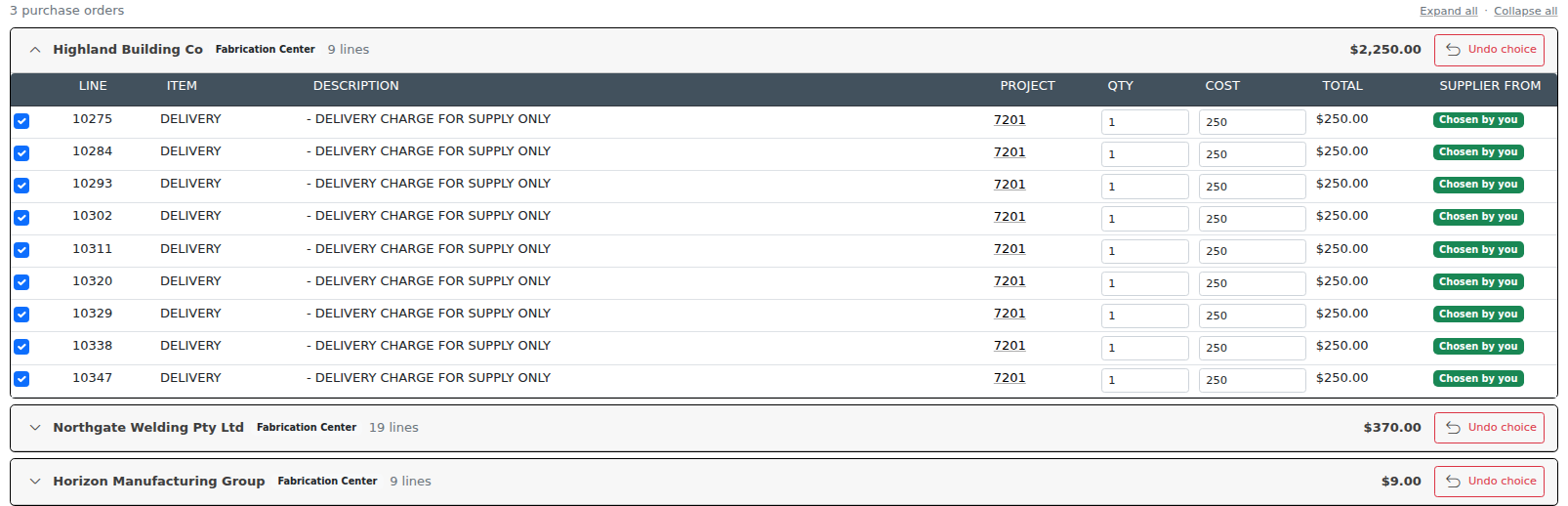
Each card is one purchase order. Lines are grouped by supplier and branch, because a purchase order belongs to a single branch and stock is received against it — so lines for projects on different branches cannot share one order, even for the same supplier.
| On the card | What it does |
|---|---|
| The tick box on each line | Leaves a line out of this order without answering it again. Unticked lines are not ordered. |
| Qty and Cost | Editable right up until the order is written. The line total and the card total follow as you type. |
| Chosen by you | Where the supplier came from. Lines Evolution resolved on its own are labelled with their own source instead — see How the Supplier is Chosen. |
| Undo choice | Sends the lines you chose this supplier for back to Needs a decision. It never touches lines Evolution resolved by itself, and never touches lines that are already on an order. The button only appears when there is something of yours to give back. |
| Expand all / Collapse all | Collapses every card to its header, so a batch with a dozen groups can be read at a glance. Each card’s own chevron does the same for one card. |
info A long group scrolls inside its own card, with the column headings pinned, rather than pushing the commit bar off the bottom of the page. Every table on this screen shows the item code as well as the description, so a line can be identified without reading a sentence of free text.
Creating the Orders
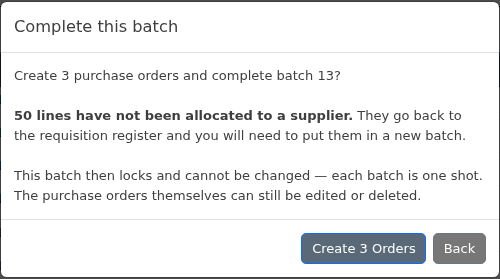
The button names the work — Create 3 Purchase Orders. Evolution writes them one group at a time, showing progress and naming each order as it goes, so a large batch never holds the system up for everybody else. Leave the page open until it finishes.
Before it starts you are asked to confirm, because this is the step that completes and locks the batch. The confirmation says how many orders will be created and, just as importantly, how many lines you have not allocated to a supplier.

Each order’s Due Date is the earliest Required By date among its lines — the first date anything on it is needed — but never earlier than today plus the supplier’s lead time. Old requisitions therefore no longer produce orders that are overdue the moment they are raised. Set the lead time on the supplier’s contact, on its Purchase tab; see Supplier lead time.
Adding to an order this batch already raised
If you answer more lines for a supplier after a part-committed run has already created that supplier’s order, the new lines are added to the same purchase order rather than starting a second one, and the card shows a N to add badge. Two things stop that and force a new order instead:
- the purchase order has already been sent to the supplier — what they have been given must not change underneath them; or
- the purchase order has been deleted.
In both cases the later lines go onto a new order, and a note on that order records which order it came from and why.
One Batch, One Shot
When the last group has been written the batch is complete, and that is final. It stops being a workspace and becomes the record of one run: no Re-check, no Cancel, no further decisions, no second commit. Opening it shows you what it did.

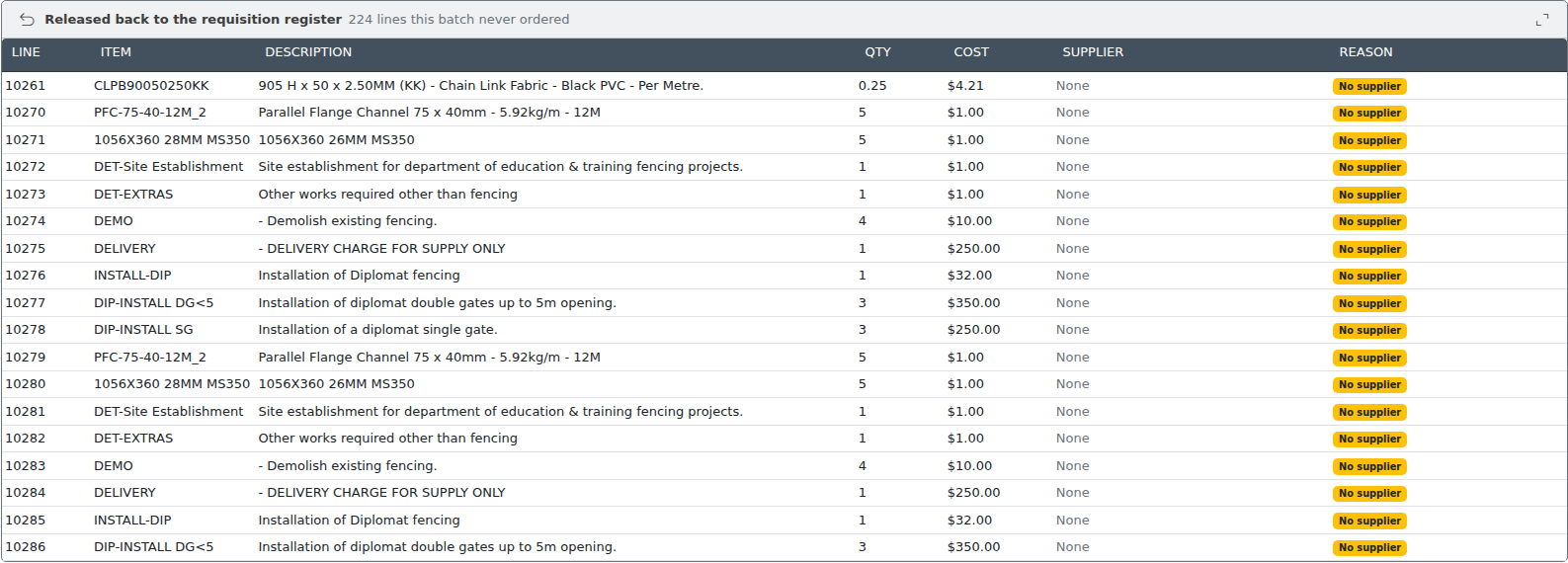
Anything the batch never allocated to a supplier is released back to the requisition register at that same moment. Those lines are ordinary unordered requisitions again, free for anybody to batch; the completed batch lists them under Released back to the requisition register so there is a record of what it left behind.
The lock is on the batch, not on the orders
The purchase orders a batch creates are ordinary purchase orders. Edit them, send them, receive against them, or delete them. Deleting one puts its requisition lines back on the register, and you can batch those lines again as many times as you like — each run leaving its own batch behind as a record of what was decided and when.
The group cards on a completed batch link straight to the orders they created. An order that has since been deleted is shown in red and marked — deleted, so a completed batch never implies something was bought when it was not.

What Happens Next
The new purchase orders behave like any other. Send them to your suppliers from Purchase Orders, follow them on Purchase Tracking, receive the stock, and bill them through Creating Bills from Purchase Orders. The requisitions stay linked to their projects throughout.
Each order you receive and each bill you enter also feeds back into learned supplier history, so the suggestions get better the more you buy.