
Creating Bills from Purchase Orders
When a supplier’s invoice relates to a purchase order, you can create the Accounts Payable bill straight from the PO. Evolution copies the order lines onto a new draft bill so you don’t have to re-key them, and links the bill back to the purchase order.
Two ways to bill a purchase order
From an open purchase order there are two main ways to raise a bill:
build Create Bill (Tools panel)
Raise a bill for the whole purchase order in one step. Best when the supplier has invoiced you for the complete order.
local_shipping Send received goods to AP
Bill only the goods that have actually been received. Best for part-deliveries, or when you are invoiced as stock arrives.
Method 1 — Create Bill from the Tools panel
Open the purchase order, then open the Tools panel using the build tools icon in the top-right of the PO. The panel’s Billing section lists every bill already raised against this purchase order (with its number, date and status), so you can see at a glance what has been billed.
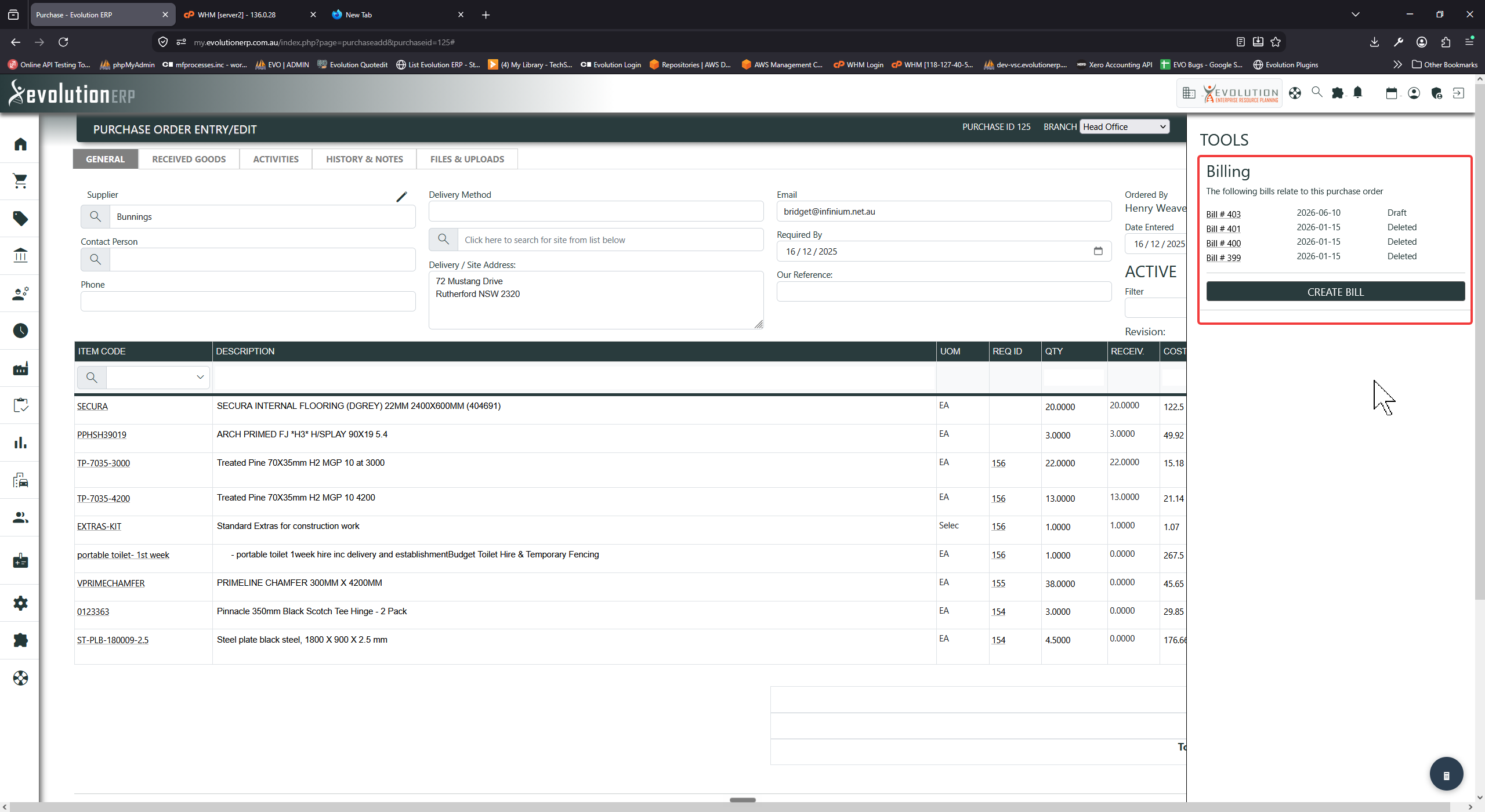
Click Create Bill. Evolution raises a new draft bill containing every active line from the purchase order — item, description, quantity, cost and tax — posted to each item’s purchase account. The new bill appears in the Billing list with a link to open it.
Method 2 — Send received goods to AP
If you only want to bill what has actually arrived, use the received goods list. On the purchase order, open the Received Goods tab. This shows the Received Goods History — every receipt recorded against the PO, with its date, item code, requisition, delivery docket (memo) and quantity.
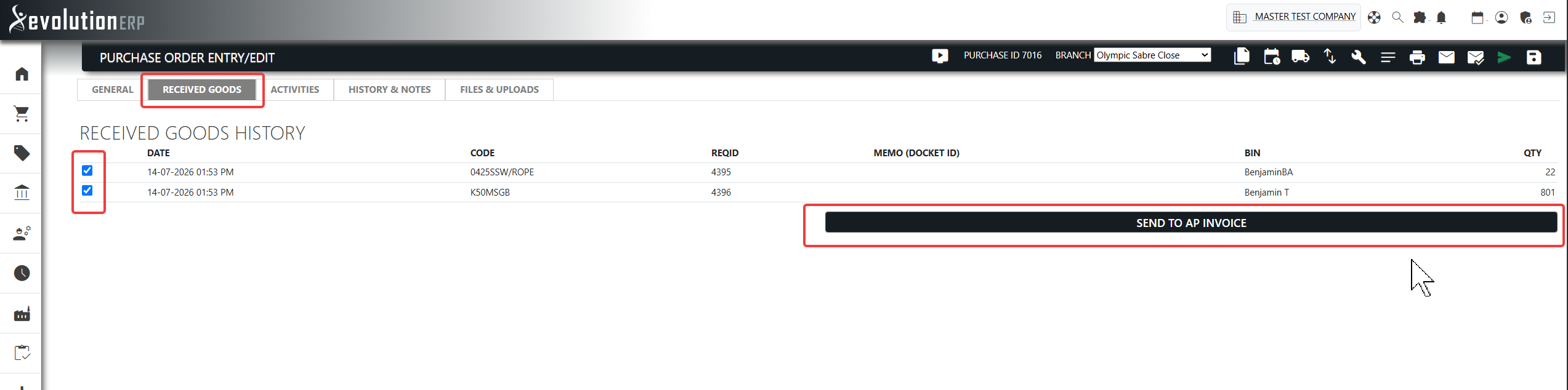
- Tick the received lines you want to bill. Clicking a delivery docket selects every line received under that docket in one action.
- Click Send to AP Invoice.
Evolution creates a draft bill for the selected receipts and opens it on the Bill Entry screen, ready for you to check and commit.
Creating a bill while receipting goods
You can also create the bill at the moment you receive stock. When you open the Receipt Incoming Goods window from a purchase order (the local_shipping receive-goods icon), tick Create a bill before confirming the receipt.
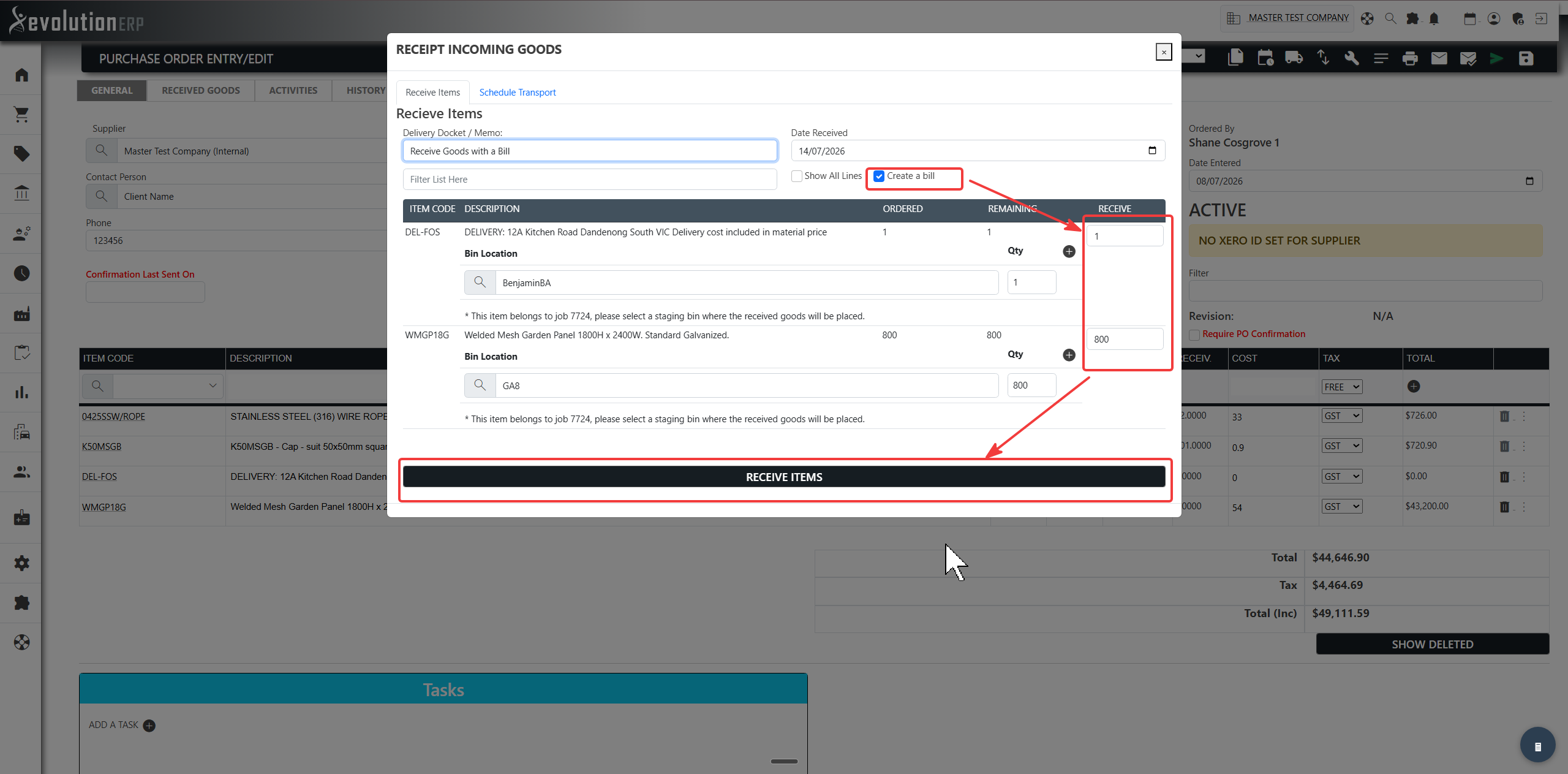
Evolution receives the goods into stock and, in the same step, creates a draft bill for them — then takes you to the Bill Entry screen to finish it.
Finishing the bill
However the bill is created, it starts as a Draft linked to the purchase order. Open it from the Billing list (or the screen it opens automatically), check the supplier invoice number, dates, accounts and tax, then commit it. See Bill Entry for a full walk-through of the bill screen and its statuses.
Support
For help configuring purchasing or Accounts Payable, please contact Evolution ERP Support.