
Every inventory item is measured in something — each, metres, kilograms, hours. The Units of Measure screen is where that list is maintained. It is a small screen, but the list feeds the unit dropdown on every item, on manufacturing processes and on assets, so it is worth setting up properly once.
Find it under Settings → Units of Measure, or from Inventory → Tools → Manage Units of Measure.
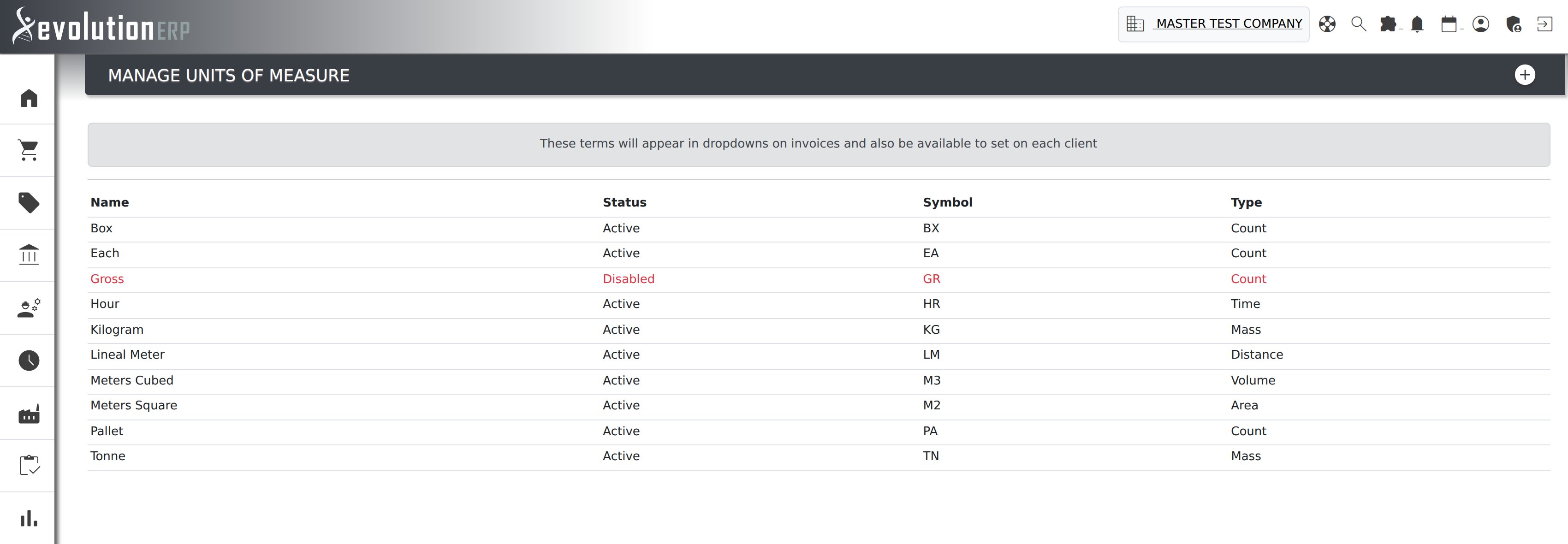
What Each Field Is For
| Field | What it does |
|---|---|
| Name | The full name of the unit — Each, Lineal Meter, Tonne, Hour. This is what people read. Required. |
| Symbol | The short form — EA, LM, TN, HR. Up to 16 characters, so a longer form such as SHIFT or PACK/10 fits where it used to be cut short. This is the important one: it is the symbol that gets stored against an inventory item and printed on documents, so keep it short and keep it stable. |
| Type | What kind of quantity the unit measures — Area, Count, Distance, Mass, Time or Volume. Required. See the next section for why this matters more than it looks. |
| Status | Active or Disabled. Disabled units are shown in red on this list to mark them as no longer in use. Items already set to a disabled unit keep it — nothing is changed on your inventory by disabling a unit here. |
Why Type Matters
Type is not just a label. It is how Evolution tells the difference between something physical that can sit on a shelf and something that cannot — and the distinction that matters most is Time.
A unit typed Time marks the items using it as labour or service rather than stock. Two parts of Evolution read that distinction.
Items To Follow
It keeps hourly lines off the Items To Follow page on a customer’s invoice: booked hours are never dispatched, so without this they would print as entirely outstanding on a document going to the customer.
Billable timesheet lines
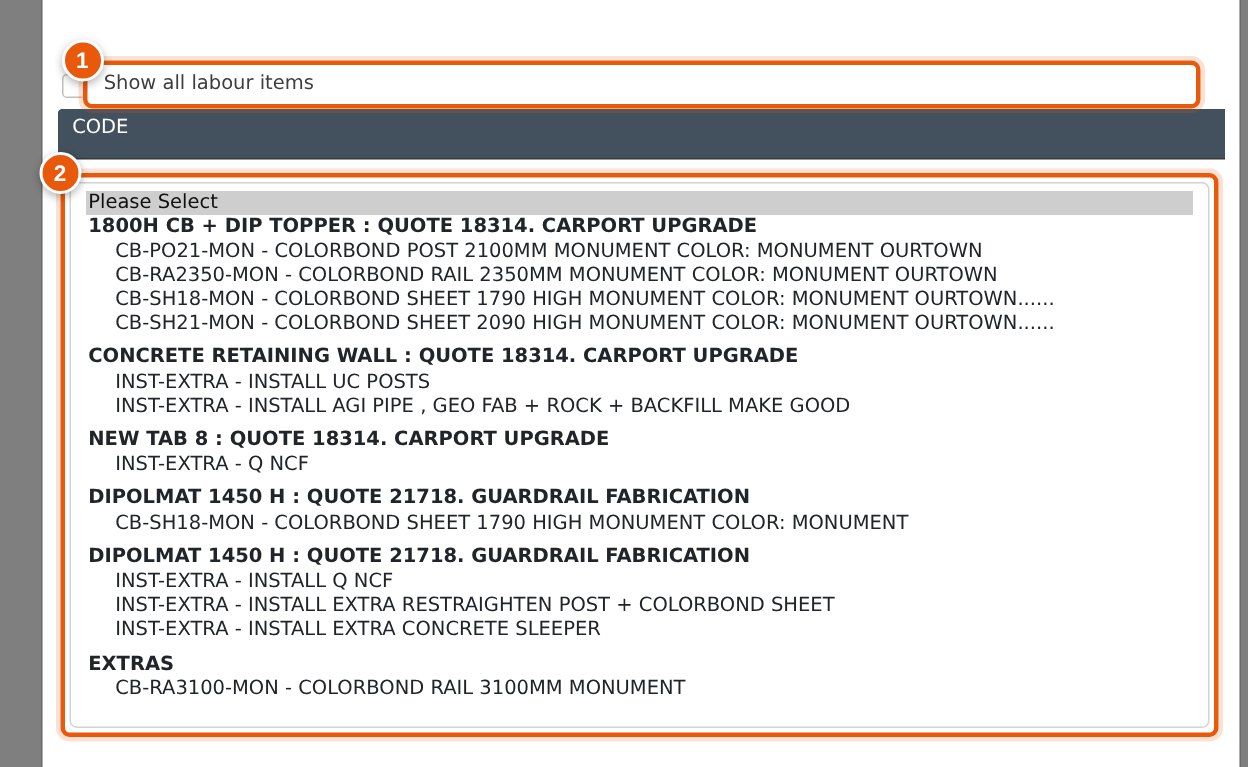
It also decides which of a project’s lines are offered when someone enters an Itemized Time Entry on a timesheet. The CODE dropdown lists the project’s labour lines grouped by the quote they came from, so the hours land against the right billable line without hunting for it.
- Show all labour items — only needed when the line you want is not a labour line at all. Leave it clear for normal entry.
- CODE — every line on the project measured in a Time unit, listed under the quote it belongs to.
Adding a Unit
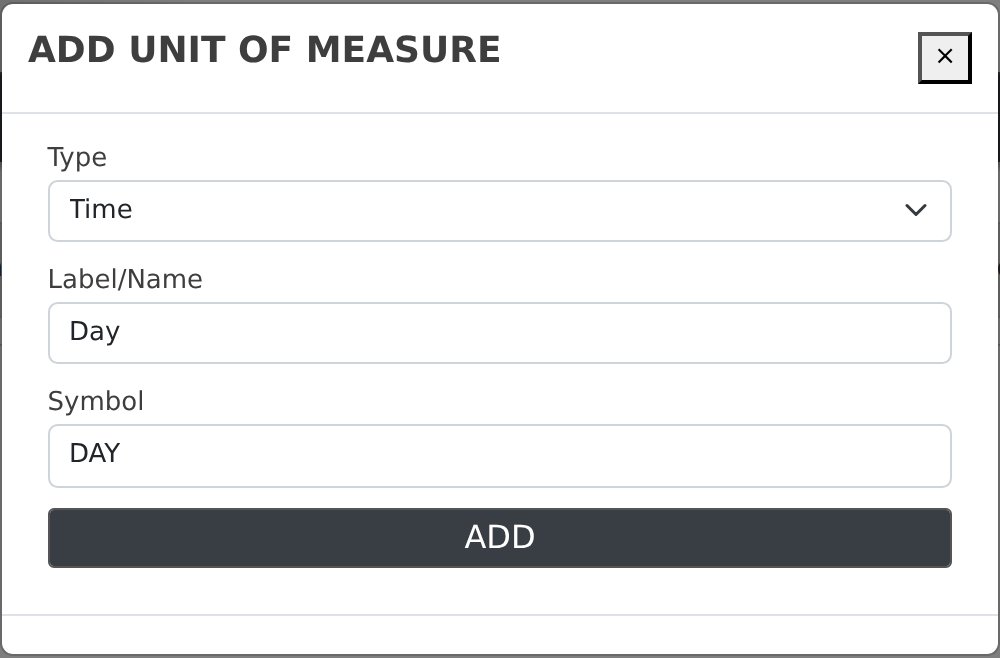
- Press the + button at the top right of the screen.
- Choose a Type, and enter a Label/Name and a Symbol.
- Press Add. The new unit appears in the list, active, and is immediately available in the unit dropdown on items.
Type and name are both required — the form will not submit with the type left on Please Select, and a unit cannot be saved without a name.
Editing or Disabling a Unit
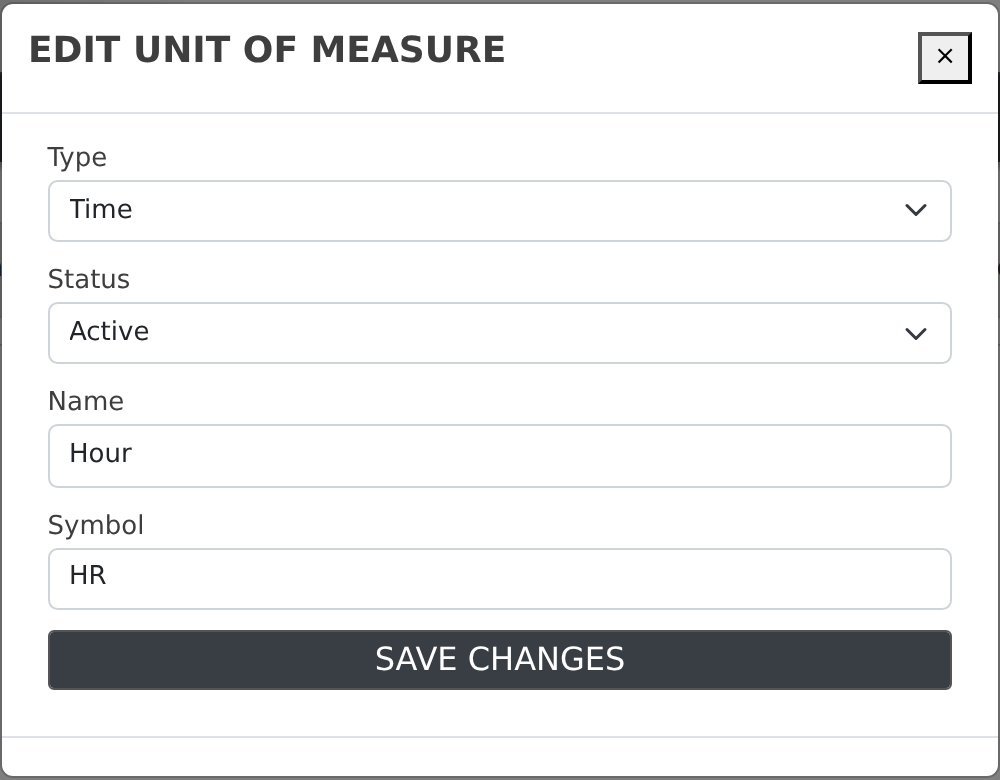
Click anywhere on the unit’s row and the edit window opens with its details filled in. Change what you need and press Save Changes. To retire a unit, set its Status to Disabled and save; the row turns red on the list.
A disabled unit is no longer offered when you set the unit on an item, so it cannot be picked again by mistake. Items that were already on it are left alone — open one of them and its retired unit is still shown and still selected, so nothing is lost and saving the item does not quietly move it onto something else.
Renaming a Unit
A unit is recorded against an item as its symbol rather than as a link back to this screen, so renaming one has to carry the change through to everything already using it. Evolution does that for you. Change the name or the symbol, press Save Changes, and you are told what the change will move before it happens:
Renaming this unit of measure to "Each" (EACH).
These records store the unit as text and will be updated to match:
7,190 inventory items
4 manufacturing processes
Invoices and credit notes already raised keep the wording they were printed with, so past documents are not altered.
Answer OK and the rename is applied everywhere in that list — inventory items, manufacturing processes, expense items and any alternate units set up on an item all move across together, so nothing is left pointing at a unit that no longer exists. Answer Cancel and nothing changes at all.
Who Can Change This
Adding, editing and disabling units requires Administrator access or Inventory set to Admin. Everyone else can see the list but cannot save changes to it — see Setting Permissions.
Every add and every change is recorded in the audit log, with the field that changed and what it used to say, so a unit that quietly changed shape can be traced back to who changed it and when.
Units on Items
An item’s unit is set on the inventory record under Unit of Measure, chosen from this list. Alongside it is Manage Conversions, which is a separate thing: conversions let you buy or sell the same item in a different unit — a per-tonne rate converted back to a per-each cost, for instance — and they live on the item, not here.
Related Pages
- Items To Follow (Backorder Report) — where the Time type is used.
- Timesheets — the other place the Time type is used.
- Setting Permissions — granting Inventory admin access.
- Bin Re-order — another screen that reads item units.