
The Bin Re-order tool looks at your min/max bin levels for a branch and lets you generate the Purchase Requisitions (for purchased items) and Stock Shop Orders (for manufactured items) needed to bring stock back up to its maximum — now from a single “Generate Orders” button.
The suggested order quantity is Max − (available stock + everything already on the way), so items already covered by open purchase orders, shop orders or purchase requisitions won’t be re-ordered. That makes it safe to run the tool more than once in a day without double-ordering.
You can now optionally have all of that reorder activity nested under a single internal project — one project per branch, per day, referenced “bin reorder - <date>”. Every requisition and shop order you generate that day for that branch is attached to the same project, and each line is added to the project’s inventory, so reorder work can be tracked and costed in one place.
One-Time Setup (Administrator)
Before reorder projects can be created, an administrator nominates the internal contact and project category they should use. This is done once.
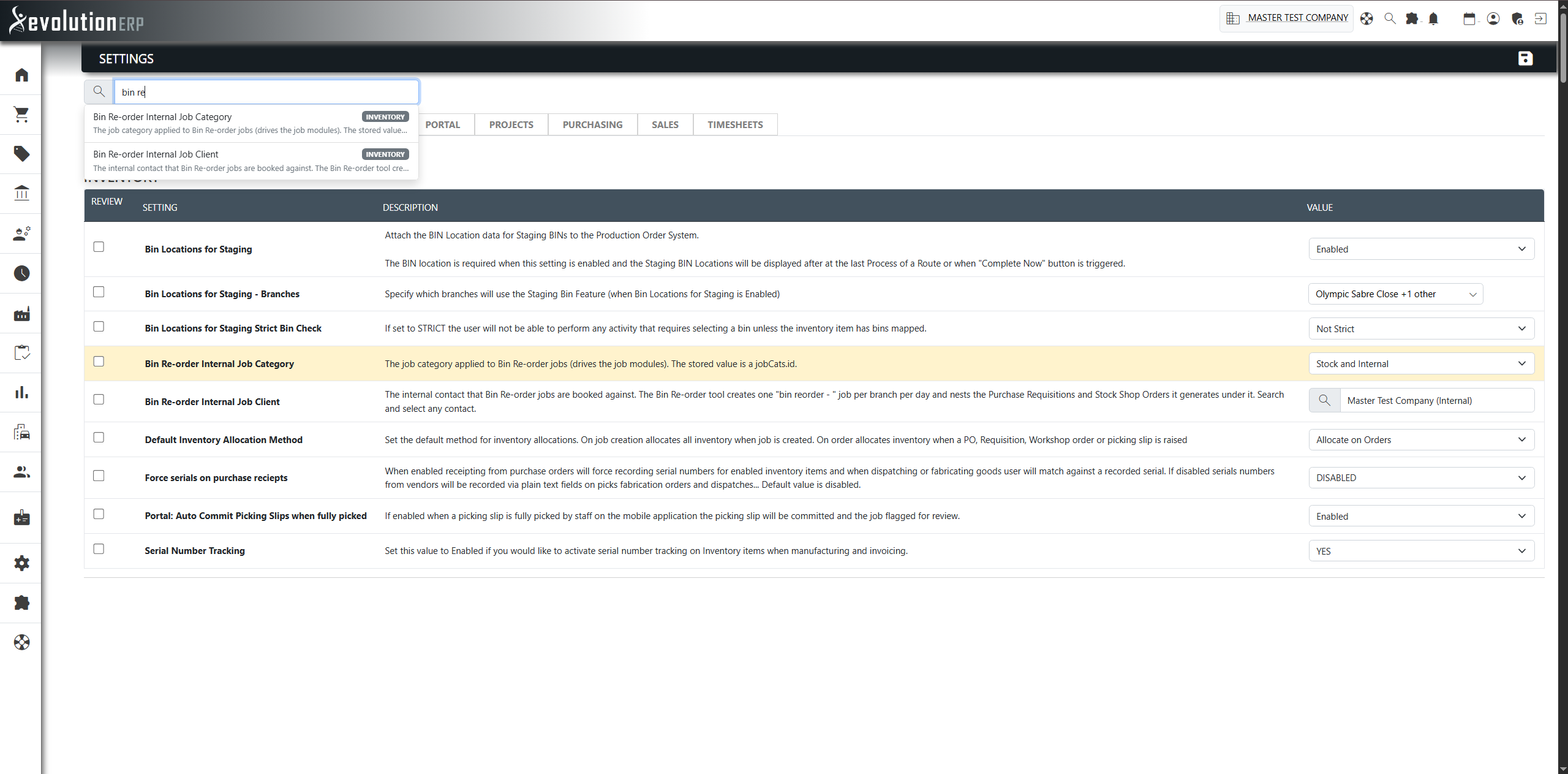
- Go to Settings and open the Inventory tab.
- Find “Bin Re-order Internal Project Account”. Start typing to search contacts and select the internal account you want reorder projects booked against (many businesses create a dedicated contact such as “Internal” or “Stock”).
- Find “Bin Re-order Internal Project Category” and choose the project category to use for these projects.
- Click Save.
Where to Find It
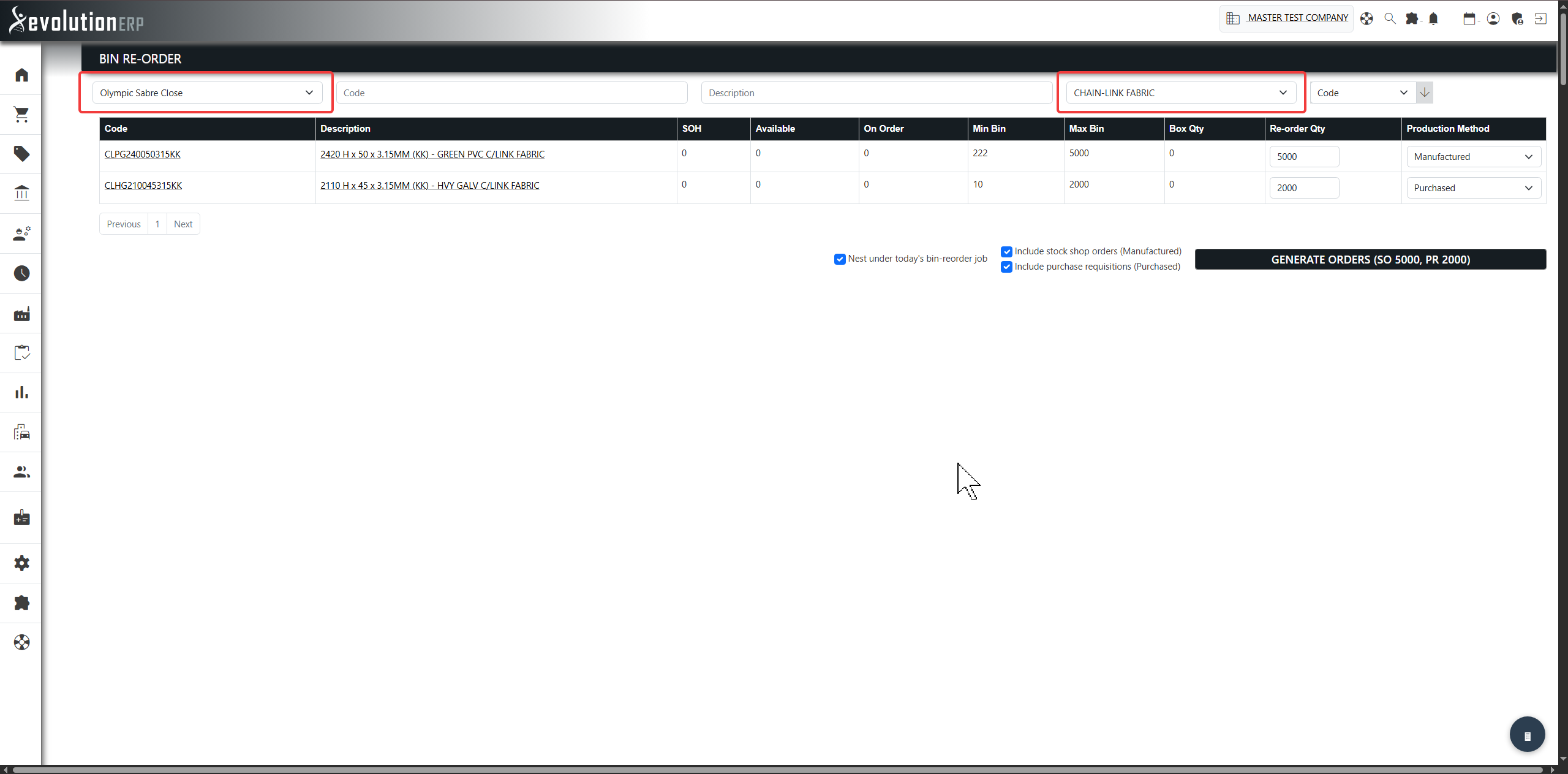
Purchasing → Bin Re-order
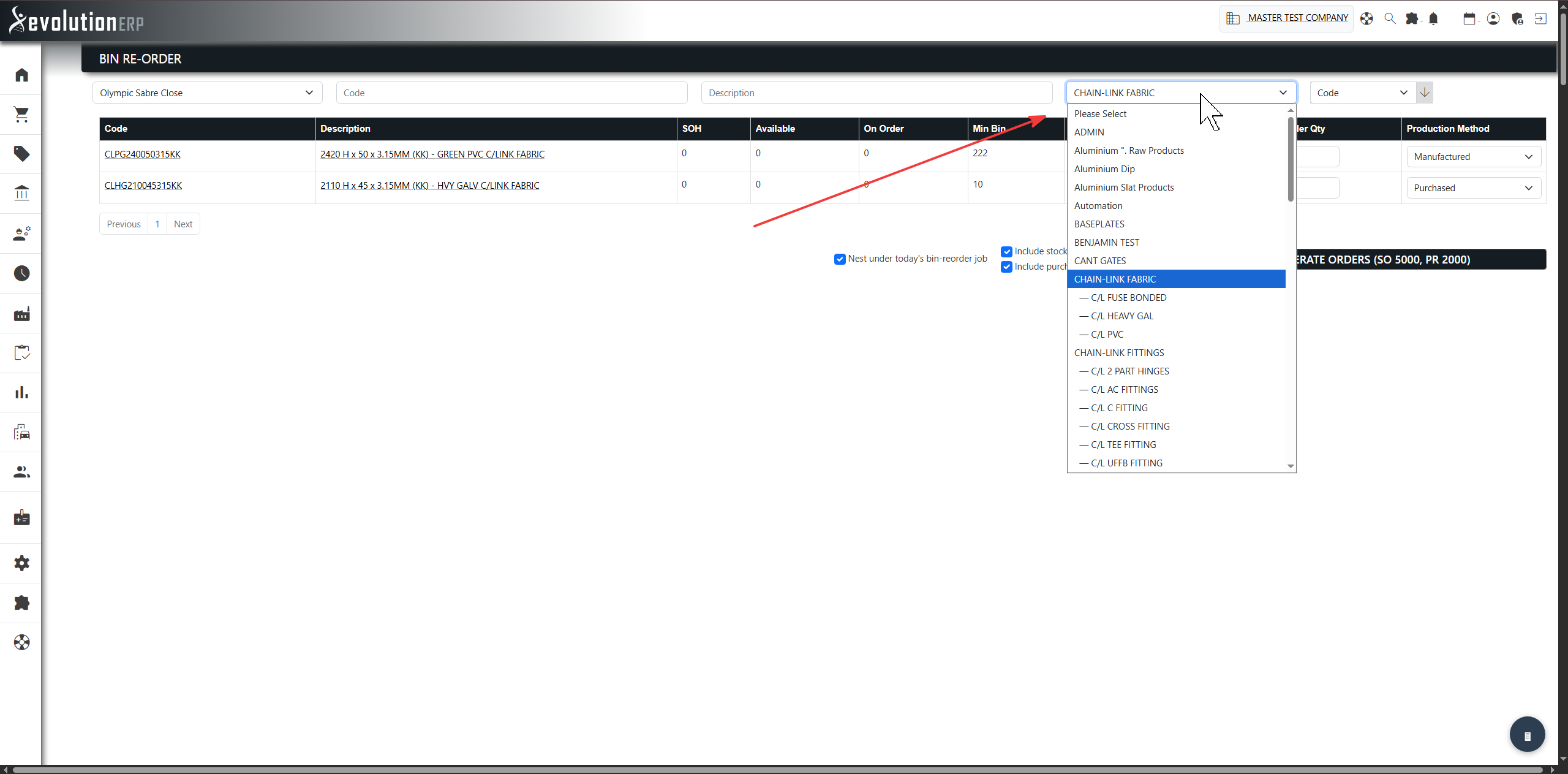
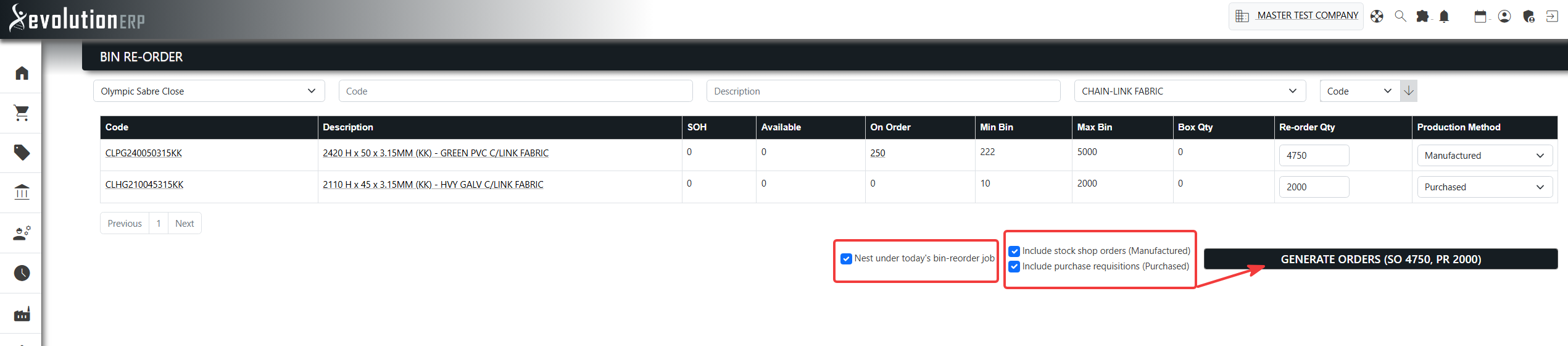
Select a branch, then filter by code, description or category. Set the re-order quantity for the items you want to top up and choose a production method (Purchased or Manufactured) per item.
Reading the “On Order” Column
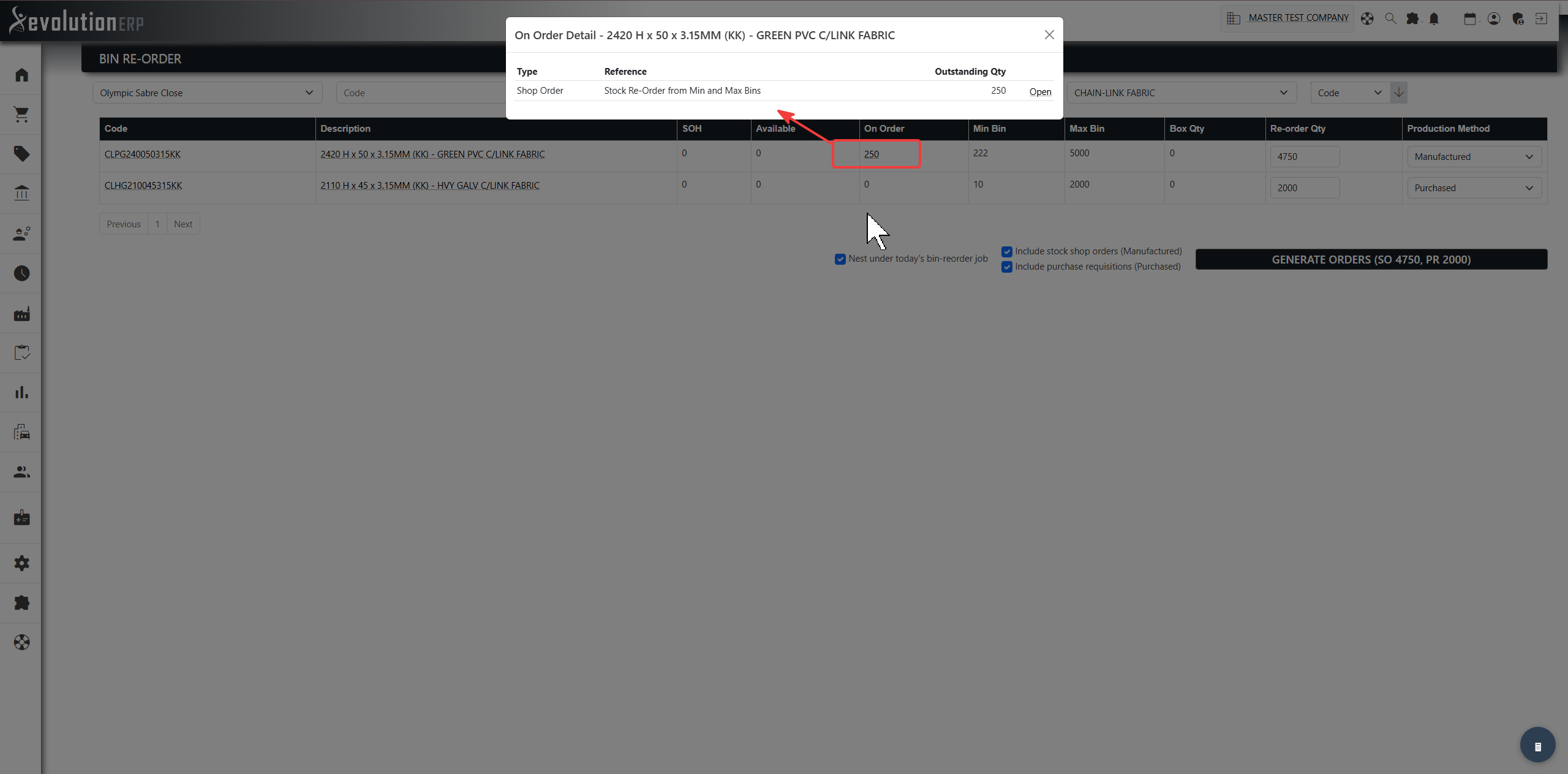
Each item shows an On Order figure — the total quantity already inbound from open purchase orders, shop orders and purchase requisitions. This is the same supply the tool subtracts when it works out how much to re-order.
When an item has stock on order the figure becomes a link. Click it to open the On Order Detail window, which breaks the number down by source — listing each order’s type, reference and outstanding quantity — with an Open link through to the underlying purchase order, shop order or requisition.
Generating Orders
Below the item list you’ll find a single Generate Orders button, two “include” checkboxes and the job-nesting option:
- Include stock shop orders (Manufactured) — when ticked, shop orders are created for the manufactured items.
- Include purchase requisitions (Purchased) — when ticked, a requisition is created for the purchased items.
- Nest under today’s bin-reorder project — ticked by default (see below).
Both include options are ticked by default, so a single click of Generate Orders raises both the shop orders and the requisitions needed. Untick one to skip that type. The button label updates live to show the quantities queued (for example Generate Orders (SO 12, PR 40)) and stays disabled until a branch is selected and there is something to order.
With “Nest under today’s bin-reorder project” ticked, the generated requisitions and shop orders are attached to that day’s bin-reorder project for the selected branch (creating the project the first time, reusing it after that) and each line is added to the project’s inventory.
Setting Bin Levels (Min / Max)
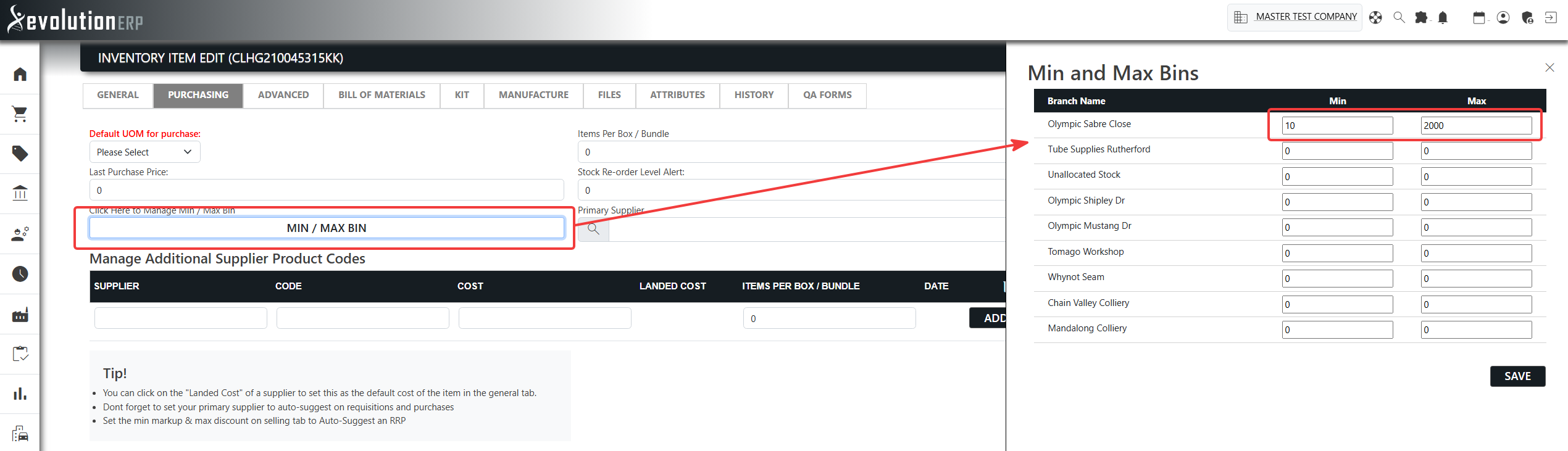
Re-order quantities are driven by the Min and Max bin levels held per branch on each item (Item → Purchasing tab → Branch Min/Max). The tool tops stock up to the Max, so a Max that is lower than its Min would silently under-order.
Frequently Asked Questions
How many projects are created?
One per branch, per day. Generating purchase requisitions and shop orders for the same branch on the same day — even across several clicks — all nest into the one “bin reorder - <date>” project.
Can I still generate orders without a project?
Yes. Untick “Nest under today’s bin-reorder project” before clicking a generate button and the requisitions/shop orders are created loose, exactly as they were previously.
Why is the allocation method fixed?
Reorder projects exist to group internal stock top-ups, not to reserve stock, so they are always created as “Do not Allocate”.