
The Invoice Register lists every customer invoice. Open it from Sales › Invoices. The filters along the top narrow the list, and the buttons just above it show how many invoices are in draft, owing, overdue and paid, along with the money still to come in.
The Filters
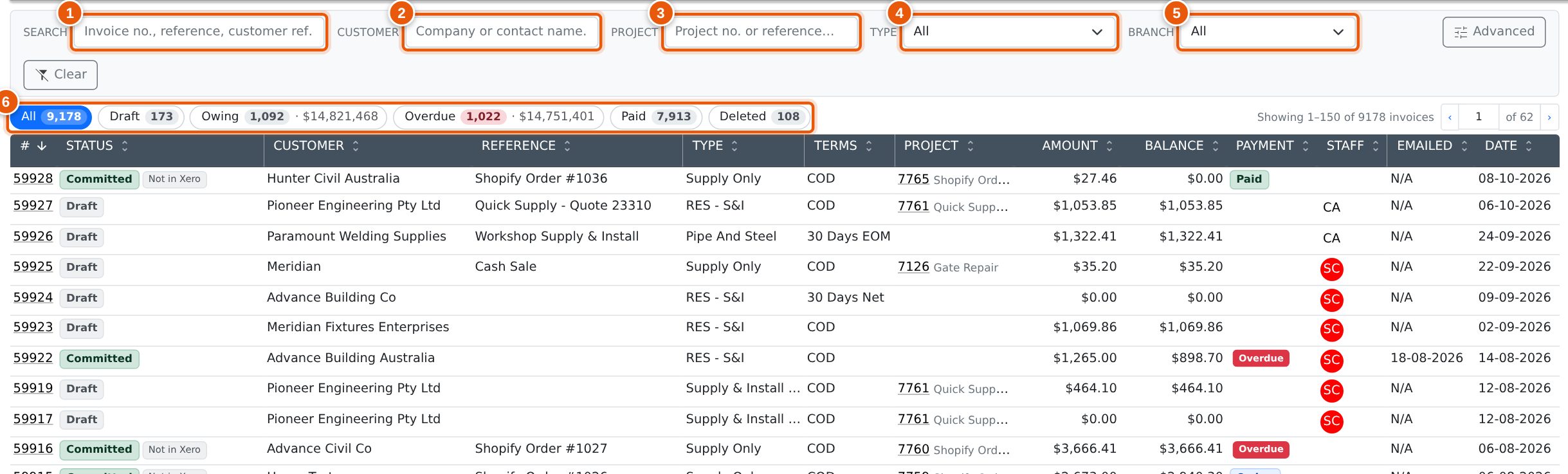
The filters run left to right in the same order as the other registers in Evolution:
- Search: an invoice number, the invoice reference or the customer’s reference. Type several words to find invoices that contain all of them.
- Customer: part of the company name or the contact’s name.
- Project: a project number, or words from the project’s reference. This finds invoices raised against the project, including invoices where only some of the lines belong to it.
- Type: the invoice type. See Filtering by Invoice Type below.
- Branch: invoices for one branch only.
The list updates as you type or choose. Advanced opens more filters, and Clear resets every filter and returns to All.
Evolution remembers your filters. If you open an invoice and come back, or leave the register and return later, the list is just as you left it.
Filtering by Invoice Type
Every invoice has an Invoice Type, chosen on Invoice Entry. The type controls which print template is used and where the revenue posts. The types are the same list as your Quote Types, so an invoice raised from a quote keeps that quote’s type.
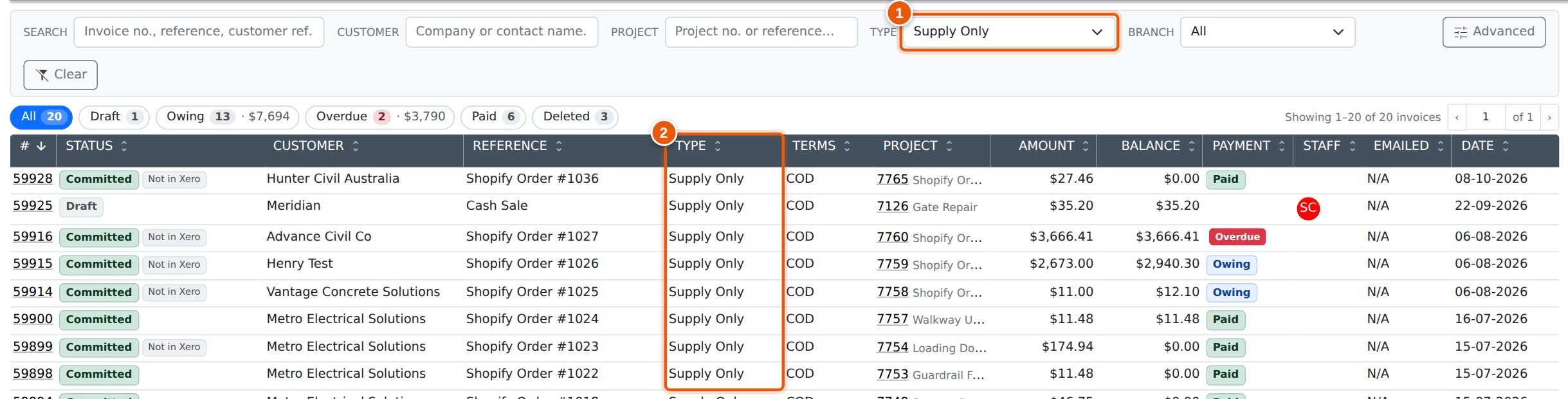
Choose a type from Type (1) to see only invoices of that type. The Type column (2) shows each invoice’s type, and the counts above the list update to match. In the example below, there are 20 Supply Only invoices: 13 still owing and 2 of those overdue.
- Types you no longer use are still listed, marked (disabled), so you can find older invoices raised under them.
- Not set at the bottom of the list finds invoices that were saved without a type.
Draft, Owing, Overdue and Paid
The buttons above the list split the invoices that match your filters by where they are in their life. Each button shows how many invoices it holds, so you can see the numbers before you click:
| Button | Shows |
|---|---|
| All | Every invoice that matches the filters. |
| Draft | Invoices that have not been committed yet. |
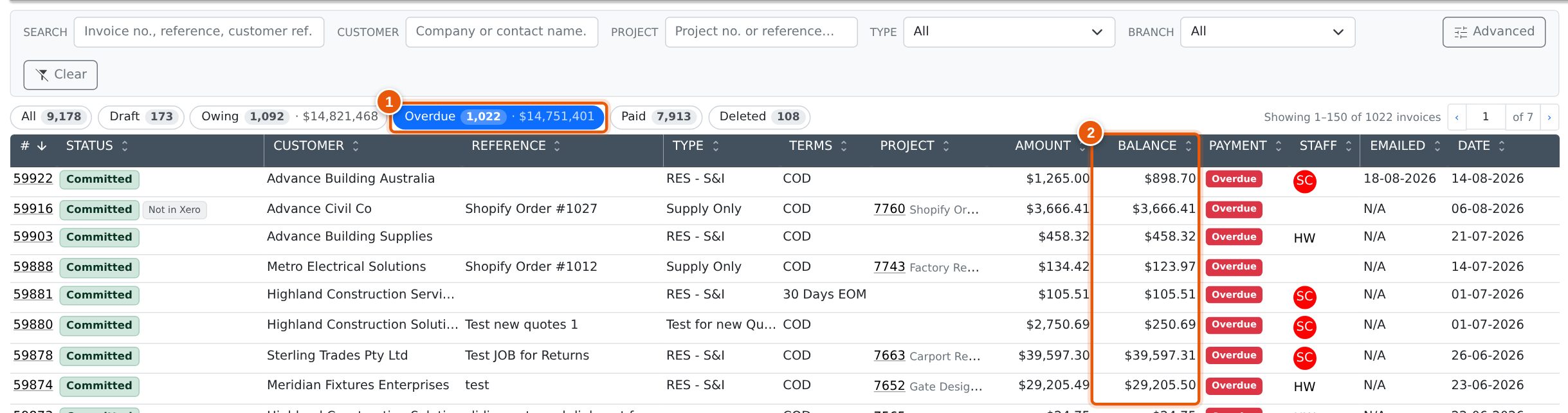
| Owing | Committed invoices that are not fully paid. The figure after the count is the total balance still owing. |
| Overdue | Owing invoices whose due date has passed. The figure after the count is the overdue balance. |
| Paid | Committed invoices that are fully paid. |
| Deleted | Invoices that have been deleted. See Deleted Invoices. |
Click a button (1) to show only those invoices. Click it again to return to All. The buttons work alongside the filters, so you can, for example, choose a customer and click Overdue to see what that customer owes past its due date.
Advanced Filters
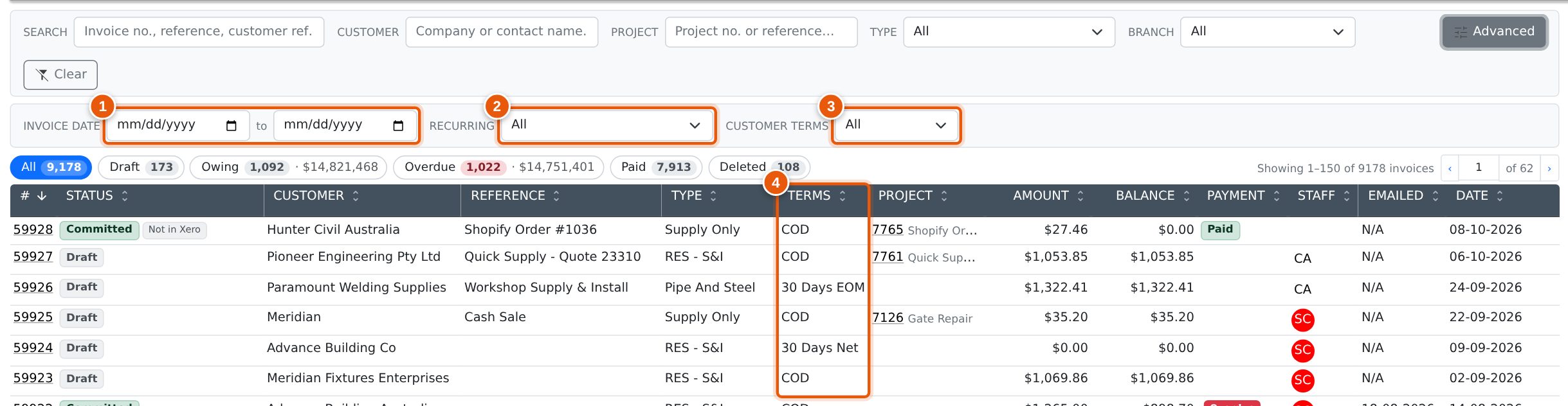
Click Advanced to open a second row of filters:
- Invoice date: invoices dated between two dates. Leave either side empty for an open range.
- Recurring: separates recurring invoices from one-off invoices. Recurring template finds the invoices set up to repeat, and Generated from a template finds the invoices created from them. In the Type column these are flagged Recurring and Generated.
- Customer terms: invoices for customers on particular payment terms, such as 30 Days EOM.
The Terms column (4) shows each customer’s payment terms by name. If one of these filters is in use when you return to the register, the Advanced row opens automatically so you can see it.
Deleted Invoices
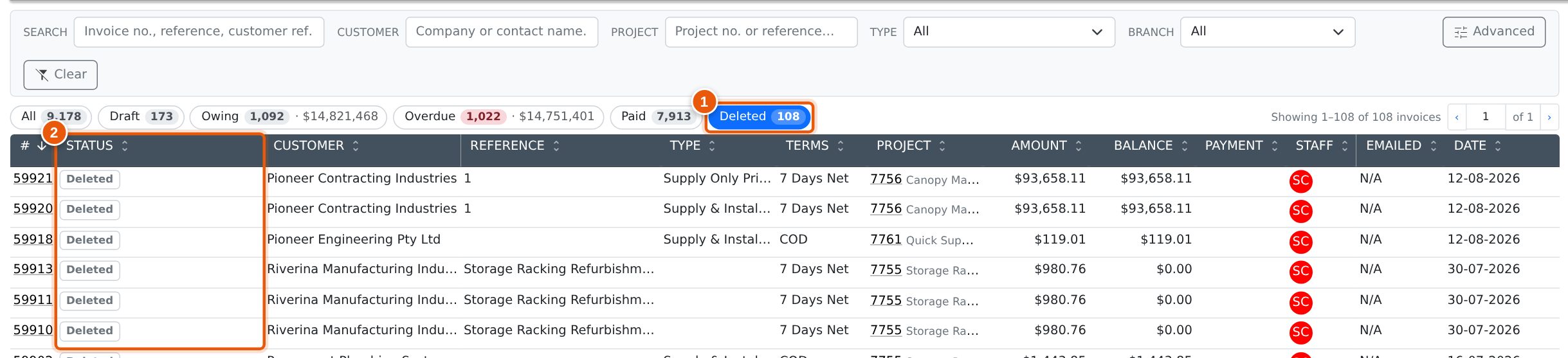
Click Deleted (1) to see invoices that have been deleted, as they stood when they were deleted. They are marked Deleted in the Status column (2). Deleted invoices are not part of All and are not counted in the other buttons.
The filters apply to deleted invoices too, so you can search for a deleted invoice by number, customer, type or date. The Project filter matches only the project an invoice was raised against, because a deleted invoice’s lines no longer exist.
Common Questions
Why is the Type filter different from Recurring?
They answer different questions. Type is the kind of work invoiced, such as Supply Only or Supply & Install. Recurring is whether the invoice repeats on a schedule. Recurring was labelled “Type” before, and it is now in Advanced.
Why don’t the counts change when I click a button?
The counts describe everything that matches your filters, so they stay the same while you move between buttons. They change when you change a filter.
An invoice shows Owing but the customer has paid. Why?
The register shows the balance Evolution holds. If the payment was entered in Xero and has not come across yet, see Syncing Payments from Xero.
Related Pages
- Syncing Payments from Xero: bringing a missing payment across for one invoice.
- Credit Notes (AR & AP): the other way an invoice balance is reduced.
- Credit Limits & Stop Credit: what an overdue balance affects.
- Cash Sales: point-of-sale invoices, which appear in this register too.