
Evolution has two credit controls on every customer account: Stop Credit (a yes/no switch) and Credit Limit (a dollar figure). Both are set on the account, and both then change what the sales and project teams are allowed to do — on the quote screen, on projects, and on invoices — without anyone having to check with accounts first.
The two controls are not interchangeable. Stop Credit is the heavier of the two and reaches much further into the system: it stops projects being created at all and shuts down the whole action bar on a project’s Inventory tab. Credit Limit only bites on invoicing. This page explains both, and shows exactly where each one appears.
Setting the Two Values
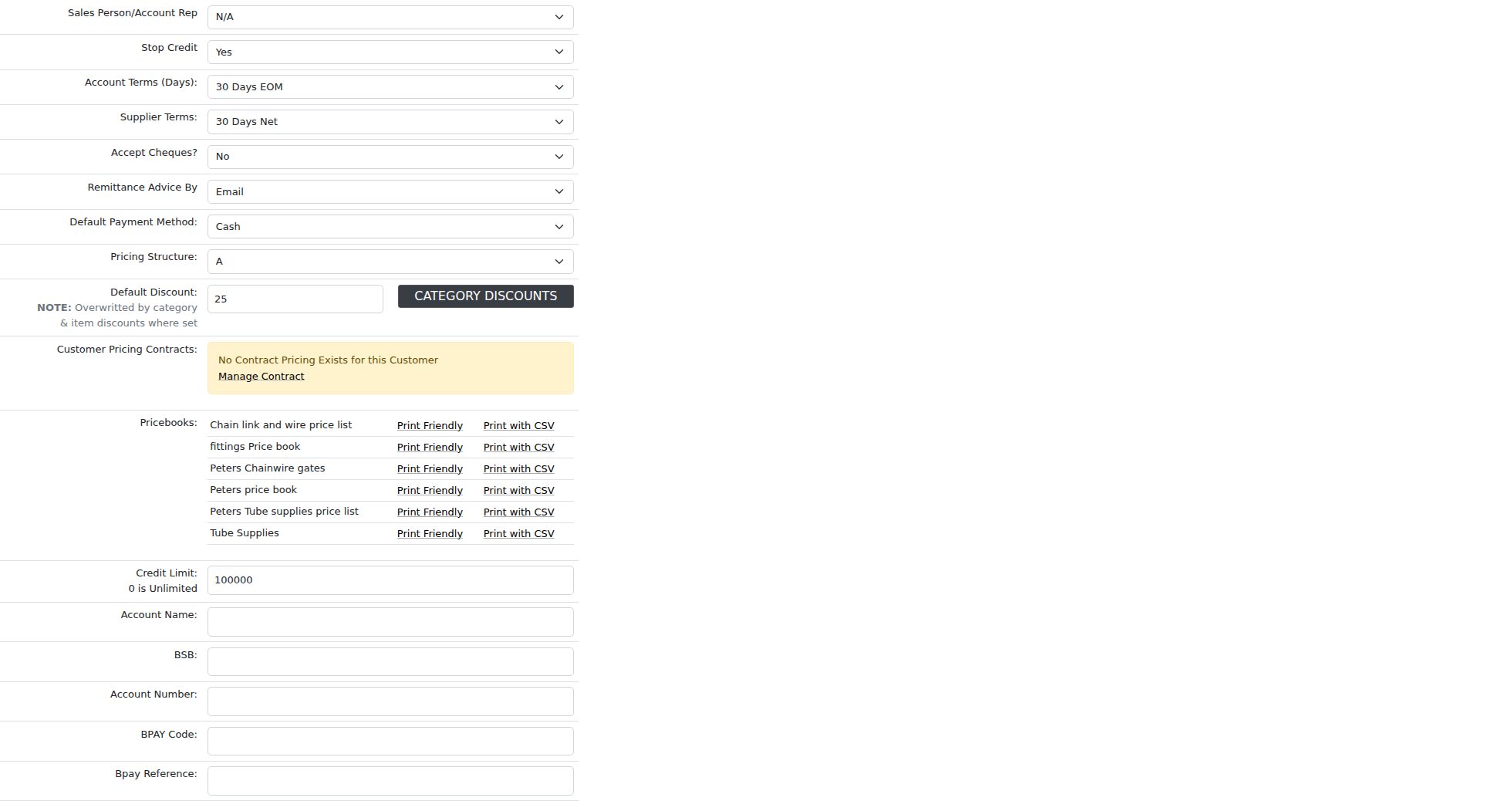
Both fields live on the account, under Manage Accounts → (open the account) → Billing/Pricing. Stop Credit is near the top of the tab, just under the Sales Person/Account Rep; Credit Limit is further down, below the Pricebooks list.
| Field | What to enter |
|---|---|
| Stop Credit | No (normal trading) or Yes (account frozen). Setting it to Yes immediately applies every block described further down this page — there is no grace period. |
| Credit Limit |
The maximum the account may owe you, in dollars, entered as a plain number
(e.g. 100000). Leave it at 0 for unlimited — a
zero limit is treated as “no limit set”, not as “this account may owe nothing”.
|
Finding accounts that are on stop credit
On Manage Accounts, open the advanced filters with the more_vert icon at the right of the search bar. The Stop Credit dropdown filters the register to Yes, No or All, which gives you a working list of every frozen account. The same filter exists on the Session/Account search screen.
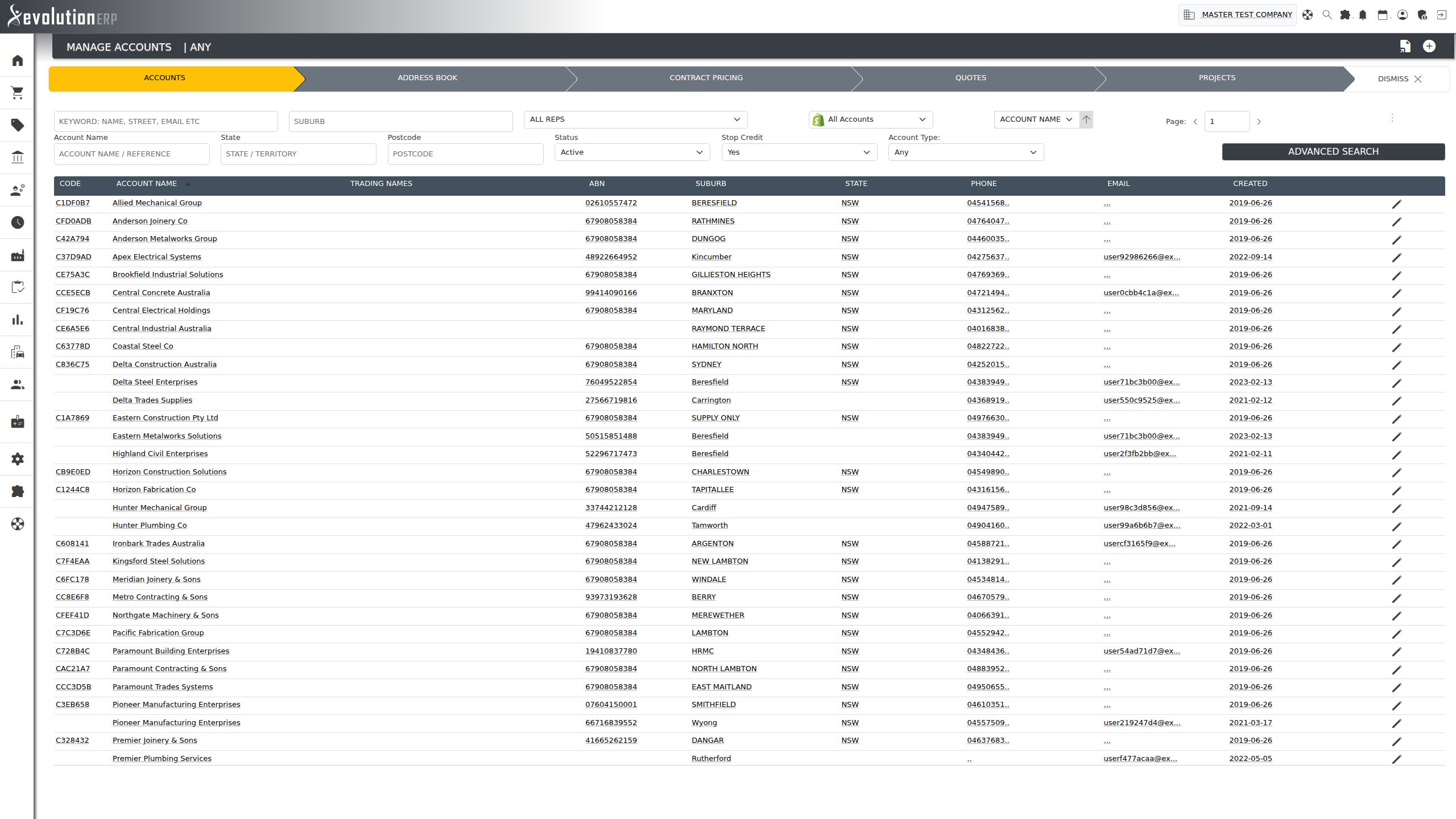
info There is no equivalent “over their limit” filter — the credit limit is compared against the balance live, on each screen, rather than stored as a flag.
How the Balance Is Worked Out
Wherever Evolution compares an account against its credit limit, the Customer Balance it uses is the total outstanding balance across all of that customer’s invoices — what they owe you right now, including tax. It is not restricted to overdue invoices, and it is not restricted to a branch.
That balance, and the limit it is being measured against, are shown to you on both the quote screen and the invoice screen so you can see how much room is left before the limit bites.

On the Quote Screen
The quote screen is where most people meet these settings, and it reacts to both of them. Three things change.
1. The stop credit badge
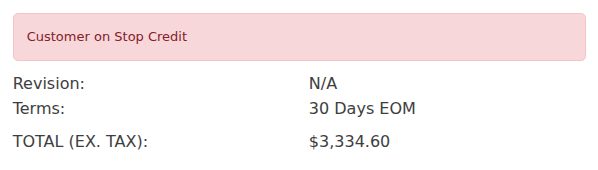
If the customer is on stop credit, a red Customer on Stop Credit badge appears in the quote summary panel on the right, above Revision and Terms. It is purely a warning — you can still build, price, save, print and email the quote as normal.
2. The balance and limit line
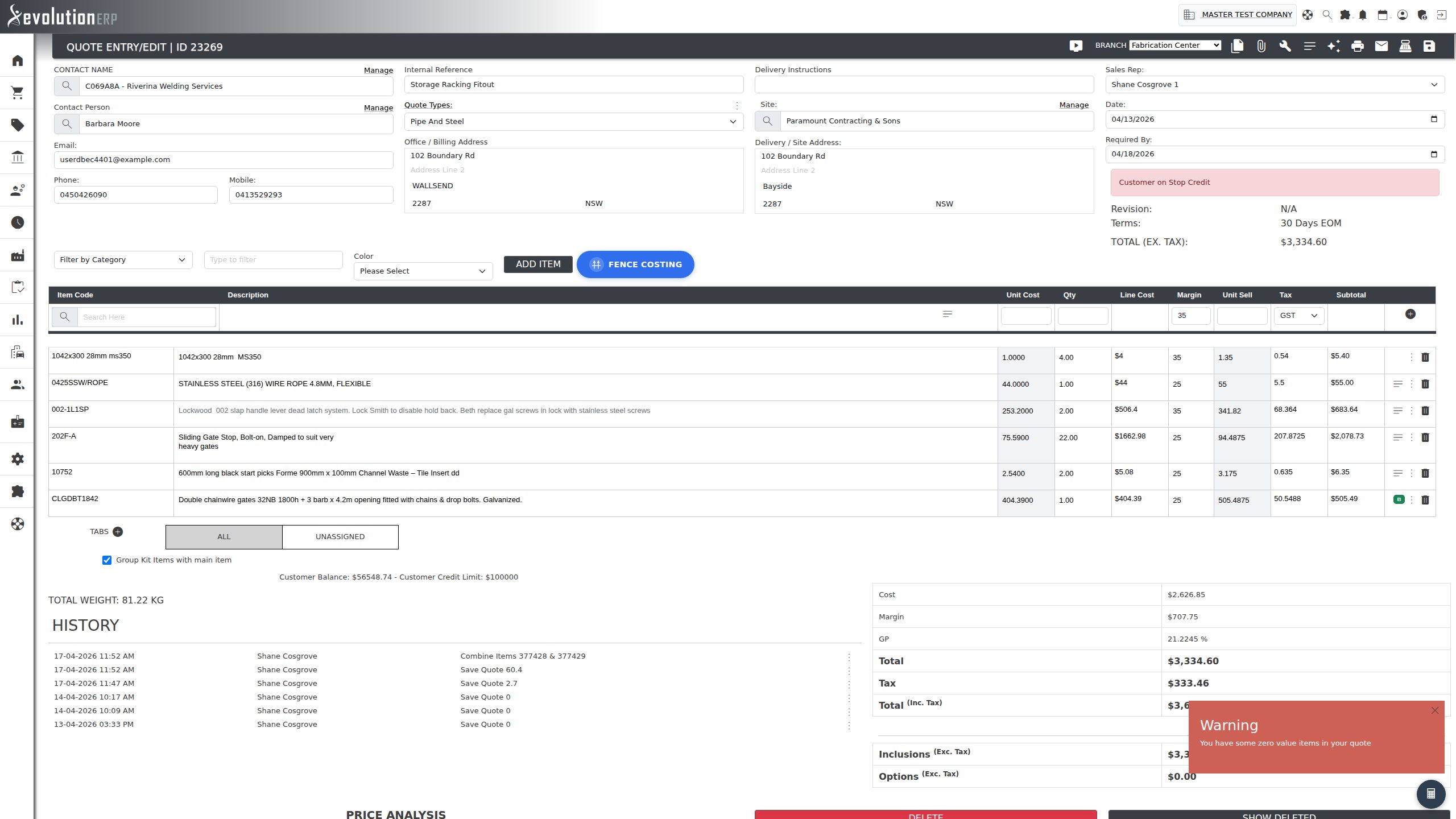
Under the quote item grid, Evolution shows the customer’s current balance alongside their credit limit, so the estimator can see the position before promising anything. Accounts with the limit left at 0 show Unlimited.
3. Create Invoice and Create Project are blocked
The real enforcement happens in the quote Toolbox — the panel you open from the quote screen and drive with the Select from Dropdown list. Two of its functions are gated:
| Toolbox function | Blocked by Stop Credit? | Blocked by Credit Limit? | What you see |
|---|---|---|---|
| Create Invoice | Yes | Yes | The invoice options are replaced by a red warning. There is no override. |
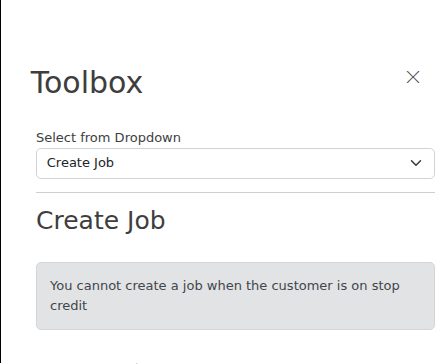
| Create Project | Yes | No | The project options are replaced by a grey notice. |
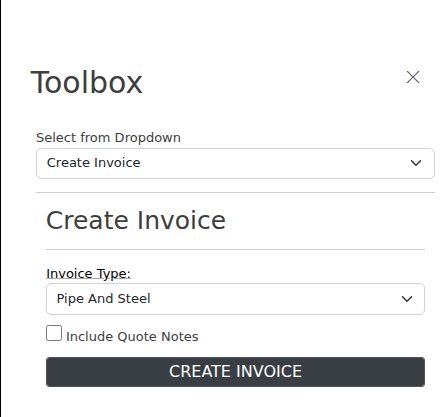
For a healthy account, Create Invoice shows the normal options — invoice type, whether to include quote notes, and the Create Invoice button:
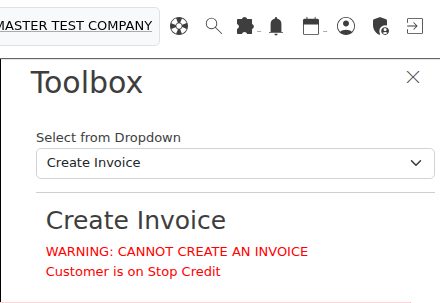
On an account that is on stop credit, those controls are gone entirely and replaced with a warning. The Create Invoice button is not disabled — it is simply not rendered, so there is nothing to click:
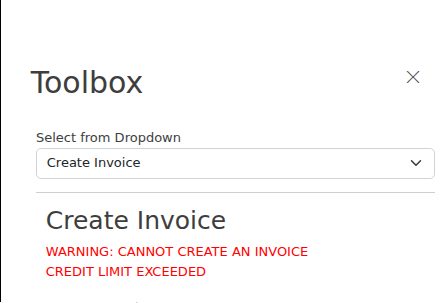
On an account that is over its credit limit — the balance has reached or passed the limit — you get the same treatment with a different reason:
Create Project is blocked by stop credit only. A customer who is over their credit limit can still have projects created from their quotes — the reasoning being that the limit is about money owed, not about whether you are willing to take the work on.
How Projects Are Affected
Projects respond to Stop Credit only. The credit limit is never checked anywhere in project management. There are three effects, and the third is much bigger than people expect.
1. Creating the project is blocked, from the quote and from New Project
The Create Project function in the quote Toolbox is a hard block — the link to create the project is not shown at all (see the previous section).
The standalone New Project screen refuses as well. As soon as the customer is known — whether you arrived with the account already selected or picked it from the customer field on the form — a red “Cannot create project” banner appears across the top of the screen giving the reason: the customer is on stop credit, or the account is disabled. Saving is refused if you try anyway, and you are returned to the form with everything you had typed still in place.

Users with Accounts Receivable set to Admin or full administrator rights are not stopped here — they see no banner and can book the project.
2. A banner on the project’s General tab
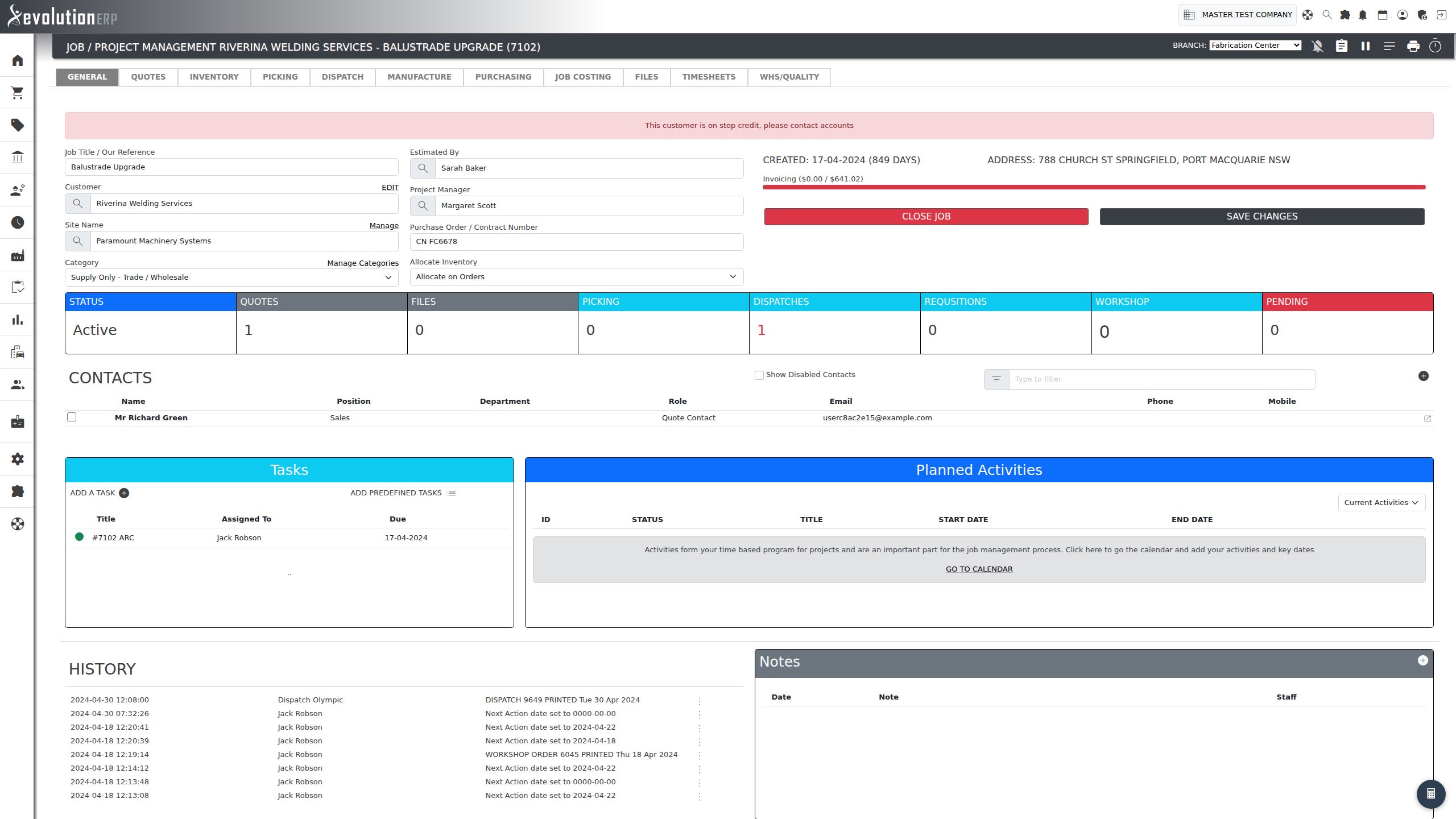
Existing projects are not deleted or closed when a customer goes on stop credit, but every time someone opens one they get a red banner across the top of the General tab: “This customer is on stop credit, please contact accounts”. The rest of the tab still works — you can edit and save project details.
3. The Inventory tab’s entire action bar disappears
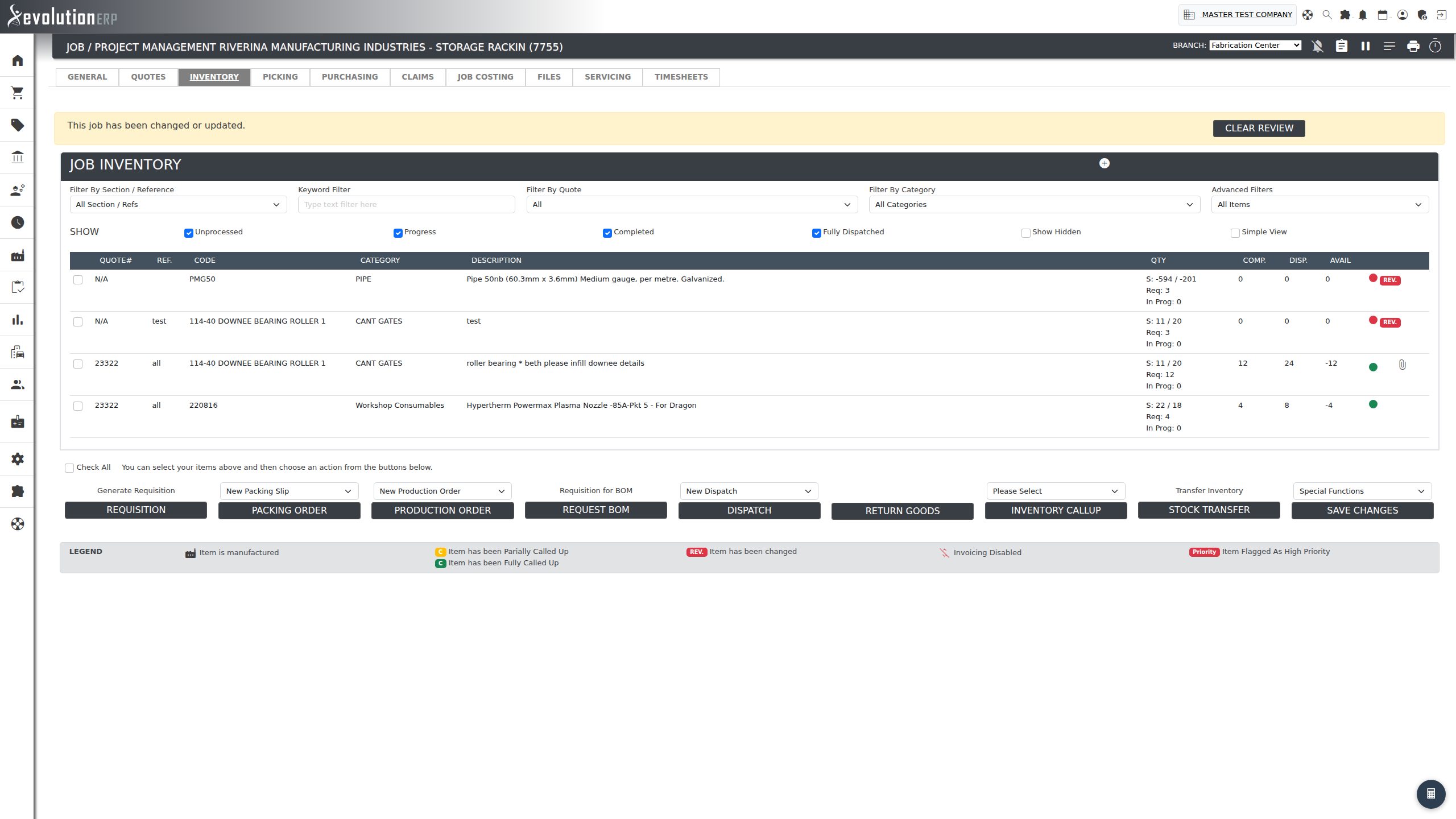
This is the one that catches people out. On a project’s Inventory tab, the row of buttons underneath the item list is hidden completely when the customer is on stop credit. That row is not just the requisition button — it is every action on the tab:
- Generate Requisition — Requisition
- New Packing Slip — Packing Order
- New Production Order — Production Order
- Requisition for BOM — Request BOM
- New Dispatch — Dispatch
- Return Goods
- Inventory Callup
- Transfer Inventory — Stock Transfer
- Special Functions
- Save Changes
A normal project shows the full action bar:
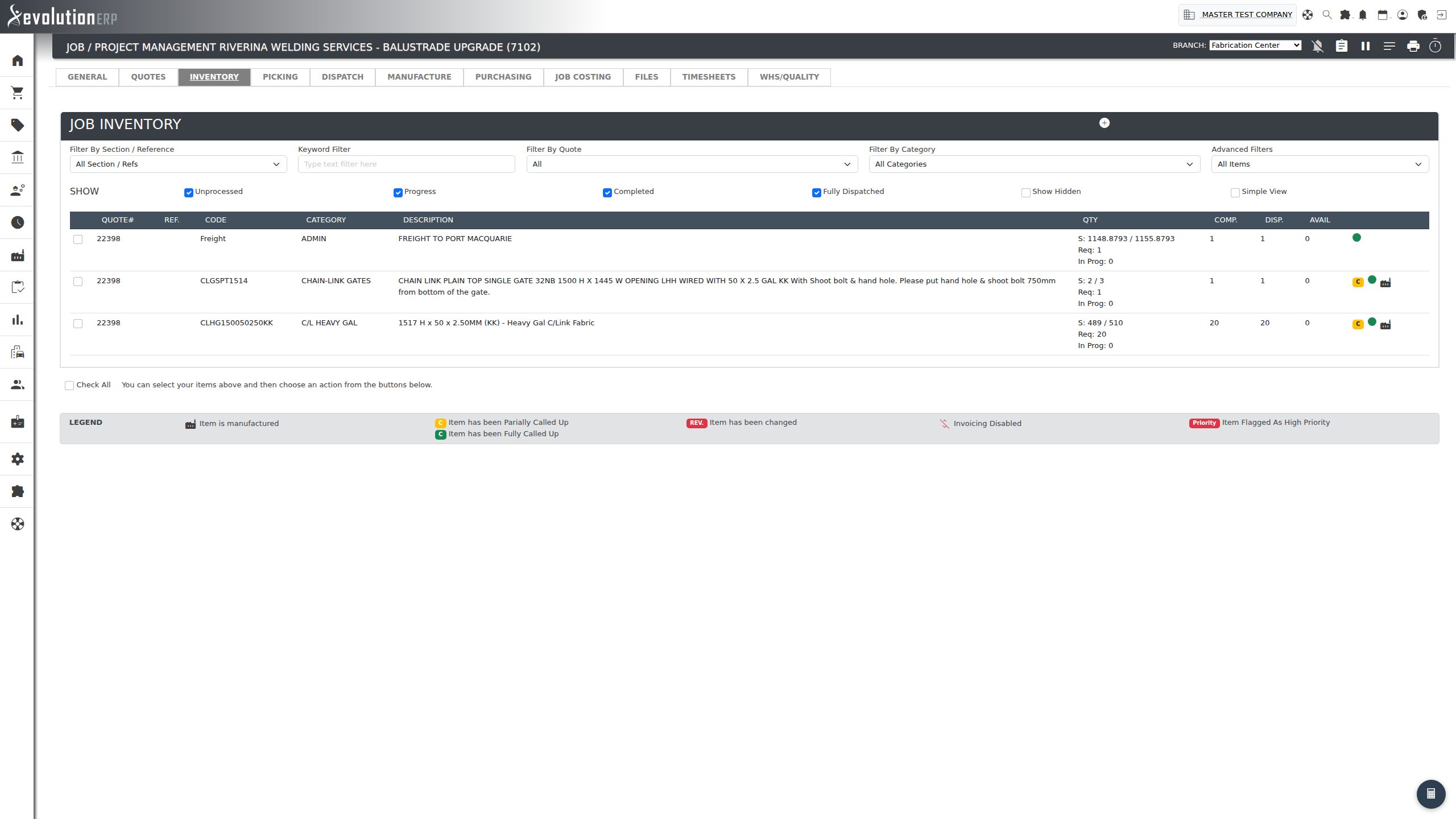
The same tab on a stop-credit customer’s project has nothing below the item list:
info Other project tabs are unaffected — Quotes, Picking, Job Costing, Files, Timesheets and so on behave normally, and existing dispatches for the customer show the same red “please contact accounts” banner as the project General tab.
On the Invoice Screen
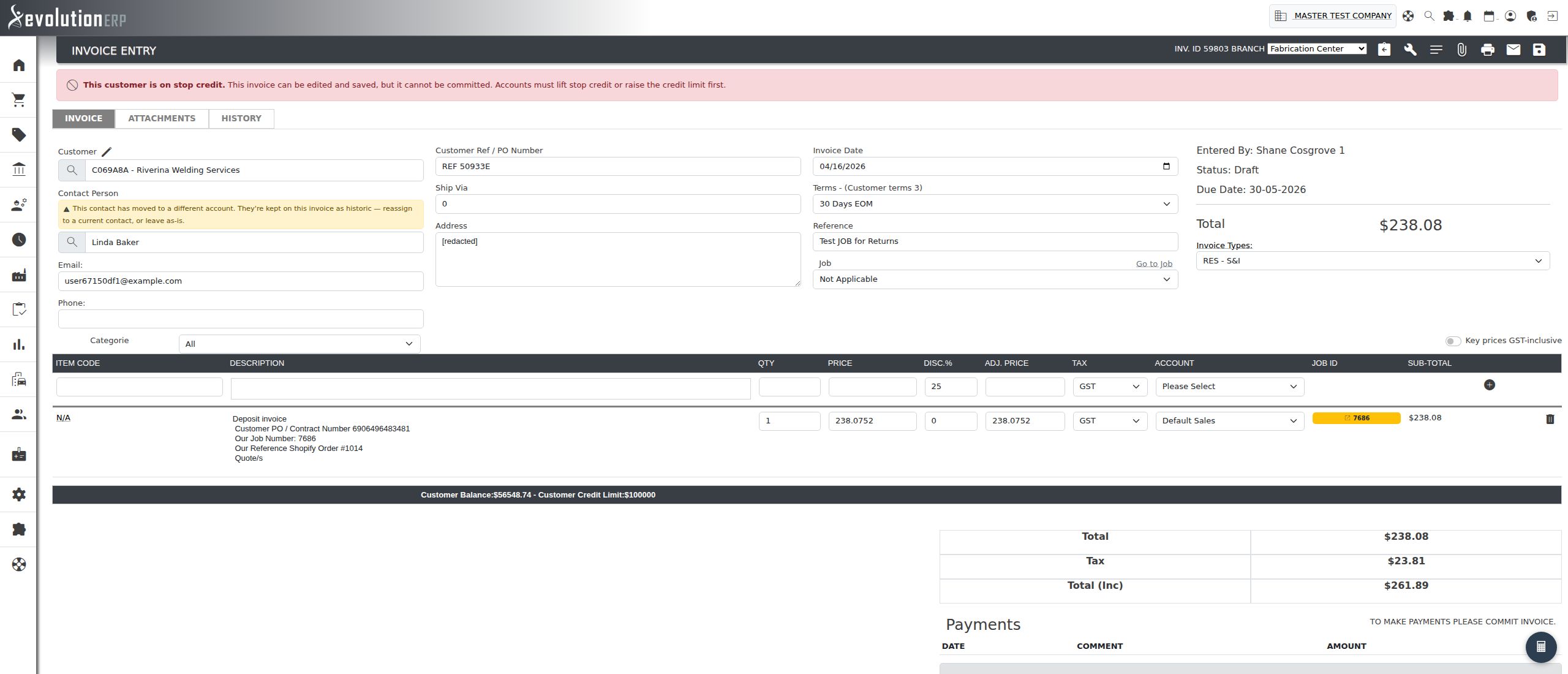
Invoice Entry stops the invoice at the point that matters — Commit — while leaving the rest of the screen alone. Open an invoice for a customer who is on stop credit, or whose balance plus this invoice would reach their credit limit, and a red banner across the top of the screen gives the reason. The invoice can still be edited, priced and saved; the Commit button is greyed out, and hovering it repeats the reason.
That means work in progress is never lost. Raise the invoice, save it as a draft, and commit it once accounts have lifted the hold or raised the limit — nothing has to be re-keyed. The block is enforced on the server as well as in the screen, so it holds even if the page is stale when Commit is pressed.
The screen also shows the balance and limit as a band below the item grid, and the Xero Integration panel reports “Customer is on stop credit” in place of the usual send-to-Xero controls, so a stop-credit customer’s invoices are not pushed to Xero from here.
Users who hold the override see the same message in amber instead, and Commit stays available — the banner is there so the decision is a conscious one:

The practical upshot: stop credit and the credit limit are enforced consistently. The quote screen refuses to raise the invoice at all; Invoice Entry lets the paperwork be prepared but refuses to commit it, which is the step that puts the debt on the customer’s account and into the ledger. Either way the invoice does not become real while the account is held.
Quick Reference
| Action | Customer on Stop Credit | Customer over Credit Limit |
|---|---|---|
| Build, price and save a quote | Allowed (badge shown) | Allowed |
| Create Invoice from a quote | Blocked | Blocked |
| Create Project from a quote | Blocked | Allowed |
| Create a project from the New Project screen | Blocked * | Allowed |
| Open and edit an existing project | Allowed, with a red banner | Allowed |
| Requisitions, packing, production, dispatch, returns, callup, stock transfer and saving on the project Inventory tab | Blocked (buttons hidden) | Allowed |
| Raise and save an invoice directly | Allowed | Allowed |
| Commit an invoice raised directly | Blocked * | Blocked * |
| Send the invoice to Xero | Not offered | Allowed |
info * Users with Accounts Receivable set to Admin, and full system administrators, may proceed. They still see the reason on screen, in amber.
Tips & Notes
- A credit limit of 0 means unlimited. If you want to stop an account from being invoiced at all, use Stop Credit — don’t set the limit to 0.
- Stop Credit and Credit Limit are independent. An account can be on stop credit with an unlimited limit, or under its limit and still frozen. Both are checked separately.
- Neither setting is retrospective. Quotes, projects, invoices and dispatches that already exist stay exactly as they are — the controls only affect what people can do from now on.
- Clearing an account is immediate. Set Stop Credit back to No (or raise the limit) and save; the next page load in sales or projects is unrestricted.
- A held invoice is only held at Commit. If you find a draft invoice you cannot commit, save it and leave it — once the account is cleared, open it again and press Commit. The invoice keeps its number, its lines and its dates.
- Because both fields are on the Billing/Pricing tab and hidden from non-admin users, an estimator who reports “the Create Invoice button has vanished” is almost always looking at a stop-credit or over-limit account — check the account before investigating further.
Related Pages
- Accounts (Suppliers and Customers) — creating the account these settings live on.
- BOM Requisition — one of the project Inventory tab actions hidden by stop credit.
- Creating Projects — the Create Project function that stop credit blocks.
- Invoicing a Project — invoicing routes and how they behave.