
Every quote has a quote type, such as Supply Only or Supply & Install. The type sets how the quote prints and which files go with its emails. Invoices raised from the quote use the same type, so it also sets how those invoices print and which income account they post to.
Invoices call the same list Invoice Types. It is one list, not two. Changing a type changes both its quotes and its invoices.
The Quote Types List
To open the list, click the Quote Types label on a quote, or the Invoice Types label on an invoice. Click any row to open that type.
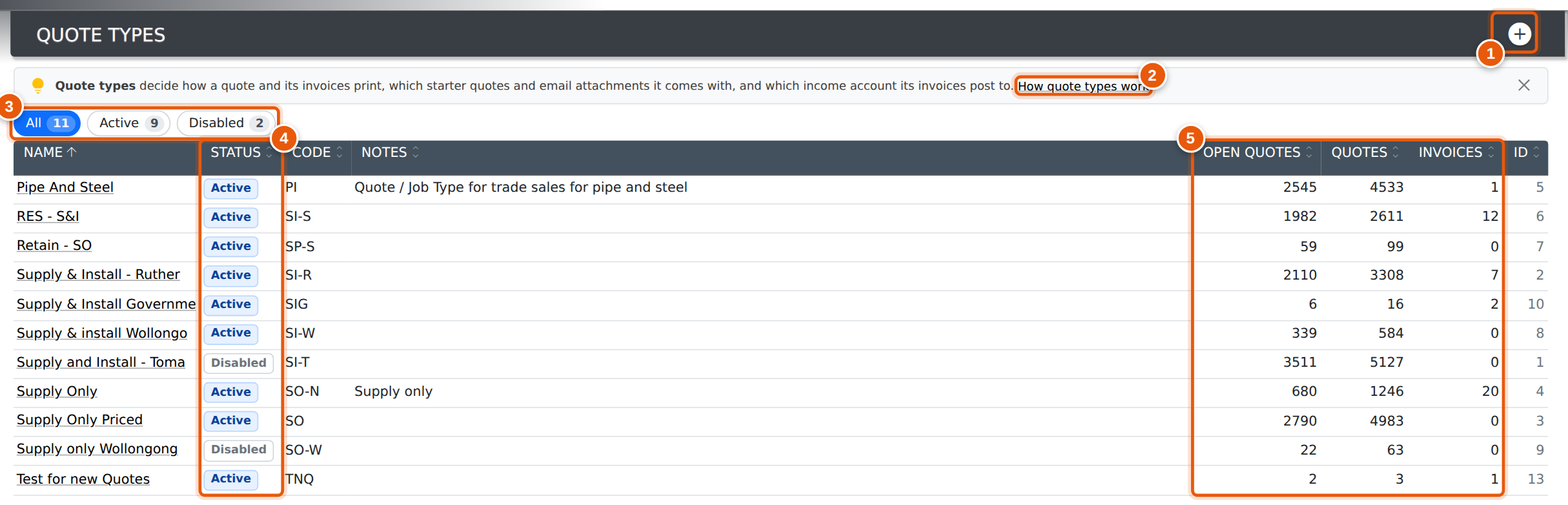
- + adds a new quote type (see Adding a Quote Type).
- The tip at the top links to this guide. Close it with × once you no longer need it.
- All, Active and Disabled filter the list. They only appear once at least one type has been disabled.
- Status shows whether the type is offered on new quotes.
- Open quotes counts quotes of this type that have not yet become a project. Quotes and Invoices count every quote and invoice of the type. Check these before changing or disabling a type, because a change affects all of them.
Click a column heading to sort by it.
Details and Quoting
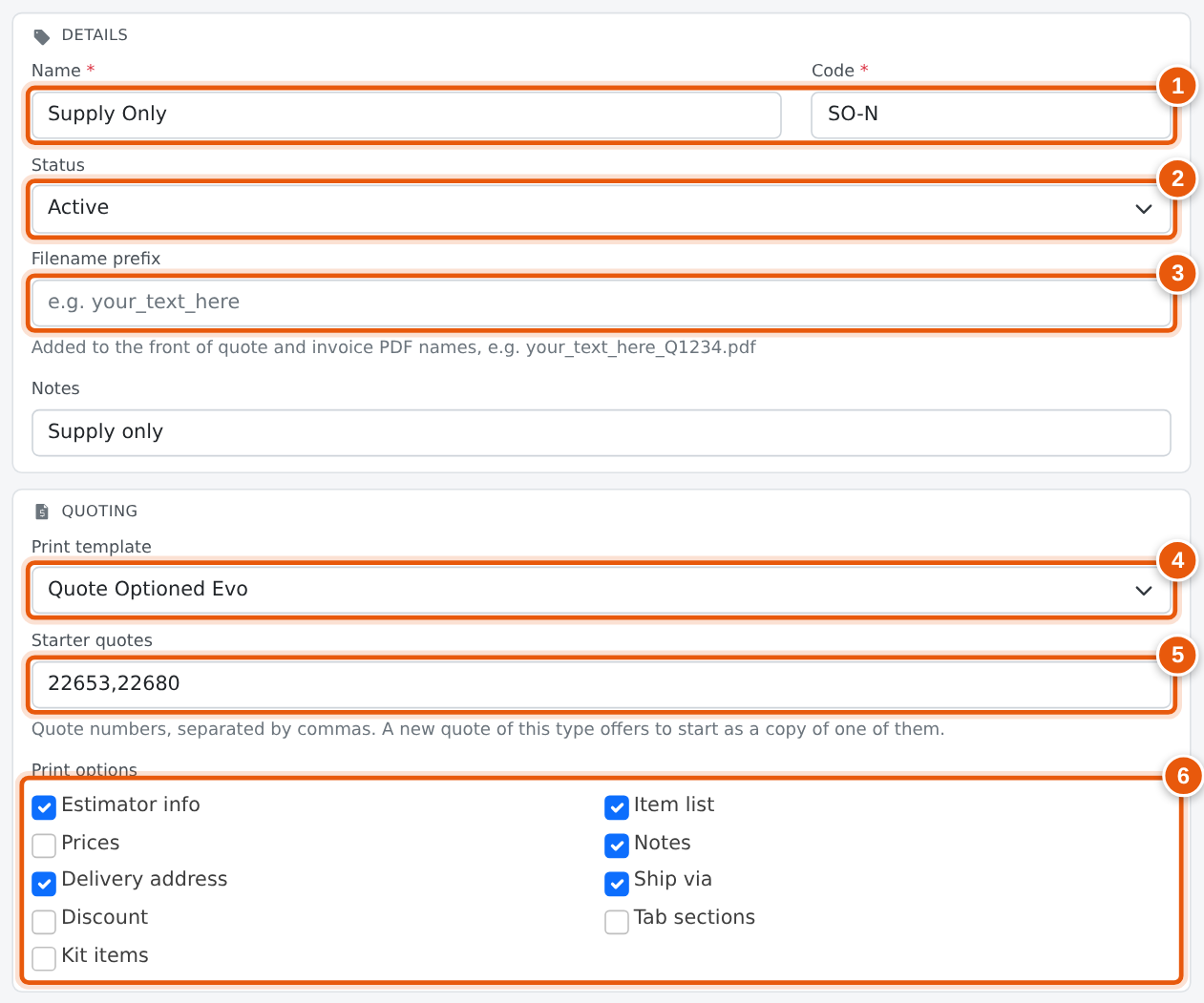
- Name is what staff pick on a quote. Code is a short label of up to four characters. Both are required. If another type already uses the code, a warning names that type. You can still save, but types are easier to tell apart when every code is different.
- Status: only Active types are offered on new quotes. See Disabling a Quote Type.
-
Filename prefix is added to the front of the PDF name when a quote or
invoice of this type is printed or emailed. With
Smith_Fencing, quote 1234 becomesSmith_Fencing_Q1234.pdf. Spaces become underscores. Leave it blank for a plainQ1234.pdf. - Print template is the quote template the Print and Email windows open on. Branch or company default uses the branch’s default quote template, or the company default if the branch has none (see Branches).
-
Starter quotes are quote numbers, separated by commas. When someone
picks this type on a quote, a window lists these quotes so they can load one as a
starting point instead of building the quote from scratch. Leave it blank and no
window opens. Only numbers are kept, so
22653, 22680is saved as22653,22680. - Print options: which boxes start ticked in the Print and Email windows for quotes of this type. See Print Options.
Notes is for your own description of the type. It is shown in the list and does not print.
Print Options
Quotes and invoices each have their own set of print options. They decide which boxes start ticked when someone opens the Print or Email window. The person printing can still tick or untick any box for that one print.
| Option | When ticked, the document shows |
|---|---|
| Estimator info | The estimator or salesperson’s name and contact details. |
| Item list | The lines, as one list. |
| Prices | The price and subtotal columns. Untick it to show the lines and quantities without prices. |
| Notes | The quote or invoice notes. |
| Delivery address | The delivery address as well as the billing address. |
| Ship via | The shipping method. |
| Discount | The RRP and discount columns. Only shown when Prices is also ticked. |
| Tab sections | The lines grouped under the quote’s tabs, each tab with its own heading, in place of one list. Quotes only. |
| Kit items | The parts that make up each kit as well as the kit line. |
| Hide payments & balance due | Invoices only. When ticked, invoices print Subtotal, GST and Total without the payments, credit notes and balance due. See Payments & Balance Due on Invoices. |
The template decides exactly how each option looks. Some templates ignore options they have no place for.
Email Attachments
Files attached to a quote type are offered every time a quote of that type is emailed, for example terms and conditions, a brochure or a competency certificate.
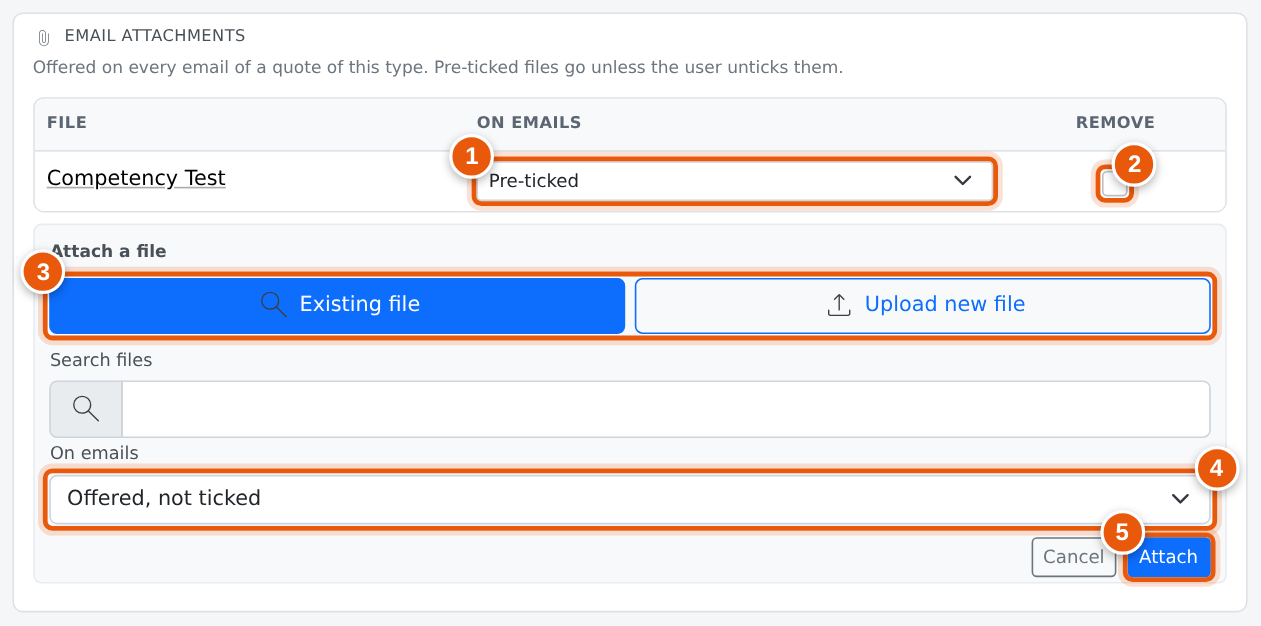
- On emails: a Pre-ticked file goes with the email unless the sender unticks it. An Offered, not ticked file is listed but only goes if the sender ticks it.
- Tick Remove and save to take a file off this type.
- Click Attach file, then choose Existing file to search the files already in Evolution, or Upload new file to add one from your computer. An upload goes into a file category, and only categories with email turned on are listed. Manage categories opens the category settings.
- Choose whether the new file is pre-ticked.
- Attach adds the file straight away. You don’t need to press Save changes.
Invoicing
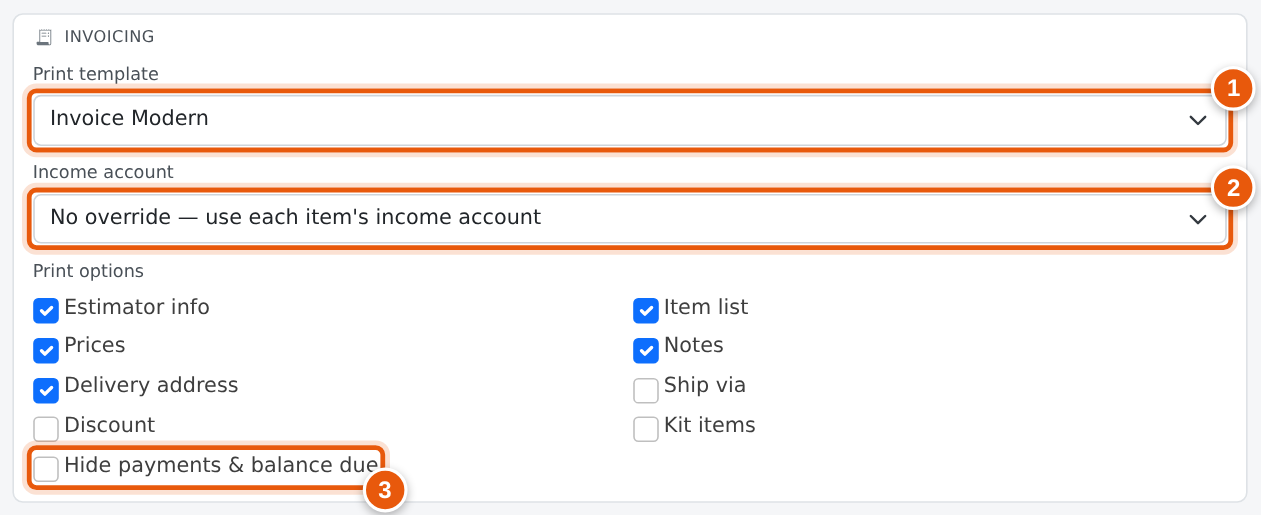
- Print template is the invoice template the Print and Email windows open on. As for quotes, Branch or company default uses the branch default and then the company default.
- Income account: leave it on No override so each line posts to its item’s income account. Pick an account to post every line on this type’s invoices there instead. The override applies to lines added to the invoice, and to all lines when someone changes an invoice to this type.
- Print options work as for quotes (see Print Options). Invoices add Hide payments & balance due.
Adding a Quote Type
- Click + at the top of the Quote Types list.
- Enter a name and a code, and set the Details, Quoting and Invoicing sections as above.
- Click Add quote type.
The new type opens straight away so you can add its email attachments. Attachments can only be added once the type exists.
Starting from an existing type
To set up a type that is close to one you already have, open that type and click Duplicate. The new quote type form opens with every setting copied.
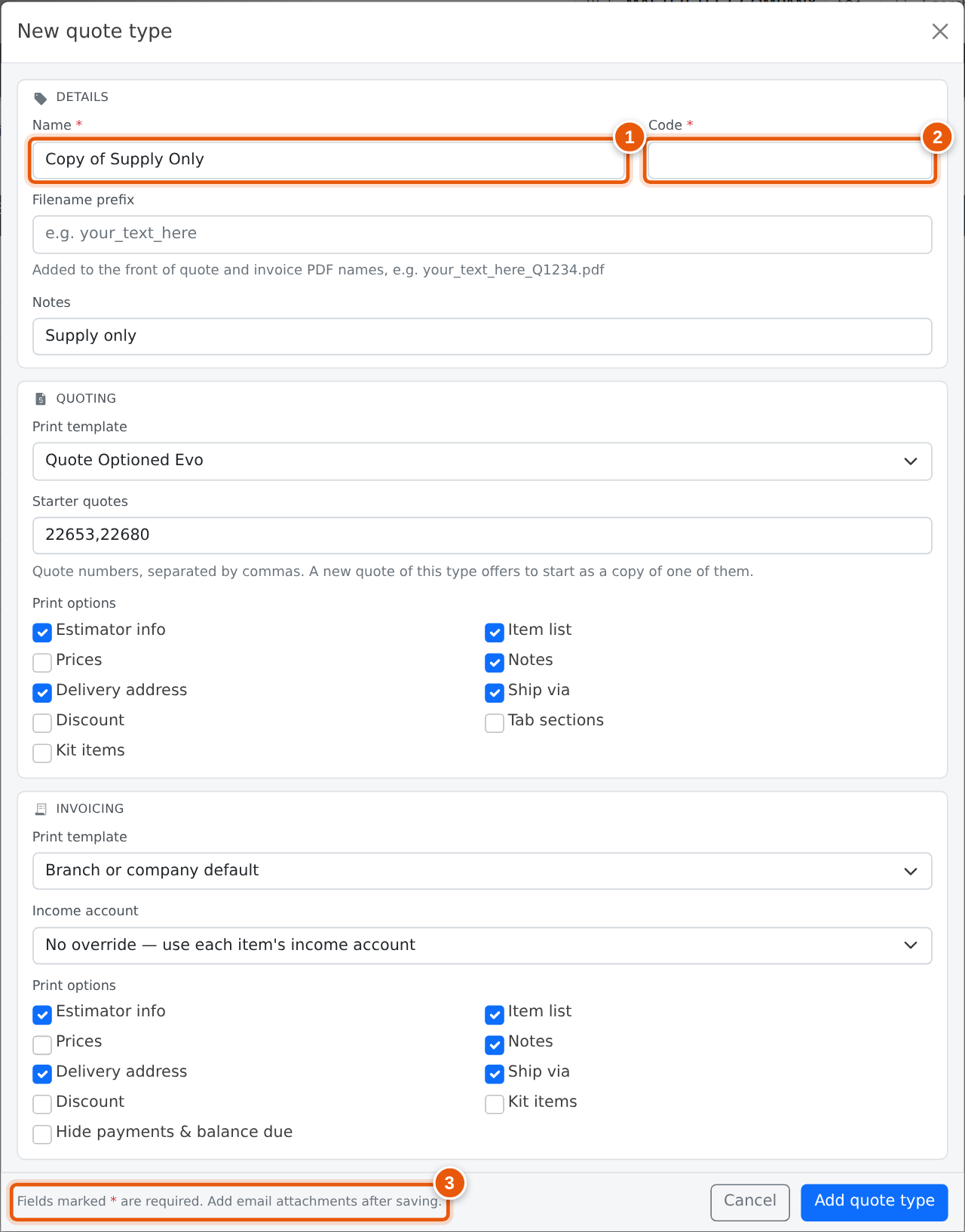
Change the name, enter a code and adjust anything else, then click Add quote type. The original type is not changed. Email attachments are not copied, so add them to the new type once it has opened.
Disabling a Quote Type
Quote types are never deleted, because quotes, invoices and settings point to them. To take a type out of use, set its Status to Disabled and save.
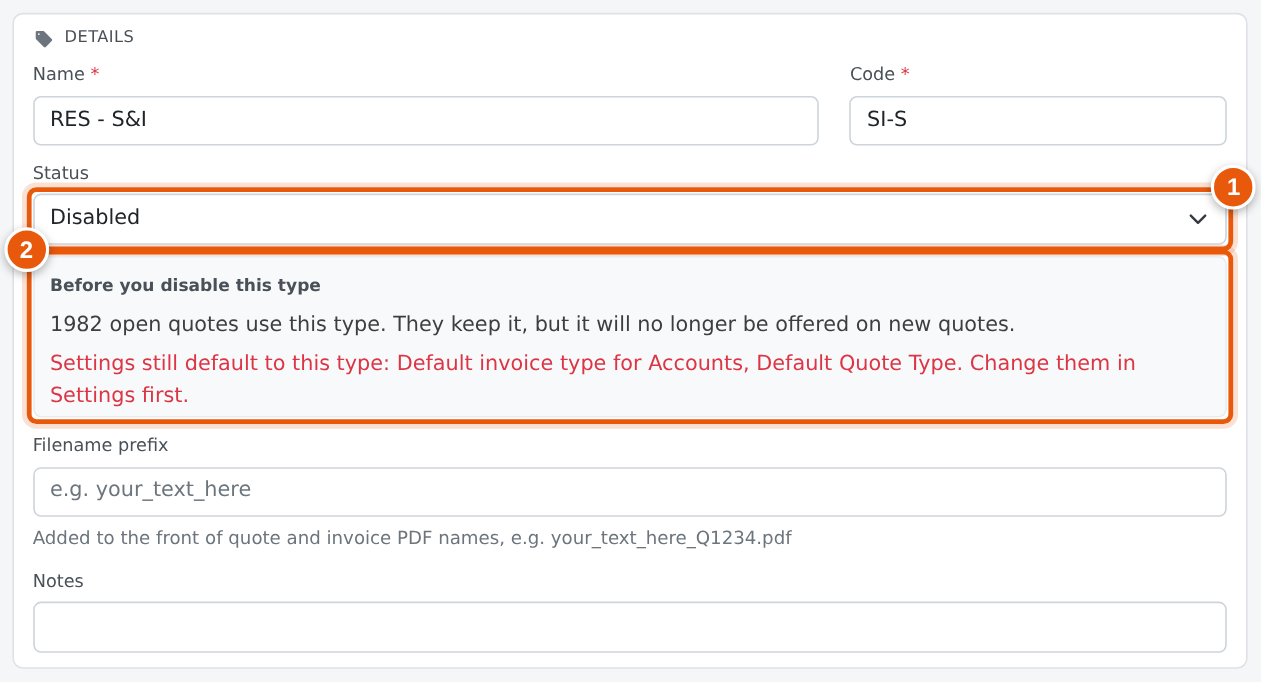
- A disabled type is no longer offered on new quotes. Quotes and invoices that already use it keep it.
- The warning shows how many open quotes still use the type, so you can decide whether to move them to another type first.
- If a setting still defaults to the type, the warning names it in red: Default Quote Type, Default invoice type for Accounts or Default Invoice type for Cash Sales. Change those settings first. Otherwise new quotes and invoices would still start on the disabled type.
To bring a type back, set its Status to Active again.
History
The History section at the bottom of each type lists every change: who made it, when, and what changed from what to what. That includes print options added or removed, files attached or removed, and changes to which files are pre-ticked. A type added with Duplicate records which type it was copied from.
Who Can Change Quote Types
| Sales permission | What they can do |
|---|---|
| Denied | Cannot open Quote Types. |
| Allowed | Can open the list and view each type. Fields cannot be edited and there is no Save button. |
| Admin, or a company administrator | Can add, change, duplicate and disable types, and manage their attachments. |
Permissions are set on each staff member. See Setting Permissions.
Frequently Asked Questions
Do changes affect quotes and invoices that already exist?
Yes, for printing. Templates, print options, the filename prefix and attachments are read from the type each time a quote or invoice is printed or emailed. Totals and the accounts on lines already saved don’t change. The income account override only applies to lines added afterwards, or when an invoice’s type is changed.
Why does a window open every time I pick this type on a new quote?
The type has starter quotes. Pick one to load it, or close the window to start from scratch. To stop the window opening, clear Starter quotes on the type.
Why can’t I delete a quote type?
Quotes, invoices and settings refer to it, and deleting it would leave them pointing at nothing. Disable it instead. It drops off new quotes and stays on the records that use it.
The fields are greyed out and there is no Save button.
Your Sales permission is Allowed, which lets you view quote types but not change them. Ask an administrator if you need to make a change.