
Quick Supply adds a checkout button to the quote screen so a saved quote can be actioned in a single step — either invoiced straight away, or turned into a project, with or without a picking slip.
It’s designed for fast, over-the-counter style selling where a quote has already been built and you just want to complete the sale without re-keying the lines.
One-Time Setup (Administrator)
Quick Supply is off until an administrator enables it. The settings live under Settings → Sales.
- Set “Quick Supply Enable” to Yes. This is the master switch — the checkout icon only appears on the quote screen when it is set to Yes.
- Set “Quick Supply Project Category” to the project category new projects should use. This is required for the Pick and Dispatch and Quick Project actions to be able to create a project.
- Click Save.
Where to Find It
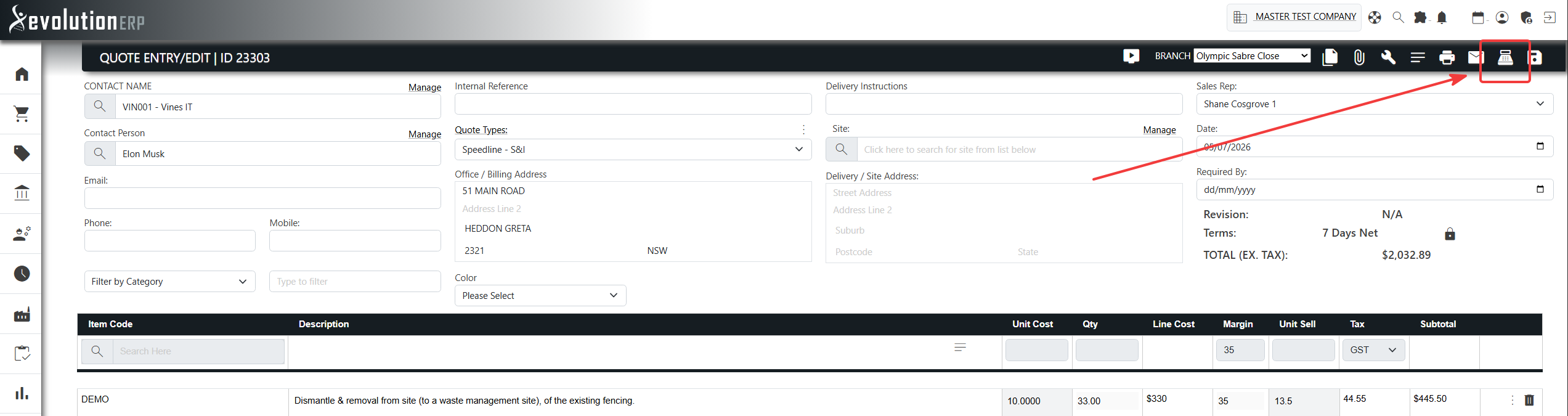
Open any saved quote (Sales → Quotes). When Quick Supply is enabled, a checkout icon (point_of_sale) appears in the row of action icons at the top of the quote, alongside Print and Email. Click it to open the Quick Supply window.
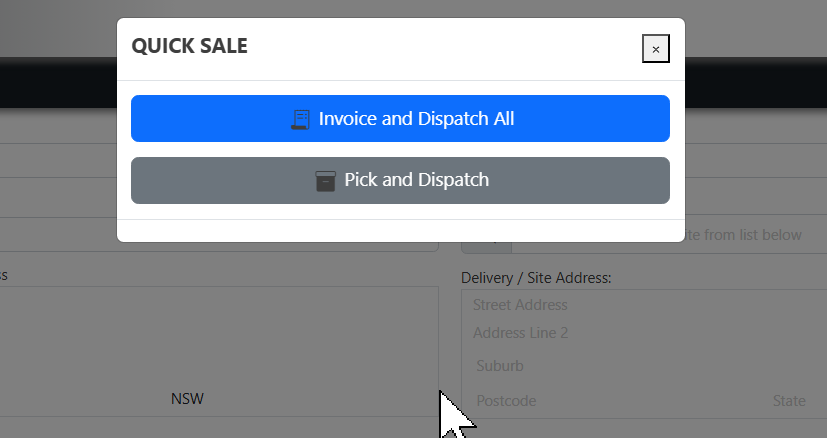
Option 1 — Invoice and Dispatch All
Creates an invoice directly from the quote, copying across every line, and takes you straight to the new invoice. The invoice uses the quote’s own invoice type.
Option 2 — Pick and Dispatch
Sends the sale to the warehouse by creating a picking slip against a project:
- If the customer has no open projects, Quick Supply creates a new project (using the configured Quick Supply project category), copies the quote’s lines onto it, and builds a picking slip.
- If the customer already has open projects, you’re asked to either add the items to one of those existing projects or create a new project. Quick Supply then copies the quote’s lines onto the chosen project and builds the picking slip.
You’re taken straight to the new picking slip, ready to pick and dispatch through the normal warehouse flow. Picking, committing and dispatching then work exactly as they do for any other project.
Option 3 — Quick Project
Creates a project from the quote — copying the lines across just like Pick and Dispatch — but without generating a picking slip. You’re taken straight to the project’s inventory tab, ready to pick or purchase the goods yourself.
- If the customer has no open projects, Quick Supply creates a new project (using the configured Quick Supply project category) and copies the quote’s lines onto it.
- If the customer already has open projects, you can add the items to an existing project or create a new project.
Use this when you want the project created and priced from the quote, but intend to manage the picking or purchasing of the goods manually from the project.
Frequently Asked Questions
Why can’t I see the checkout icon?
Either Quick Supply isn’t enabled (ask an administrator to set Quick Supply Enable to Yes under Settings → Sales), the quote hasn’t been saved yet, or you don’t have Sales module access.
Will running it twice create duplicates?
No. For Pick and Dispatch and Quick Project, the quote’s lines are only copied onto a project once, so re-running against the same project won’t double up the items.
Does Pick and Dispatch reserve stock?
It creates a picking slip and updates allocation just like a normal pick. Stock is physically moved when the pick is committed and dispatched through the usual warehouse process.