
The BOM Configurator lets you tailor a manufactured item's Bill of Materials for one quote line. You can swap a component for an alternate you have set up against it, and you can untick any component you are not supplying to leave it out altogether. The item's cost and price are recalculated from whatever is left ticked.
Nothing you do here changes the inventory item or its master Bill of Materials. The configuration applies only to the quote line you are adding, so the same item can be quoted differently to different customers.
Where to Find It
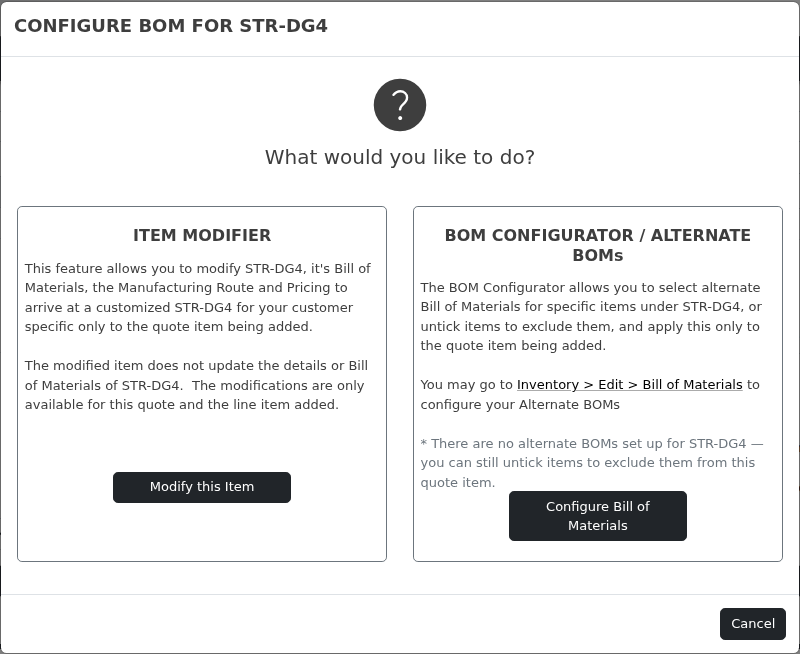
Open a quote (Sales → Quotes) and start adding a line item. Search for and select an item that has a Bill of Materials. A settings settings icon appears next to the item code — click it.
You will be asked what you want to do. Choose Configure Bill of Materials.
Excluding a Component
Every component starts ticked, which means it is included. To leave a component out of this quote line, simply untick it.
The excluded row is greyed out and struck through, its sub-total disappears, and the Total Cost and Calculated Price update immediately. The original figures stay visible in red with a line through them so you can see what the item would have cost unmodified.
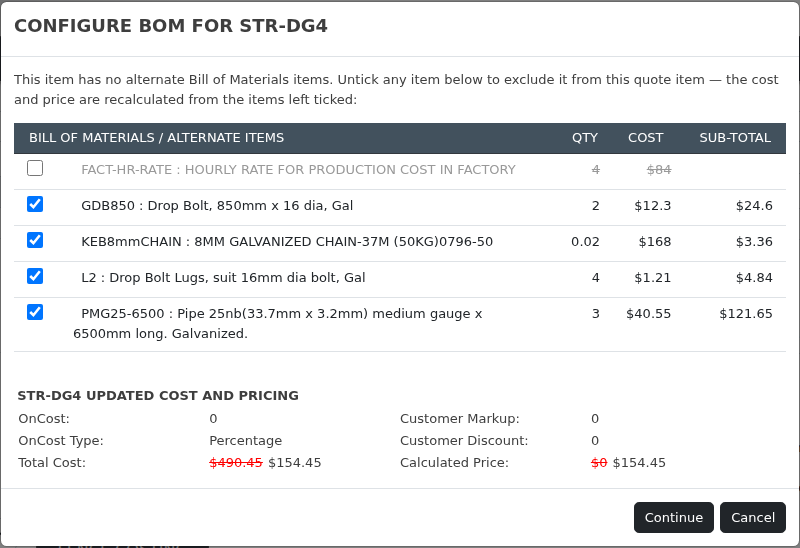
Tick it again at any time to put it back. Typical reasons to exclude a component:
- The customer is supplying that part themselves.
- The item is being quoted for supply only, without the labour line.
- A fitting or accessory in the standard build is not required on this project.
Choosing an Alternate Component
Where a component has alternates set up against it, they are listed underneath it as Alternate Items. Tick the alternate you want and the original is unticked automatically — a component is either the original or one of its alternates, never both.
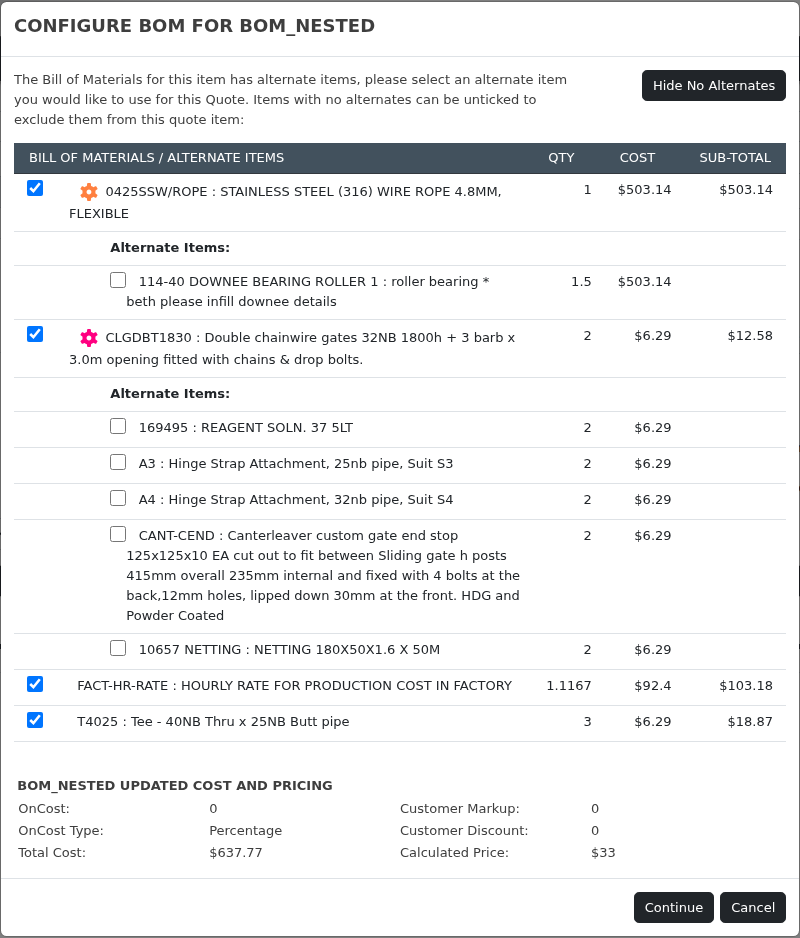
To go back to the standard component, tick the original again and the alternate clears. Use the Show All / Hide No Alternates button in the top right to focus on just the components that have alternates, or to see the full Bill of Materials. Anything you have excluded stays visible either way, so a deliberate change is never hidden from you.
Applying the Configuration
When the Bill of Materials reads the way you want it, click Continue. The cost and price on the line item form are updated from the configured Bill of Materials, and the components you kept are listed in the line description so the customer can see what is included.
Then add the line to the quote as normal. The configured Bill of Materials is saved against that quote line and follows it through to the project when the quote is converted, so purchasing and manufacturing work from the components you actually quoted.
Setting Up Alternates
Alternates are configured against the item, not the quote. Go to Inventory → Edit → Bill of Materials, pick a component and add the items that can be used in its place. Once set up, they are offered in the configurator every time that item is quoted.
You do not need to do this to exclude components — unticking works on any Bill of Materials, with or without alternates.
Frequently Asked Questions
Does this change the inventory item?
No. The item, its cost and its master Bill of Materials are untouched. The configuration is stored against the quote line only.
Can I configure a line I have already added to the quote?
The configurator runs while you are adding the line. To change an existing line, remove it and add it again with the configuration you want.
Why is the total different from the item's normal price?
Because it is rebuilt from the components you left ticked, then the item's OnCost and any customer markup or discount are applied on top. The struck-through red figures show the unmodified cost and price for comparison.
What happens to excluded components on the project?
They are not part of the quoted line, so they do not flow through to the project's Bill of Materials and will not be requisitioned or issued against it.
I excluded something by mistake and already clicked Continue.
Click the settings settings icon again before adding the line and re-tick the component, or simply re-select the item to start over.