
The Support Centre is your home for everything to do with your Evolution account: raising and tracking support tickets, your active development projects, billing, storage and the latest product news. The Conversations inbox sits alongside it — a chat-style view of all your open tickets, so replying to our support team feels like messaging rather than filling in forms.
Open the Support Centre from the main menu under Customers and Support → Support Centre, or via the help icon in the top toolbar.
The Support Centre
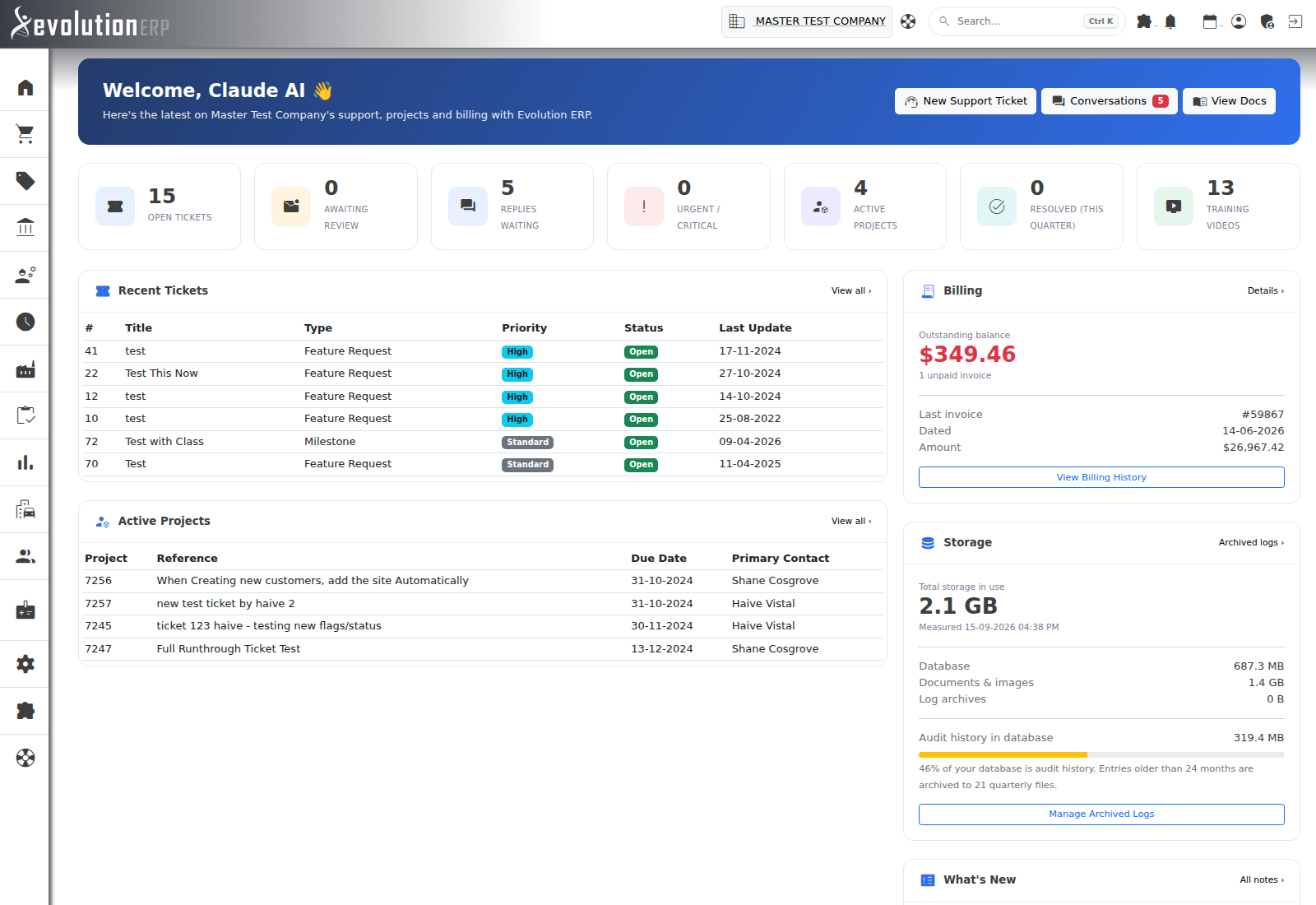
The Support Centre gives you an at-a-glance picture of your account: open tickets, items awaiting your review, replies waiting on you, urgent issues, active projects, and what was resolved this quarter — alongside your billing position, storage use and the latest release notes.
- New Support Ticket raises a ticket with our team.
- Conversations opens the chat inbox. A red badge on the button (and the Replies Waiting tile below) shows how many conversations are waiting on a reply from you.
- Recent Tickets and Development Projects link straight into the full ticket record where you can see details, attachments and history.
The Support Tickets Register
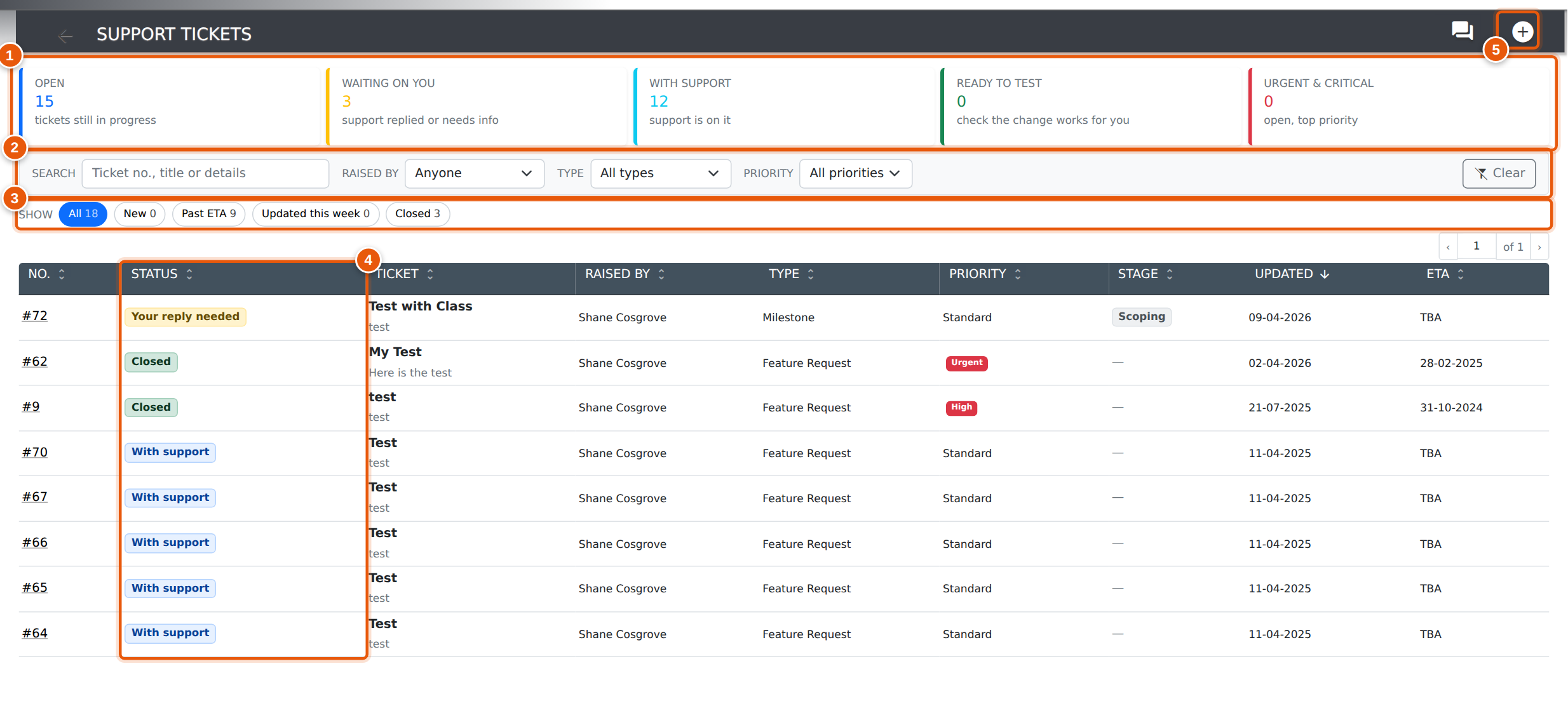
Support Tickets lists every ticket your company has raised with us, open and closed, with the most recently updated first. Open it from the Support Centre's ticket tiles or Recent Tickets list. Click any row to open the ticket.
-
Focus tiles count your open tickets and filter the list with one
click. Click the same tile again to go back to all tickets.
- Open — every ticket still in progress.
- Waiting on you — our team replied last, or has asked you for more information or amendments. These are the tickets where the next move is yours.
- With support — open tickets our team is working on.
- Ready to test — a change has been delivered and is waiting for you to check it works as you expected.
- Urgent & critical — open tickets raised at the top two priorities.
- Filters narrow whichever view you're on. Search by ticket number, title or details; pick who raised it (Me shows just your own tickets), the ticket type, or the priority. Clear resets everything back to all tickets.
- Show buttons offer more views, each with its count: All, New (not yet picked up by our team), Past ETA (open tickets past their estimated completion date), Updated this week and Closed.
- Status says where each ticket stands from your side: Your reply needed, Ready to test, New, With support or Closed. Hover over a status for the detail behind it. High, Urgent and Critical priorities are marked in red, and an ETA that has passed shows an Overdue flag.
- The + button raises a new ticket. Title, details, type and priority are all required, and you can attach files. The chat icon beside it opens Conversations.
Click a column heading to sort by it, and again to reverse the order. The filters you choose stay in the page address, so the browser's Back button returns you to the same list, and you can bookmark a view you use often.
Development Projects
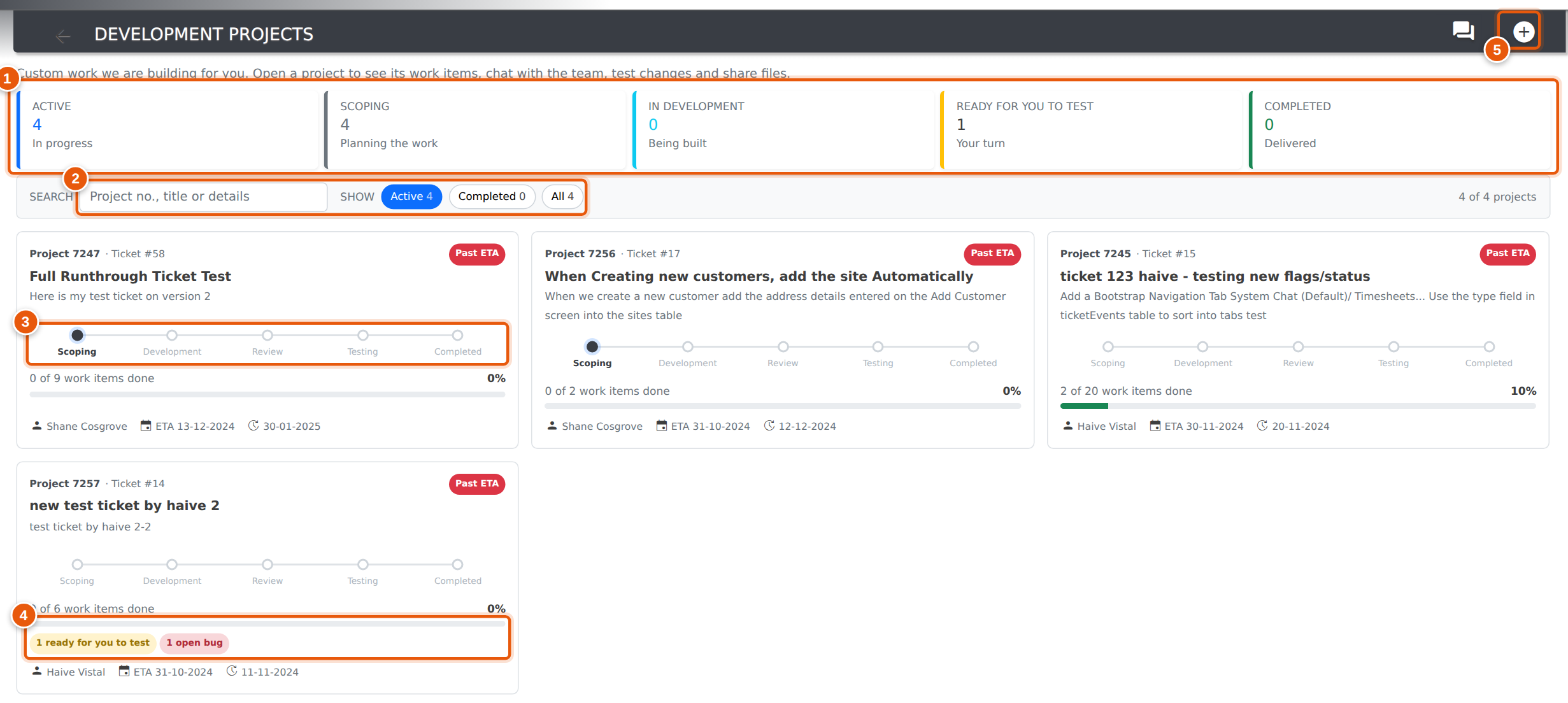
Development Projects (formerly My Projects) follows the custom work we are building for you. Each project is a card showing where it is up to, how much of it is done, and anything waiting on you. Open it from the Support Centre's Development Projects tile or link card. Click any card to open the project.
-
Focus tiles count your projects by stage and filter the cards with one
click. Click the same tile again to go back to all active projects.
- Active — every project still in progress.
- Scoping — we are working out exactly what will be built with you.
- In development — the work is being built or reviewed by our team.
- Ready for you to test — at least one work item has been delivered and is waiting for you to check it. These are the projects where the next move is yours.
- Completed — projects that have been delivered and closed.
- Search by project number, title or details. The Show buttons switch between Active, Completed and All projects.
- The stage tracker on each card shows which of the five stages the project has reached: Scoping, Development, Review, Testing and Completed.
- The progress bar counts the project's work items that are done. Beneath it, ready for you to test and open bug badges show anything that needs attention. A Past ETA badge marks a project past its estimated completion date.
- The + button sends us a request for new development. Describe what you would like built and attach any files that help; we will scope it with you. The chat icon beside it opens Conversations.
The view and search you choose stay in the page address, so the browser's Back button returns you to the same list.
The Ticket Page
Opening a ticket or a development project shows everything about it on one page: where it stands, the conversation with our team, its work items, files and history.
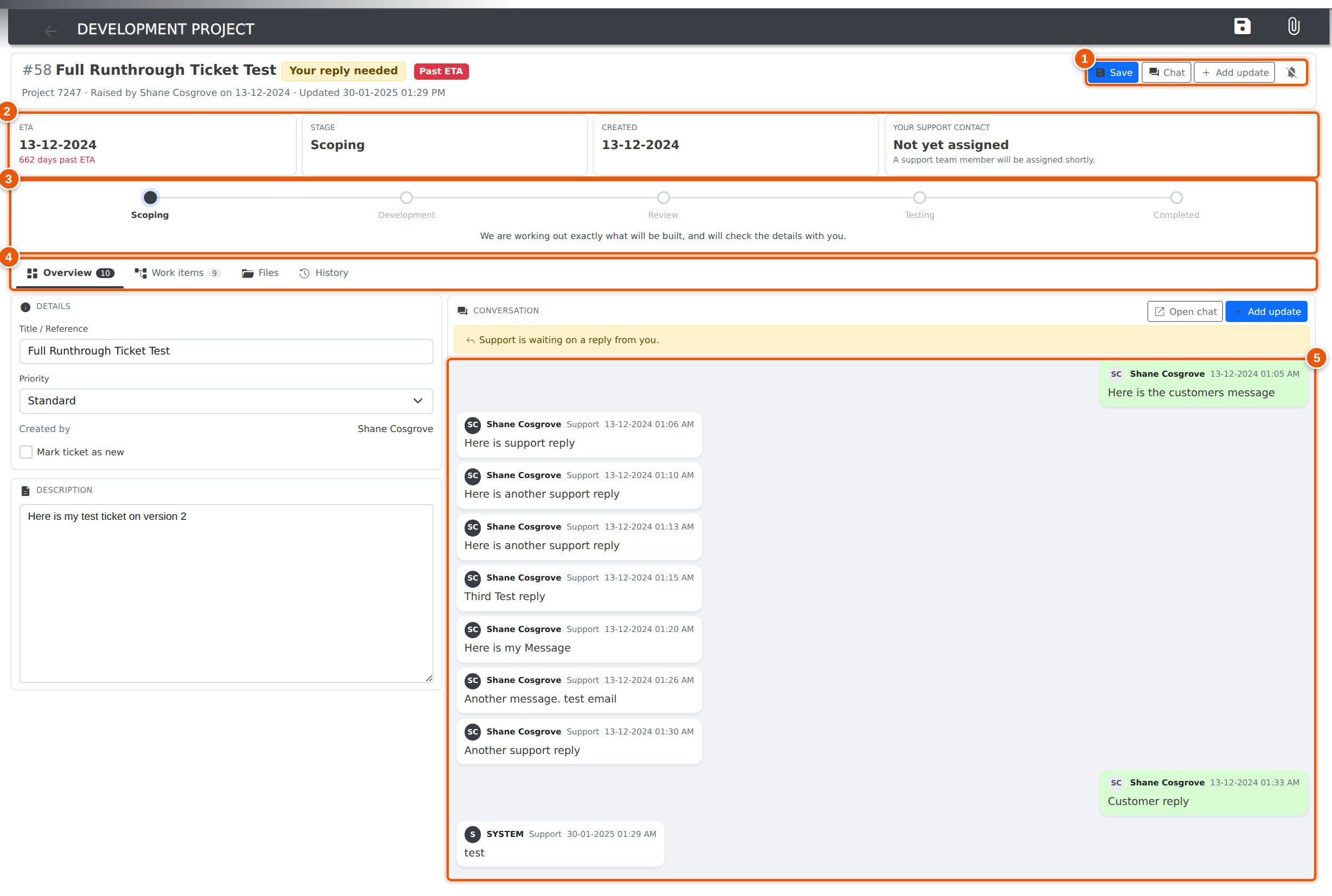
- Actions: Save keeps changes to the title, priority or description; Chat opens the ticket in Conversations; Add update sends a message to our team with optional files; and the bell turns email notifications for this ticket on or off. The badges beside the title show the ticket's status, such as Your reply needed, and a Past ETA flag when the estimated completion date has passed.
- Key figures show the ETA, the current stage (or ticket type), the date it was raised, and your support contact with their email and phone number.
- The stage tracker appears on development projects and their work items, with a short note explaining what is happening at the current stage.
-
Tabs organise the rest of the page:
- Overview — the ticket details, description and conversation.
- Work items (projects only) — the changes, bugs and milestones that make up the project, each with its stage, ETA and estimate. Items still in progress are listed first. Add work item adds a new one to the project.
- Files — attachments on the ticket. The paperclip button at the top of the page jumps straight here.
- History — a timeline of updates to the ticket, newest first, from when it was raised through to when it was closed. Each entry has a small icon for what happened (a change, a file, your email preferences) and shows who did it and when.
- The conversation shows your messages on the right and our team's on the left, oldest first. When our team is waiting on you, a banner above the conversation says so.
A work item that belongs to a development project is marked with a Work item badge, and a coloured strip above it names the project and how many of its items are done. Use the arrows in the strip to step through the project's work items one by one, or Back to project to return to the full list.
Sending an update on a closed ticket re-opens it, so you can follow up on finished work without raising a new ticket.
The Conversations Inbox
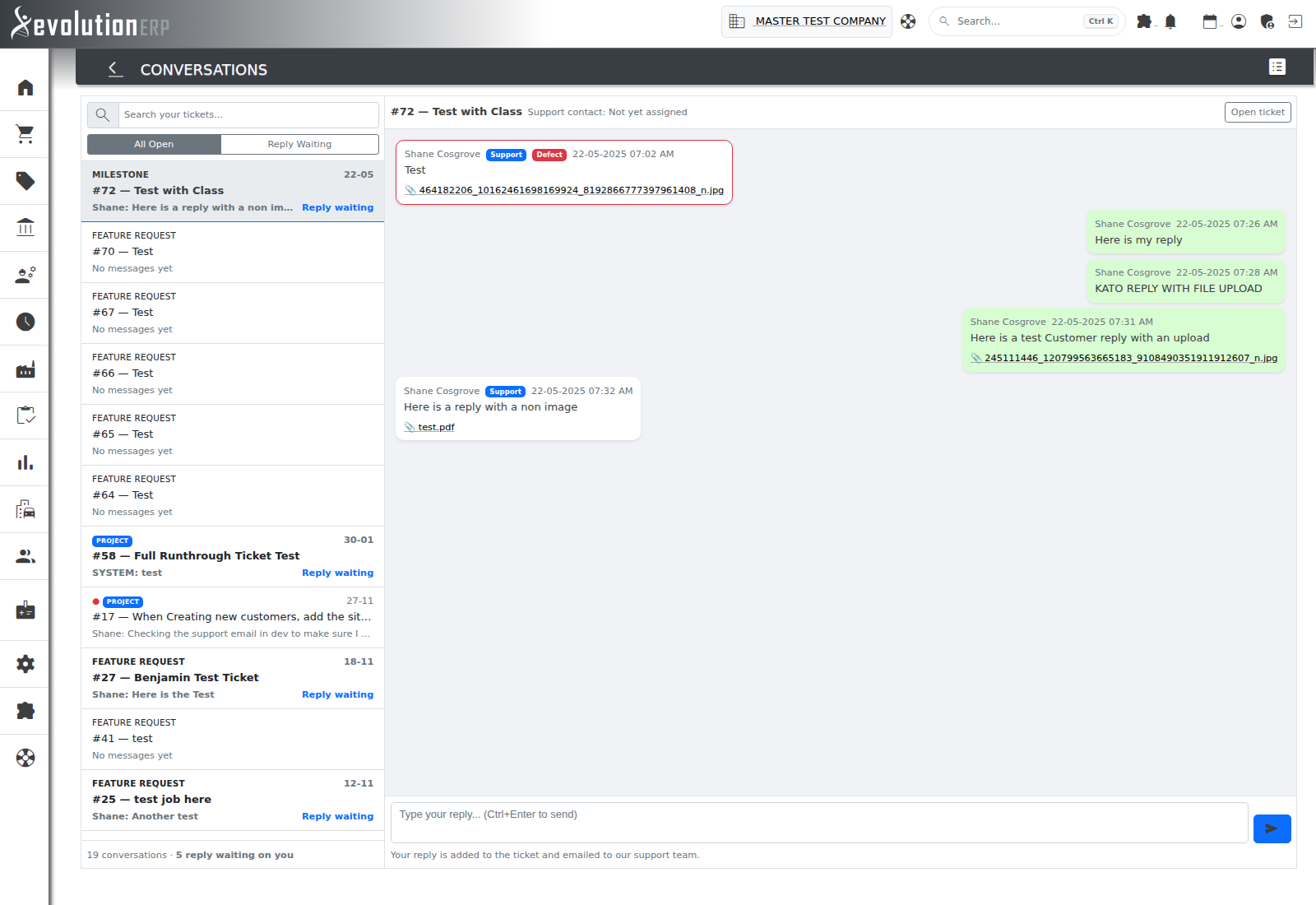
Conversations shows every open ticket as a chat thread. The left pane lists your conversations with the most recent activity first; the right pane shows the selected ticket's messages as chat bubbles, with a reply box underneath.
- Bold rows marked “Reply waiting” mean our team has replied and the next move is yours. Use the Reply Waiting filter to see only those; All Open shows everything.
- The search box filters by ticket number or title, and the counter at the bottom of the list totals your open conversations and how many are waiting on you.
- Get there from the Support Centre's Conversations button, the chat icon on the Support Tickets register, or the chat icon on any open ticket.
Reading & Replying
- Your messages appear on the right in green; replies from our team sit on the left with a blue Support badge. Messages logged as defects are outlined in red.
- Attachments added to a message appear as links inside its bubble — click to download.
- Type in the reply box and press the send button (or Ctrl+Enter). Your reply is added to the ticket and emailed to our support team immediately — no need to raise anything separately.
- The thread header shows your assigned support contact, and Open ticket takes you to the full ticket record for details, attachments and project history.
- The inbox refreshes itself automatically, so new replies appear without reloading the page.
Email Notifications
By default, whenever our team replies on a ticket you get a copy by email. That suits the odd quick question, but a busy ticket that you're already following in Conversations can fill your inbox. You can turn the emails off one ticket at a time.
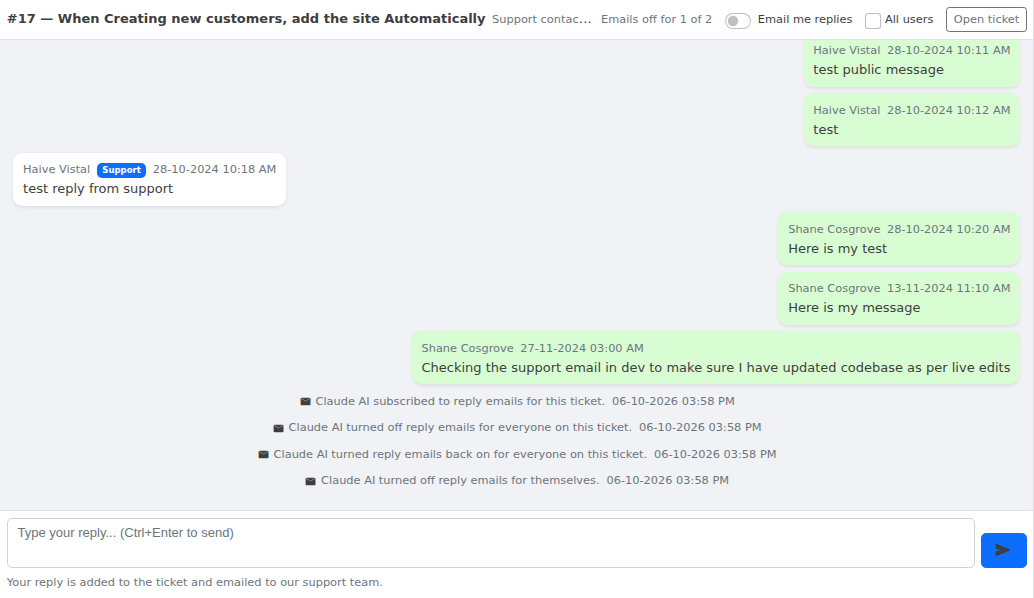
- Open the conversation and use the Email me replies switch at the top right of the thread. Turn it off and replies on that ticket stop arriving by email. They still appear in Conversations, and the Support Centre still counts them as waiting on you.
- The setting applies to that ticket only. Every other ticket keeps emailing you as normal, and so do new tickets.
- Tick All users before using the switch to apply it to everyone who gets this ticket's emails: the person who raised it and any colleagues who subscribed to it. With All users ticked, the switch reads Email everyone replies. You'll be asked to confirm before it changes anyone else's emails.
- If you're not receiving a ticket's emails yet, turning the switch on subscribes you to them, the same as the bell icon on the ticket screen.
- When some people on a ticket have emails turned off, the header shows a note such as Emails off for 1 of 3.
- Every change is noted in the conversation (for example “Jane Smith turned off reply emails for everyone on this ticket.”), so everyone on the ticket, including our team, can see who changed it and when.
Even with emails turned off, you'll still get an email when the ticket is closed.
Frequently Asked Questions
Which tickets appear in Conversations?
All of your company's open tickets — support requests, feature requests and development projects alike. Closed tickets drop out of the inbox but remain on the Support Tickets register, where you can reopen them by replying on the ticket itself.
Can I start a brand-new ticket from Conversations?
No — Conversations is for messaging on existing tickets. Use New Support Ticket on the Support Centre, or the + button on the Support Tickets register, to raise something new; it will then appear in the inbox as soon as it is created.
I turned emails off — will I miss replies?
No. Replies still appear in Conversations straight away, the row turns bold with Reply waiting, and the Support Centre's Replies Waiting count includes them. Only the email copy stops. Turn the switch back on at any time.
Who can see what I write?
Messages you send are visible to our support team and to your own colleagues who can view the ticket. You only ever see your own company's tickets and the messages our team has shared with you.