
AI Quote Notes drafts customer-facing notes for a quote using Claude AI. Point it at one of your proposal templates and it will keep that template's wording and structure while rewriting the specifics — customer, site, dates, quantities and inclusions — to match the quote in front of you. Generate for the whole quote or a single section, preview it, and deploy it straight into the quote's notes — no retyping.
It's built for two ways of printing a quote: a single combined document (use the Main Notes summary, which covers every section) or a section-by-section printout (generate notes for each section individually, so every tab reads correctly on its own).
Where to Find It
Open any quote (Sales → Quotes) and go to the quote editor. In the row of action icons at the top right, click the AI Notes icon (auto_awesome) to open the AI Notes window.

Generate and Preview
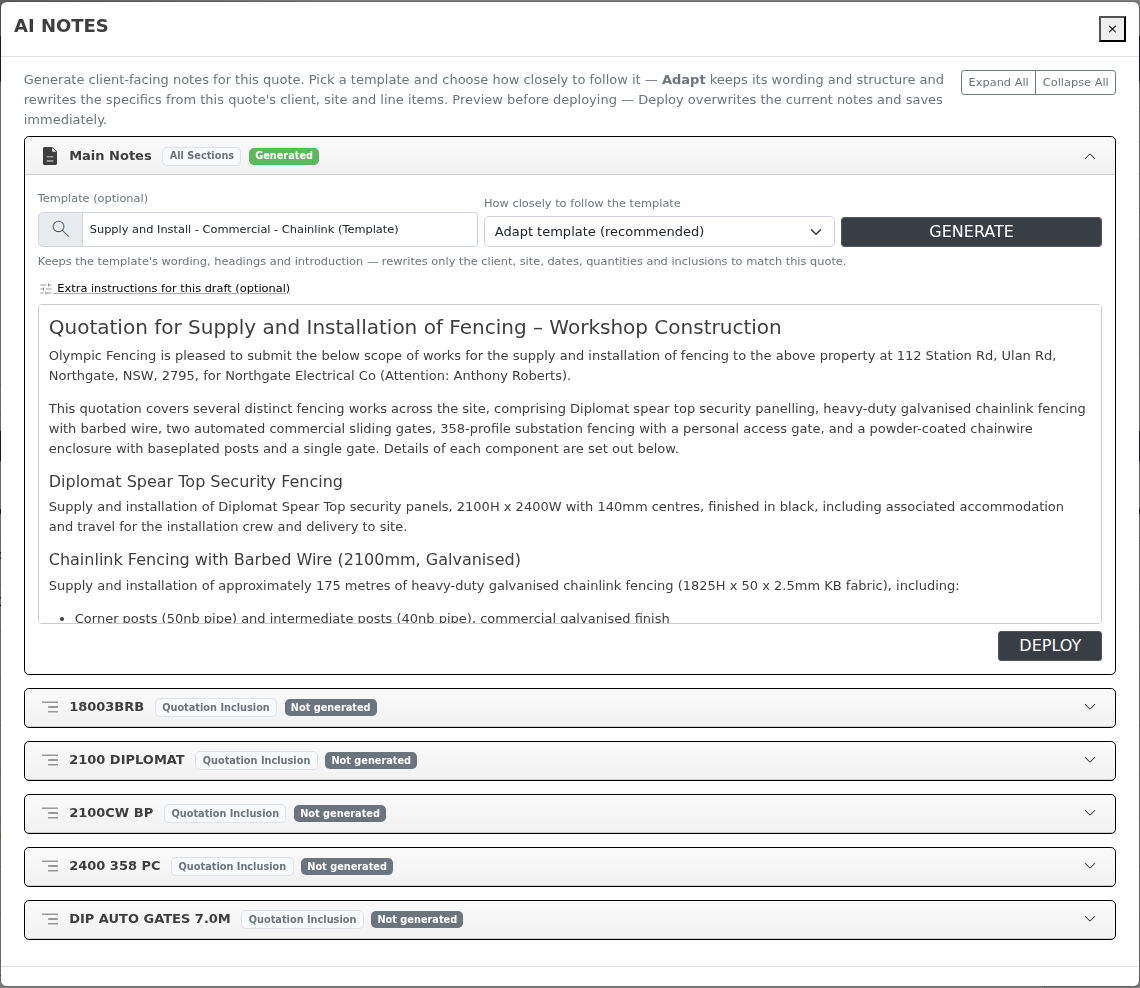
Click Generate on the row for the scope you want — Main Notes, or a specific section. Claude reads that scope's active line items (descriptions, quantities and units — no prices or costs are sent), plus the quote's customer, contact and site details, and writes the draft. If a template is selected it also reads that template and follows it as closely as the chosen Mode allows. The draft appears in the Preview column so you can read it before doing anything with it.
Start From One of Your Templates
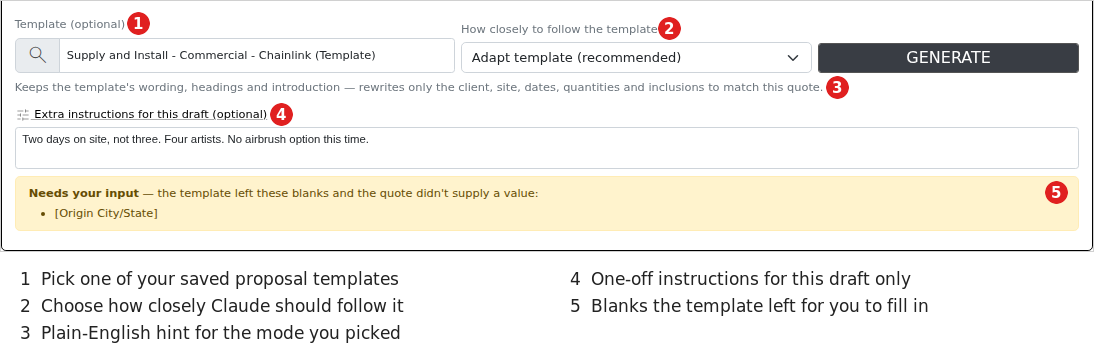
Each scope's card has an optional Template dropdown, listing your saved quote templates (Settings → Message Templates, category "Quotes"). This is where most of the value is: if you already have a polished proposal — an overview paragraph, a "what's included" breakdown, the wording your customers respond to — pick it here and Claude will reuse that document rather than starting from a blank page.
Merge tokens in the template (@company;, @contactName;,
@phone;, @email;) are filled in from the quote before
Claude sees the text, so the draft comes back already addressed to the right customer.
Mode — How Closely to Follow the Template
Next to the template picker is a Mode dropdown. This is the dial that decides how much freedom Claude has: from copying your template almost word for word, through to ignoring it completely and just summarising the line items.
| Mode | What it does | Use it when |
|---|---|---|
| Adapt template Default |
Keeps the template's structure, headings, tone and wording, and rewrites the specifics — customer name, site, dates, quantities, inclusions — to match this quote. Sections the quote doesn't cover are dropped; nothing is invented. | Almost always. This is the "take my good proposal and make it about this project" option. |
| Follow template closely | Reproduces the template essentially verbatim, changing only what has to change to be factually correct for this quote (names, addresses, dates, numbers). | Approved or standardised wording you don't want reworded — compliance, warranty or contractual blurbs. |
| Style guide only | Reads the template for tone, formatting and level of detail only, then writes fresh content from the line items. Does not reuse the template's sentences. | The template is from an unrelated project but reads the way you want this one to read. (This was the old behaviour.) |
| Line items only | Ignores the template entirely and writes a concise scope-of-work summary straight from the line items. | A quick internal-style scope with no proposal wrapper. Selected automatically when no template is chosen. |
A short plain-English hint under the dropdown describes whichever mode is selected, so you don't have to remember the table above.
Extra Instructions for This Draft
Under each scope's controls is an Extra instructions box (click to expand). Anything you type here is passed to Claude as guidance for that one generation — it isn't saved against the quote or the template.
Useful examples:
- “Two days, not three. Four artists, not three.”
- “Drop the airbrush option — not included in this quote.”
- “Mention that the customer provides power and a 3m x 3m footprint.”
- “Keep it to two short paragraphs.”
“Needs Your Input” Warnings
Templates often contain square-bracket blanks the author expected a human to fill in —
[Origin City/State], [Venue], [Insert date].
Claude won't guess at these. If any survive into the draft, a warning appears under
the preview listing exactly which ones, so you can either regenerate with an
Extra instruction supplying the value, or fill them in after
deploying.
[Origin City/State] in a proposal is not a good look.
The same box also warns you if a draft was cut short. Very long templates on a large quote can run past the length limit, and a truncated draft still looks finished — it just stops part-way. If you see that warning, read to the end before deploying, or generate section by section instead of as one set of Main Notes.
A third warning tells you the template was too long to use in full. This is different from a cut-short draft: the notes finished properly, but only the first part of the template was sent to the AI, so anything in its later sections is missing. If you hit this regularly, split the template into smaller ones.
How Long Generation Takes
Line items only comes back in a few seconds. Adapt and Strict write a full proposal with a more capable model, so on a large quote with a long template they can take one to two minutes. The preview counts the seconds up while it works — that is normal, not a stuck page. Leave the modal open and it will fill in when it is done.
Setting AI Defaults on a Template (Admin)
Whoever maintains your quote templates can set the AI behaviour once, on the template itself, so sales staff don't have to think about it. In Settings → Message Templates, open (or create) a template in the Quotes category and you'll find two extra fields:
- AI default mode — the mode pre-selected whenever this template is chosen in AI Quote Notes. Leave it on No preference to use Adapt template.
- AI instructions — standing notes for Claude about how to handle this template. These are sent every time the template is used.
Good template instructions are specific and structural, for example:
Always keep the Activation Overview introduction and the Part 1 heading structure. Substitute the venue name, dates and artist count from the quote. Keep the Sneaker Bar section only if the quote includes lace, charm or dubrai line items.

Deploy
Once you're happy with a preview, click Deploy on that row. This overwrites the current notes for that scope and saves immediately — there's no extra save step, and no draft is kept.
- Main Notes deploys into the quote's "Notes Shown on Quotation" field (the same field edited from the main Notes icon) — used when the quote prints as one combined document.
- A section's notes deploy into that section's own notes field (the same field edited from the section's tab options) — used when the quote prints section-by-section.
Frequently Asked Questions
Does this include prices in the notes?
No. Only line item descriptions, quantities and units of measure are sent to Claude — prices and costs are never included, and the notes are a narrative scope summary, not a pricing breakdown. This holds in every mode — if your template contains a price or rate table, it will not be carried into the draft.
My template has a table in it and the table vanished.
That's by design. AI Quote Notes writes headings, paragraphs and lists only — tables aren't produced, so any table in the template is reworded into prose or a list. If a table is essential, deploy the draft and add the table afterwards in the normal notes editor.
I picked a template but the intro paragraphs disappeared.
Check the Mode dropdown. Style guide only and Line items only both write fresh content from the line items and will not carry the template's prose across. Switch to Adapt template (or Follow template closely) and generate again.
Will it invent scope that isn't on the quote?
No. Even in Follow template closely, Claude is instructed to drop template sections the quote's line items don't support rather than keep them. If a template offers three design options and the quote only has two, the third is removed. If something is missing from a draft, it's usually missing from the line items.
Does it know who the customer is and where the project is?
Yes — the quote's customer, contact, phone, email, quote date, required-by date, and the delivery or site address are sent along with the line items. That's what lets Adapt mode rewrite a template to the specific customer and site.
Why does it take longer than it used to?
Any mode that uses a template now runs on a larger model and produces a much longer document, so it takes noticeably longer than the old line-items summary. Line items only is still the quick one. Give the others a few seconds.
Can I edit the generated text before deploying?
Deploy writes the previewed text as-is. If you want to tweak wording, deploy it first, then edit it normally from the Notes or section tab options — the same rich-text editor is used either way.
What happens on a locked quote?
Deploy is blocked on a locked quote, the same as any other quote edit — you'll see a "Quote is locked" message and nothing is saved.
Do BOM/kit sub-components show up in the notes?
No — only top-level line items are summarised. Kit and bill-of-material sub-components are internal costing detail, not customer-facing scope items.