
Pending Production
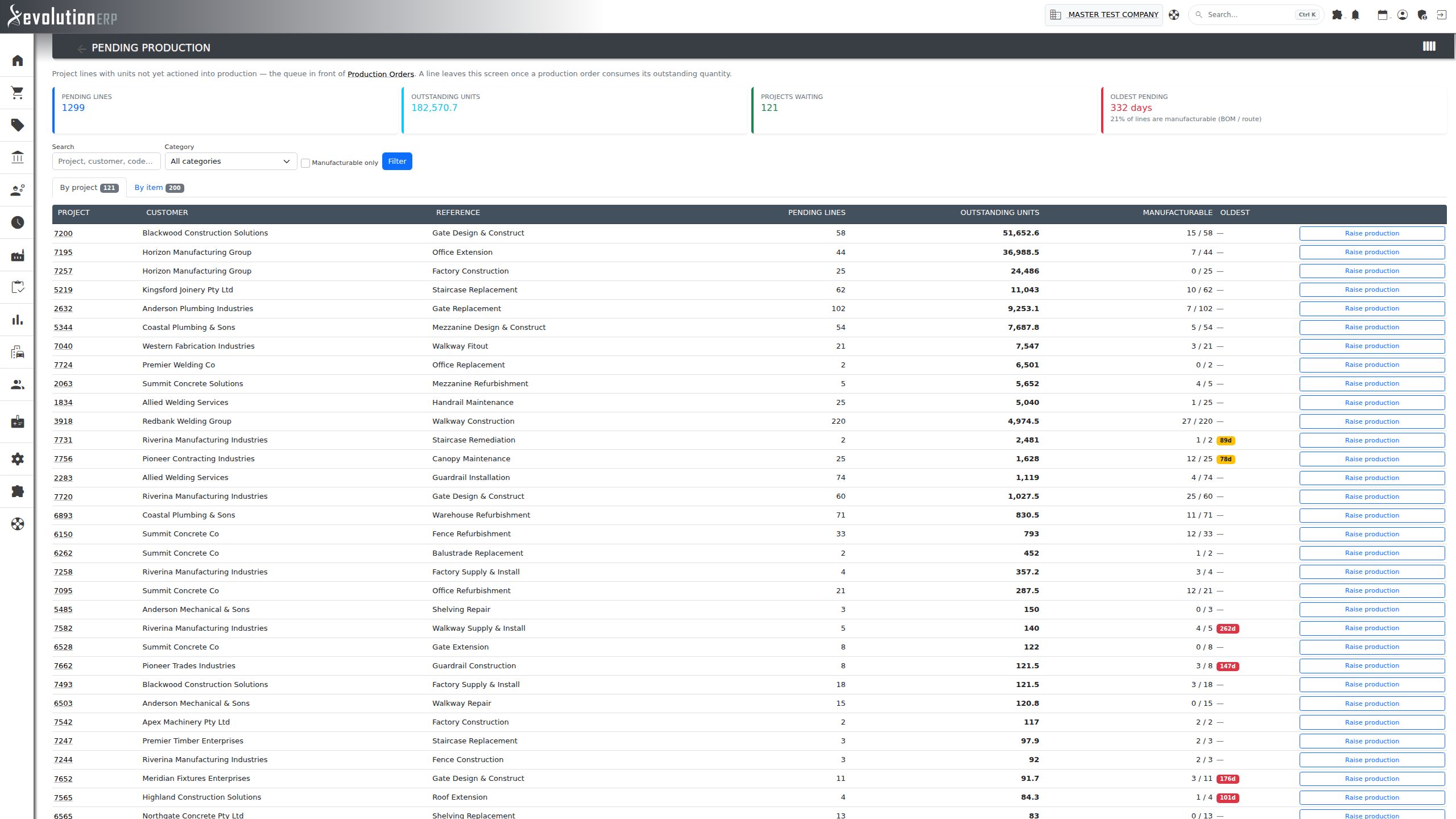
Menu → Manufacture → Pending Production (previously Pending Items). This is the queue in front of Production Orders. It lists every line on an active project that still has units not yet raised into production. A line leaves the list once production orders cover its outstanding quantity. Contractor (claims) lines, hidden lines and lines on inactive projects are not included.
- Figures at the top: pending lines, outstanding units, projects waiting, and the age of the oldest pending line. The share of lines that are manufacturable (the item has a BOM or a route) is shown under the age.
- Filters: search by project, customer, item code or description; choose a category; tick Manufacturable only to hide bought-in items. Click Filter to apply them.
- By project tab: one row per project with its customer, reference, pending lines, outstanding units and how many of those lines are manufacturable. An age badge appears when a line has waited more than 30 days (amber) or 90 days (red). Raise production opens that project’s Manufacture tab.
- By item tab: one row per item across all projects. It shows whether the item is manufactured or supplied, and how many projects, lines and units are waiting on it.
Each tab shows up to 200 rows. Use the filters to narrow a long list.
Two Ways to Raise an Order
Production orders can be raised from two places. Both apply the same checks:
- From the project’s Inventory tab: the Production Order button raises the lines in a window without leaving the project. Ticked lines that are contractor lines are left out, and a note at the top of the window lists them.
- Create Production Order page: the + buttons on a project’s Manufacture tab, or Add Production Work Order in the quick-add menu. This page has everything: filters, per-line routes, custom fields and activity callups. It is described below.
Create Production Order
If you open the page from the quick-add menu, first type to find the project. The page then loads that project’s lines.
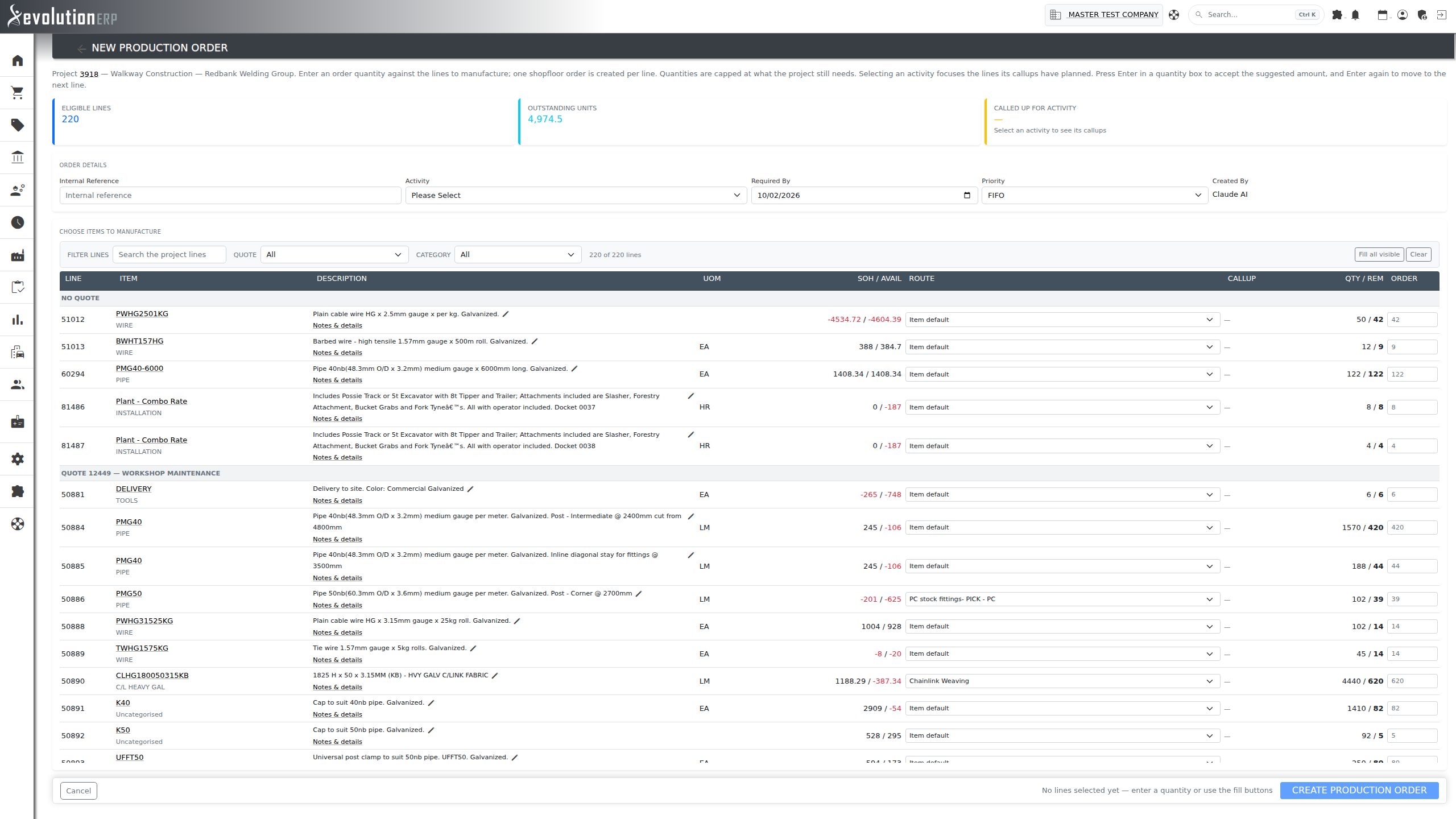
Order Details
- Internal Reference: optional, for your own reference.
- Activity: the scheduled project activity this production is for. Activities in the past are shown in red. Choosing one fills in Required By with the activity’s date and focuses the lines on what it calls up (see Raising for an Activity).
- Required By and Priority (FIFO, Priority Job, Urgent or SWFN).
Choosing Lines and Quantities
Only lines that can be manufactured from are listed, grouped under the quote they came from. The figures at the top show how many lines are eligible and how many units are outstanding.
- Filter lines: type to search (separate several terms with commas), or pick a Quote or Category. The count shows how many lines are visible.
- Order column: the suggested quantity, which is what the line still needs, appears greyed in the box. Press Enter in an empty box to accept it, then Enter again to move to the next line. Tab also moves between quantity boxes only. Pressing Enter never submits the order.
- Fill all visible accepts the suggested quantity for every visible line, and Clear empties them. Lines with a quantity are marked with a green edge.
- Route: leave as Item default or choose a different manufacturing route for that line.
- Description: click the pencil to edit the text that goes on the shop floor order. Notes & details opens the line’s notes and any custom fields set up for shop floor orders.
- SOH / Avail: stock on hand and available. Negative figures are shown in red.
The bar at the bottom of the screen stays visible while you scroll. It shows how many lines and units are ready to order. Create Production Order stays disabled until at least one quantity is entered. One shop floor order is created per line.
Raising for an Activity
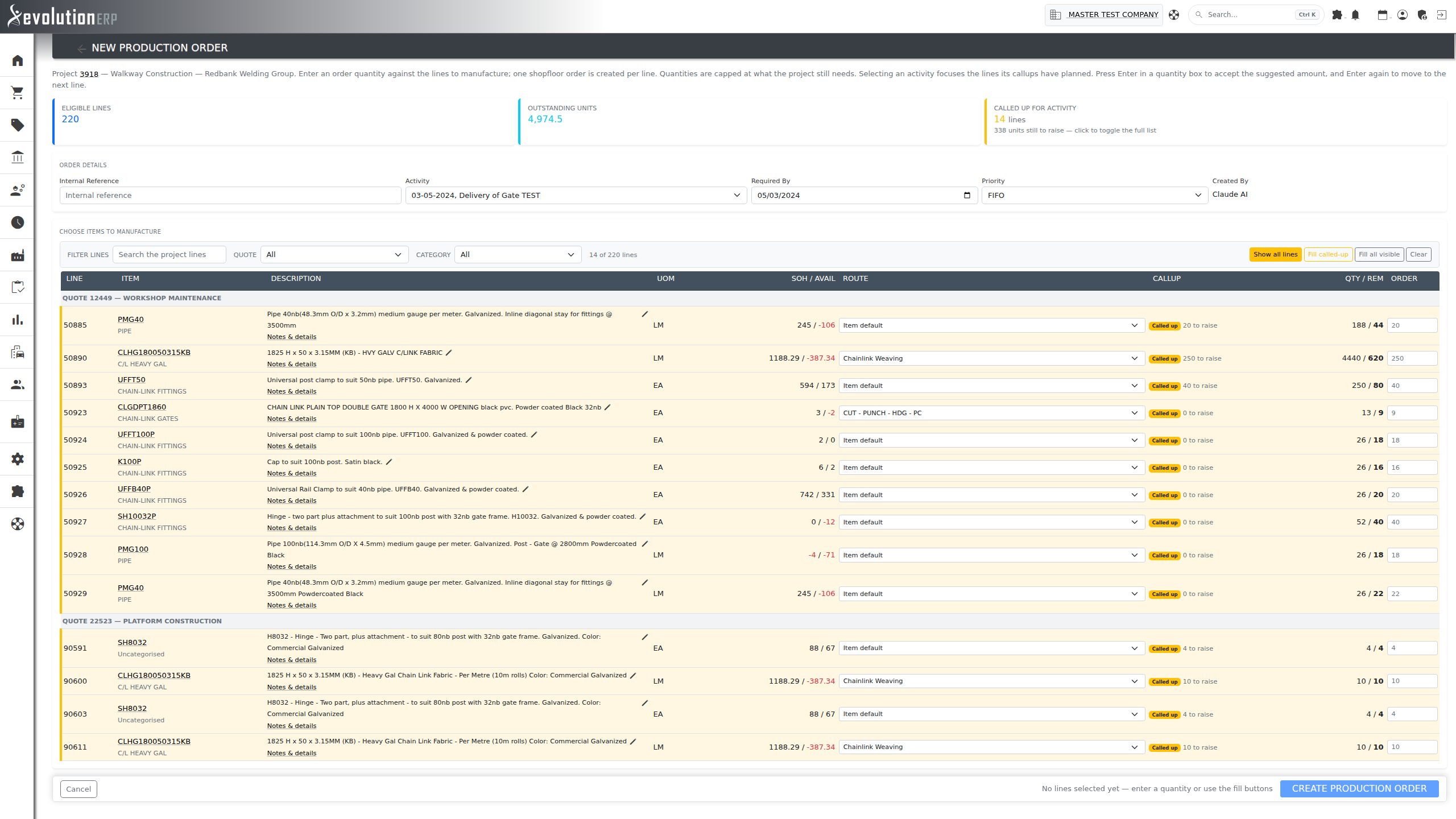
When you choose an Activity that has callups planned against it, the page focuses on those lines:
- The list filters to the called-up lines, which are tinted amber. The Called Up For Activity figure shows how many lines and units are still to raise.
- The Callup column shows Called up with the number still to raise (hover for the breakdown). A red Short badge means the callup asks for more than the line has left.
- Suggested quantities switch to the callup amount, capped at what the line still needs. Fill called-up accepts them all.
- Click Show all lines, or the Called Up figure, to see the full list again (Show called-up only switches back). Setting the activity back to Please Select clears the callup view.
Checks Applied to Every Order
Whichever way an order is raised, Evolution checks every line again when it is saved:
- Quantity: each line is capped at what the project still needs. If a quantity is reduced, a notice tells you.
- Eligibility: contractor (claims) lines, hidden lines, inactive lines and lines on an inactive project are skipped. The notice names each line, says why, and says how to clear it.
- Contractor lines are claimed by a contractor on the project’s Claims tab, so they are never manufactured. A line becomes one when its item is in the Auto claim inventory category setting as the quote comes in, or when Move to Claims is used on the Inventory tab. On the Inventory tab these lines carry a CONTRACTOR badge. Unhiding a contractor line does not change it back. To manufacture one, remove it on the Claims tab (the bin icon, shown while nothing has been claimed against it), then raise the order again.
- Item: the item on the shop floor order always comes from the project line itself.
- No empty orders: if no line ends up with a quantity, no production order is created. You are returned to the page with the reason.