
Evolution can mark your published products as inventory tracked in Shopify and keep their stock levels up to date, so the store shows real availability and — if you choose — stops selling an item the moment it runs out. Stock is pushed automatically every time a linked item is saved or published, and a one-click sync brings every already-published product up to date when you first turn the feature on.
How it works
Shopify only enforces stock limits on products whose variants are marked tracked. With tracking enabled in the plugin settings, Evolution does three things for every linked product:
- marks the Shopify variant as tracked whenever the item is published or updated;
- pushes the item’s current available quantity (stock on hand less any quantities allocated to projects) whenever the item is saved or published in Evolution;
- sets the variant’s out-of-stock behaviour — stop selling at zero, or continue selling into back order — from the store default or a per-item override.
Evolution remains the source of truth: stock figures flow one way, from Evolution to Shopify. Sales made in Shopify come back as orders through the normal order import, which is what adjusts Evolution’s own stock.
The store settings
Open Settings → Plugins → Shopify and find the Stock section.

- Track Inventory Levels in Shopify — the master switch. While it is No (the default), nothing about stock is sent and Shopify behaves exactly as before. Set it to Yes to have published items marked as tracked and their stock pushed on every save or publish.
- Continue Selling When Out of Stock — the store-wide default, applied while tracking is on. No means Shopify blocks checkout once the available quantity reaches zero; Yes lets customers keep ordering into back order. Individual items can override this — see the per-item override below.
- Sync Stock Levels Now — a bulk backfill that walks every published item, marks it tracked, applies its out-of-stock behaviour and pushes its current stock level. Progress is reported underneath the button as it works through the catalogue in batches.
Turning it on: the first sync
The recommended order is:
- Set Track Inventory Levels in Shopify to Yes.
- Choose your store-wide Continue Selling When Out of Stock default.
- Click Sync Stock Levels Now and let it run to the end. It reports how many items it has processed and lists any items it could not update, so you can re-run it after fixing whatever it complained about.
From then on no manual syncing is needed for day-to-day work — saving or publishing an item sends its latest level automatically. The button stays useful as a catch-all: you can re-run it at any time to true-up the whole store.
What quantity is pushed, and where
The figure sent to Shopify is the item’s available quantity: stock on hand across your branches, less quantities allocated to projects, rounded down to a whole unit. That way stock you have physically received but already promised to a project is not offered for sale online.
Levels are written to your Shopify store’s primary location as the company-wide total. (If your branches have been individually mapped to Shopify locations by support, each branch’s own level is written to its mapped location instead.)
Note that Shopify distinguishes available from on hand: on the Shopify side, on hand is the available figure Evolution pushed plus stock Shopify has already committed to its own unfulfilled orders. So the two systems can legitimately show slightly different “on hand” numbers while orders are awaiting fulfilment — the available figure is the one that matches.
Per-item: the Continue Selling override
Whether to keep selling past zero is often a per-product decision — a made-to-order line can safely sell into back order while a clearance item must stop dead. Each published item carries its own Continue Selling When Out of Stock setting on the Shopify tab of the item editor:
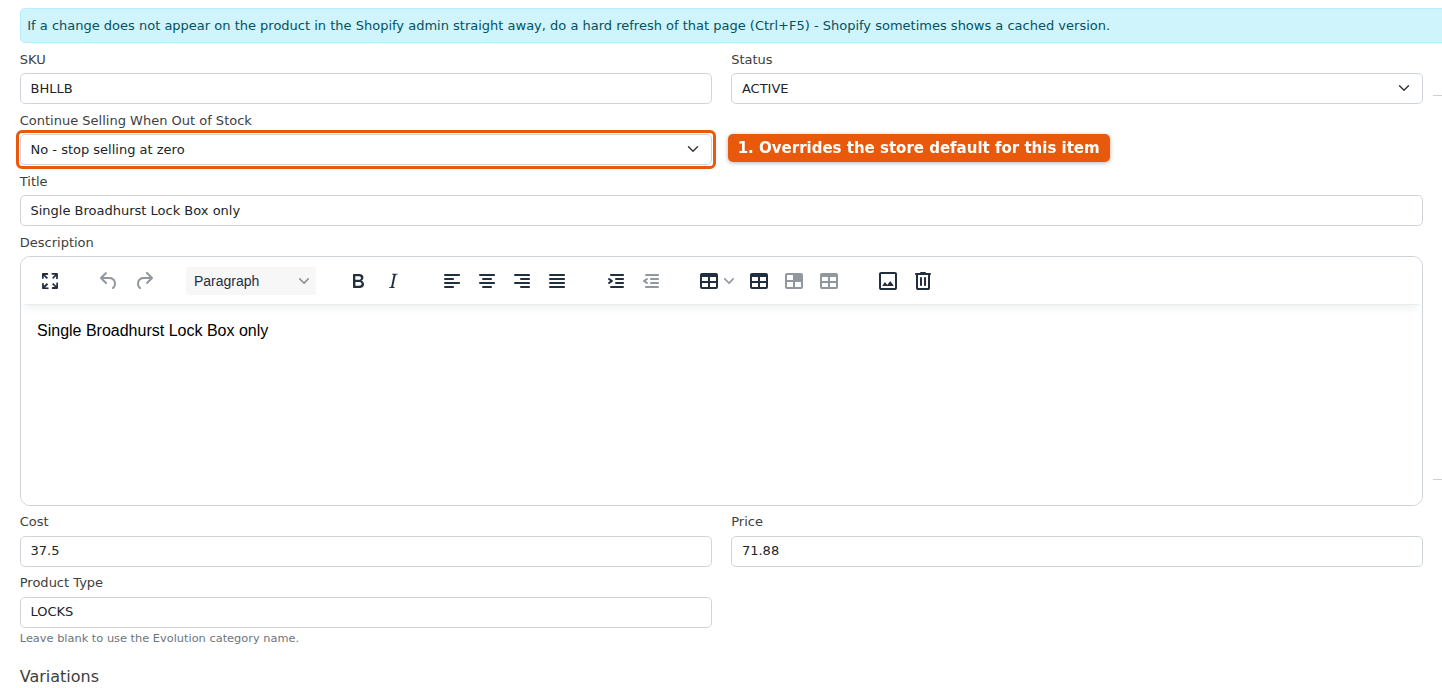
- Default (store setting) — the item follows the store-wide setting from the plugin settings page.
- No — stop selling at zero — Shopify blocks checkout for this item once its available quantity reaches zero, whatever the store default says.
- Yes — continue selling — this item keeps taking orders into back order, whatever the store default says.
Changing the selector pushes the new behaviour to Shopify immediately and then reads it back, so the confirmation message tells you what Shopify has actually recorded.
Variations inherit from their master item. Setting the override on a master product applies it to all of its variations that are themselves on Default; a variation with its own override keeps it. On a variation’s Shopify tab the first option reads Default (master, then store) to reflect that chain.
If Shopify shows an old value
The Shopify admin caches product pages fairly aggressively. If a stock level or out-of-stock behaviour you have just changed does not appear on the product in the Shopify admin straight away, do a hard refresh of that page (Ctrl+F5) — the change almost always landed and Shopify is showing a cached copy. The item editor shows the same reminder beside its Shopify admin links.