
A contact is a person: the buyer at a customer, the rep at a supplier, the site manager you ring about a delivery. Each contact belongs to one account (the business) at a time, and can be linked to any number of sites.
Open contacts from Sales › Contacts, from the Contacts tab on an account, from the contacts on a project, site or opportunity, or by searching for their name.
The Contact Page

- Active or Disabled (they left the company, or you turned them off). Flags show here too: Do not contact, and Marketing OK when they agreed to marketing.
- Their position and department, the account they work for (click it to open the account), their base location and when the contact was created.
- Click a number to call it, or the email address to write to them. A star marks the way they prefer to be contacted. When a contact is marked Do not contact, the numbers and email still show but are no longer links.
- Save saves the Overview tab. It only shows on that tab, because the other tabs save as you go.
- Log call and Add task open the same windows you use on projects and opportunities. The call or task is filed against the contact’s account, with the contact’s name in the title.
- Move account and Link a site. See Moving a Contact and Account & Sites.
- Figure tiles. This contact’s open opportunities and open (new or sent) quotes, with their value, active projects (new, current or on hold), what has been invoiced to them in the last 12 months, and how long ago anything last happened. After 90 days with nothing, Last activity shows Going cold. Click a tile to see the records behind it.
Below the tiles are the tabs: Overview, Account & sites, Records, Activity, Map and History. The tab you are on is part of the page’s address, so you can bookmark or share a link that opens on it.
The Overview Tab
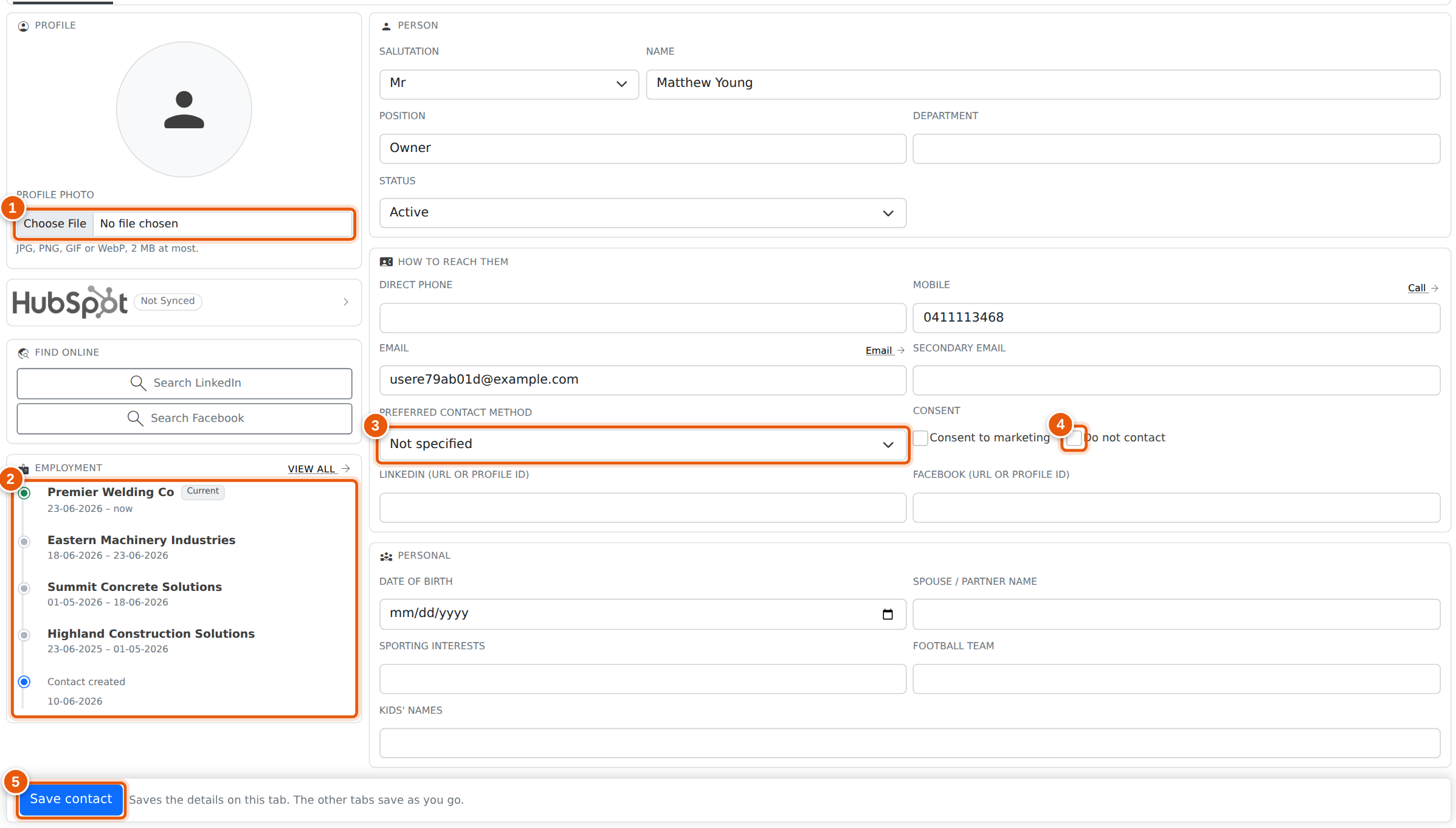
- Profile photo. Choose a JPG, PNG, GIF or WebP image of up to 2 MB. It shows straight away, and is kept when you press Save.
- Employment. Every account this person has worked for and when, newest first, starting from when the contact was created. View all opens the full history on the Records tab.
- Preferred contact method. The star in the header follows this.
- Do not contact turns the call and email links off, and flags the contact in red.
- Save contact saves everything on this tab. If you leave with changes that are not saved, they are lost.
Find online searches LinkedIn or Facebook for the person’s name and account. The Personal section (birthday, partner, interests) is optional and only ever shows here.
Account & Sites
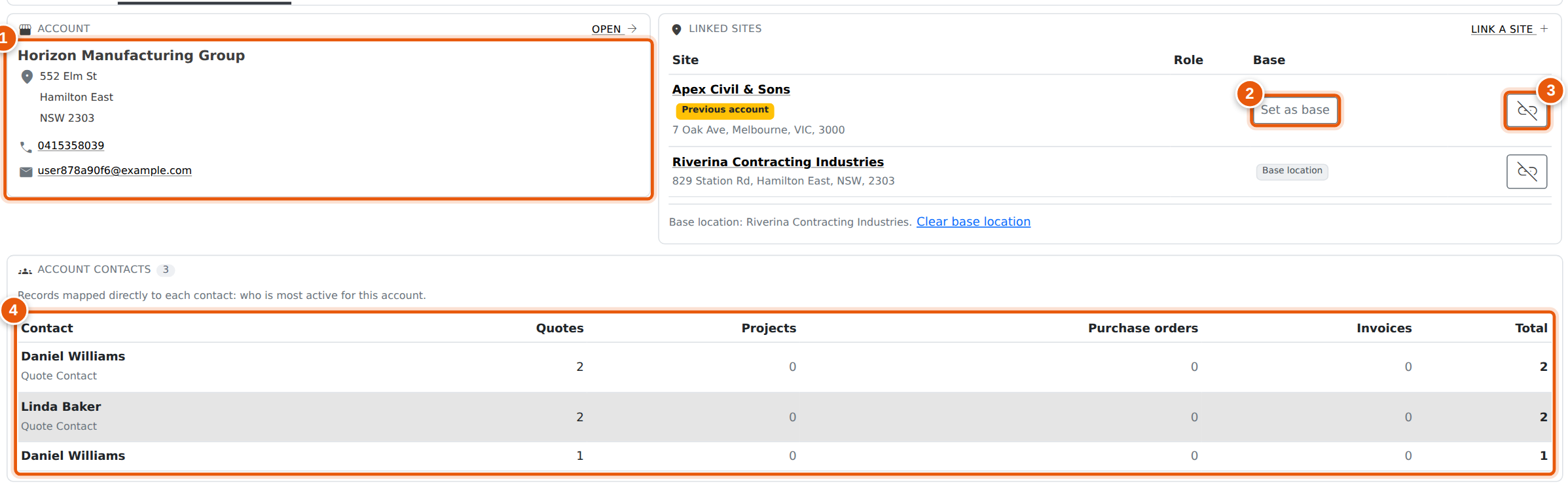
- Account. The business this person works for, with its address, phone and email. Open goes to the account.
- Set as base makes that site the contact’s base location: where they work from. The base location shows in the header and on the Map tab. Clear base location under the list removes it.
- Unlink removes the link between the contact and the site. It asks first. The site itself is not changed.
- Account contacts lists everyone at the account, with how many quotes, projects, purchase orders and invoices each is the contact on, busiest first. This contact’s row is shaded. Click another row to open that contact. Disabled contacts are hidden until you turn on Show disabled.
To link a site, press Link a site, search for the site, and give the person’s role there if you like. Tick Make this the base location to set it as their base at the same time.
A site marked Previous account belongs to an account the contact no longer works for. The link is kept so you can see what they looked after. Unlink it when it no longer applies.
Moving a Contact to Another Account
When someone changes jobs, move them instead of making a new contact. Their quotes, opportunities and projects stay with them, and the Employment list records where they went.
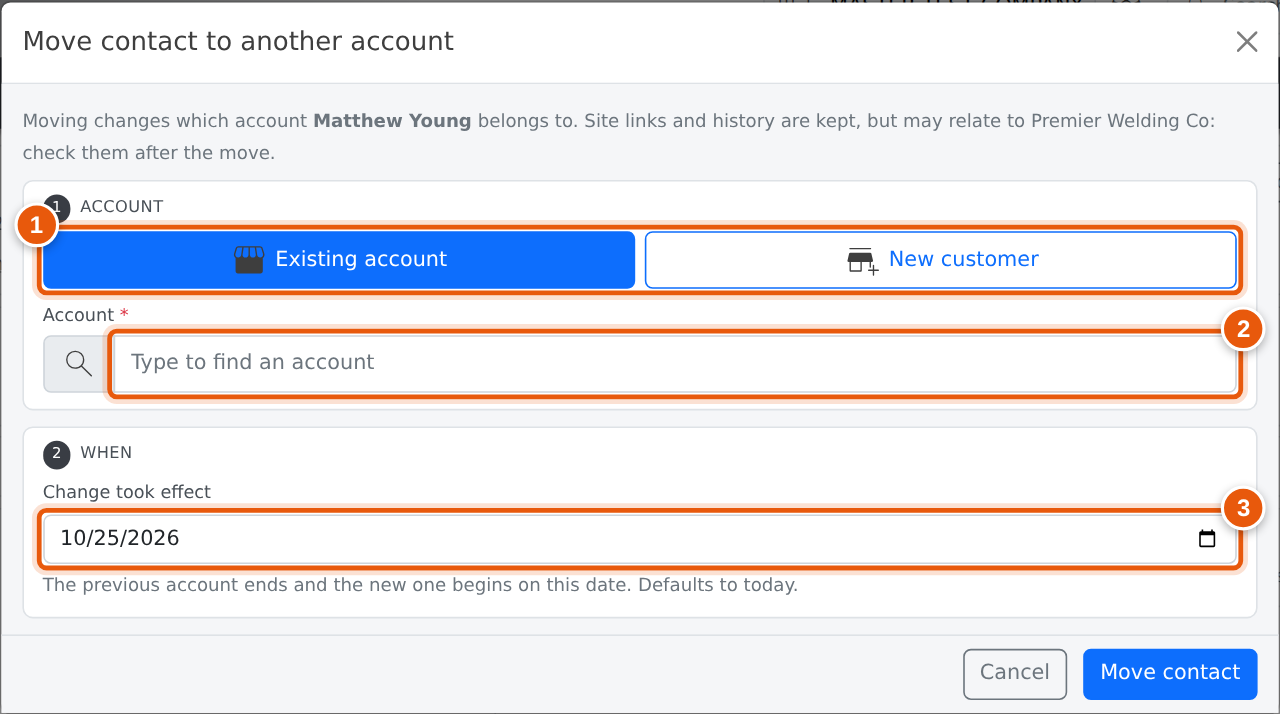
- Choose Existing account, or New customer to create the account as you move them (it needs at least a company name).
- Type part of the account’s name and pick it from the list.
- Change took effect starts as today. Set an earlier date if they moved a while ago. The old account ends and the new one begins on that date. A future date cannot be used.
Press Move contact and confirm. Linked sites are kept, and any that belong to the old account are marked Previous account. A contact with no account shows Link to an account instead, which works the same way.
The Records Tab
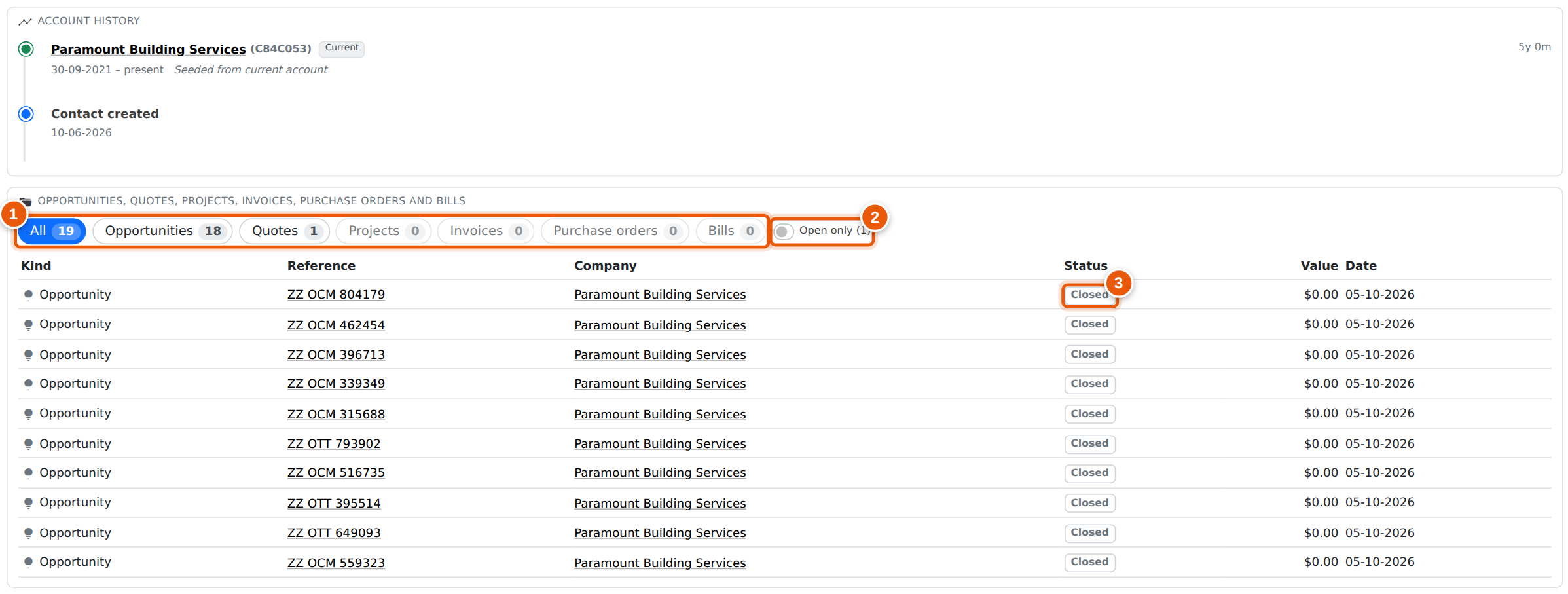
The top of the tab is the full account history: each account the person has worked for, the dates and how long they were there. Below it are the opportunities, quotes, projects, invoices, purchase orders and bills that name this contact, newest first.
- Click a kind to show only those records. Click it again to go back to All.
- Open only hides records that are finished: won, lost or closed opportunities, accepted or declined quotes, closed projects, and so on.
- Each record shows its status, the same way it does on its own list.
Clicking a figure tile opens this tab already filtered, for example Open quotes shows only this contact’s open quotes. If nothing is linked to the contact yet, the tab shows the account’s records instead, and says so.
The Activity Tab
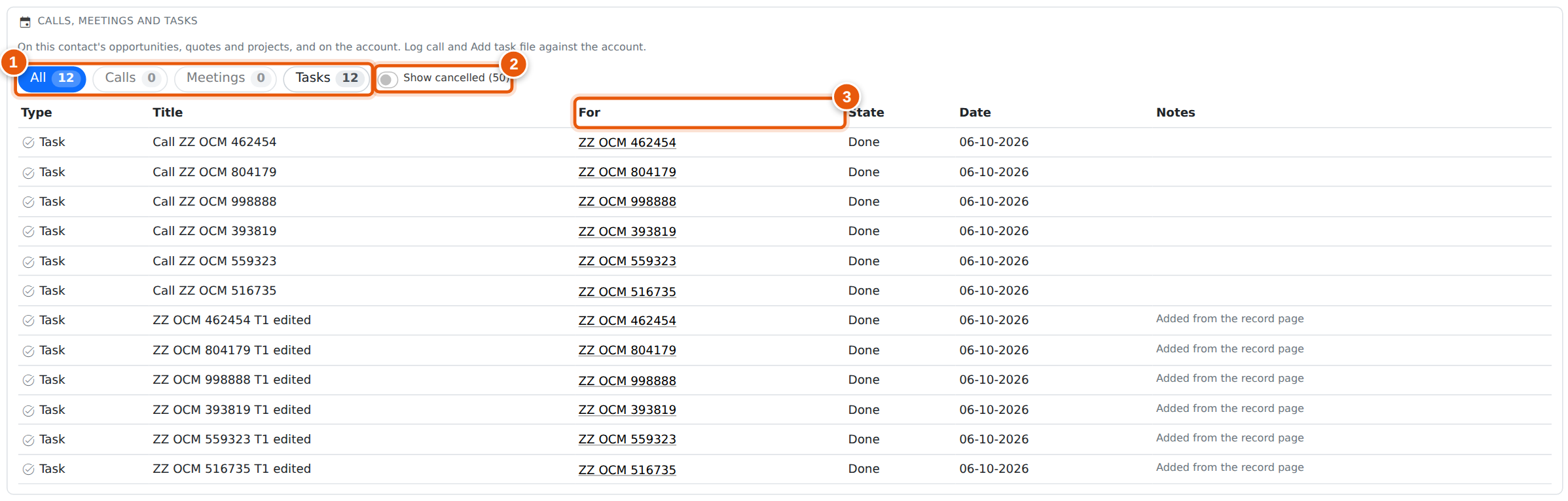
Activity lists the calls, meetings and tasks on this contact’s opportunities, quotes and projects, and on their account, newest first.
- Click Calls, Meetings or Tasks to show only that kind.
- Cancelled items are hidden. Turn on Show cancelled to see them. The number tells you how many there are.
- For is the opportunity, project or account the item belongs to. Click it to open that record.
A task or meeting whose date has passed and that is not done shows Overdue. The first 25 items show. Press Show all under the list to see the rest.
The Map and History Tabs
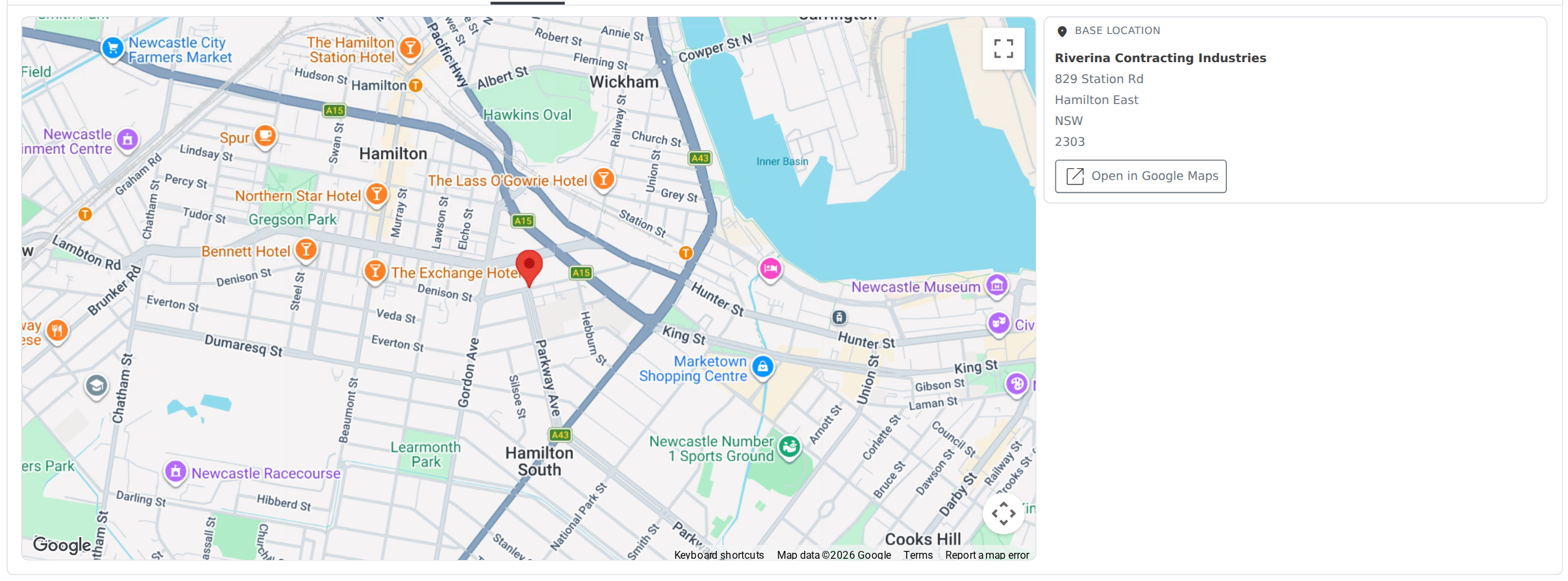
The Map tab shows the contact’s base location. If they have no base location, or it has no address, the tab says so. Set one on the Account & sites tab.
The History tab lists every change to the contact, with who made it and when: changes saved on the Overview tab (each field’s old and new value), a new photo, moves between accounts, sites linked and unlinked, and the base location set or cleared.
Who Can Open Contacts
| Permission | What they can do |
|---|---|
| Sales Allowed or Admin | Open and change contacts. |
| Accounts Receivable Allowed or Admin | The same. |
| Purchasing Allowed or Admin | The same, for supplier contacts as well as customer contacts. |
| Company Files Allowed or Admin | The same (this is where Manage Contacts sits in the menu). |
| A company administrator | The same. |
| Anyone else | Cannot open the contact page. |
Adding or choosing a contact from a project, site or opportunity is not affected. Permissions are set on each staff member. See Setting Permissions.
Frequently Asked Questions
Someone changed jobs. Should I make a new contact?
No. Move them to the new account. Their history comes with them, and the old account’s page lists them under Former Contacts.
Why is a call I logged on the contact showing against the account?
Calls and tasks belong to an opportunity, project or account. When you log one from a contact it is filed against their account, with their name in the title, so everyone working that account sees it.
The figure tiles show nothing, but the account has plenty of quotes.
The tiles only count records where this person is the contact. The account’s own page shows everything for the business.
How do I remove a photo?
You can replace a photo by uploading another one, but not remove it yet.