
Reports → Sales → Data Quality → Duplicate Sites. The site screen stops new duplicates being created. This tool deals with the ones already in your data: it scans every customer, groups the sites that are really the same place, and lets you merge each group onto one surviving site.
When to Use It
Duplicate sites happen when the same depot or yard is entered twice under slightly different spellings, or when someone adds a new site rather than picking the existing one. The effect is that the work at one address is split across two records: half the quotes on one, half the invoices on the other, and neither tells the whole story.
Use this tool as a periodic tidy-up, or when you notice the same address appearing twice in a site list. It is safe to open and look at — nothing changes until you choose a group, choose a survivor and confirm.
Finding Duplicates
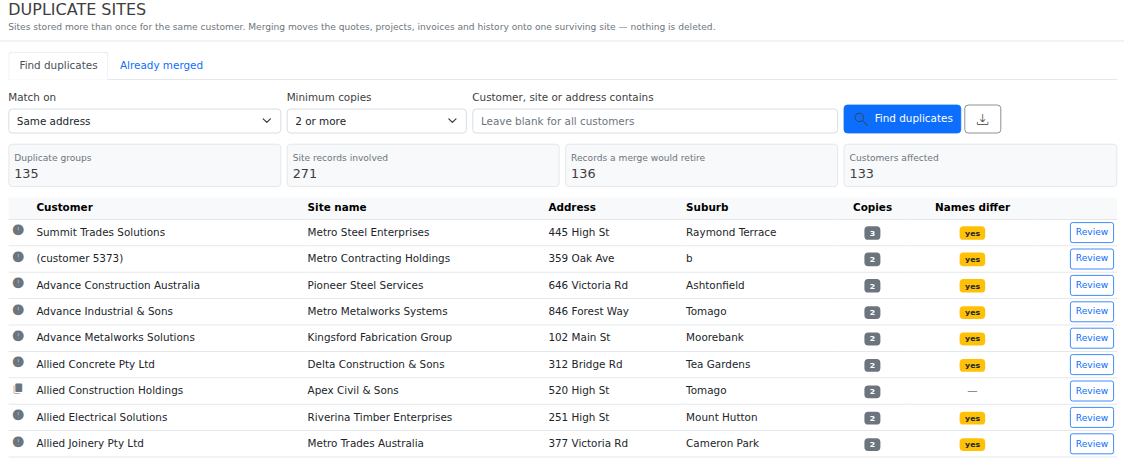
Set the filters and select Find duplicates.
| Filter | What it does |
|---|---|
| Match on | Same address groups sites at the same place, ignoring capitals, spacing and punctuation. Same site name groups by name instead. Address is the better starting point — most duplicates were saved under different names, which is exactly why they were not noticed. |
| Minimum copies | Show only groups with at least this many copies. Start at 3 or more to deal with the worst offenders first. |
| Contains | Narrow to one customer, site or street. Leave blank for everything. |
The tiles above the list give you the scale: how many groups, how many site records are involved, how many records a full merge would retire, and how many customers are affected.
Reviewing a Group
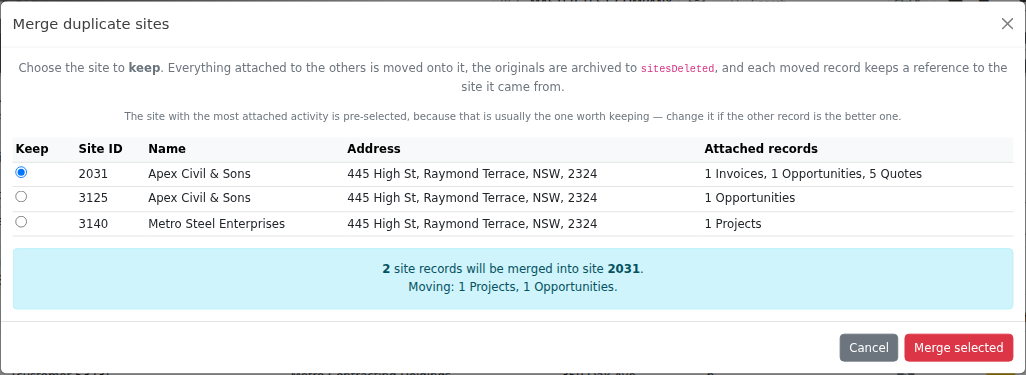
Review opens the group and lists each site with the records attached to it. Choose the one to keep.
The site with the most attached activity is pre-selected, because that is usually the one worth keeping — but it is only a suggestion. If another record is the better one, pick it instead. The panel underneath updates to show exactly what would move.
What Merging Does
- Quotes, projects, invoices, opportunities, activities, assets, rosters, qualifications and site contacts are moved onto the surviving site.
- The absorbed sites are archived in full, then removed from the active site list so they stop appearing in dropdowns.
- Every moved record remembers which site it came from, and the surviving site records which sites it absorbed.
- Old links still work — opening a link to a site that was merged away takes you to the site it was merged into.
If anything goes wrong part way, the merge stops and tells you exactly how far it got. The sites are only removed once everything else has succeeded.
Missing Detail Is Filled In
The site you keep is not always the most complete one. If the survivor is missing a state, postcode, suburb, second address line, country, email or phone number, and one of the sites being merged away has it, that detail is copied across.
Reviewing Past Merges
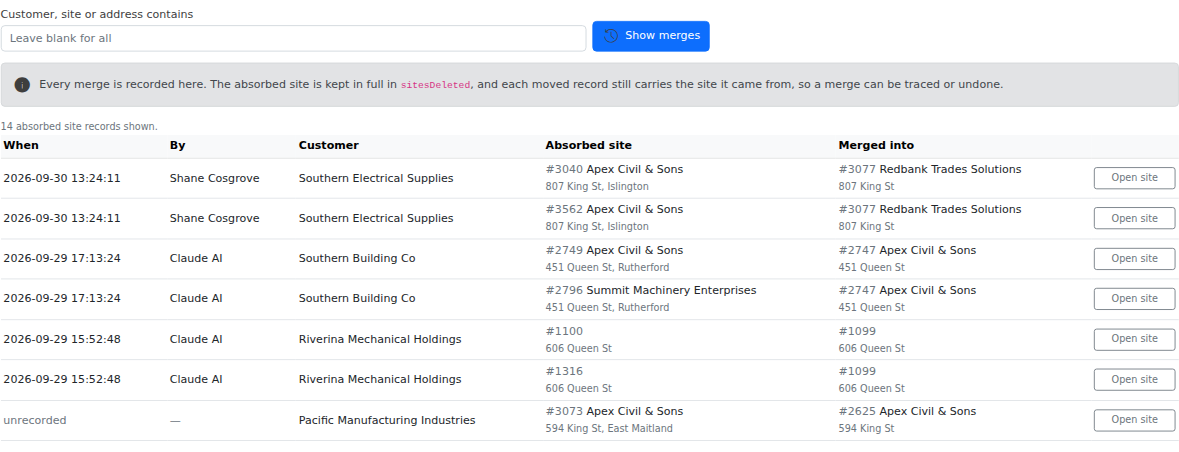
Every merge is recorded, in three places:
- The Already merged tab on this tool — every merge across the database, with when, who, which site was absorbed and which one survived.
- The History tab on the surviving site, which lists the merge in its change log alongside everything else that happened to that site.
- A note at the top of the surviving site naming the sites it absorbed.
Who Can Use It
Viewing the list needs reporting and sales access. Merging needs full sales access or an administrator, because it changes live customer records across the whole database. If you can see the list but not the merge button, that is why.
Related Pages
- Sites — the site screen, and the checks that stop new duplicates being created.
- Address Quick Search — finding an address or place by name when adding a site.
- Sales Reports — the rest of the sales reporting suite.