Where to Find Them
Menu → Reports → Reports Dashboard, then the Sales pill.
Every report on this page requires admin (full) access on the Sales module or on Business Registers — either one is enough — or administrator access. If you don't see the Sales pill on the dashboard, contact your administrator.
Quote Performance
A quote is “converted” once it becomes a project. All figures are reported by quote date across the 12 months of the chosen financial year.
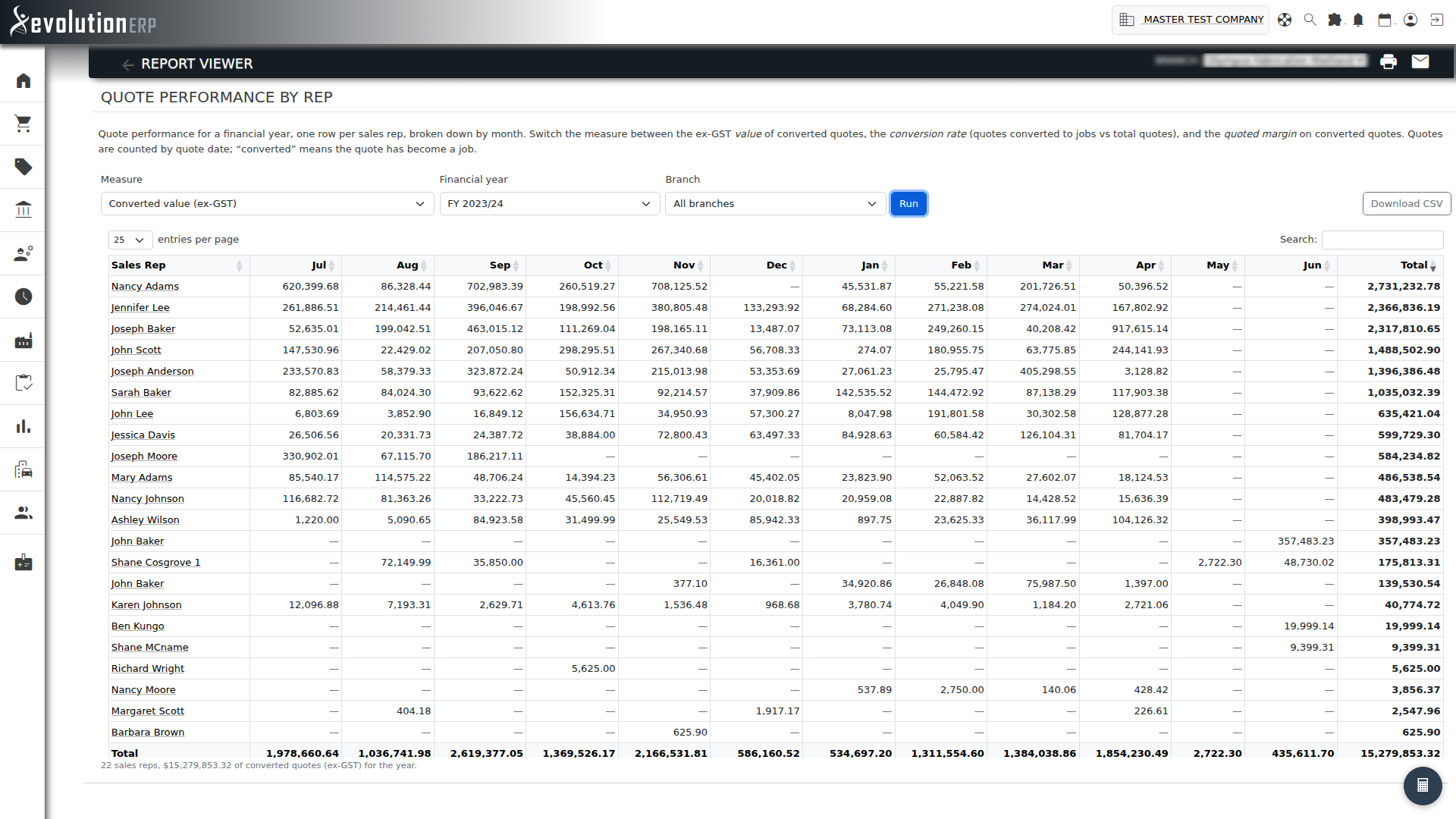
Quote Performance by Rep
What it shows: One row per sales rep, broken down by month, with a Measure selector:
- Converted value (ex-GST) — the value of quotes that became projects.
- Conversion rate — quotes converted to projects vs total quotes raised (shown as converted / total and a percentage). Voided quotes are excluded from the total.
- Quoted margin — the quoted profit on converted quotes (dollar margin and margin %). This is the quoted profit, not actual — use the job-costing reports for actuals.
How to use it: Pick the measure, financial year and (optionally) a branch. Sort any month or the total column to rank the team, or Download CSV. This one report replaces the old Converted Quotes (All Reps), Conversion Rates and Quote Profits by Month reports.
Converted Quotes by Customer
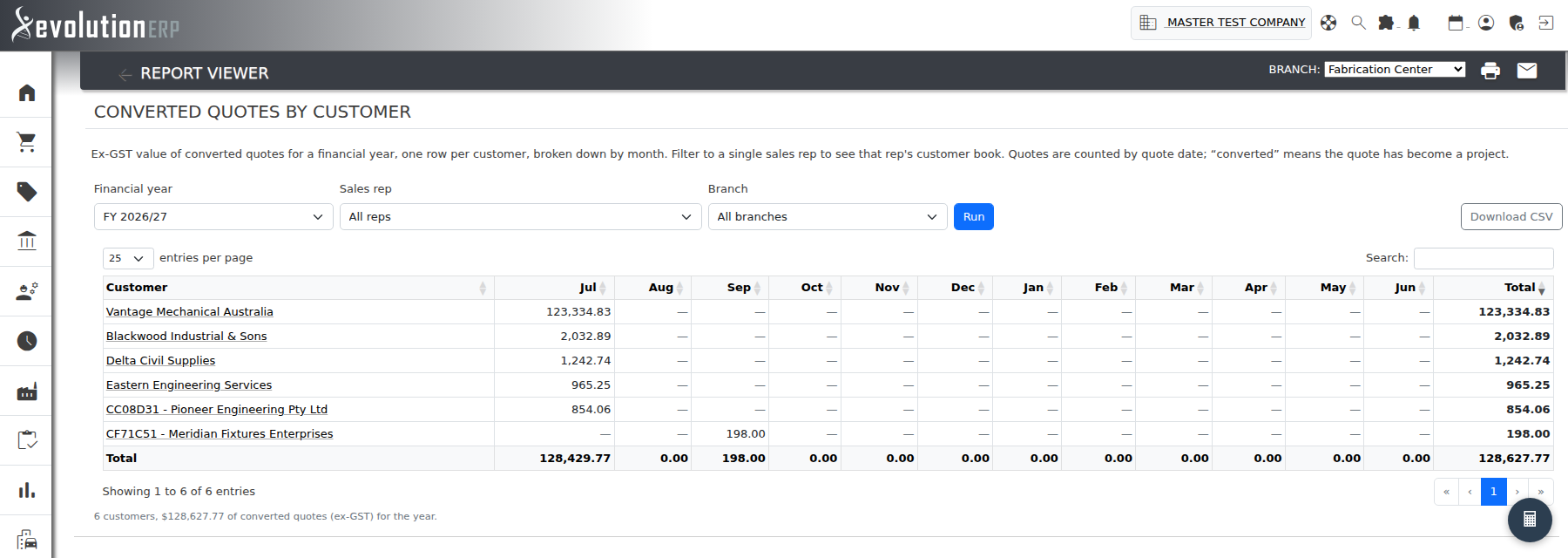
What it shows: Ex-GST value of converted quotes, one row per customer, broken down by month. The customer is the quote's customer.
How to use it: Pick the financial year and (optionally) a single sales rep and branch to see that rep's customer book. Click a customer to open their record, sort any column, or Download CSV.
Invoicing
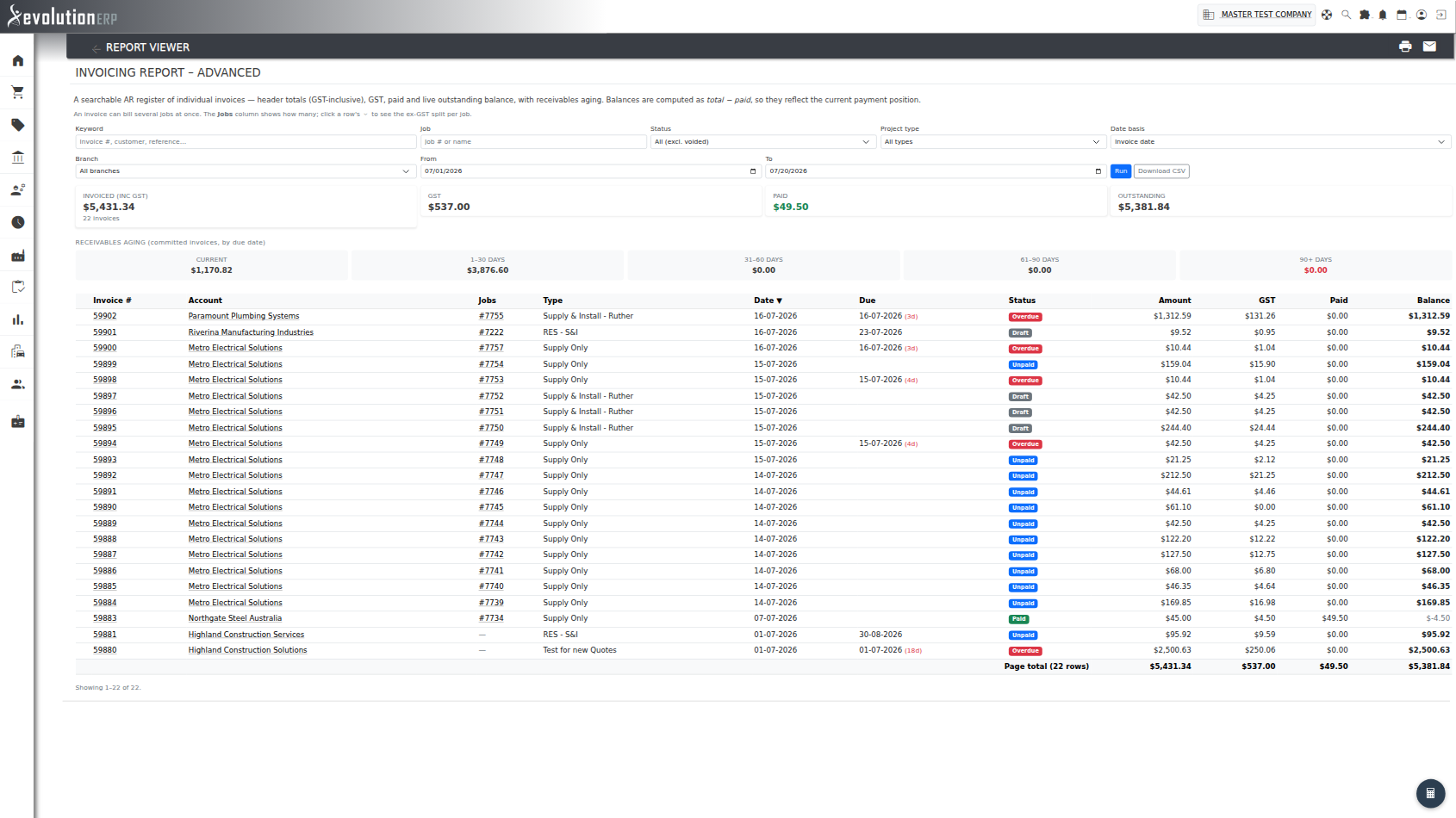
Invoicing Report – Advanced
What it shows: An Accounts-Receivable register of individual invoices — each invoice's amount (GST-inclusive), GST, paid and live outstanding balance (calculated as total − paid, so it reflects the current payment position rather than a cached balance). Above the list sit summary cards (Invoiced, GST, Paid, Outstanding) and a receivables aging strip (Current / 1–30 / 31–60 / 61–90 / 90+ days) on the outstanding balances.
How to use it:
- Type a keyword — it matches invoice number, customer, reference or customer PO — and the list refreshes as you type.
- Filter a single project (by number or name), a status (Committed, Unpaid, Partially paid, Overdue, Paid, Draft or Voided), a project type, a branch (or all branches), and a date range. The date basis toggle switches the range between invoice date and due date. Defaults: this financial year to today, all branches, all statuses except voided.
- Click any column heading to sort; click an invoice number, customer or project to open the record.
- Invoices can bill several projects at once. When they do, the Projects column shows a count — expand the row to see the ex-GST amount attributed to each project.
- Click Download CSV to export the loaded set for further analysis.
info Amounts are GST-inclusive header figures. When you include drafts or all statuses, the totals will not reconcile with the ex-GST, committed, job-line figures in the two monthly-invoicing reports below — this is an AR register and invoice lookup, not a committed-revenue report.
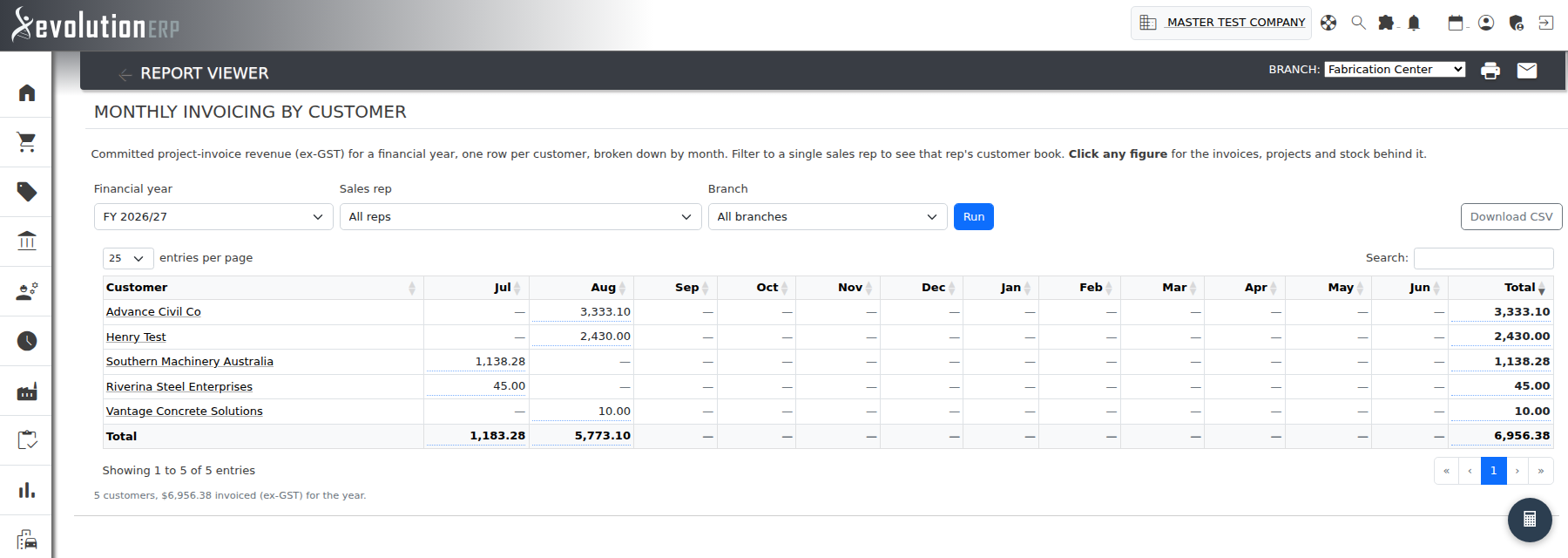
Monthly Invoicing by Customer
What it shows: Committed job-invoice revenue (ex-GST) for a chosen financial year, one row per customer, broken down into the 12 FY months with a year total. Revenue is attributed to the project's customer (the project owner), grouped on the line-level project — so a manual line that inherited the header project still lands against the right customer.
How to use it: Pick the financial year and (optionally) a single sales rep and branch. It opens for all reps by default; pick a rep to narrow to their customer book. Click a customer to open their record, sort any column, or Download CSV. For the individual invoices behind a figure, use the Invoicing Report – Advanced (noting the basis difference above).
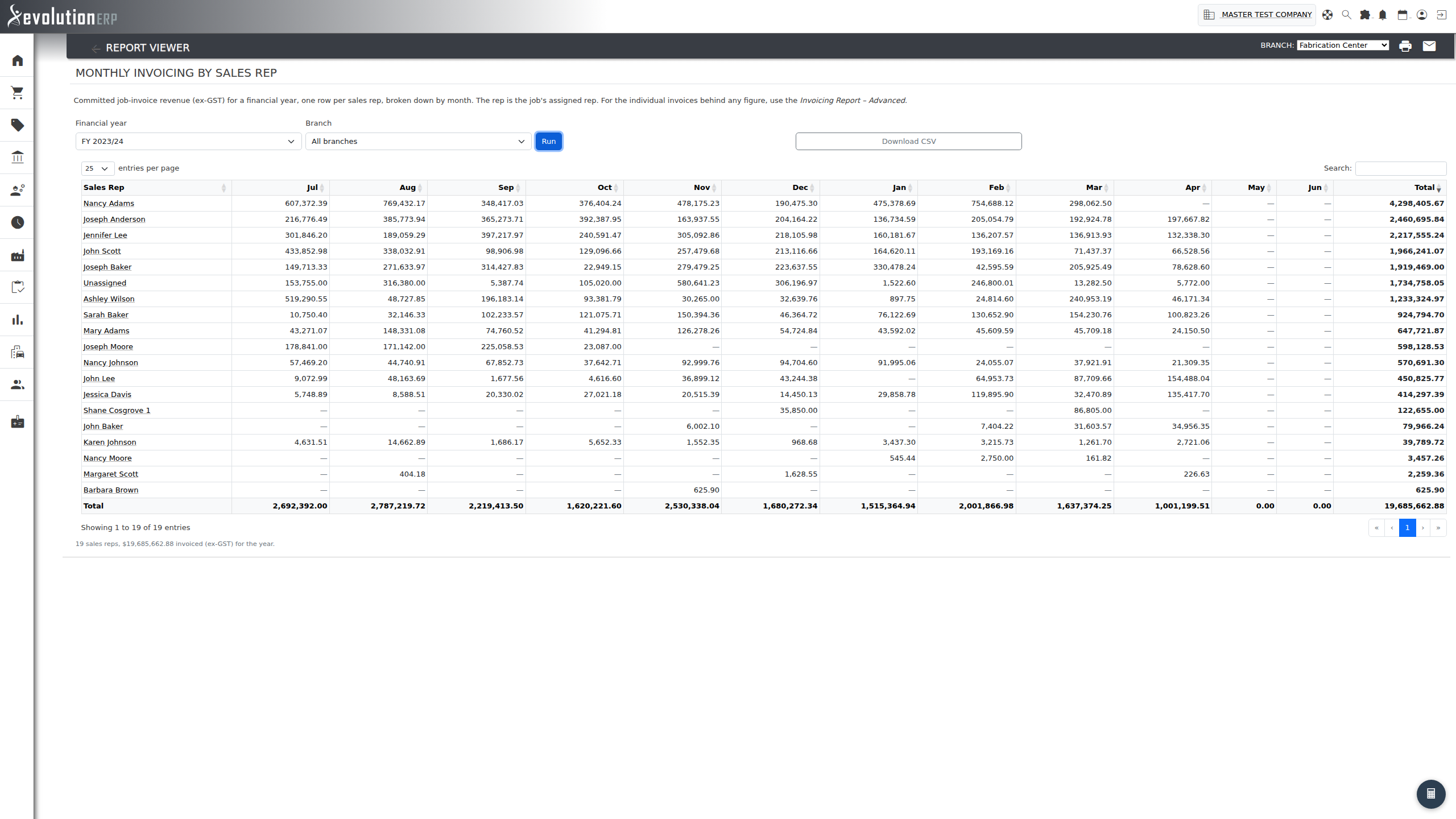
Monthly Invoicing by Sales Rep
What it shows: Committed job-invoice revenue (ex-GST) for a chosen financial year, one row per sales rep, broken down into the 12 FY months with a year total. The rep is the project's assigned rep.
How to use it: Pick the financial year and (optionally) a branch. Sort by any month or by the year total to rank reps, or Download CSV. For a customer-level breakdown, use Monthly Invoicing by Customer.
Customer Segments
These four reports all read customer segments — the named lists of accounts you maintain under Sales → Customer Segments. Every one of them can also be run for all accounts or for accounts in no segment, so they are worth a look even before you have set any segments up.
Customer Segment Directory
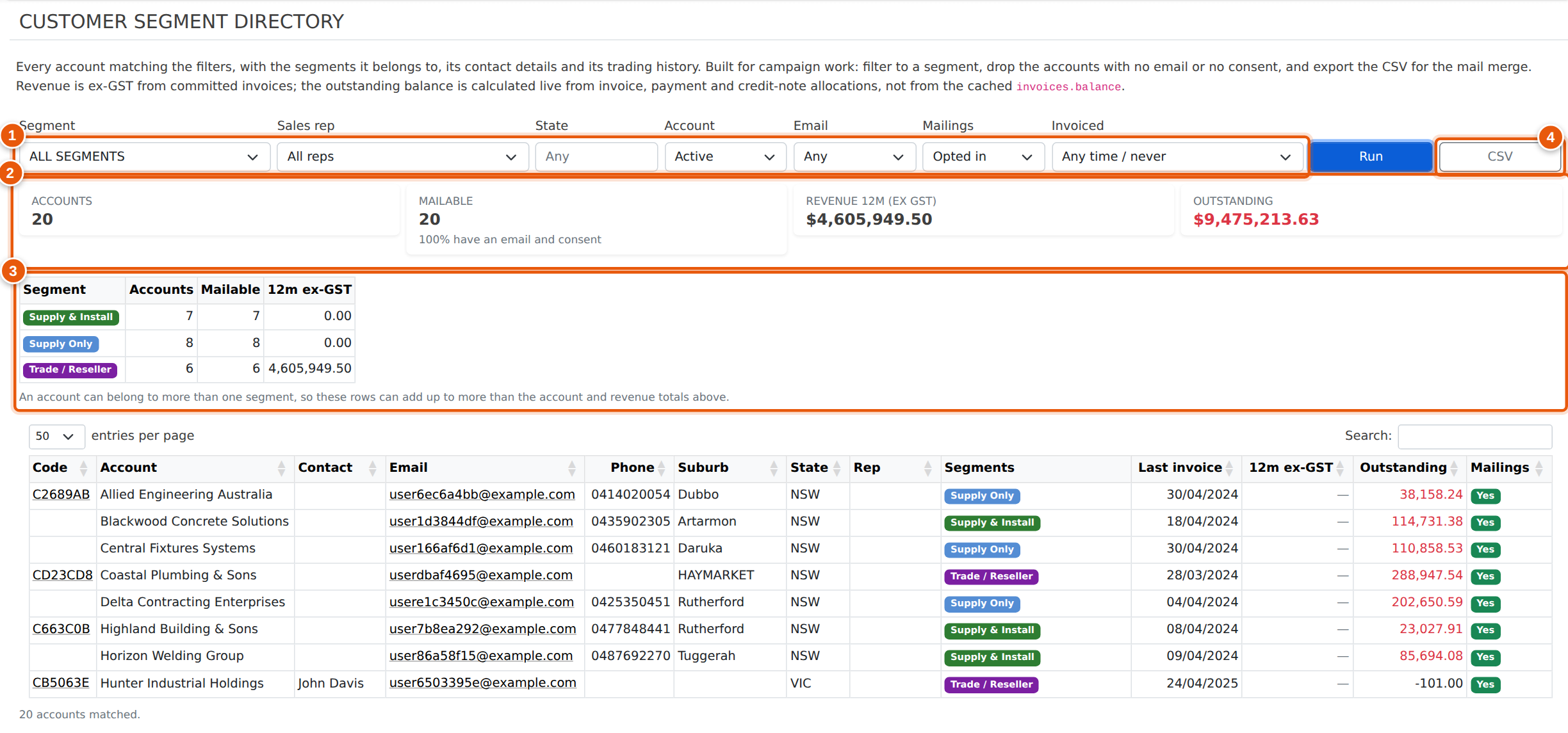
What it shows: One row per account — code, company, contact, email, phone, state, postcode, sales rep, the segments it belongs to, its last invoice date, what it has been invoiced ex-GST over the last 12 months, its outstanding balance and whether it has agreed to mailings. This is the report you export to run a mail merge or a price letter.
How to use it:
- Filters — segment (or all / no segment), sales rep, state, account status, whether the account has an email address, whether it has agreed to mailings, and whether it has been invoiced in the last 3, 6, 12 or 24 months. They apply together.
- Summary cards — accounts matched, how many are emailable, and the 12-month revenue behind them.
- Per-segment summary — the same three figures broken out for each segment in the result, so you can see which list is the one worth mailing.
- Download CSV — exports the accounts with their contact details, ready for the mail merge.
info Very large result sets stop listing at 5,000 accounts, but the cards and the per-segment summary still count every matching account — the totals do not change when the table is trimmed. Narrow the filters, or use the CSV.
Revenue by Segment
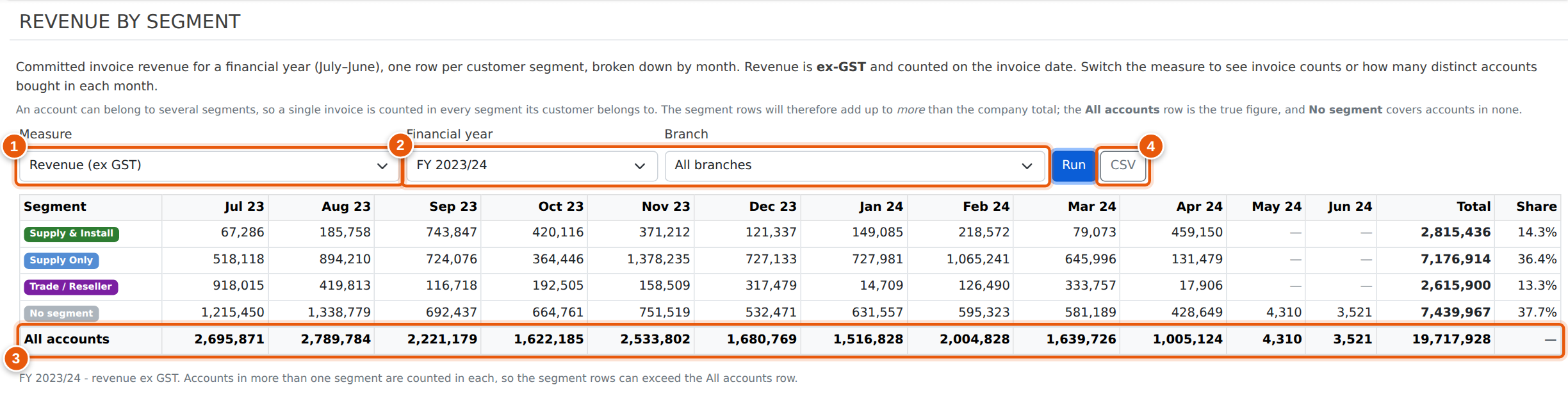
What it shows: One row per segment, broken down into the 12 months of a financial year with a year total — the answer to “what is this segment actually worth to us?”. There is a row for accounts in no segment and an All accounts row underneath.
How to use it:
- Measure — switch between Revenue (ex GST), Invoices (how many were raised) and Accounts invoiced (how many distinct accounts bought). The report does not need re-running when you change it.
- Financial year and branch.
- The Share column on the right is each segment's year total as a percentage of the All accounts total — the quickest way to see which segments carry the business. Because an account can sit in more than one segment, the shares add up to more than 100%.
- The All accounts row is the company total, worked out separately — it is not the sum of the segment rows above it, and carries no share of its own.
- Download CSV for the whole matrix.
On the Accounts invoiced measure the year column is not the sum of the twelve months: an account that buys every month is one account, not twelve.
Segment Customer Value
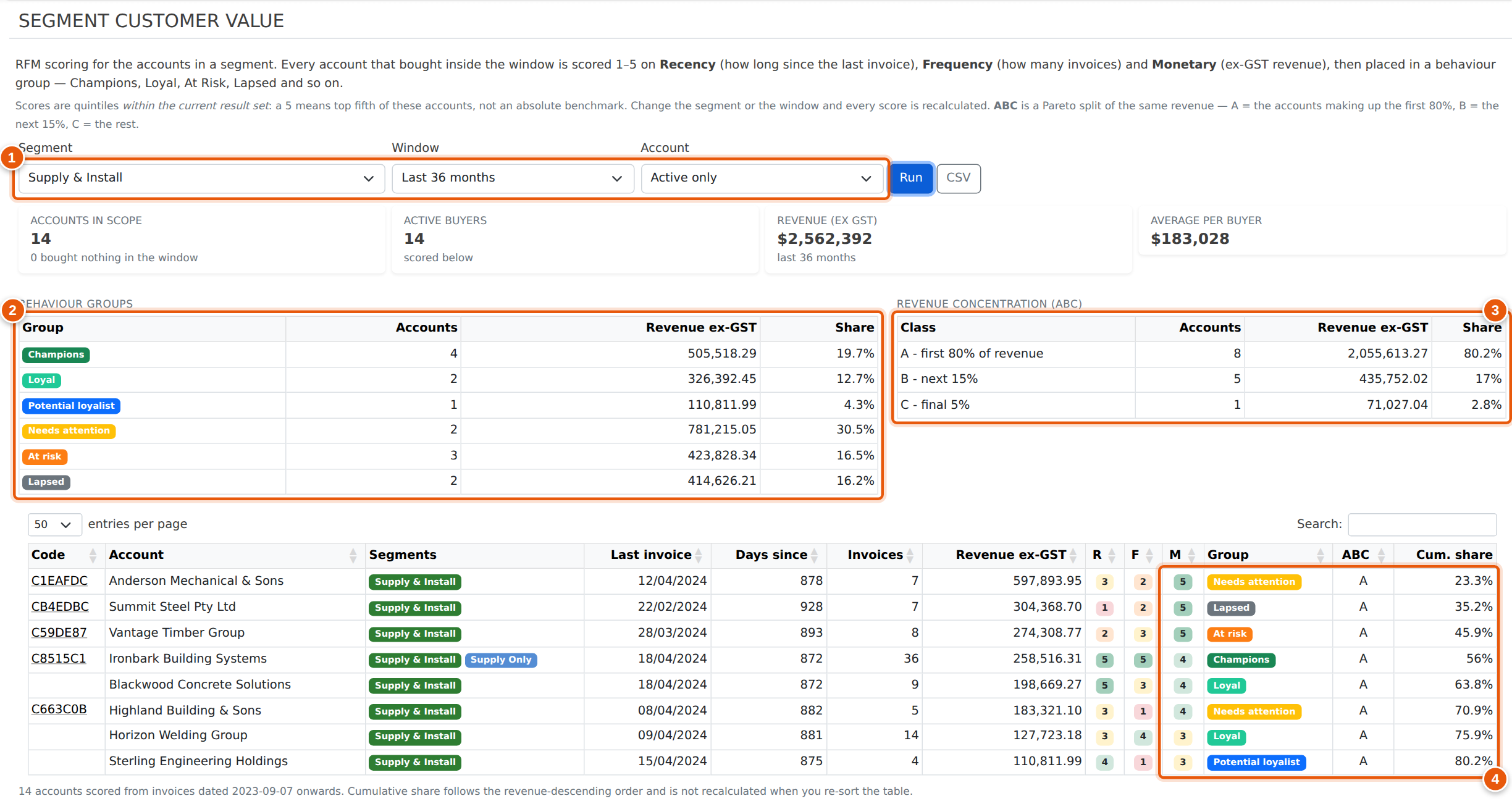
What it shows: The customers inside a segment ranked by value, using the standard RFM approach — how Recently they bought, how Frequently, and how much Money they spent. Each is scored 1 to 5, and the three scores together put every account into a behaviour group.
| Group | What it means, and what to do about it |
|---|---|
| Champions | Bought recently and often. Your best accounts — look after them. |
| Loyal | Consistent, regular buyers. The backbone of the book. |
| New / promising | Bought very recently but not often yet. Worth a follow-up call. |
| Potential loyalist | Recent, with room to grow. A candidate for a targeted offer. |
| Needs attention | Everything in between — worth a look, no single obvious action. |
| At risk | Were regular, now drifting. |
| Can't lose | Used to spend a lot and often, and have gone quiet. Ring them. |
| Lapsed | Not recent, not frequent. Reactivation campaign material. |
How to use it:
- Segment, window (12, 24 or 36 months) and account status.
- The group summary shows how many accounts fall into each behaviour group and what they are worth.
- The ABC split is the Pareto view: A accounts are the ones making up the first 80% of revenue, B the next 15%, C the last 5%. It is usually a much smaller set of A accounts than people expect.
- Each row carries its R, F and M scores, its group, its ABC band and its running share of segment revenue. Download CSV exports the lot.
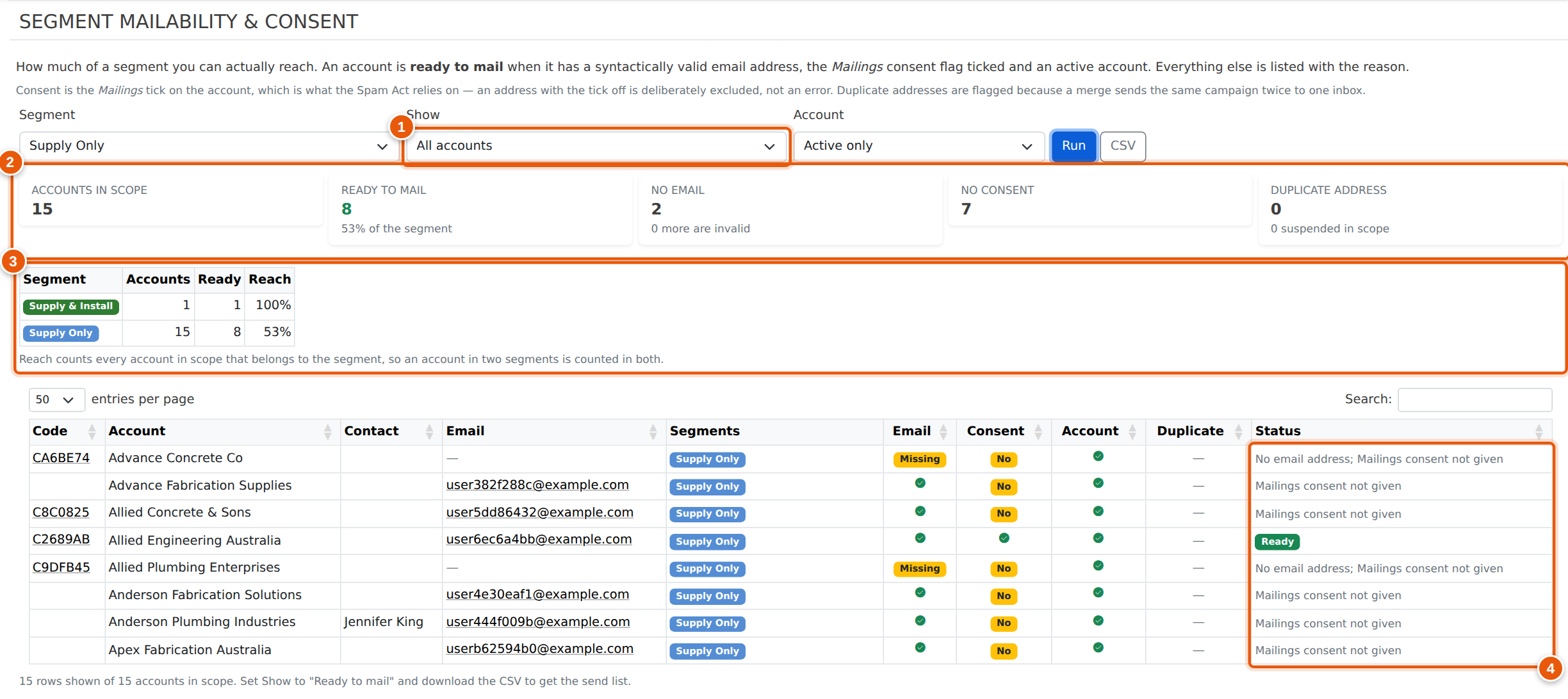
Segment Mailability & Consent
What it shows: Whether you can actually email the segment you are about to mail. Every account is checked for four things — a usable email address, a valid one, mailings consent, and an active account — and any address shared with another account is flagged as a duplicate so one person does not receive the same mailout twice.
How to use it:
- Show — the whole segment, or just the accounts that are ready to mail, blocked, or blocked for one specific reason.
- Summary cards — how many are ready, and how many fall at each hurdle.
- Reach by segment — members, reachable and percentage for each segment, so you can see at a glance which list is worth sending.
- Each row spells out why an account cannot be mailed, which makes it a work list for tidying the data up rather than just a count.