
A segment is a named list of customer accounts — Supply Only, Trade / Reseller, Maintenance Contracts, whatever the split is that matters to your business. Once accounts are in a segment you can filter the Accounts register down to that list, pull it out as a spreadsheet for a mailout, and report revenue and customer value one segment at a time.
An account can sit in as many segments as you like. That is the point of them, and it is what the older Customer Type and Customer Group fields could never do — those hold one value each.
| Type of segment | Who decides who is in it |
|---|---|
| Static | You do. A hand-picked list that stays exactly as you set it until someone changes it. |
| Dynamic | A rule does — “invoiced more than $10,000 in the last 12 months and has an email address”. Evolution rebuilds the membership overnight, so the list is right without anyone maintaining it. |
Every segment starts static. Turning one into a rule takes a few seconds and can be undone, so there is no need to decide up front.
Who Can Do What
| Action | Access needed |
|---|---|
| See segments, open one, see the badges on an account | Any user who can reach the Sales menu — read access on Sales or Accounts Receivable. |
| Create, rename, recolour or delete a segment; add and remove accounts; build, preview, save or stop a rule | Admin (full) access on Accounts Receivable, or administrator. |
| Run the four segment reports | Admin (full) access on Sales or on Business Registers, or administrator. |
A read-only user still sees every screen described here — the controls are simply disabled, and the Rule tab is not shown at all.
The Segment Register
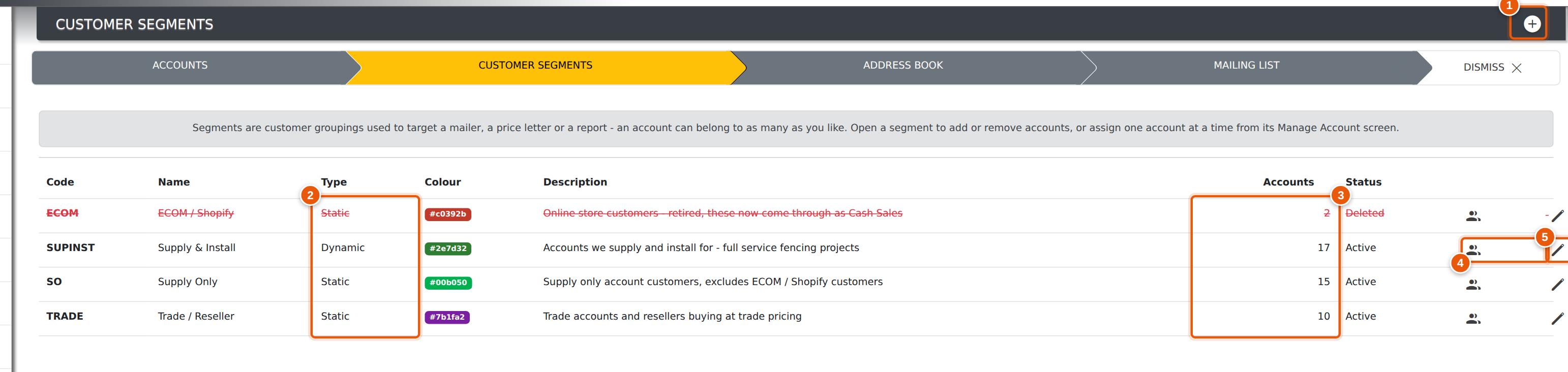
Menu → Sales → Customer Segments lists every segment with its code, type, colour, description and how many accounts are in it. Clicking anywhere on a row opens that segment.
- The + button adds a new segment.
- The Type column says whether the membership is hand-picked (Static) or maintained by a rule (Dynamic).
- The Accounts column is the current member count. On a dynamic segment it is the count as at the last rebuild.
- The people icon opens the Accounts register already filtered to that segment — the quickest way to look at the accounts themselves.
- The pencil icon opens the segment to edit it.
Creating a segment
Press + and fill in four things:
| Field | What it is for |
|---|---|
| Name | What people will see — on the account, in the filter list, on the reports. |
| Code | A short unique key (up to 12 characters), e.g. SO. It is what
anything outside Evolution — an import, an export, a marketing platform — will
match on, so pick it once and leave it alone. |
| Colour | The colour of the segment's badge wherever it appears. Pick colours that are easy to tell apart at a glance. |
| Description | A sentence saying who belongs in it. Worth writing — it is what stops the segment drifting once someone else starts maintaining it. |
The Segment Screen
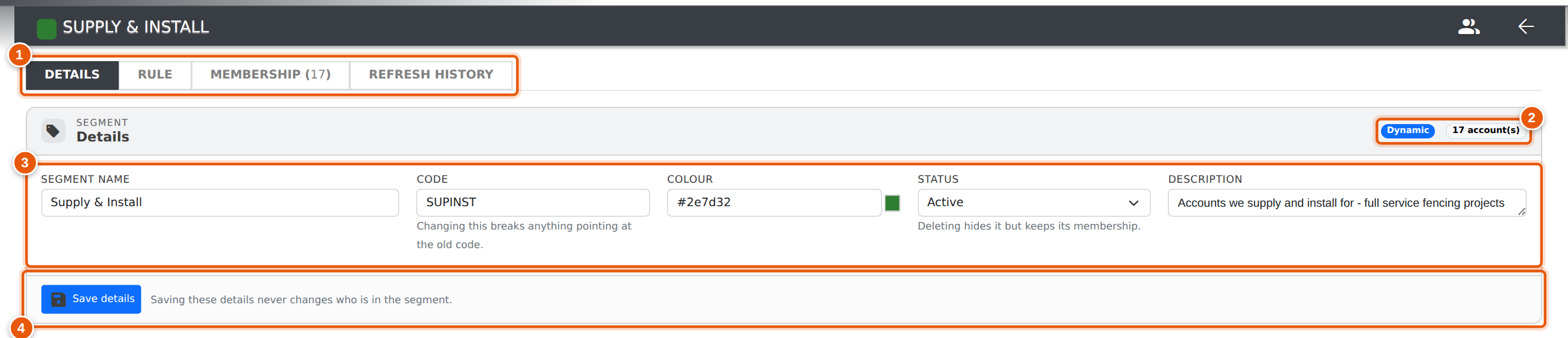
Opening a segment gives you a row of tabs, and which ones you get depends on the segment. A static segment shows Details and Membership. A dynamic one adds Rule and Refresh history.
| Tab | What is on it |
|---|---|
| Details | Name, code, colour, status and description — and, on a static segment, the offer to build a rule. |
| Rule | The rule builder. Shown on a dynamic segment, to users who can change it — on a static segment it appears the moment you press Build a rule. |
| Membership | The two account panes. The number beside the tab name is the current member count and updates as you work. |
| Refresh history | Every rebuild and what it moved, plus Refresh now. Dynamic segments only. |
- The tabs. Whichever one you are on is kept in the address bar, so a link you copy out of it opens on the same tab.
- The badges say at a glance whether this is a Static or a Dynamic segment, and how many accounts are in it.
- The details themselves.
- Save details — saving these never changes who is in the segment.
Segments That Maintain Themselves
A hand-picked list is right on the day you build it and slowly stops being right after that. A rule fixes that: you describe who belongs in the segment, and Evolution works out the membership for you and rebuilds it overnight.
Turning a segment into a rule
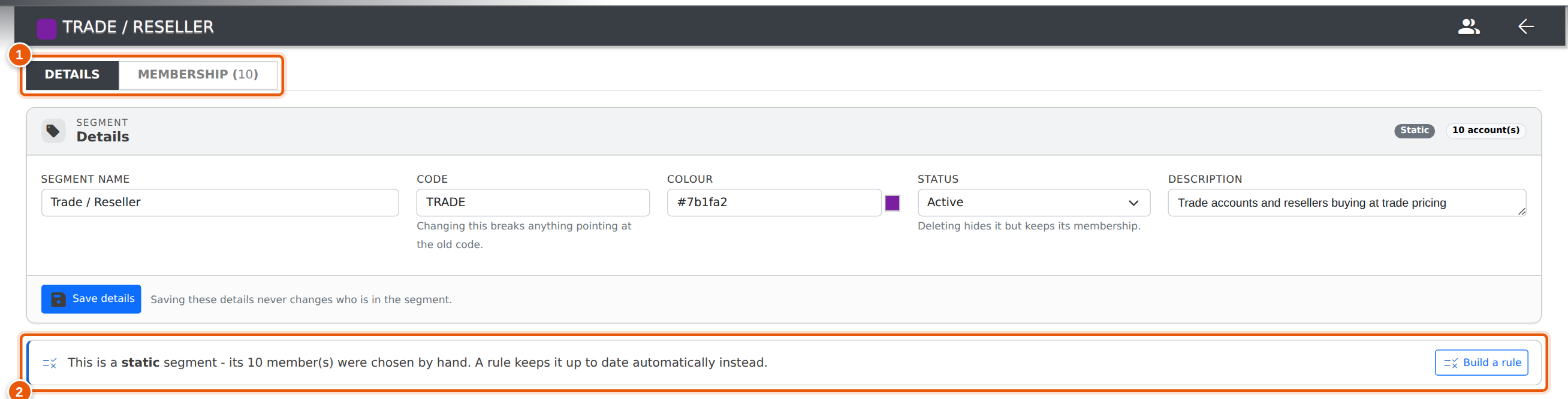
Open a static segment and the Details tab offers it. Press Build a rule and the Rule tab opens.
- A static segment shows two tabs — there is no rule yet, so there is no Rule tab and nothing to have a Refresh history of.
- The offer, with the number of accounts that were chosen by hand.
Building the rule
A rule is a list of conditions and a word that says how to combine them: ALL of them must be true, or ANY one of them.
- The match line — ALL or ANY. ALL narrows as you add conditions; ANY widens.
- A condition: a field, an operator, and a value. Add as many as you need.
- Some fields are measured over a period, and show a last N months box — Invoiced ex-GST is the total over that window, not for all time. See the field list for which fields do this.
- Add a condition adds a row; the × at the end of a row removes it.
- Rebuild — every night, or only when I press Refresh.
- Preview, then Save and apply. Save stays greyed out until you have previewed.
- Stop the rule turns the segment back into a hand-picked list.
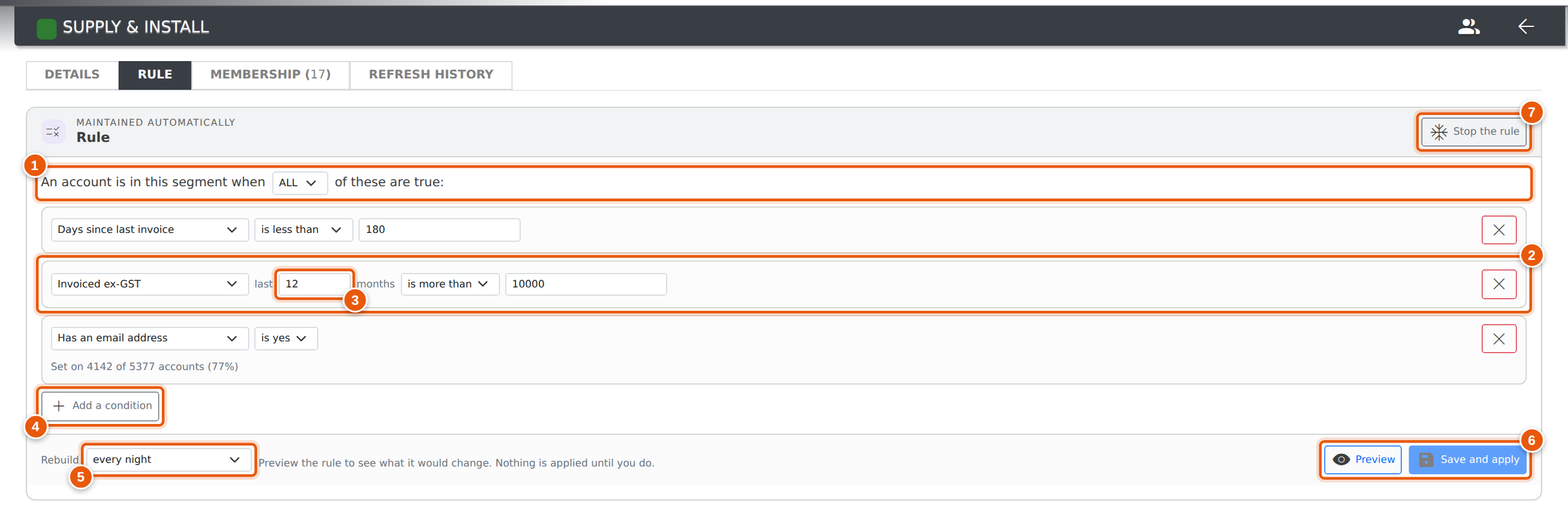
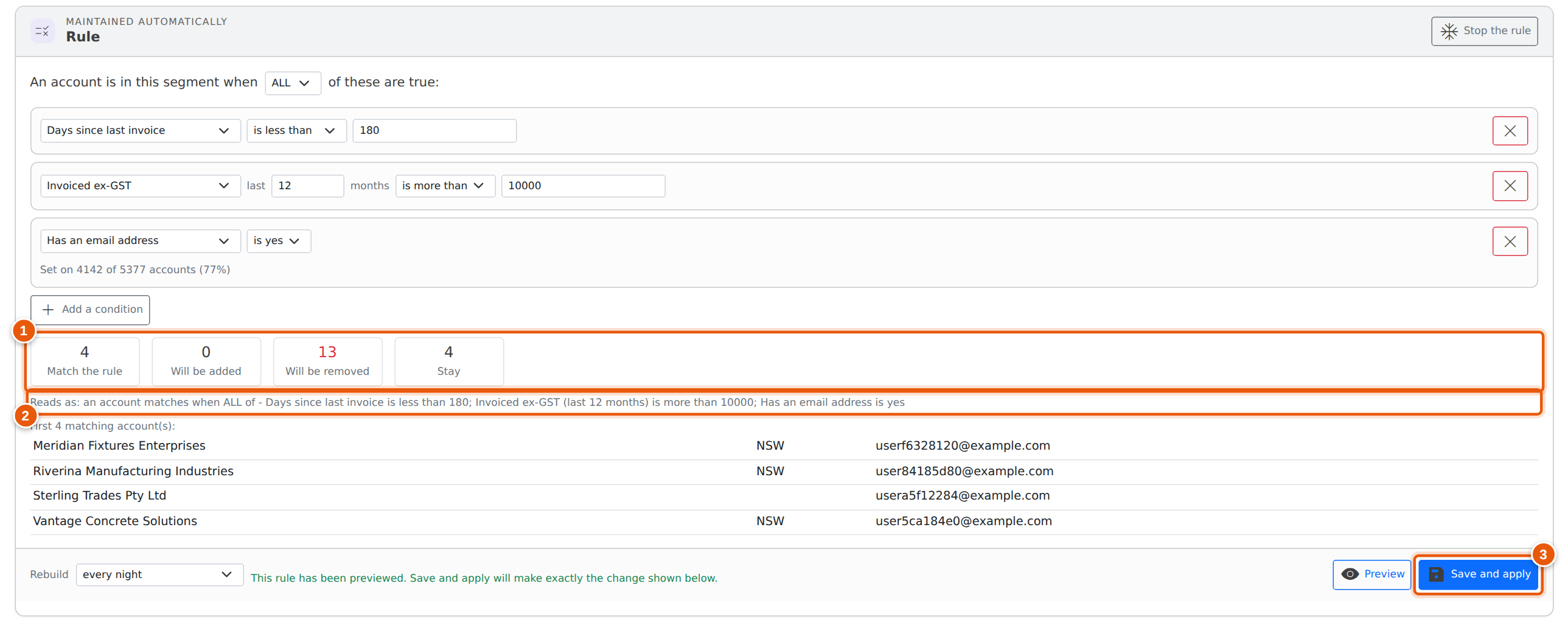
Under a condition you will sometimes see a note like Set on 4,142 of 5,377 accounts (77%). That is how many of your accounts have that field filled in at all — a quiet warning that a condition on a field almost nobody has filled in will match almost nobody.
Preview before you save
Nothing is applied until you press Save and apply, and you cannot press it until you have previewed the rule you are looking at. Edit a condition after previewing and Save greys out again, because the change you approved is no longer the change that would be made.
- Match the rule, Will be added, Will be removed and Stay — what saving would do to the membership, before it does it.
- Reads as — the rule written back to you as a sentence. Worth reading: it is the quickest way to catch a condition that says something other than what you meant.
- Save and apply — now enabled, and it applies exactly the change shown above it.
A rule that matches more than 20,000 accounts is capped and says so — add a condition to narrow it before saving.
How often it rebuilds
A dynamic segment is a stored list, rebuilt on a schedule — not worked out fresh every time something reads it. That is what keeps the Accounts register fast.
- Every night — the overnight project rebuilds it along with everything else. This is the normal setting.
- Only when I press Refresh — nothing rebuilds it automatically. Use this for a segment you are still working on, or one built for a single campaign.
Either way, saving a rule rebuilds the segment immediately, and Refresh now on the Refresh history tab rebuilds it on demand.
Refresh history
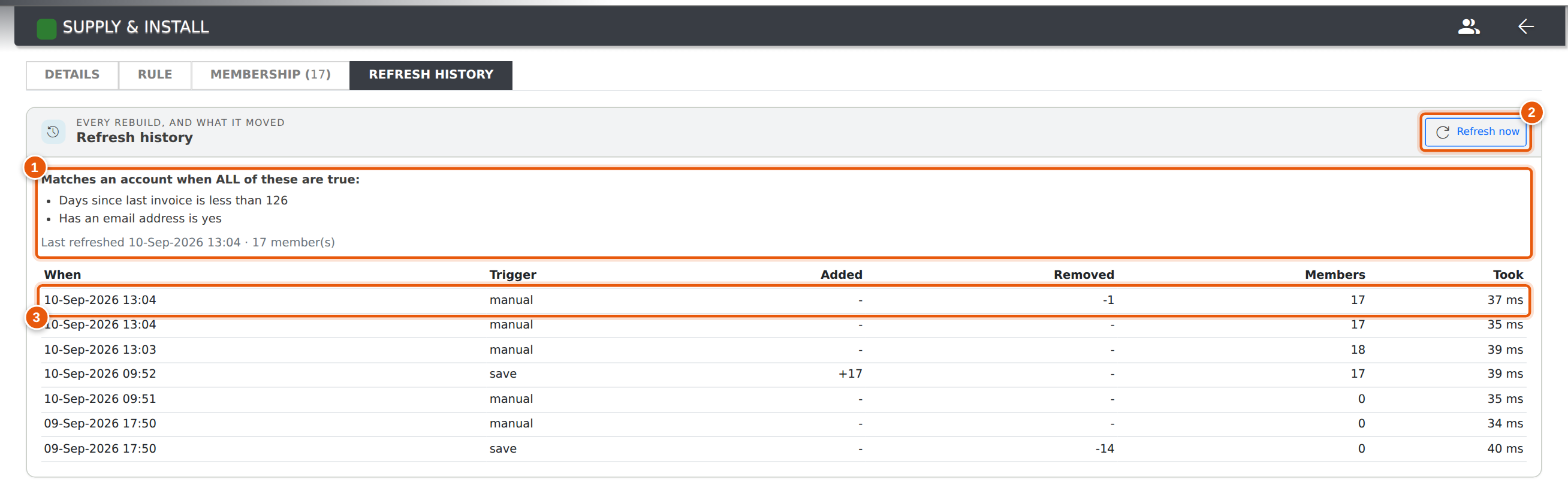
The Refresh history tab is the audit trail: the rule as it stands, when it last ran, and every rebuild with what it moved.
- The rule in plain English, and when it was last refreshed.
- Refresh now rebuilds the membership straight away.
- One row per rebuild. Trigger says what caused it — cron for the overnight run, save for a rule change, manual for Refresh now. Added and Removed are what changed; Members is the count afterwards.
If a rebuild fails — a rule referring to something that has since been deleted, say — the row records the error and the membership is left exactly as it was. A broken rule never empties a segment.
Stopping the rule
Stop the rule, on the Rule tab, turns a dynamic segment back into a static one. Everybody who is in the segment at that moment stays in it, and from then on nothing changes the membership except a person.
What You Can Build a Rule From
Thirty-four fields, in seven groups. Fields marked window are measured over a period you choose on the condition — the default is the last 12 months.
| Field | Window | What it means |
|---|---|---|
| Firmographic — what the account record says about itself | ||
| State | The state on the account's address. | |
| Postcode | The postcode on the account's address. | |
| Suburb | The suburb on the account's address. | |
| Country | The country on the account's address. | |
| ABN / Tax number | The ABN on the account. Useful as is set / is not set to find the accounts you have no tax number for. | |
| Customer payment terms | The Account Terms set on the account — picked from your terms list, not typed. | |
| Supplier payment terms | The Supplier Terms set on the account, for accounts you buy from. | |
| Sales rep | The staff member the account is assigned to. | |
| Account status | Active, on hold, and so on. | |
| Is a customer | Whether the account is flagged as a customer. | |
| Is a supplier | Whether the account is flagged as a supplier. | |
| Account created | When the account record was created. | |
| Has an email address | Whether there is an email address on the account at all. | |
| Marketing opt-in | Whether the account has consented to mailings. Use this on anything you intend to email. | |
| Commercial — invoicing. Committed, non-voided invoices only | ||
| Invoiced ex-GST | window | Total invoiced over the window, excluding GST. |
| Invoice count | window | How many invoices over the window. |
| Days since last invoice | How long since the account was last invoiced. An account never invoiced matches nothing here. | |
| Outstanding balance | What the account currently owes. | |
| Credit | ||
| On stop credit | Whether the account is on stop credit. | |
| Has a credit limit | Whether a limit is set at all — a limit of zero means unlimited, not no credit. | |
| Credit limit | The limit itself. | |
| Over credit limit | Whether the balance currently exceeds the limit. | |
| Sales activity — quoting | ||
| Has quoted (quote type) | Whether the account has been quoted, and for what kind of work. | |
| Quote count | window | How many quotes over the window. |
| Days since last quote | How long since the account was last quoted. | |
| Projects | ||
| Has an open project | Whether the account has a project on the go right now. | |
| Open project count | How many open projects right now. | |
| Project count | window | How many projects over the window. |
| Days since last project | How long since the account's last project. | |
| Shopify — only shown if your Evolution is connected to a Shopify store | ||
| Linked to Shopify | Whether the account is matched to a Shopify customer. | |
| Shopify B2B company | Whether the account is a Shopify B2B company rather than a retail customer. | |
| Has a Shopify order | Whether any store order has come through for this account. | |
| Shopify order count | window | How many store orders over the window. |
| Days since last Shopify order | How long since the account's last store order. | |
| Membership | ||
| In segment | Whether the account is in another named segment. This is how you build “trade customers who are not already on the maintenance list”. | |
The Shopify group only appears if your Evolution is connected to a store. If a rule already uses a Shopify field and the connection is later removed, the field stays visible on that rule so you can see what it says.
Adding and Removing Accounts
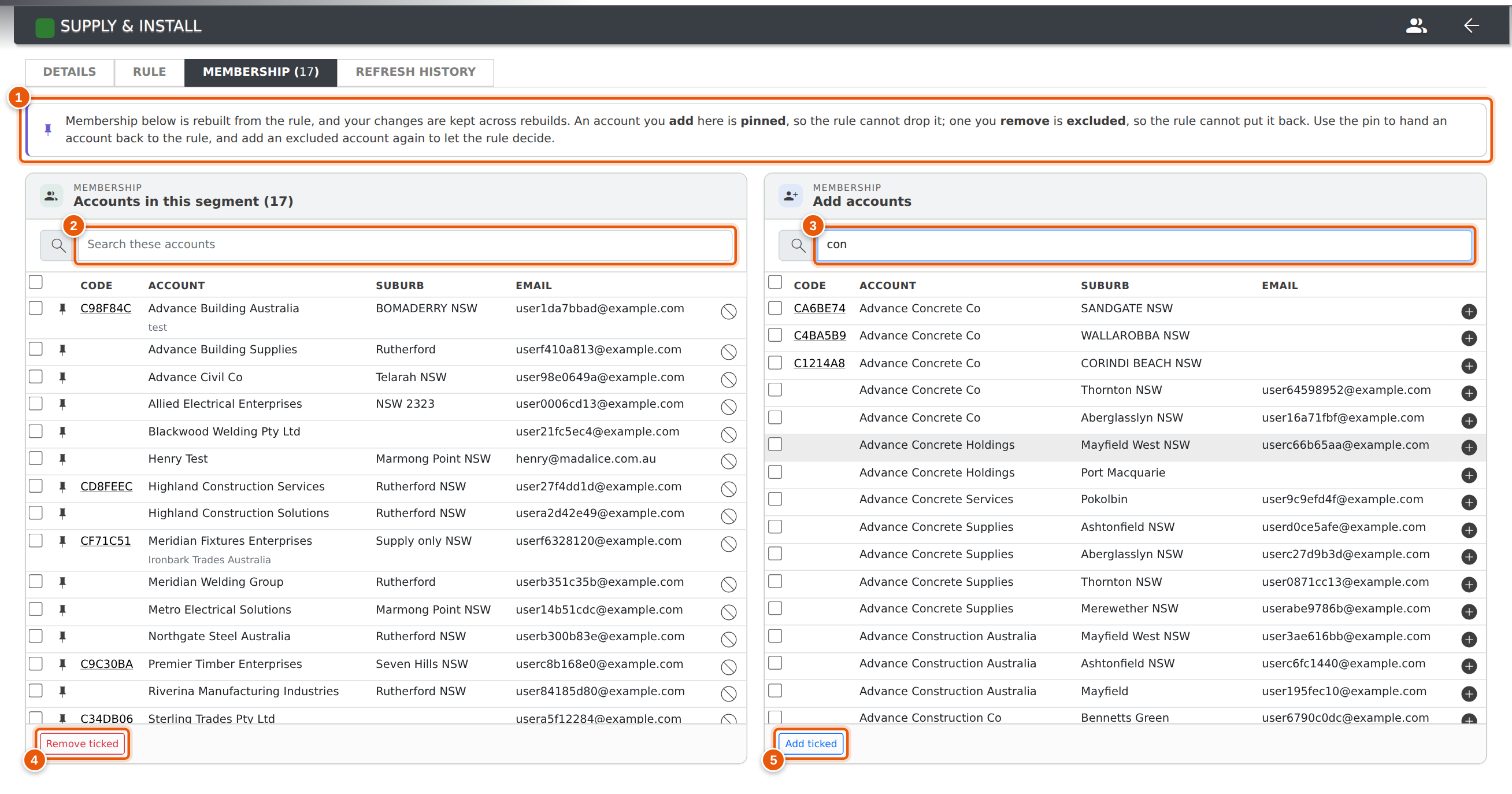
The Membership tab has two panes: Accounts in this segment on the left, and Add accounts on the right.
- On a dynamic segment, a notice at the top explains that this list is rebuilt from the rule, and that your changes to it are kept — see Overruling the rule below.
- Search these accounts narrows the list you are looking at; it does not remove anyone.
- Search accounts to add — type at least part of a company name, code or contact and the matching accounts that are not already members appear.
- Remove ticked — tick as many members as you like on the left and take them all out in one go. On a dynamic segment this excludes them; see below.
- Add ticked — the same on the right. The + and − icons on an individual row do the same thing for one account.
Membership saves the moment you press the button — there is no second Save for it, and the count beside the tab name updates as you go.
Overruling the rule
On a dynamic segment the rule decides who belongs — but you can overrule it one account at a time, and your decision is kept through every rebuild.
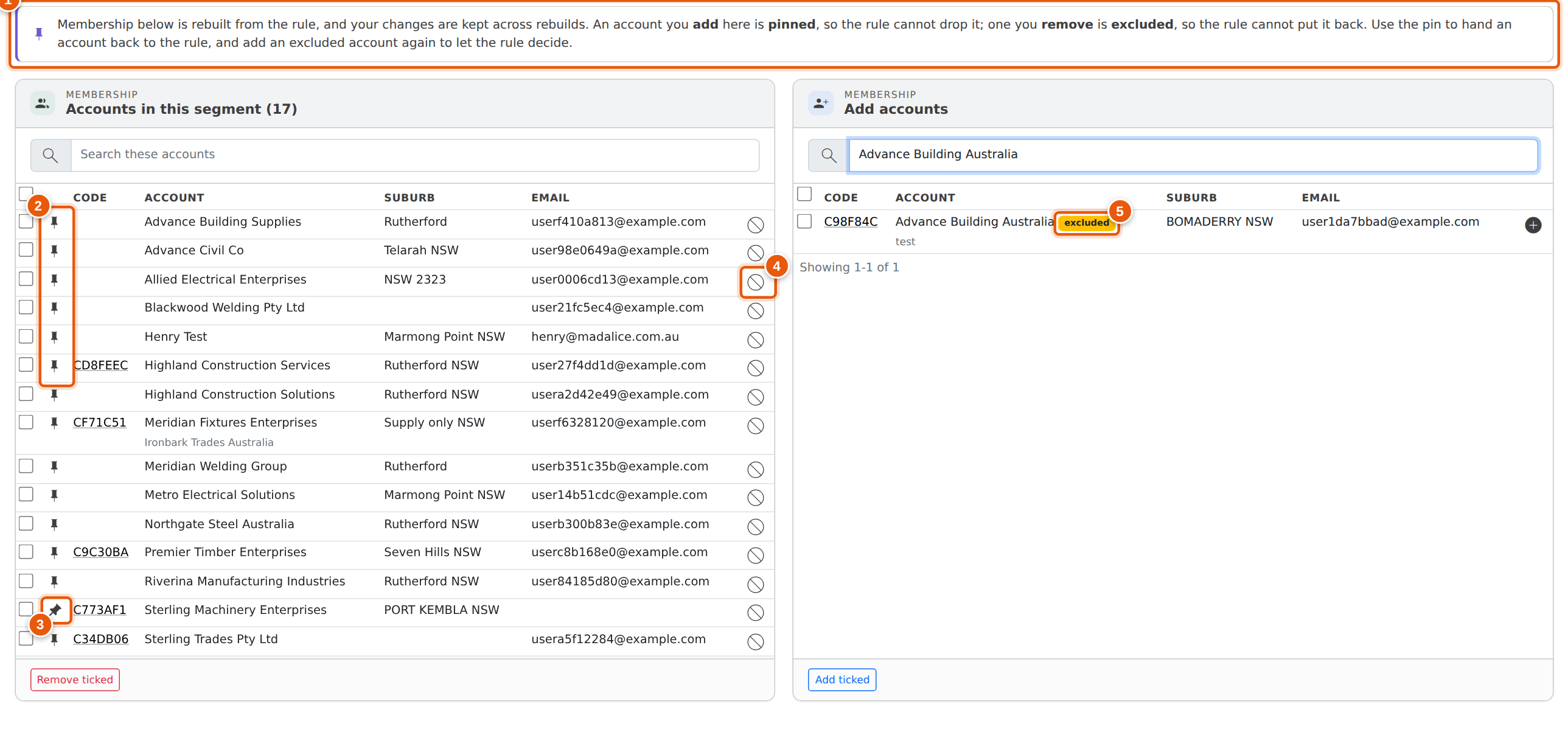
- The notice at the top of a dynamic segment says so: what you change here is kept.
- The pin column, on the member list only. A grey pin means the rule is in charge of that account.
- An orange pin is a pinned account — the rule cannot drop it, even once it stops matching. Adding an account by hand pins it automatically. Press the pin again to hand the account back to the rule: it stays in the segment for now, and the next rebuild decides whether it still belongs.
- Taking an account out excludes it rather than deleting it, so the rule cannot put it back tonight. That is why the icon here is a block sign rather than a minus.
- An excluded account turns up in Add accounts with an excluded badge, so its reappearance reads as an explanation. Adding it back clears the exclusion and returns the account to the rule — it is not pinned.
None of this appears on a static segment. There is no rule to overrule there, so Add and Remove mean exactly what they say.
From the account instead
The other way round is often quicker when you are already looking at a customer. Manage Accounts → open an account and the Segments block shows every segment it belongs to as a coloured badge:
- The badges. Press the × on one to take the account out of that segment.
- The dropdown lists every segment the account is not yet in — pick one and press Add.
Like the segment screen, this saves immediately — you do not need to save the account afterwards. It behaves the same way, too: on a dynamic segment, adding an account here pins it and taking one out here excludes it.

Using a Segment
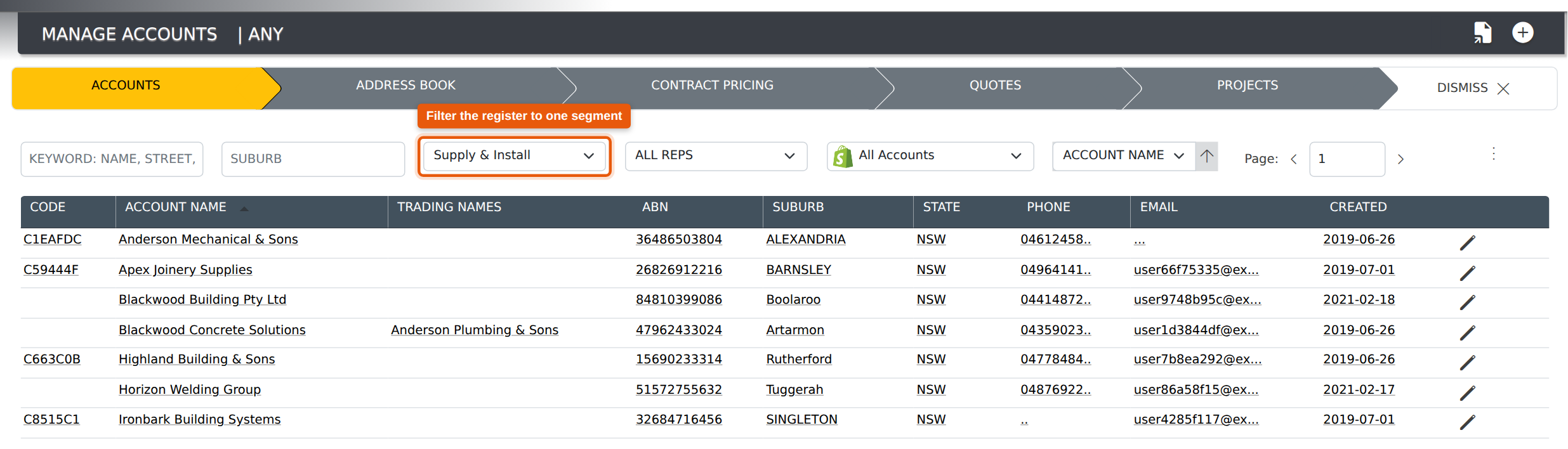
Filter the Accounts register
The Accounts register has a Segment filter. Pick a segment to see only those accounts, or No Segment to find the accounts that have not been classified yet — which is usually the more useful of the two when you are setting segments up.
Report on it
Four reports read segments, all under Reports → Reports Dashboard → Sales. They are documented in full on the Sales Reports page:
- Customer Segment Directory — the list itself, with contact details and trading history, and a CSV export for a mail merge.
- Revenue by Segment — what each segment is actually worth, month by month.
- Segment Customer Value — who inside a segment is a champion, who is drifting away.
- Segment Mailability & Consent — how much of a segment you can legally and practically email.
The reports read the stored membership, so a dynamic segment reports as it stood at its last rebuild. Press Refresh now first if you need it current to the minute.
Retiring a Segment
Set Status to Deleted and press Save details. The segment stops appearing in the filters, the account badges and the reports, but its membership is kept — set it back to Active and everything comes back exactly as it was. A retired dynamic segment also stops rebuilding overnight.
Deleted segments stay visible on the register, struck through, so a segment someone retired by mistake can be found rather than quietly disappearing.
Common Questions
Can an account be in more than one segment?
Yes, and it is expected. Bear it in mind when you read Revenue by Segment: an account in two segments contributes its revenue to both rows, so the segment rows will add up to more than the company total. The All accounts row on that report is worked out separately and is the true figure.
How do I find accounts that are not in any segment yet?
Use No Segment in the Accounts register filter, or in the segment filter on the Customer Segment Directory report.
Why can I see segments but not change them?
Creating segments and moving accounts in and out needs admin (full) access on Accounts Receivable. Ask your administrator — the setting is on your staff record under Permissions.
Do segments update themselves?
A dynamic one does — see Segments That Maintain Themselves. A static one never changes on its own. The Type column on the register says which is which.
Can I keep one account in a dynamic segment, or keep one out?
Yes, and the rule cannot overturn either. Adding an account to a dynamic segment by hand pins it; taking one out excludes it. Press the pin again to hand the account back to the rule, and add an excluded account again to let the rule decide. See Overruling the rule.
Is a dynamic segment worked out live?
No. It is a stored list that gets rebuilt — overnight by default, or on demand. That is deliberate: the Accounts register filters on segments while you type, and working the rule out on every keystroke would make the register slow for everybody.
What happens to a rule if the field it uses stops applying?
The rebuild fails safely: the error is recorded against that run on the Refresh history tab, and the membership is left exactly as it was. Nothing is emptied.
Where do I see that an account was added to a segment?
On the account's own history. Every add and remove is logged against both the account and the segment, with who did it and when.
Related Pages
- Sales Reports — Customer Segments — the four reports in detail.
- Adding New Accounts — creating the customer records segments are built from.
- Setting Permissions — the access levels referred to above.