
The Problem
Counter and cash sales are usually booked against a single account — most businesses call it Cash Sale. The person who actually bought is recorded on the order: their business name in the reference, their name and email on the quote. They never get an account of their own.
That is fine for a genuine one-off. It is a real loss for the trade customer who has quietly bought from you fifty times: they have no account, no price list, no segment, no trading history to look at, and they cannot be included in a mailout. On every report they appear as “Cash Sale” rather than by name.
This tool reads that history, groups it into the businesses hiding behind it, and lets you promote the ones worth having as customers.
Where to Find It
Menu → Reports → Reports Dashboard, then the Sales pill, under Data Quality.
Viewing requires access to Sales and Business Registers, or administrator access. Creating accounts additionally requires admin (full) access on the Sales module. Without it you can still review and export the list — the buttons that create records are hidden.
Setup
The tool opens on the account named in Settings → Sales → Select Account to use for cash sales — the same setting the one-click cash sale button on the invoice register uses. If that is set, there is nothing to configure.
If it is not set, the tool says so and suggests any account that looks like a cash sale pool. You can also search for any account in the picker — useful if your business pools counter trade somewhere with a different name.
picker.pngFinding Customers
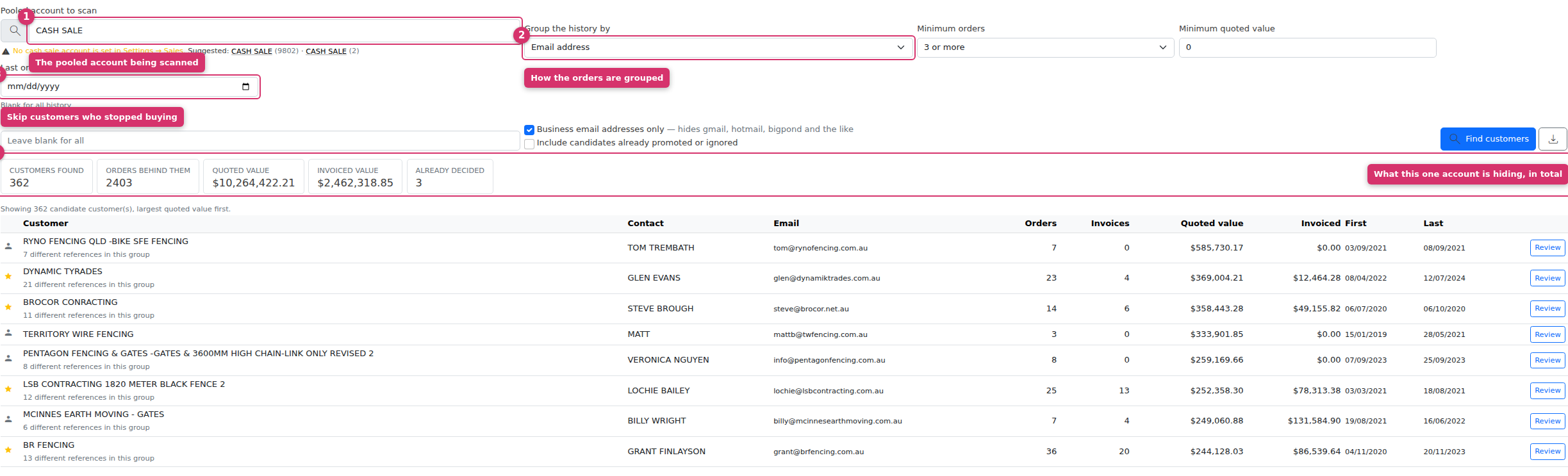
Choose how the orders should be grouped, then set how much trade makes someone worth an account.
Group the history by
- Email address — the sharpest grouping, and the usual choice. One address is one buyer.
- Email domain — rolls a business up across its staff, so three people ordering from the same fencing contractor come through as one customer. Personal addresses (gmail, hotmail, bigpond and the like) are excluded from this mode, because grouping them would merge unrelated people.
- Customer reference — use this where the orders have no email address at all. It is the noisiest option: the reference is free text, so the same business spelled two ways comes through twice.
Narrowing the list
- Minimum orders and Minimum quoted value — the thresholds for “worth an account”. Three or more orders is a sensible starting point.
- Last order on or after — skip customers who have stopped buying. A pooled account collects a decade of one-off buyers, and an account is only worth creating for someone still trading with you.
- Business email addresses only — hides personal addresses, which are nearly always genuine one-off retail sales.
- Include candidates already promoted or ignored — off by default, so the list is only ever what is left to do.
Each row shows the orders, invoices, quoted and invoiced value, and the first and last order date, sorted with the most valuable customer first. Download CSV exports exactly what you are looking at.
Reviewing One
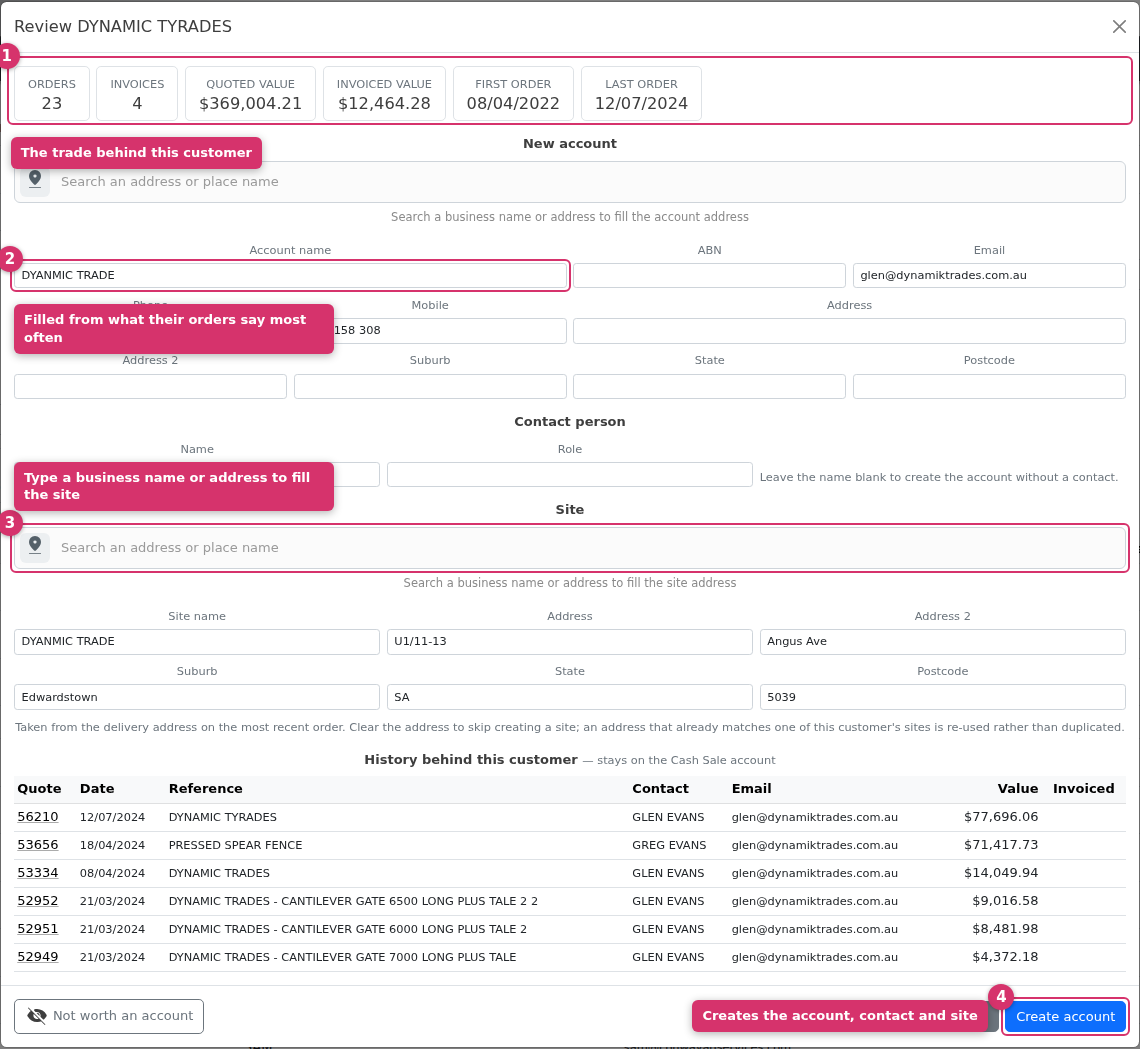
Review opens everything known about that customer, so the decision is made on evidence rather than a name:
- Orders, invoices, quoted and invoiced value, first and last order date.
- Every order behind them, with a link to each quote.
- A ready-to-edit account, contact person and site, filled in from their history.
The details are taken from the value seen most often across their orders, not the most recent one, so a single mistyped reference on the latest order does not end up naming the account.
“This customer may already have an account”
Before offering to create anything, the tool looks for an account you already have — matching on the exact email address, on the business name ignoring spacing and punctuation (so FENCEWORX finds FENCE WORX), and on the email domain. If it finds one, use Use this account rather than creating a second copy of a customer you already have.
Filling in the address
Cash sale orders rarely carry the customer's own address — the order inherits your trade counter's address, and the delivery line is often used for notes rather than a place. So the address usually starts empty.
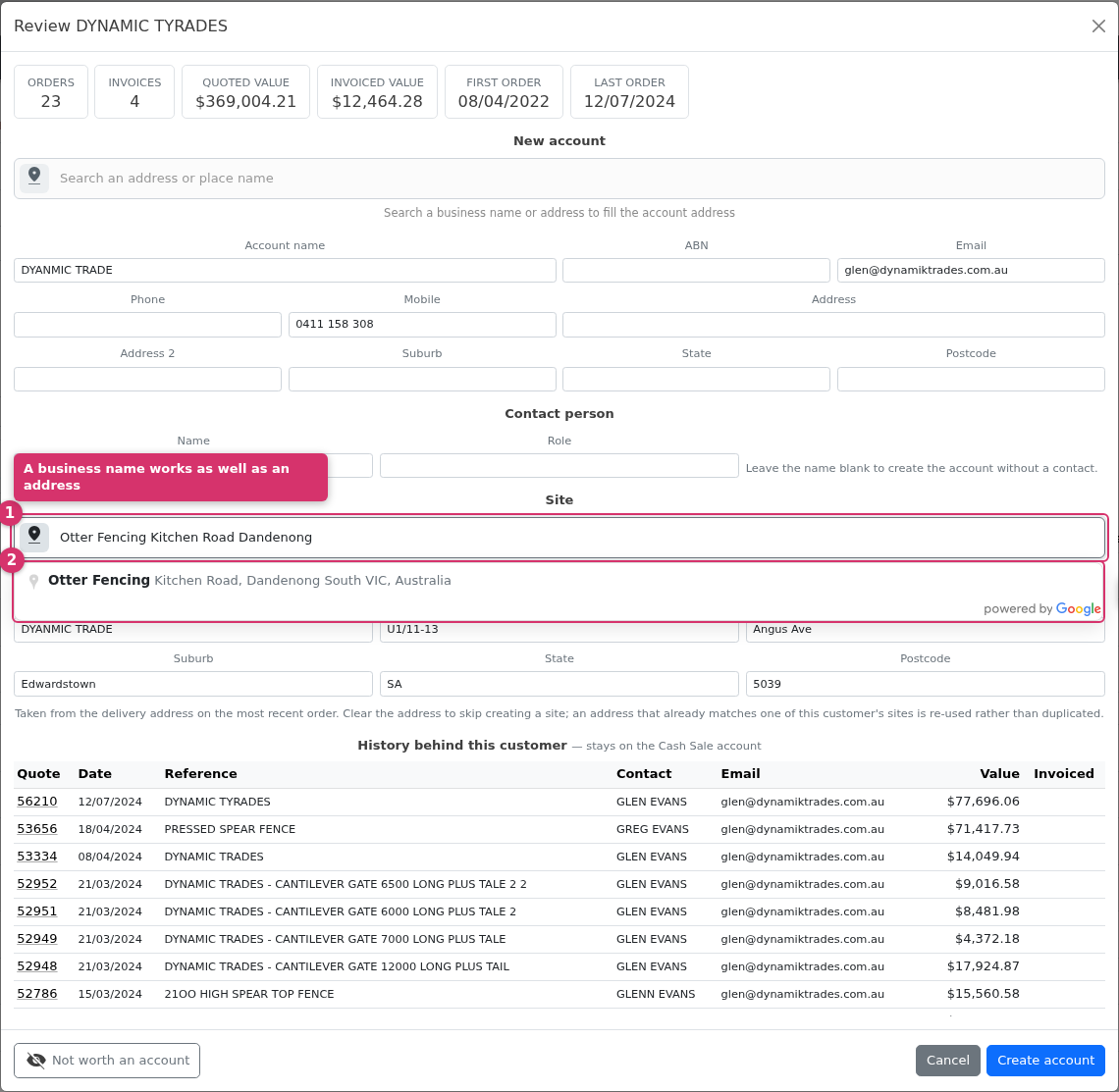
Use the search box above each address: type a business name or an address and pick the result. Otter Fencing is as good a search as 12A Kitchen Road — the address, suburb, state and postcode fill in themselves.
Promoting a Customer
Create account makes three things, after you have checked the details:
- The account, with the contact details gathered from their orders.
- A contact person, if a name was seen. Clear the name to skip this.
- A site, if there is an address. Clear the address to skip it. An address that already matches one of that customer's sites is re-used rather than duplicated.
If an account with that name already exists, you are asked before a second one is created — two genuinely different businesses can share a trading name, so this is a question, not a refusal.
Pricing on the new account
Every order in this customer's history was priced on the Cash Sale account's settings, so by default Copy pricing from the Cash Sale account is ticked: the account terms (typically COD), the default discount and the category discount structure are copied onto the new account, and their next quote prices the way their last one did.
Untick it to start the account on standard pricing instead — for example when the point of promoting them is to put them on their own negotiated rates. The copy only happens when an account is created; Use this account never changes an existing account's pricing.
From then on, quote and invoice that customer by name as you would any other. Their account carries their trade from the day you create it.
Every promotion is recorded on the new account's history tab, naming the Cash Sale account it came from, how many orders were behind it and who created it.
Not worth an account
Not worth an account removes a one-off buyer from the list for good. It changes nothing else — it only stops them coming back to the top of your list each time you run the tool.
What Happens to the Old Orders
This is deliberate. Those invoices, the payments against them and the bank reconciliation behind them already exist in your accounting system, where they cannot be moved. Re-pointing Evolution's copy would leave the two systems describing the same money differently.
In practice: the new account starts clean and builds its own history from today. The candidate list keeps the old figures so you can still see the trade that justified creating it, and the original orders stay exactly where your accountant expects them.
Promoted & Ignored
The second tab is the record of every decision — what was promoted, what was linked to an existing account, what was ignored, by whom and when, with a link to the account that was created.
This is what lets the job be worked through over several sittings, by more than one person, without going over the same customers twice. An ignored candidate can be put back on the list with Undo. A promoted one cannot be undone here, because it created a real account — close or merge that account in the normal way if it was a mistake.

Common Questions
Why is a customer I know we have missing from the list?
Check the thresholds first — minimum orders, minimum value and the last-order date all hide rows. If you are grouping by email and their orders have no email address on them, try grouping by customer reference instead.
The same business appears twice.
Two people at that business ordered under their own email addresses. Group by email domain to bring them together, or promote one and use Use this account on the other so both end up on the one account.
A row looks like one of our own jobs, not a customer.
That normally means the account being scanned is not a pooled cash sale account — check the warning at the top of the list and the account in the picker.
Does this change any of our figures?
No. Nothing is moved, nothing is deleted, and no invoice or quote is edited. The tool only ever adds new accounts, contacts and sites.