
How Session Time Works
When a worker starts a shop order on the factory workbench, a session opens and starts timing. Each time the worker completes units, pauses or leaves, the time since their last action is banked as production time against the order’s process, and that banked time flows into the job’s actual labour cost.
The risk is a session left running overnight or over a weekend. The next time anyone pauses it, all of that idle time is banked as if it were work. A running session with no workbench activity for longer than the stale window is flagged Stale. The stale window is your auto-pause setting, or 8 hours when auto-pause is off.
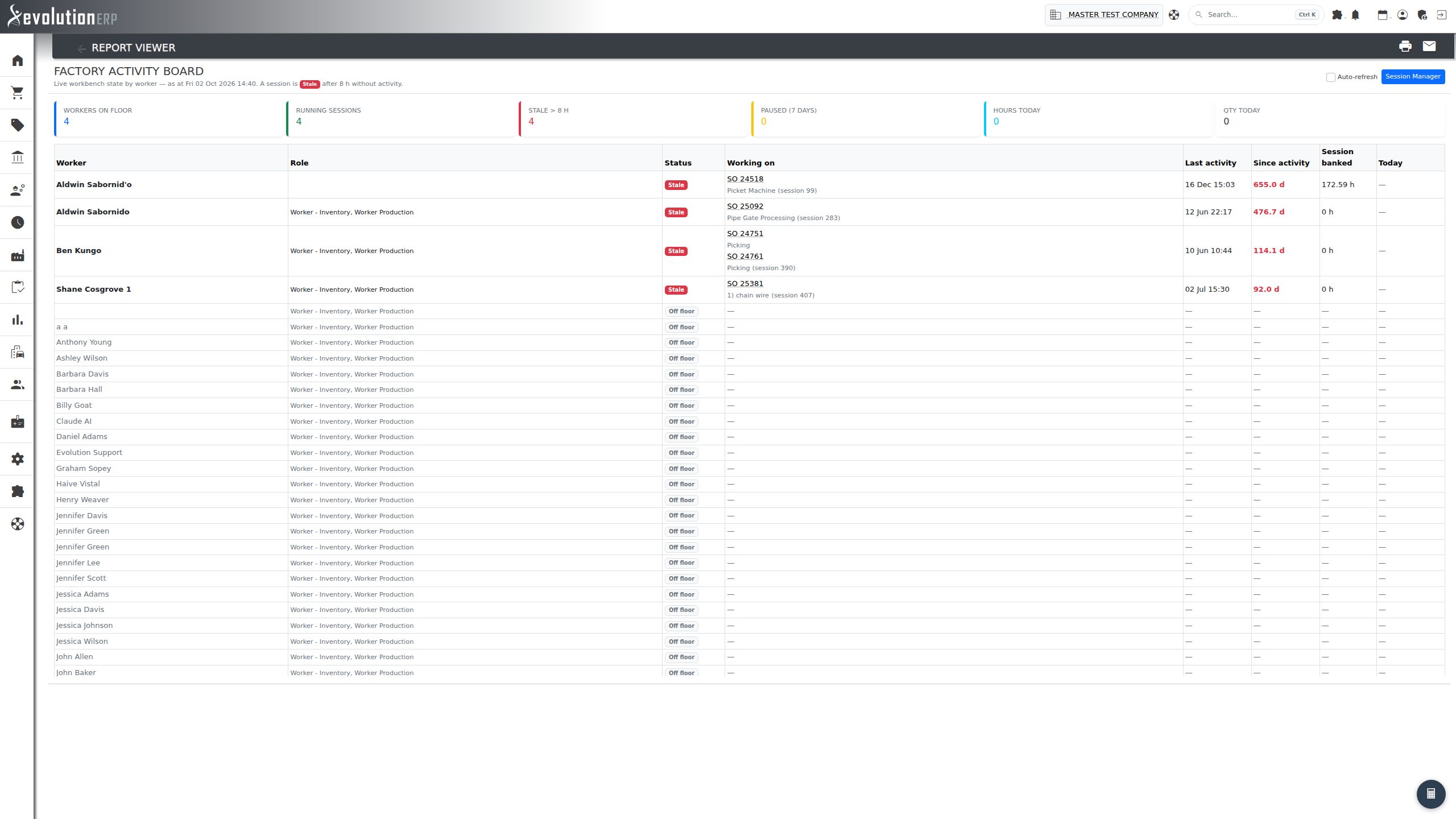
Factory Activity Board
Menu → Manufacture → Command Centre → Factory Activity, or the Factory Activity Board report on the Reports Dashboard. A live board with one row per factory worker:
- Status: Running, Stale, Paused or Off floor.
- Working on: the shop orders and processes in the worker’s session, each linking to the order.
- Last activity / Since activity: when they last touched the workbench, and a live counter of how long ago that was (red once the session is stale).
- Session banked / Today: time already banked in the current session, and today’s hours and quantity produced.
Figures across the top total the floor: workers on the floor, running, stale and paused sessions, and today’s hours and quantity. Tick Auto-refresh to keep the board current on a shop-floor screen. The Session Manager button takes you to where stale sessions are resolved.
Session Manager
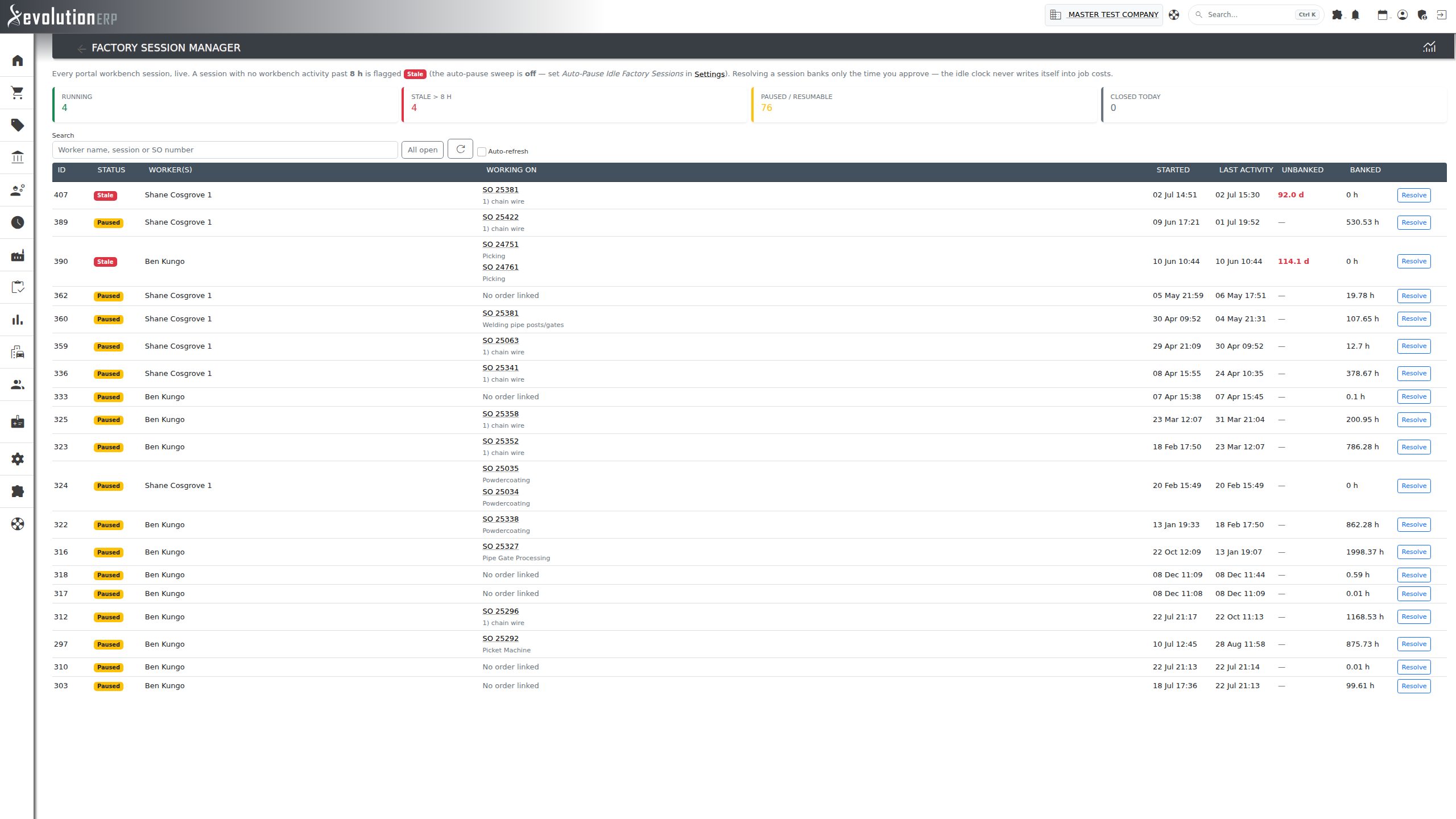
Menu → Manufacture → Command Centre → Session Manager. Lists every open workbench session with its status, workers, the shop orders it covers, when it started, its last activity, the Unbanked time (time since the last action, counting live) and the time already Banked.
- Click a figure at the top — Running, Stale, Paused / Resumable or Closed Today — to filter the list to those sessions. Click it again to clear the filter.
- Search by worker name, or type a number to find a session or shop order.
- Tick Auto-refresh to reload the list every minute. The choice is remembered on that computer.
Resolving a Session
Click Resolve on a session and choose what happens to it:
- Hours to bank as production time — how much of the unbanked time was real work. Evolution suggests a figure using the same rule as auto-pause: up to the stale window, or nothing if the session has been idle for more than twice that. You can change it, but never above the session’s actual unbanked time.
- Pause — banks the hours you entered. The worker can resume the session from the workbench.
- Close — banks the hours you entered and finishes the session. It no longer appears on the workbench.
When several sessions are stale, Pause all stale (bank nothing) pauses every stale session in the list without banking any time. Each one can still be resumed from the workbench.
Auto-Pause Idle Sessions
Evolution can pause forgotten sessions for you. Go to Settings → MANUFACTURING and set Auto-Pause Idle Factory Sessions (Hours):
- 0 (the default) — auto-pause is off.
- Any number of hours (minimum 1) — once an hour, any running session with no workbench activity for longer than this is paused automatically. A sensible value is a little longer than your longest normal shift, for example 10.
When a session is auto-paused:
- It banks at most the setting’s hours, not the whole idle period.
- If it had already been idle for more than twice the setting, it is treated as abandoned and banks nothing.
- A Paused Session entry marked as an auto-pause is written to the order’s production history, and the worker can resume the session from the workbench as normal.
The same setting also sets the stale window used by the Command Centre, the Factory Activity Board and the Session Manager.
Session Time Recording Fix
Two faults on the factory workbench inflated recorded production time when workers completed units during a session:
- Each Completed Item entry carried all the time since the session was resumed, not just the time since the previous completion. Consecutive completions therefore counted the same time again, and the later Pause or Leave entry repeated it once more. This produced impossible totals, such as more than 24 hours in one day, and over-stated actual time on shop orders and job costs.
- The time recorded on Completed Item entries used the month in place of the minute, so completion times appeared to be several minutes out.
Both are fixed. Entries recorded from the update onward are correct. History recorded before the update may still show inflated figures. The data-quality watchlist in the Production KPIs report lists the largest suspect entries so you can find them. If your history needs correcting, contact Evolution support.