
A quotation can be built with Optional Extra sections — work the customer may or may not take up. When the quote is imported to a project you tick the extras the customer accepted, and only those items land on the project.
Customers change their mind. Evolution now lets you tick an optional extra on (or off) a project at any time after the import, straight from the project’s Quotes tab — no need to delete the quote from the project and import it again.
Where to Find It
Projects → open the project → Quotes tab
Each quote row has an Optional Extras column. It lists the extras currently on the project and shows a badge such as 1 of 3 — the number taken up out of the number quoted. Quotes with no optional extras show N/A.

Adding an Optional Extra to the Project
- Open the project and go to the Quotes tab.
- Click the Optional Extras cell (or its badge) on the quote you want.
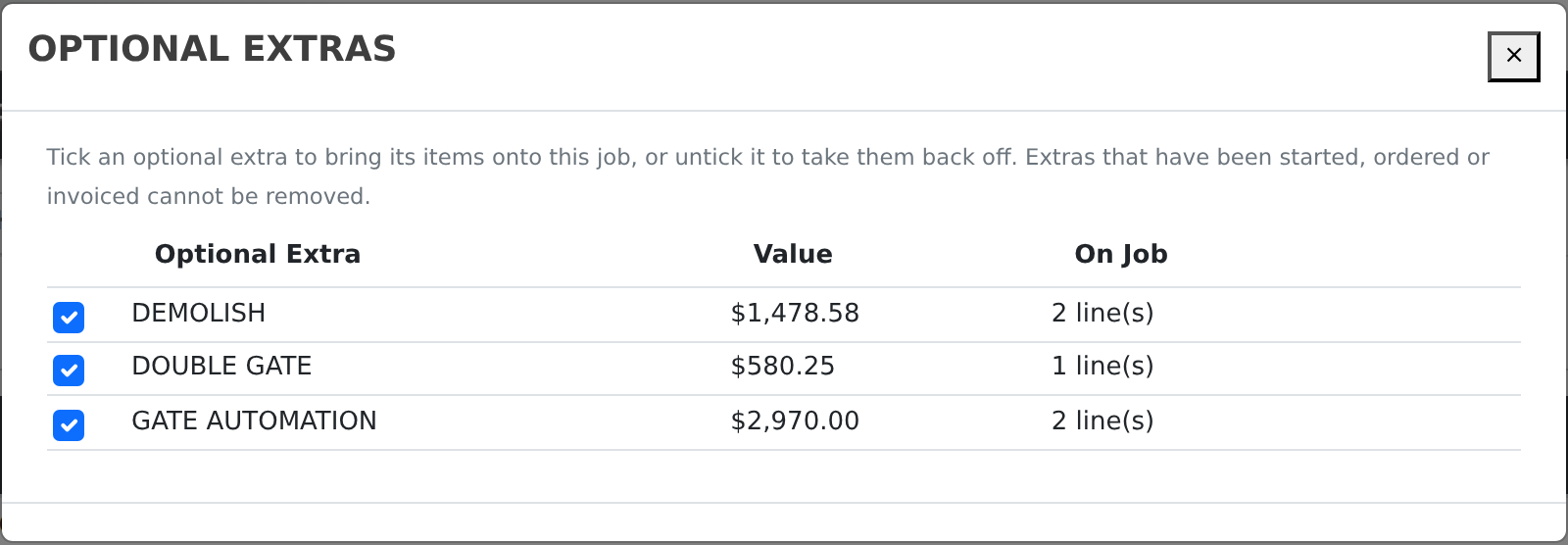
- In the Optional Extras window, tick the extra.
Evolution then:
- copies that section’s quoted items onto the project (parent items and their sub-items),
- marks the extra as taken up on the quote,
- re-checks inventory allocations, and
- adds the extra’s value to the project’s estimated revenue.
Removing an Optional Extra
Untick the extra in the same window and confirm. Its items are taken off the project, the extra is marked as not taken up, and the project’s estimated revenue drops by the extra’s value.
The items are archived, not destroyed — they come straight back if the customer takes the extra up again later.
When an Extra Cannot Be Removed
Once work has started against an extra, taking it off the project would strand that history. Evolution keeps the extra ticked and locks it, showing the reason underneath the name. An extra is locked when any of its project items:
- has progress, completed quantity or dispatched quantity recorded,
- has been invoiced,
- is on a manufacturing / shop order, or
- is on a requisition or purchase order.
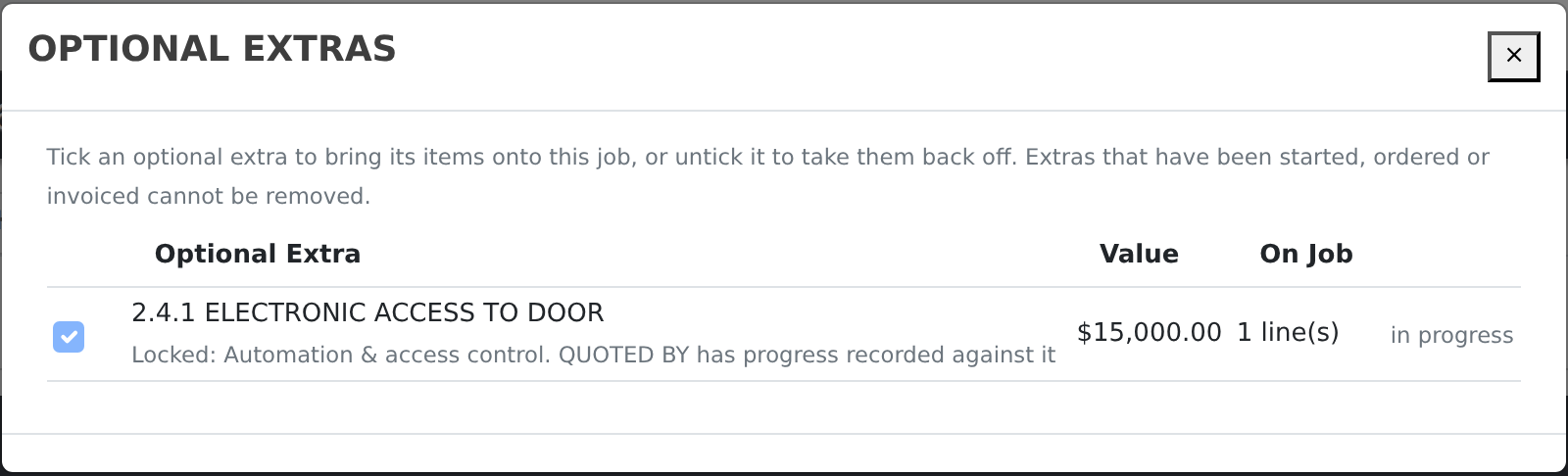
To unwind one of these, remove or reverse the underlying transaction first (or delete the individual project items from the Inventory tab), then untick the extra.
Optional Extras When Invoicing a Quote Directly
Quotes that are not attached to a project can also carry optional extras. On the quote screen’s Create Invoice panel, tick the extras the customer accepted before creating the invoice — only ticked extras are billed.
If the quote is already on a project, those tick boxes are shown but disabled: the project’s Quotes tab owns which extras are taken up, so the two can never disagree.
Project Value and Reporting
A quote’s total always includes every optional extra it offers. The project only counts the extras actually taken up, so the project’s estimated revenue is the quote total less the extras not taken up. The Quotes tab shows the reduced figure, and the project value updates immediately whenever an extra is ticked or unticked.
Permissions
Viewing optional extras needs Job Costing access. Adding or removing an extra needs Job Costing – Admin (or an administrator login), because it changes what is on the project and what the project is worth.
Audit Trail
Every change is logged against both the project and the quote — who did it, when, which extra, and how many items were added, reinstated or removed. The project is also flagged for review so the change is visible to whoever manages the project.
Frequently Asked Questions
Do I still have to delete and re-import the quote to add an extra?
No. That was the old workaround. Tick the extra on the Quotes tab instead — existing project items and their progress are untouched.
Will adding an extra duplicate items already on the project?
No. Only the items belonging to that optional extra section are added, and previously removed ones are reinstated rather than re-created.
Does the customer’s quote change?
The quote document is unchanged — only whether each extra is marked as taken up. The quote’s own total still shows everything that was offered.
What happens to purchase orders or shop orders for an extra I remove?
Nothing — and that is why Evolution will not let you remove it. Cancel the order first, then untick the extra.