
The Shipping hub is the one place to manage getting goods out the door. It lists what is ready to go but has no dispatch yet, the freight still to book, the manifests waiting for the carrier, every consignment on its way, and the deliveries still to be signed for. You work across it from left to right and rarely need to open a dispatch.
Open it from Shipping → Shipping Hub in the menu. You need access to Projects.
How Goods Leave
Goods leave one of three ways, and the hub calls these lanes:
| Lane | What it means | Tabs |
|---|---|---|
| Freight | A carrier takes the goods. You book it, put it on a manifest and track the con note to delivery. | To Dispatch, Book, Manifests, Track |
| Own delivery | Your own truck delivers. It is planned on a runsheet and signed for on delivery. | To Dispatch, Schedule, Proof of delivery |
| Customer collect | The customer picks the goods up and signs for them. | To Dispatch, Proof of delivery |
Evolution works out each dispatch’s lane in this order:
- Delivery method on the dispatch’s Freight & Tracking card, when someone has chosen it.
- Otherwise, the activity the dispatch belongs to: a Delivery activity is own delivery, Freight is freight and Pickup is customer collect (see System Activity Types).
- Otherwise, a carrier or con note on the dispatch makes it freight.
A dispatch none of these apply to has no method yet. The Book tab lists these so you can say how they go.
Opening the Hub
The bar along the top filters every tab at once. The hub remembers your lane, branch and period the next time you open it.
- Lane — All, Freight, Own delivery or Customer collect. The tabs change to suit the lane.
- Branch — the branch the goods leave from.
- Shipped — the period for the Overview figures and the history views: the last 7, 30 or 90 days, this month, last month or your own dates. Work still to do is always shown, whatever the period.
Each tab shows a count of what is waiting on it. Click a row to open the dispatch; the controls on the row and the bulk bar work without leaving the hub.
Overview
The Overview shows how shipping went in the period and what needs attention now.
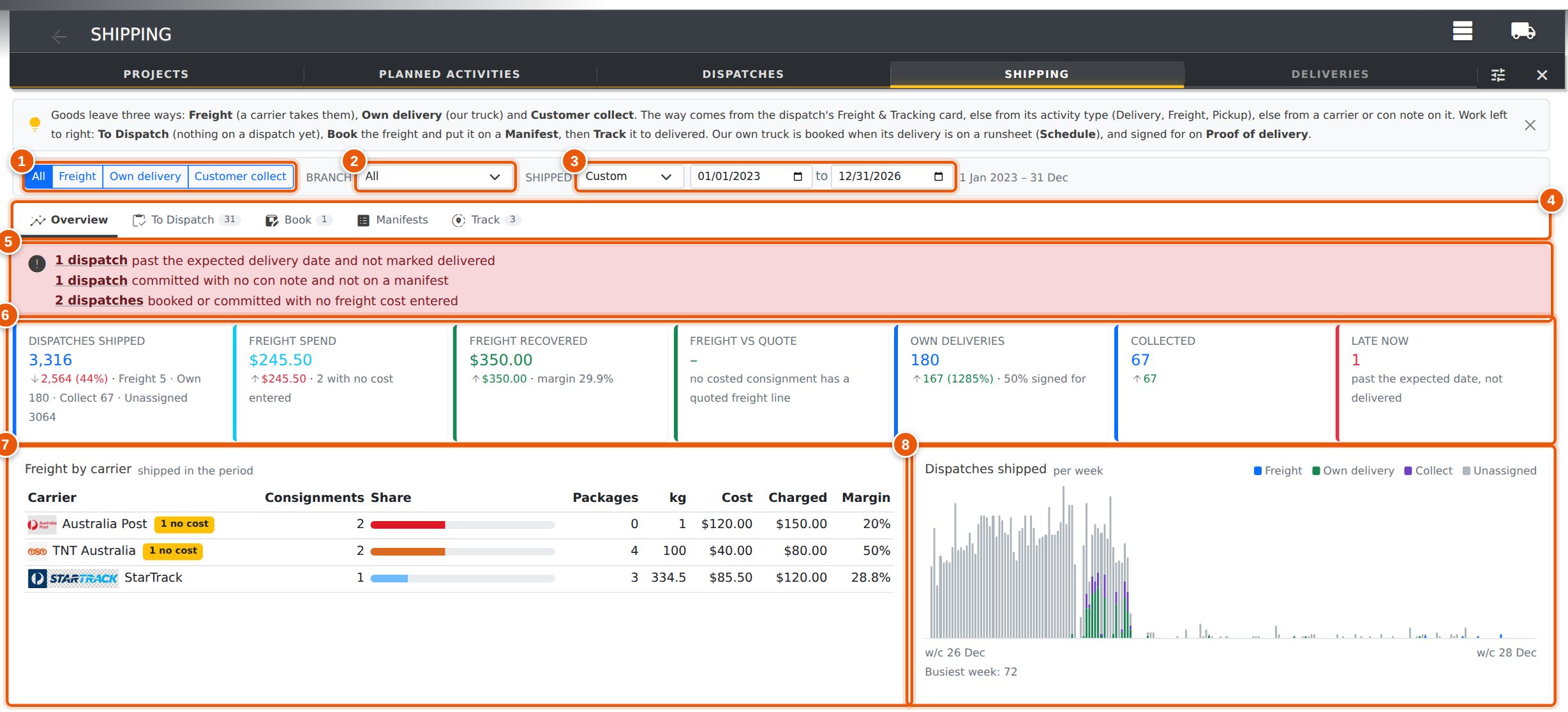
- Lane.
- Branch.
- Shipped period.
- The tabs, each with a count of what is waiting.
-
Exceptions — freight that needs looking at. Click one to open
Track filtered to just those dispatches:
- flagged with a freight exception;
- past the expected delivery date and not marked delivered;
- committed with no con note and not on a manifest;
- booked or committed with no freight cost entered;
- marked delivered while the dispatch is still a draft;
- charged to the customer for less than the freight cost;
- cost more than the project quoted for the freight;
- charged freight on the dispatch and carrying a freight line on the docket.
- Figures for the period, each compared with the period before: dispatches shipped (split by lane), freight spend, freight recovered from customers and the margin, freight against what was quoted, average cost per consignment, average days to deliver, own deliveries and how many were signed for, collections, and how many consignments are late right now.
- Freight by carrier — consignments, packages, weight, cost, charge and margin for each carrier, with a bar showing its share in the carrier’s brand colour.
- Dispatches shipped per week, split by lane.
To Dispatch
Goods that are due to go but have no dispatch yet. Choose what to look at with the chips:
- Call-ups due — activities in the lane (deliveries, freight or pickups) whose called-up items haven’t all been put on a dispatch.
- Ready lines — project items that are finished and ready to send, but not called up on any activity.
- Draft dispatches — dispatches started but not yet booked or committed.
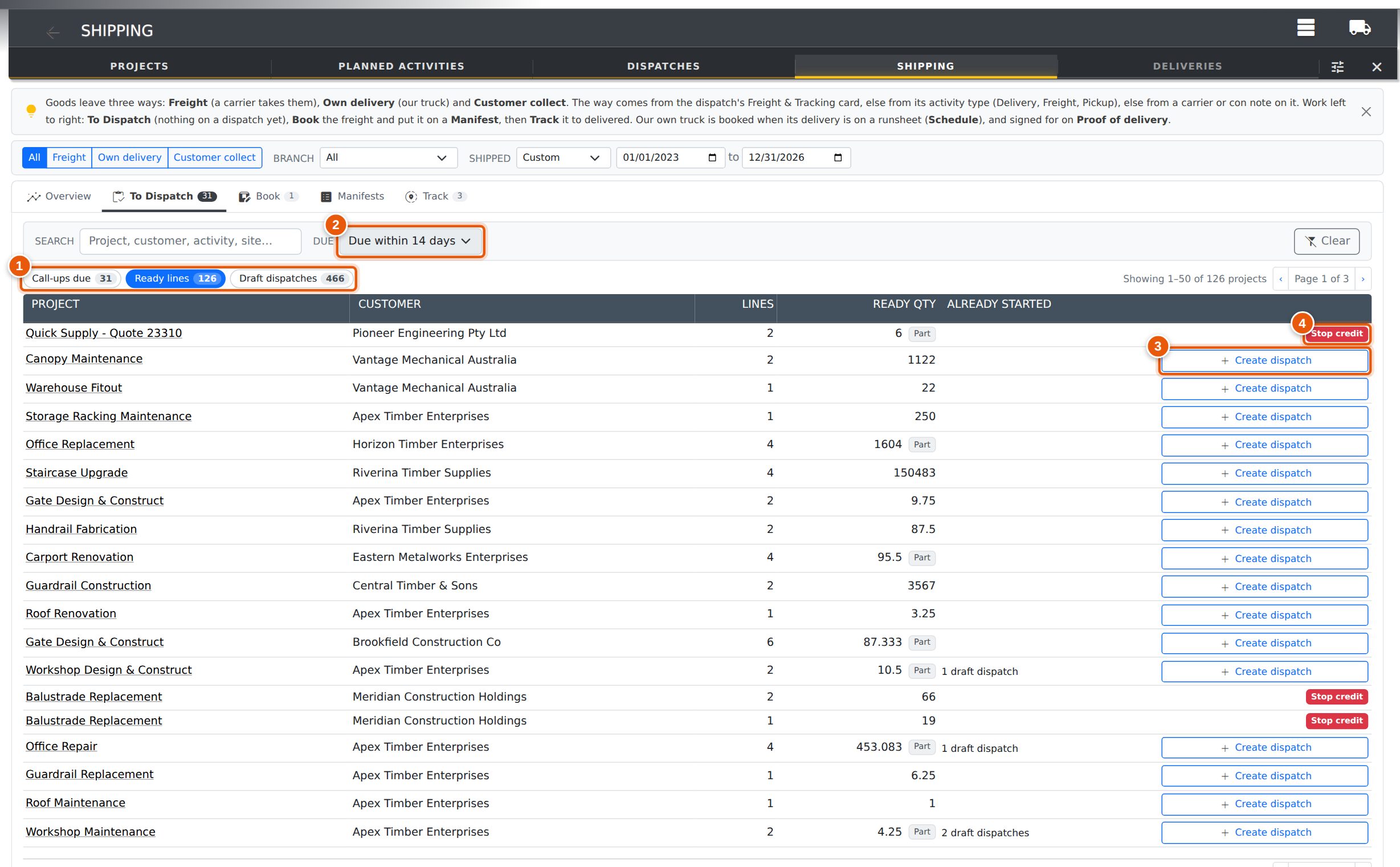
- The chips choose call-ups, ready lines or drafts.
- Due — within 7 days, within 14 days or any date. Ready lines have no date, so this doesn’t apply to them.
- Create dispatch opens the project’s dispatch window in a new tab, with the activity’s call-up already loaded. Save it there, then come back: the row drops off or its outstanding quantity goes down.
- Stop credit — the customer is on stop credit, so the project can’t be dispatched until the hold is lifted. See Credit Limits & Stop Credit. The cash sale account is never shown as on stop credit: its dispatches are held until paid instead (Cash Sales).
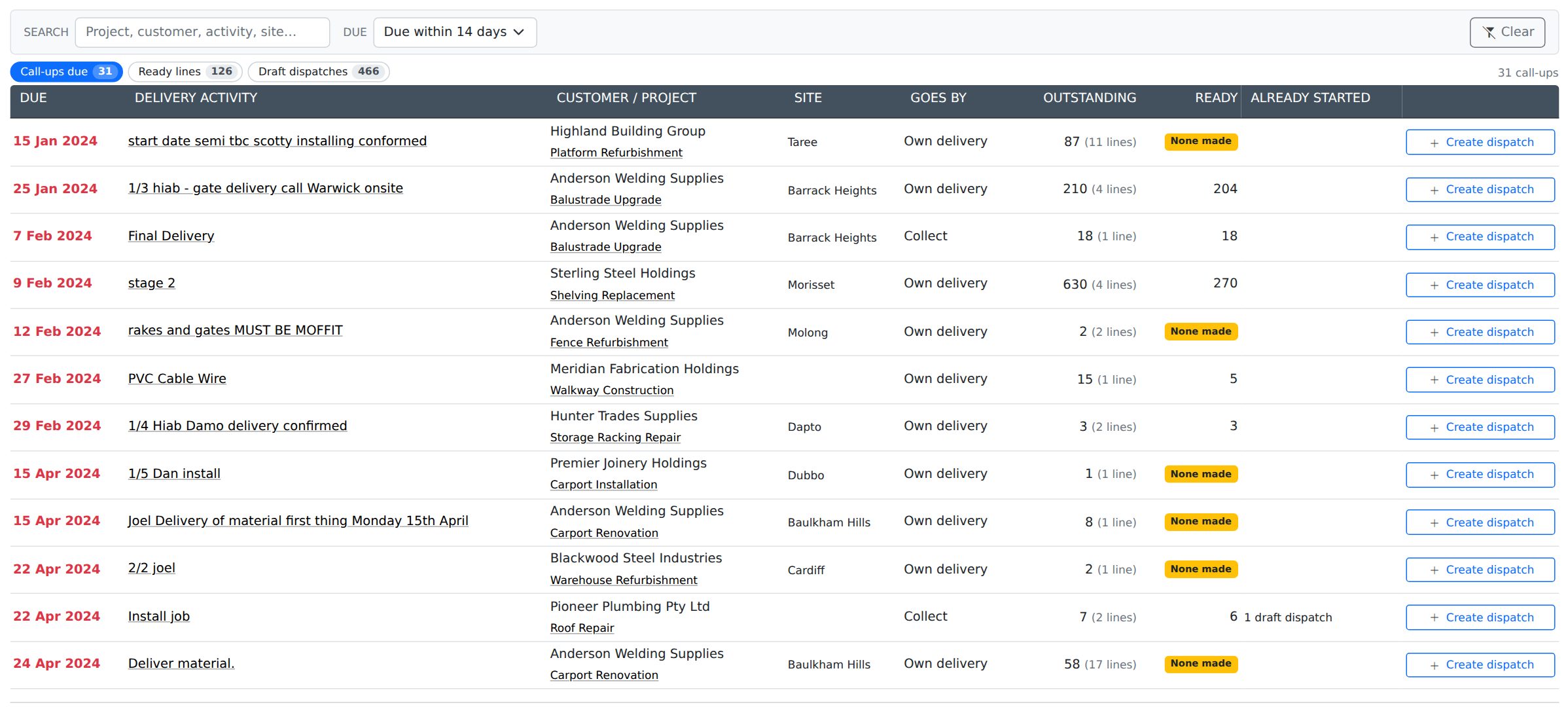
Tick draft dispatches to Set method or Commit them in one go.
Book
Freight that hasn’t been booked yet: dispatches going by freight that have no con note and aren’t on a manifest. This is the place to key in a day’s freight.
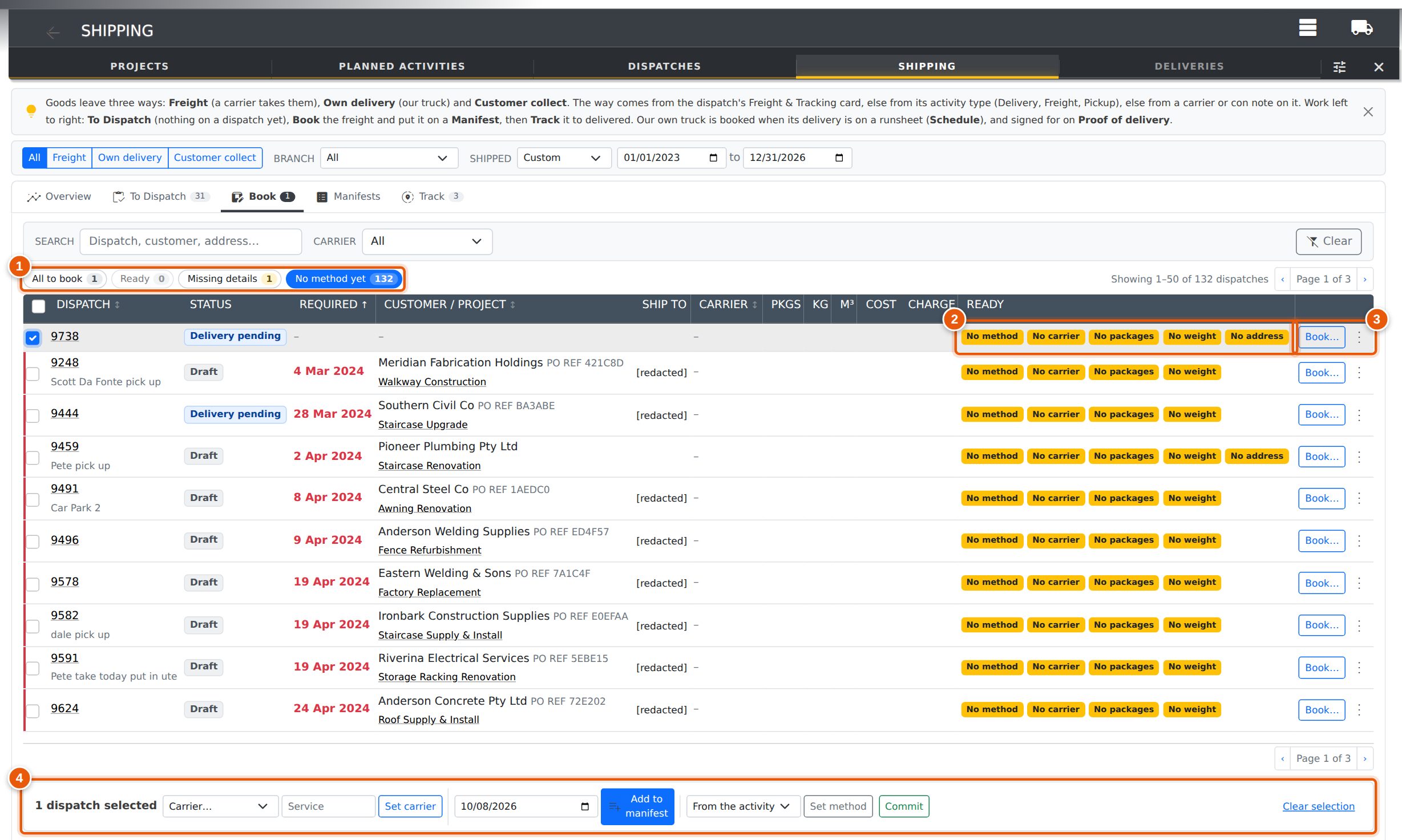
- The chips: All to book, Ready (has a carrier, packages, a weight and an address), Missing details, and No method yet (drafts with no delivery method, activity type or carrier).
- Ready — what each dispatch is still missing: No carrier, No packages, No weight, No address, No method. An estimated gross weight (items plus packaging) counts as a weight. Could consolidate means another unbooked dispatch is going to the same address with the same carrier on the same day; sending them as one consignment may be cheaper.
- Book… opens the freight panel. The ⋮ menu also sets the method, commits the dispatch or opens it.
-
The bulk bar, for the dispatches you have ticked:
- Set carrier — the carrier and service for all of them.
- Add to manifest — puts them on a manifest for the pickup date you choose. See Manifests.
- Set method — Freight, Own delivery, Customer collect, or back to following the activity.
- Commit — commits the drafts among them.
A dispatch leaves the Book tab once it has a con note or is on a manifest. It then shows as Booked on Track.
Entering Freight Without Opening the Dispatch
Press Book… on a row and a panel slides in with the same fields as the dispatch’s Freight & Tracking card. Saving it is exactly the same as saving the card. It is written to the dispatch’s History, and the tracking email goes when a con note is entered, if that is turned on.
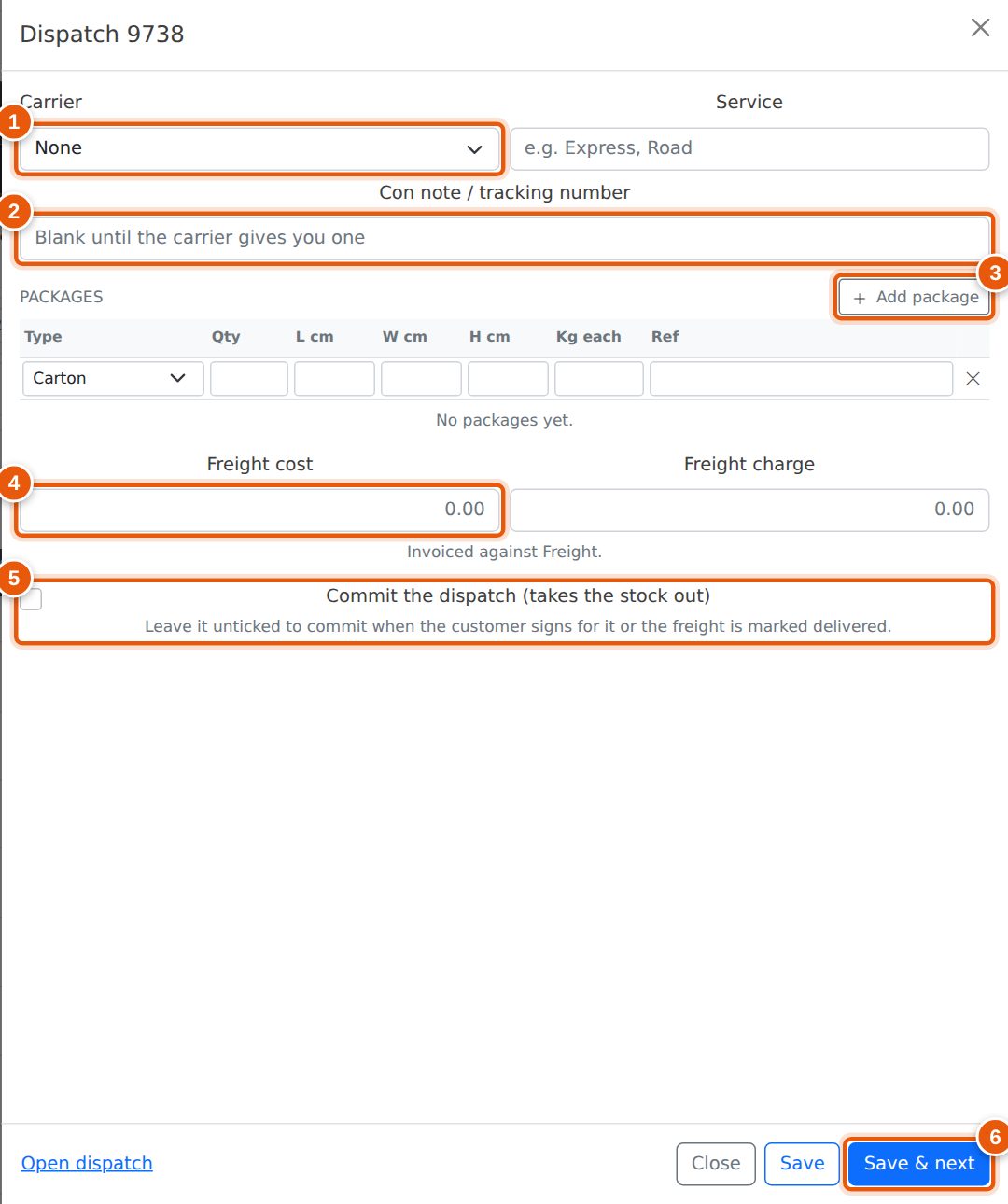
- Carrier, and the Service beside it.
- Con note — leave it blank until the carrier gives you one. Saving a con note books the dispatch.
- Add package — one row per kind of package, as on the card. Pick one of your Package Types to fill in its size and packaging weight. The gross weight under the packages is the weighed total when every package is weighed, otherwise the items plus packaging, shown as an estimate.
- Freight cost, and the Freight charge to the customer beside it.
- Commit the dispatch — tick it to commit the dispatch (take the stock out) as you save. Only shown on drafts. See When Dispatches Are Committed.
- Save & next — saves and opens the next dispatch in the list. Pressing Enter does the same, so you can key a whole day’s consignments without touching the mouse.
Manifests
A manifest is the list of consignments one carrier picks up from one branch on one day. The driver signs it when they collect.
To make one, tick dispatches on the Book tab, choose the pickup date and press Add to manifest. Evolution groups them by carrier and branch. Each group joins that carrier’s open manifest for the day, or a new one is started. A dispatch needs a carrier from your Carriers list to go on a manifest.
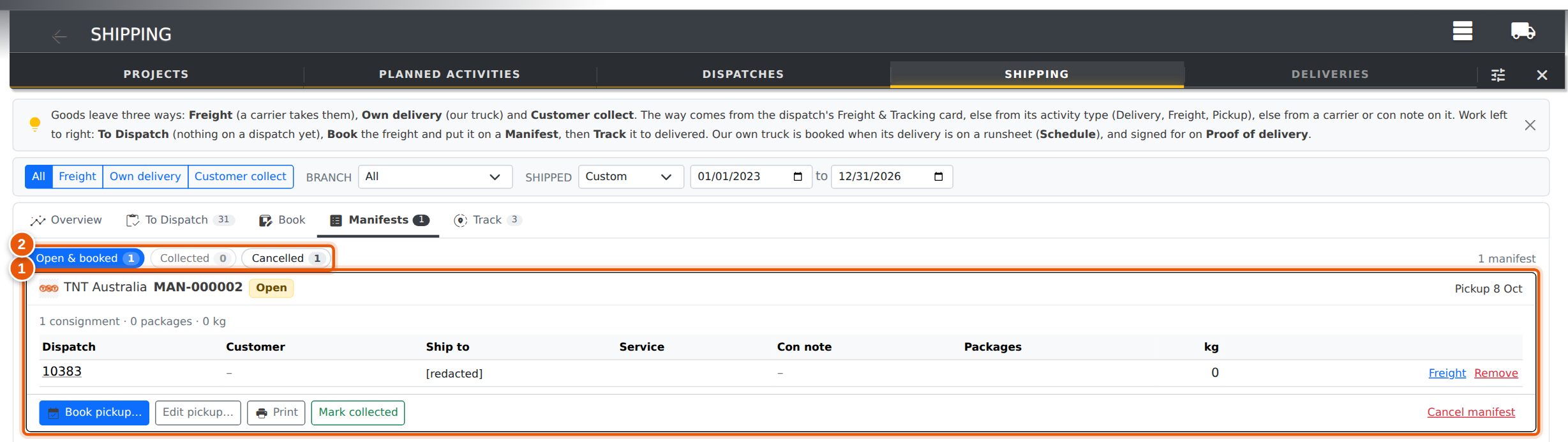
-
One card per manifest, showing its number, carrier, status, pickup
date and window, totals, and each consignment on it. On a card:
- Book pickup… — once you have booked the pickup with the carrier, record their booking reference and the pickup window. Every dispatch on it reads Booked.
- Edit pickup… — change the date, window or notes.
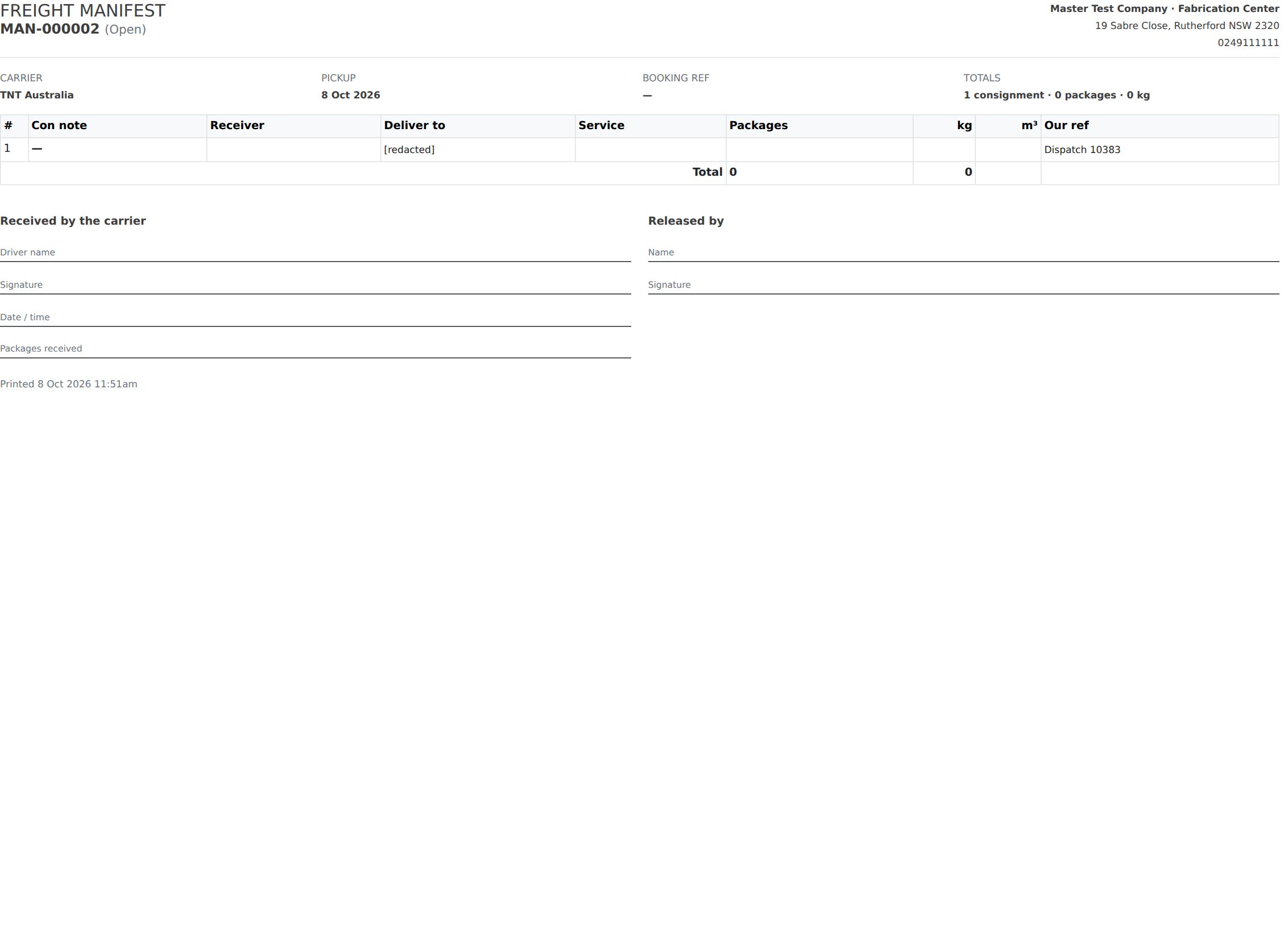
- Print — the manifest for the driver to sign.
- Mark collected — the carrier has taken the goods. Every dispatch on it goes In transit, and today becomes its ship date.
- Freight opens the freight panel for that consignment, and Remove takes it off the manifest and back to Book.
- Cancel manifest — every dispatch on it goes back to Book.
- The chips: Open & booked is the work in hand; Collected and Cancelled are the manifest history for the period.
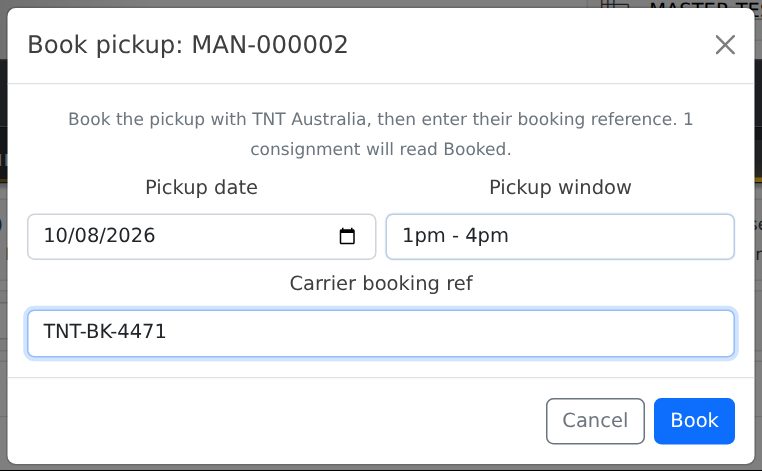
Book pickup also has a Commit the dispatches tick when any dispatch on the manifest is still a draft.
Track
Every consignment once it is booked, through to delivered. Each row shows the stage, the carrier and con note (click the con note to open the carrier’s tracking page), the ship date, the expected date and how many days it has been on the way.
The expected date is the ship date plus the carrier’s transit days, or the Freight Late After (days) setting when the carrier has none. A consignment not delivered by then is marked Late in red.
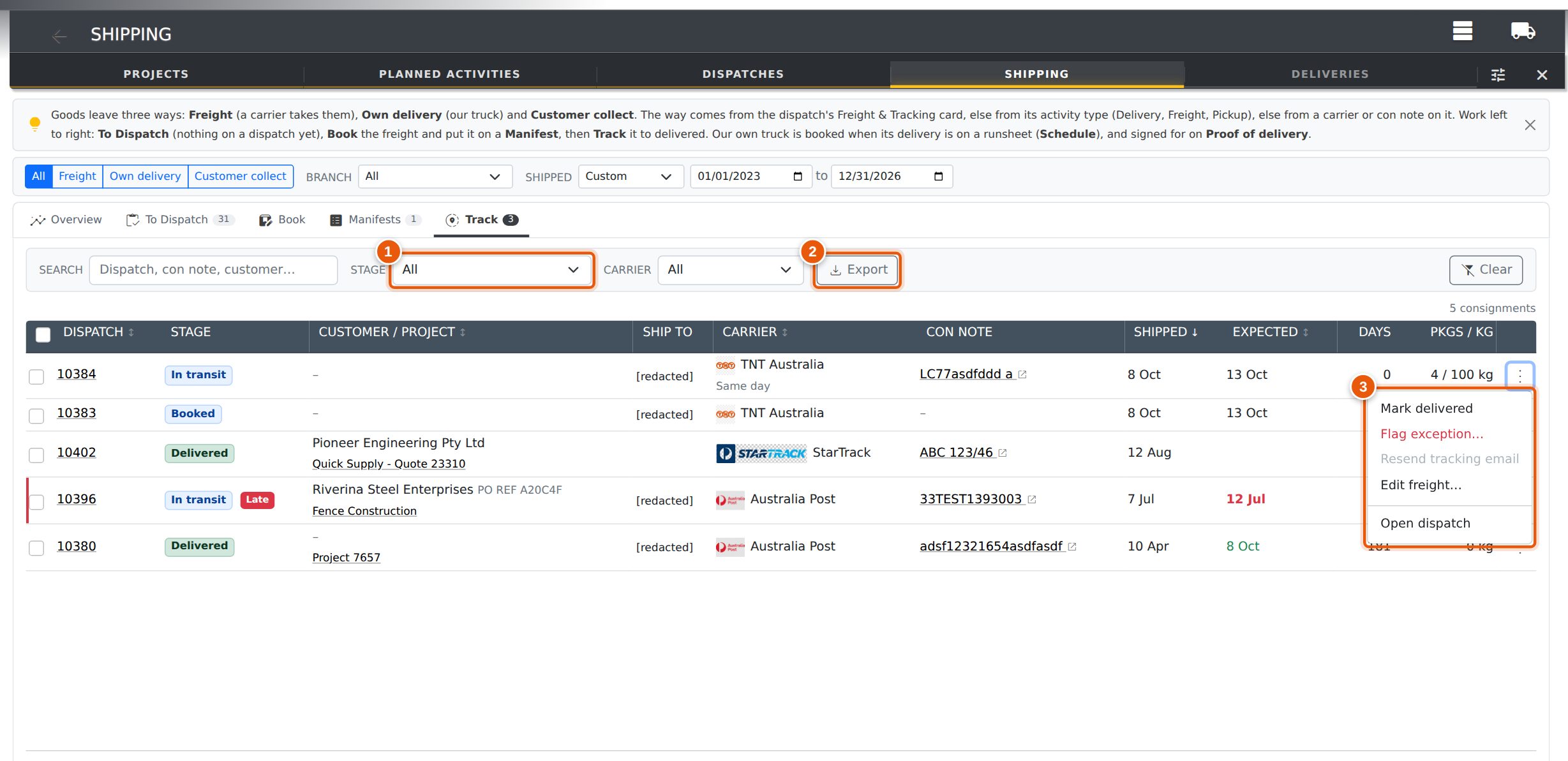
- Stage — All, Not delivered, Booked, In transit, Late, Delivered or Exception, and the checks behind the Overview exceptions: No con note, No freight cost, Charged below cost, Over quote, Double freight, and Delivered, not committed. You can also filter by Carrier.
- Export — the rows as they are filtered, as a CSV file.
-
The row menu:
- Mark in transit — for freight booked without a manifest. Today becomes the ship date if it has none.
- Mark delivered — also commits a draft dispatch, unless that is turned off (see When Dispatches Are Committed).
- Undo delivered or Clear exception — puts the stage back. A dispatch the customer has signed for stays delivered.
- Flag exception… — damaged, lost, refused; you say what went wrong.
- Resend tracking email, Commit…, Edit freight… and Open dispatch.
Tick rows to mark them in transit or delivered, or to undo, in one go.
Schedule (Own Delivery)
On the Own delivery lane, Schedule takes the place of Book. It lists your delivery activities by date with the runsheet, driver and vehicle each is on, and the dispatches that go with it. A delivery counts as booked once it is on a runsheet.
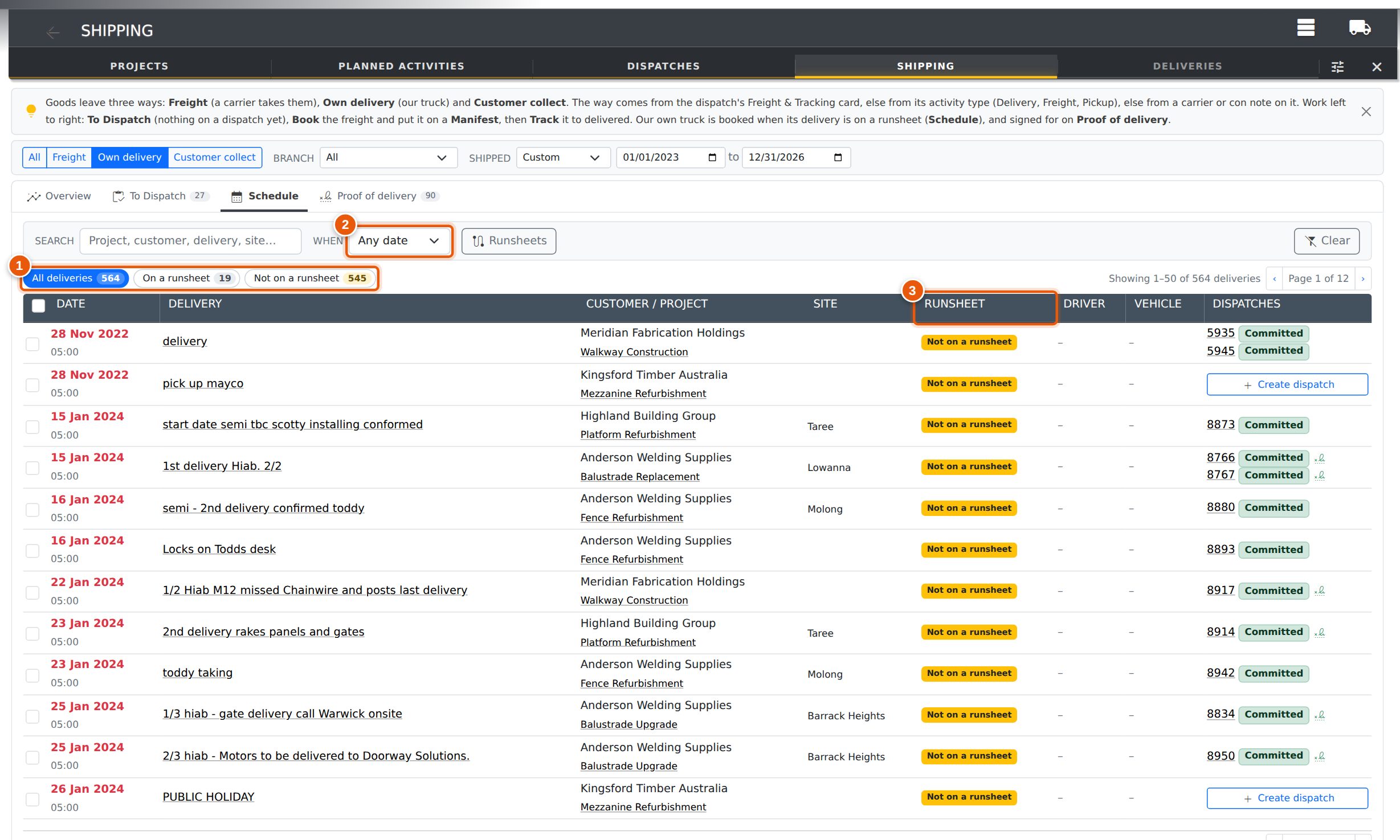
- The chips: All deliveries, On a runsheet, Not on a runsheet.
- When — the next 7 days, today, tomorrow, overdue (past the date with a dispatch still a draft) or any date.
- Runsheet — the runsheet the delivery is on. Plan runs on the Runsheets screen (the Runsheets button above the list goes there); see Runsheets & Deliveries.
A delivery with nothing to send yet has a Create dispatch button. Tick deliveries and press Commit their drafts to commit every draft dispatch on them.
Proof of Delivery
On the Own delivery and Customer collect lanes, this tab lists the dispatches that have gone, and whether the customer has signed for them.
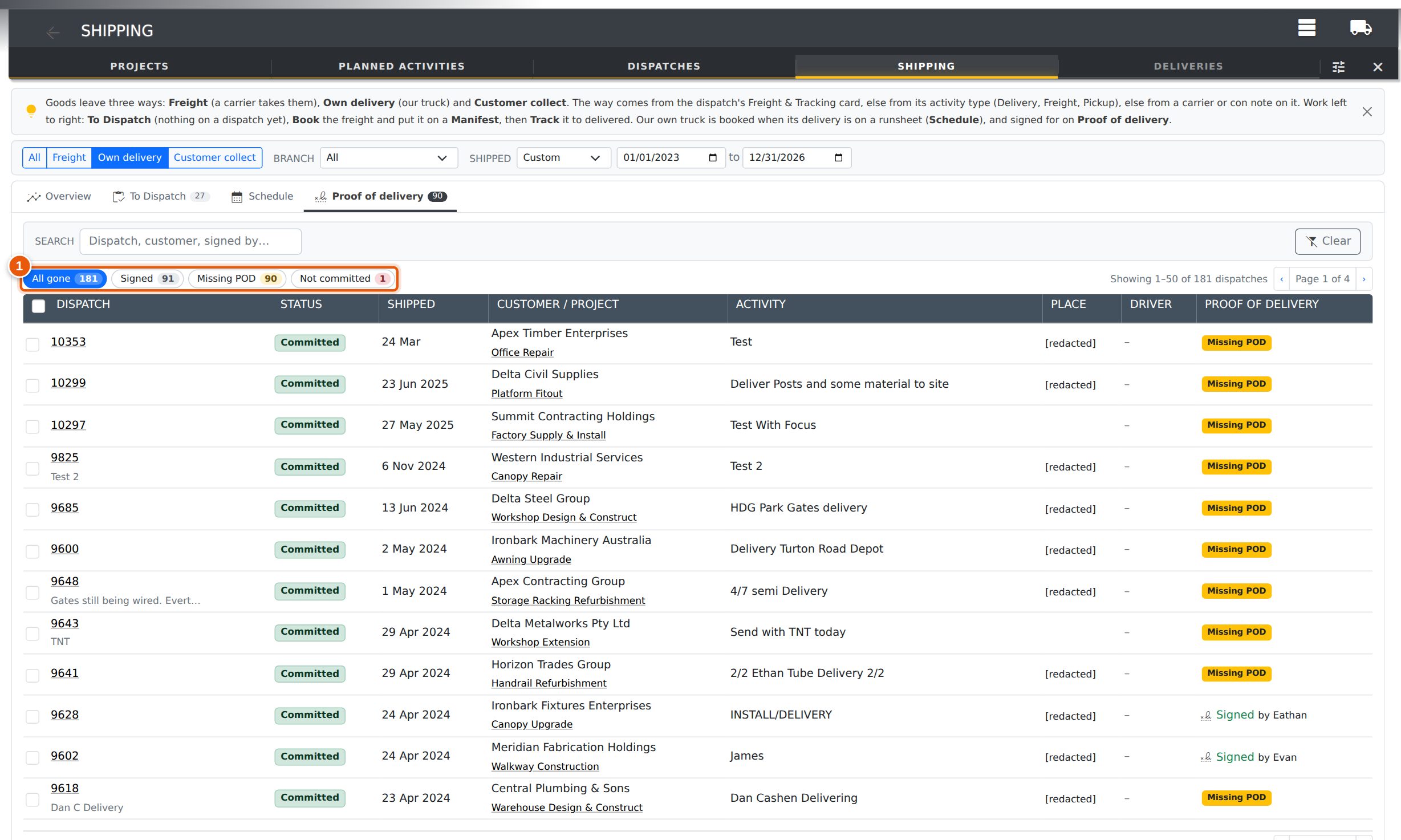
- The chips: All gone, Signed, Missing POD (no signature or signed-by name) and Not committed.
Tick dispatches and press Commit to commit the drafts among them.
When Dispatches Are Committed
Committing a dispatch takes the stock out, updates what the project has dispatched and flags the dispatch for invoicing. Many businesses commit only once the customer has signed for the goods, so freight is often still a draft while it travels. The hub handles both ways of working:
- Commit when the freight is delivered. Marking freight delivered on Track also commits a draft dispatch. This is on unless you turn it off. If the dispatch can’t be committed (for example the stock isn’t there), it is still marked delivered and you are told why it wasn’t committed. It then shows under the marked delivered while still a draft exception.
- Commit as you book. The freight panel and Book pickup have a Commit the dispatch tick. You decide each time; a setting chooses whether it starts ticked.
- Commit by hand from the bulk bar or a row’s menu, or on the dispatch as before.
Whichever way, it is the same commit as the dispatch’s own Commit button, and the dispatch’s History says where it was committed from.
Setting Up
System Activity Types
Activity types 1 Delivery, 2 Freight and 3 Pickup decide which lane an activity’s dispatches are in, so every company has them and they can’t be disabled or renamed. They show a padlock on the Activity Types screen (the settings cog on the Activities page). You can still change their colour.
Use these three types for activities that send goods out, and the hub will put their dispatches in the right lane without anyone choosing.
Carriers
Under Shipping → Carriers, give each carrier its Transit days so Track can show expected dates, and a logo and brand colour so it is easy to pick out. See Carriers.
Settings
Under Settings → Settings, on the PROJECTS tab:
| Setting | What it does | Default |
|---|---|---|
| Freight Late After (days) | How long a consignment can be on the way before it shows as late, for carriers with no transit days. | 5 |
| Commit Dispatch When Freight Is Delivered | Yes: marking freight delivered also commits a draft dispatch. No: commit by hand. | Yes |
| Tick “Commit Dispatch” When Booking Freight | Yes: the Commit the dispatch box starts ticked when booking freight. Whoever is booking can still untick it. | No |
Related Pages
- Freight & Tracking on a Dispatch — the card the hub’s freight panel mirrors, and the tracking email.
- Carriers — tracking links, transit days, logos and colours.
- Runsheets & Deliveries — planning your own delivery runs.
- Invoicing a Dispatch — how the freight charge reaches the invoice.
- Credit Limits & Stop Credit — why a project can’t be dispatched.