
The Runsheet system helps you plan delivery runs for a branch on a given day. Drag the deliveries due that day onto a runsheet, assign a driver and vehicle, and Evolution maps the full route — starting at your branch, visiting each delivery in order, and returning home — with the total distance and drive time.
Opening the Runsheet Screen
From the main menu, navigate to:
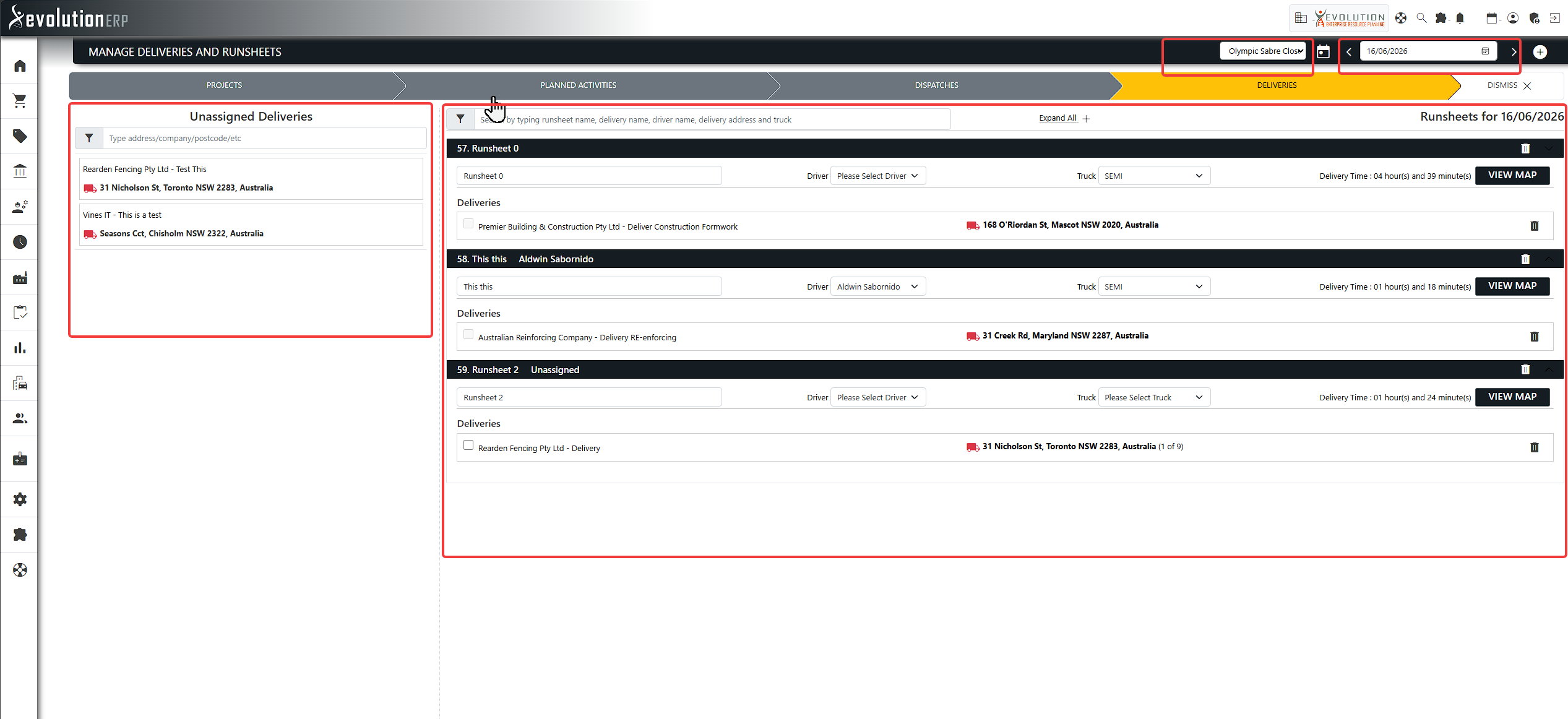
At the top of the screen you choose what you are planning:
- Branch — the location deliveries depart from and return to. This is the start and finish of every route.
- Date — the day you are planning. Use the date picker, or the previous / next arrows, to move between days.
The page is split into two areas: Unassigned Deliveries (everything due that day that hasn't been placed on a run yet) and the Runsheets themselves.
Creating a Runsheet
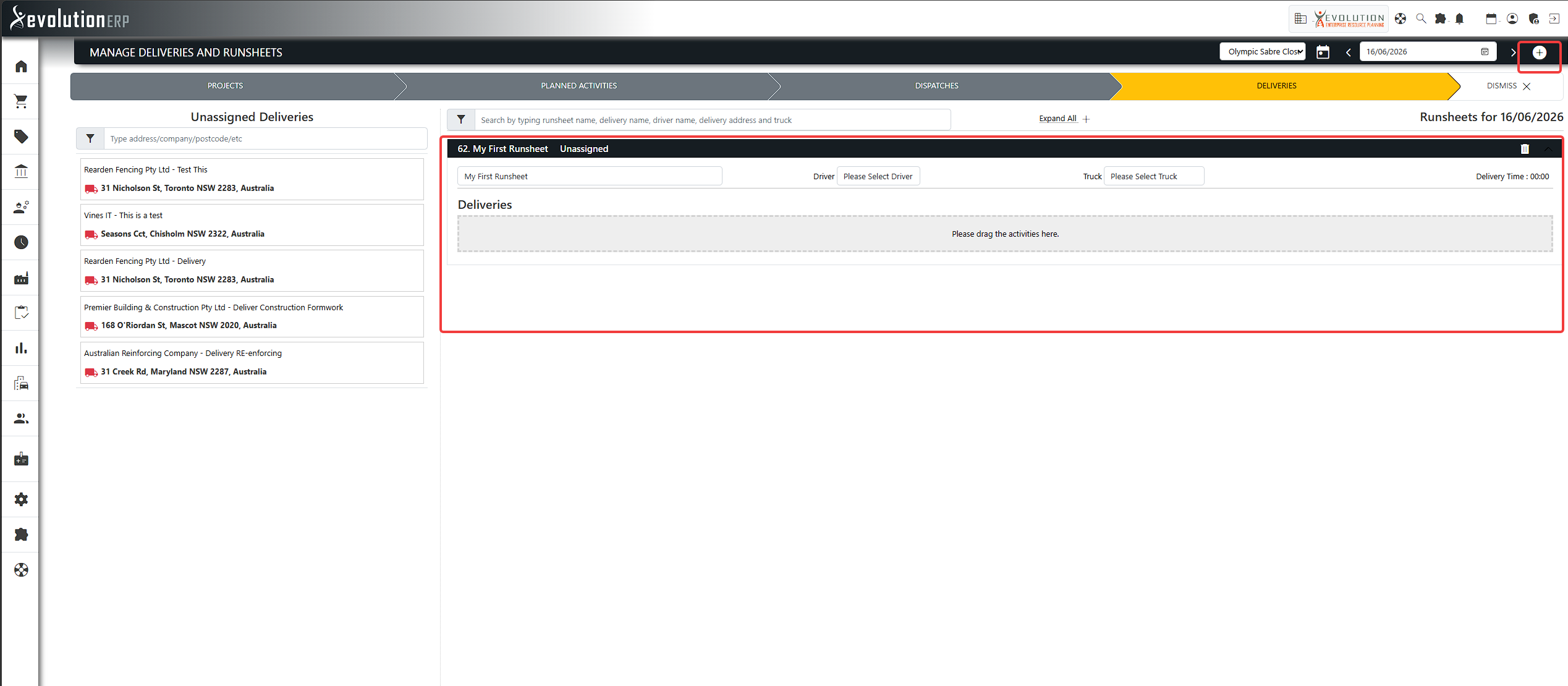
Create a new, empty runsheet to start building a run. Each runsheet represents one vehicle's journey for the day. You can create as many as you need — for example, one per driver or one per area.
Each runsheet can be given a name to make it easy to identify (e.g. North Side AM).
Adding Deliveries to a Runsheet
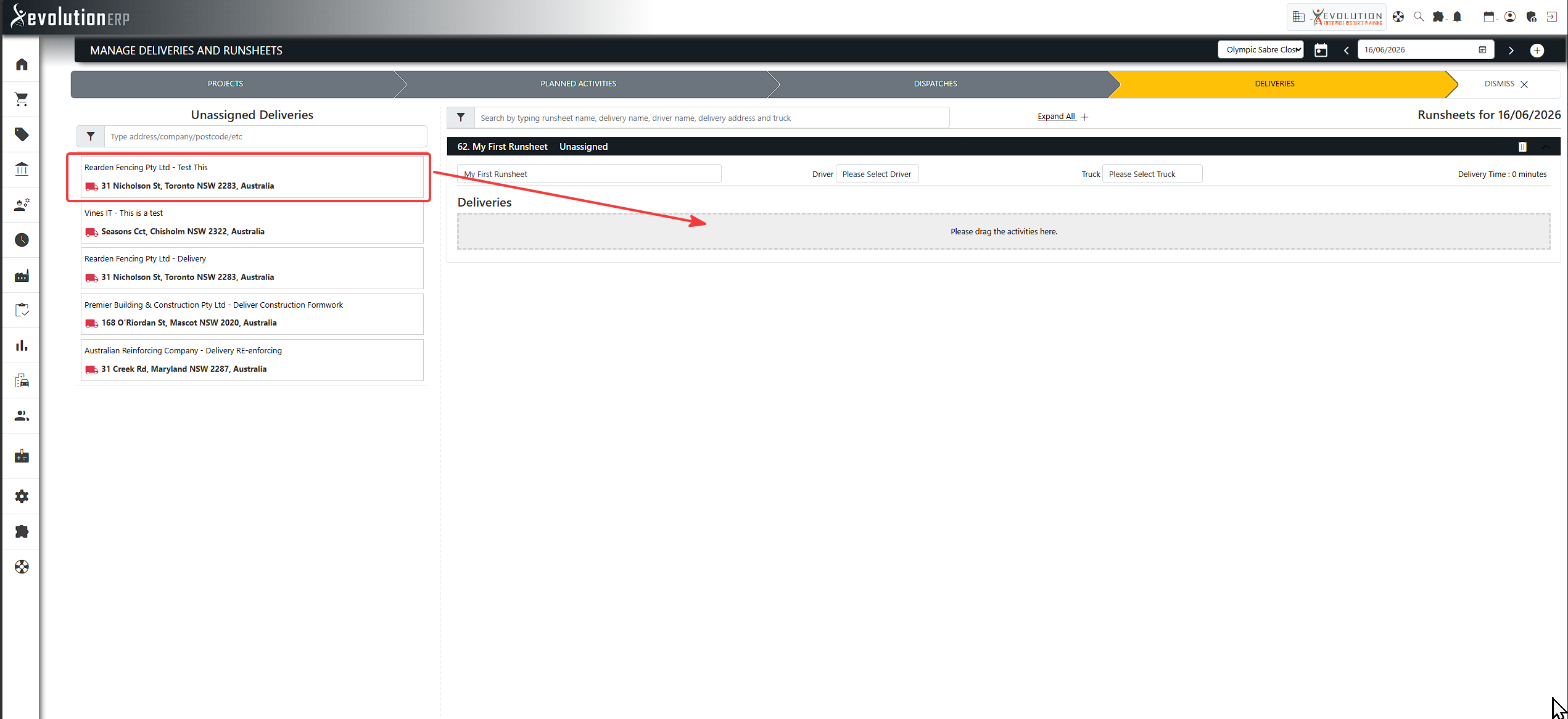
Drag a delivery from the Unassigned list and drop it onto a runsheet. The delivery moves onto the run and the map becomes available straight away — the View Map button appears as soon as the first delivery is added.
- Add as many deliveries to a runsheet as the run requires.
- Deliveries can be dragged from one runsheet to another if you change your plan.
- To take a delivery off a run, use the delete (trash) icon on the delivery row — it returns to the Unassigned list.
Assigning a Driver & Vehicle
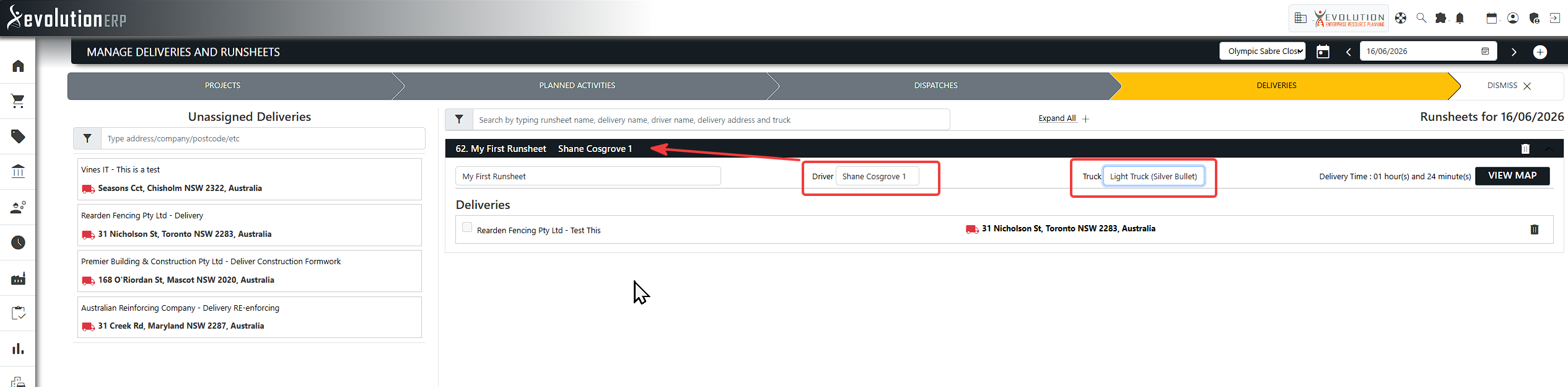
On each runsheet you can select:
- Driver — staff members who have the Driver role for the selected branch appear in the list.
- Truck / Vehicle — delivery vehicles available to that branch.
Your selections save automatically.
Viewing the Delivery Route
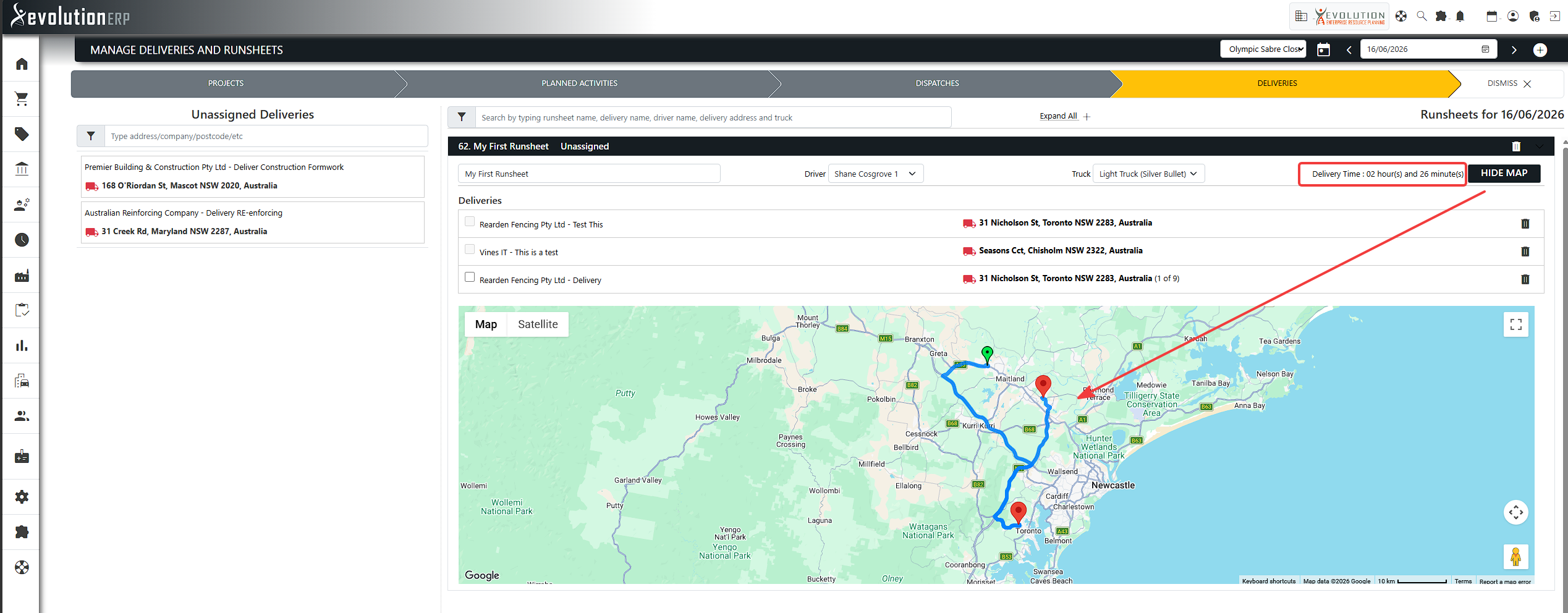
Click View Map on a runsheet to see the planned route. The map plots the run as a single journey:
- It starts at your branch, travels to each delivery in the listed order, and returns to the branch.
- The branch — the start and finish — is marked with a green pin at both ends of the route.
- Each delivery stop is shown with its own marker, and the total distance and drive time for the whole run are displayed.
Click Hide Map to collapse it again.
Reordering Deliveries
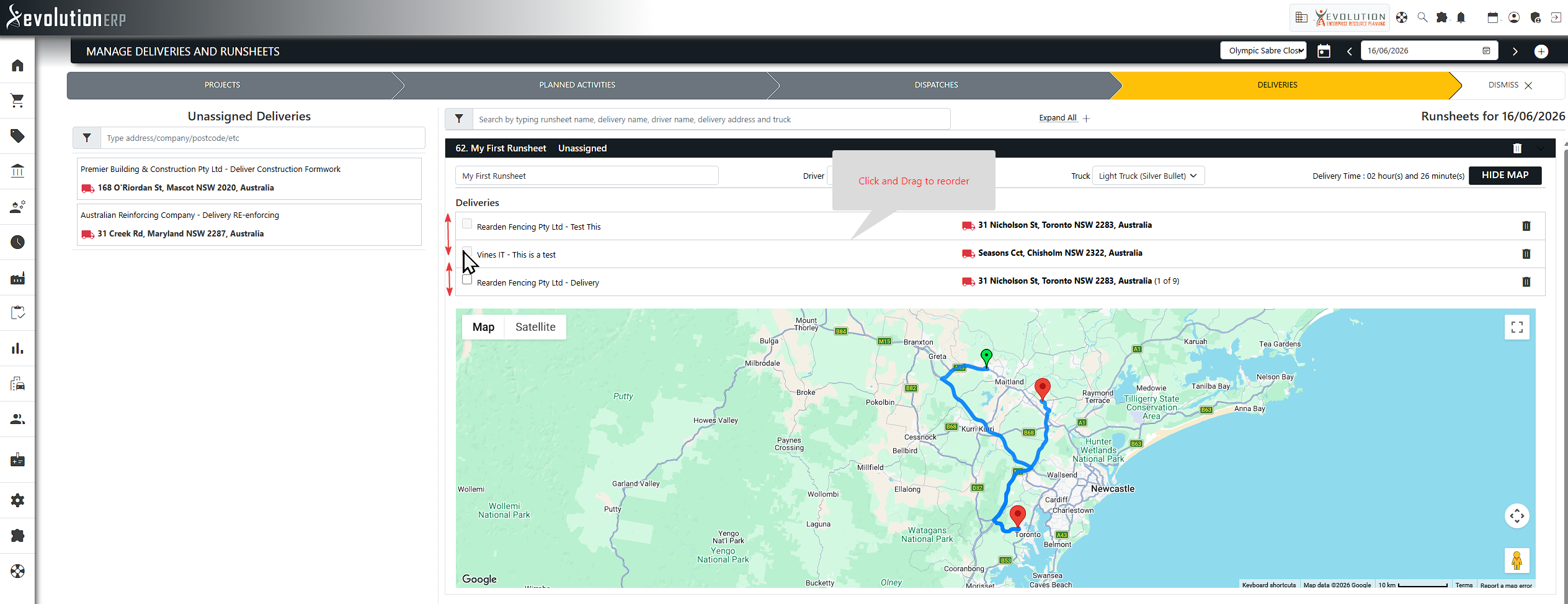
The order of deliveries on the runsheet is the order they appear on the route. To change the sequence, simply drag a delivery up or down within the runsheet. The map, distance, and drive time recalculate and redraw automatically to match the new order — no need to refresh the page.
Repeating a Runsheet Across Multiple Days
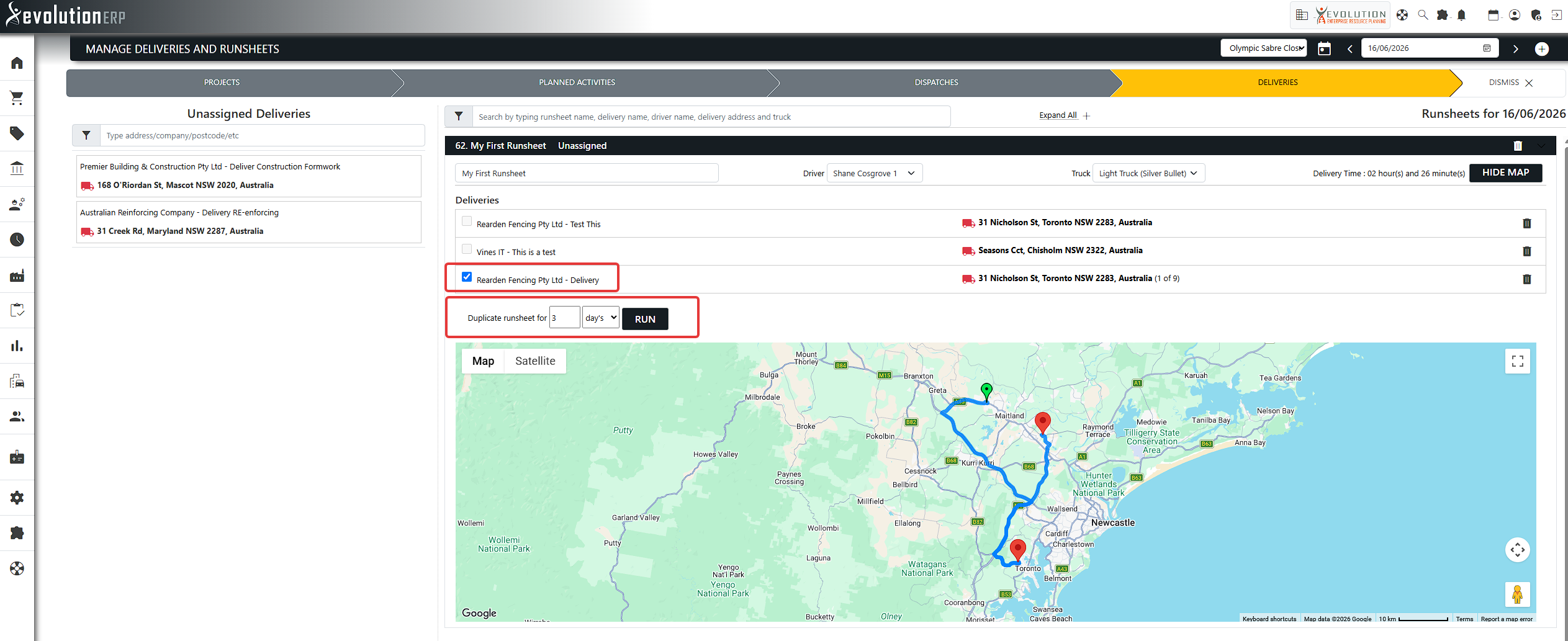
For recurring runs, a runsheet can be duplicated forward over a number of days or weeks. Tick the deliveries you want to repeat, enter how many times to repeat, and run the duplication. Duplicated runs can later be managed or removed together using Manage Duplicates.
Tips for Accurate Maps
Delivery and branch locations are plotted from the address details held against the project, site, or branch record. For the best results:
- Make sure the branch address is complete — it anchors the start and finish of every route.
- Keep project and site addresses up to date so each delivery maps to the right place.
- A delivery with an incomplete address will still be included in the route where possible, but may not display its own pin. Other deliveries are unaffected.
Support
For help configuring drivers, vehicles, or delivery addresses, please contact Evolution ERP Support.