
The Quote Register lists every quote. Open it from Sales › Quotes. The filters along the top narrow the list, and the buttons just above it show how many quotes are new, sent, converted to a project and deleted, along with the value of the quotes still open.
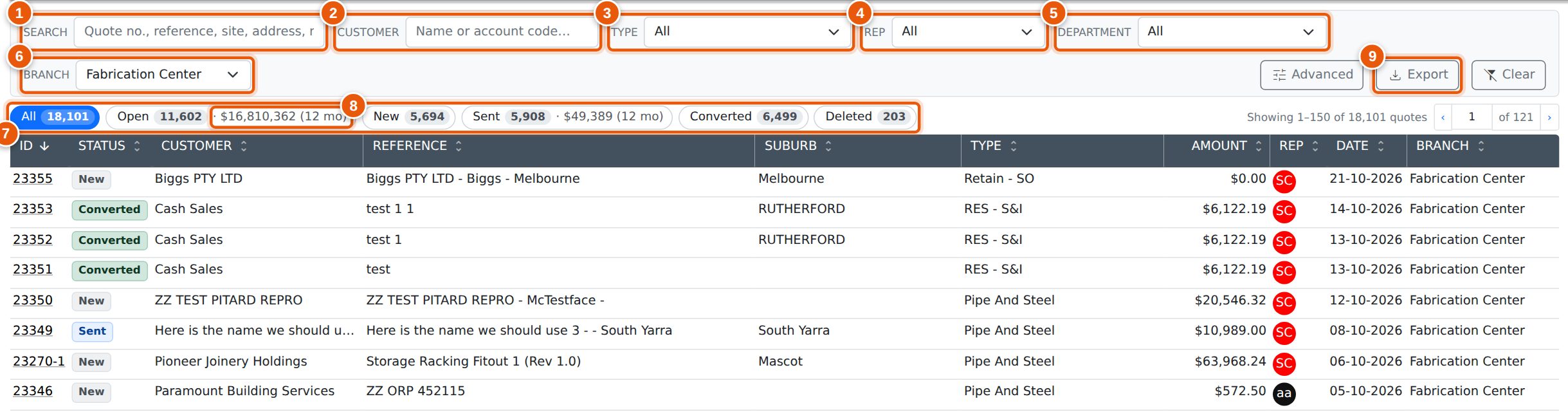
The Filters
The filters run left to right in the same order as the other registers in Evolution:
- Search: a quote number, the reference, the site, the contact person, their email, the invoice or delivery address, or the quote notes. When a quote is found by something that has no column of its own, such as the notes, a line under the reference shows what matched.
- Customer: part of the customer’s name or account code. Type several words to find customers whose name contains all of them.
- Type: the quote type, such as Supply Only or Supply & Install.
- Rep: the sales rep the quote is assigned to.
- Department: the department of the assigned rep.
- Branch: quotes for one branch. See Quotes from Other Branches below.
The list updates as you type or choose. Advanced opens more filters, and Clear resets every filter, puts Branch back to your own branch and returns to All.
Evolution remembers your filters. If you open a quote and come back, the list is just as you left it.
Quotes from Other Branches
The register opens on your own branch, the one you are signed in to. Choose another branch from Branch (1) to see its quotes, or All to see every branch together. With All chosen, the Branch column (2) shows which branch each quote belongs to.
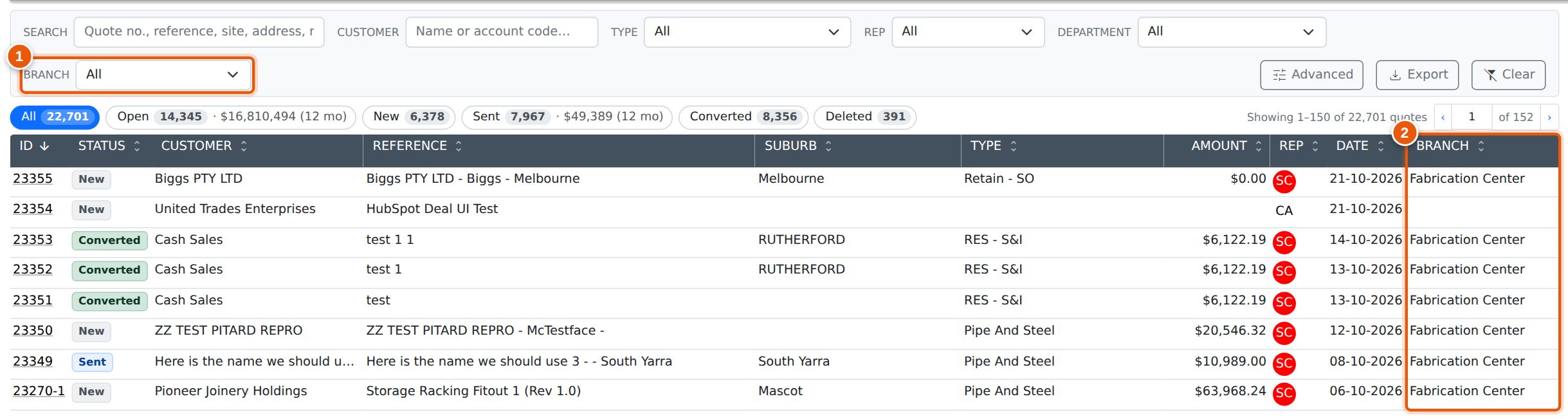
- No branch, at the bottom of the Branch list, finds quotes saved without a branch. It is only listed when there are some.
- If you are not assigned to a branch, the register opens on All.
- Quote History on a customer opens the register on All branches, so you see every quote for that customer.
- If your company has only one branch, the Branch filter and column are not shown.
Open, New, Sent and Converted
The buttons above the list split the quotes that match your filters by where they are in their life. Each button shows how many quotes it holds, so you can see the numbers before you click:
| Button | Shows |
|---|---|
| All | Every quote that matches the filters, apart from deleted quotes. |
| Open | Quotes not yet converted to a project: New and Sent together. The figure after the count is their total value. |
| New | Open quotes that have not been sent to the customer. |
| Sent | Open quotes that have been sent. The figure after the count is their total value. |
| Converted | Quotes that have become a project. The Converted label in the Status column links to the project. |
| Deleted | Quotes that have been deleted. See Deleted Quotes. |
Click a button (1) to show only those quotes. Click it again to return to All. The buttons work alongside the filters, so you can, for example, choose a rep and click Sent to see what that rep is waiting to hear back on.
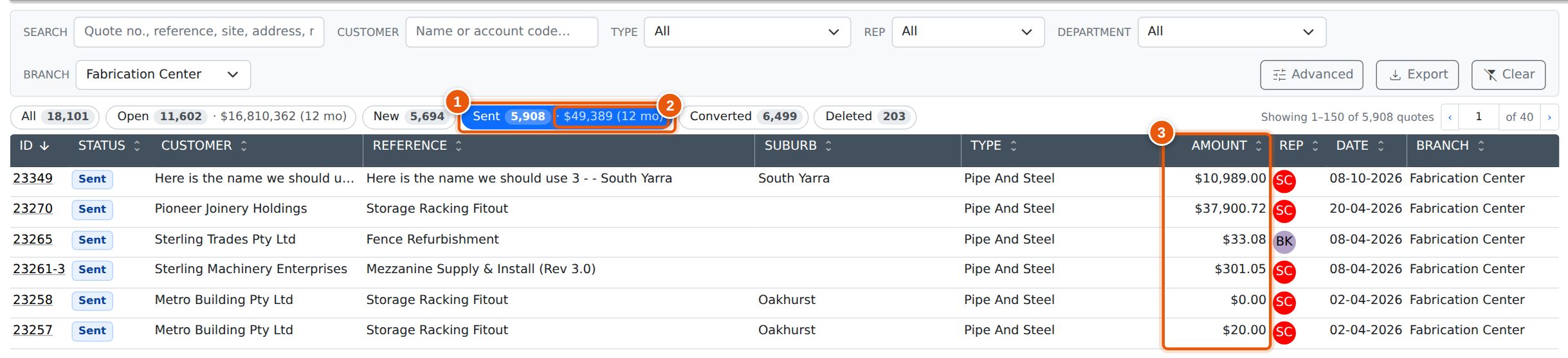
The value figures cover the last 12 months
The value after Open and Sent (2) adds up quotes dated in the last 12 months, and says so with (12 mo). Older quotes that were never followed up would otherwise swamp the figure. The counts are not limited: they cover every quote that matches. To add up a different period, set a quote date range in Advanced; the figures then cover that range instead and the (12 mo) goes away.
Advanced Filters
Click Advanced to open a second row of filters:
- Quote date: quotes dated between two dates. Leave either side empty for an open range.
- Amount: quotes whose total is between a minimum and a maximum.
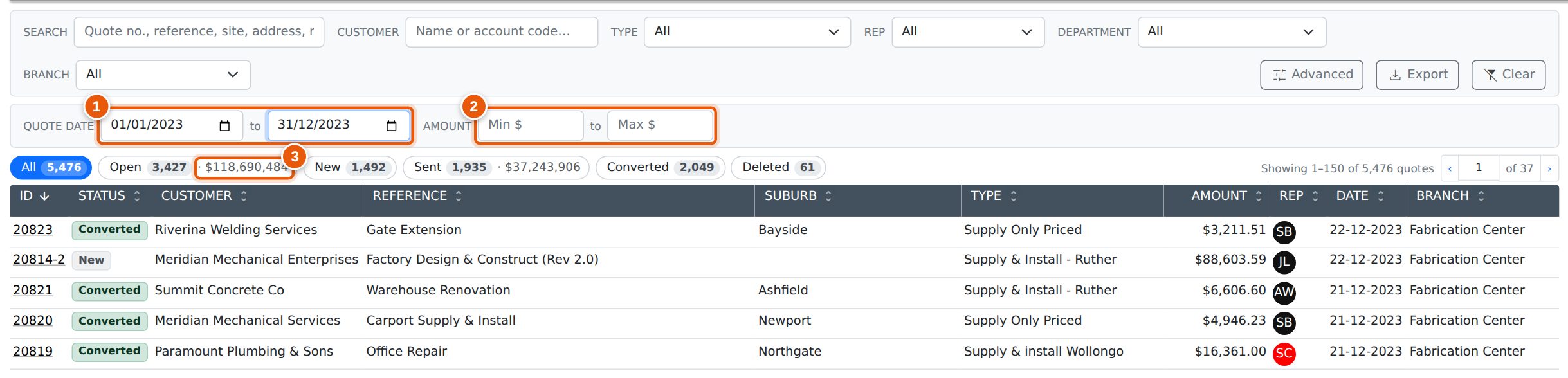
With a quote date range set, the value after Open (3) covers that range. If one of these filters is in use when you return to the register, the Advanced row opens automatically so you can see it.
Deleted Quotes
Click Deleted (1) to see quotes that have been deleted. They are marked Deleted in the Status column (2). Deleted quotes are not part of All and are not counted in the other buttons. The filters apply to them too, so you can find a deleted quote by number, customer, type or date.
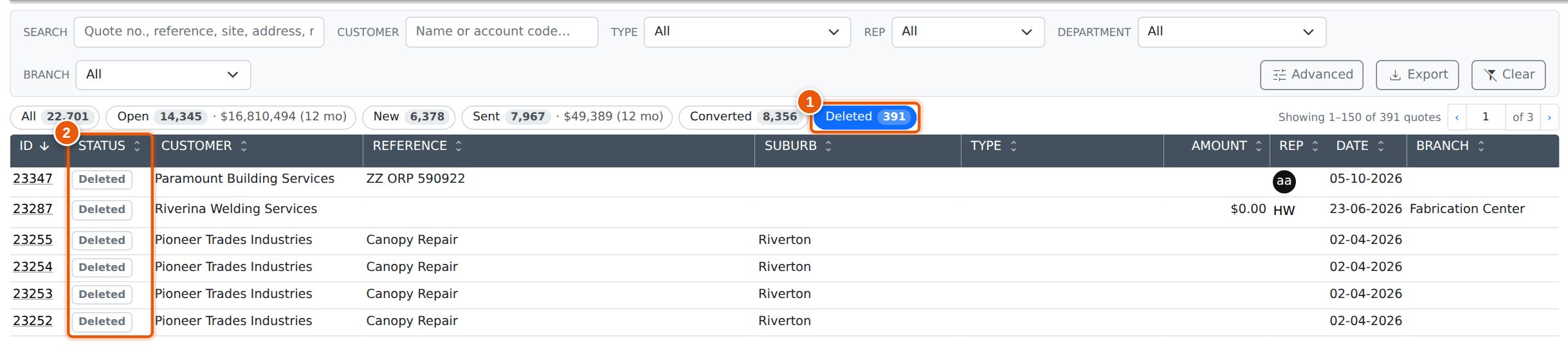
Deleted replaces the old Show deleted setting in Advanced.
Exporting the List
Administrators can click Export to download the quotes in the list as a CSV file that opens in Excel. The file follows the filters, the button you have chosen and the sort order, and includes every matching quote, not just the page on screen.
Each row has the quote ID and number (with the revision), status, customer, reference, site, suburb, type, branch, rep, quote date, amount and, for converted quotes, the project number. To export the lines of a single quote instead, see Exporting a Quote to CSV.
Common Questions
Why can’t I see a quote I know exists?
Check Branch first: the register opens on your own branch, so a quote from another branch only shows with that branch or All chosen. Then check that you are on All rather than one of the other buttons, or click Clear.
The customer shown is not the name on the quote PDF. Why?
The Customer column shows the customer the quote belongs to, by its current name. The quote itself keeps the name it was saved with, so a customer who has been renamed since shows the new name here. Searching the old name still finds the quote.
Why don’t the counts change when I click a button?
The counts describe everything that matches your filters, so they stay the same while you move between buttons. They change when you change a filter.
The Open value looks low. Is something missing?
The value covers quotes dated in the last 12 months only, as the (12 mo) shows. Set a quote date range in Advanced to total a different period.
Related Pages
- Exporting a Quote to CSV: the lines of one quote as a spreadsheet.
- Contact Person on Quotes: who the quote is addressed to.
- Quote Modes & Contract Pricing: how a quote is priced.
- AI Quote Notes: writing quote notes with AI.
- The Invoice Register: the same filters and buttons for invoices.