
The Contact Person box on a quote can hold either a contact linked from the customer’s account, or a name you have simply typed in. A small badge next to the label now tells you which one you have, and what will happen to it when you save.
Why It Matters
Only a linked contact carries through when the quote becomes a project: it is added to the project’s contacts automatically. A name that is only typed stays on the quote. It prints on the quote, but the project starts with no contact and nobody is added to the account.
A typed name becomes a linked contact when you save, as long as it has enough details to be useful. The badge shows you before you save whether that will happen.
The Contact Badge
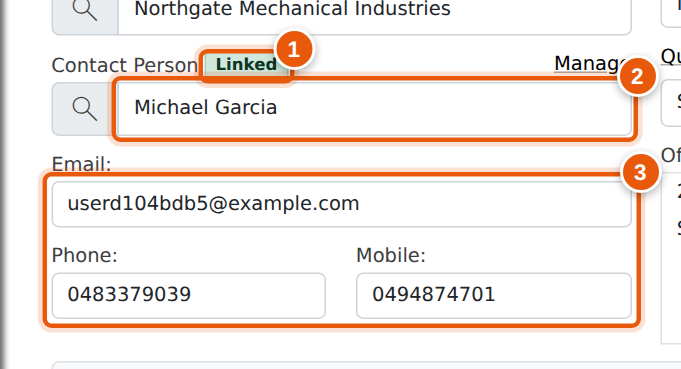
| Badge | Meaning |
|---|---|
| Linked | The contact is one of the customer’s saved contacts. It carries through to the project. |
| Added on save | You typed a new name and gave it an email plus a phone or mobile. When you save the quote, the person is added to the customer’s contacts and linked to this quote. |
| Typed only | A typed name without enough details to save it as a contact. A note under the box lists what’s missing. If you leave it like this, the name stays on the quote only. |
| No contact | The Contact Person box is empty. |
Picking an Existing Contact
Click in the Contact Person box to open the customer’s contacts, and type to filter the list. Picking a contact fills in its email, phone and mobile, replacing whatever was there.
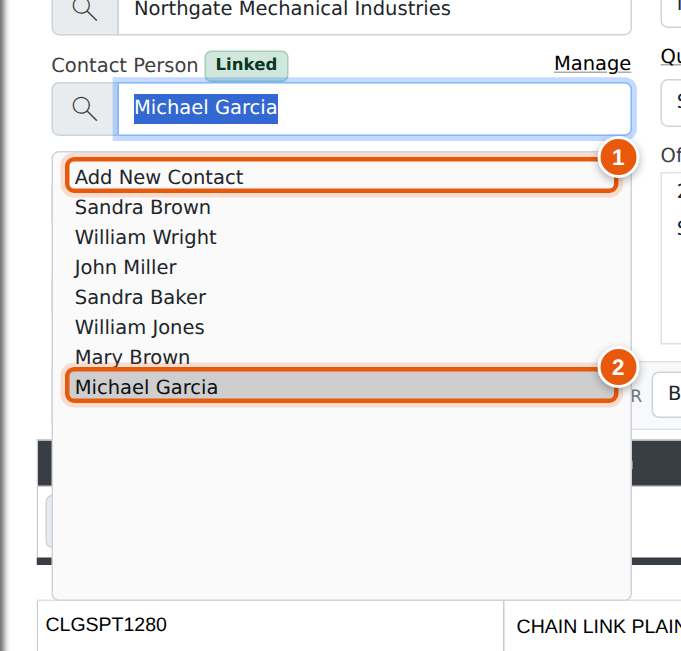
You don’t have to pick from the list. If you type a name that exactly matches one of the customer’s contacts (capitals and extra spaces don’t matter), the contact is linked for you when you move to the next field. A note under the box says so. Only empty email, phone and mobile boxes are filled in, so anything you have already typed is kept.
The contact you pick is the one that is saved. The name on the quote always matches the linked contact.
A quote created from an opportunity (Create Quote on the opportunity) is linked to the opportunity’s contact straight away, as long as that person is still an active contact of the same customer.
Adding a New Contact
- Choose Add New Contact at the top of the list (or just type a new name into an empty box).
- Type the person’s name.
- Enter their email, and a phone or mobile (either one is enough).
- Save the quote.
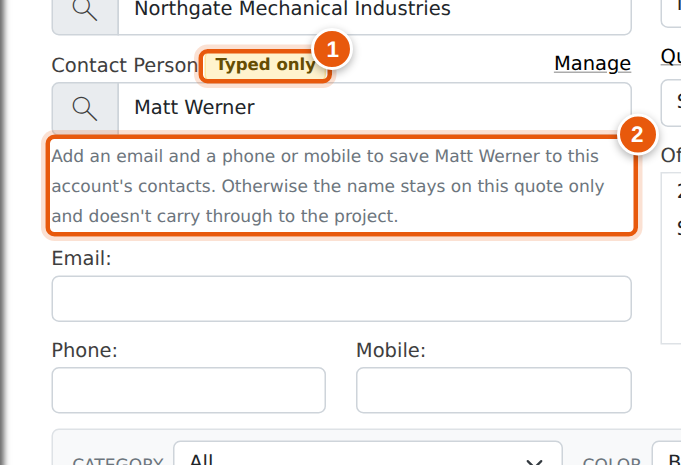
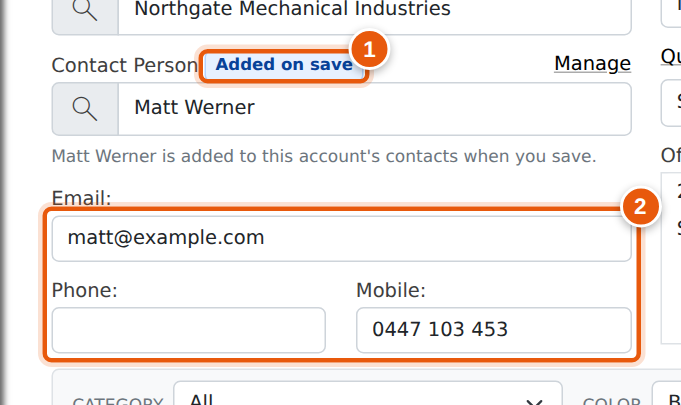
When you switch from a linked contact to Add New Contact, the email, phone and mobile that came from that contact are cleared. Anything you typed or changed yourself is kept, so you don’t have to clear the boxes by hand or retype details you have just entered.
Each new contact is recorded in the quote’s log and in the account’s contact history.
Typing Over a Linked Contact
If a contact is linked and you type a different name over it, the linked name is put back when you leave the box. This stops the quote showing one name while it is linked to another person. Press Esc to put the name back straight away.
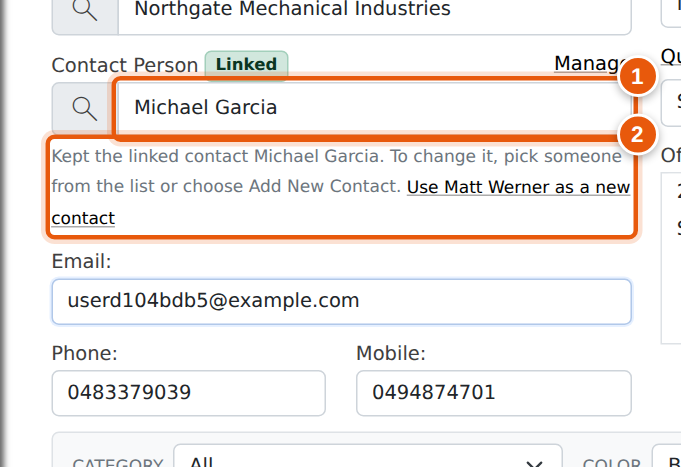
If you did mean to enter a new person, click Use … as a new contact in the note. This switches to Add New Contact with your typed name and clears the old contact’s details, ready for you to enter the new person’s email and phone.
Other Notes You May See
- Customer changed. If you change the quote’s customer, the contact belongs to the old account. The contact, email, phone and mobile are cleared when you save, so pick or add a contact for the new customer.
- Locked. On a locked quote the contact can’t be changed, so a typed name won’t be added to the account.
- Not linked to a contact. The quote holds a name that isn’t linked to any of the customer’s contacts, usually from an older quote. Pick the person from the list, or add their details so they are saved as a new contact.
Frequently Asked Questions
Why didn’t my project get a contact?
The quote had a typed-only contact when it became a project. Open the project’s contacts and add the person there. On future quotes, check the badge shows Linked or Added on save before you save.
Why is an email required?
Contacts are used for emailing quotes, invoices and statements. A contact with no email can’t receive any of them, so a name with only a phone number stays on the quote. To save someone without an email, add them from the customer’s account (Manage next to the label).
Can I change a contact’s details from the quote?
Changing the email, phone or mobile on the quote changes them for this quote only. The saved contact on the account is not updated. Use Manage to edit the contact itself.
Does this affect quotes that are already saved?
No. Existing quotes keep the contact they were saved with. When you open one, the badge shows whether its contact is linked or typed only.