
The Export Quote function downloads every line of a quote as a CSV file you can open in Excel or Google Sheets. Lines are grouped by tab, in the same order as the tab bar across the top of the quote, with the tab name and a line number on every row.
This is especially useful on large quotes with many tabs: the on-screen All tab lists lines in the order they were entered, whereas the export lets you review — and re-sort — the whole quote by tab, line, item code or any other column in your spreadsheet.
Where to Find It
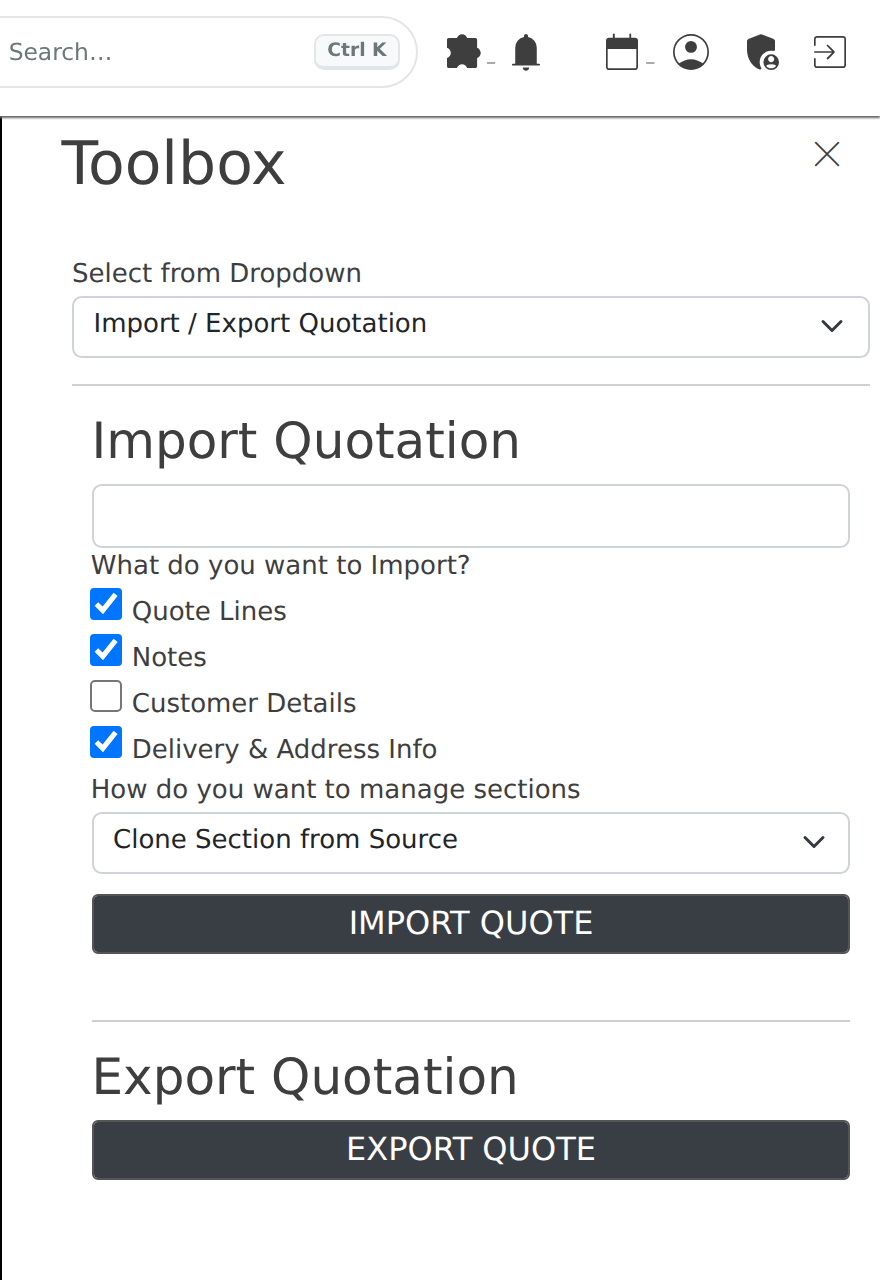
Open the quote (Sales → Quotes) and click the
Tools icon
(build) in the row of action
icons at the top of the quote. In the Toolbox panel, choose
Import / Export Quotation from the dropdown, then click
Export Quote under Export Quotation. Your browser downloads
a file named quote_<quote number>_export.csv.
What the File Contains
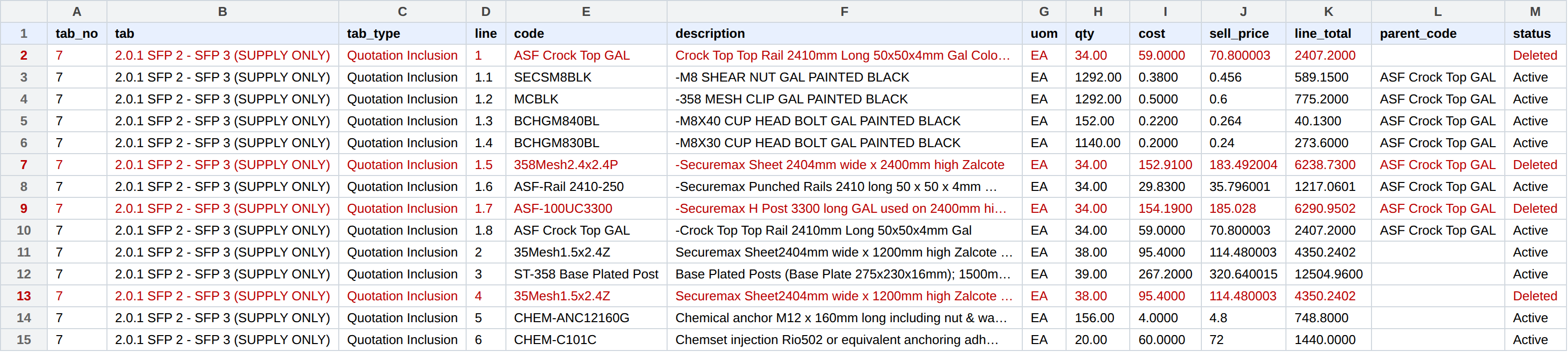
- One row per quote line, grouped by tab. Tabs appear in the same order as the tab bar on screen, and each tab's lines are numbered from 1.
-
Kit components sit under their kit, numbered
1.1,1.2, … beneath line1, with the kit's item code in theparent_codecolumn. -
Deleted lines are included and marked
Deletedin thestatuscolumn, so the export is a complete record of the quote. Filter the status column toActivein your spreadsheet to hide them. -
Lines whose tab has since been removed appear first with a blank
tab_no, under the tab name recorded when the line was created.
Column Reference
| Column | Meaning |
|---|---|
tab_no | The tab's position in the tab bar (1 = first tab). Sort on this column to restore on-screen order after re-sorting. |
tab | The tab (section) name. |
tab_type | The section type, e.g. Quotation Inclusion. |
line | Line number within the tab. Kit components are numbered 1.1, 1.2, … under their kit line. |
code | The item code. |
description | The line description as it appears on the quote. |
uom | Unit of measure. |
qty | Quantity quoted. |
cost | Unit cost. |
sell_price | Unit sell price (after any adjustment). |
line_total | Line total (sell). |
parent_code | For a kit component, the item code of the kit it belongs to. Blank on ordinary lines. |
status | Active or Deleted. |
Frequently Asked Questions
Why is the order different from the All tab on screen?
The on-screen All tab lists lines in the order they were entered.
The export instead follows the tab bar's order, so the file reads top-to-bottom the
way the quote's tabs do. If you re-sort the sheet, sorting on
tab_no then line restores that order.
Why does the file have more lines than the quote shows?
Deleted lines are retained on the quote and included in the export, marked
Deleted. Filter them out in your spreadsheet if you only want the live
lines.
Can I import the file back in?
No — the export is for review and reporting. To bring lines into a quote, use Import Quote on the Functions tab, which copies lines from another quote in the system.