
Shopify does not wait for Evolution to ask for orders — it pushes each new order to Evolution the moment it is placed. For that to work, your store has to know where to send them. The Order Delivery panel on the Shopify plugin's Store Settings screen is where you set that up and check it is still working.
Connecting your store
Open the Shopify plugin page and choose Store Settings. Under Order Delivery you will see the current state of the connection.
- Make sure your API key and secret are saved and the store name is correct — the panel cannot connect without them.
- Choose Connect store.
- Evolution registers your store's order events and the panel turns green.
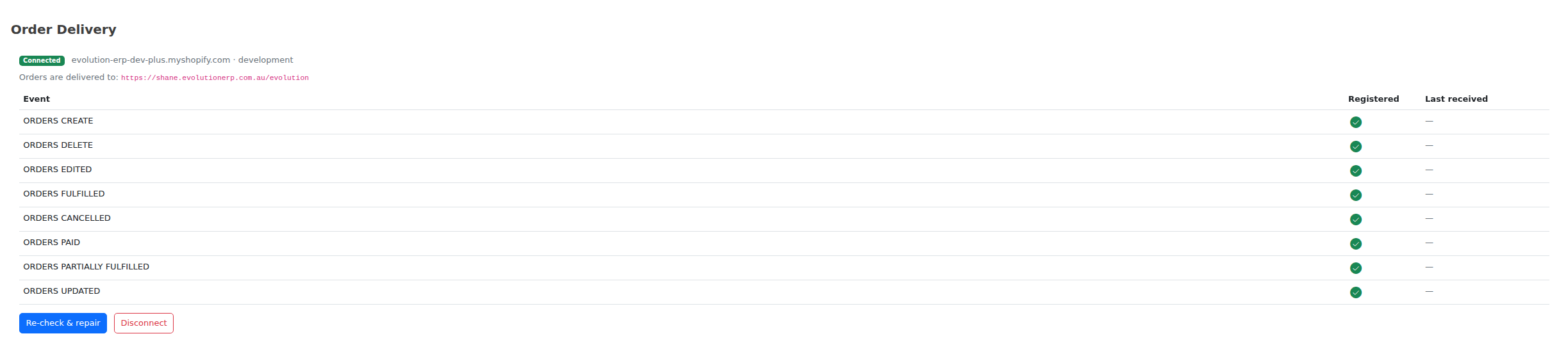
Only an administrator can connect or disconnect a store. Everyone else sees the panel read-only.
One store, one company
This is deliberate. Shopify sends every order to every address registered against the store, so if two companies were connected to the same store, each order would be created twice — once in each company's database, with its own project, invoice and customer record. There is no reliable way to unpick that afterwards.
If a store genuinely needs to move to a different company, disconnect it from the first company and then connect it in the second.
Reading the panel
| Badge | What it means | What to do |
|---|---|---|
| Connected | Your store is registered to this company and all order events are set up. | Nothing. |
| Needs attention | The store is yours, but one or more order events are missing — usually because something was changed or removed in Shopify. | Choose Re-check & repair. |
| Not connected | Orders are not being delivered to Evolution. | Choose Connect store. |
| Connected to another company | Another Evolution company already owns this store. | Disconnect it there first, or contact support. |
The Last received column shows when each type of order event last arrived. If Orders create has not been received for a while but you know orders have been placed, that is the first sign something is wrong — choose Re-check & repair.
Re-check & repair
Re-check & repair compares what Shopify actually has registered against what it should have, then fixes the difference: it adds anything missing and removes anything pointing at the wrong place. It is safe to run at any time and as often as you like — running it when nothing is wrong changes nothing.
Run it if:
- the panel shows Needs attention;
- orders have stopped arriving;
- you have just changed your Shopify API credentials;
- your store was recently reinstalled or migrated.
Disconnecting
Disconnect stops Shopify sending new orders to Evolution and frees the store so it can be connected to a different company.
Data & Mappings — starting the store over
Every time Evolution matches something to your Shopify store it writes a small link record: this inventory item is that Shopify product, this account is that Shopify customer, this project came from that Shopify order. Those links are what stop the next import creating a second copy of everything.
Occasionally you want them gone — a test store you are finished with, a catalogue that was imported against the wrong company, or a store you are rebuilding from scratch. The Data & Mappings panel on Store Settings deletes those link records and nothing else.
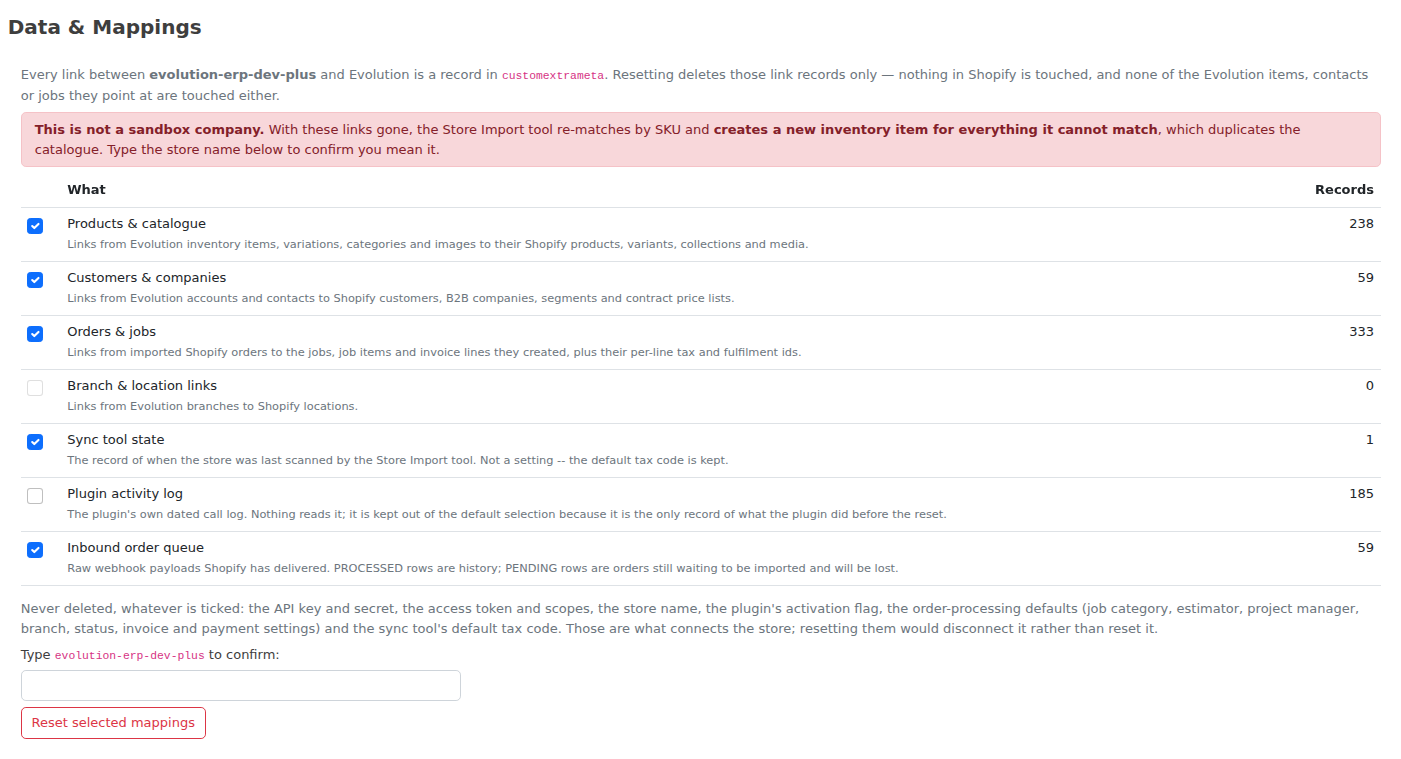
What you can reset
| Group | What it links |
|---|---|
| Products & catalogue | Inventory items, variations, categories and images to their Shopify products, variants, collections and media. |
| Customers & companies | Accounts and contacts to Shopify customers, B2B companies, segments and contract price lists. |
| Orders & projects | Imported Shopify orders to the projects, project items and invoice lines they created. |
| Branch & location links | Evolution branches to Shopify locations. |
| Sync tool state | The record of when the store was last scanned by the Store Import tool. |
| Plugin activity log | The plugin's own dated call log. Left unticked by default — it is the only record of what the plugin did before the reset. |
| Inbound order queue | Order payloads Shopify has delivered. Processed ones are history; any still waiting to be imported are lost. |
Each row shows how many link records it currently holds, so you can see the size of the project before you commit to it.
What is never deleted
Nothing is deleted in Shopify, and no Evolution inventory item, contact, project, invoice or payment is deleted either. Only the links between the two are removed.
Before you do it
With the product links gone, the next Store Import re-matches by SKU and creates a new inventory item for anything it cannot match. On a live catalogue that duplicates your products.
Because of that, Evolution asks you to type the store name to confirm on any company that is not a support sandbox. Reset is available to administrators only, and who ran it, when, and how many records went is written to the activity log.
If you are resetting so you can re-import cleanly, read Store Import first — in particular the SKU matching rules, so you know what will and will not re-link itself.
“Delivers to an address outside this server”
Occasionally the panel warns that your store also delivers orders somewhere Evolution does not recognise. That normally means a test or staging site was connected to the same store at some point and was never disconnected — it will keep receiving copies of your live orders.
Evolution will not remove it automatically, because it cannot tell whether that other site is still in use. Contact support with the address shown and it will be cleared up.
If orders stop arriving
- Open Store Settings → Order Delivery and check the badge.
- Check Last received against Orders create.
- Choose Re-check & repair.
- Place a test order in Shopify and confirm it appears — see Orders for what happens next, including the Unprocessed Orders list for orders that arrive but can't be matched to a customer.
An order that arrives but cannot be processed is a different problem to an order that never arrives. If the order shows in Unprocessed Orders, delivery is working fine.